Best Selling Products

Upgrade Duolingo Super
29 USD

Copyright Adobe Lightroom Account
59 USD

Upgrade genuine Capture One account
120 USD

Adobe Premiere Pro Account
99 USD

Freepik Premium Account
59 USD

Genuine Adobe Illustrator account
99 USD

Upgrade Genuine Office 365
49 USD

Autodesk All App Account Copyright
120 USD

Plugin Retouch4me
69 USD

Capcut Pro 1 Year
39 USD

MidJourney Account
29 USD

Adobe Photoshop Copyright - Full App
120 USD

ChatGPT Plus Account (GPT-4)
16 USD

Genuine Cheap Canva Pro
39 USD

Windows 10 & 11 Pro Key
36 USD
How to create PowerPoint presentations using Claude AI quickly, beautifully, and professionally.
Nội dung
- 1. What is Claude AI? Is it possible to create PowerPoint presentations using Claude AI?
- 2. Advantages of creating PowerPoints using Claude AI
- 3. Limitations of using Claude AI to create PowerPoints
- 4. Detailed steps to create a PowerPoint using Claude AI
- 4.1. Step 1: Create a blank presentation from a template
- 4.2. Step 2: Open Claude and upload the PowerPoint template.
- 4.3. Step 3: Let Claude know what kind of presentation you want to create.
- 4.4. Step 4: Ask Claude to create the complete PowerPoint file.
- 5. Tips for writing prompts to help Claude create beautiful and accurate PowerPoint presentations.
- 6. Conclusion
If you had to manually create the content for each slide, divide the layout, adjust the text, and then further refine the design, the preparation time could be significantly longer than the presentation time. With the help of AI, this process can now be significantly shortened. Claude AI is capable of reading documents, analyzing requirements, building outlines, and assisting in creating PowerPoint files based on pre-existing templates. Instead of starting with a blank slide, users can provide ideas or documents to Claude and let the tool help transform them into a clearly structured presentation. In this article, let''s explore with Sadesign how to create PowerPoints using Claude AI, from template preparation to the completion of the presentation file.

1. What is Claude AI? Is it possible to create PowerPoint presentations using Claude AI?
Claude AI is an artificial intelligence assistant developed by Anthropic, designed to help users handle various tasks related to text, documents, information analysis, and programming. Claude's strength lies in its ability to receive requests in natural language, understand context, and process relatively long content. Therefore, instead of using multiple tools for each step, users can assign Claude a series of related tasks within a single conversation. When working with PowerPoint, Claude can assist from ideation and content creation for each slide to template processing and presentation file creation in environments that support file creation features. In particular, if the user provides a PowerPoint template with pre-designed layouts, Claude can use that structure to build more suitable content.
-
Assistance in building a presentation outline from a specific topic.
-
Divide the content into slides in a logical sequence.
-
Summarize lengthy reports and documents into easily presented key points.
-
Working with user-provided PowerPoint templates.
-
Supports creating or editing content on demand using a prompt.
-
It can be used for academic presentations, work presentations, marketing presentations, or product introductions.
-
This helps significantly reduce the time spent on repetitive tasks.

2. Advantages of creating PowerPoints using Claude AI
The most appealing aspect of using Claude to assist with PowerPoint is that users no longer have to start from scratch. Instead of sitting in front of a blank file and wondering what to write on the first slide or what information to present on the next, you can describe the presentation's goals and let the AI help build the initial content framework. Afterward, users can still review, edit, and provide new requirements to finalize the result. This approach is especially useful for presentations that need to be completed within a short timeframe. When combined with a well-prepared template and a detailed prompt, Claude can help transform disjointed ideas into a more coherent slide structure.
-
Save time: No need to write the content for each slide from scratch.
-
Easy to structure: Content can be divided into an introduction, main body, and conclusion.
-
Template support: Users can provide PowerPoint templates for the AI to refer to.
-
Maintain design style: Templates help ensure consistency in font, color, and layout for your presentation.
-
Easy to edit: Simply continue posting requests in the chat to change the content.
-
Fast document processing: Long reports or documents can be condensed into key points.
-
Suitable for a variety of needs: Can be used for studying, reporting, pitching, training, or product presentations.
-
Reduce manual operations: Users have more time to focus on content and presentation.
3. Limitations of using Claude AI to create PowerPoints
While Claude AI can be very helpful in slide creation, it shouldn't be considered a complete replacement for designers and presenters. AI can generate a relatively complete PowerPoint presentation, but the final quality still depends on the input requirements, template, and the level of user review. An important presentation still needs to be reviewed before official use. Furthermore, AI-generated content can sometimes be too long, not perfectly suited to the presenter's style, or fail to convey the intended message effectively. Details such as images, charts, icons, transition effects, and information emphasis may also require manual adjustments to make the presentation more visually appealing.
-
Content may need editing: AI sometimes creates sentences that are too long or don't quite match the desired tone.
-
The more general the prompt, the more likely the results are to be inaccurate: Incomplete requests can lead to slides that are not aligned with the intended purpose.
-
The visual design still needs testing: Images, charts, and icons may need additions or revisions.
-
Some slides may contain a lot of text: Users should shorten them to make the presentation easier to follow.
-
Information needs to be verified: AI-generated content should not be used without prior review.
-
File creation capabilities depend on the usage environment: Some features may vary depending on the account and version of Claude.
4. Detailed steps to create a PowerPoint using Claude AI
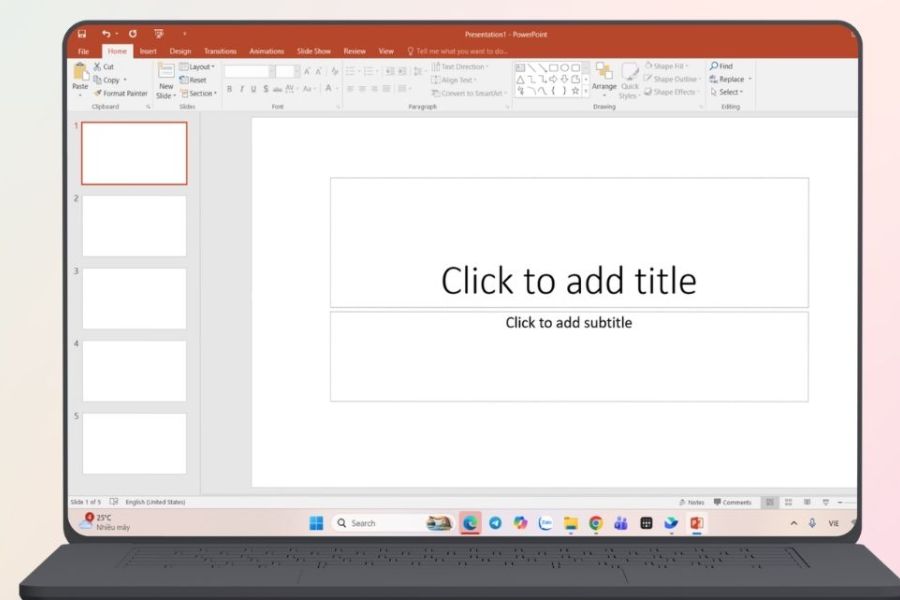
4.1. Step 1: Create a blank presentation from a template
First, prepare a PowerPoint template. You don't necessarily need to design a complete presentation. Instead, create basic layouts so that Claude can recognize how to arrange the content. This can be seen as a framework to help the AI understand where each type of information should be placed on the slide. You should prepare several different layouts instead of using only one. A presentation with various types of content will need different presentation styles to avoid monotony.
-
Title slide.
-
The title slide includes a section of content.
-
A title slide and two content areas.
-
This slide presents a list.
-
Slides for data or charts.
-
The slides contain illustrations.
-
Concluding slide.
-
Blank slides for flexible use.
Once completed, save the template file in PowerPoint format. If you want your presentation to have a unique look, you can pre-set the font, main color, logo, or other design elements that you want to keep.
4.2. Step 2: Open Claude and upload the PowerPoint template.
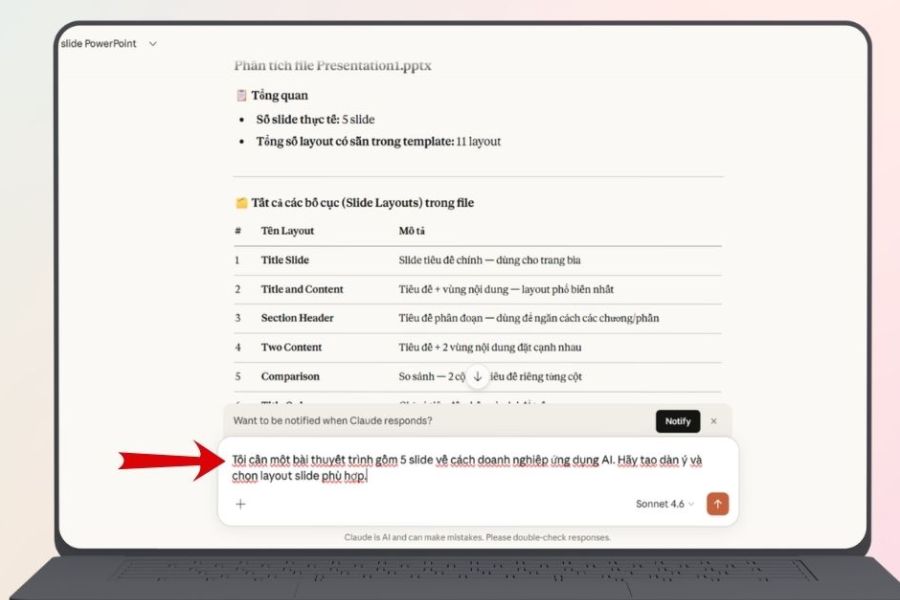
Once you have the template, open Claude and start a new conversation. Upload the prepared PowerPoint file to the conversation so Claude can analyze its structure. This is a crucial step if you want the AI to create content based on a specific design style instead of generating a presentation entirely different from what you intended.
Once the file has been uploaded, don't immediately ask Claude to create the complete PowerPoint presentation. Instead, ask the AI to read and analyze the template first. For example, you could use a prompt like: "Analyze this PowerPoint template and list the available layout types, the characteristics of each layout, and the situations in which they should be used." This helps Claude better understand the template before starting to build the content. It also allows you to check if the AI has correctly identified the layouts.

4.3. Step 3: Let Claude know what kind of presentation you want to create.
Once Claude understands the template, describe the presentation you want to create in detail. Instead of just saying "create a PowerPoint about AI," provide the number of slides, target audience, presentation goals, and required content. The more important information you provide, the better Claude can structure the presentation.
For example, you could write the prompt: “I need an 8-slide presentation on AI applications in business for office staff. The content needs to be easy to understand, modern, focus on practical applications, and have a concise conclusion. Please suggest an outline and choose a suitable layout from the provided template.”
Next, review the outline Claude suggested before requesting file creation. If a slide has too much information or the sequence is illogical, you can ask the AI to adjust it at this stage. Carefully crafting the outline will significantly reduce the effort required for editing later.
4.4. Step 4: Ask Claude to create the complete PowerPoint file.
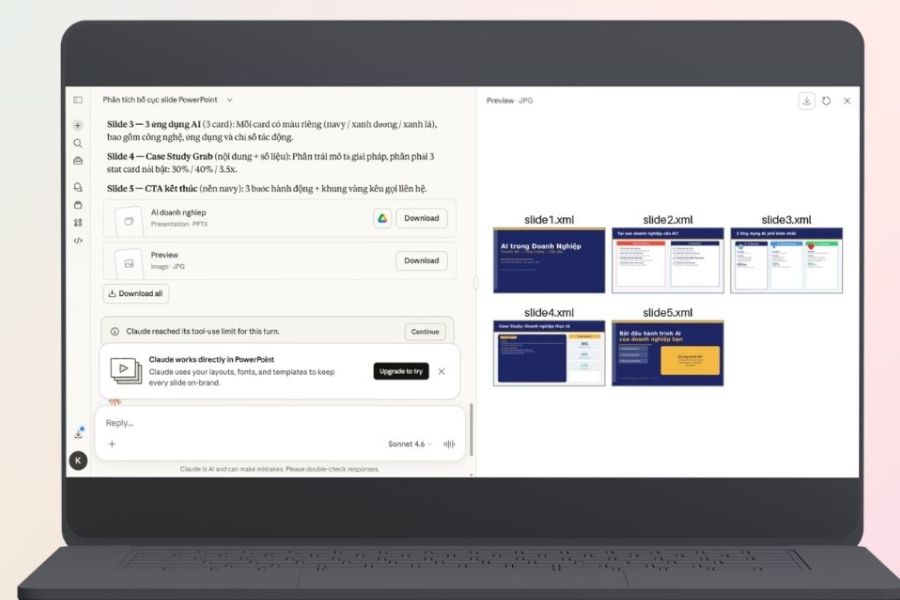
Once you've agreed on the content and structure, it's time to ask Claude to create the complete PowerPoint presentation based on the template. The prompt should emphasize the elements you want to keep unchanged, such as fonts, colors, layout, and design style. At the same time, ask the AI to prioritize concise content suitable for a presentation rather than turning each slide into a long paragraph.
You can refer to the prompt: “Create a complete PowerPoint file based on the agreed-upon content and template. Maintain the design style, fonts, colors, and layouts from the template. Each slide should only use the essential main points, presented concisely, easy to read, and suitable for a presentation.”
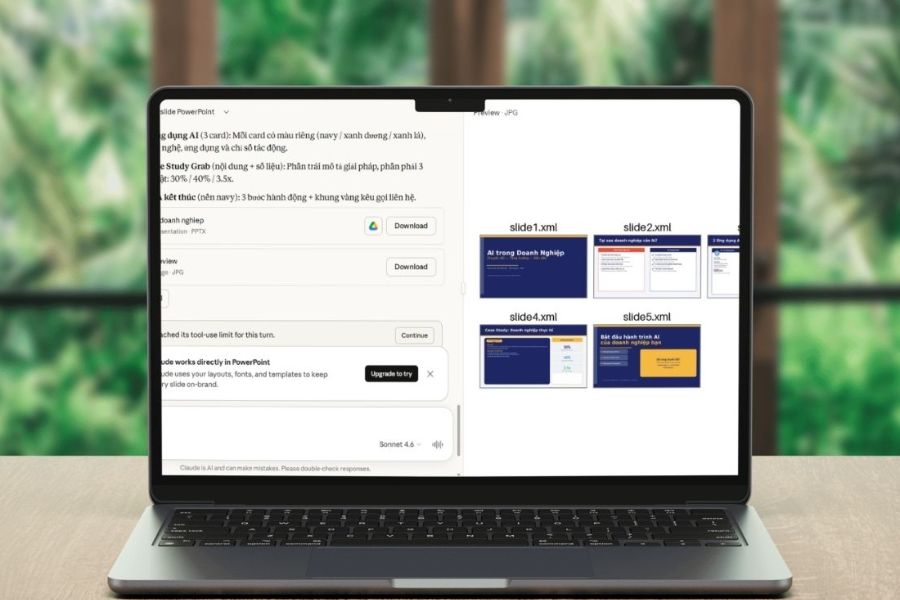
After Claude finishes processing, open the PowerPoint file and check each slide. Don't just look at the overall presentation; review for spelling errors, headings, spacing between elements, font size, and content balance. If anything is incorrect, you can go back to Claude and ask for corrections instead of having to redo everything from scratch.
5. Tips for writing prompts to help Claude create beautiful and accurate PowerPoint presentations.
The prompt is a crucial factor in determining the quality of a PowerPoint presentation. A prompt that's too short often forces the AI to guess a lot of information, potentially resulting in a less-than-ideal outcome. Conversely, a clearly defined prompt helps Claude understand who you need the presentation for, what it's about, how many slides to include, and what style to use. You don't necessarily need a very long prompt. The important thing is to include only the information that directly impacts the final result. Think of the prompt as a short brief for the slide designer.
-
Topic: What is the PowerPoint presentation about?
-
Target audience: Students, customers, employees, or managers?
-
Objective: To provide knowledge, report data, or persuade the audience?
-
Quantity: How many slides do you want to create?
-
Style: Minimalist, modern, professional, or youthful?
-
Content: Which points are mandatory?
-
Layout: Do you want to use a specific template or layout?
-
Length: How many main points should each slide contain?
-
Images: Is space needed for illustrations, charts, or icons?
-
Writing style: Formal, easy to understand, technical, or informal?
A good prompt could ask Claude to act as a presentation creator, analyzing the content first before creating the slides. This helps prevent the AI from trying to cram too much information onto one page.
6. Conclusion
Creating PowerPoint presentations using Claude AI isn't overly complicated if you know how to prepare templates and provide clear instructions. Instead of doing everything yourself, from brainstorming and writing content to arranging slides, you can let Claude handle most of the work and dedicate your time to reviewing and refining your message. This approach is especially useful when you need to complete a presentation in a short amount of time. Most importantly, don't view AI as a "one-click" slide-creating tool. Good results usually come from a combination of a specific prompt, a suitable template, and final user editing. By knowing how to delegate tasks to Claude, you can transform an initial idea into a well-structured PowerPoint with clear content and a more professional appearance without spending hours adjusting each slide.





















VIP Products








Best Selling Products
Upgrade Duolingo Super
29 USD
Copyright Adobe Lightroom Account
59 USD
Upgrade genuine Capture One account
120 USD
Adobe Premiere Pro Account
99 USD
Freepik Premium Account
59 USD
Genuine Adobe Illustrator account
99 USD
Upgrade Genuine Office 365
49 USD
Autodesk All App Account Copyright
120 USD
Plugin Retouch4me
69 USD
Capcut Pro 1 Year
39 USD
MidJourney Account
29 USD
Adobe Photoshop Copyright - Full App
120 USD
ChatGPT Plus Account (GPT-4)
16 USD
Genuine Cheap Canva Pro
39 USD
Windows 10 & 11 Pro Key
36 USD