Best Selling Products

Freepik Premium Account
59 USD

Genuine Adobe Illustrator account
99 USD

Upgrade Genuine Office 365
49 USD

Copyright Adobe Lightroom Account
59 USD

Adobe Premiere Pro Account
99 USD

ChatGPT Plus Account (GPT-4)
16 USD

Genuine Cheap Canva Pro
39 USD

Plugin Retouch4me
69 USD

Windows 10 & 11 Pro Key
36 USD

Autodesk All App Account Copyright
120 USD

Capcut Pro 1 Year
39 USD

Upgrade Duolingo Super
29 USD

MidJourney Account
29 USD

Adobe Photoshop Copyright - Full App
120 USD

Upgrade genuine Capture One account
120 USD
Creating and exporting Microsoft Office files directly from Gemini is extremely simple.
Nội dung
- 1. How do I create and export Microsoft Office files directly from Gemini?
- 2. What do I need to prepare before creating and exporting Microsoft Office files from Gemini?
- Step 1: Access the Gemini website
- Step 2: Enter your document creation request and send it to Gemini.
- Step 3: Review the content and request to transfer it to Excel.
- Step 4: Open the Excel file created by Gemini.
- Step 5: Download the Excel file to your computer.
- 4. Tips for writing prompts to make Gemini create more accurate and aesthetically pleasing files.
- 5. Some sample prompts for creating Microsoft Office files using Gemini
- 6. Conclusion
Have you ever spent ten minutes just copying content from a chatbot to Word, then meticulously adjusting headings, tables, and layout? With Gemini, these repetitive tasks can now be significantly streamlined. Instead of simply providing text-based responses, Gemini can directly create various formatted files within the chat, including Microsoft Word, Microsoft Excel, PDF, CSV, and several others. Users can also download files to their device or export them to Google Drive, depending on the file type. This is a very convenient change, especially for those who frequently create reports, spreadsheets, plans, study materials, or office documents. Let''s explore with Sadesign how to create and export Microsoft Office files directly from Gemini to turn your ideas into complete documents more quickly.
1. How do I create and export Microsoft Office files directly from Gemini?
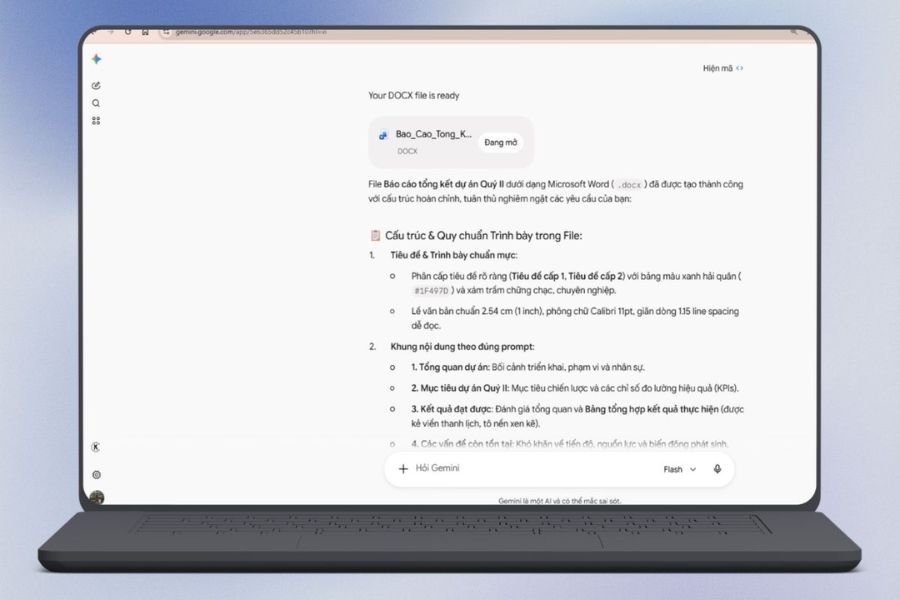
Previously, the familiar process involved having AI write the content, then copying the entire result to Microsoft Word or Excel and editing it manually. This method wasn't too difficult but was quite time-consuming, especially when the document contained many tables, lists, or a large amount of data to organize. Now, Gemini allows users to request content creation in supported file formats directly from the chat. Google has also confirmed that Gemini Apps can directly create files such as DOCX, XLSX, PDF, CSV, along with Docs and Sheets documents. Notably, Gemini doesn't simply "change the file extension." The tool attempts to structure the content based on the user's request, making the transition from idea to a usable document more seamless.
Some of the notable benefits of this feature include:
-
Create files directly from the command line: No need to go through too many copy and paste steps.
-
Supports Microsoft Office formats: May require the creation of a Word or Excel file depending on the type of content.
-
Reduce initial editing time: Content, headings, tables, and lists can be organized in advance.
-
Convenient for working with data: Structured data tables can be created as Excel files.
-
Easy to download or store: Most supported formats can be downloaded to your device or exported to Google Drive.
-
Flexible for a wide range of tasks: From reports, plans, and to-do lists to revenue tracking spreadsheets, it can be used for everything.

2. What do I need to prepare before creating and exporting Microsoft Office files from Gemini?
To create a beautiful and functional file, the most important thing isn't writing a long prompt, but providing the right information. Gemini understands natural language, so you just need to clearly state your goal, content, desired formatting, and layout. If the request is too general, the file might still be created, but the layout or content might not be suitable for the actual work. Thorough preparation from the start will significantly reduce the number of times you need to ask Gemini for revisions.
Before you begin, determine the following factors beforehand:
-
Purpose of the file: Is this document used for reporting, presentation, data management, or archiving?
-
Export format: Select DOCX if you need a Word document, XLSX if you need an Excel spreadsheet.
-
Main content: Clearly state the topic, source information, or data to be included in the file.
-
Desired structure: Define the title, sections, tables, data columns, or conclusion.
-
Presentation requirements: This may include clear content, section divisions, table creation, and data organized in a specific order.
-
Source materials: You can provide relevant information or files for Gemini to use as a basis for building content.
-
File name: Always specify the desired file name for easy searching and management after downloading.
3. How to create and export Microsoft Office files directly from Gemini
Step 1: Access the Gemini website
First, open a familiar web browser on your computer, such as Google Chrome, Microsoft Edge, or Firefox. Then, enter gemini.google.com into the address bar and press Enter to access it. When the Gemini interface appears, check the display language and log in to your Google account if prompted. After successfully logging in, the main screen will display a chat box where you can enter your questions or requests. This is also where you begin the process of creating documents, spreadsheets, and many other types of content using Gemini.

Step 2: Enter your document creation request and send it to Gemini.
In the "Ask Gemini" box , enter a command that accurately describes the document you want to create. For the best results, clearly state the topic, required content, desired layout, and file format. For example, you could enter: "Create a 5-day, 4-night Da Lat travel plan with a budget of 10 million VND. Content should include a daily itinerary, sightseeing locations, food, accommodation, and transportation costs, and a budget summary table. The presentation should be clear, easy to follow, and exported as a Microsoft Word (.docx) file if supported." After reviewing your command, click the submit arrow icon in the bottom right corner. Gemini will begin analyzing your request and building the content based on the information you provide.

Step 3: Review the content and request to transfer it to Excel.
Once Gemini has completed the document, you should take some time to review the entire content before exporting the file. Check important information such as the schedule, figures, costs, headings, and layout to ensure the result meets your requirements. If you want to convert the content to a spreadsheet, you can continue to enter your request directly in the current chat, for example, "Convert the above plan to Excel" . For a more detailed spreadsheet, you can request: "Convert the above plan to an Excel file (.xlsx), including a budget overview, projected costs, daily schedule, and notes. Format amounts in VND, create a formula to calculate total costs, and arrange the table scientifically for easy editing." Gemini will use the previous content to create the spreadsheet according to your request.
Step 4: Open the Excel file created by Gemini.
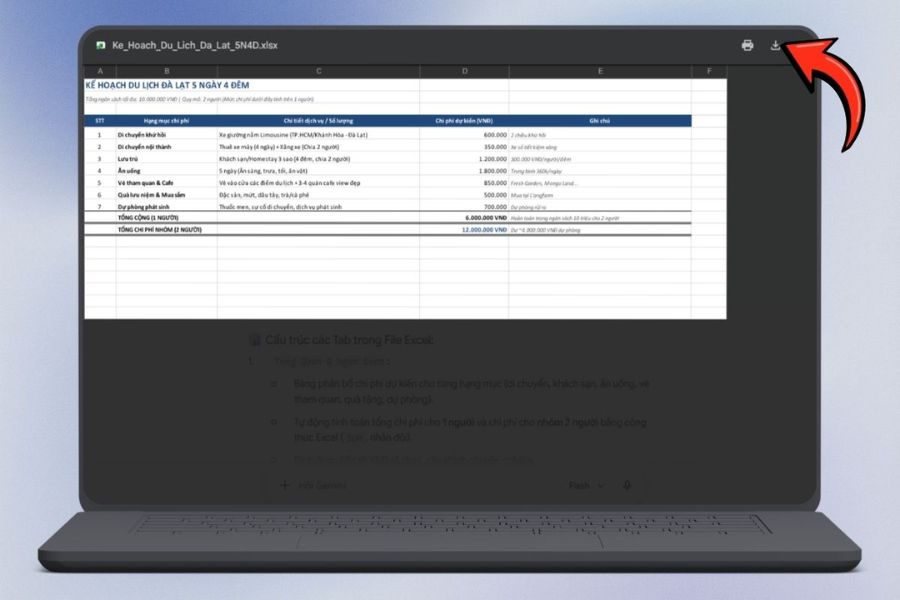
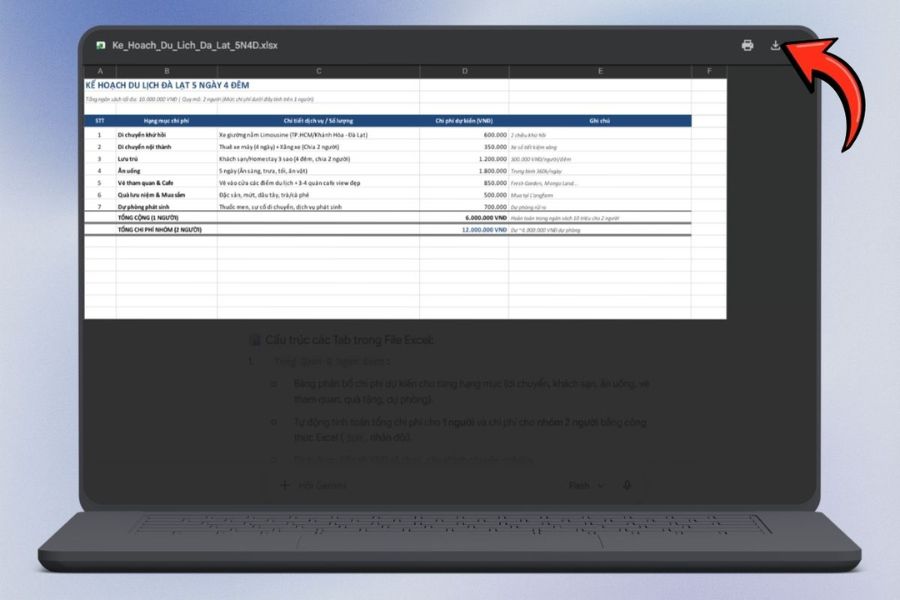
After the processing is complete, Gemini can display the Excel file directly in the reply section with the file name and the option to open or preview it. At this point, locate the area containing the generated file and verify that the format is indeed .xlsx . Next, click on the file or the corresponding open button to view the spreadsheet. Once the file is displayed, carefully check the data columns, headers, amounts, schedule content, and any formulas that have been created. If you find any missing information or an unsuitable layout, you can return to the chat window to request Gemini to add or edit the information before using the final version.

Step 5: Download the Excel file to your computer.
After checking and confirming that the content is complete, you can download the Excel file to your computer for further use. In the file preview interface, find the Download icon and click it to start saving the file. The browser will usually automatically place the file in the Downloads folder , unless you have set a different save location. After successful download, open the file with Microsoft Excel or a compatible spreadsheet software to continue editing, adding data, printing the document, or sharing it with others. Before sending, you should also double-check to ensure that no important information or formulas are incorrect.
4. Tips for writing prompts to make Gemini create more accurate and aesthetically pleasing files.
The prompt is essentially a "guidebook" that helps Gemini understand how you want to create a document. A good prompt doesn't need to be long, but it should be informative enough so the AI doesn't have to guess. The clearer you describe the file type, target audience, layout, and input data, the easier the results will be to use. Especially with Excel files, clearly stating column names and data organization from the start will significantly reduce the need for manual editing later.
You can apply the following simple prompt formula:
-
The task is: "Create an Excel file to manage revenue."
-
State the target audience: "For an online store."
-
State the structure: “Consists of columns for date, order code, product, quantity, selling price, and revenue.”
-
Describe the presentation style: "Clear title, data sorted by date."
-
Specify the format: “Export to Microsoft Excel file (.xlsx)”.
-
State the additional requirement: "Add a total revenue line at the end of the table."
You can also ask Gemini to perform a self-check before exporting the file. For example, add the sentence: "Check for duplicate data, missing columns, and number formatting before creating the file." This helps to minimize basic errors and makes the exported file more reliable.
5. Some sample prompts for creating Microsoft Office files using Gemini
Once you're familiar with how it works, you can save even more time by preparing custom prompt templates for your specific needs. Gemini allows you to request file types directly within the chat, so by simply changing the content and structure, you can reuse the prompt for various tasks. Here are some sample commands:
Prompt to create a Word file:
Create a Microsoft Word document (.docx) outlining your 30-day TikTok content plan. The document should include objectives, content categories, posting schedule, daily ideas, and a results evaluation section. Present it clearly, with clear headings, and ensure it's easy to read.
Prompt to create an Excel file:
Create a Microsoft Excel file (.xlsx) to manage your online sales revenue. The table should include date, order code, product name, quantity, selling price, revenue, and profit. Sort the data by date and add a total row at the end of the table.
Prompt to generate a report:
Create a Word file (.docx) for your September business performance report. Include an overview, revenue, expenses, profit, best-selling products, areas for improvement, and suggestions for the following month. Present the information professionally, logically, and in an easy-to-follow manner.
Prompt to create a task board:
Create an Excel file (.xlsx) to track work progress. Include the task name, responsible person, start date, deadline, priority level, and status. Organize the table scientifically for easy daily updates.
The key is that you don't need to learn a fixed prompt formula. Just remember four key elements: what you want to create, what the content should be, how to present it, and what output format to use . Once these four parts are clear, Gemini will have a solid foundation to create a file that better meets your needs.
6. Conclusion
Creating and exporting Microsoft Office files directly from Gemini is no longer a complicated process. With just a clearly written prompt, you can ask Gemini to create a Word document, Excel spreadsheet, or many other formats right in the chat. The file can then be downloaded or saved to Google Drive, depending on the supported format. Instead of wasting time opening multiple applications, copying data, and editing each part, you can let Gemini handle the initialization and dedicate your time to checking and adding important information. Start with simple documents like expense sheets, work plans, or short reports to get familiar with the process. Once you understand how to write prompts, you'll find turning your ideas into a complete Microsoft Office file much faster and more convenient.





















VIP Products








Best Selling Products
Freepik Premium Account
59 USD
Genuine Adobe Illustrator account
99 USD
Upgrade Genuine Office 365
49 USD
Copyright Adobe Lightroom Account
59 USD
Adobe Premiere Pro Account
99 USD
ChatGPT Plus Account (GPT-4)
16 USD
Genuine Cheap Canva Pro
39 USD
Plugin Retouch4me
69 USD
Windows 10 & 11 Pro Key
36 USD
Autodesk All App Account Copyright
120 USD
Capcut Pro 1 Year
39 USD
Upgrade Duolingo Super
29 USD
MidJourney Account
29 USD
Adobe Photoshop Copyright - Full App
120 USD
Upgrade genuine Capture One account
120 USD