Best Selling Products

Upgrade Duolingo Super
29 USD

Autodesk All App Account Copyright
120 USD

Upgrade Genuine Office 365
49 USD

Plugin Retouch4me
69 USD

Adobe Premiere Pro Account
99 USD

Adobe Photoshop Copyright - Full App
120 USD

Upgrade genuine Capture One account
120 USD

Freepik Premium Account
59 USD

MidJourney Account
29 USD

Windows 10 & 11 Pro Key
36 USD

Genuine Adobe Illustrator account
99 USD

ChatGPT Plus Account (GPT-4)
16 USD

Copyright Adobe Lightroom Account
59 USD

Capcut Pro 1 Year
39 USD

Genuine Cheap Canva Pro
39 USD
What is a Cat Gatekeeper? How to use the orange cat to combat distractions.
Nội dung
- 1. What is a Cat Gatekeeper? Why is this orange cat special?
- 2. How does a Cat Gatekeeper work?
- 3. How to install Cat Gatekeeper on Chrome
- Step 1: Access the Chrome Web Store
- Step 2: Add the extension to Chrome
- Step 3: Pin Cat Gatekeeper to the toolbar
- 4. How to set usage limits and rest periods.
- Step 1: Open the control panel
- Step 2: Adjust Usage Limit
- Step 3: Set Break Duration
- 5. Platforms supported by Cat Gatekeeper and tips for effective use.
- 6. Can Cat Gatekeeper help you escape doomscrolling?
- 7. Conclusion
You open YouTube to watch a video, browse Facebook for a few minutes before work, or visit X to catch up on the news. But when you look at the clock, you suddenly realize 30 minutes, an hour, or even longer has passed. The đáng thing is, you haven''t actually accomplished anything during that time. This is doomscrolling, a type of continuous browsing that easily causes time to "evaporate" without you even noticing. If you often get stuck in such loops, Cat Gatekeeper could be a pretty interesting helper. Instead of dry warnings or a formal interface, this utility displays a giant orange cat on your screen when you''ve been using a website for too long.
1. What is a Cat Gatekeeper? Why is this orange cat special?
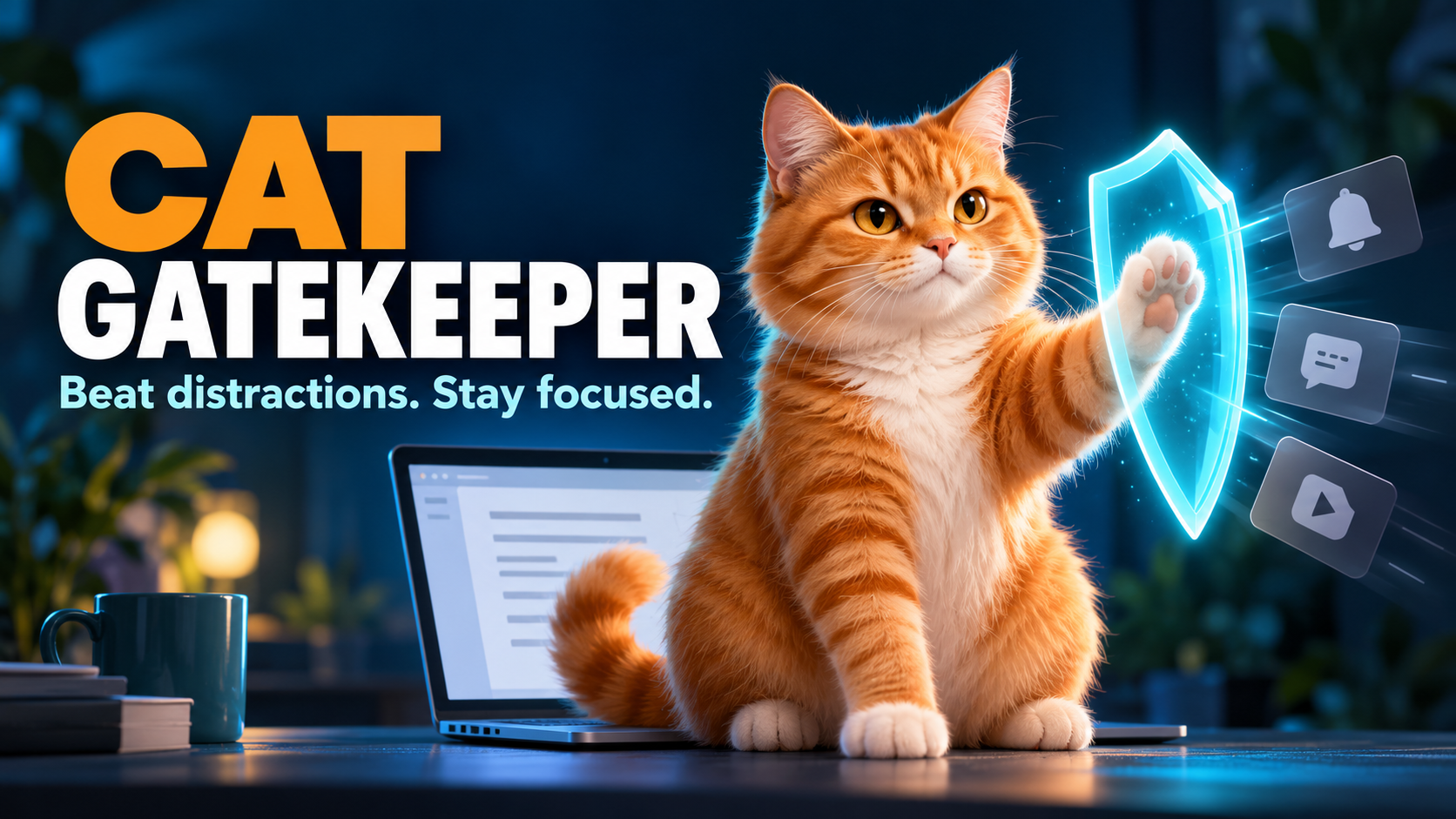
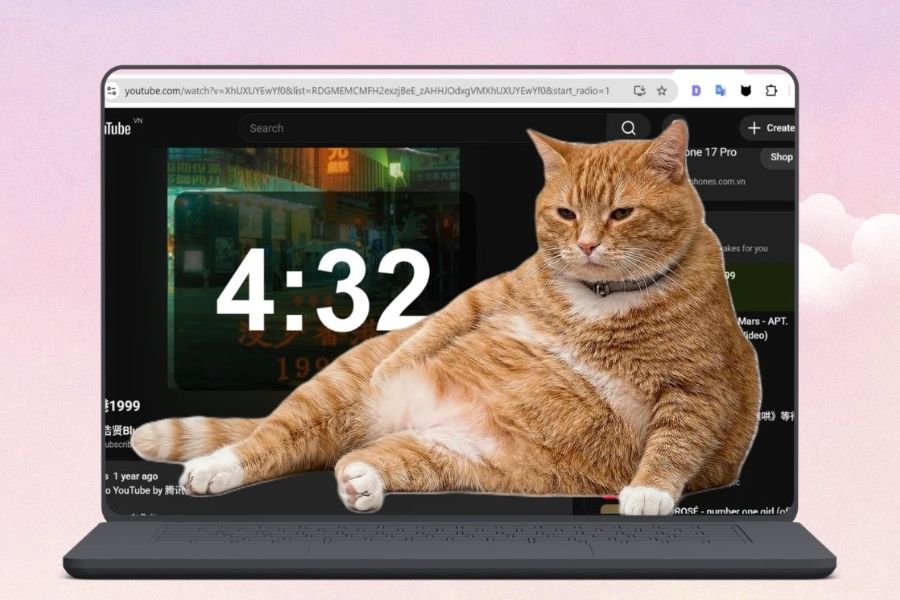
Cat Gatekeeper is a Chrome extension designed to help users control the time spent on distracting websites. Instead of completely blocking access, the tool allows you to set your own usage limits. When this time limit is reached, a giant orange cat will appear on the screen, covering the content you're viewing and reminding you to pause. The most interesting aspect is how Cat Gatekeeper transforms a rather serious problem into a more lighthearted experience. The cat doesn't appear to be "punishing" you for browsing too long. It's more like a friend unexpectedly walking in and reminding you: it's time to take a break from the screen.
-
Free: Can be installed directly as a Chrome extension.
-
Track your browsing time: This helps you see how much time you're spending on your target websites.
-
Set your own limits: Users can choose a time period that suits their needs.
-
There is a break: After the usage time is over, the tool takes a break before continuing.
-
Visual reminder: The image of the orange cat stands out much more than a typical notification.
-
Helps limit doomscrolling: Particularly useful for those who easily get caught up in short videos, newsfeeds, or constant content recommendations.
2. How does a Cat Gatekeeper work?
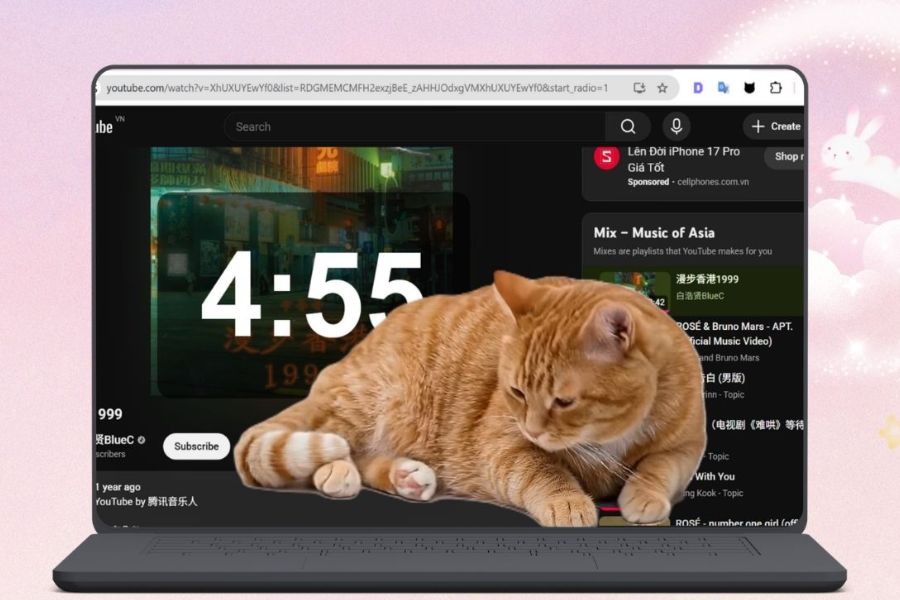
The mechanism of Cat Gatekeeper is quite easy to understand. You set a time limit beforehand, and then the extension monitors the amount of time you actively spend on supported websites. When the limit is reached, the orange cat will appear and create a pause, helping you break free from habitual browsing. Instead of forcing you to constantly check the clock, Cat Gatekeeper automatically reminds you when needed. This is especially useful for those who often have the habit of "watching a little longer" but don't realize that "a little longer" can last for tens of minutes.
-
Timer: Track the time spent on targeted websites.
-
Session tracking: Time is calculated based on your actual use of the website.
-
Orange cat appears: When the limit is reached, an image of a large cat will appear on the screen.
-
Create pauses: Users are prompted to pause before continuing to browse.
-
Encouraging self-control: The tool acts as a reminder rather than forcing absolute control over the user.
3. How to install Cat Gatekeeper on Chrome
Step 1: Access the Chrome Web Store
Open the Chrome browser on your computer and access the Chrome Web Store . In the search box, type " Cat Gatekeeper" and search for the corresponding extension. When the results page appears, double-check that the name "Cat Gatekeeper" is correct before proceeding with the installation. If you already have a link to the extension, you can access it directly instead of searching manually. Identifying the correct extension from the start will speed up the installation process and avoid confusion with similar-named extensions.
Step 2: Add the extension to Chrome
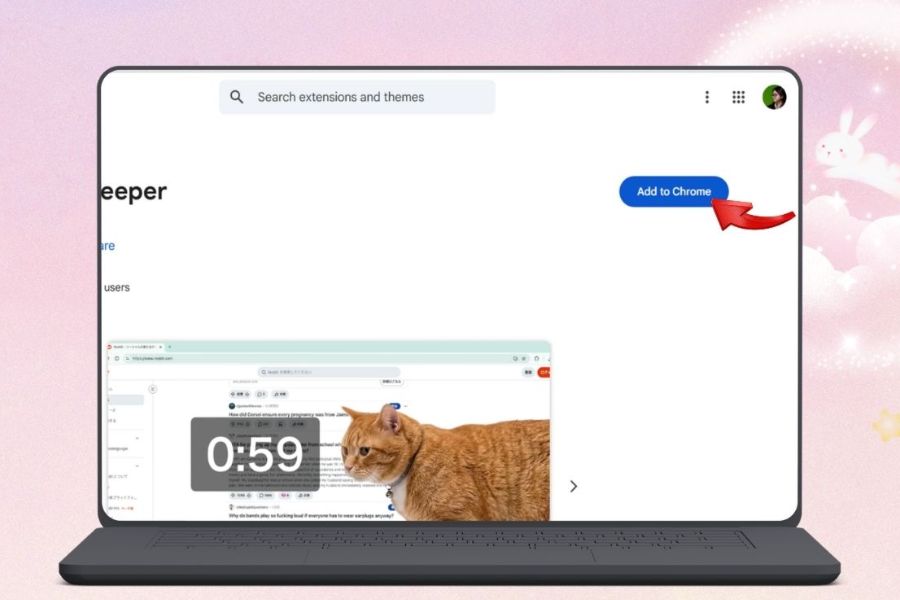
On the Cat Gatekeeper page, click Add to Chrome . Chrome will display a confirmation window; select Add extension to agree to add the extension to your browser. Once complete, Cat Gatekeeper will appear in the list of installed extensions. You don't need to open a separate application because all management operations are done directly in Chrome.
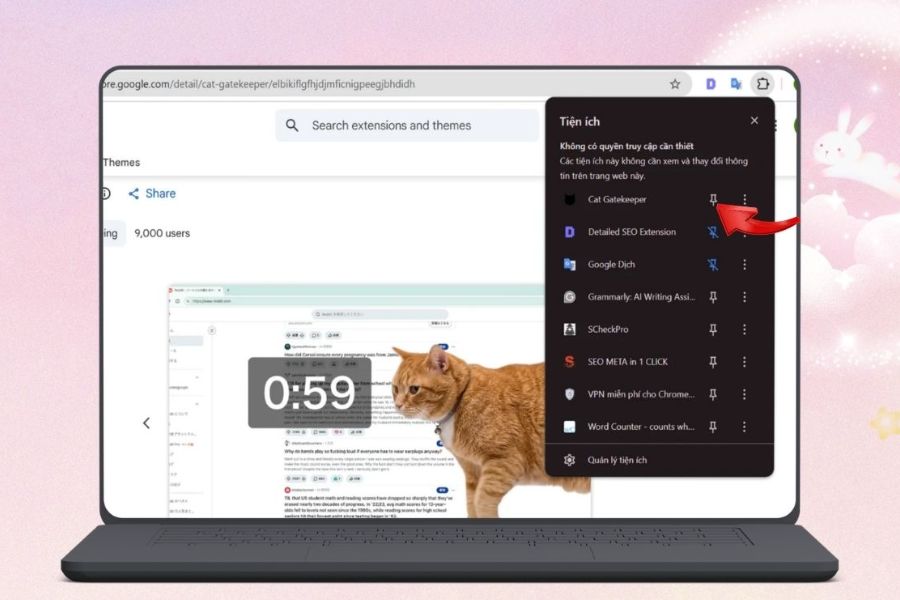
Step 3: Pin Cat Gatekeeper to the toolbar
For convenience, click the puzzle piece-shaped Extensions icon in the upper right corner of Chrome. Find Cat Gatekeeper in the list and then click the pin icon next to the extension. Once pinned, the Cat Gatekeeper icon will be right on the toolbar. From here, you can quickly open the control panel whenever you want to change the time limit or check the settings.
4. How to set usage limits and rest periods.
Step 1: Open the control panel
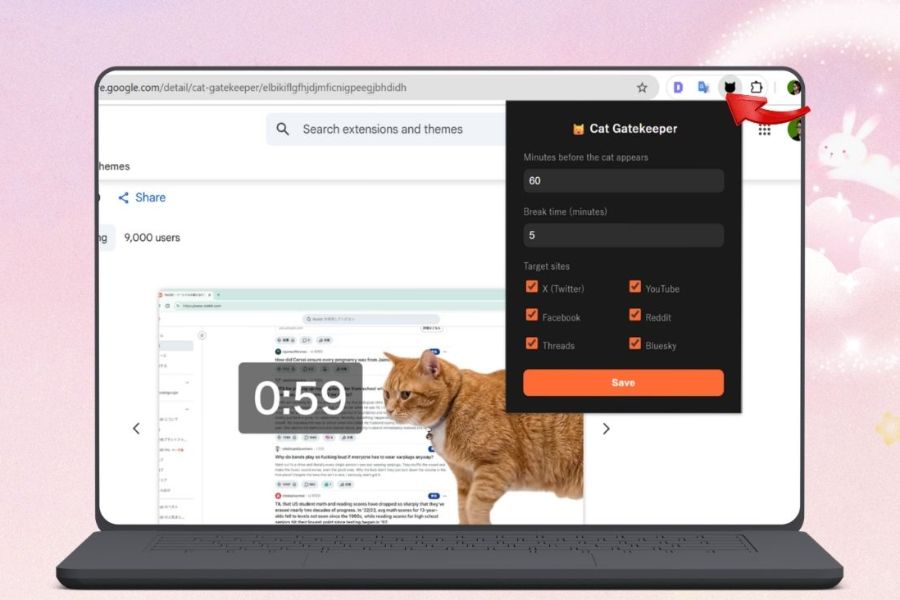
After pinning Cat Gatekeeper, click on the extension's icon in the Chrome toolbar. A control panel will appear with options related to usage time and rest time. This is where you will adjust Cat Gatekeeper to your personal preferences. So if you feel the current limits aren't suitable, you can always go back here to change them.
Step 2: Adjust Usage Limit
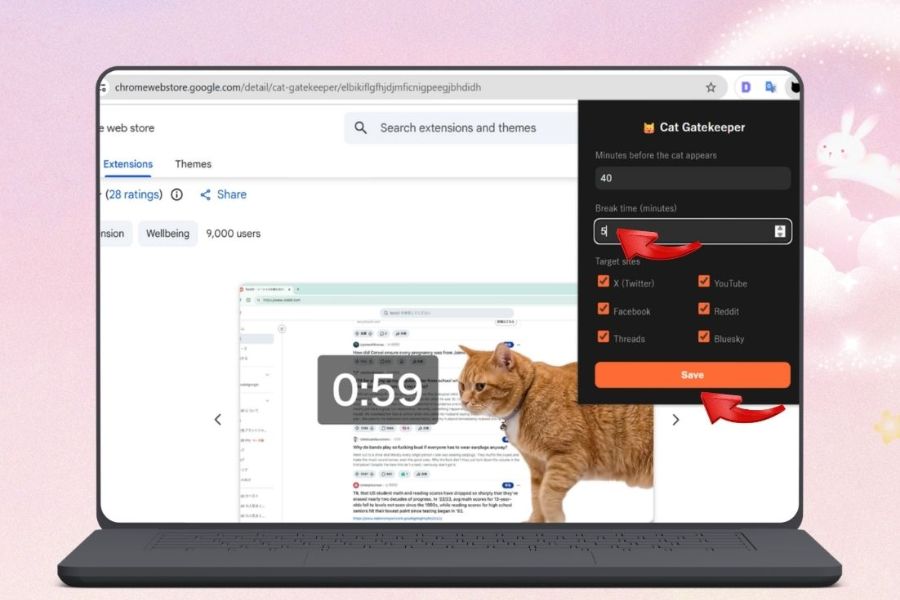
In the Usage Limit section , enter the number of minutes you want to allow yourself to use the monitored websites. For example, if you frequently get drawn to YouTube Shorts, you can start with 30 or 45 minutes instead of an unlimited amount. It's not necessary to set a very low number from the beginning. More importantly, choose a level you can sustain long-term. After a few days or weeks, once you're used to controlling your time, you can gradually reduce it if you want to improve your focus.
Step 3: Set Break Duration
Next, find the Break Duration option to select the break time after reaching the limit. This is the time the orange cat appears, reminding you to temporarily leave the content you're watching. You can start with a 5-minute break and adjust it as needed. Once complete, press Save to save all settings. From then on, Cat Gatekeeper will operate according to the new limit you just set. It's quite important not to turn the break into a "channel switching" session. If the cat appears on YouTube but you immediately open Facebook, the distraction-fighting goal will almost certainly not be achieved. Use those few minutes to drink water, stand up, relax your eyes, or simply leave the screen.
5. Platforms supported by Cat Gatekeeper and tips for effective use.
Cat Gatekeeper targets platforms with constantly updated content, where users easily get caught up in watching one piece of content after another. These are also the "hot spots" where a few minutes of entertainment often turn into an endless stream of time.
Some of the supported websites include:
-
X (Twitter): Short posts and constantly debated topics.
-
YouTube: Especially video shorts, with their ability to draw users into a continuous stream of content.
-
Facebook: News Feed with a constant stream of posts, images, and videos.
-
Reddit: Long discussion threads with many related comments.
-
Threads: Content that updates quickly, making it easy for users to keep scrolling.
-
Bluesky: Another social media platform that falls within the utility's support scope.
To make your Cat Gatekeeper more effective, you can incorporate a few simple habits:
-
Determine your purpose before visiting a website: Knowing why you're there will reduce the likelihood of browsing aimlessly.
-
Set realistic limits: Don't push yourself to reduce the time too quickly.
-
Respect the break: When the cat appears, actually look away from the screen.
-
Close unnecessary tabs: Reduce the number of distractions while working.
-
Track your habits: After a few days, you can adjust your Usage Limit accordingly.
-
Prioritize important tasks: Complete your duties first, then take time for leisure.
6. Can Cat Gatekeeper help you escape doomscrolling?
Doomscrolling is scary because it doesn't usually start with a big decision. You just open a video, read a post, or check notifications. Then, the algorithm keeps bringing up new content, and you keep scrolling down without realizing how much time has passed. Cat Gatekeeper comes along to break that seemingly harmless loop. The most interesting aspect of the utility is its rather charming way of reminding you. Instead of a rigid warning message, a giant orange cat suddenly appears as if saying, "Hey, that's enough! Take a break!" This humor makes the reminder easier to remember and less stressful.
Cat Gatekeeper is especially suitable if you:
-
Frequently watching Shorts or short videos for longer than intended.
-
I have a habit of opening social media while I'm working.
-
It's easy to get caught up in newsfeeds and suggested content.
-
I want to reduce my online time but don't want to block websites completely.
-
Looking for a gentle way to improve my concentration skills.
Of course, the extension only plays a supporting role. When the cat appears, whether you close the tab or continue browsing is still up to you. But sometimes, we don't need a complicated solution. Just a well-timed reminder is enough to pull us out of the endless stream of content.
7. Conclusion
Cat Gatekeeper is therefore more than just a Chrome extension with a cute orange cat. It's also a fun way to set limits on your online time and create breaks throughout the day. If you often spend hours on YouTube, Facebook, X, or other social media, try letting the orange cat be your gatekeeper. Who knows, just one time being "chased" away from the screen by the cat might help you reclaim time that could have been spent on work, rest, or more important things.





















VIP Products








Best Selling Products
Upgrade Duolingo Super
29 USD
Autodesk All App Account Copyright
120 USD
Upgrade Genuine Office 365
49 USD
Plugin Retouch4me
69 USD
Adobe Premiere Pro Account
99 USD
Adobe Photoshop Copyright - Full App
120 USD
Upgrade genuine Capture One account
120 USD
Freepik Premium Account
59 USD
MidJourney Account
29 USD
Windows 10 & 11 Pro Key
36 USD
Genuine Adobe Illustrator account
99 USD
ChatGPT Plus Account (GPT-4)
16 USD
Copyright Adobe Lightroom Account
59 USD
Capcut Pro 1 Year
39 USD
Genuine Cheap Canva Pro
39 USD