Best Selling Products

ChatGPT Plus Account (GPT-4)
16 USD

Adobe Photoshop Copyright - Full App
120 USD

Upgrade genuine Capture One account
120 USD

Upgrade Duolingo Super
29 USD

Genuine Cheap Canva Pro
39 USD

Capcut Pro 1 Year
39 USD

Autodesk All App Account Copyright
120 USD

Adobe Premiere Pro Account
99 USD

Plugin Retouch4me
69 USD

Genuine Adobe Illustrator account
99 USD

Windows 10 & 11 Pro Key
36 USD

Upgrade Genuine Office 365
49 USD

MidJourney Account
29 USD

Copyright Adobe Lightroom Account
59 USD

Freepik Premium Account
59 USD
A guide to using Canva''s AI Detector for extremely easy AI text detection.
Nội dung
- 1. What is AI Detector Canva?
- 2. Why should you use AI Detector directly in Canva?
- 3. How to find AI Detector in the Canva app store
- Step 1: Open the Applications section in Canva.
- Step 2: Search for the AI Detector tool.
- Step 3: Launch AI Detector
- 4. How to input text and check AI content using Canva
- Step 1: Select a design to test.
- Step 2: Paste the text you want to check.
- Step 3: Wait for the system to return the results.
- 5. How to read analysis results from Canva AI Detector
- 6. Tips for using Canva's AI Detector to effectively check text.
- 7. Conclusion
AI is gradually becoming a familiar part of learning, working, and content creation. With just a few simple commands, users can create a complete article in a short time. However, as AI-generated content becomes increasingly common, the need to check for signs of AI-generated text is also becoming more essential. If you''re looking for a quick way to check without constantly copying content to multiple websites, Canva''s AI Detector might be a worthwhile option. The tool allows users to input text for the system to analyze and determine the level of AI potential. So how does Canva''s AI Detector work and how do you use it? Let''s find out in the guide below.
1. What is AI Detector Canva?
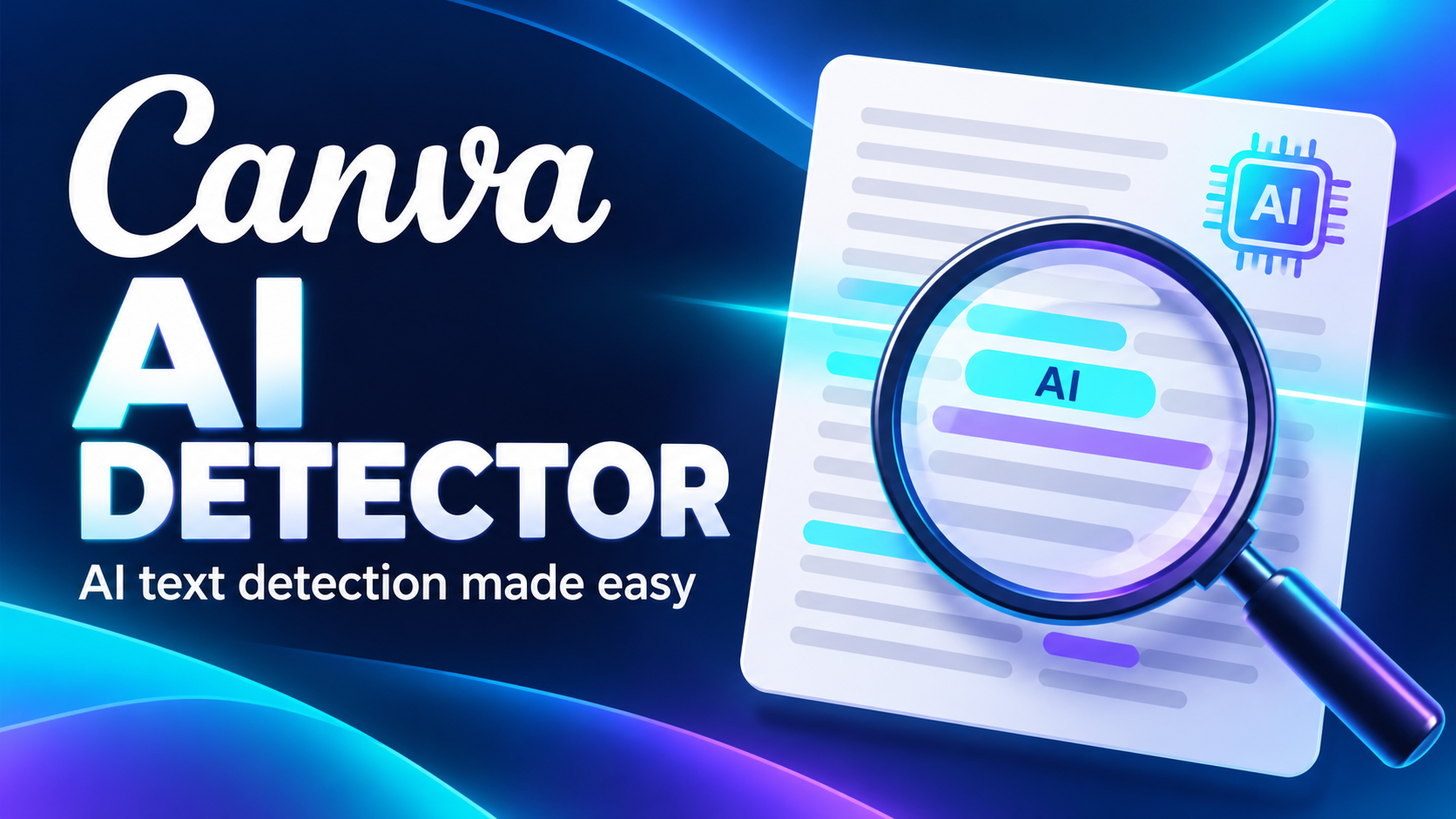
Canva's AI Detector is a utility that helps users check text to identify common patterns in AI-generated content. Instead of just looking at a few keywords, the tool can analyze sentence structure, word usage, and stylistic features to provide predictive results. This is a useful feature for those who frequently review content but want to do so within the Canva workspace. The tool can be used in various situations, such as:
-
Please proofread your article before submitting or publishing it.
-
Refer to the extent to which a piece of text shows signs of being generated by AI.
-
Assisting teachers in checking the content of students' assignments.
-
Assist editors in reviewing text before publication.
-
Review AI-powered content before making any further edits.
-
Identify sentences that are overly formulaic or unnatural in their expression.

2. Why should you use AI Detector directly in Canva?
The biggest advantage of AI Detector in Canva lies in its ability to check content directly during the workflow. Instead of opening another website, copying text, pasting it into the tool, and then returning to Canva to continue editing, users can significantly streamline the process. This is especially useful when creating presentations, study materials, or designs with a lot of text. Some notable benefits of using the tool include:
-
Save time: Avoid constantly switching between multiple platforms.
-
Simple to use: Even new Canva users can quickly get familiar with it.
-
Convenient testing: Content can be analyzed right during the design process.
-
Easy to edit: After reviewing the results, you can go back to the text and change the wording.
-
Moderation support: Suitable for content writers, teachers, students, and editors.
-
Intuitive workspace: Operations are performed within the familiar Canva interface.
3. How to find AI Detector in the Canva app store
Step 1: Open the Applications section in Canva.
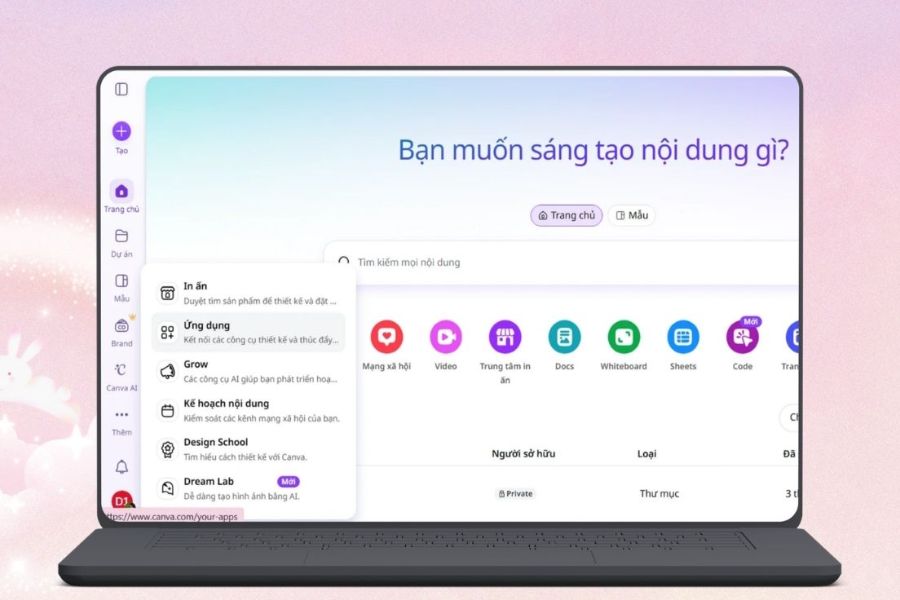
First, go to Canva and open any design. You can use a project you're working on or create a new design if you just want to test the text. When the editing interface appears, observe the toolbar located on the left side of the screen.
Here, click on Apps or select the Add icon if your interface is displayed in a minimized format. Canva will open an area containing a collection of utilities that users can use in their designs. This is where you can find AI Detector instead of having to access an external testing page.
Step 2: Search for the AI Detector tool.
In the app store interface, find the search bar and enter the keyword " Detector" . Then press Enter for Canva to search and display applications that match the keyword you just entered.
In the results list, find the app called AI Detector and click on it to open. You should carefully check the tool's name before choosing it because the Canva app store may contain many utilities related to AI and content verification.
Step 3: Launch AI Detector
After selecting AI Detector, Canva will open the utility's interface for you to start using. Depending on your current design and interface, the system may ask you to choose to use the tool in a new design or an existing project.
If the text you want to check is already in an existing design, continue with that project to save time. If you only want to test the tool, you can create a new design and use that space to import the content to be analyzed.

4. How to input text and check AI content using Canva
Step 1: Select a design to test.
First, choose between a new design or an existing one, depending on your needs. If you already have a presentation, document, or design containing the text you need to check, using that project directly will make the process easier.
You don't need to finalize the entire design before testing. The main purpose of this step is to create space for the AI Detector to receive and analyze the text. Therefore, if you just want to test the tool, a blank design can also be used.
Step 2: Paste the text you want to check.
Next, copy the text you want to verify and paste it into the AI Detector's input field. You should keep the text to be checked as is, rather than changing the wording beforehand, because too much editing can cause the analysis results to no longer accurately reflect the original content.
After reviewing the text, find the AI Content Detection button and click on it. The system will begin processing the data based on the content you provided. During this time, you simply need to wait for the tool to complete the analysis.
Step 3: Wait for the system to return the results.
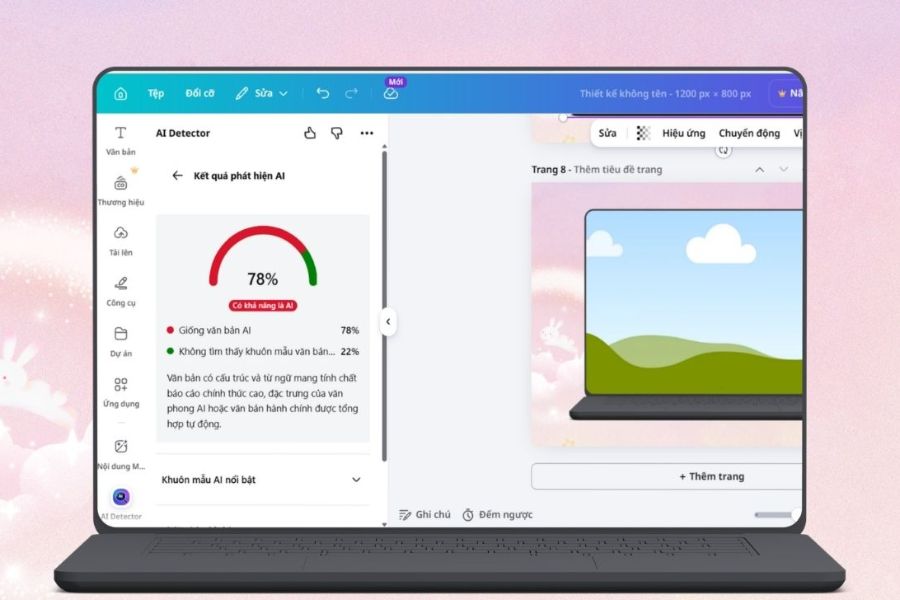
After a period of processing, the AI Detector will display the analysis results. Depending on the content and how the tool evaluates it, the screen may provide information about the extent to which the text shows signs of being generated by AI.
Take the time to read the entire results instead of just looking at a percentage. A high or low percentage should not be considered absolute proof of the text's origin. The most relevant result should be used as a reference point for further checking and editing your content.
5. How to read analysis results from Canva AI Detector
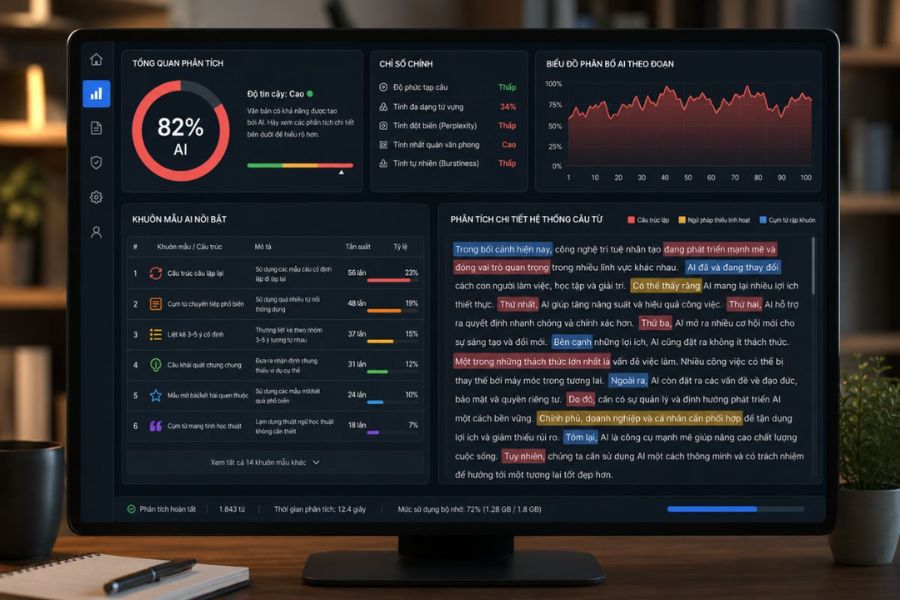
When you receive the results, it's important not to immediately look at the percentage and conclude that the text was AI-generated. You should observe the additional details the tool provides to understand why the content was judged to show signs of AI. These analyses can help you identify overly formulaic sentences, repetitive phrasing, or unnatural structures.
-
AI-generated content ratio: Indicates the extent to which the system predicts text has characteristics similar to AI-generated content.
-
Key sentence patterns: Highlights examples of structured sentences or phrases.
-
Text analysis: Helps identify parts of a text that sound unnatural.
-
Highlighted areas: Certain content can be highlighted to help users easily identify the section they need to review.
-
Overview: Provides a quick overview of the test results.
Reading the results based on multiple factors will help you avoid relying entirely on a single number. This is also a more effective way to use AI Detectors, especially when the text being examined has specialized content or a specific writing style.
6. Tips for using Canva's AI Detector to effectively check text.
AI Detector will be more useful if you know how to use the results appropriately. Instead of viewing the tool as an "absolute measure" to determine who wrote the text, consider it a supporting step in the proofreading and editing process. Especially if the text shows unusual results, you should reread the content from your own perspective before drawing any conclusions.
Some tips that can be applied include:
-
Check that the passage is long enough: Content that is too short often fails to provide clear reference results.
-
Keep the text as is: Do not edit before proofreading if the goal is to evaluate the original content.
-
Read the whole report: Don't just focus on the percentages.
-
Compare it to actual writing style: See if the content truly has a robotic quality.
-
Revise overly formulaic sentences: Rewrite them in a more natural way, closer to your personal style.
-
Review after editing: If you've changed a lot of text, you can re-analyze it to see the updated results.
7. Conclusion
Canva's AI Detector offers a convenient approach for those who want to check text for signs of AI without constantly switching between multiple tools. From opening the app store, searching for AI Detector, to entering text and reading the results, the entire process is relatively simple and easy to perform. If you frequently work with text in Canva, knowing how to use the AI Detector will add a useful checking step to your content creation process. With just a few simple steps, you can quickly assess the level of AI signature and proactively edit your text to make it more natural and suitable for your intended use.





















VIP Products








Best Selling Products
ChatGPT Plus Account (GPT-4)
16 USD
Adobe Photoshop Copyright - Full App
120 USD
Upgrade genuine Capture One account
120 USD
Upgrade Duolingo Super
29 USD
Genuine Cheap Canva Pro
39 USD
Capcut Pro 1 Year
39 USD
Autodesk All App Account Copyright
120 USD
Adobe Premiere Pro Account
99 USD
Plugin Retouch4me
69 USD
Genuine Adobe Illustrator account
99 USD
Windows 10 & 11 Pro Key
36 USD
Upgrade Genuine Office 365
49 USD
MidJourney Account
29 USD
Copyright Adobe Lightroom Account
59 USD
Freepik Premium Account
59 USD