Best Selling Products

Upgrade Duolingo Super
29 USD

Copyright Adobe Lightroom Account
59 USD

MidJourney Account
29 USD

Freepik Premium Account
59 USD

Genuine Adobe Illustrator account
99 USD

Adobe Premiere Pro Account
99 USD

Adobe Photoshop Copyright - Full App
120 USD

Upgrade genuine Capture One account
120 USD

Capcut Pro 1 Year
39 USD

Windows 10 & 11 Pro Key
36 USD

Genuine Cheap Canva Pro
39 USD

ChatGPT Plus Account (GPT-4)
16 USD

Upgrade Genuine Office 365
49 USD

Autodesk All App Account Copyright
120 USD

Plugin Retouch4me
69 USD
Discover how to use Photoshop directly within ChatGPT for ultimate convenience.
Nội dung
- 1. How does Photoshop work in ChatGPT?
- 2. Who should use Photoshop directly in ChatGPT?
- 3. Editing tasks can be performed directly within ChatGPT.
- 4. How to use Photoshop directly in ChatGPT
- 4.1. Step 1: Log in to your ChatGPT account
- 4.2. Step 2: Access the Apps section
- 4.3. Step 3: Find Adobe Photoshop
- 4.4. Step 4: Click Connect to link
- 4.5. Step 5: Confirm the connection
- 4.6. Step 6: Start the conversation
- 4.7. Step 7: Upload the image
- 4.8. Step 8: Select Adobe Photoshop
- 4.9. Step 9: Enter your edit request
- 4.10. Step 10: Receive results and make further edits
- 5. Tips for writing commands to edit images more precisely.
- 6. Conclusion
Nowadays, image editing no longer requires opening Photoshop, searching for each tool, and performing a series of manual operations. With the ability to connect Adobe Photoshop with ChatGPT, users can bring images into conversations and describe their desired effects using natural language. From removing backgrounds and changing backgrounds to adjusting colors and blurring the background, many familiar operations can be performed quickly within the chat window. The interesting aspect lies in the highly intuitive interaction. Instead of remembering the location of each tool, you simply state your requirements and then request further adjustments if the result isn''t to your liking.
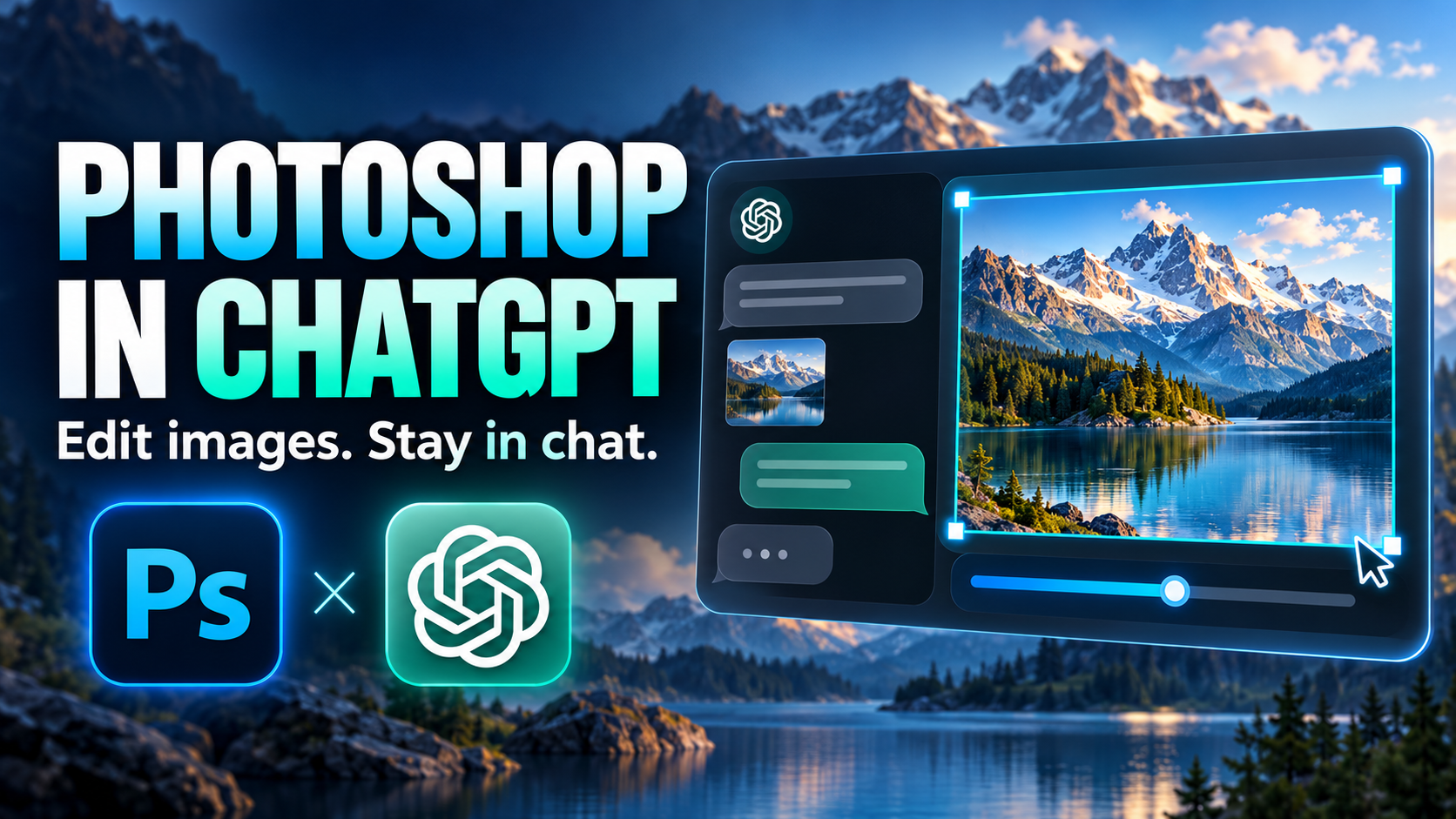
1. How does Photoshop work in ChatGPT?
Essentially, Photoshop connects to ChatGPT through its integrated application system. Once the connection is complete, you can upload images to the chat and describe your editing requests in text. ChatGPT will use the information you provide to assist with image editing tasks, making the editing process more intuitive instead of requiring manual manipulation with multiple tools. This method is especially convenient when you need to quickly process an image but are unfamiliar with layers, masks, brushes, or other advanced editing tools.
-
Remove the background and replace it with a white background.
-
Change the background to a different color or image.
-
Remove unwanted people or objects from the photo.
-
Blur the background to make the subject stand out more.
-
Increase brightness, adjust contrast, and balance color.
-
Adjust the image tone to your desired style.
-
To soften skin or improve certain details in a photo.
-
Try different editing methods without having to start everything from scratch.

2. Who should use Photoshop directly in ChatGPT?
Editing photos using natural commands is suitable for many people, especially those who frequently need beautiful images but don't want to spend too much time learning advanced Photoshop techniques. With just a few clear descriptive sentences, you can start processing your photos as needed.
-
Content creators: Quickly edit photos for posting on Facebook, TikTok, Instagram, or websites.
-
Online shop owners: Remove the background, highlight the product, and change the background before posting it for sale.
-
Marketer: Quickly create and test multiple versions of images for advertising.
-
Students: Editing images for presentations, assignments, or personal projects.
-
Office workers: Processing simple images without needing to open specialized software.
-
For design beginners: Get acquainted with image editing thinking without having to memorize too many tools right from the start.
Upgrade your licensed version of Photoshop.
3. Editing tasks can be performed directly within ChatGPT.
Once Photoshop is connected, users can start with simple requests and gradually increase the level of detail. The clearer a command is about the object, the area to be adjusted, and the desired style, the more reliable the result will be in meeting the requirements.
-
Remove background: Separate the subject from the background for use in product photos or designs.
-
Change background: Change the background to white, black, pastel, or a different setting.
-
Remove objects: Eliminate unwanted details that appear behind the subject.
-
Blurring the background: Creates a greater sense of focus on the main character or product.
-
Adjust lighting: Increase brightness, decrease brightness, or improve contrast.
-
Color adjustment: Make the image warmer, colder, or change the overall tone.
-
Enhance detail: Makes images look clearer and more balanced within the scope of supported tools.
-
Create effects: Add changes to lighting, color, or style as desired.
4. How to use Photoshop directly in ChatGPT
4.1. Step 1: Log in to your ChatGPT account
First, open ChatGPT on your computer browser and log in to your account. If you don't have an account yet, you need to complete the registration process before using the features of the integrated application. After successfully logging in, the main ChatGPT interface will appear. You should perform the following steps on a computer for easier viewing of the menu and interacting with the images.
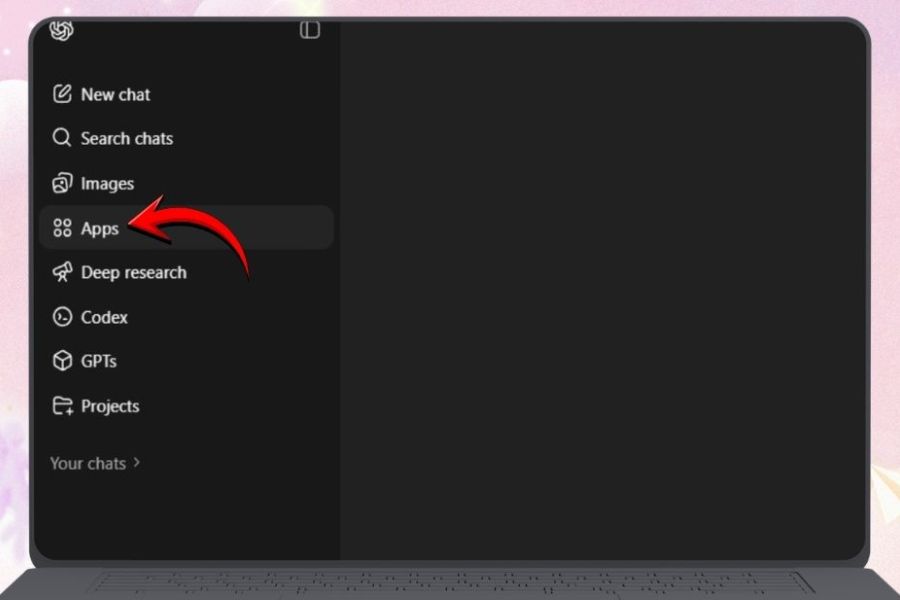
4.2. Step 2: Access the Apps section
On the ChatGPT interface, find the "Apps" section in the navigation bar. This is where you'll find applications that can connect and be used with ChatGPT. Click on "Apps" to open the list of applications. Depending on the time and account interface, the location or display of this section may change slightly. If you don't see it immediately, check the menu area or use the application search function if available.
4.3. Step 3: Find Adobe Photoshop
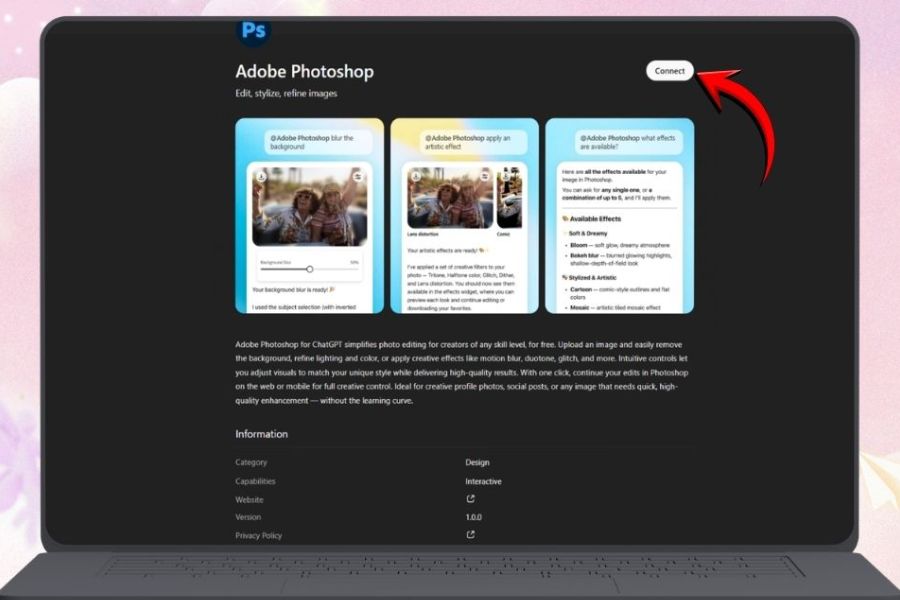
In the Apps list, find Adobe Photoshop . If too many apps appear, you can type "Adobe Photoshop" into the search box to save time. Once you see the app, click on Adobe Photoshop to open its information page. Here, you can check the app's information and begin the connection process with ChatGPT.
4.4. Step 4: Click Connect to link
On the Adobe Photoshop page, find the Connect button and click it. This begins the process of linking ChatGPT with the Adobe service. The system may direct you to a confirmation step or ask you to log in to your Adobe account, depending on your account status. Simply follow the on-screen instructions to continue.
4.5. Step 5: Confirm the connection
After clicking Connect, the system will ask you to confirm the connection. Please check the displayed information and then click Connect again if everything is correct. Once the process is complete, Adobe Photoshop will be connected to ChatGPT. This is an important setup step, because only then can you use Photoshop in the chat to process images as requested.
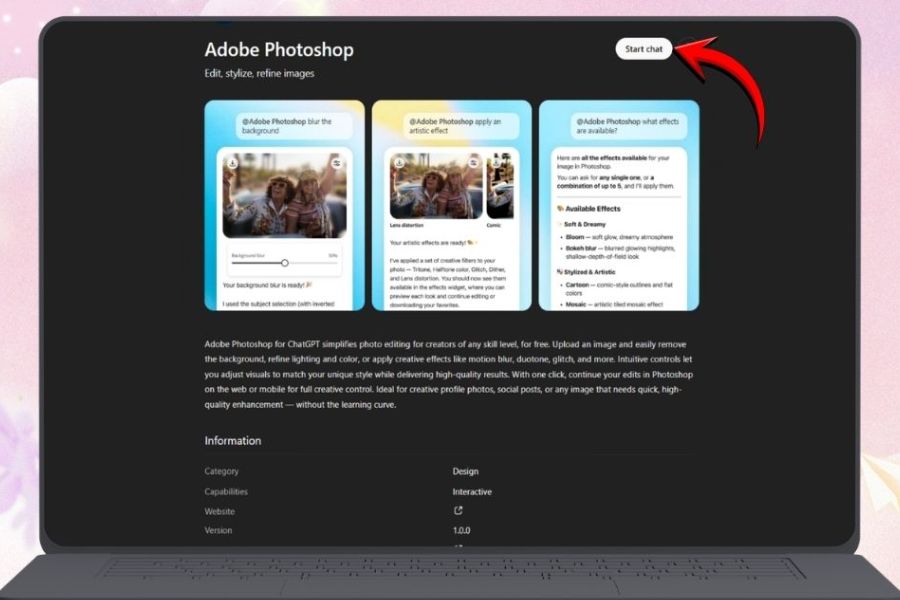
4.6. Step 6: Start the conversation
After successfully connecting, you can select "Start chat" to begin a new conversation. Instead of just typing a question, you can use the linked Photoshop to make image-related requests. This is also when you should prepare the image you need to edit. Choose an image of sufficient quality and determine beforehand which parts you want to change so that the subsequent commands are clearer and easier to understand.
4.7. Step 7: Upload the image
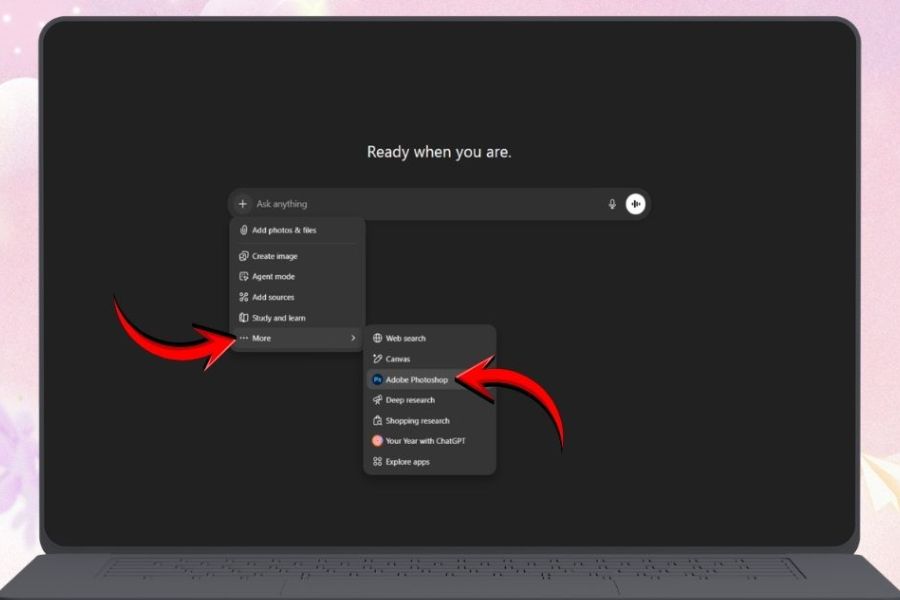
In the chat window, tap the plus (+) icon next to the text input area. From here, you can select the option to add images from your computer to the chat. After uploading the image, double-check that it has been correctly received. If the image contains a lot of detail, you should clearly define the area that needs adjustment to avoid making overly general requests.
4.8. Step 8: Select Adobe Photoshop
After tapping the + sign , select More if you need to expand the list of applications, then find and select Adobe Photoshop . Choosing the correct Photoshop ensures that the editing request is performed through the connected application. This step is especially important if your account is using multiple different integrated applications.
4.9. Step 9: Enter your edit request
Now it's time to precisely describe what changes you want. You can enter simple requests like "Remove the product background and replace it with a white background , " "Brighten the image while maintaining natural skin tones," or "Blur the background to make the subject stand out more ." For more precise results, add details about the level of editing, color, and what parts should be kept unchanged. For example, instead of writing "brighten the image," you could request: "Increase brightness slightly, maintain product colors, and avoid overexposure."
4.10. Step 10: Receive results and make further edits
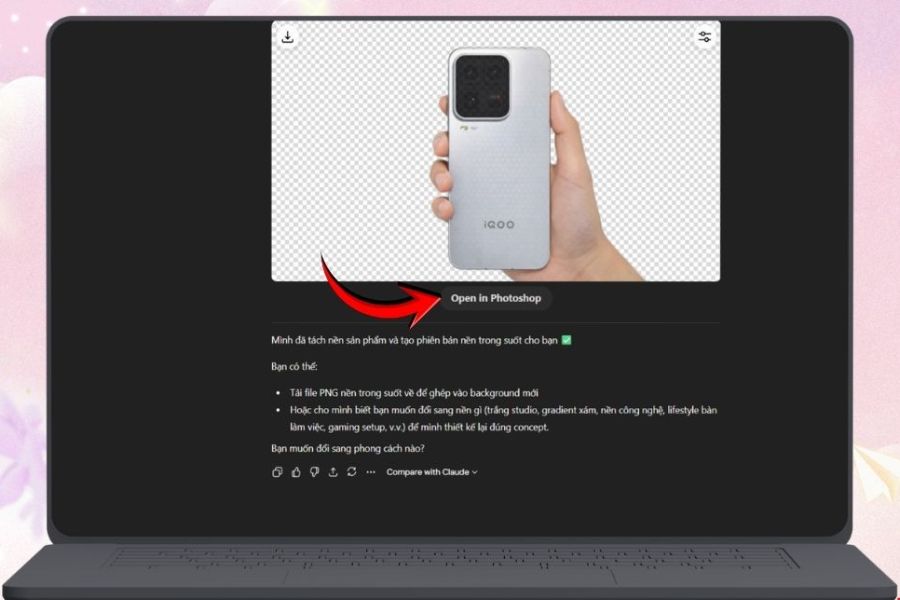
After the system processes the image, the edited version will be returned in the chat. Carefully check the key areas to see if the results meet your expectations. If you still want to make changes, you don't necessarily have to start over. Continue to give specific requests such as "reduce background blur , " "slightly increase contrast," or "retain detail in the hair ." For more in-depth editing, you can continue working with Photoshop using the provided options.
5. Tips for writing commands to edit images more precisely.
The quality of your statements greatly impacts the editing experience. The more specific your request, the more information the system has to understand what you want to change and what parts should remain unchanged. Therefore, don't hesitate to describe things in detail instead of just providing a short statement. You can use a simple formula: object + operation + level + parts to remain unchanged . For example:
-
"Remove the background characters, keep the main character."
-
"Change the background to white, keeping the product's color and shape the same."
-
"Slightly increased brightness, moderately increased contrast without losing detail."
-
"Blur the background to a moderate degree to make the subject stand out more."
-
"Change the image tone to a warmer one while preserving natural skin tones."
-
"Remove the object in the right corner of the image while trying to preserve the background texture."
6. Conclusion
Using Photoshop directly within ChatGPT opens up a rather interesting way to edit photos, especially for those who want to process images quickly but are not familiar with advanced design tools. Instead of performing each step manually, you can upload photos, describe your desired result, and continue the discussion to finalize the outcome. From removing backgrounds, changing backgrounds, blurring the background to adjusting lighting and color, familiar tasks can be done in a simpler way. If you frequently create content, sell online, run ads, or simply want to quickly edit photos on your computer, this is a method worth trying.





















VIP Products








Best Selling Products
Upgrade Duolingo Super
29 USD
Copyright Adobe Lightroom Account
59 USD
MidJourney Account
29 USD
Freepik Premium Account
59 USD
Genuine Adobe Illustrator account
99 USD
Adobe Premiere Pro Account
99 USD
Adobe Photoshop Copyright - Full App
120 USD
Upgrade genuine Capture One account
120 USD
Capcut Pro 1 Year
39 USD
Windows 10 & 11 Pro Key
36 USD
Genuine Cheap Canva Pro
39 USD
ChatGPT Plus Account (GPT-4)
16 USD
Upgrade Genuine Office 365
49 USD
Autodesk All App Account Copyright
120 USD
Plugin Retouch4me
69 USD