Best Selling Products

Autodesk All App Account Copyright
120 USD

Adobe Photoshop Copyright - Full App
120 USD

Upgrade genuine Capture One account
120 USD

Genuine Cheap Canva Pro
39 USD

Adobe Premiere Pro Account
99 USD

Plugin Retouch4me
69 USD

Upgrade Genuine Office 365
49 USD

MidJourney Account
29 USD

Windows 10 & 11 Pro Key
36 USD

Copyright Adobe Lightroom Account
59 USD

Capcut Pro 1 Year
39 USD

ChatGPT Plus Account (GPT-4)
16 USD

Genuine Adobe Illustrator account
99 USD

Upgrade Duolingo Super
29 USD

Freepik Premium Account
59 USD
Discover how to easily create an Email Signature Generator with ChatGPT.
Nội dung
- 1. What is an Email Signature Generator with ChatGPT?
- 2. Benefits of creating an Email Signature Generator using ChatGPT
- 3. How to create an Email Signature Generator with ChatGPT
- 3.1. Step 1: Identify the necessary features
- 3.2. Step 2: Write a prompt requesting ChatGPT to create the tool.
- 3.3. Step 3: Design the information input interface
- 3.4. Step 4: Add the company logo
- 3.5. Step 5: Customize colors and layout
- 3.6. Step 6: Add HTML copy functionality
- 4. How to optimize your Email Signature Generator for stable display.
- 5. How to set up an Email Signature in Gmail
- 5.1. Step 1: Open Gmail settings
- 5.2. Step 2: Select the default signature
- 6. How to set up an Email Signature in Outlook
- 6.1. Step 1: Open the signature management section.
- 6.2. Step 2: Choose a signature for your email
- 7. Conclusion
An email signature, seemingly just a few lines of information at the end of an email, contributes significantly to the professional image of individuals and businesses. Instead of designing HTML or manually editing each signature template, you can utilize ChatGPT to build an Email Signature Generator that allows you to input information, preview, and quickly generate signature codes. The interesting thing is that even without much programming experience, you can still do it using clearly written prompts. Below is a detailed guide from brainstorming and creating the tool to adding your signature to Gmail and Outlook. Let''s explore with Sadesign!
1. What is an Email Signature Generator with ChatGPT?
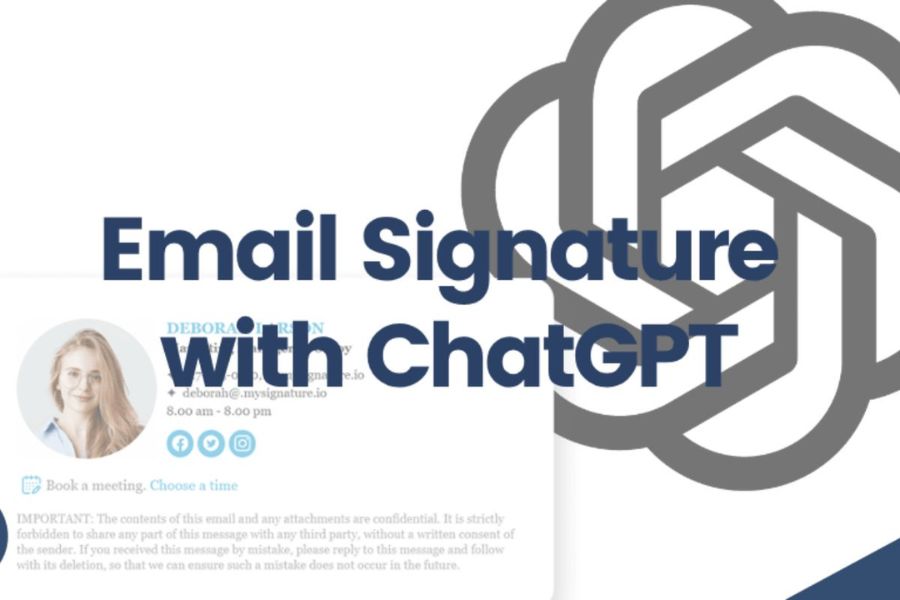
An Email Signature Generator is a tool that helps create email signatures based on information provided by the user. Instead of manually editing each line of HTML, you simply enter your full name, title, company, email address, phone number, website, or social media account, and the tool will automatically generate a complete signature template. When combined with ChatGPT, the process of building this tool becomes simpler because ChatGPT can support writing HTML, CSS, JavaScript, and editing code as needed. A basic Email Signature Generator usually includes:
-
Personal information entry form.
-
Real-time signature preview area.
-
Options to change color and display style.
-
This feature allows you to add your company logo.
-
Website links, social media links.
-
Copy HTML code button.
-
Options to recreate or delete entered information.
For businesses, this tool also helps create consistency in employee signatures, thereby reducing the situation where each person uses a different template.

2. Benefits of creating an Email Signature Generator using ChatGPT
Using ChatGPT to build an email signature generator offers many benefits, especially for non-programmers. Instead of starting from a blank page of code, you can describe your idea in plain language and let ChatGPT help translate that request into source code. The tool can then be further refined to suit specific needs.
-
Save time: No need to write HTML, CSS, and JavaScript from scratch.
-
Easy to implement: Users do not need advanced programming knowledge.
-
Flexible customization: You can change the colors, layout, fonts, and information.
-
Easily expandable: You can add logos, social media links, copy buttons, or many other features.
-
Create multiple templates: Suitable for individuals, teams, or businesses.
-
Brand consistency: Employees can use the same signature style.
-
Easy to fix: When the tool encounters problems, you can ask ChatGPT to check and fix the code.
3. How to create an Email Signature Generator with ChatGPT
3.1. Step 1: Identify the necessary features
Before writing the prompt, you should list the information and functions you want to include in the tool. This is a crucial step because the more specific the requirements, the easier it will be for ChatGPT to produce results that closely match those needs. You can prepare information fields such as:
-
Full name.
-
Job title.
-
Company name.
-
Email.
-
Phone number.
-
Website.
-
Address.
-
Facebook or LinkedIn link.
-
Company logo.
-
Brand colors.
If you want a more professional tool, you can add options to change the font, font size, color, or logo position.
3.2. Step 2: Write a prompt requesting ChatGPT to create the tool.
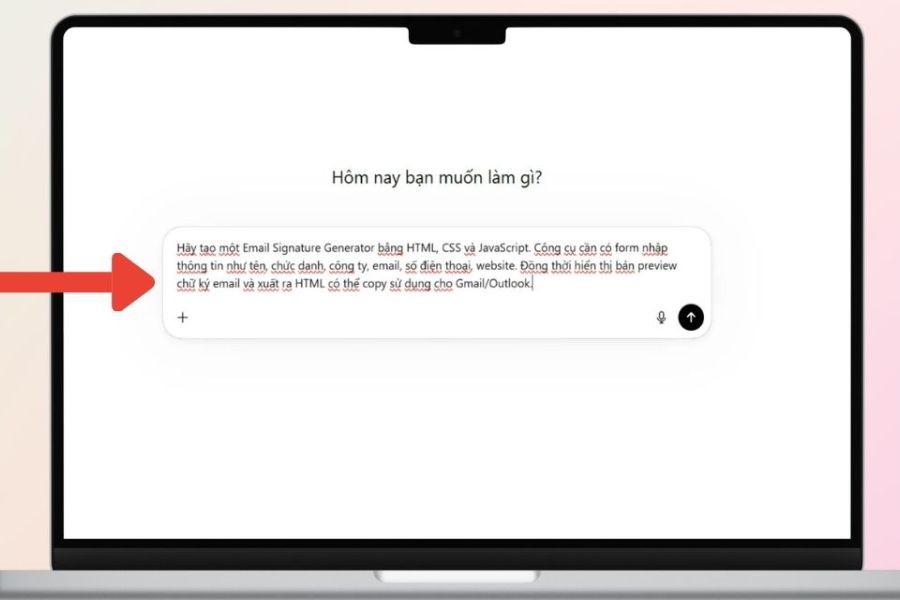
After defining the feature, open ChatGPT and describe specifically what tool you want to create. Avoid simply typing a short sentence like "Please create an Email Signature Generator," as ChatGPT will have difficulty understanding the interface and functionality you want.
You can use the following prompt:
"Let's create an Email Signature Generator using HTML, CSS, and JavaScript. The tool includes a form for entering full name, title, company, email, phone number, website, and social media accounts. Next to the form is a signature preview area that updates in real time. Add a copy HTML button so users can use the signature in Gmail and Outlook. The interface design is modern, simple, and easy to use."
After ChatGPT generates the code, check the structure and run tests before requesting additional features.
Upgrade ChatGPT at a low cost.
3.3. Step 3: Design the information input interface
An email signature generator should have a simple interface so that users don't spend much time getting familiar with it. An easy-to-use layout is to divide the screen into two areas, one for entering information and the other for viewing the results.
You can continue typing prompt:
"Design a user interface with two parts. The left side should be a data entry form, and the right side should be a signature preview area. When the user changes information, the preview content should automatically update in real time."
Next, check the following information fields:
-
Enter your full name and view the results.
-
Change of job title.
-
Add email.
-
Enter the phone number.
-
Add a website.
-
Check the social media links.
-
Try deleting and re-importing the data.
If any fields are not updating correctly, simply describe the error and ask ChatGPT to fix the relevant JavaScript.
3.4. Step 4: Add the company logo
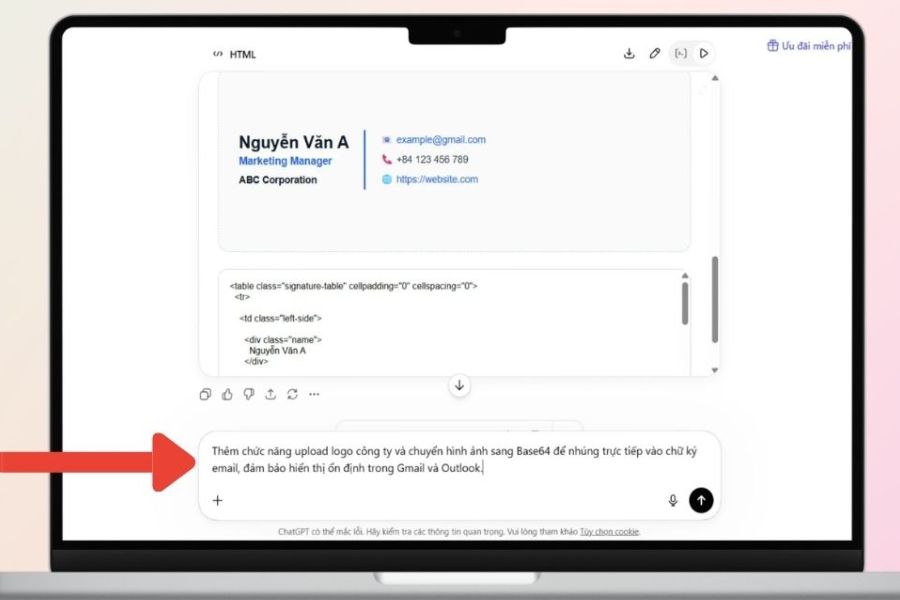
A logo helps make email signatures more distinctly branded. Therefore, if the tool is used for a business, you should add the functionality to upload and display the logo directly in the preview.
Please request ChatGPT:
"Please add a logo upload function to the Email Signature Generator. After the user selects an image, the logo should be displayed immediately in the preview and have an option to adjust its size."
ChatGPT can provide additional support:
-
Logo download button.
-
Check the file format.
-
Read images using JavaScript.
-
Display the image in preview.
-
Adjust the logo size.
-
Position the logo.
-
Add a link from the logo to the website.
If you want to embed images directly into the code, you can also ask ChatGPT to explain the Base64 approach and how to implement it appropriately.
3.5. Step 5: Customize colors and layout
Once the main functionality is working, you can start beautifying the interface. However, email signatures should be designed neatly rather than using too many colors or effects.
Some customizable components include:
-
Username color.
-
Job title color.
-
Color of the dividing line.
-
Brand colors.
-
Font.
-
Font size.
-
Logo placement.
-
Social media icon sizes.
-
The spacing between lines.
You can request ChatGPT to design your signature in your brand's color scheme to better align it with your website, logo, or other business communication materials.
3.6. Step 6: Add HTML copy functionality
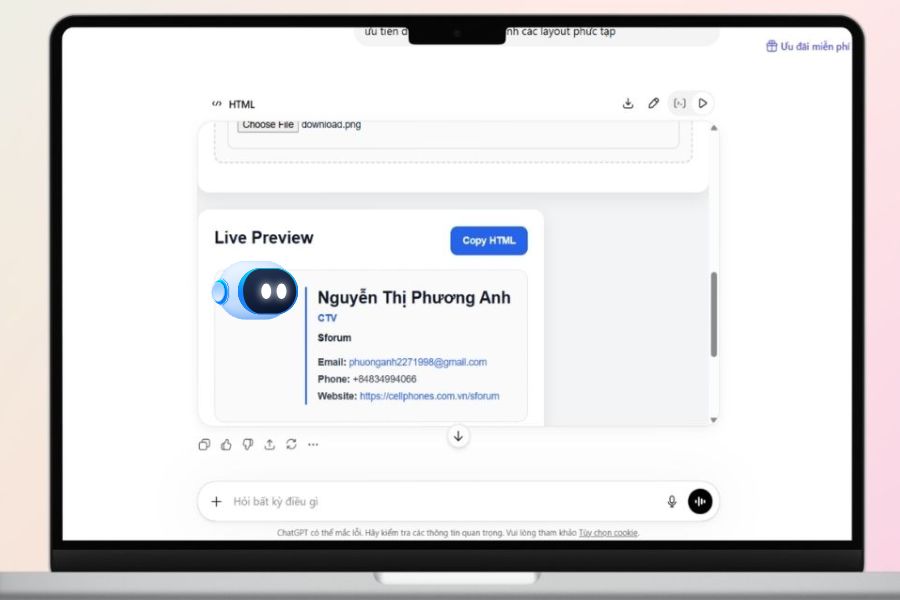
This is one of the most important features of an Email Signature Generator. After completing the signature, users need a quick way to retrieve and use the code.
You can enter:
"Add a 'Copy HTML' button. When the user clicks the button, the HTML code of the signature will be copied to the clipboard and a 'copy successful' message will be displayed."
After the addition, the usage process will become simple:
-
Enter your personal information.
-
Check the preview.
-
Adjust the colors or layout.
-
Click Copy HTML .
-
Add your signature to your email platform.
You can also request a Reset button to erase all data and create a new signature.
Upgrade ChatGPT at a low cost.
4. How to optimize your Email Signature Generator for stable display.
One thing to note is that a signature that looks good in a browser may not maintain its layout when imported into Gmail or Outlook. Email applications have their own ways of handling HTML and CSS, so you should prioritize a simple structure and test it thoroughly before official use.
Please ask ChatGPT to optimize the code using the prompt:
"Please review and optimize your HTML email signature to improve compatibility with Gmail and Outlook. Prioritize inline CSS, a simple layout, and limit unnecessary modern CSS attributes."
Some principles that should be applied:
-
Prioritize inline CSS .
-
Avoid overly complex layouts.
-
Avoid overusing effects.
-
Keep the logo at a reasonable size.
-
Check the entire path.
-
Avoid using too many images.
-
Limit the use of special fonts.
-
Check both computers and phones.
After you've finished, you should send test emails to several accounts to check if the signature is misaligned, missing images, or if the font has changed.
5. How to set up an Email Signature in Gmail
After creating and verifying your signature, the next step is to add it to Gmail. Gmail allows users to create their own signatures and choose a default signature for new emails or replies, making the process more convenient.
5.1. Step 1: Open Gmail settings
First, log in to Gmail on your browser. Then follow these steps:
-
Tap the Settings icon in the upper right corner.
-
Select View all settings .
-
In the General tab , find the Signature section .
-
Click Create New .
-
Give your signature a name.
-
Add your signature to the edit area.
Next, double-check how the name, title, contact information, and logo are displayed.
5.2. Step 2: Select the default signature
Gmail allows you to set a default signature for different situations. You can choose to have your signature automatically appear when composing a new email or when replying to or forwarding messages.
Please check:
-
The default signature when writing a new email.
-
Signature when replying to emails.
-
Is the logo displaying correctly?
-
Are the links working?
-
The spacing between the signature and the email content.
Finally, scroll to the bottom of the page and click Save Changes .
6. How to set up an Email Signature in Outlook
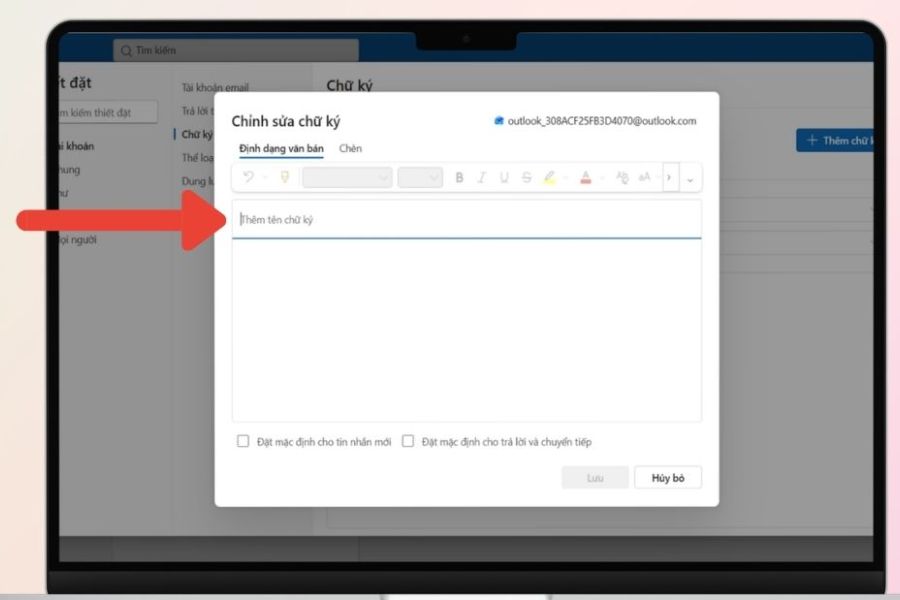
Outlook also supports creating and managing email signatures; however, the location of these options may vary depending on the application version or interface you are using. Essentially, users access the signature settings, create a new template, and then set a default template for emails.
6.1. Step 1: Open the signature management section.
You can follow this basic procedure:
-
Open Outlook.
-
Access Settings or Preferences .
-
Find the Signature section .
-
Select "Create a new signature".
-
Give your signature a name.
-
Add signature content.
-
Stay.
If you are using a different version of Outlook, the names or locations of each item may vary slightly.
6.2. Step 2: Choose a signature for your email
After creating the signature, set a default signature for each instance. Outlook usually allows you to choose a template to use for new emails and replies or forwards. Before officially using it, send a test email to check:
-
Signature layout.
-
Logo size.
-
Font.
-
Color.
-
Website link.
-
Phone number.
-
Social media icons.
7. Conclusion
Creating an Email Signature Generator with ChatGPT is a fun way to turn seemingly programming-related requirements into a practical tool for work. With a clearly described prompt, you can step-by-step create an information input form, a preview area, a logo addition function, customize the interface, and copy HTML. Most importantly, don't rush to have ChatGPT create everything at once. Start with a basic version, test its functionality, and then add features one by one. Once the tool is complete, test it on Gmail, Outlook, and various other devices to ensure the signature displays consistently. This method allows even non-coding professionals to create a neat, professional Email Signature Generator that suits their personal or business needs.





















VIP Products








Best Selling Products
Autodesk All App Account Copyright
120 USD
Adobe Photoshop Copyright - Full App
120 USD
Upgrade genuine Capture One account
120 USD
Genuine Cheap Canva Pro
39 USD
Adobe Premiere Pro Account
99 USD
Plugin Retouch4me
69 USD
Upgrade Genuine Office 365
49 USD
MidJourney Account
29 USD
Windows 10 & 11 Pro Key
36 USD
Copyright Adobe Lightroom Account
59 USD
Capcut Pro 1 Year
39 USD
ChatGPT Plus Account (GPT-4)
16 USD
Genuine Adobe Illustrator account
99 USD
Upgrade Duolingo Super
29 USD
Freepik Premium Account
59 USD