Best Selling Products

Capcut Pro 1 Year
39 USD

Upgrade genuine Capture One account
120 USD

Genuine Adobe Illustrator account
99 USD

Copyright Adobe Lightroom Account
59 USD

Upgrade Genuine Office 365
49 USD

Adobe Premiere Pro Account
99 USD

MidJourney Account
29 USD

Upgrade Duolingo Super
29 USD

ChatGPT Plus Account (GPT-4)
16 USD

Freepik Premium Account
59 USD

Autodesk All App Account Copyright
120 USD

Plugin Retouch4me
69 USD

Adobe Photoshop Copyright - Full App
120 USD

Windows 10 & 11 Pro Key
36 USD

Genuine Cheap Canva Pro
39 USD
Google Slides combined with Canva: How to create beautiful, professional slides from A to Z
Nội dung
- 1. Why should you use Google Slides in combination with Canva?
- 1.1. Enhancing the aesthetics of the presentation
- 1.2. Supporting effective teamwork
- 1.3. Saving design time
- 2. Requirements for connecting Google Slides with Canva
- 2.1. Preparing your Canva account
- 2.2. Prepare your Google account and Google Drive.
- 2.3. Check your internet connection.
- 3. Instructions on how to use Google Slides on Canva using a computer
- 3.1. Step 1: Access Canva and log in.
- 3.2. Step 2: Open the Projects section
- 3.3. Step 3: Connect Canva to Google Drive
- 3.4. Step 4: Find and import the presentation
- 3.5. Step 5: Open and edit the slides in Canva
- 4. How to design beautiful and professional slides using Canva
- 4.1. Choosing consistent colors
- 4.2. Optimizing fonts and content
- 4.3. Utilize images and infographics
- 5. Tips for combining Google Slides and Canva to create more effective slides.
- 6. Conclusion
An impressive presentation depends not only on its content but also heavily on its presentation style. A slide set with too much text, distracting colors, or an unbalanced layout can quickly distract viewers, even if the information is high-quality. This is why Google Slides and Canva are increasingly being combined to create presentations that are both scientifically sound and visually appealing. Google Slides excels at online collaboration, document sharing, and team collaboration. Meanwhile, Canva boasts a vast library of templates, images, icons, fonts, and numerous intuitive design tools.

1. Why should you use Google Slides in combination with Canva?
Google Slides and Canva have different strengths but complement each other very well in the presentation creation process. Google Slides is suitable for brainstorming, summarizing information, and teamwork, while Canva helps transform that content into more visually appealing slides. Instead of spending a lot of time designing from scratch, you can utilize the appropriate tool for each stage to shorten the process and improve the quality of your presentation.
1.1. Enhancing the aesthetics of the presentation
Google Slides is good for basic presentation needs, but when you want to create an eye-catching design, Canva offers more options. Its diverse template library, along with its system of images, icons, graphics, and fonts, makes it easy to change the look of your presentation.
-
There are many slide templates available, categorized by topic.
-
It's easy to change the colors and fonts.
-
Many images, icons, and graphic elements are available.
-
It is possible to create infographics, mind maps, and visual charts.
-
Suitable for lessons, reports, proposals, and project presentations.
1.2. Supporting effective teamwork
One of Google Slides' strengths is its ability to collaborate online. Multiple members can access a presentation simultaneously to add content, edit information, or leave comments without having to send back and forth multiple versions of the file.
-
Edit documents in real time.
-
Content can be easily divided among team members.
-
You can comment directly on each slide.
-
Minimize confusion between multiple versions of a document.
-
The presentation can be accessed on multiple devices.
1.3. Saving design time
Instead of building each layout from scratch, you can utilize pre-designed templates available on Canva. This is especially useful when you need to complete a presentation in a short amount of time but still want your slides to look professional.
-
Utilize existing templates.
-
There's no need to design each graphic element yourself.
-
It's easy to find suitable illustrations.
-
Layouts can be copied and adjusted quickly.
-
Reduce the time spent processing design details.
2. Requirements for connecting Google Slides with Canva
Before you start transferring your presentation from Google Slides to Canva, you need to prepare your account and check the file on Google Drive. This preparation makes the data import process smoother, especially if the presentation has many pages or contains many images. You should also ensure a stable internet connection to minimize errors during the download and conversion process.
2.1. Preparing your Canva account
You need a Canva account to use the editor and import presentations. Depending on your needs, you can use a free account or choose an upgrade plan to access more features and design resources.
-
Log in to your Canva account beforehand.
-
Make sure you're using the correct account.
-
Make sure your account is still functioning properly.
-
Prepare storage space for the design if needed.
2.2. Prepare your Google account and Google Drive.
The presentation needs to be saved on Google Drive so that Canva can access and import it into the editor. Before you start, you should open Google Slides and double-check the content to avoid having to make too many changes after transferring it to Canva.
-
Make sure the Google Slides file has been saved.
-
Check the file name for easier searching.
-
Use the correct Google account that contains the presentation.
-
Check file access permissions if working in a team.
2.3. Check your internet connection.
The process of connecting to Google Drive and importing designs into Canva is done online. Therefore, a stable internet connection will help reduce waiting times and minimize interruptions during the file import process.
-
Prioritize using a stable network connection.
-
Do not close your browser while the file is being imported.
-
For multi-page presentations, it's best to wait for the processing to complete.
-
If an error occurs, check your connection and try importing the file again.

3. Instructions on how to use Google Slides on Canva using a computer
A computer is a convenient choice when combining Google Slides with Canva because you have a large workspace and can easily review the entire layout. The basic process involves accessing Canva, opening the project area, connecting to Google Drive, selecting the presentation, and starting to edit. With just a few clicks, the content already on Google Slides can be transferred to Canva for further refinement.
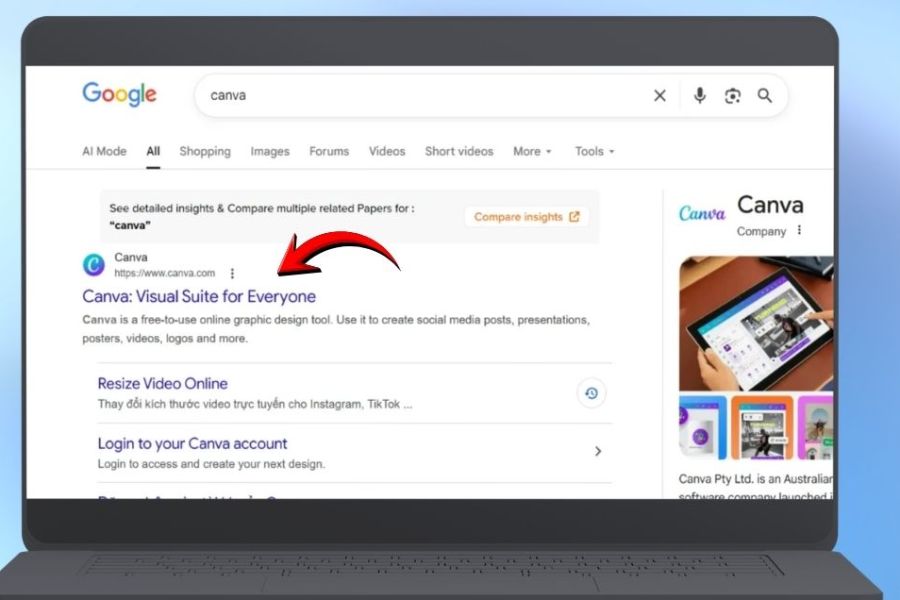
3.1. Step 1: Access Canva and log in.
First, open Canva on your computer's browser and log in to the account you want to use. If you are already logged in, you can skip this step and go straight to the design management interface.
After logging in, double-check the account you're using. If you have multiple Canva accounts for work, study, or personal use, identifying the correct account from the start will help ensure your designs are saved in the right place and are easier to manage.
3.2. Step 2: Open the Projects section
On the main Canva interface, find the Projects section . This is where you manage the designs you've created, uploaded, or imported from other sources.
Next, find the plus button or the "Add New Content" option to begin the import process. In the displayed list, select "Import" . This action allows Canva to receive files from supported storage platforms.
-
Select Projects .
-
Press the add content button.
-
Select Import .
-
Wait for Canva to display the list of data sources.
3.3. Step 3: Connect Canva to Google Drive
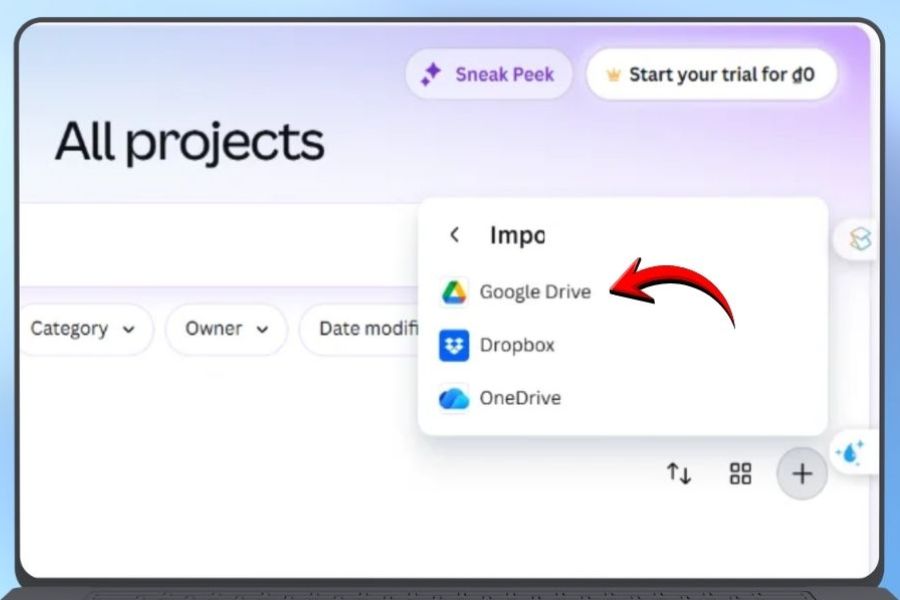
After selecting Import, Canva will display the sources you can use to import the file. Here, select Google Drive to begin connecting to Google's storage.
If this is your first time connecting, Canva may ask you to select a Google account and grant access. Please double-check that it's the correct account before confirming. Once complete, Canva will be able to display suitable files in Google Drive for you to choose from.
-
Choose Google Drive .
-
Click Connect if Canva asks for a connection.
-
Select the Google account that is saving the presentation.
-
Confirm access permissions as instructed.
-
Wait for the connection process to complete.
3.4. Step 4: Find and import the presentation
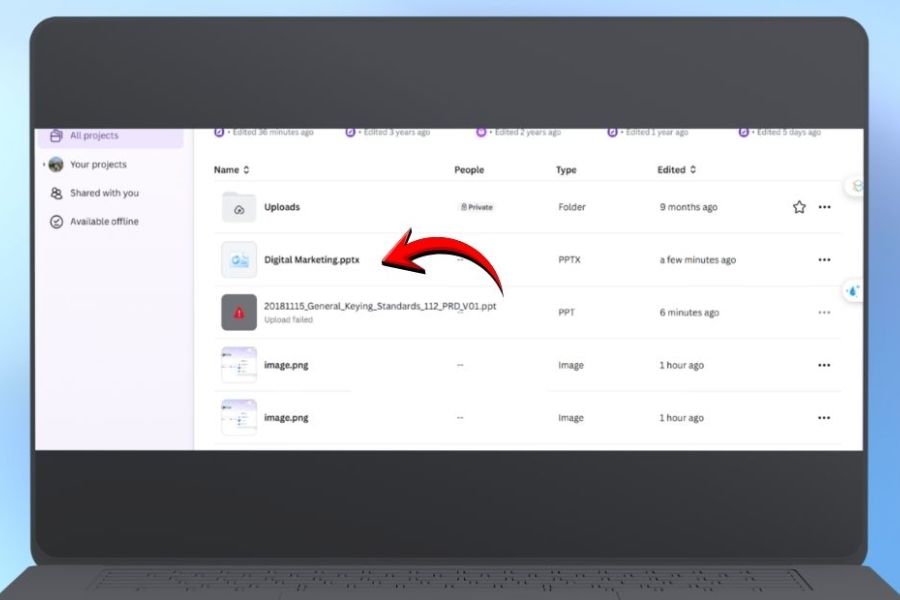
Once Google Drive is connected, you can locate the Google Slides file you want to import into Canva. If Drive contains many documents, use file names for faster searching instead of checking each folder.
After identifying the correct presentation, select the file and click Import . Canva will begin processing the data and importing the content into the design area. Processing time may vary depending on the number of pages and components in the file.
-
Find the right presentation.
-
Check the file name before selecting it.
-
Click Import .
-
Wait for Canva to finish processing.
3.5. Step 5: Open and edit the slides in Canva
Once the import process is complete, the presentation will appear in Canva's design area. You click on the file to open the editor and begin reviewing each page.
This is where you can focus on the visuals and layout. Make only the necessary changes instead of editing everything at once. After every few slides, double-check to ensure the design style remains consistent.
-
Adjust the font.
-
Change the color.
-
Add images.
-
Add icons and graphics.
-
Align content.
-
Adjust the spacing between the components.
-
Review each slide after making the necessary edits.
4. How to design beautiful and professional slides using Canva
After importing your Google Slides into Canva, the most important step is transforming the raw content into an easy-to-read layout. A beautiful slide doesn't necessarily need a lot of effects or images. More importantly, the viewer should be able to quickly identify the title, main content, and key points. Therefore, prioritize clarity and consistency throughout your presentation.
4.1. Choosing consistent colors
Color has a direct impact on the viewer's perception. Instead of using too many colors on the same slide, you should build a dominant color palette and maintain it throughout the presentation.
-
Choose about 2 to 4 primary colors.
-
Use bright colors for important information.
-
Ensure the text has good contrast with the background.
-
Avoid using too many colors in a single slide.
4.2. Optimizing fonts and content
A presentation can contain a lot of information, but you shouldn't put everything on the screen at once. Condense the text into key points, then use headings and font size to create a logical order of information.
-
The title should stand out more than the content.
-
Prioritize fonts that are easy to read.
-
Avoid using too many different font styles.
-
Break down lengthy content into bullet points.
-
Highlight important keywords.
4.3. Utilize images and infographics
For content that's difficult to express in words, convert it into images or infographics. Canva offers many tools to help you illustrate processes, data, relationships between ideas, or information you need to remember.
-
Use charts when you need to present data.
-
Use a timeline to illustrate the process.
-
Use a diagram to describe the relationships.
-
Use icons to illustrate the main points.
-
Don't use images just to fill in empty spaces.
5. Tips for combining Google Slides and Canva to create more effective slides.
To create slides quickly while maintaining a professional look, you should clearly define the roles of Google Slides and Canva. Google Slides can be used to build content, organize ideas, and collaborate, then transferred to Canva to finalize colors, images, and layout. Before designing, ensure the content is checked and streamlined; when editing in Canva, maintain a consistent style in terms of fonts, colors, and images. Finally, proofread the entire presentation to check for errors before using it officially. If you frequently create slides or design images and want to explore more advanced features, you can consider upgrading Canva at Sadesign for a more convenient creative process.
-
Finalize the content and layout before starting the design.
-
Condense long paragraphs into main points, making the slides easier to read.
-
Choose about 2 to 4 main colors and use them consistently.
-
Maintain consistency in font, alignment, and image style throughout the article.
-
Take advantage of the templates, icons, images, and infographics available on Canva.
-
Check spelling, figures, images, and font size before presenting.
-
Review the entire presentation in slideshow mode to detect any layout errors.
-
Determine your needs before upgrading Canva at Sadesign.
-
Consider features, costs, and support policies to choose the right package.
6. Conclusion
Combining Google Slides with Canva is a simple way to build presentations that are both well-structured and professionally designed. Google Slides is great for brainstorming, teamwork, and content management, while Canva helps refine colors, images, layout, and visual elements. Simply create your content first on Google Slides, then import it into Canva and optimize each slide individually. This significantly reduces design time. Most importantly, maintain an easy-to-read layout, consistent colors, and focus on the information your audience truly needs to remember. If you use Canva regularly, you can also consider upgrading at Sadesign for additional tools to support your design process.





















VIP Products








Best Selling Products
Capcut Pro 1 Year
39 USD
Upgrade genuine Capture One account
120 USD
Genuine Adobe Illustrator account
99 USD
Copyright Adobe Lightroom Account
59 USD
Upgrade Genuine Office 365
49 USD
Adobe Premiere Pro Account
99 USD
MidJourney Account
29 USD
Upgrade Duolingo Super
29 USD
ChatGPT Plus Account (GPT-4)
16 USD
Freepik Premium Account
59 USD
Autodesk All App Account Copyright
120 USD
Plugin Retouch4me
69 USD
Adobe Photoshop Copyright - Full App
120 USD
Windows 10 & 11 Pro Key
36 USD
Genuine Cheap Canva Pro
39 USD