Best Selling Products

Adobe Premiere Pro Account
99 USD

Upgrade genuine Capture One account
120 USD

Upgrade Genuine Office 365
49 USD

Copyright Adobe Lightroom Account
59 USD

Freepik Premium Account
59 USD

Upgrade Duolingo Super
29 USD

ChatGPT Plus Account (GPT-4)
16 USD

Capcut Pro 1 Year
39 USD

Adobe Photoshop Copyright - Full App
120 USD

Plugin Retouch4me
69 USD

MidJourney Account
29 USD

Genuine Cheap Canva Pro
39 USD

Genuine Adobe Illustrator account
99 USD

Autodesk All App Account Copyright
120 USD

Windows 10 & 11 Pro Key
36 USD
Google AI Studio''s built-in translation tool: Real-time speech translation
Nội dung
- 1. General information about Google AI Studio's live translation tool.
- 2. How to use the direct translation tool in Google AI Studio
- Step 1: Open Google AI Studio and access the Real-time area.
- Step 2: Select the language you want to translate to.
- Step 3: Allow Google AI Studio to receive audio.
- Step 4: Begin real-time translation
- Step 5: Stop translating when there is no longer a need.
- 3. What are the outstanding features of the Google AI Studio direct translation tool?
- 4. Limitations to be aware of when using live translation tools
- 5. Should I try the direct translation tool on Google AI Studio, and should I upgrade at Sadesign?
- 6. Conclusion
Instead of just translating text, the tool can receive audio and create a translated audio transcript, allowing users to follow the content almost as the speaker is speaking. This technology is built on the Live API and Gemini models for real-time audio experiences. So how does the live translation tool in Google AI Studio work? How do you use this tool when watching videos or needing to translate a conversation? Let''s explore the details with the guide below.
1. General information about Google AI Studio's live translation tool.
Google AI Studio is an online environment that allows users to experience Gemini models and experiment with the many AI capabilities offered by Google. A notable feature of the live translation tool is its ability to process audio continuously, rather than requiring users to transcribe speech first before translation. With real-time audio translation, spoken content is received, analyzed, and converted into the desired language, then outputs the audio for users to listen to directly. This is especially useful when watching videos, participating in conversations, or listening to foreign language content without constantly pausing to look up each sentence. The Live API technology is also designed for low-latency interactions, making voice communication feel more natural.
Some notable features of the live translation tool include:
-
Live audio translation: Instead of just providing text, the tool can generate a translated audio transcript for the user to listen to.
-
Continuous content processing: Audio is streamed in real time, matching the ongoing video or conversation.
-
Transcript display is possible: In addition to audio, the system can also provide text content for users to easily follow along.
-
Multilingual support: The ability to translate multiple languages makes the tool suitable for a variety of learning, working, and entertainment situations.
-
No need to build your own application: Users can experience it directly through the Google AI Studio test interface.

2. How to use the direct translation tool in Google AI Studio
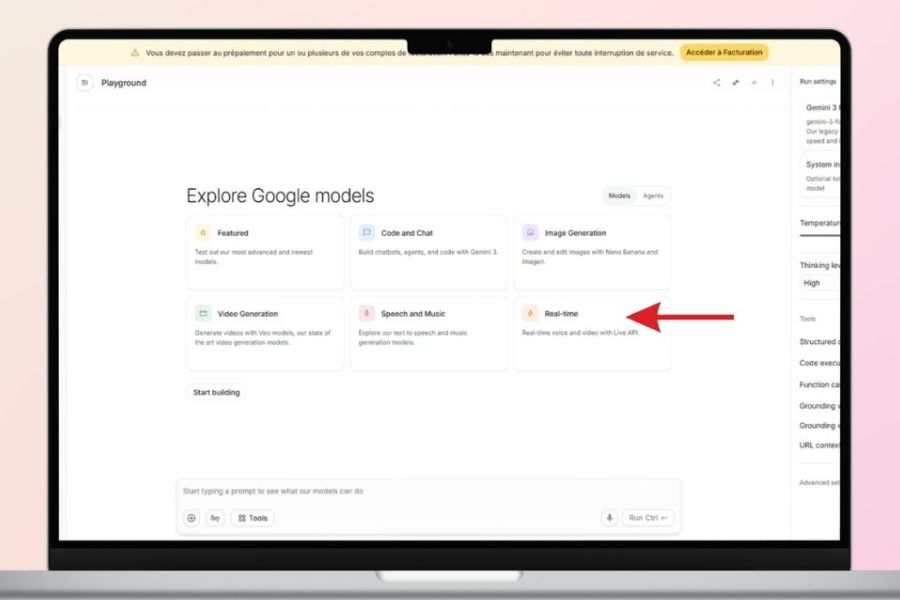
Step 1: Open Google AI Studio and access the Real-time area.
First, open Google AI Studio on your computer's browser and log in to your account. In the workspace, find the area for real-time interactive features, then select the corresponding tool or live translation model.
-
Open Google AI Studio using your browser.
-
Log in to your Google account if prompted.
-
Access the Real-time area .
-
Look for options related to Live Translate or the live translation model.
-
Model names and option locations may change when Google updates the interface.
Because the experimental features in Google AI Studio may be adjusted by Google from time to time, users don't necessarily need to find every button exactly as illustrated. Prioritize tools with Live Translate or real-time audio translation capabilities.
Step 2: Select the language you want to translate to.
After opening the tool, the next step is to select the output language. This is the language you want to hear after the AI processes the source content. For example, if you are watching an English video and want to hear the content in Vietnamese, set Vietnamese as the target language.
-
Select the appropriate output language.
-
Double-check the language before you start sharing audio.
-
The tool can be used for various situations such as watching videos, learning a foreign language, or chatting.
-
With content playing in the browser, you can select the option to share audio from the tab.
Google AI Studio may offer a "Share Audio From Tab" option , allowing you to extract audio directly from a browser tab. If you want to translate speech in a conversation, the "Talk" option can also be used, depending on the interface and features available.
Step 3: Allow Google AI Studio to receive audio.
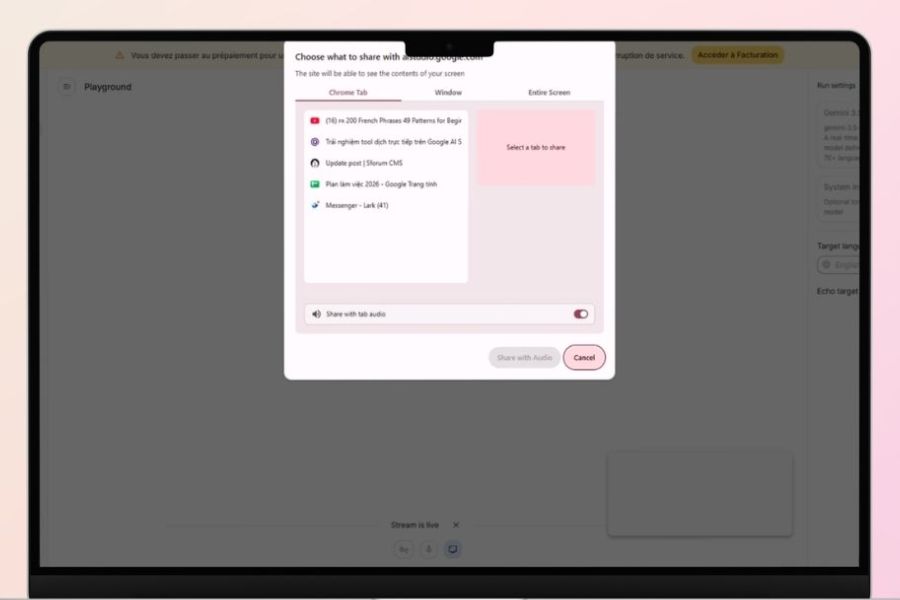
When you choose to share audio from a tab, the browser will display a window asking you to confirm the source of the content you want to share. This step needs to be done carefully because the AI can only process correctly when it receives the appropriate audio source.
-
Select the correct tab that is playing the video or content you want to translate.
-
Check that the tab has audio playing before sharing.
-
Choose the option to share with sound if your browser prompts you to.
-
Press Share to start streaming the audio.
-
If a confirmation message appears, select Acknowledge to continue.
Selecting the wrong tab or failing to share audio can prevent the tool from receiving input data. Therefore, if you find the AI unresponsive, check your audio source and browser's sharing permissions before trying again.
Step 4: Begin real-time translation
Once successfully connected, the tool will begin receiving audio from the selected source. As the video or conversation continues to play, the system processes the speech and generates a translation in real time.
-
Play a video or start a conversation.
-
To allow the AI to receive audio from the shared source.
-
Follow the text if the tool displays a transcript.
-
Listen to the translated audio.
-
Accept a small delay between the original speech and the translation.
Don't expect the translation to appear perfectly simultaneously with each syllable spoken by the speaker. The system still needs time to recognize speech, understand context, process the language, and generate the output sound. However, this continuous processing makes the experience significantly more natural than having to pause the video after each sentence to translate.
Step 5: Stop translating when there is no longer a need.
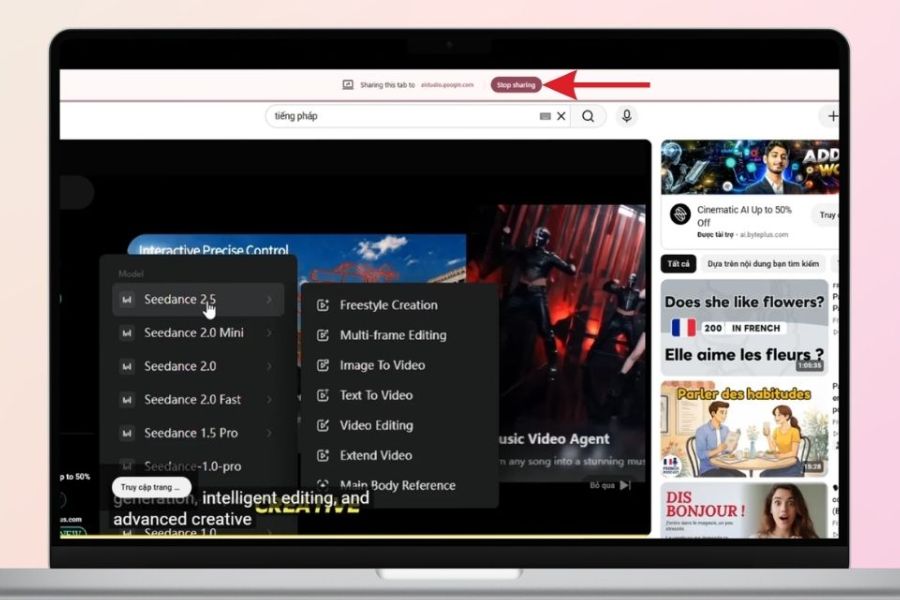
Once users have finished watching the video or no longer wish to share the audio, they can end the translation quite quickly.
-
Stop playing the translated content.
-
Select Stop Sharing if you are currently sharing audio from the tab.
-
Close the session when finished.
-
Check your browser's sharing permissions if you don't want to continue transmitting audio.
Actively stopping audio sharing also gives users control over when Google AI Studio is allowed to receive audio from the browser.
3. What are the outstanding features of the Google AI Studio direct translation tool?
What sets this tool apart is how it handles audio. Instead of viewing translation as simply transferring a piece of text from one language to another, the system focuses on a direct, communicative experience where input audio is processed continuously and produces audio feedback. This approach is well-suited to situations where response speed is just as important as translation accuracy.
-
Listen to the translation instead of just reading the subtitles: When watching long videos, listening to the translation can be more convenient than constantly looking down at the subtitles.
-
Real-time interactive support: The tool is built for continuous communication sessions, suitable for two-way conversations.
-
Low latency: The Live API aims for low-latency audio processing, resulting in faster response times compared to segmented translation processes.
-
More natural conversational processing: In voice interaction situations, the system can process a continuous stream of audio instead of requiring the user to type each sentence.
-
Multilingual support: Multilingual capability opens up a wide range of use cases, from learning and entertainment to communication.
-
No need to download videos: With audio streaming directly from the browser, users can share audio from the tab for a seamless experience.
-
It has potential applications in many situations: The technology has the potential to support video translation, transcription, education, customer service, and voice assistants.
-
Intuitive experience: Users can test translation capabilities directly within the Google AI Studio environment instead of having to build the system from scratch.
4. Limitations to be aware of when using live translation tools
While offering a rather impressive experience, the live translation tool in Google AI Studio should still be considered a supporting tool rather than a perfect translation solution for all situations. Real-time speech translation is a complex task because the system must simultaneously process audio, context, speaking speed, and pronunciation. Therefore, the translation may sometimes not perfectly capture the meaning the speaker intended to convey.
-
There is still a delay: Translations often don't appear at the exact same time as the original speech.
-
Accuracy is dependent on sound: Noise, regional accents, speaking too quickly, or multiple people speaking at the same time can affect the results.
-
Complex contexts can present challenges: Idioms, slang, technical terms, or metaphorical expressions may need to be checked.
-
The interface may change: Test models and feature placements in Google AI Studio may be updated over time.
-
Do not rely entirely on translations: For legal content, specialized documents, important materials, or information requiring a high degree of accuracy, it is advisable to cross-check with the original document.
-
Audio sharing permission required: When translating content from a browser tab, users must allow the browser to transmit the appropriate audio source.
-
Input quality directly affects the results: Clear sound with minimal noise will allow the system to process better.
5. Should I try the direct translation tool on Google AI Studio, and should I upgrade at Sadesign?
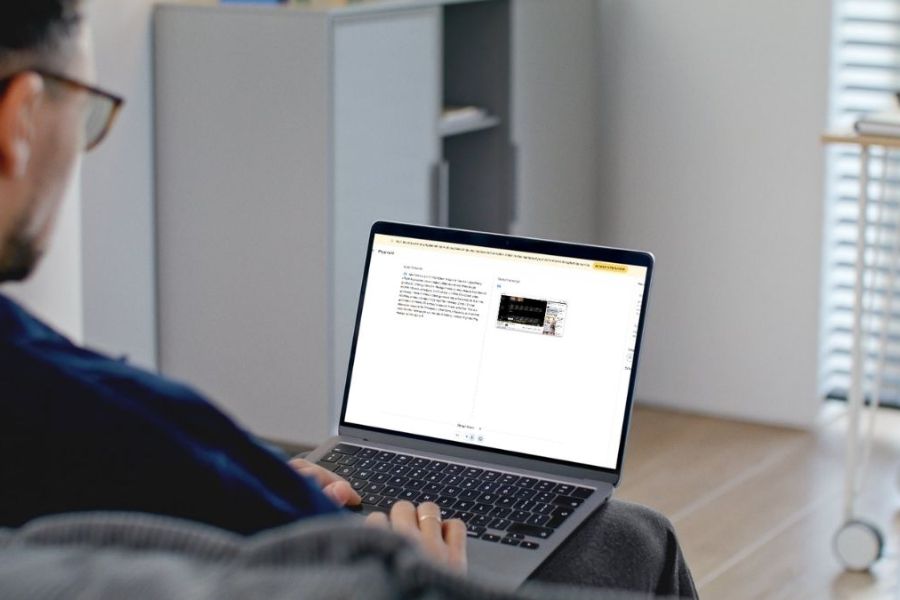
If you frequently watch foreign content, study using international videos, or need to work with speakers of other languages, the live translation tool in Google AI Studio is a feature worth trying. Its appeal lies in its ability to transform audio into a nearly instantaneous translation experience, reducing reliance on subtitles and manual processing. However, this technology should still be used appropriately, especially when content requires high accuracy. To more effectively utilize AI tools and advanced features within the Google ecosystem, users can explore suitable service packages and upgrades at Sadesign . This is a popular choice for those seeking more convenient access to AI services, with ongoing support and tailored to their personal or professional needs.
-
User support: Suitable for those unfamiliar with AI services.
-
Save time researching: You can find the right service package instead of trying out many options yourself.
-
Affordable cost: Suitable for those who want to use AI tools for learning, content creation, or work.
-
Support when problems arise: Users can seek support when needed while using the service.
-
Suitable for a wide range of needs: From AI experiences and content creation to tasks requiring specialized tools.
6. Conclusion
Overall, the live translation tool in Google AI Studio shows that AI is getting closer to how humans communicate naturally. Instead of just reading the translation on the screen, users can listen to the translated content during the conversation or video. Although there are still limitations regarding latency, sound quality, and accuracy in some contexts, this is still a noteworthy development in speech translation technology. If you frequently encounter multilingual content, try the tool to clearly feel the difference between traditional text translation and real-time audio translation. Additionally, if you need advanced AI services, you can explore upgrade options at Sadesign to choose a package that suits your needs.





















VIP Products








Best Selling Products
Adobe Premiere Pro Account
99 USD
Upgrade genuine Capture One account
120 USD
Upgrade Genuine Office 365
49 USD
Copyright Adobe Lightroom Account
59 USD
Freepik Premium Account
59 USD
Upgrade Duolingo Super
29 USD
ChatGPT Plus Account (GPT-4)
16 USD
Capcut Pro 1 Year
39 USD
Adobe Photoshop Copyright - Full App
120 USD
Plugin Retouch4me
69 USD
MidJourney Account
29 USD
Genuine Cheap Canva Pro
39 USD
Genuine Adobe Illustrator account
99 USD
Autodesk All App Account Copyright
120 USD
Windows 10 & 11 Pro Key
36 USD