Best Selling Products

Upgrade Genuine Office 365
49 USD

Genuine Cheap Canva Pro
39 USD

Autodesk All App Account Copyright
120 USD

Windows 10 & 11 Pro Key
36 USD

Genuine Adobe Illustrator account
99 USD

Copyright Adobe Lightroom Account
59 USD

Adobe Premiere Pro Account
99 USD

ChatGPT Plus Account (GPT-4)
16 USD

Capcut Pro 1 Year
39 USD

Upgrade Duolingo Super
29 USD

Plugin Retouch4me
69 USD

Freepik Premium Account
59 USD

Upgrade genuine Capture One account
120 USD

Adobe Photoshop Copyright - Full App
120 USD

MidJourney Account
29 USD
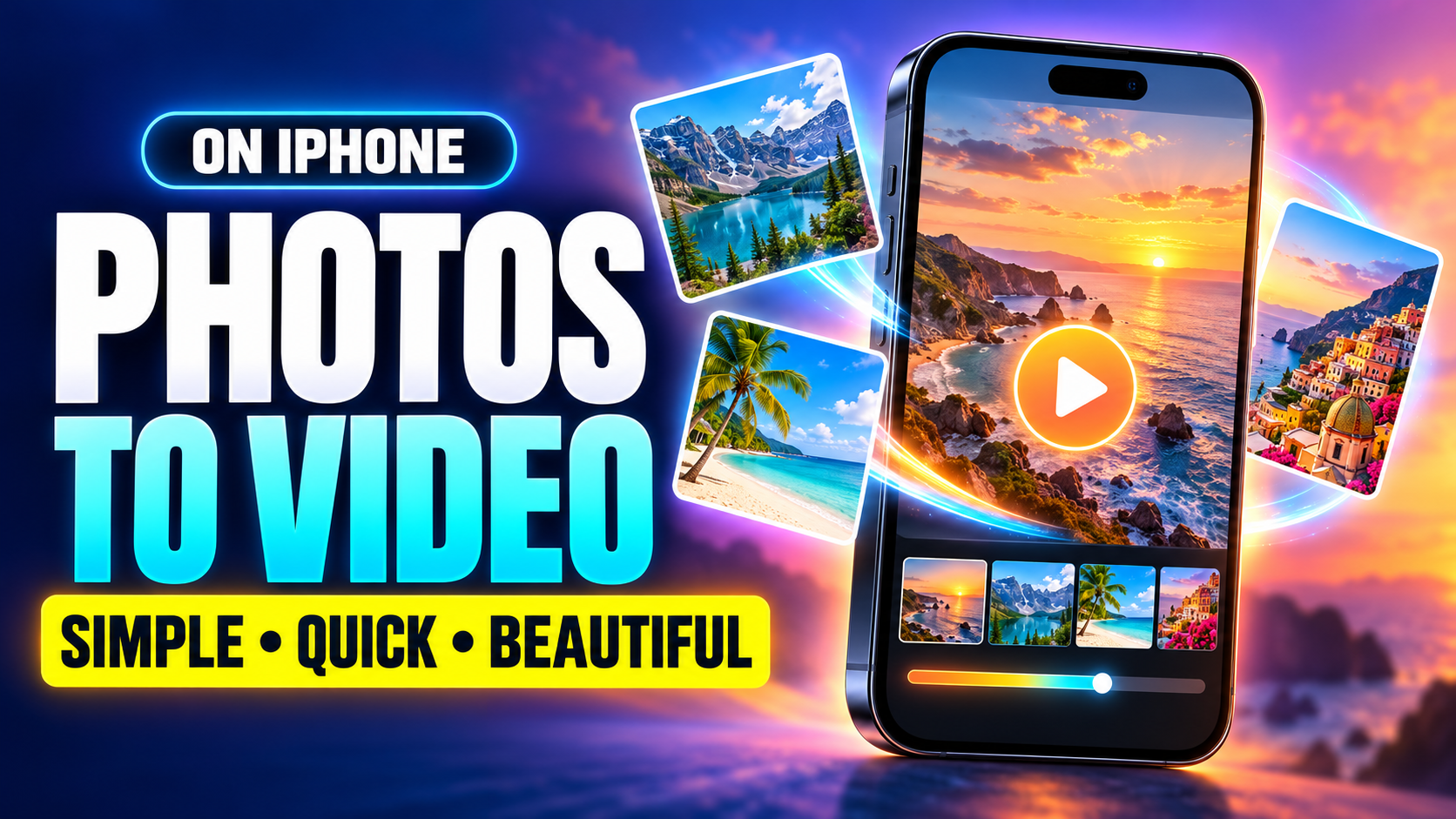
How to create videos from photos on iPhone: simple, quick, and beautiful.
Nội dung
- 1. How to create videos from photos on iPhone without an app.
- 2. How to create a video from your existing photo album on your iPhone
- 3. Top 3 easy-to-use apps for creating videos from photos on iPhone
- 3.1 CapCut
- 3.2 Canva
- 3.3 InShot
- 4. Tips for creating more beautiful and engaging videos from photos on iPhone.
- 5. How to export high-quality video and photos, minimizing blurring.
- 6. Conclusion
With just a few steps, photos can be arranged into a slideshow, combined with background music, transition effects, and motion to create a more professional feel. Interestingly, creating videos from photos on an iPhone doesn''t necessarily require complex editing skills. For a quick process, you can utilize the built-in tools on your iPhone. If you need more effects, text, music, and eye-catching templates, video editing apps are also a suitable option. This article from Sadesign will guide you through each step to easily create a beautiful video from your existing photos.
1. How to create videos from photos on iPhone without an app.
iPhones already have many built-in features that allow users to create videos from their photo library without needing to download additional apps. This is a suitable option if you just want to quickly turn a group of photos into a video with basic music and effects. In particular, the Memories feature can automatically select and arrange images by time, location, or event to create a complete video.
-
Step 1: Open the Photos app on your iPhone.
-
Step 2: Access the Collections section and find the Memories category .
-
Step 3: Choose an existing Memory that you want to use.
-
Step 4: Press the play button to watch the video automatically created by your iPhone.
-
Step 5: You can change the slideshow style or music if your iOS version supports these options.
-
Step 6: Tap the share icon and select Save Video to save it as a file to your photo library.
2. How to create a video from your existing photo album on your iPhone
If you already have an album containing the photos you want to use, creating a video will be even more convenient. This is especially useful when you want to make a video about a trip, a birthday party, a wedding, family, or a series of photos on a common theme. Instead of letting your iPhone automatically select images, you can start from a pre-prepared album.
-
Step 1: Open the Photos app on your iPhone.
-
Step 2: Go to the Collections section and select Album .
-
Step 3: Open the album containing the images you want to use to create the video.
-
Step 4: Tap the three-dot icon in the options area.
-
Step 5: Select Play Memory Movie or the corresponding memory video playback option on your iOS version.
-
Step 6: After the video is created, press the share icon.
-
Step 7: Select Save Video to add the video to your library.

3. Top 3 easy-to-use apps for creating videos from photos on iPhone
3.1 CapCut
CapCut is suitable for those who want to create videos from photos quickly but still have plenty of customization tools. The application provides a visual timeline, numerous templates, effects, transitions, and a sound library, making it easier to turn a photo album into a video.
-
Multiple images can be imported at the same time.
-
Allows you to change the order of images using drag-and-drop functionality.
-
There are many transition effects and filters.
-
You can add text, stickers, and background music.
-
Supports multiple aspect ratios suitable for TikTok, Reels, Shorts, or regular videos.
-
There are AI tools available to assist with the editing process in certain versions and service packages.
-
The resolution and frame rate can be customized when exporting video depending on the settings and project content.
One notable feature of CapCut is that even beginners can learn relatively quickly. If you don't know where to start, you can choose a pre-made template and replace the image with your own. This is a time-saving way to create a short video to share on social media.
3.2 Canva
Canva is primarily known as a design tool, but on iPhone, the app also conveniently supports creating videos from photos. Instead of just combining photos in a traditional slideshow style, you can choose from many design templates to create videos with your own unique style.
-
Supports multiple pre-made video templates.
-
You can add images, videos, text, and graphic elements.
-
Allows selection of multiple transition styles.
-
Depending on the package you choose, there is a library of images, sounds, and design resources.
-
Suitable for product introduction videos, commemorative photos, personal content, and social media.
-
The drag-and-drop interface is intuitive and easy to get used to.
Canva is especially suitable for those who want videos with a clear design element. You can create an intro, add a title, insert quotes or short information into each segment to make the video more substantial instead of just a continuous stream of images.

3.3 InShot
If you prioritize an app with a simple interface and fast operation, InShot is also a worthwhile option. The app allows you to import photos, arrange them on the timeline, adjust the duration, add music, effects, and transitions.
-
Combine multiple photos into a video.
-
Adjust the display duration of each image.
-
Add background music and sound effects.
-
There are filters, effects, and color correction tools.
-
Supports adding text, stickers, and decorative elements.
-
There are many aspect ratios available for different social media platforms.
-
There are video export options depending on the version and package used.
For family videos, commemorative videos, or short social media content, InShot can help you complete your project quite quickly without needing to familiarize yourself with too many complex tools.
4. Tips for creating more beautiful and engaging videos from photos on iPhone.
Combining photos into a video is just the first step. To ensure the final product feels smooth and professional, you should pay attention to photo selection, transitions, sound, and aspect ratio. A video doesn't need too many effects, but if the images are arranged well, the colors are consistent, and the music is appropriate, it can still make a good impression.
-
Choose images that are relevant to the content: Avoid including too many unrelated images in a video. A video with a clear story is usually easier to watch.
-
Arrange the photos in chronological order: With travel videos, you can start from the beginning of your trip, move to the highlights, and end with the most memorable moment.
-
Avoid using too many effects: Frequent scene transitions or overly dramatic effects can distract viewers from the main image.
-
Align the video duration with the music: If the video has background music, try transitioning between shots to the rhythm or highlights of the song to create a seamless feel.
-
Prioritize high-quality images: Original images with good resolution will result in a clearer final video.
-
Choose the right aspect ratio: TikTok, Reels, and Shorts videos are generally best suited to a vertical 9:16 aspect ratio, while some other content may use 16:9 or 1:1.
-
Maintain color consistency: If the image has too many different tones, you can use filters or make subtle color adjustments to create a more harmonious overall effect.
-
Use just enough text: A few short captions can help your video tell its story better, but avoid stuffing too much text into a single frame.
-
Review the video before exporting: Take a look at the entire video once to check for rotated images, obscured text, or inappropriate transitions.
-
Choose the appropriate output quality: If the video is to be stored or displayed on a large screen, prioritize high resolution if your device and application support it.
5. How to export high-quality video and photos, minimizing blurring.
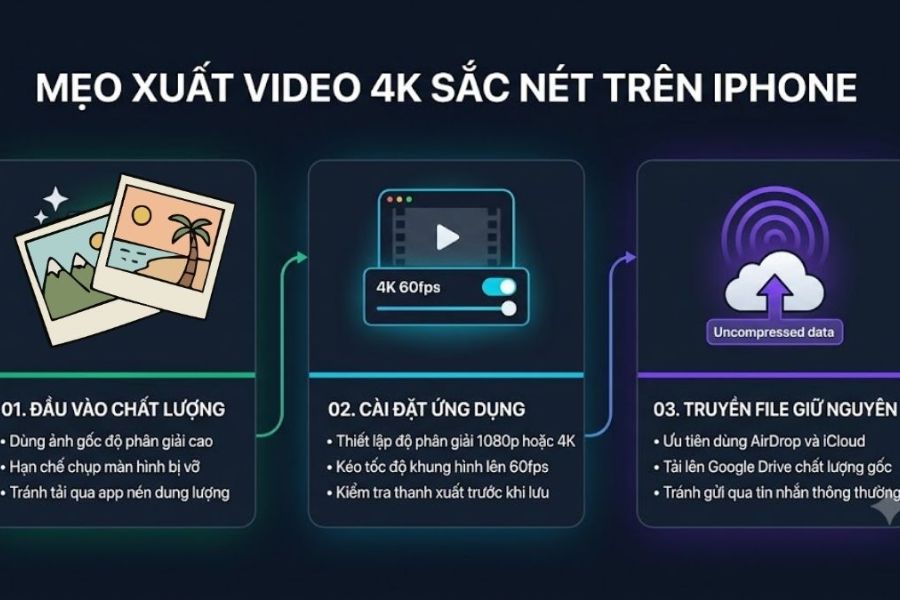
One common problem after creating videos from photos on an iPhone is that the resulting video is not as sharp as the original photos. This can be due to the quality of the input photos, video export settings, or the file transfer process through apps with compression mechanisms. If you want to maintain the clearest image possible, you should check some settings before and after exporting.
-
Prioritize original images: Avoid using heavily compressed images or screenshots if you want high-quality video.
-
Check the resolution: When using CapCut, InShot, or similar applications, check the output settings and select a level that suits your needs.
-
You can choose 1080p: This resolution is suitable for many videos posted on social media and helps strike a balance between quality and file size.
-
Choose 4K when needed: If the input image is of good quality and your device or application supports it, you can export in 4K for high-quality storage or presentation purposes.
-
Check FPS: Frame rates such as 30fps or 60fps can be selected depending on the purpose. Not all videos need the highest setting.
-
Avoid sending videos via platforms with strong compression: Some messaging apps may automatically reduce video file size. When you need to maintain original quality, you can use AirDrop, iCloud, or other cloud storage services.
-
Check your storage space before saving: 4K videos can take up significantly more memory, so make sure your iPhone has enough space.
6. Conclusion
If you frequently need to edit videos, design images, or use professional creative tools, choosing the right software version will make your workflow more convenient. You can refer to Sadesign 's software packages and upgrade support services to have more options to suit your needs. Besides cost, you should carefully review the features, usage period, and support conditions of each package before choosing. In general, creating videos from photos on an iPhone is not as complicated as many people think. If you need it quickly, you can use the built-in Memories feature on the iPhone. If you want to actively edit every detail, CapCut, Canva, or InShot will offer more tools. Just choose quality photos, arrange them in a logical story, combine music and appropriate effects, and you can transform your familiar photo album into a lively video to keep or share with others.





















VIP Products








Best Selling Products
Upgrade Genuine Office 365
49 USD
Genuine Cheap Canva Pro
39 USD
Autodesk All App Account Copyright
120 USD
Windows 10 & 11 Pro Key
36 USD
Genuine Adobe Illustrator account
99 USD
Copyright Adobe Lightroom Account
59 USD
Adobe Premiere Pro Account
99 USD
ChatGPT Plus Account (GPT-4)
16 USD
Capcut Pro 1 Year
39 USD
Upgrade Duolingo Super
29 USD
Plugin Retouch4me
69 USD
Freepik Premium Account
59 USD
Upgrade genuine Capture One account
120 USD
Adobe Photoshop Copyright - Full App
120 USD
MidJourney Account
29 USD