Best Selling Products

Adobe Photoshop Copyright - Full App
120 USD

Upgrade Genuine Office 365
49 USD

MidJourney Account
29 USD

Adobe Premiere Pro Account
99 USD

Genuine Adobe Illustrator account
99 USD

Windows 10 & 11 Pro Key
36 USD

Autodesk All App Account Copyright
120 USD

Genuine Cheap Canva Pro
39 USD

ChatGPT Plus Account (GPT-4)
16 USD

Upgrade Duolingo Super
29 USD

Capcut Pro 1 Year
39 USD

Upgrade genuine Capture One account
120 USD

Freepik Premium Account
59 USD

Copyright Adobe Lightroom Account
59 USD

Plugin Retouch4me
69 USD
How to quickly and easily create background music for videos using Adobe Firefly.
Nội dung
- 1. How can Adobe Firefly create background music for videos?
- 2. How to create background music for videos using Adobe Firefly
- 3. How to adjust the prompt so the background music matches the video better.
- 3.1 Identify the video's main emotion.
- 3.2 Choose a Style Based on Images
- 3.3 Using specific descriptive keywords
- 3.4 Ensure that the settings do not conflict.
- 3.5 Try multiple versions instead of just using the first result.
- 4. Things to note when creating background music using Adobe Firefly
- 5. Should I upgrade to Adobe Firefly at Sadesign?
- 6. Conclusion
A video with beautiful visuals but lacking suitable background music can sometimes fail to evoke emotion in viewers. Instead of wasting time searching for individual tracks across various libraries, you can now use Adobe Firefly to create a soundtrack directly based on your video content. This AI tool can analyze uploaded videos and suggest appropriate musical styles, emotions, and rhythms. Importantly, users can also actively adjust the Vibe, Style, Purpose, Energy, and Tempo to make the music closer to their original concept. So, how do you create background music for a video using Adobe Firefly? Let''s explore the details below with Sadesign.

1. How can Adobe Firefly create background music for videos?
Adobe Firefly not only supports the creation of images and creative content using AI, but also provides a "Generate Music" feature for creating background music. The interesting aspect lies in its ability to combine video and text descriptions, allowing users to tailor the soundtrack to the content instead of having to search for pre-existing tracks. Simply upload your video, and Firefly will analyze the content and suggest music creation. Then, parameters such as mood, style, purpose, energy, and tempo can be adjusted as desired.
-
Save time: No need to browse through numerous music libraries to find a track that matches your video.
-
Content-based music creation: Firefly can use uploaded videos to determine the appropriate audio direction.
-
Easy to use: The settings are presented intuitively, suitable even for beginners.
-
Flexible customization: You can change the Vibe, Style, Purpose, Energy, and Tempo to your liking.
-
There are several versions to choose from: After creating, users can listen to different results and select the appropriate soundtrack.
-
Suitable for a wide range of video formats: From lifestyle videos, vlogs, commercials, and social media content to videos requiring a lighthearted or emotionally charged atmosphere.
2. How to create background music for videos using Adobe Firefly
Step 1: Open Generate Music
Access Adobe Firefly, then find the Audio option in the toolbar and select Generate music . The music creation interface will appear with options for you to set the sound style.
-
Open Adobe Fly.
-
Select Audio .
-
Press Generate music .
-
Check the prompt area and music adjustment options.
Step 2: Upload the video you want to add background music to.
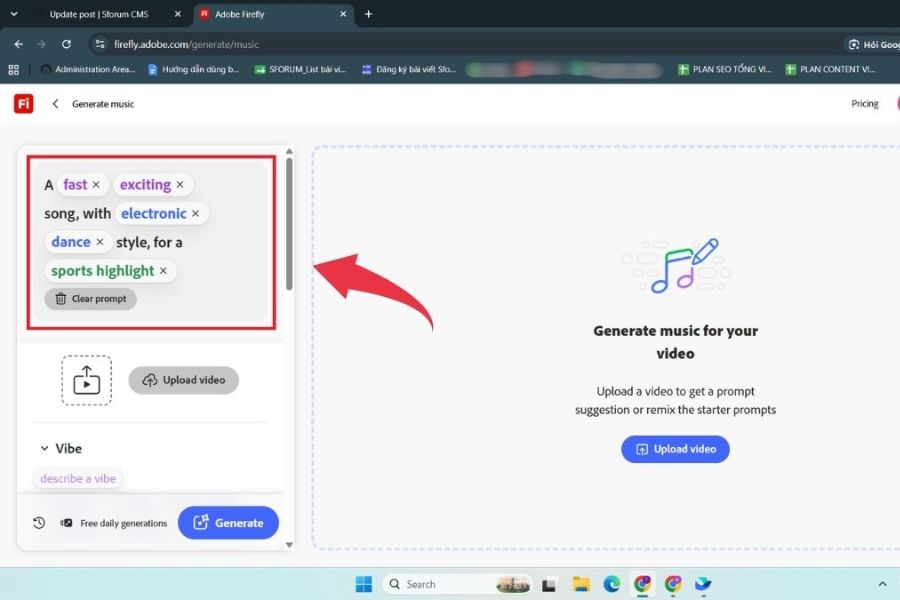
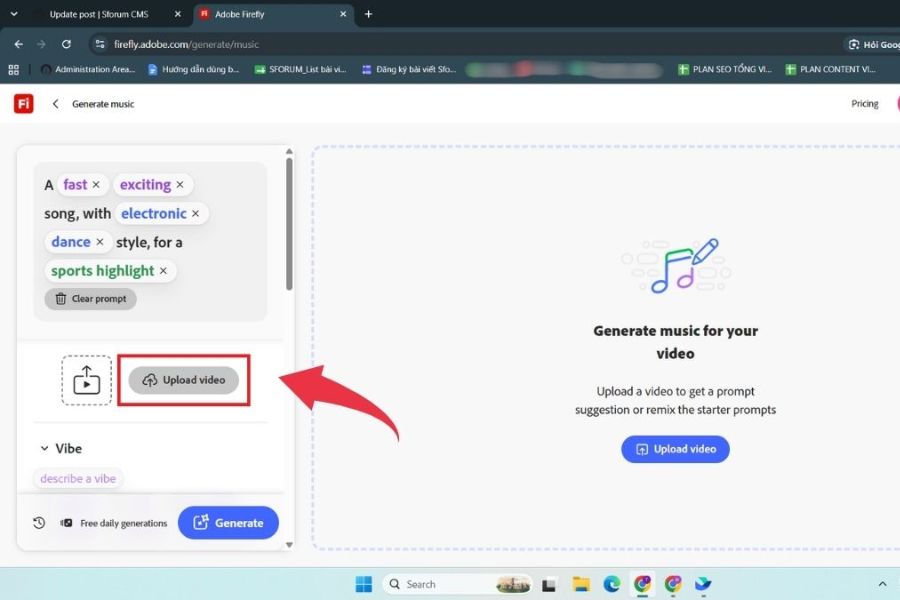
Next, select Upload Video to upload the video you want to use as background music to Firefly. The clearer the video's content and theme, the easier it will be to determine the soundtrack. According to the information provided for this feature, videos uploaded from mobile devices can use MOV or MP4 format, be under 100 MB in size, and not exceed 5 minutes in duration.
-
Click Upload Video .
-
Select a video from your device.
-
Wait for Firefly to finish uploading.
-
Review the video before moving on to the music setup step.
After the video is uploaded, Firefly will analyze the content and suggest a prompt as a basis for creating music. You can use the suggested prompt directly or edit it to better express your ideas.
Step 3: Set up Vibe, Style, and Purpose
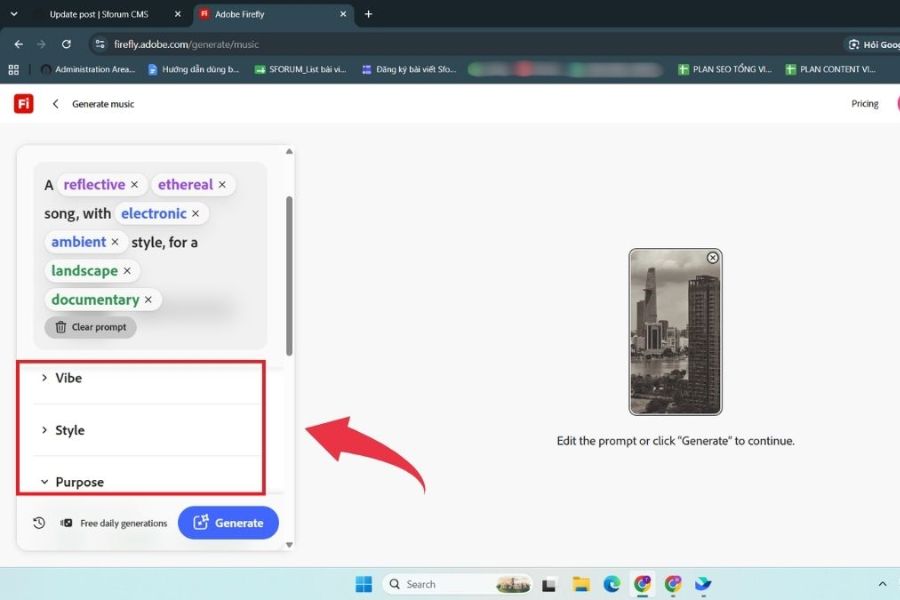
This is a crucial step if you want the soundtrack to match the video's color scheme. Firefly offers three main selection groups: Vibe, Style, and Purpose , corresponding to emotion, musical style, and intended use.
-
Vibe: Identify the overall emotion such as happy, relaxed, romantic, sad, or strong.
-
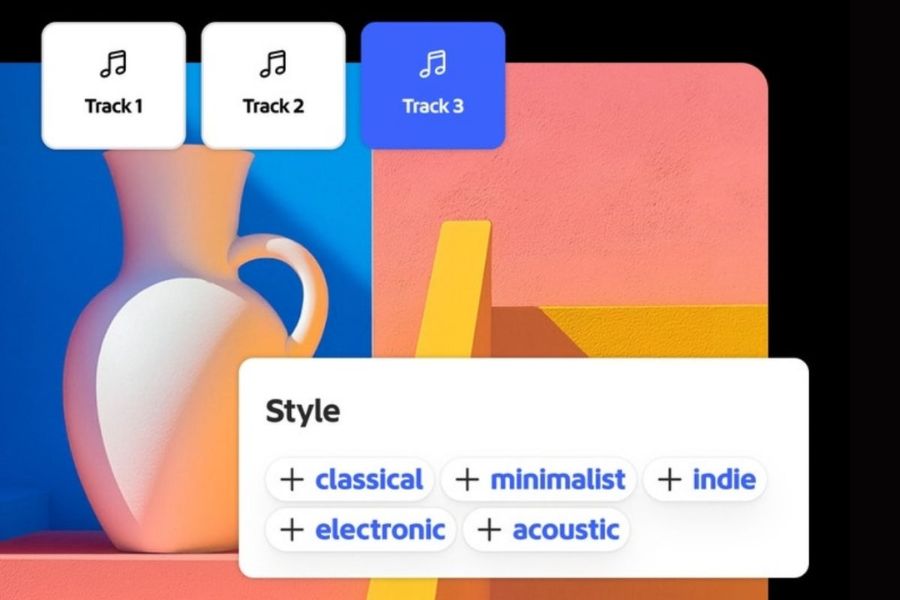
Style: Choose a musical style such as pop, rock, lo-fi, jazz, hip hop, or classical.
-
Purpose: Determine the purpose of the soundtrack, such as studying, relaxing, exercising, or sleeping.
You can also add descriptive words to help Firefly better understand the desired music. Words like cinematic, dreamy, energetic, and dramatic can help define a more specific sound signature.
Step 4: Adjust Energy and Tempo
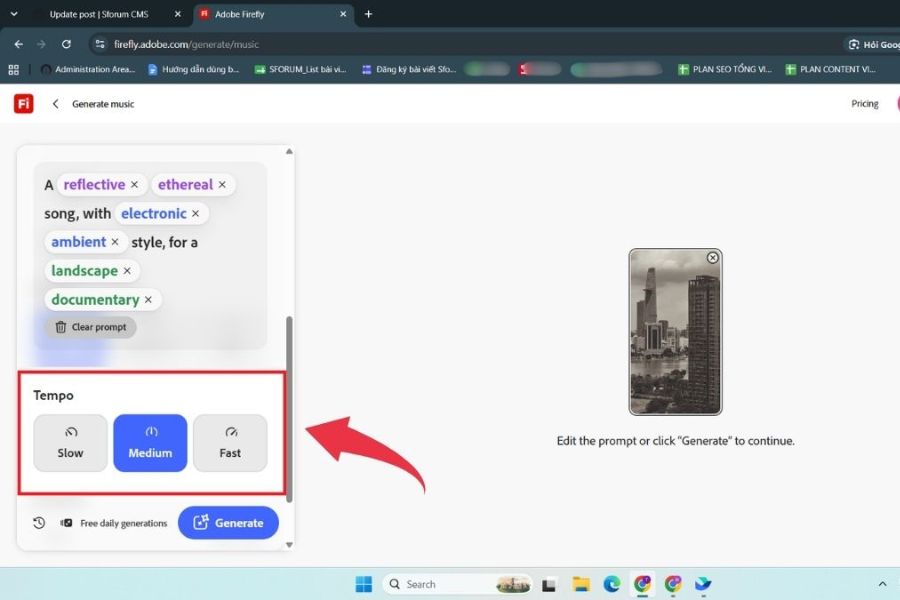
After choosing your style, adjust the Energy and Tempo . These two factors significantly affect the viewer's experience when the soundtrack plays along with the video.
With Energy , you can choose:
-
Low: Gentle, soothing, suitable for slow-paced content.
-
Medium: Balanced, easy to use for many video formats.
-
High: Energetic, powerful, suitable for fast-paced content.
Meanwhile, Tempo determines the speed of the music:
-
Slow: Slow, relaxed pace.
-
Medium: Moderate, steady pace.
-
Fast: A fast pace, creating a dynamic feeling.
Step 5: Choose the duration and create the music.
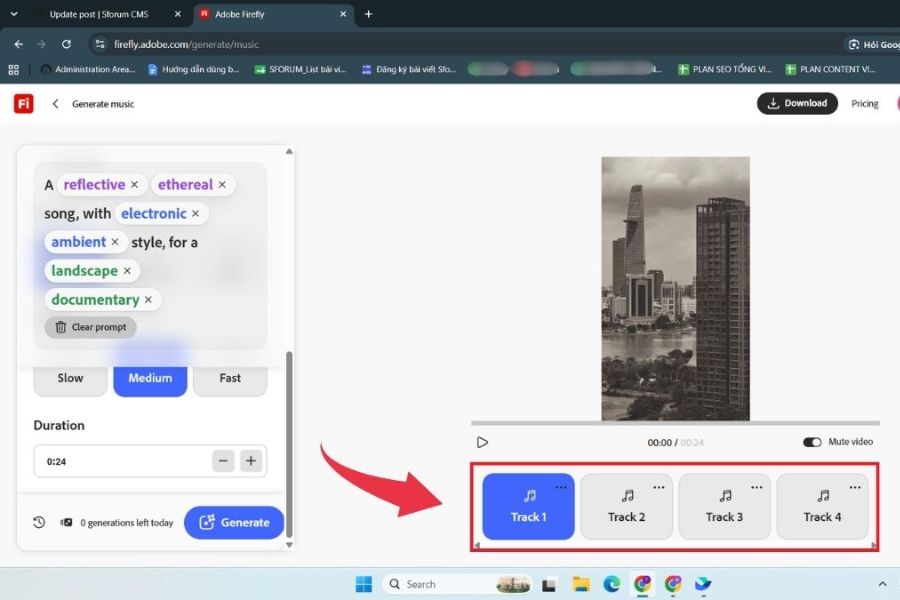
Firefly typically sets the soundtrack duration based on the video you upload. If you want a longer or shorter track, you can adjust it in the Duration section before creating. Once finished, double-check all the settings and then click Generate . You can also see the credit indicator next to the generate button to see how many credits are needed for this process.
Once the processing is complete, Firefly will provide several versions of the soundtrack for you to listen to. Play each version along with the video instead of just listening to the music alone. This way, you can easily identify which version has the rhythm and emotion that best matches the visuals. Finally, choose the version that suits you and press Download to save the video with the added background music to your device.
3. How to adjust the prompt so the background music matches the video better.
3.1 Identify the video's main emotion.
First, determine what feeling you want your video to convey. A travel vlog might need a bright soundtrack, while a video sharing everyday moments is better suited to softer music.
-
Travel videos: fun, bright, and energetic.
-
Video lifestyle: chill, dreamy, relaxing.
-
Advertising video: energetic, modern, powerful.
-
Emotional, cinematic, and poignant video.
-
Educational video: calm, relaxing, gentle.
3.2 Choose a Style Based on Images
Not all videos are suited to the same genre of music. Observe the content, colors, and editing before choosing a style. For example, a video with minimalist visuals and a slow tempo might be suitable for lo-fi, while a youthful product introduction video might be better suited for pop or electronic.
3.3 Using specific descriptive keywords
Instead of entering overly general descriptions, add adjectives that clearly express the color you want. Some English keywords can help to be more specific, such as:
-
Cinematic: Having a cinematic feel.
-
Dreamy: Dreamy, ethereal.
-
Energetic: High energy.
-
Dramatic: Dramatic, emotionally charged.
-
Relaxing: To unwind.
-
Upbeat: Upbeat, rhythmic.
-
Emotional: Highly emotional.
3.4 Ensure that the settings do not conflict.
Vibe, style, energy, and tempo should complement each other. If you want a gentle soundtrack but choose high energy and fast tempo, the result might be more energetic than intended. Conversely, a commercial with many fast-paced scenes but using low energy and slow tempo might make the overall effect lack cohesion.
3.5 Try multiple versions instead of just using the first result.
AI music generation doesn't always produce perfect results the first time around. Therefore, treat your first attempt as a test run. You can keep most of the prompt the same and then change one element, such as shifting the Energy from Medium to High or changing the Tempo from Medium to Fast. After a few tries, you'll find it easier to find a piece of music that's closer to your original vision.
4. Things to note when creating background music using Adobe Firefly
Creating soundtracks using AI significantly reduces audio processing time, but for high-quality videos, you should still carefully review the music before using it. A soundtrack that sounds great on its own may not be suitable for a video. The important thing is that the music complements the visuals rather than overpowering the main content.
-
Choose music based on the video content: Consider the theme, transition speed, and emotion before selecting a style.
-
Avoid excessively high energy: Music that is too loud can make it difficult for viewers to focus on the content, especially in videos with dialogue.
-
Pay attention to tempo: The music's rhythm should be relatively synchronized with the speed of the scene transitions to give the video a seamless feel.
-
Listen with the video: Don't just listen to the soundtrack alone. Check it out by playing it along with the visuals.
-
Create multiple versions: A few small changes in the prompt can produce very different musical tones.
-
Check the length: Make sure the soundtrack isn't too short or unnecessarily long compared to the content.
-
Pay attention to the dialogue: If the video has voiceovers, prioritize a soundtrack with a moderate energy level so as not to drown out the content.
-
Check usage rights: Before posting videos for commercial purposes, advertising, or use on specific platforms, you should check the terms and conditions and the rights to use the created content.
A simple tip is to view the soundtrack as part of the story. The opening sections can use a gentle tempo to guide the viewer, the middle section increases energy as the content builds to a climax, and the tempo slows down at the end if the video needs a soft ending. When the music naturally complements the visual flow, the video will feel more professional without needing overly complex editing.
5. Should I upgrade to Adobe Firefly at Sadesign?
If you frequently create videos, design images, or use Adobe's creative tools, owning a suitable package can make your workflow more convenient. Instead of just using AI for a few single tasks, users can leverage more creative features to support their work, studies, or content production. If you're looking for a convenient way to upgrade your Adobe software, Sadesign is an option you can consider, offering packages to suit your needs.
-
Convenient upgrade support: The process is clearly guided and suitable for those unfamiliar with Adobe service packages.
-
Affordable cost: There are many options for users to consider based on their needs.
-
Support during use: You can contact us if you encounter any problems related to the upgrade process or service usage.
-
Suitable for content creators: Those who frequently design, edit videos, or utilize AI tools may find Adobe services more convenient.
In particular, if you frequently create short videos, product advertisements, TikTok videos, YouTube videos, or social media content, combining AI tools with traditional editing workflows can save you a significant amount of time. You can let Firefly handle the soundtrack, then continue editing the visuals, audio, dialogue, and effects to perfect your video in your own style.
6. Conclusion
Creating background music for videos using Adobe Firefly isn't overly complicated, even if you don't have much experience with audio editing. With just a few steps—from loading the video, adjusting the prompt, selecting Vibe, Style, Purpose, Energy, and Tempo, to creating and previewing the soundtrack—you can build music that suits your content. The most important thing is not to be afraid to try different prompts. Even a small change in emotion, style, or speed can create a completely different piece of music. If you frequently create content and want to explore the Adobe ecosystem further, you can also check out upgrade packages at Sadesign for greater convenience in your creative process.





















VIP Products








Best Selling Products
Adobe Photoshop Copyright - Full App
120 USD
Upgrade Genuine Office 365
49 USD
MidJourney Account
29 USD
Adobe Premiere Pro Account
99 USD
Genuine Adobe Illustrator account
99 USD
Windows 10 & 11 Pro Key
36 USD
Autodesk All App Account Copyright
120 USD
Genuine Cheap Canva Pro
39 USD
ChatGPT Plus Account (GPT-4)
16 USD
Upgrade Duolingo Super
29 USD
Capcut Pro 1 Year
39 USD
Upgrade genuine Capture One account
120 USD
Freepik Premium Account
59 USD
Copyright Adobe Lightroom Account
59 USD
Plugin Retouch4me
69 USD