Best Selling Products

Copyright Adobe Lightroom Account
59 USD

Autodesk All App Account Copyright
120 USD

Windows 10 & 11 Pro Key
36 USD

MidJourney Account
29 USD

Genuine Cheap Canva Pro
39 USD

Plugin Retouch4me
69 USD

Adobe Premiere Pro Account
99 USD

Capcut Pro 1 Year
39 USD

ChatGPT Plus Account (GPT-4)
16 USD

Upgrade Genuine Office 365
49 USD

Genuine Adobe Illustrator account
99 USD

Upgrade Duolingo Super
29 USD

Adobe Photoshop Copyright - Full App
120 USD

Upgrade genuine Capture One account
120 USD

Freepik Premium Account
59 USD
How to turn Threads posts into short videos in just a few steps
Nội dung
- 1. What does it mean to turn Threads posts into short videos?
- 2. What do I need to prepare before creating a video using Threads?
- 3. How to turn Threads posts into short videos
- 3.1. Log in to ThreadViral
- 3.2. Copying Threads article links
- 3.3. Paste the Threads link into ThreadViral
- 3.4. Check the content selected by the system.
- 3.5. Let ThreadViral analyze and create the video.
- 3.6. Review the video after completion.
- 3.7. Edit or ask the AI to recreate it.
- 3.8. View and download cover image
- 3.9. Download the video to your computer.
- 4. Tips to make videos transferred from Threads more engaging.
- 5. Conclusion
Content on Threads often starts with simple text, but a post with a good story, an interesting perspective, or lively comments can easily become a captivating short video. Instead of spending hours rewriting scripts, finding images, recording audio, and editing each video segment, you can leverage ThreadViral to automate much of the process. With just a Threads link, the system can help analyze content, select information, build a script, create voiceovers and subtitles, and create a vertical video. This is quite convenient for those who want to turn text content into videos for TikTok, Reels, or YouTube Shorts without needing advanced editing software. Let''''s explore it with Sadesign!
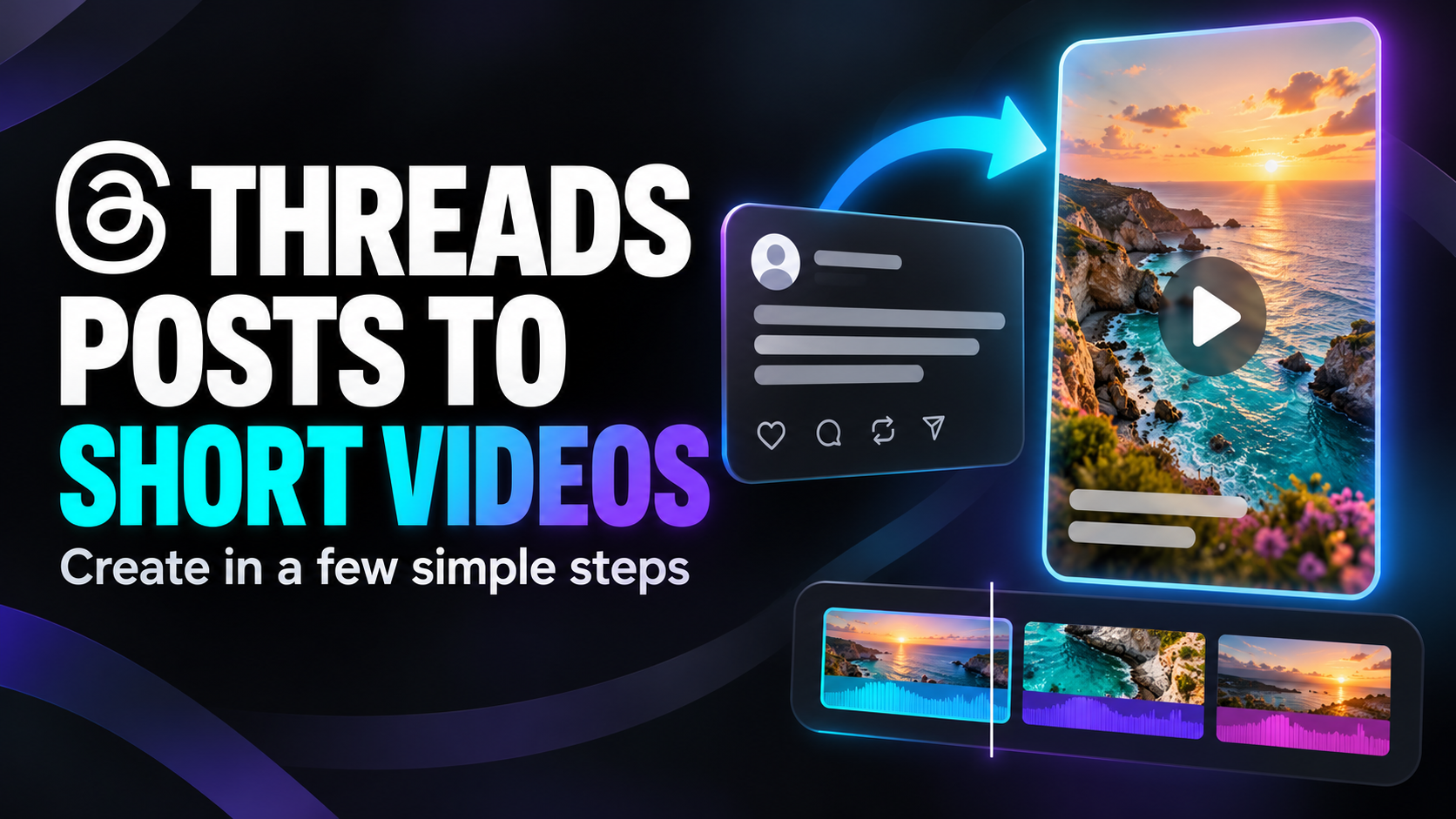
1. What does it mean to turn Threads posts into short videos?
Simply put, this is the process of converting a text-based post on Threads into vertical video content with dialogue, images, subtitles, and sound. Instead of starting with a blank timeline, you use the post itself as the raw material and let the tool transform the text into a story suitable for a short video format. The interesting thing is that comments can also become material for the video. A Threads post might initially only have a few lines, but if there are many interesting opinions, shares, or answers below, these can be filtered to create more in-depth and engaging content.
-
Save time: Eliminate many manual steps of copying, rewriting, and editing videos.
-
Easy to get started: You can use the article link or text content as input.
-
Voiceover support: Text content is converted into dialogue for the video.
-
Create automatic subtitles: This helps viewers follow along easily even without the sound on.
-
Leverage existing content: Articles previously published on Threads can be repurposed into a new format.
-
Suitable for a wide range of topics: Can be applied to everyday life, sharing experiences, storytelling, entertainment, or marketing content.

2. What do I need to prepare before creating a video using Threads?
A good video doesn't necessarily have to start with a completely new idea. Sometimes, content you've already posted on Threads already has the necessary story, perspective, and emotion. The important thing is to choose the right content that has the potential to be developed into a video, while also ensuring that the content is legally permitted for use.
-
A suitable Threads post: Prioritize posts with a clear story, useful information, or a viewpoint that sparks curiosity.
-
Public Threads: This is a convenient way to include content in the tool.
-
Text content: If you don't use a link, you can prepare the text yourself and process it using a suitable method.
-
Notable comments: If the post gets a lot of interaction, pay attention to comments that add perspective or start a discussion.
-
ThreadViral account: Log in as requested by the tool before you begin.
-
Content usage rights: You should only use your article or content that you have been authorized to use.
3. How to turn Threads posts into short videos
3.1. Log in to ThreadViral
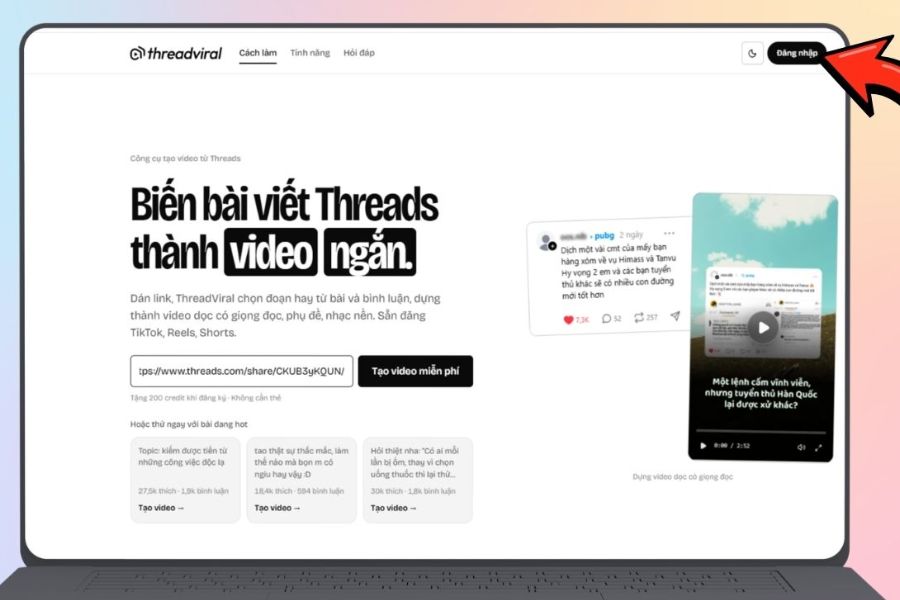
First, access ThreadViral and find the login area. After successfully logging in, you will be taken to the working interface, where you can start creating new videos from Threads content. The interface is designed to be simple so that users without much video editing experience can still operate it.
At this step, you just need to ensure your account is functioning properly and ready to create a new project. Once you've accessed the main interface, find the "create video" option to proceed to the step of adding Threads content to the system.
3.2. Copying Threads article links
Next, open Threads in your app or browser and find the post you want to turn into a video. Not every post is suitable, so prioritize content with an intriguing opening, a clear story, or that has received a lot of feedback from the community.
Once you've selected the post, click the three-dot icon (⋯) on the post and choose the copy link option . This link will be used as input data for ThreadViral to read and process the content.
3.3. Paste the Threads link into ThreadViral
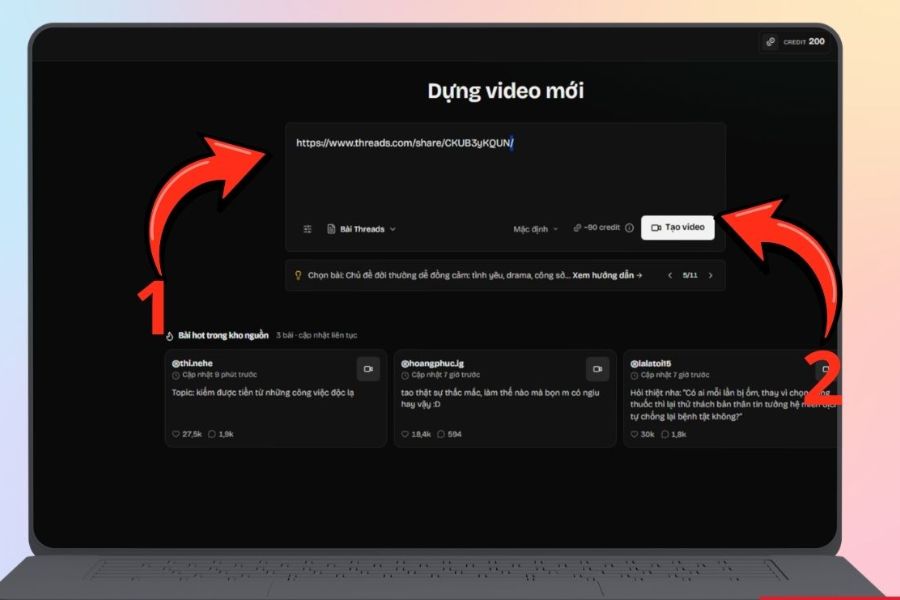
Go back to ThreadViral, find the "Create new video" option , and paste the copied Threads link into the corresponding box. Before you begin, double-check the link to make sure it's the correct thread you want to use.
Once complete, select “Create video” . The system will begin receiving and analyzing the content. Depending on the specific content, the system may process the post and related comments to generate material for the video.
3.4. Check the content selected by the system.
This step is crucial if you want your video to retain the spirit of the original thread. After processing the URL, ThreadViral can display the content extracted from the post and selected comments. Take the time to review it to ensure the information is accurate and relevant to the topic.
If the post has a lot of comments, choosing the right content becomes even more important. A comment with an unexpected perspective or useful additional information can make the story much more engaging. Conversely, an irrelevant comment can disrupt the flow of the video.
You should prioritize:
-
Comments provide additional information to the article.
-
Opinions create new perspectives.
-
The answers are debatable but still relevant.
-
The content helps the story flow more naturally.
-
Comments must not contain false or inappropriate information suitable for publication.
3.5. Let ThreadViral analyze and create the video.
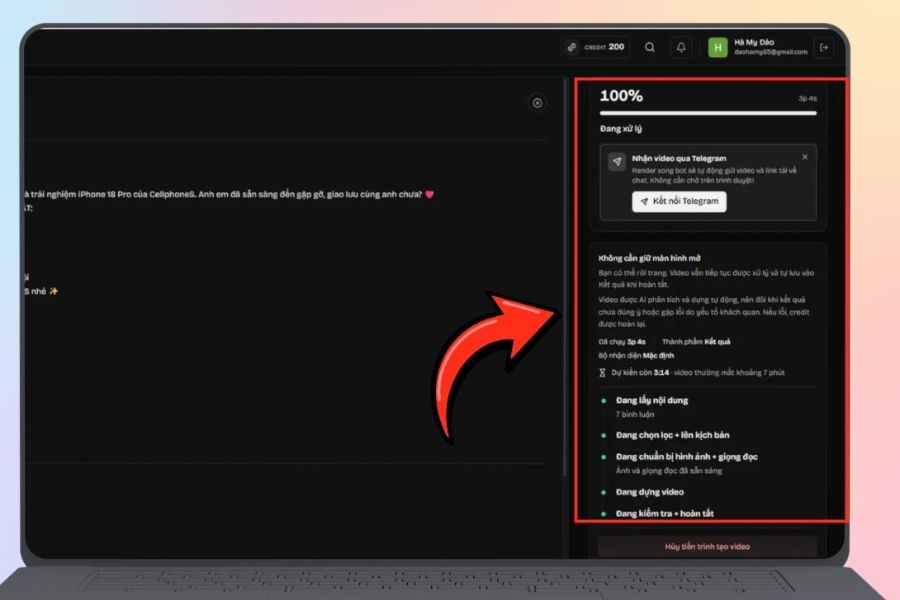
Once the content is confirmed, ThreadViral will begin processing the necessary elements to create the video. From the input text, the system can build the content flow, prepare dialogue, images, subtitles, and other necessary components for the vertical video.
This process can be carried out through multiple consecutive stages, from content acquisition and information selection to script building and rendering. Users can monitor the progress on the interface instead of having to manually open various tools to complete each part.
3.6. Review the video after completion.
Once the video is rendered, don't rush to download and upload it. Watch the entire video from beginning to end to spot any inconsistencies. System-generated content may sometimes misidentify comments, have an uneven narrative structure, or produce voiceovers that aren't entirely appropriate.
Pay particular attention to the first few seconds. A short video might have great content but be overlooked if the opening is too long and drawn out. You should also check the subtitles, visuals, voiceover, duration, and transitions to ensure the final product feels natural.
3.7. Edit or ask the AI to recreate it.
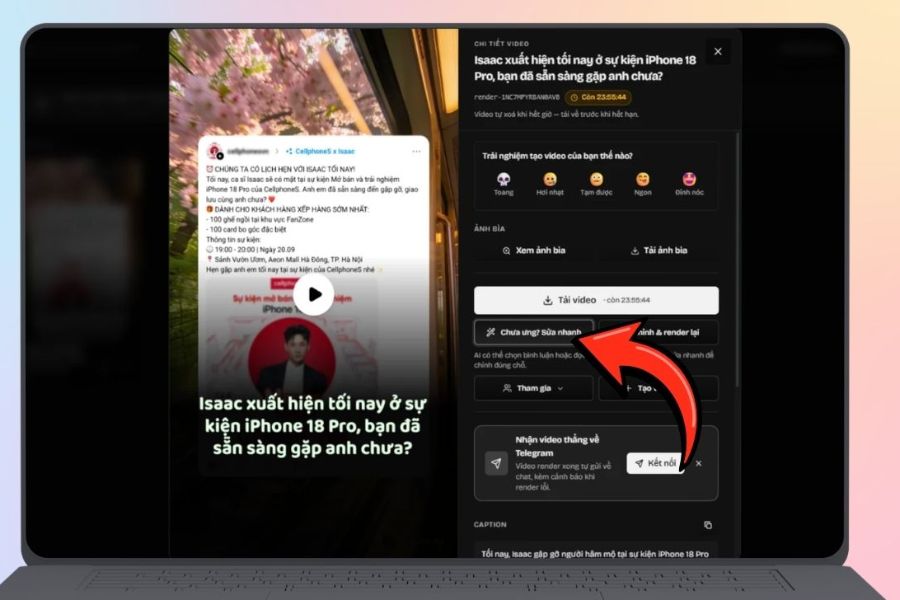
If you're not satisfied with the initial result, you don't necessarily have to start the entire process over. ThreadViral provides editing options so users can identify the problem and request the system to rework the unsuitable part.
For example, if the opening video isn't engaging enough, the voiceover doesn't match the content, or it's too long, you can choose the specific issues that need adjustment. This saves time compared to deleting the project and creating a completely new video.
Some issues that can be checked include:
-
Incorrect comment selected.
-
The voiceover is inappropriate.
-
The way some sentences are read sounds unnatural.
-
The order of the comments is not logical.
-
The opening wasn't engaging enough.
-
The video is either too long or too short.
-
The language is inaccurate.
-
The content doesn't match the original idea.
3.8. View and download cover image
Once the video content is relatively complete, you can check the cover art created for the video. This is a small but quite important detail, because the cover art acts as an initial introduction, helping viewers understand what the video is about.
If the cover image is suitable, you can select the "Download cover image" option to use it when publishing. An effective cover image should have a clear theme, easy-to-read text, and not include too much information that makes it difficult for viewers to grasp the content.
3.9. Download the video to your computer.
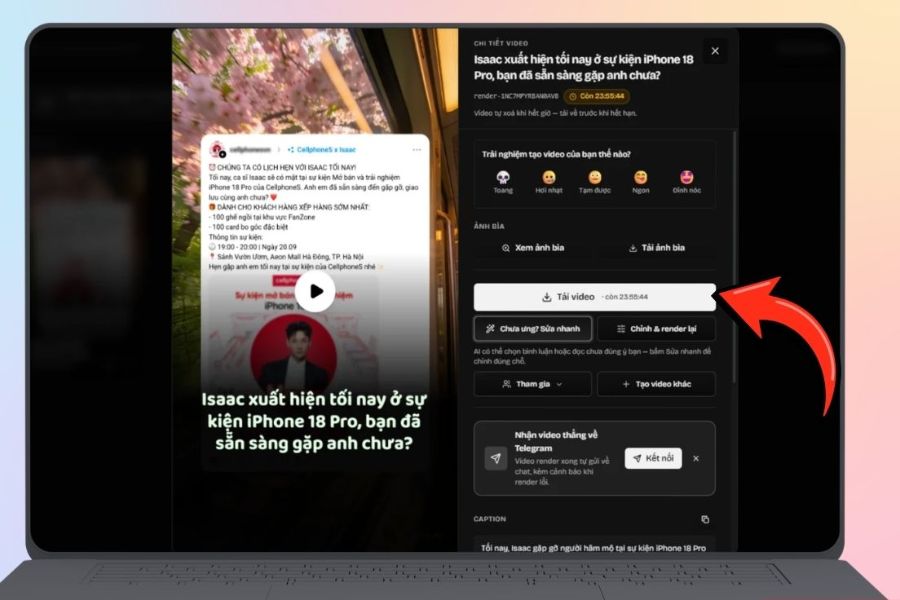
Once everything is complete, select “Download video” to save the finished product to your device. Before posting, you should review the video one last time in the final version to ensure that the image, sound, subtitles, and content all work as intended.
The video can then be leveraged across various platforms that support vertical video content, such as TikTok, Facebook Reels, or YouTube Shorts. You can also adjust the title, description, and intro to suit each platform instead of posting the original version everywhere.
4. Tips to make videos transferred from Threads more engaging.
Having video editing tools doesn't automatically mean every video will go viral. The quality of the input content still plays a huge role. A thread with a clear story, emotion, or that sparks curiosity has more potential when turned into a video. To make the final product easier to watch and more engaging for viewers, you can apply some of the following tips:
-
Choose articles with a story: Content with a beginning, middle, and end is often easier to turn into a video.
-
Prioritize an intriguing opening: A question, a surprising situation, or an interesting observation can give viewers a reason to continue.
-
Don't try to cram too many ideas into one video: A video should focus on one main message.
-
Choose valuable comments: Comments should add to or develop the story rather than simply repeating the content of the article.
-
Check your voice: A voice that is too monotonous or lacks emotional depth can cause viewers to leave quickly.
-
Review the subtitles: Spelling errors or grammatical mistakes can detract from professionalism.
-
Optimize the first few seconds: This is often the crucial time to make a first impression.
-
Don't rely entirely on AI: Think of the tool as a content creation assistant, but human moderation is still necessary.
5. Conclusion
Turning Threads posts into short videos isn't a complicated process if you know how to utilize automation tools. Instead of rewriting the script, recording audio, finding images, and editing each scene yourself, you can start with a suitable Threads post and let ThreadViral help convert it into a vertical video. However, the tool only shortens the production process. To make the video truly engaging, you still need to choose good content, check the comments, carefully craft the opening seconds, and review the final product before posting.





















VIP Products








Best Selling Products
Copyright Adobe Lightroom Account
59 USD
Autodesk All App Account Copyright
120 USD
Windows 10 & 11 Pro Key
36 USD
MidJourney Account
29 USD
Genuine Cheap Canva Pro
39 USD
Plugin Retouch4me
69 USD
Adobe Premiere Pro Account
99 USD
Capcut Pro 1 Year
39 USD
ChatGPT Plus Account (GPT-4)
16 USD
Upgrade Genuine Office 365
49 USD
Genuine Adobe Illustrator account
99 USD
Upgrade Duolingo Super
29 USD
Adobe Photoshop Copyright - Full App
120 USD
Upgrade genuine Capture One account
120 USD
Freepik Premium Account
59 USD