1. Reasons why you should experience Canva on a computer instead of a phone.
Graphic design requires meticulous attention to detail and a large display area. Using computer applications offers significant advantages that help improve your work efficiency.

1.1. A more spacious and intuitive workspace.
Computer screens offer a panoramic view, making it easy to arrange layers, adjust layout, and get an overall view of the publication. Drag-and-drop operations on a computer are always much more precise than swiping on the small touchscreen of a phone.
1.2. Smooth processing speed and stable performance
The Canva desktop application is optimized to take full advantage of your device's hardware power. Large design files, containing multiple 4K videos or hundreds of slide pages, will load and publish quickly, minimizing lag or application crashes.
1.3. Shortcut system to optimize design time
Having a physical keyboard is the biggest advantage when working on a computer. Keyboard shortcuts allow users to copy, group elements, align text, or change font size in just a second, eliminating dozens of unnecessary mouse clicks during the creative process.
2. Detailed instructions on how to download and install Canva on your computer.
This platform currently supports two main approaches: direct use through a web browser or installing standalone software on the device. Users can choose the solution that best suits their device configuration.
2.1. How to install the Canva application on the Windows operating system
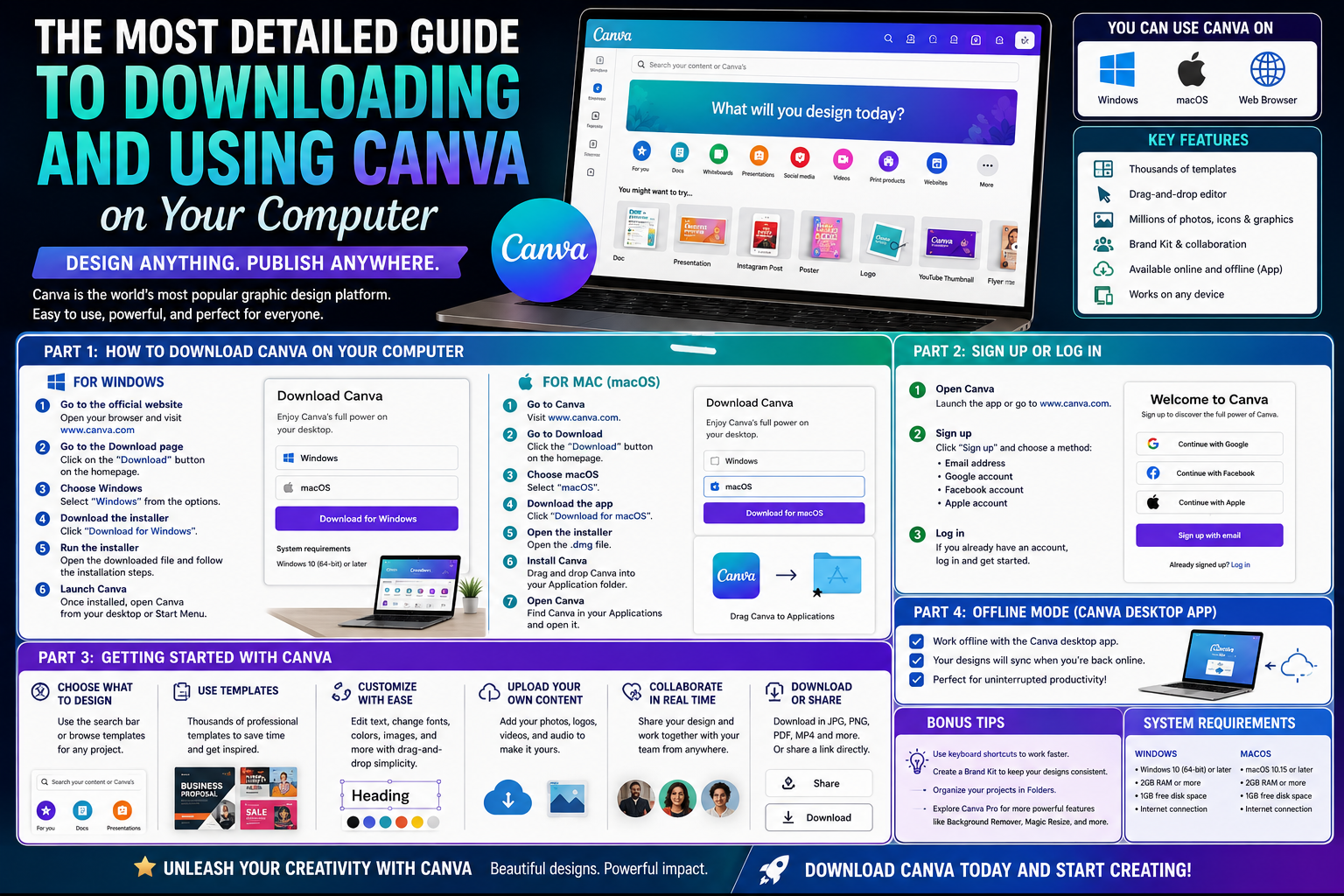
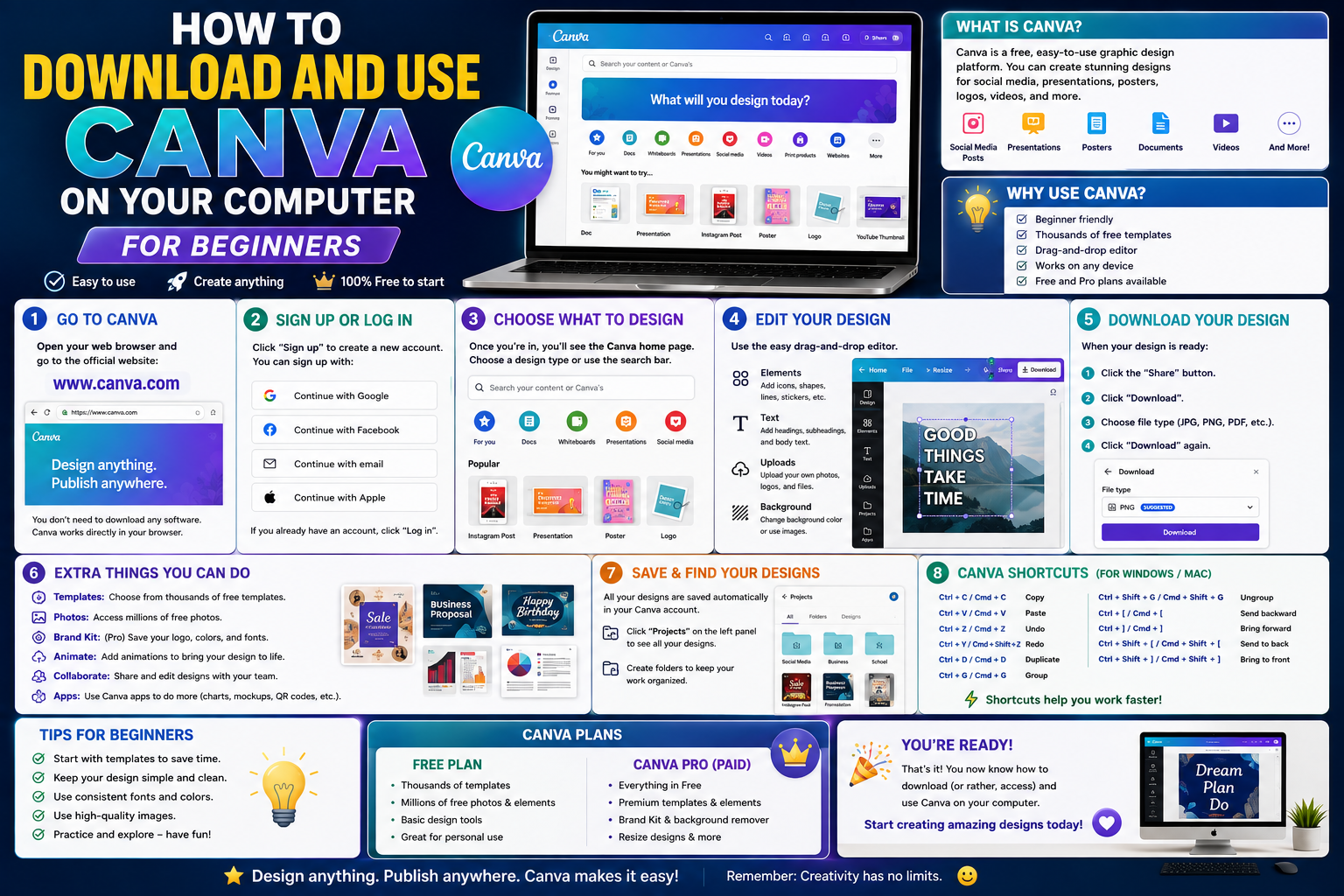
The installation process on a Windows computer is very simple, following these specific steps:
-
Step 1: Go to the application's official homepage and find the download section for Windows.
-
Step 2: Click the download button to allow the system to automatically download the installation file with the .exe extension.
-
Step 3: Launch the downloaded file; the system will automatically begin the installation within a few tens of seconds without requiring complex configuration.
-
Step 4: Log in to your personal account via Google, Facebook, or Email to start using the service.
2.2. How to install the Canva application on macOS
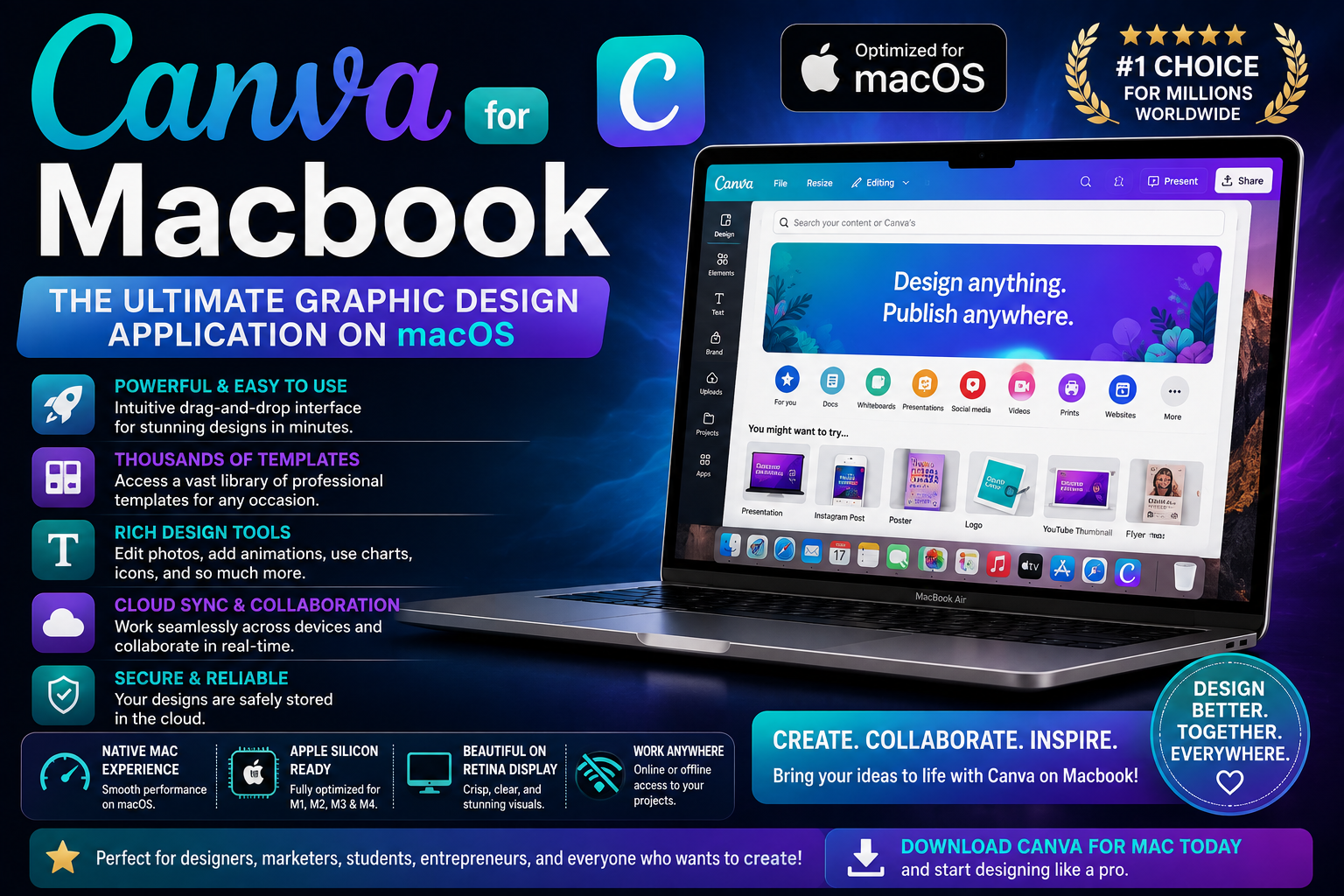
Apple computer users can download the app through the App Store or directly from the publisher's website:
-
Step 1: Open the App Store on your Mac or go to the app's download website.
-
Step 2: Choose the version for macOS (compatible with Intel or Apple Silicon chips such as M1, M2, M3).
-
Step 3: Download the application and drag the application icon into the Applications folder.
-
Step 4: Grant the necessary system access and log in to activate the workspace.
-
2.3. Solutions that can be used directly in a web browser without installation.
If your computer's memory is full or you're using a public device, accessing directly through browsers like Google Chrome, Microsoft Edge, or Safari is the optimal choice. All features, data repositories, and project progress are synchronized in real time, just like the software version.
3. Explore Canva's desktop interface.
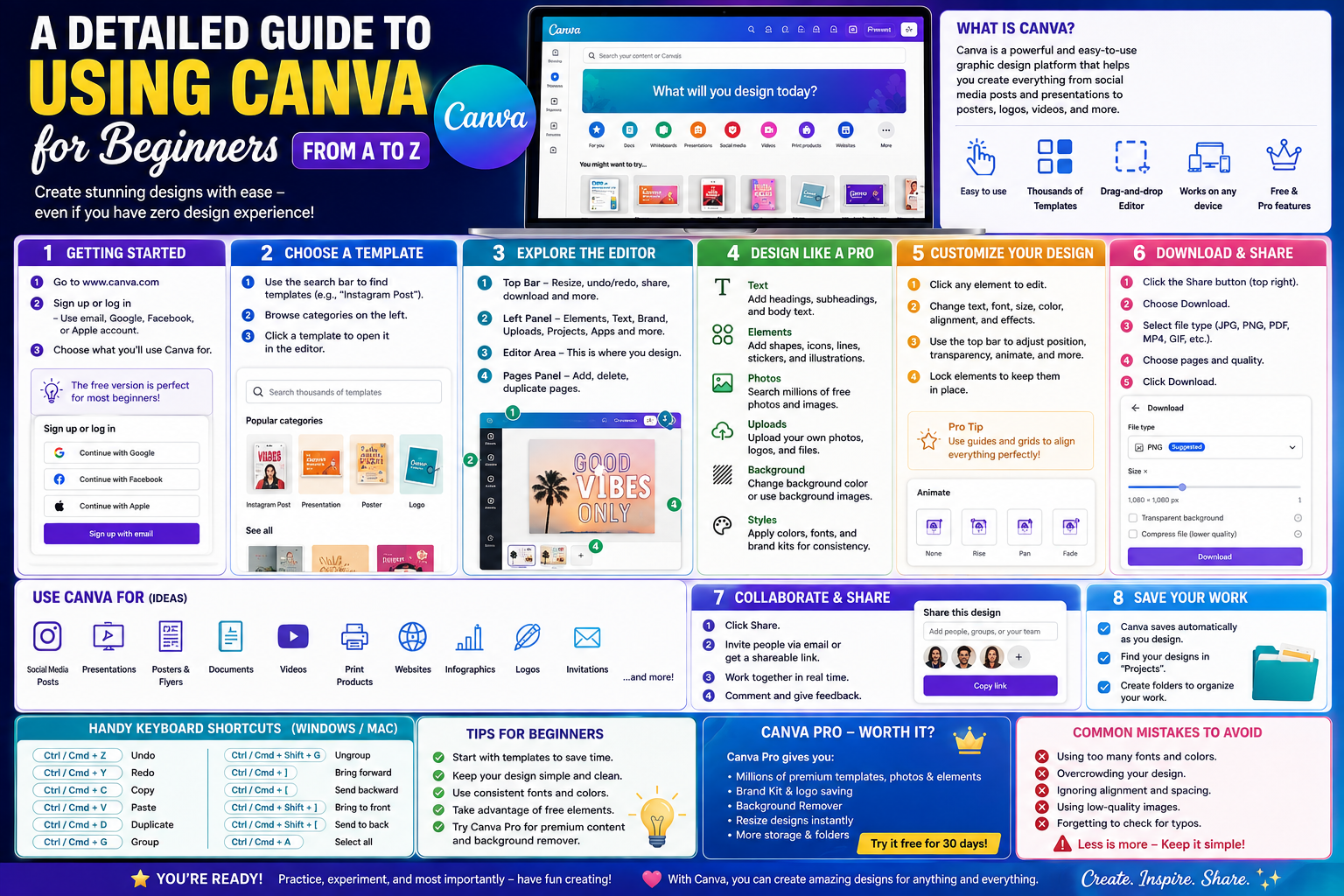
Understanding the interface structure is key to quickly mastering this tool. The workspace is divided into very well-organized functional zones.
3.1 . Homepage and Project Management Area
The home screen contains all the themed design suggestions such as Presentations, Social Media, Videos, and Print. The left-hand menu bar helps manage personal folders, projects shared with the team, and the trash bin stores deleted files.
3.2. The multi-purpose editing toolbar on the left (Sidebar)
This toolbar contains all the materials you need for a complete design:
-
Templates: Pre-designed layouts created by experts.
-
Elements: A library of shapes, stickers, graphics, photos, and videos.
-
Text: A variety of font formats are available, ranging from classic to modern.
-
Brand Hub: A place to store the company's logo and fixed color palette.
-
Uploads: This area allows users to upload personal images from their computers to the system.
3.3. Live Display and Editing Area (Canvas)
The central area is where your design is displayed. Here, the contextual toolbar at the top will automatically change depending on the object you are selecting (text, image, or video), allowing you to flexibly adjust colors, fonts, animations, or crop images.
4. The process of designing a professional publication from A to Z
Starting a new project requires a well-structured implementation process to ensure the final product meets the highest aesthetic standards and is of the correct dimensions.
4.1. Initializing the project and selecting standard dimensions
Users can choose from pre-set sizes such as Facebook posts (1200x630 pixels), YouTube thumbnails (1280x720 pixels), or enter custom sizes to suit their specific needs. Defining the correct dimensions from the start helps prevent layout distortion or breakage when published.

4.2. Searching for and applying existing design templates
Utilizing a template library is the quickest way to create visually appealing products without requiring in-depth art knowledge. Simply type keywords related to your industry into the search bar, and the system will return thousands of relevant results for you to choose from and edit to your liking.
4.3. Customize images, colors, and text content.
Replace the default elements with your own content. Users should pay attention to choosing fonts that have been localized for Vietnamese to avoid errors in displaying Vietnamese diacritics, and combine this with contrasting color schemes to highlight the main message of the publication.
5. Advanced tips to master Canva on your computer
Beyond the basics, users can apply the following advanced techniques to make the design process more professional and faster.
5.1. Master the powerful keyboard shortcuts system.
Memorizing basic keyboard shortcuts will save you half your working time:
-
T key : Quickly add a text box.
-
R key : Quickly create a rectangle/square.
-
The C key : Quickly creates a circle.
-
L key : Draws a straight line.
-
Ctrl + D (or Cmd + D on Mac): Quickly duplicates the selected object.
5.2. AI-powered image background removal feature with just one click.
Removing the background from an object used to be a nightmare for many people using complex software. Automatic background removal tools on computers handle this extremely neatly, preserving the sharp details of the subject in just a few short seconds.
5.3. Use the ruler and grid features to align the layout.
Enabling the "Show rulers and guides" feature allows you to drag guide lines to perfectly align elements. Balance in layout is a crucial factor in creating a professional-looking graphic design.
6. Appvip.ai - A provider of Canva Premium accounts and top-tier AI solutions.
If you're looking for a reputable place to upgrade your Canva Pro account or acquire smart design tools, appvip.ai is the top choice. This website specializes in providing premium account solutions at optimal costs, helping users unlock a wealth of hidden features, high-quality premium image libraries, and exclusive artificial intelligence tools, thereby elevating your graphic design experience to a whole new level.
7. Common data publishing formats on Canva desktop
After completing your work, choosing the right output file format determines the sharpness of the final product when displayed digitally or printed as a physical product.
7.1. PNG and JPG image formats for digital media
Designs intended for posting on Facebook, Instagram, or sending via Zalo should be exported as PNG to maintain high resolution and prevent pixelation. JPG format is more suitable for websites that need to optimize page load size.
7.2. Standard PDF format and printable PDF
Standard PDF files are ideal for documents sent via email and company profiles. For designs such as business cards, posters, and flyers sent to a printer, the PDF Print option with background cropping ensures that the color and resolution meet industrial printing standards.
7.3. MP4 and GIF formats for moving content
Designs containing animations or short videos should be exported in MP4 format with Full HD or 4K quality to ensure the best visual experience. The GIF format is suitable for short animations and humorous memes that are highly shareable.
8. Summary
Mastering Canva on a computer opens up tremendous opportunities for anyone who wants to create impressive graphic design content without spending years in in-depth design training. The combination of a spacious display area, powerful computer hardware performance, and the platform's endless creative resources will surely be the perfect springboard for your ideas. Investing time to familiarize yourself with and optimize your workflow with this tool today will yield outstanding results for your business and studies in the long run.