Best Selling Products

Genuine Cheap Canva Pro
39 USD

Genuine Adobe Illustrator account
99 USD

ChatGPT Plus Account (GPT-4)
16 USD

MidJourney Account
29 USD

Upgrade Genuine Office 365
49 USD

Freepik Premium Account
59 USD

Capcut Pro 1 Year
39 USD

Copyright Adobe Lightroom Account
59 USD

Upgrade Duolingo Super
29 USD

Autodesk All App Account Copyright
120 USD

Upgrade genuine Capture One account
120 USD

Adobe Photoshop Copyright - Full App
120 USD

Adobe Premiere Pro Account
99 USD

Windows 10 & 11 Pro Key
36 USD

Plugin Retouch4me
69 USD
How to enable Ambient Mode on YouTube for more beautiful and lively videos.
Nội dung
- 1. What is Ambient Mode on YouTube?
- 2. What kind of experience does Ambient Mode offer when watching YouTube?
- 3. How to enable Ambient Mode directly on YouTube
- 4. How to create ambient lighting effects on YouTube using Chrome
- 4.1. Find the YouTube Ambient Light extension on the Chrome Web Store.
- 4.2. Select the Ambient light for YouTube extension.
- 4.3. Click Add to Chrome to install.
- 4.4. Open YouTube and access Ambient Light Settings.
- 4.5. Customize the Ambient Light effect to your liking.
- 5. Tips for making Ambient Mode display more beautifully and smoothly.
- 6. Things to note when using ambient lighting effects
- 7. Summary
YouTube is constantly adding new features to provide a more intuitive and engaging video viewing experience. Besides image and sound quality and full-screen mode, ambient lighting effects are also a factor that makes the viewing space more interesting. When activated, the colors from the video will gently spread to the area surrounding the player, creating the feeling that the image is expanding beyond the video frame. If you want to learn how to enable Ambient Mode on YouTube or create a similar lighting effect on the Chrome browser, the content below will guide you from the concept to the specific setup. With just a few steps, you can transform your familiar YouTube viewing interface into a more visually immersive and immersive space. Let''s explore it with Sadesign!
1. What is Ambient Mode on YouTube?
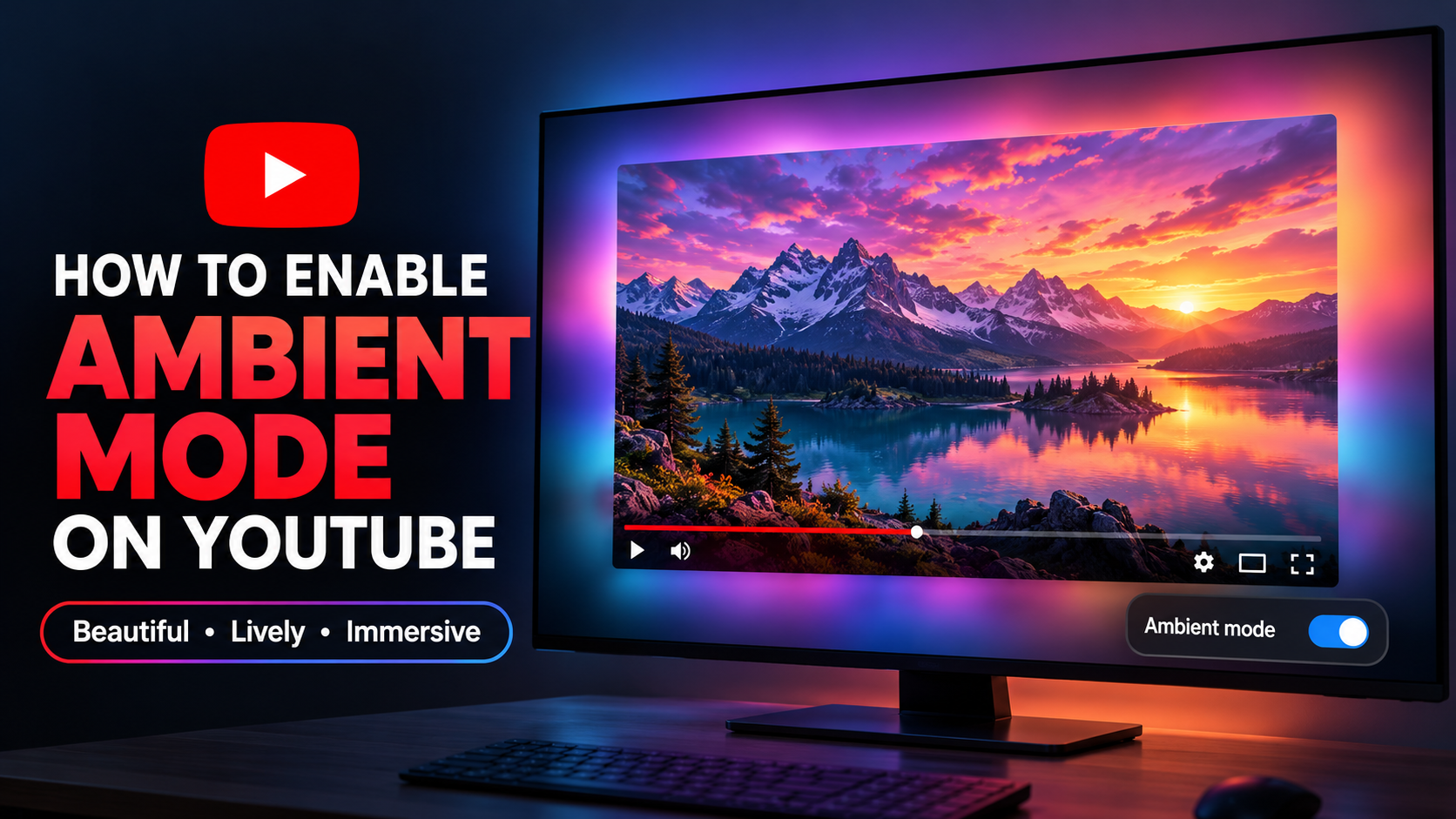
Ambient Mode is a lighting effect designed to make the area surrounding the video player blend more seamlessly with the content being watched. Instead of displaying the video in a fixed frame, the system uses prominent colors from the playing image to create gradient light areas outside the frame. This effect changes with the content, so each video can have a completely different background color. The interesting thing is how the effect is handled quite smoothly. The colors don't appear as hard patches but are blurred and diffused, like light reflecting off the screen. When combined with a dark background interface, Ambient Mode becomes even more noticeable and creates a feeling of a larger viewing space.
-
Colors change throughout the video: The lighting effects are inspired by the color palettes present in the content being played.
-
Soft gradient effect: Colors are blurred and spread out instead of creating a clear outline.
-
Suitable for Dark Mode: Dark mode helps ambient light stand out more and provides a more comfortable viewing experience.
-
Creates an immersive feel: The frame feels integrated into the interface rather than being completely separate from the background.
-
Suitable for a wide range of content: music videos, films, gaming videos, vlogs, or landscape videos can all create different color effects.
2. What kind of experience does Ambient Mode offer when watching YouTube?
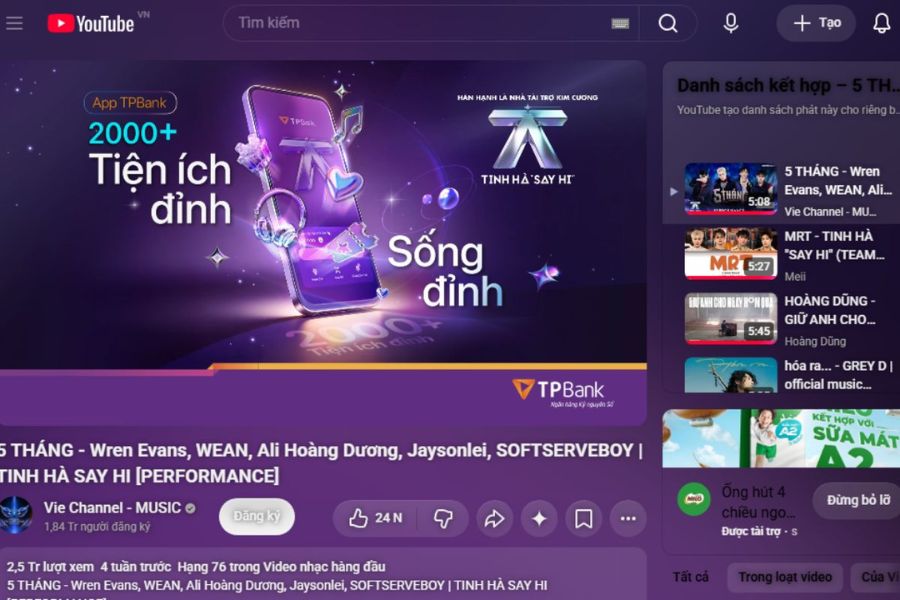
A video with beautiful visuals becomes even more appealing when the surrounding interface is appropriately processed. Ambient Mode reduces the feeling that the screen is simply a video frame against a dark background. Light from the content is gently diffused outwards, making the entire playback area feel more seamless. This effect is particularly interesting when watching content with many color transitions. For example, a music video with red, blue, or purple tones can cause the surrounding area to constantly change with each scene. However, Ambient Mode primarily enhances the visual experience and does not alter the original image quality.
-
Make the YouTube interface more visually appealing.
-
Create the illusion that your video stands out against a dark background.
-
It helps to create a more immersive and seamless viewing experience.
-
Suitable for watching videos at night or in dimly lit rooms.
-
Enhance visual appeal without editing video content.
-
Create striking special effects with videos that have contrasting colors or continuous scene transitions.
3. How to enable Ambient Mode directly on YouTube
If your YouTube account and interface already support Ambient Mode, activating it is quite simple. First, open YouTube on your device and select any video. In the video playback interface, open the settings to check the option related to ambient effects. In some interfaces, Ambient Mode is combined with dark mode. So, if you don't see this option, you can check the YouTube interface and switch to Dark Mode first. The way the option is displayed may vary depending on the device, browser, and version of the YouTube interface. You can check by following these steps:
-
Open YouTube in your browser or app.
-
Choose the video you want to watch.
-
Tap the Settings icon in the player.
-
Look for the Ambient Mode option if the interface supports it.
-
Turn on the feature and observe the background surrounding the video.
-
If it doesn't appear, try switching YouTube to Dark Mode and check again.
After turning it on, you can try playing a video with vibrant colors to easily notice the change. The effect is usually more apparent when there is enough space in the background around the player for the light to spread.
4. How to create ambient lighting effects on YouTube using Chrome
4.1. Find the YouTube Ambient Light extension on the Chrome Web Store.
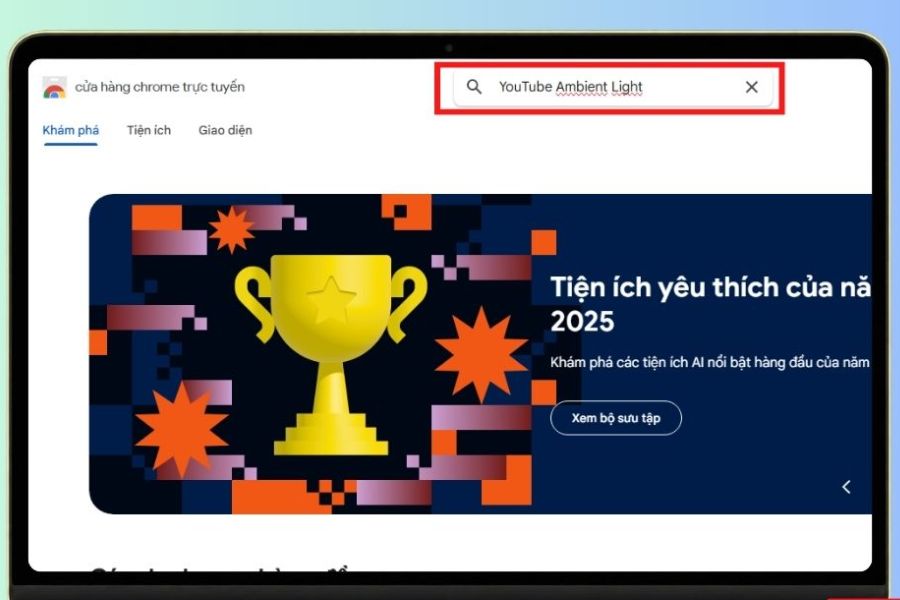
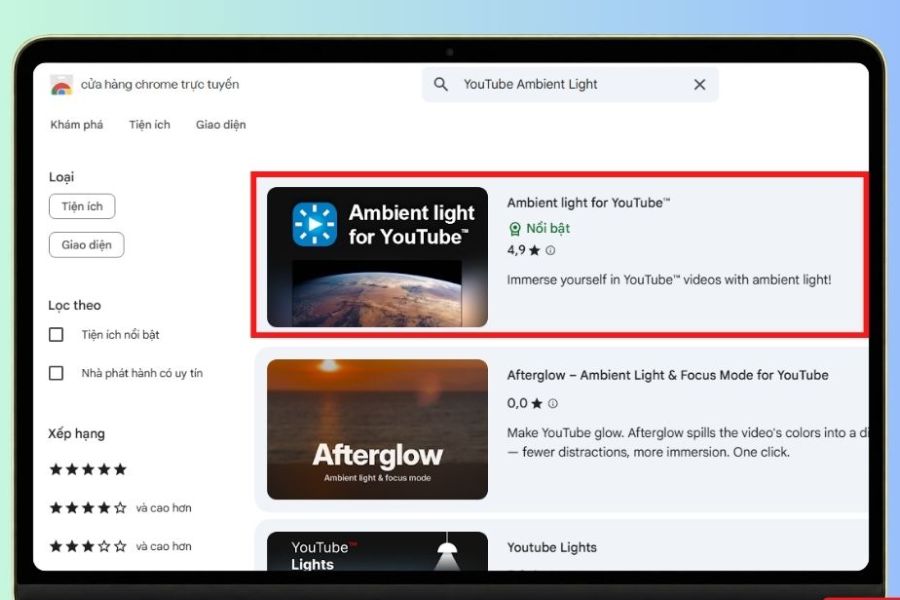
First, open the Chrome browser on your computer and access the Chrome Web Store. In the search bar, type " YouTube Ambient Light" to find extensions that create lighting effects for YouTube. When the results appear, read the name and description of the extension before installing it. Checking the extension's information helps you avoid confusing it with similar tools that don't meet your needs.
You can do it as follows:
-
Open the Chrome Web Store .
-
Enter the keyword "YouTube Ambient Light" into the search box.
-
Check the list of utilities returned.
-
Find the extension called Ambient light for YouTube .
-
View information, reviews, and access permissions before installing.
After identifying the correct extension, proceed to the next step. If Chrome displays information about the permissions the extension requests, read it carefully before agreeing to install it.
4.2. Select the Ambient light for YouTube extension.
In the list of results, select the extension named Ambient light for YouTube . This is an important step because the Chrome Web Store may display many extensions with similar names or functions. You should carefully check the extension name and description before proceeding. Identifying the correct extension from the start will make the setup process smoother later.
After opening the extensions page, you can:
-
Check the extension name.
-
Read the function description.
-
See user reviews.
-
Check the developer information.
-
Read the permissions that the extension requests.
If the information matches your needs, you can proceed with installing the extension on Chrome.
4.3. Click Add to Chrome to install.
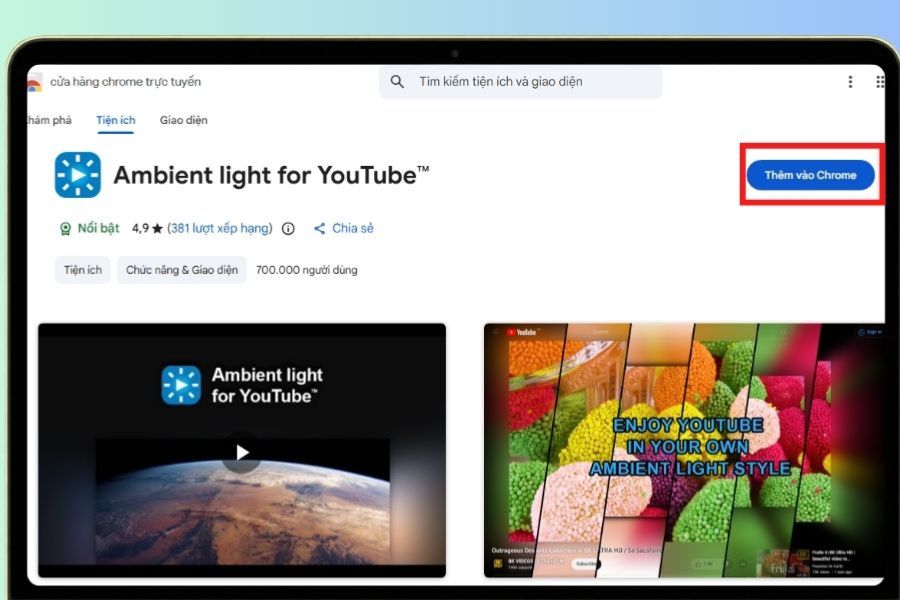
After opening the extension page, find the " Add to Chrome" button and click it. Chrome may display a confirmation window with information about the permissions the extension needs. Review the provided information and confirm the installation if everything is correct. The installation process usually only takes a short time. Once complete, the extension will be integrated into your browser and will work when you access YouTube.
Some points to note:
-
Make sure you are using the correct Chrome browser.
-
Double-check the extension name before installing it.
-
Read the access permissions that the extension requests.
-
Avoid installing extensions from unknown sources.
-
If the effect doesn't work immediately, please reload the YouTube page.
After successful installation, you can open YouTube and select a video to test the effect. If the extension works correctly, the area around the player will start to light up based on the video's colors.
4.4. Open YouTube and access Ambient Light Settings.
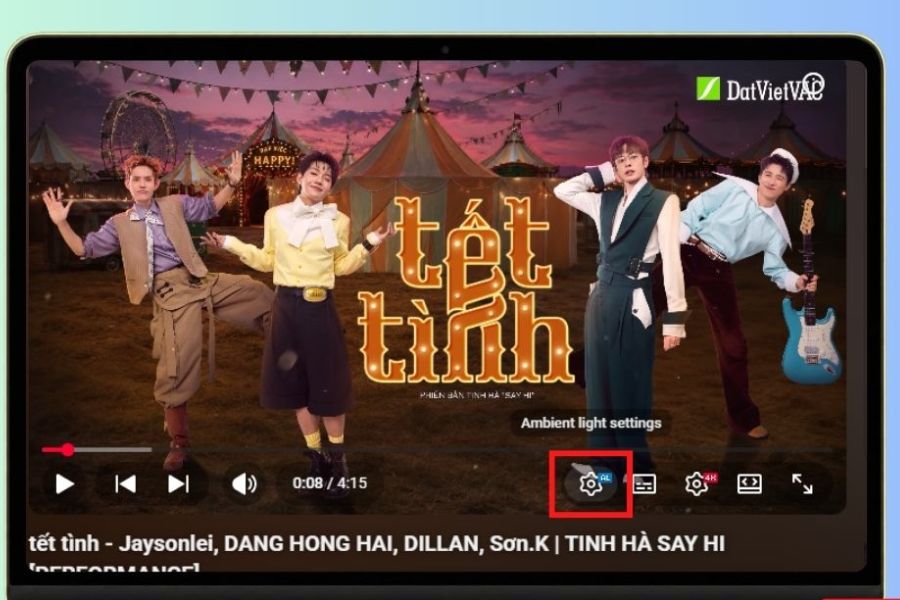
Next, open YouTube and select the video you want to experience the lighting effect for. Once the video starts playing, locate the extension's settings. Depending on your Chrome interface and extension version, the display location may vary. You can find the " Ambient light settings" option to open the control panel. This is where you can change how the lighting effects appear around the video.
When you open the settings, check:
-
Option to turn the effect on or off.
-
The degree of light dimming.
-
The rate of color change.
-
The duration of the effect.
-
Options related to reach.
If you still don't see the effect, try reloading the page, switching to Dark Mode, or playing a different video with more vibrant colors.
4.5. Customize the Ambient Light effect to your liking.
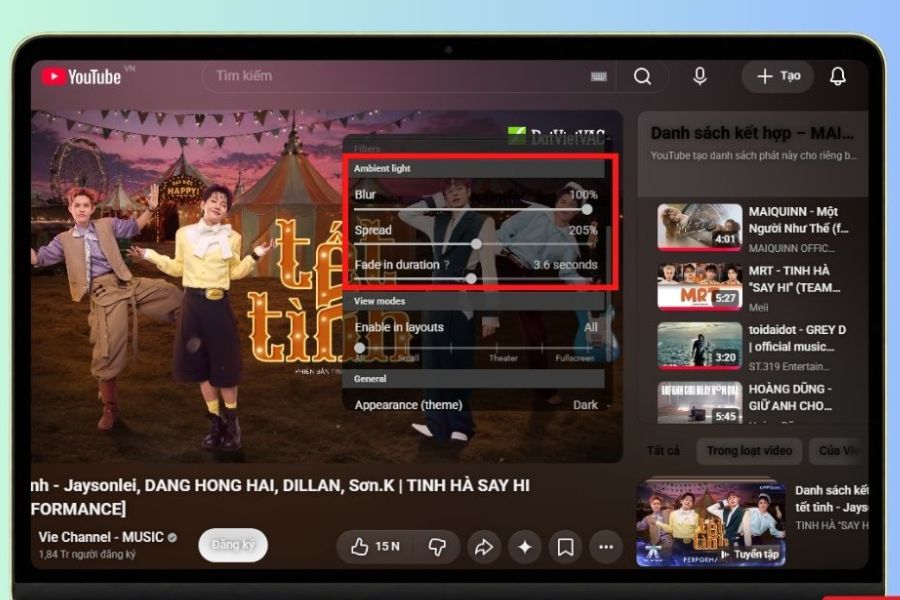
After opening Ambient light settings , you can begin adjusting the effect. Some commonly used settings include Blur , Speed , and Fade-in duration . Each parameter affects how light is displayed around the player. For example, increasing the Blur level can make colors softer and blend into the background more effectively. Meanwhile, Speed determines the speed at which the effect changes as the colors in the video transition. Fade-in duration relates to the length of time the effect appears or transitions to a new state.
You can try each parameter to find the right setting:
-
Blur: Adjusts the level of softness and dimness of the light.
-
Speed: Controls the speed of color change.
-
Fade-in duration: Adjusts the time it takes for the effect to transition to a new state.
-
Intensity: If supported by the utility, this can be used to change the intensity level of the light.
-
Turn effects on or off: Allows for a quick comparison of the interface before and after customization.
It's not necessary to set the effects to the highest level. A moderate setting is usually more comfortable, especially if you're watching videos for extended periods.
5. Tips for making Ambient Mode display more beautifully and smoothly.
Ambient Mode relies heavily on the video's color and the actual viewing conditions. A video with high image quality, vibrant colors, and good contrast will generally make the ambient effect more noticeable. Conversely, videos with dark tones or little image variation may make the effect less apparent.
In addition, the surrounding environment directly affects the perception of light. When the room is too bright, especially under strong sunlight, the colors emanating from the screen may not be as vibrant. Therefore, choose a suitable viewing environment if you want to enjoy a clearer effect.
6. Things to note when using ambient lighting effects
Some important points to note include:
-
Resolution: 1080p or higher video resolution generally provides a better viewing experience.
-
Network data: Higher resolution will consume more data.
-
Screen: The quality and color display capabilities of the screen also affect the effect.
-
Ambient lighting: A room that is too bright may make Ambient Mode difficult to see.
-
Chrome extensions: Only use extensions from reputable sources with clear information.
-
Device performance: If your computer runs slowly when the effect is enabled, reduce the customization level or disable the extension when not needed.
In particular, if you frequently watch YouTube on your laptop for extended periods, you should prioritize eye comfort over pushing the effects to an excessively strong level. Ambient Mode looks best when it creates just the right amount of visual emphasis without distracting the viewer from the main content.
7. Summary
With Ambient Mode , the YouTube interface is no longer simply a video frame against a dark background. The colors from the playing content are gently diffused outwards, creating the illusion of a larger screen and greater image depth. This is a small change, but it can make a significant difference when watching colorful content. For a beautiful and pleasant experience, combine the effect with Dark Mode, choose the appropriate video quality, and adjust the brightness to a moderate level. When set up correctly, each video on YouTube will have its own unique color space, making your entertainment moments more visually appealing and vibrant.





















VIP Products








Best Selling Products
Genuine Cheap Canva Pro
39 USD
Genuine Adobe Illustrator account
99 USD
ChatGPT Plus Account (GPT-4)
16 USD
MidJourney Account
29 USD
Upgrade Genuine Office 365
49 USD
Freepik Premium Account
59 USD
Capcut Pro 1 Year
39 USD
Copyright Adobe Lightroom Account
59 USD
Upgrade Duolingo Super
29 USD
Autodesk All App Account Copyright
120 USD
Upgrade genuine Capture One account
120 USD
Adobe Photoshop Copyright - Full App
120 USD
Adobe Premiere Pro Account
99 USD
Windows 10 & 11 Pro Key
36 USD
Plugin Retouch4me
69 USD