Best Selling Products

Copyright Adobe Lightroom Account
59 USD

ChatGPT Plus Account (GPT-4)
16 USD

Capcut Pro 1 Year
39 USD

MidJourney Account
29 USD

Genuine Cheap Canva Pro
39 USD

Upgrade genuine Capture One account
120 USD

Genuine Adobe Illustrator account
99 USD

Windows 10 & 11 Pro Key
36 USD

Adobe Photoshop Copyright - Full App
120 USD

Upgrade Duolingo Super
29 USD

Upgrade Genuine Office 365
49 USD

Plugin Retouch4me
69 USD

Adobe Premiere Pro Account
99 USD

Autodesk All App Account Copyright
120 USD

Freepik Premium Account
59 USD
How to optimize project management effectively with Microsoft Teams.
Nội dung
- 1. Project Management Overview
- 2. Project Management Features
- 2.1. Channels and Stream Communication
- 2.2. Task Management with Planner
- 2.3. Version control and storage
- 2.4. Schedule and record the meeting.
- 2.5. Notification and activity monitoring
- 2.6. Power BI for reporting
- 2.7. Power Automate for Automation
- 3. Setting up the project space
- Step 1: Create a separate team for each project.
- Step 2: Organize the channel
- Step 3: Set up the file structure
- Step 4: Use Tabs
- 4. Combine the right tools.
- 4.1. Task Planner
- 4.2. Microsoft To Do for Personal Tasks
- 4.3. Microsoft Project for Complex Projects
- 4.4. OneNote for note-taking
- 4.5. Power Automate for Processes
Project management with Microsoft Teams is the process of organizing, tracking, and collaborating on a project within a unified platform.
1. Project Management Overview
Project management with Microsoft Teams is the process of organizing, tracking, and collaborating on a project within a unified platform. Instead of scattering conversations across messaging apps, documents in multiple folders, and tasks across different tools, Teams helps centralize most project-related activities in a shared space.
Teams combines chat, video conferencing, file storage, and task management to support efficient teamwork across multiple locations and departments. Project managers can create custom teams, set up themed channels, assign tasks, and track individual member progress.
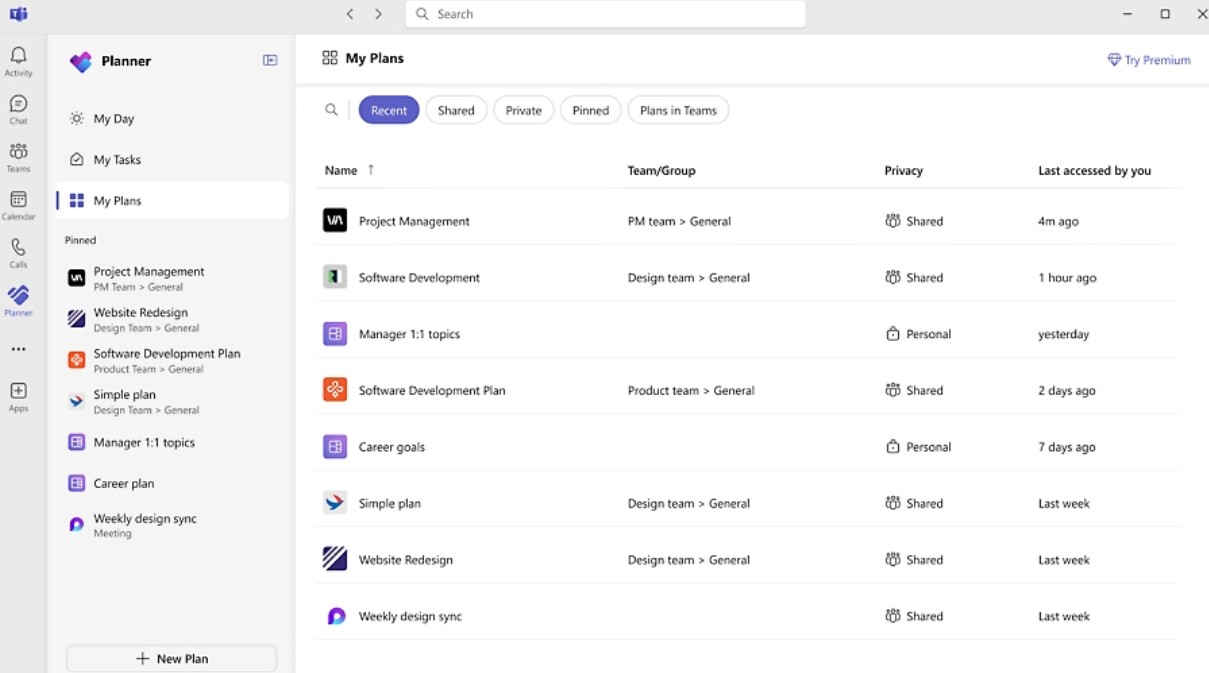
Specifically, Microsoft Teams can integrate with Planner, Microsoft To Do, and Microsoft Project . This allows teams to build more structured workflows, assign tasks, set deadlines, track status, and manage project dependencies.
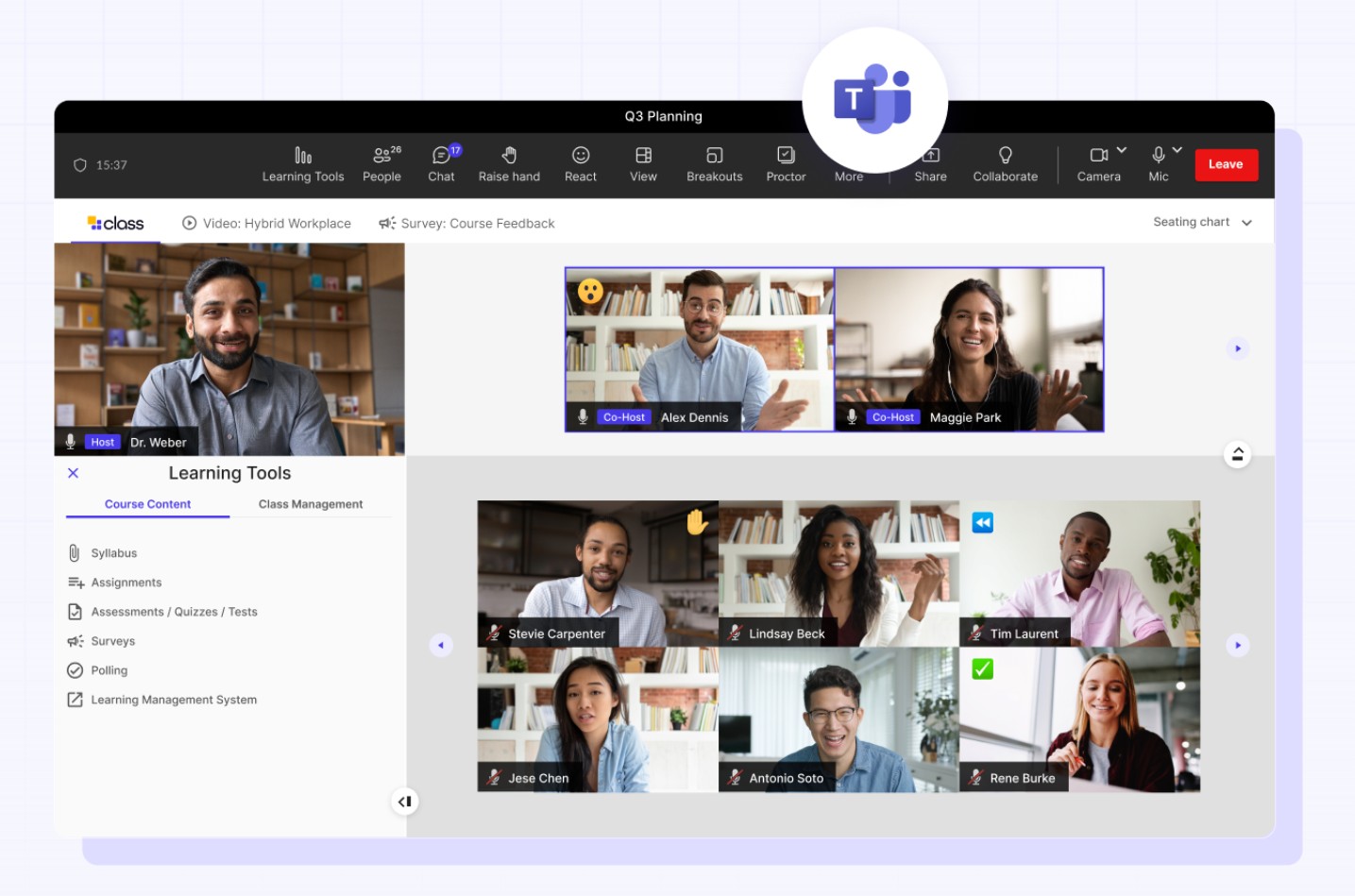
Teams also supports document storage via SharePoint, file version control, and sending notifications about important changes. When combined with Power Automate, teams can also automate repetitive processes such as approvals, reminders, or notifications.
For users seeking a project management solution with Microsoft Teams for free , the platform offers essential features for communication and collaboration. Depending on the version and Microsoft 365 license being used, advanced features and integration capabilities may vary.
2. Project Management Features
Microsoft Teams offers many features that can be combined to build an effective project management workflow. The key is not to use as many tools as possible, but to choose the right tools for each need.
2.1. Channels and Stream Communication
Channels help organize discussions by project, department, or topic. Instead of having all the content in one large conversation, the team can divide it into separate areas for easier information tracking.
For example, a project might have channels for planning, design, development, and testing. Team members simply need to access the appropriate channel to find relevant information.
Streamed communication also helps keep comments and feedback on topic. When a topic involves multiple participants, this structure limits the mixing of content and helps the group maintain context.
2.2. Task Management with Planner
Microsoft Planner integrates with Teams to create visual Kanban-style task boards. Managers can create tasks, assign them to team members, set deadlines, add labels, attach files, and update the status.
For example, a task might progress through states such as Not Started, In Progress, and Completed . When members update the status, the entire team can see the progress without constantly asking each other.
Planners are particularly useful for projects with multiple parallel tasks, as the visual dashboard helps managers identify workloads and pinpoint tasks that are behind schedule.
2.3. Version control and storage
Channel documents are stored within the SharePoint ecosystem, providing the team with a centralized location to access project files.
Version control is also crucial. When a document is edited multiple times, team members can track changes and, where appropriate, restore a previous version.
This helps to prevent each person from using a different version of the document. When the entire team works on the same data source, the risk of accidentally using an outdated file is also significantly reduced.
2.4. Schedule and record the meeting.
Teams allows project managers to schedule meetings, send invitations, and record meeting content when recording is supported by the account configuration.
Meeting minutes can serve as a reference for members who couldn't attend or those who need to review the content later. Meeting notes also help to organize subsequent decisions and tasks more clearly.
Instead of letting important information remain only in the participants' memories, documenting the content provides the project with a more reliable source of reference.
2.5. Notification and activity monitoring
The activity bulletin and notification system helps members stay updated on tasks, comments, or document changes.
However, too many notifications can also be distracting. Therefore, the team should tailor notifications to their importance, keeping only truly necessary alerts.
A well-configured notification system allows members to respond quickly without turning Teams into a constant source of disruption.
2.6. Power BI for reporting
For projects that require data tracking, Power BI can be integrated into Teams to provide dashboards and KPIs.
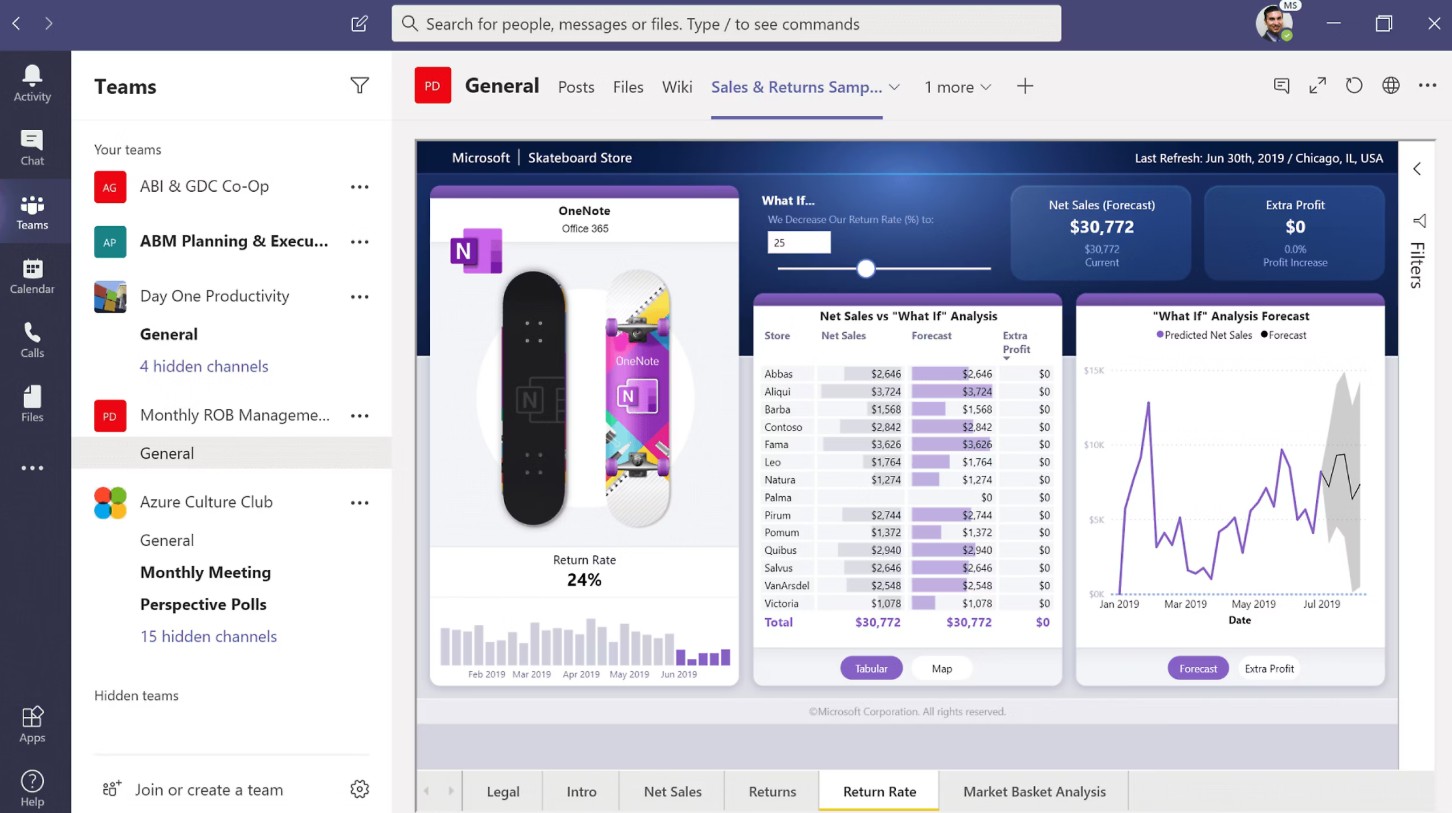
Managers can monitor project progress, performance, or status metrics directly within the workspace. Visual reports help identify anomalies and support data-driven decision-making.
When management information is centralized, users don't need to constantly switch between multiple applications to check the project status.
2.7. Power Automate for Automation
Power Automate helps automate repetitive tasks within a project workflow. For example, when a task requires approval, the workflow can send a request to the person in charge. As the deadline approaches, the system can send reminders.
Automation helps reduce the number of manual operations and minimizes errors caused by humans forgetting to perform a step in the process.
For large projects, automating small but daily tasks can significantly save time for the entire team.
3. Setting up the project space
To manage projects effectively using Teams, the initial structure needs to be well-designed. A well-organized system will significantly reduce the time spent searching for information later on.
Step 1: Create a separate team for each project.
Start by creating a separate team for each project . This space should centralize the team members directly involved, information, documents, and related activities.
Separating projects helps prevent content from multiple projects from getting mixed up. It also makes it easier for managers to identify members, access rights, and the scope of information for each team.
Step 2: Organize the channel
After creating the team, set up channels by topic, sprint, or department.
For example, a website development project might have channels such as Planning, Design, Content, Development, and Testing . With an Agile project, channels can also be organized into sprints or phases.
Avoid creating too many channels if they don't have a clear purpose. The simpler and more consistent the structure, the easier it is for members to use.
Step 3: Set up the file structure
In the Files tab , create clear folders for documents, presentations, reports, and other content.
It's best to agree on a naming convention from the start. For example, the group could use the following structure:
TenDuAn_LoaiTaiLieu_PhiênBản_Ngay
A consistent convention makes it easier for members to search for documents and reduces the risk of creating multiple files with similar names.
Because Teams integrates with SharePoint, project documents can be managed centrally and support version control.
Step 4: Use Tabs
Tabs can be used to pin important project tools.
Planner is suitable for task management, OneNote for notes and work documents, and Power BI can be used for dashboards and reports.
When the necessary tools are located directly within the channel, team members don't have to constantly switch between applications. This reduces unnecessary steps and keeps the workflow focused.
4. Combine the right tools.
One of Teams' biggest advantages is its ability to integrate multiple Microsoft tools to meet different management levels.
4.1. Task Planner
Planner is suitable for teams that need a visual board to organize and track tasks. Tasks can be assigned to individual members, deadlines set, labels added, and priorities defined.
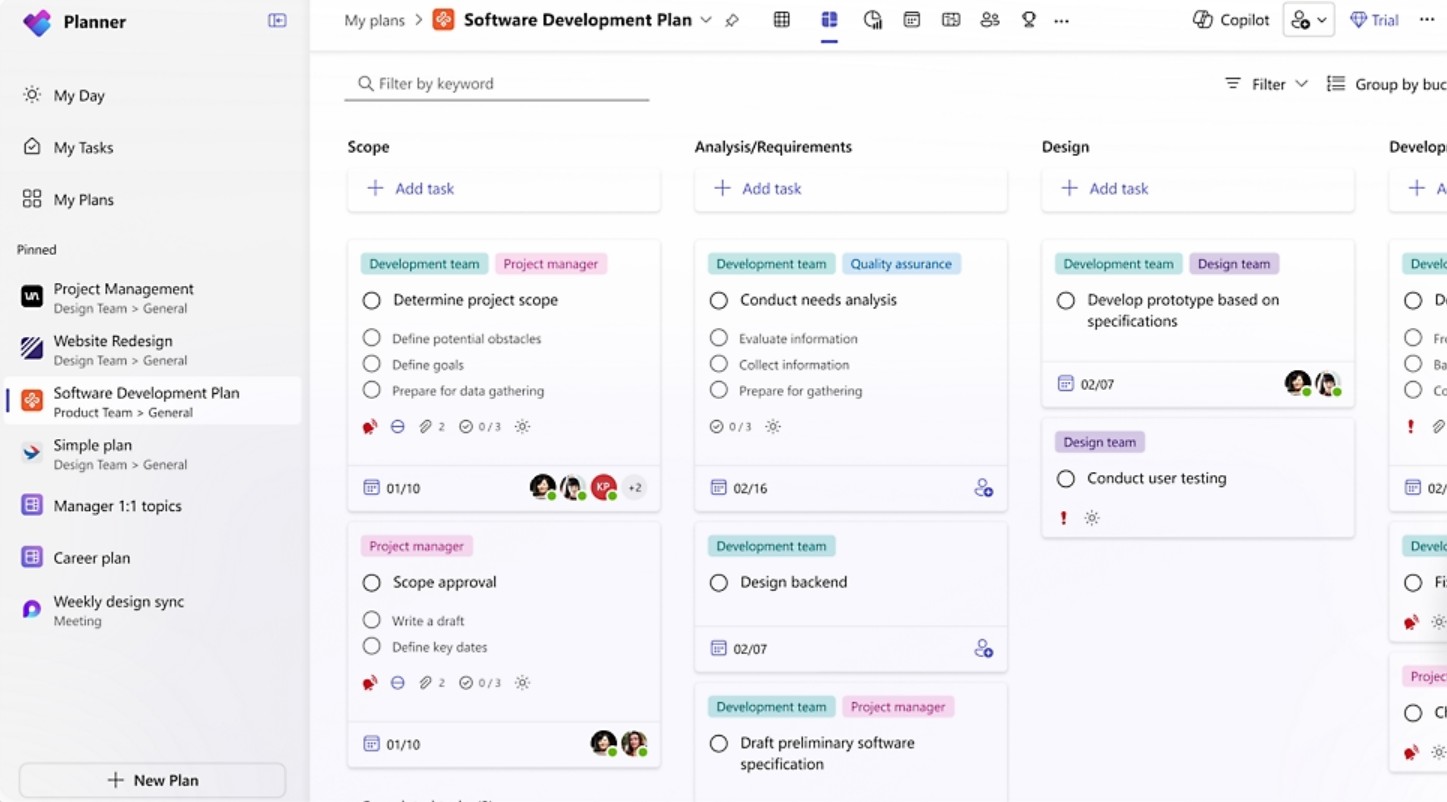
For projects of moderate size, a planner can be a central hub for tracking daily tasks, helping everyone know which tasks are pending and which are completed.
4.2. Microsoft To Do for Personal Tasks
Microsoft To Do focuses more on personal tasks. This tool helps users manage tasks across multiple devices and maintain their own to-do lists.
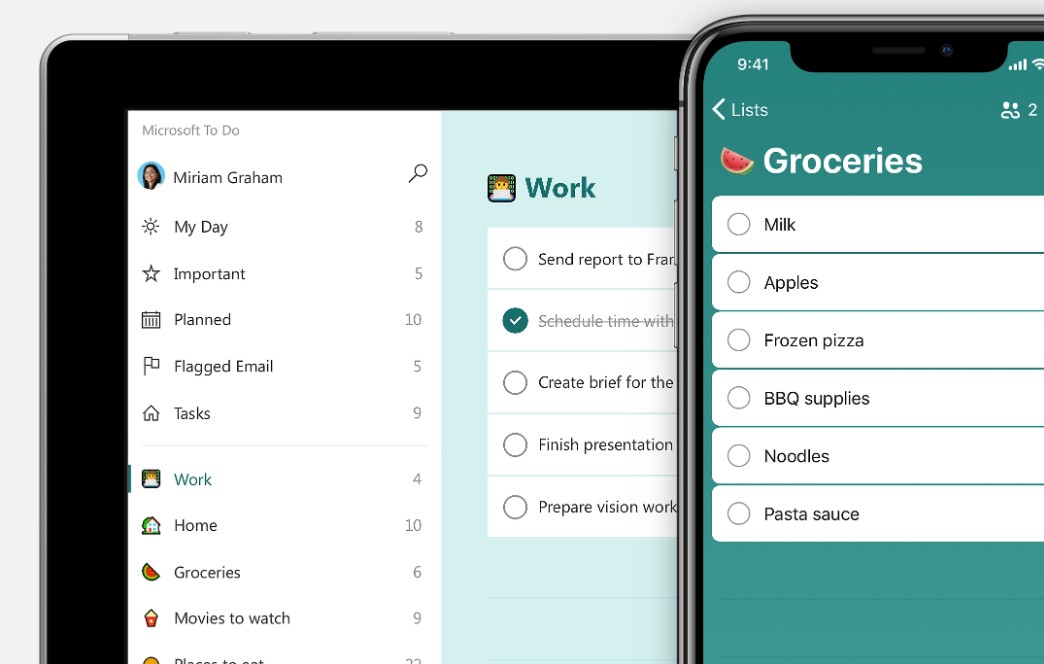
When combined with Teams, each member can manage their own tasks while staying focused on the overall project goals.
Separating team tasks from individual tasks helps avoid a situation where all work is put into a single list.
4.3. Microsoft Project for Complex Projects
For projects requiring in-depth planning, Microsoft Project offers advanced tools such as Gantt charts, progress management, resource allocation, and task dependency tracking.
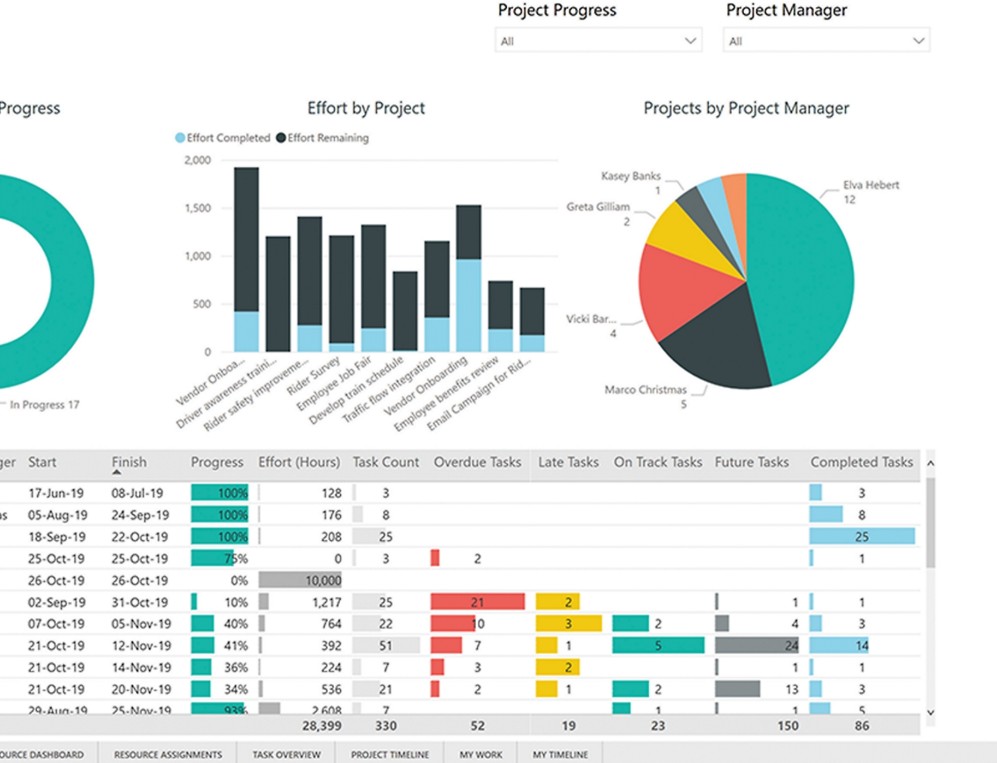
Gantt charts help managers visualize the start and end times and the relationships between tasks. This is especially important for projects with multiple interdependent phases.
When a task is delayed, the manager can assess its impact on related tasks and adjust the plan accordingly.
4.4. OneNote for note-taking
OneNote is a suitable choice for saving meeting minutes, project notes, ideas, and related knowledge.
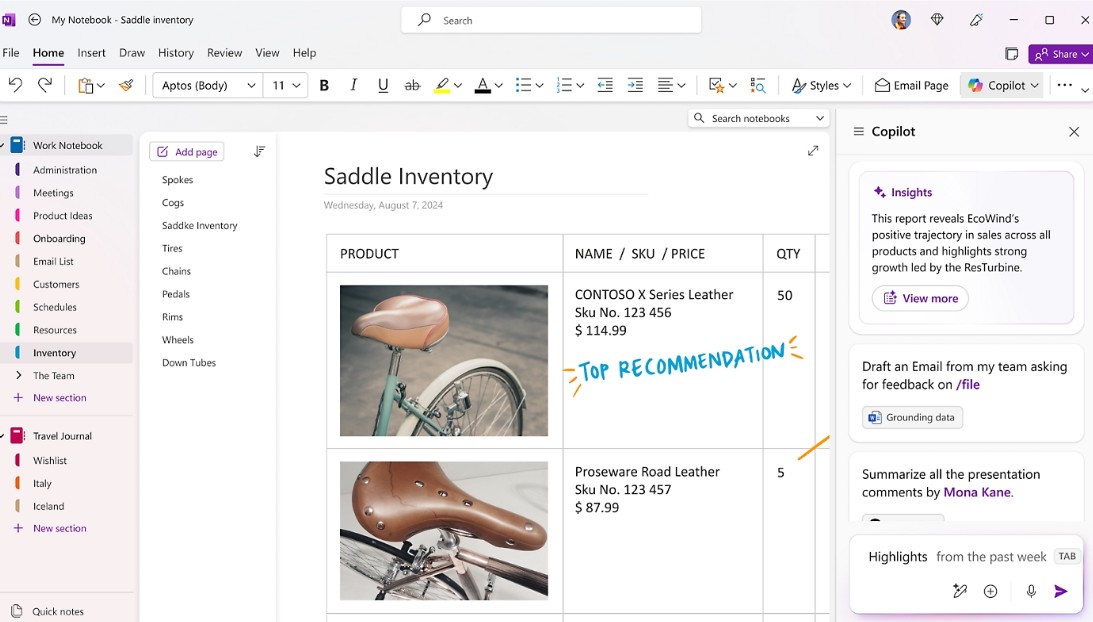
Pages and sections can be organized by topic or stage. When integrated into Teams, OneNote becomes a shared note-taking space, helping teams maintain project knowledge and easily access information when needed.
4.5. Power Automate for Processes
Power Automate can be used to build workflows tailored to specific needs.
For example, when a document requires approval, the process can automatically send a request to the person responsible. When a task is approaching its deadline, the workflow can trigger a reminder. When the status changes, the system can also notify the relevant people.
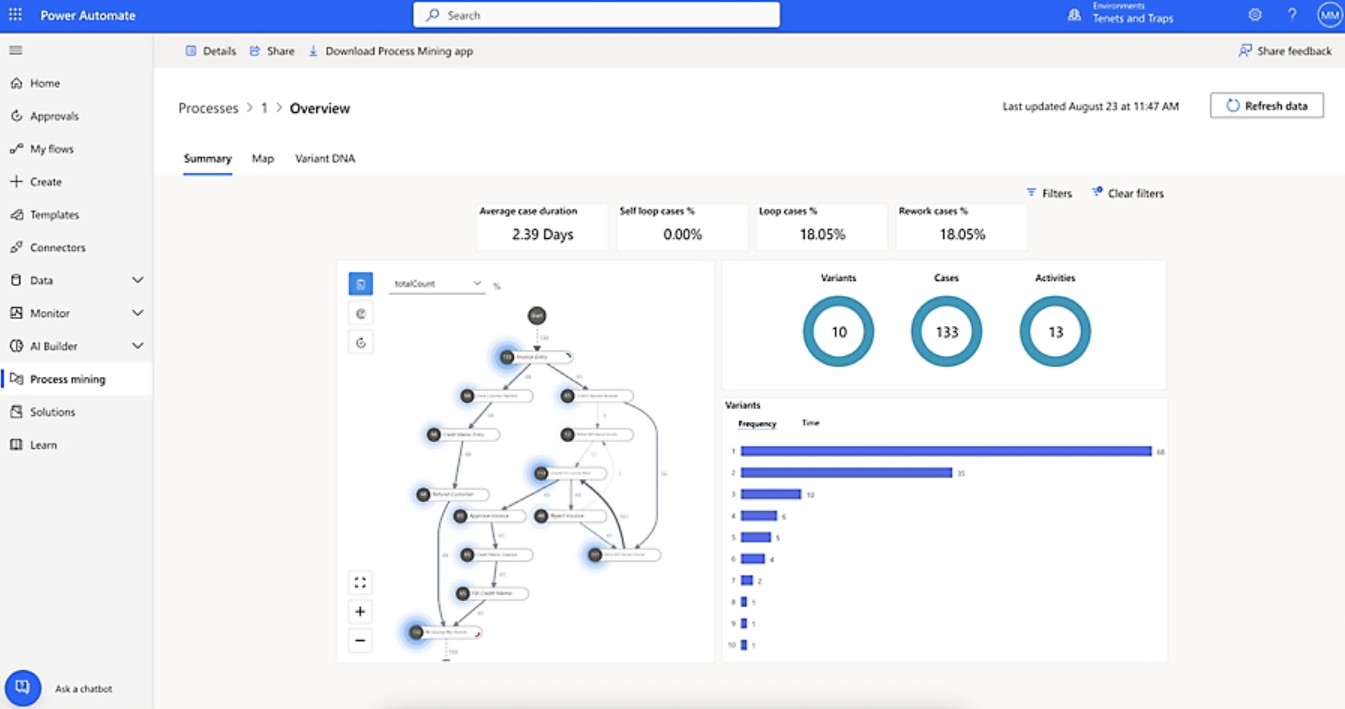
As a result, repetitive steps were shifted from manual to automated processing, helping the team maintain a more consistent workflow.
When communication, documents, tasks, and data are centralized in a structured space, teams can reduce information search time, increase transparency, and detect problems earlier. This is the foundation that makes Microsoft Teams a useful solution for both simple projects and complex collaboration processes.





















VIP Products








Best Selling Products
Copyright Adobe Lightroom Account
59 USD
ChatGPT Plus Account (GPT-4)
16 USD
Capcut Pro 1 Year
39 USD
MidJourney Account
29 USD
Genuine Cheap Canva Pro
39 USD
Upgrade genuine Capture One account
120 USD
Genuine Adobe Illustrator account
99 USD
Windows 10 & 11 Pro Key
36 USD
Adobe Photoshop Copyright - Full App
120 USD
Upgrade Duolingo Super
29 USD
Upgrade Genuine Office 365
49 USD
Plugin Retouch4me
69 USD
Adobe Premiere Pro Account
99 USD
Autodesk All App Account Copyright
120 USD
Freepik Premium Account
59 USD