Best Selling Products

Adobe Premiere Pro Account
99 USD

Upgrade genuine Capture One account
120 USD

Plugin Retouch4me
69 USD

Adobe Photoshop Copyright - Full App
120 USD

Genuine Cheap Canva Pro
39 USD

Genuine Adobe Illustrator account
99 USD

ChatGPT Plus Account (GPT-4)
16 USD

Windows 10 & 11 Pro Key
36 USD

Upgrade Genuine Office 365
49 USD

Copyright Adobe Lightroom Account
59 USD

MidJourney Account
29 USD

Upgrade Duolingo Super
29 USD

Capcut Pro 1 Year
39 USD

Autodesk All App Account Copyright
120 USD

Freepik Premium Account
59 USD
How to Quickly Create Professional Book Covers with Canva AI Book Cover Generator
Nội dung
- 1. What is Canva AI Book Cover Generator?
- 2. Outstanding Features of Canva AI Book Cover Generator
- 2.1 AI Image Creation from Text Descriptions
- 2.2 Rich Template Library
- 2.3 Intuitive Drag-and-Drop Interface
- 2.4 Massive Image & Icon Library
- 2.5 Customize Fonts, Colors, and Styles
- 2.6 Export High-Quality Print-Ready Files
- 3. How to Use Canva AI Book Cover Generator
- 3.1 Step 1: Log In and Start a Book Cover Project
- 3.2 Step 2: Open the Text-to-Image Tool
- 3.3 Step 3: Enter a Detailed Prompt
- 3.4 Step 4: Insert Images and Edit the Design
- 3.5 Step 5: Optimize Decorative Details
- 3.6 Step 6: Publish and Download Your Book Cover
- 4. Customize Book Covers by Genre to Increase Appeal
- 5. Popular Visual Styles for Designing Book Covers with AI
- 6. Conclusion
Do you find it difficult to design a beautiful, professional book cover on your own without graphic design skills? Don’t worry! With Canva AI Book Cover Generator, every barrier is removed.
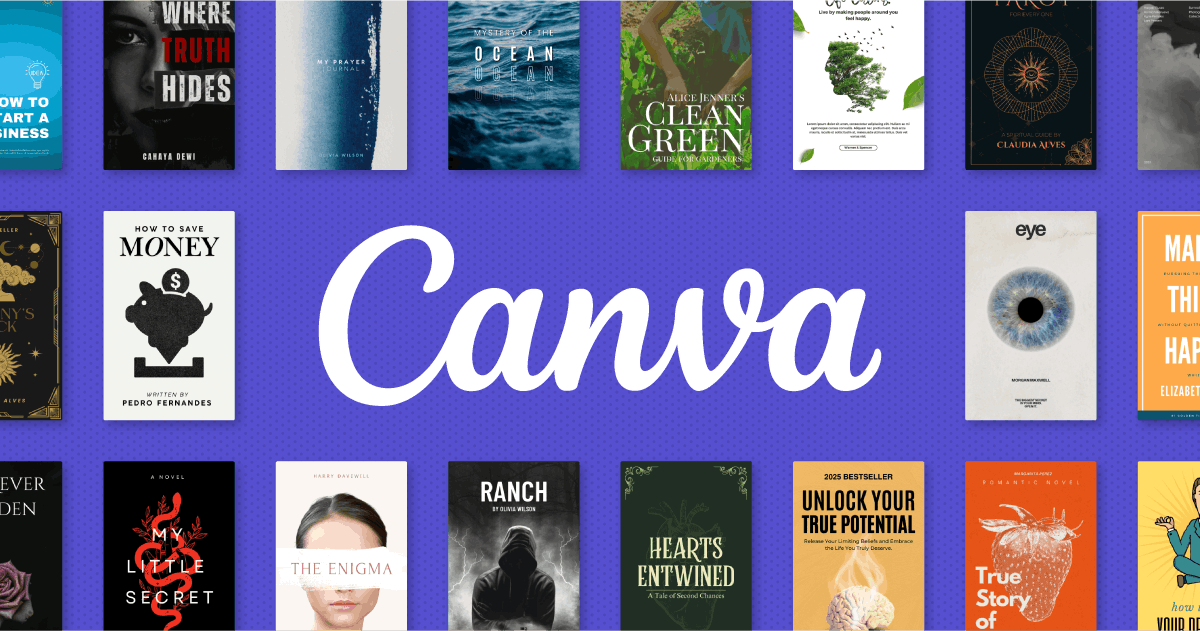
1. What is Canva AI Book Cover Generator?
In today’s publishing world, a book cover is not just a decorative “outfit” but also an extremely effective marketing and attraction tool. An impressive book cover can make readers stop, become curious, and be ready to click purchase immediately. However, hiring a professional designer can sometimes cost millions of VND and take days to complete, making it difficult for many authors and publishers.
That is exactly why Canva AI Book Cover Generator was created, becoming the optimal solution for anyone who wants to design book covers quickly while maintaining professionalism. This tool is part of the Canva Magic Studio™ ecosystem, integrating AI Text-to-Image technology and thousands of ready-made design templates, allowing users to create book covers from just a simple text description.
With only a few mouse clicks, you can transform ideas into eye-catching book covers suitable for every genre, from novels, children’s books, and business books to romance and detective stories. Canva AI Book Cover Generator saves time, reduces costs, and delivers professional results that make any author feel confident launching their books to readers.
%20(1).jpg)
2. Outstanding Features of Canva AI Book Cover Generator
2.1 AI Image Creation from Text Descriptions
With Canva AI Book Cover Generator, you simply enter a description in Vietnamese or English about your book cover idea. For example: “a girl standing in a flower field at sunset, anime style.” Immediately, AI will automatically generate 3 to 4 images in different styles, giving you multiple choices without spending time searching or drawing.
The strength of this feature lies in its ability to turn ideas into visual images in just seconds. Canva’s proprietary AI Text-to-Image technology is not only fast but also ensures high-quality images suitable for various book genres, from novels to children’s books and business books.
%20(1).jpg)
2.2 Rich Template Library
Canva AI owns hundreds of pre-designed book cover templates, clearly categorized by genre: horror, science fiction, children’s stories, career books, and more. This helps you easily find a template close to your initial concept and save design time.
You can customize templates to match your own style, insert AI-generated images, or change colors and fonts to fit your book’s content. Thanks to this rich template library, designing book covers becomes simple and effective, even for people with no graphic design experience.
2.3 Intuitive Drag-and-Drop Interface
Canva’s interface is designed to be friendly and intuitive, allowing anyone to work easily. You simply drag and drop images, text, and icons into your desired positions and instantly see the results on screen.
Additionally, layout grids, alignment, and centering are automatically supported, ensuring your book cover always looks balanced and professional. This interface minimizes complex operations so you can focus on creativity without worrying about technical design issues.
2.4 Massive Image & Icon Library
In addition to AI-generated images, Canva provides more than 100 million images, icons, vectors, and videos from both free and premium libraries. You can combine these elements with AI-generated visuals to create unique book covers with a personal touch.
This is especially useful when adding decorative details, patterns, frames, or supporting icons. Thanks to this enormous resource library, creative possibilities are nearly limitless, making it easy to make your book stand out among thousands of others on the market.
2.5 Customize Fonts, Colors, and Styles
Canva AI Book Cover Generator lets you change fonts, colors, and design styles with just a few clicks. You can choose from hundreds of beautiful fonts, from modern and elegant to cute or mysterious, depending on your genre and target audience.
Colors can also be adjusted easily to create harmony, emphasis, or highlight your message. This flexibility ensures your book cover is not only visually appealing but also conveys the spirit and content of the book, increasing its ability to attract readers at first glance.
%20(1).jpg)
2.6 Export High-Quality Print-Ready Files
A beautiful book cover must meet printing and digital publishing standards, and Canva AI fully supports this. The tool allows exporting files in PDF Print (300 DPI), PNG, or JPEG formats, ensuring sharp image quality and accurate colors for both printing and digital publishing.
This is especially important if you plan to publish on platforms such as Amazon KDP, Google Books, or Apple Books. With Canva AI, you not only get a beautiful book cover but also confidence in file quality while saving production time and costs.
3. How to Use Canva AI Book Cover Generator
3.1 Step 1: Log In and Start a Book Cover Project
First, visit Canva and log into your account. If you don’t have one yet, you can sign up for free in just a few seconds. Canva also offers a Pro version with premium images, fonts, and effects that make your book cover look more professional.
After logging in, search for the keyword “Book Cover” in the search bar. Canva will suggest hundreds of templates categorized by genre and style. You can choose one close to your vision or create a custom-sized cover, for example 1410 x 2250 px, the standard eBook cover size. This is an important step for defining the overall layout and speeding up the design process.
3.2 Step 2: Open the Text-to-Image Tool
Inside the design interface, locate the left toolbar and select the “Apps” tab. Then search for and click “Text to Image,” the powerful AI tool that turns written descriptions into realistic or illustrated visuals.
Text-to-Image is the heart of Canva AI Book Cover Generator. It allows you to create unique, exclusive cover images without drawing skills or Photoshop. This tool saves time while opening endless creative possibilities from your initial concept.
%20(1).jpg)
3.3 Step 3: Enter a Detailed Prompt
A prompt is the text description AI uses to generate your image. Every detail affects the final result. For example:
“An ancient castle on top of a mountain, thunderstorm sky, fantasy painting style, cold dark tones, high resolution”
You can choose image styles such as realistic photography, hand-drawn illustration, concept art, or oil painting. Also, choose portrait orientation to fit book covers. The more detailed and specific your prompt, the closer the AI result will match your vision, reducing editing time later.
3.4 Step 4: Insert Images and Edit the Design
Once AI generates your image, drag and drop it directly into the cover frame. Then add your book title, author name, or slogan using the Text tool. This is when your cover becomes complete and appealing to readers.
Canva provides a variety of fonts for different genres:
Horror: Cormorant Garamond, Special Elite
Romance: Great Vibes, Parisienne
Business: Montserrat, Lato
You can also adjust text color, spacing, tilt, or shadows to enhance aesthetics and fit the overall design. Canva also supports alignment and automatic layout tools, ensuring your cover always looks balanced and professional.
%20(1).jpg)
3.5 Step 5: Optimize Decorative Details
To make your cover stand out more, you can add decorative elements such as frames, patterns, icons, or vectors from Canva’s library. With over 100 million available resources, you can combine them harmoniously with AI-generated visuals to create a unique and attractive book cover.
Be careful not to overcrowd the design or block the main content. The balance between AI imagery, text, and decorative elements makes your cover professional and memorable.
3.6 Step 6: Publish and Download Your Book Cover
Once satisfied with the design, click “Share” → “Download.” Choose PDF Print (300 DPI) for printing or PNG/JPEG for digital publishing. Canva ensures sharp image quality, accurate colors, and compatibility with platforms like Amazon KDP, Google Books, and Apple Books.
This final step is crucial because it ensures your cover looks great not only on screen but also in print, delivering a professional experience for readers and increasing the chances of your book’s success.
4. Customize Book Covers by Genre to Increase Appeal
A beautiful book cover is not only visually attractive but must also clearly communicate its genre so readers instantly understand it. When readers browse thousands of titles, they decide within seconds whether to click based on first impressions. That’s why genre customization is extremely important.
Fantasy: Use purple and dark blue tones with castles, dragons, magical lights, or mythical landscapes. Fonts like Cinzel Decorative create an epic atmosphere.
Romance: Soft pastel colors, couples, and romantic scenery work best. Fonts like Sacramento and Great Vibes emphasize emotion and warmth.
Thriller: Dark tones, anonymous figures, shadows, and eerie details. Fonts like Bebas Neue create suspense and intensity.
Non-fiction: Minimalist and professional with office visuals, charts, or work-related imagery. Fonts like Open Sans or Roboto create clarity and trust.
Children’s Books: Bright cheerful colors with cartoon illustrations. Fonts like Fredoka and Baloo create a playful, friendly feeling.
Always evaluate your cover from the reader’s perspective. Ask yourself: Is it attractive enough? Does it clearly communicate the genre? If unsure, seek feedback or study bestselling covers in your category.
%20(1)(1).jpg)
5. Popular Visual Styles for Designing Book Covers with AI
When using Canva AI Book Cover Generator, choosing the right visual style is essential for matching your book’s tone.
Photorealistic: Sharp, realistic images ideal for modern fiction, memoirs, and non-fiction.
Illustrative: Hand-drawn artistic visuals perfect for children’s stories and fantasy books.
Minimalist: Clean, simple layouts with limited colors, ideal for poetry, philosophy, and self-help.
Abstract: Unique shapes and colors suited for art books or emotional storytelling.
Fantasy: Magical landscapes, castles, dragons, and mystery for immersive fantasy novels.
Sci-Fi: Futuristic spaces, technology, and neon lights for science fiction stories.
Romance: Soft pink tones, couples, and warm lighting for emotional love stories.
Mystery/Thriller: Dark shadows and city-night settings to create suspense.
Historical: Vintage color grading and classic style for historical fiction.
Business: Professional typography, charts, and clean layouts for business and educational books.
6. Conclusion
Designing book covers is no longer a challenge when you have Canva AI Book Cover Generator. This tool saves time, delivers professional-quality results, and helps create unique designs that attract readers at first glance. Whether you are a new author or a publisher, Canva AI will become your powerful assistant in turning creative ideas into perfect book covers within minutes. Start exploring today and create book covers readers simply cannot ignore!





















VIP Products








Best Selling Products
Adobe Premiere Pro Account
99 USD
Upgrade genuine Capture One account
120 USD
Plugin Retouch4me
69 USD
Adobe Photoshop Copyright - Full App
120 USD
Genuine Cheap Canva Pro
39 USD
Genuine Adobe Illustrator account
99 USD
ChatGPT Plus Account (GPT-4)
16 USD
Windows 10 & 11 Pro Key
36 USD
Upgrade Genuine Office 365
49 USD
Copyright Adobe Lightroom Account
59 USD
MidJourney Account
29 USD
Upgrade Duolingo Super
29 USD
Capcut Pro 1 Year
39 USD
Autodesk All App Account Copyright
120 USD
Freepik Premium Account
59 USD