Best Selling Products

Plugin Retouch4me
69 USD

Upgrade Genuine Office 365
49 USD

Windows 10 & 11 Pro Key
36 USD

Copyright Adobe Lightroom Account
59 USD

Adobe Photoshop Copyright - Full App
120 USD

Freepik Premium Account
59 USD

Upgrade Duolingo Super
29 USD

Autodesk All App Account Copyright
120 USD

Genuine Cheap Canva Pro
39 USD

Capcut Pro 1 Year
39 USD

Genuine Adobe Illustrator account
99 USD

Upgrade genuine Capture One account
120 USD

ChatGPT Plus Account (GPT-4)
16 USD

MidJourney Account
29 USD

Adobe Premiere Pro Account
99 USD
How to Fix the “ChatGPT is at capacity right now” Error in Just 1 Minute
Nội dung
- 1. What Is the “ChatGPT is at capacity right now” Error?
- 2. Main Causes of the Error
- 3. How to Fix the ChatGPT Overload Error in 1 Minute
- 3.1. Press F5 or Refresh the Page
- 3.2. Log Out and Log Back In
- 3.3. Use ChatGPT Plus
- 3.4. Try Another Browser or Device
- 3.5. Check Your Network Connection
- 3.6. Use ChatGPT During Off-Peak Hours
- 3.7. Use Temporary Alternatives
- 4. Tips to Reduce the Chance of Errors
- 5. Why This Error Affects User Experience
- 6. Trusted ChatGPT Upgrade Options in Vietnam
- 6.1. AI Software World — A Trusted Source
- 6.2. Benefits of Buying Through AI Software World
- 6.3. Important Notes Before Purchasing
- 7. Conclusion
The “ChatGPT is at capacity right now” error is one of the most common issues users encounter when accessing ChatGPT, especially during peak hours.
1. What Is the “ChatGPT is at capacity right now” Error?
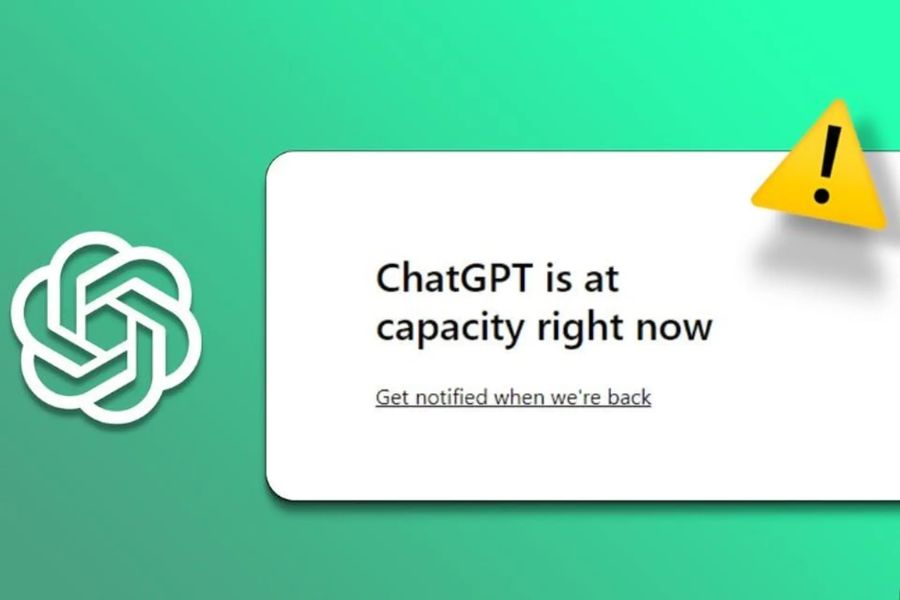
The “ChatGPT is at capacity right now” error appears when ChatGPT’s system is handling too many requests at once, causing the server to be unable to serve new users. When this message appears, you will not be able to send requests or receive responses from the AI, and your previous session may be interrupted unexpectedly. This is the system’s way of signaling that the server is overloaded and that you need to wait or apply certain solutions to continue using ChatGPT.
The symptoms of this error are usually quite obvious. The ChatGPT website or app will display an error message, sometimes accompanied by instructions to try again later. Users will be unable to type questions, create content, or receive AI responses, and if you are working on the mobile app, your session may be interrupted without warning. This causes significant frustration, especially for those who rely on ChatGPT for quick research or daily work tasks.
Understanding the nature of this error helps users avoid panic when encountering the issue. Instead, you can quickly apply the right solutions, knowing that this is not a problem with your device or network but entirely due to system overload.
2. Main Causes of the Error
There are many factors that can cause ChatGPT overload, but generally they can be divided into several main groups.
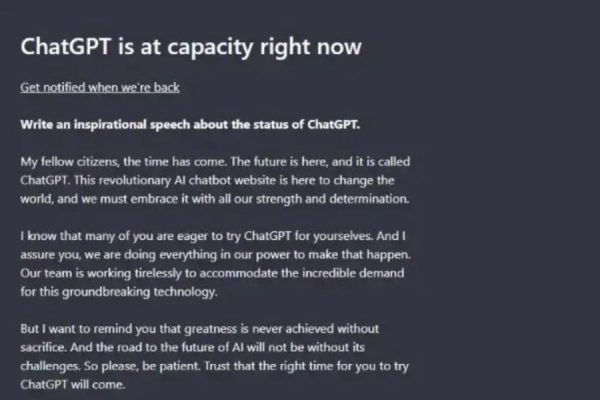
First, high user traffic is the most common reason. ChatGPT is currently one of the most widely used AI services in the world, and during peak hours such as evenings or weekends, servers must handle millions of requests simultaneously, resulting in overload.
Second, system maintenance or updates from OpenAI can also trigger this error. During model upgrades, security patches, or scheduled maintenance, some servers may temporarily become unavailable, causing users to see the “at capacity” notification.
In addition, personal network issues or VPN connections are factors that should not be overlooked. Unstable connections or suspicious IP addresses may prevent the server from verifying your session.
Finally, using a free account also plays a role. ChatGPT Free users are often limited when servers are overloaded, while ChatGPT Plus users are given priority access, minimizing the risk of encountering this issue.
Understanding these causes helps you choose the most suitable solution, from refreshing the page and logging in again to considering an account upgrade to reduce future interruptions.
3. How to Fix the ChatGPT Overload Error in 1 Minute
When you see the “ChatGPT is at capacity right now” message, do not panic. This issue is quite common, especially during busy hours when millions of users are online at the same time. Fortunately, there are many quick and effective ways to get back to using ChatGPT without waiting long. Below are detailed and easy-to-follow solutions to fix the problem within just 1 minute.
3.1. Press F5 or Refresh the Page
One of the simplest and fastest ways to fix the error is to refresh the webpage or app. On desktop, simply press F5 or Ctrl + R, and the page will reload and resend the connection request to the server. This method is often effective when server load has partially decreased.
If you are on mobile, try pulling down to refresh the webpage or fully closing and reopening the app. This creates a new session, clears any frozen old session, and resends your request cleanly.
However, avoid pressing refresh too many times too quickly. Repeated requests may cause the server to treat your session as contributing to overload, making the error persist. Wait about 3–5 seconds between refresh attempts for the best results.

3.2. Log Out and Log Back In
Another highly effective method is logging out of your current account and logging back in. This makes the server recognize your request as a new session, increasing your chances of reconnecting successfully.
You should log in using your current email or OpenAI account. If the error persists in your browser, try using incognito mode or a different browser. This removes old cache and cookies, ensuring the server recognizes your new session correctly.
This method is especially useful if you have had multiple ChatGPT tabs open at once or your previous session has been active for too long. Simply logging back in can save time and reduce frustration.
3.3. Use ChatGPT Plus
If you frequently encounter the “ChatGPT is at capacity” error, upgrading to ChatGPT Plus is a long-term and effective solution. ChatGPT Plus costs around $20 per month, but in return, you get priority access even when servers are overloaded, greatly reducing interruptions.
Plus users generally enjoy smoother experiences, especially during peak hours when free users flood the servers. This is ideal if you rely on ChatGPT for important work, study, content creation, or continuous research.
In addition to priority access, ChatGPT Plus gives early access to new features and advanced AI models. This is a smart investment if you want the best possible AI experience.
3.4. Try Another Browser or Device
The issue does not always come from the server. Sometimes your browser or device may be causing connection problems. Switching browsers or devices is a quick way to check and fix this.
You can clear cache and cookies or use incognito mode to create a fresh session. If you are using a computer, try accessing ChatGPT on your phone; if your phone has issues, switch to desktop.
This helps identify the root cause while improving your chances of reconnecting without waiting for server load to decrease.
3.5. Check Your Network Connection
Another common reason is an unstable internet connection, preventing ChatGPT servers from receiving your request. In this case, switch to another Wi-Fi network or use 4G/5G mobile data to improve connectivity.
If you are using a VPN, disable it, as some servers may restrict VPN IPs or flag them as unstable. Restarting your modem/router can also stabilize the connection.
A smoother internet connection not only helps you access ChatGPT faster but also reduces “at capacity” errors caused by failed requests from unstable connections.
3.6. Use ChatGPT During Off-Peak Hours
If the above solutions do not work, choosing low-traffic times can significantly reduce the chance of encountering errors. Peak hours are typically between 6:00 PM and 11:00 PM, when traffic is highest.
Accessing ChatGPT early in the morning or late at night is a simple but highly effective solution. Fewer users mean faster connections and smoother performance.
Planning your usage during quieter hours helps optimize productivity and ensures uninterrupted AI assistance.
3.7. Use Temporary Alternatives
If ChatGPT servers remain overloaded for an extended period, you can temporarily use alternative AI chatbots such as Bard, Bing AI, Claude, or similar tools.
This allows you to continue working without interruption, especially when you need urgent answers or quick information lookup.
Once ChatGPT traffic decreases, you can switch back seamlessly.
4. Tips to Reduce the Chance of Errors
Besides fixing the issue when it happens, you can prevent future “ChatGPT is at capacity” errors with these simple but effective habits:
-
Log in with ChatGPT Plus for priority access
-
Clear cache and cookies regularly
-
Avoid opening too many ChatGPT tabs at once
-
Update to the latest app version
-
Monitor the official OpenAI status page for outages or maintenance
5. Why This Error Affects User Experience
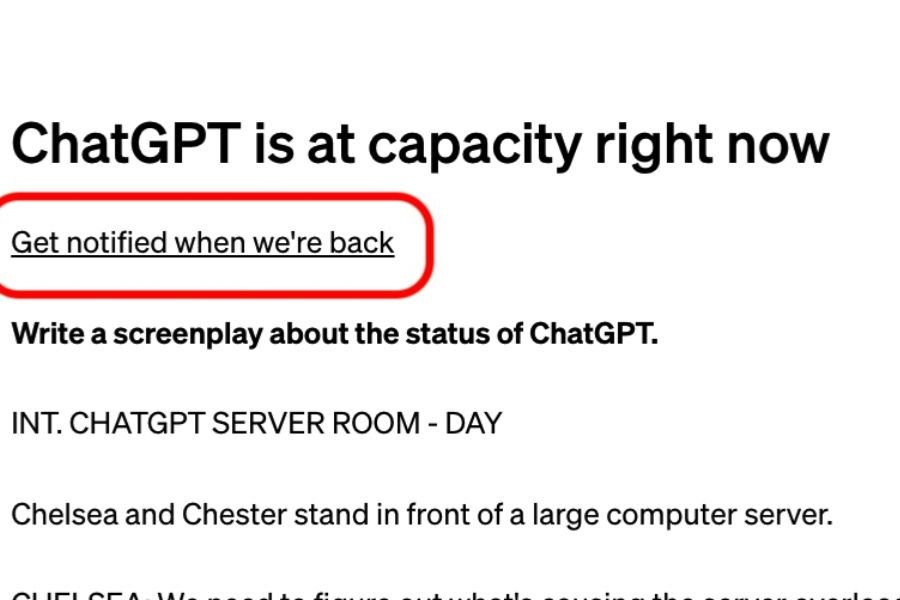
The “ChatGPT is at capacity” error is not just a technical inconvenience—it directly impacts productivity and workflow.
-
Delayed content creation: Writing, studying, and research are interrupted
-
Missed deadlines: Project timelines may be delayed
-
Frustration and reduced focus: Frequent interruptions break concentration
-
Slower information retrieval: Users cannot get answers instantly
Understanding these effects helps users take proactive steps to avoid interruptions.
6. Trusted ChatGPT Upgrade Options in Vietnam
If you want to upgrade to ChatGPT Plus, choosing a reliable provider is extremely important. One of the most trusted providers today is AI Software World. They offer genuine ChatGPT Plus packages with local support in Vietnam, making upgrades quick and convenient, especially for users who face international payment difficulties.
Choosing a trusted distributor ensures legitimate access, technical support, and account security for a smooth AI experience.
6.1. AI Software World — A Trusted Source
Thế Giới Phần Mềm AI provides ChatGPT Plus and other AI software packages with activation support, making the process simple for Vietnamese users.
They also offer many other licensed software products, allowing convenient one-stop purchasing for work and study needs.
6.2. Benefits of Buying Through AI Software World
When purchasing ChatGPT Plus from AI Software World, you receive:
-
Priority server access
-
Reduced risk of “ChatGPT is at capacity” errors
-
Activation guidance and technical support
-
Secure handling of personal information
6.3. Important Notes Before Purchasing
Before upgrading, ensure:
-
You are buying an official ChatGPT Plus plan
-
Activation and account security support are included
-
You compare with direct purchase options if you own an international payment card

7. Conclusion
The “ChatGPT is at capacity right now” error is a common issue, but it is far from impossible to solve. By understanding the causes, you can fix it within just 1 minute using simple steps such as refreshing the page, logging back in, switching browsers or devices, checking your network, or upgrading to ChatGPT Plus for priority access. These methods not only help you continue enjoying a smooth AI experience but also minimize disruptions to work, study, and research.





















VIP Products








Best Selling Products
Plugin Retouch4me
69 USD
Upgrade Genuine Office 365
49 USD
Windows 10 & 11 Pro Key
36 USD
Copyright Adobe Lightroom Account
59 USD
Adobe Photoshop Copyright - Full App
120 USD
Freepik Premium Account
59 USD
Upgrade Duolingo Super
29 USD
Autodesk All App Account Copyright
120 USD
Genuine Cheap Canva Pro
39 USD
Capcut Pro 1 Year
39 USD
Genuine Adobe Illustrator account
99 USD
Upgrade genuine Capture One account
120 USD
ChatGPT Plus Account (GPT-4)
16 USD
MidJourney Account
29 USD
Adobe Premiere Pro Account
99 USD