Best Selling Products

Adobe Premiere Pro Account
99 USD

Freepik Premium Account
59 USD

Autodesk All App Account Copyright
120 USD

Genuine Adobe Illustrator account
99 USD

ChatGPT Plus Account (GPT-4)
16 USD

Copyright Adobe Lightroom Account
59 USD

Windows 10 & 11 Pro Key
36 USD

Upgrade Duolingo Super
29 USD

Adobe Photoshop Copyright - Full App
120 USD

Capcut Pro 1 Year
39 USD

MidJourney Account
29 USD

Upgrade genuine Capture One account
120 USD

Genuine Cheap Canva Pro
39 USD

Plugin Retouch4me
69 USD

Upgrade Genuine Office 365
49 USD
Photo Editing Guide on Windows 10
Nội dung
- 1. How to Edit Photos on Windows 10
- 1.1 Edit Directly on the Image
- Step 4: Save the edited photo
- 1.2 Using the Paint Tool
- 2. Using Photo Editing Software and Applications
- 2.1 Corel PaintShop Pro
- 2.2 Adobe Photoshop
- 2.3 Canva
- 2.4 GIMP
- 2.5 Inkscape
- 2.6 LightZone
- 3. Tips for Effective Photo Editing
- 4. Conclusion
Are you looking to learn how to edit photos on a Windows 10 computer without installing overly complicated software?
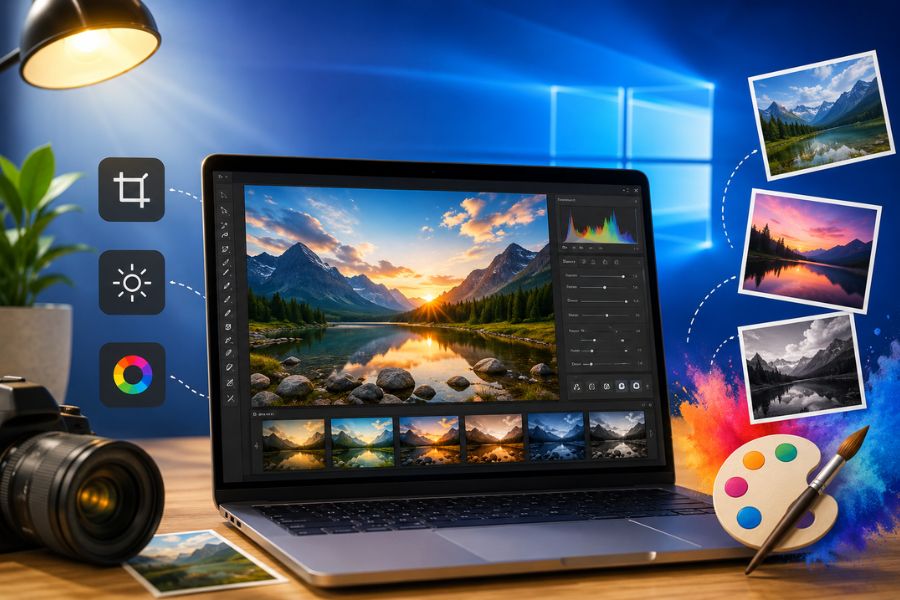
1. How to Edit Photos on Windows 10
Windows 10 provides many built-in tools that help you easily edit photos on your computer without installing additional complicated software. With just a few simple actions, you can crop images, adjust brightness and contrast, add text, or quickly resize photos. Below are effective and easy ways to edit photos on Windows 10, suitable even for beginners.
1.1 Edit Directly on the Image
Editing photos directly using the default Photos app on Windows 10 is a convenient and fast option. This tool supports many basic features such as cropping, color adjustments, increasing or decreasing brightness, and applying filters in just a few simple steps, making it ideal for everyday photo editing needs.
Step 1: Open the photo you want to edit
First, simply double-click on the image you want to edit, and the system will automatically open it in the built-in Photos app on Windows 10. This is a simple but very important first step to begin editing photos quickly without downloading any external applications.
.jpg)
Step 2: Select “Edit & Create”
Once the image is open, click the “Edit & Create” icon in the upper-right corner of the screen and choose “Edit.” The editing interface will appear with many intuitive tools, making it easy to use even if you have no prior editing experience.
.jpg)
Step 3: Edit the photo
Here, you can use the available tools to adjust lighting, contrast, colors, or crop the photo as desired. In addition, the app also supports filters to make your photo more attractive and professional. This is one of the simplest ways to edit photos on Windows 10 while still delivering excellent results for personal needs.
(1).jpg)
Step 4: Save the edited photo
After finishing your edits, click “Save as copy” to save the new version of the image. This allows you to keep the original photo in case you want to edit it again later. With just a few basic steps, you can easily improve your photos right on your Windows 10 computer.
.jpg)
1.2 Using the Paint Tool
If you are looking for a simple and easy way to edit photos on your computer, Paint is definitely a familiar option worth considering. Although its interface is quite basic, Paint still handles common editing tasks well, such as resizing, adding text, drawing shapes, or quickly cutting and combining images.
Step 1: Open the image with Paint
First, right-click the image you want to edit, choose “Open with,” and then select “Paint.” Within seconds, the image will open in the familiar Windows Paint interface, allowing you to begin editing easily without installing any extra software.
.jpg)
Step 2: Edit the image as needed
After successfully opening the image, you can select the Resize feature to change the image dimensions as desired. In addition, Paint also supports tools such as brushes, erasers, text insertion, and shape creation, making computer photo editing more convenient. With its simple interface, it is especially suitable for beginners learning basic photo editing..jpg) Step 3: Save the image after editing
Step 3: Save the image after editing
Once all editing is complete, click “File” and select “Save as” to save the image in your preferred format, such as JPG or PNG. Saving in the correct format helps preserve image quality and makes it easier to use for studying, work, or social media uploads.
.jpg)
2. Using Photo Editing Software and Applications
If you want to edit photos on your computer more professionally with advanced features such as color grading, background removal, photo compositing, or graphic design, then photo editing software will be the ideal choice. Each tool has its own strengths, meeting needs ranging from basic photo editing to advanced creative work for study and professional use.
2.1 Corel PaintShop Pro
Corel PaintShop Pro is photo editing software chosen by many users thanks to its intuitive and user-friendly interface. It offers a full range of editing tools such as cropping, color correction, image sharpening, and adding artistic effects, helping users easily create more beautiful and professional-looking photos.
One of Corel PaintShop Pro’s standout advantages is its powerful image processing capability while still being beginner-friendly. It also supports RAW photo editing, old photo restoration, and effective image quality enhancement. This is a suitable choice for anyone looking to improve their photo editing experience on a Windows computer.
2.2 Adobe Photoshop
Adobe Photoshop is considered the leading software for computer photo editing and professional graphic design. With a wide range of powerful tools, Photoshop allows users to perform basic tasks such as cropping and brightness adjustment, as well as advanced techniques like skin retouching, compositing, and creating creative effects.
One of Photoshop’s greatest strengths is its layer-based workflow and support for extension plugins, making the creative process more flexible. As a result, it is widely used by designers, photographers, and content creators to produce high-quality visual products for work and social media.
2.3 Canva
Canva is an extremely popular online design tool for anyone who wants to edit photos quickly on a computer without much design experience. With its simple drag-and-drop interface, Canva helps users easily edit photos, add text, create banners, posters, or Facebook posts in just a few minutes.
In addition to basic editing capabilities, Canva also offers a rich template library with many fonts, stickers, and eye-catching effects that make images look more professional. It is an excellent tool for online sellers, content creators, or anyone who frequently designs visuals for study and daily work.
.jpg)
2.4 GIMP
GIMP is photo editing software loved by many users thanks to its powerful editing capabilities and completely free access. It is considered a suitable alternative to Photoshop for those who want professional-level editing without using overly complex software. GIMP supports features such as layers, photo compositing, color correction, and adding effects, allowing users to create freely as they wish.
GIMP stands out for its expandability with many plugins and advanced editing tools, making it suitable for both beginners and experienced users. If you are looking for an effective Windows 10 photo editing solution without investing too much money, GIMP is definitely worth trying.
2.5 Inkscape
Inkscape is an open-source vector graphics software widely used for designing logos, icons, and creative graphic products. Although it is not primarily intended for bitmap photo editing, Inkscape still supports many basic features that make computer photo editing easy when needed.
The software stands out for its professional vector drawing capabilities, SVG support, and flexible design tools. Its accessible interface and diverse customization options make Inkscape suitable for both beginners and professional designers who want to create beautiful graphic products directly on their computers.
2.6 LightZone
LightZone is computer photo editing software focused on RAW image processing, making it especially suitable for photography enthusiasts. This tool allows users to fine-tune lighting, colors, and contrast in detail while preserving original image quality, helping photos look more professional and natural.
One of LightZone’s most notable strengths is its ability to edit separate light and shadow areas while offering flexible color management. Thanks to its intuitive and easy-to-use interface, this software helps users create deeper and more impressive photos without requiring extensive editing skills.
3. Tips for Effective Photo Editing
To make photo editing on your computer faster and more professional, you not only need to choose the right tools but also apply a few useful tips during the editing process. The experiences below will help save time, simplify operations, and create more beautiful, harmonious photos even if you do not have much editing experience.
Choose the right editing platform for your needs: If you only need to crop, adjust brightness, or add simple text, Paint or Photos on Windows will be sufficient. For more advanced design or creative needs, Canva or Photoshop will be better options for efficient computer photo editing.
Use keyboard shortcuts for faster editing: Memorizing shortcut combinations can significantly increase your editing speed while improving workflow efficiency when working on multiple images continuously.
Always save the original image before editing: This is an important tip to avoid losing data or being unable to restore the original image if something goes wrong. Create a copy before editing so you can work with peace of mind.
Explore filters and effects: Filters and color effects can make your images stand out and develop a unique style. However, you should adjust them moderately to maintain a natural and harmonious appearance.
4. Conclusion
As you can see, editing photos on a Windows 10 computer is not difficult at all as many people may think. By taking advantage of built-in system tools or free online editing platforms, you can create beautiful images without advanced technical skills. Hopefully, the instructions in this article will help you easily edit photos according to your needs and improve your computer experience in both work and daily life.





















VIP Products








Best Selling Products
Adobe Premiere Pro Account
99 USD
Freepik Premium Account
59 USD
Autodesk All App Account Copyright
120 USD
Genuine Adobe Illustrator account
99 USD
ChatGPT Plus Account (GPT-4)
16 USD
Copyright Adobe Lightroom Account
59 USD
Windows 10 & 11 Pro Key
36 USD
Upgrade Duolingo Super
29 USD
Adobe Photoshop Copyright - Full App
120 USD
Capcut Pro 1 Year
39 USD
MidJourney Account
29 USD
Upgrade genuine Capture One account
120 USD
Genuine Cheap Canva Pro
39 USD
Plugin Retouch4me
69 USD
Upgrade Genuine Office 365
49 USD