Best Selling Products

ChatGPT Plus Account (GPT-4)
16 USD

Upgrade genuine Capture One account
120 USD

Capcut Pro 1 Year
39 USD

Plugin Retouch4me
69 USD

Freepik Premium Account
59 USD

Autodesk All App Account Copyright
120 USD

Adobe Premiere Pro Account
99 USD

Genuine Cheap Canva Pro
39 USD

Genuine Adobe Illustrator account
99 USD

Upgrade Genuine Office 365
49 USD

Adobe Photoshop Copyright - Full App
120 USD

Windows 10 & 11 Pro Key
36 USD

Upgrade Duolingo Super
29 USD

MidJourney Account
29 USD

Copyright Adobe Lightroom Account
59 USD
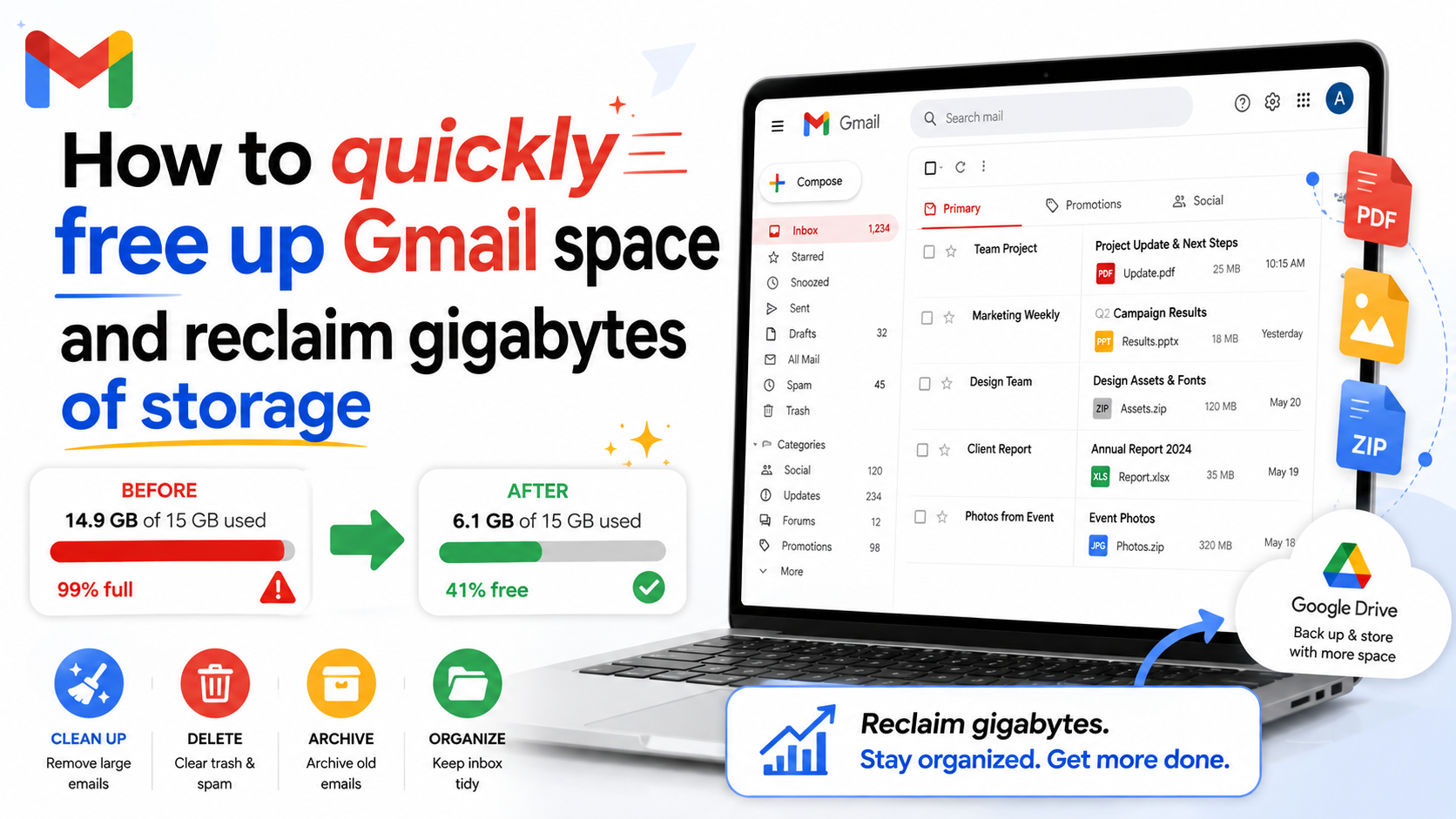
How to quickly free up Gmail space and reclaim gigabytes of storage.
Nội dung
- 1. Why does Gmail fill up so quickly?
- 2. Check total capacity
- 3. Find emails with large files.
- 4. Clear your sent inbox.
- 5. Clean up spam emails.
- 6. Check Google Drive
- 7. Check Google Photos
- 8. Delete unnecessary emails.
- 9. Empty the trash can.
- 10. Clean up your Gmail regularly.
- 11. Quick cleanup process
- 12. Conclusion
This guide shows you how to check and free up Gmail storage using simple search commands. With just a few proper cleanup steps, you can reclaim gigabytes of storage without needing to purchase additional space.
1. Why does Gmail fill up so quickly?
The first cause often stems from email attachments. An email containing only a few lines of text is almost negligible in terms of size, but emails with high-resolution images, videos, PDFs, presentations, or large documents are a completely different story.
The problem is that these files can remain in an account for a very long time. Users may have forgotten about them years ago, but they continue to take up space.
It's not just received emails that cause problems. Sent emails can also contain large attachments. This is an area many people often overlook when cleaning up Gmail.

Additionally, Google account storage can also be used by Google Drive and Google Photos. If users frequently back up photos, videos, or upload documents to Drive, the 15 GB of free storage will quickly be used up.
Therefore, to effectively free up space, you shouldn't just delete the most recent emails in your inbox. You need to identify the large files and check all areas that are using storage.
2. Check total capacity
Before you begin cleaning up, check how much storage space your account is currently using.
This helps users know exactly how many GB they need to free up and allows them to assess the effectiveness after completion.
One real-world example shows that users can reduce their usage from around 75% to 64%, which is equivalent to freeing up about 1.65 GB of data.
It may not sound like a lot, but with a total free storage of 15 GB, 1.65 GB is a significant amount of space. This could be enough for users to continue using Gmail, Drive, and Photos for a longer period without needing to purchase additional storage.
Therefore, instead of immediately upgrading your storage, try checking and clearing your account first.
3. Find emails with large files.
This is the most important step if the goal is to free up a lot of storage space in a short period of time.
Gmail has a very useful search system that allows users to filter emails based on file size. Instead of manually checking each email, you can enter your search query directly into Gmail's search bar.
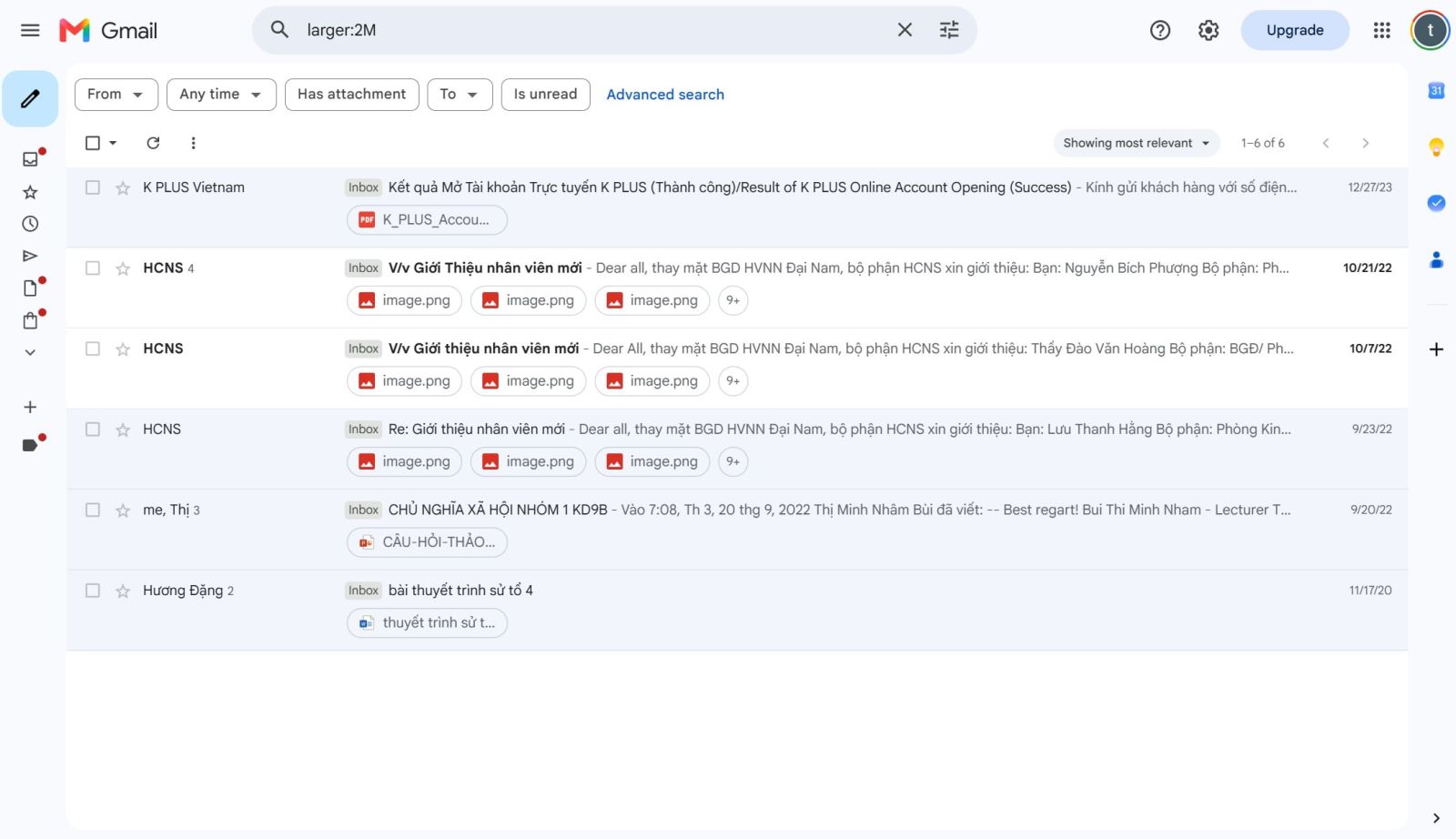
To find emails larger than 2 MB, enter:
larger:2M
Then press Enter.
Gmail will display emails that are larger than the specified size. Users can review each email and identify which ones are no longer needed.
If you want to find emails larger than 5 MB, use:
larger:5M
If you want to find emails that are larger than 10 MB:
larger:10M
This method is particularly useful because you don't need to sift through thousands of emails in chronological order. Just focus on the emails that take up the most space.
If an email is found with a very large attachment but the content is still important, users may consider saving the necessary file elsewhere before deleting the email.
4. Clear your sent inbox.
One common mistake when cleaning up Gmail is focusing only on the inbox.
In fact, the Sent folder can also contain many emails with large attachments. These are often files that users have previously sent to colleagues, clients, friends, or even themselves.
Open your Sent emails and start checking for emails with attachments.
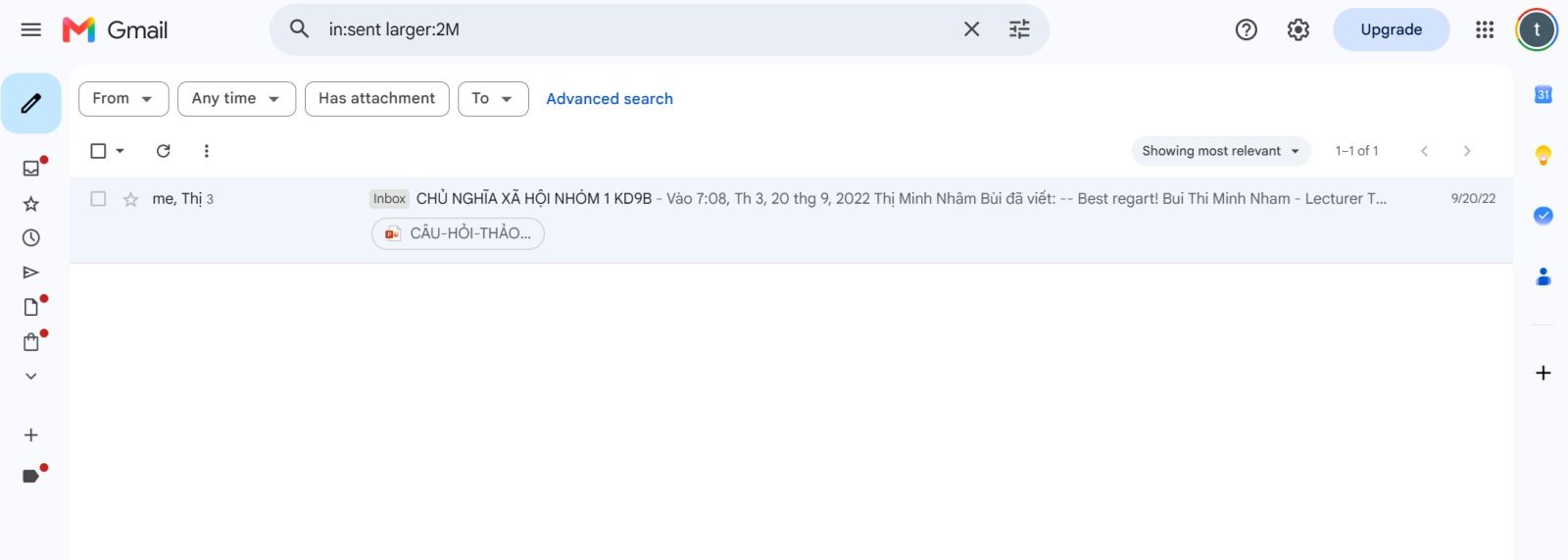
To quickly find sent emails larger than 2 MB, you can use the following command:
in:sent larger:2M
To find sent emails larger than 5 MB:
in:sent larger:5M
Or:
in:sent larger:10M
After searching, review each email. If the content is no longer useful and the attachments are unnecessary, delete them.
This is a simple step, but it can be quite effective, especially for those who frequently send documents, photos, or videos via Gmail.
5. Clean up spam emails.
After years of using Gmail, a inbox can contain thousands of promotional emails, offers, and newsletters that users almost never open.
Individual emails may not take up much space. However, when the number reaches thousands or tens of thousands of emails, the total space usage can become significant.
Please check sections such as Ads , Social Media , Content Updates , and Forums .
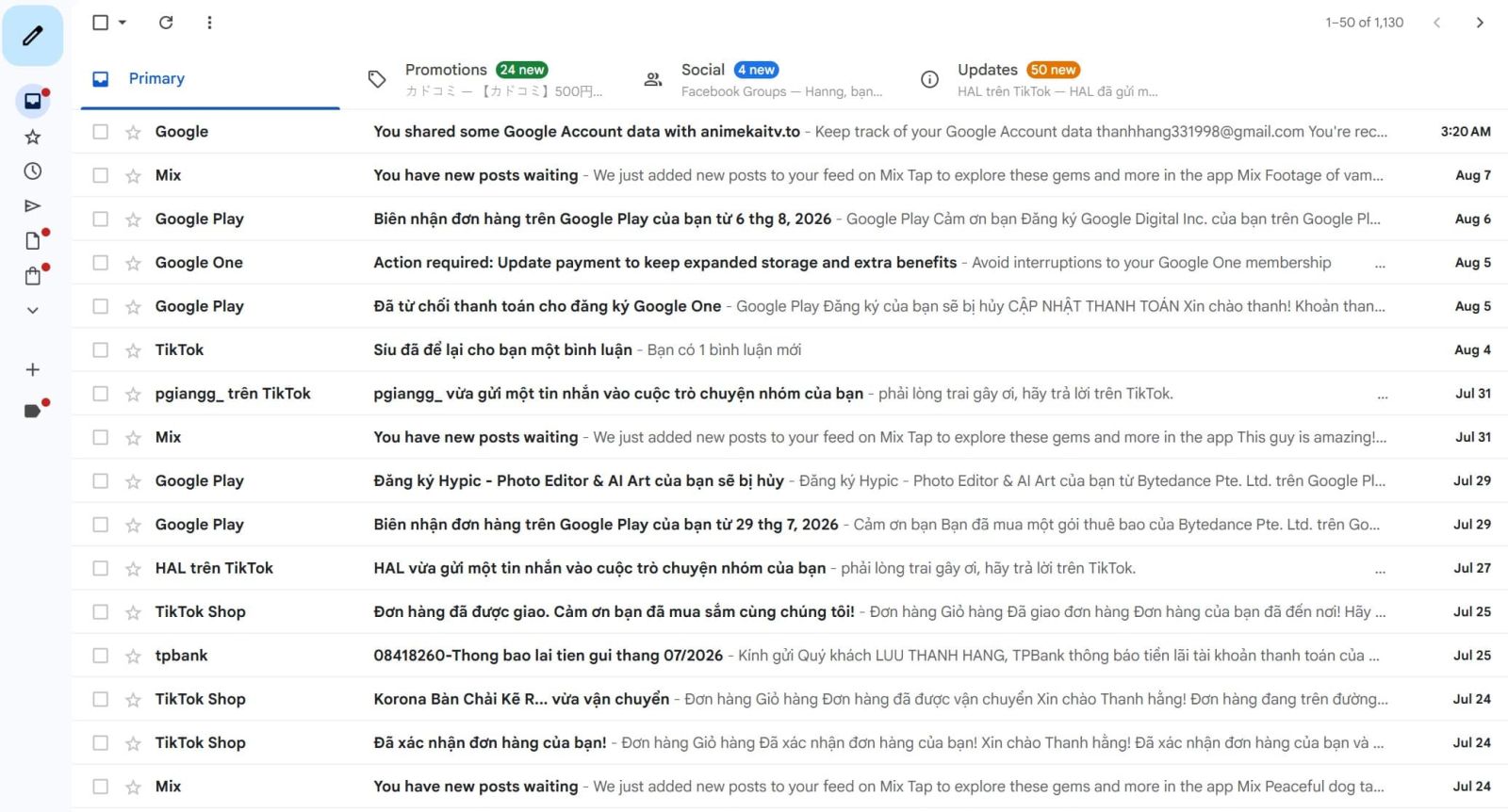
If you have emails that are no longer relevant, delete them in bulk instead of processing them one by one.
Users can also find promotional emails with large attachments by combining search criteria.
For example:
category:promotions larger:2M
This command helps find emails belonging to a promotional group that are larger than 2 MB.
This is one of the quickest ways to remove unnecessary data that users often overlook.
6. Check Google Drive
If Gmail is still using up little space but your Google account is showing as nearly full, the problem might be with Google Drive.
Open Google Drive and check for large files. Videos, design files, backups, presentations, or old project files are often noteworthy data.
Many people have a habit of uploading files to Drive to share with others and then forgetting to delete them after the work is done.
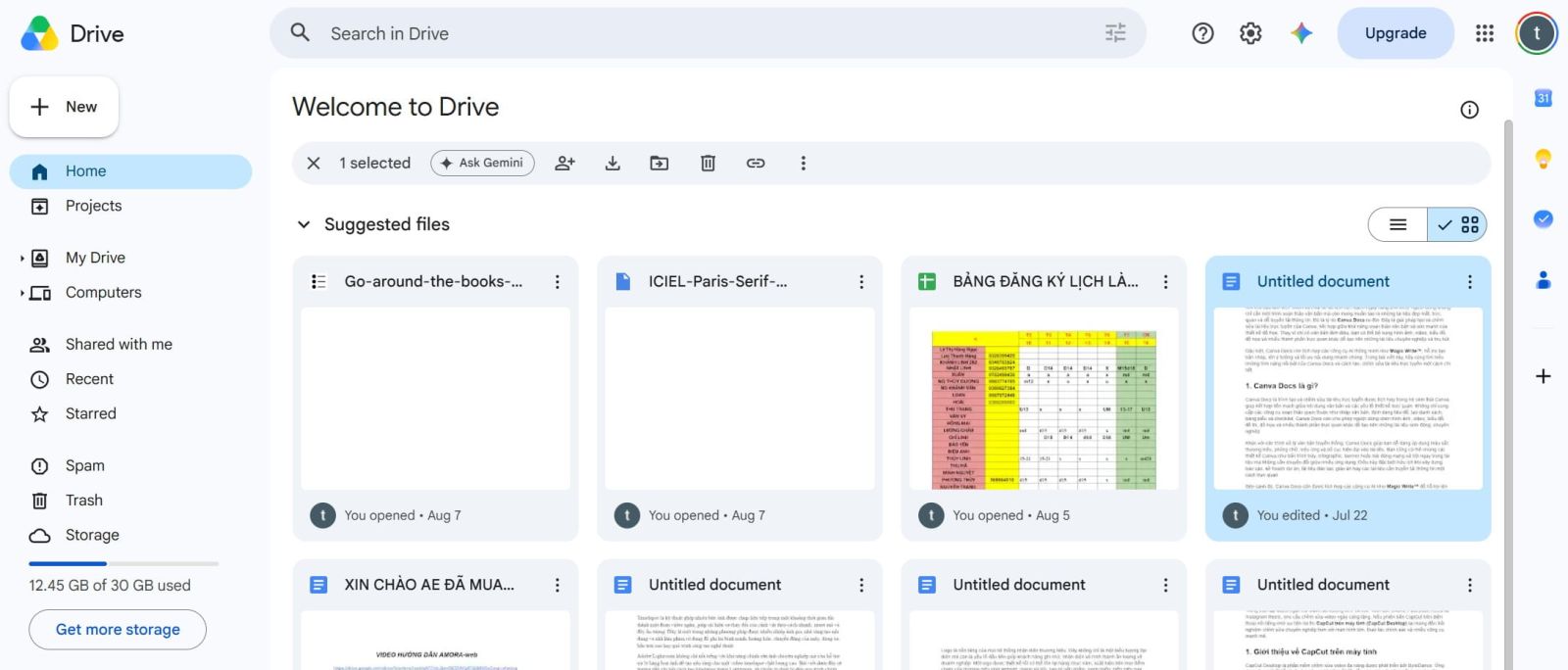
Over time, these files accumulate and take up a large amount of memory.
Review each file and ask yourself if it's still necessary. Important data should be kept or backed up in a suitable location. Files that were completed a long time ago and are no longer valuable can be deleted to free up space.
7. Check Google Photos
Google Photos is also a common reason why Google account storage space increases rapidly.
Photos and videos that are automatically backed up can accumulate over months or years. In particular, test images, screenshots, duplicate photos, or unnecessary videos can take up a lot of storage space.
If you don't want Google Photos to constantly use your storage for unnecessary content, check your automatic backup settings.
Users should regularly review their photo library and delete content that is no longer valuable. This can start with screenshots, blurry photos, duplicate photos, or large videos.
Regularly checking your Google Photos will help prevent sudden storage overruns that you might not even notice.
8. Delete unnecessary emails.
After filtering out large emails, move on to older emails that are no longer valuable.
You can find old emails using the following command:
older_than:1y
This command helps find emails that are more than a year old.
If you want to find emails older than two years:
older_than:2y
Or three years:
older_than:3y
However, you shouldn't delete emails in bulk without checking. Some old emails may still contain invoices, account information, contracts, or other essential data.
The best approach is to combine time with size.
For example:
older_than:1y larger:2M
This command helps to focus on emails that are both old and taking up a lot of space.
9. Empty the trash can.
This is a step that is very easy to overlook.
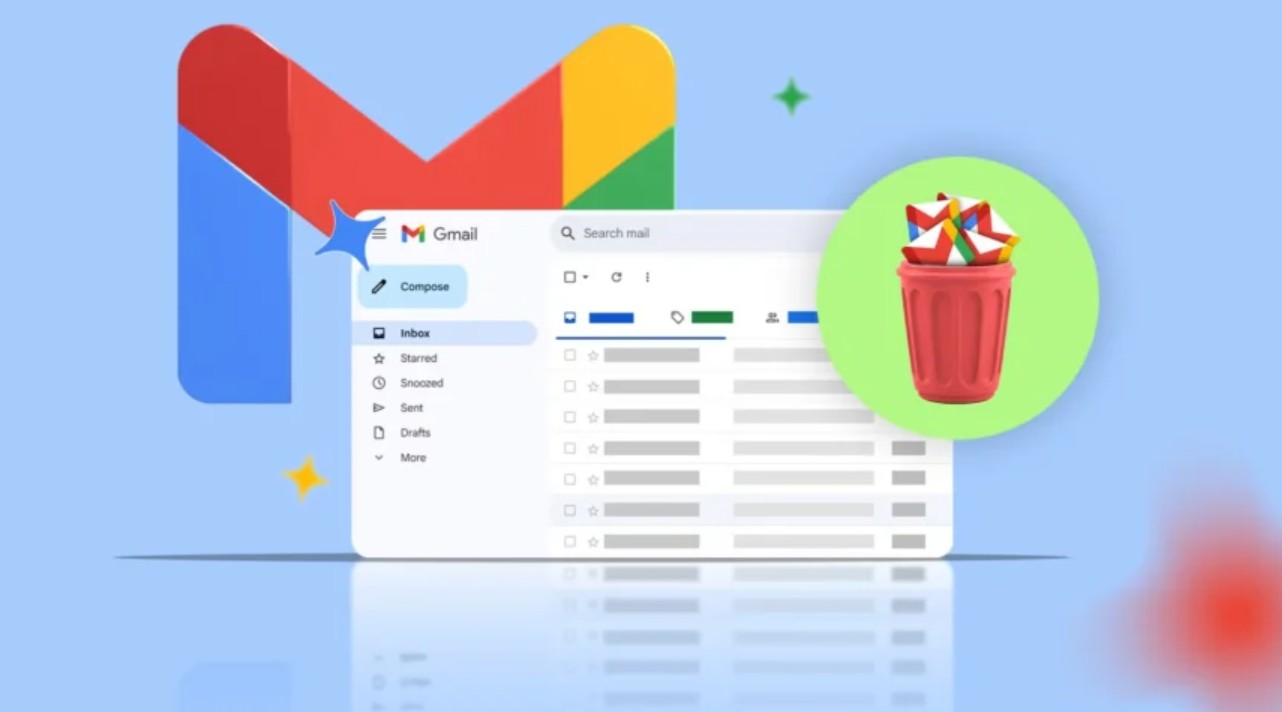
When you delete emails, the data doesn't necessarily disappear immediately; it's usually moved to the Recycle Bin . So, if you've deleted a large number of emails but the storage space hasn't decreased as expected, check this area.
Once you're sure that the emails in your Trash are no longer needed, proceed to permanently delete them.
Similarly, check the deleted data on Google Drive if necessary.
This is the final but extremely important step to ensure that space has actually been freed up.
10. Clean up your Gmail regularly.
Don't wait until you receive the "storage almost full" warning before you start cleaning up.
A simpler approach is to make it a habit to check Gmail regularly. Every month or so, dedicate a short amount of time to finding emails with large attachments, clearing out promotional mail, and reviewing old files.
You can use familiar commands:
larger:2M
in:sent larger:2M
older_than:1y
older_than:1y larger:2M
After a while, this process will become a simple habit and help ensure your account always has enough storage space.
11. Quick cleanup process
If you want to free up space today, follow the steps in the correct order.
First, check your total account balance to see your current usage.

Next, open Gmail and find the large email:
larger:2M
Then increase the filter level:
larger:5M
and:
larger:10M
Continue checking sent mail using:
in:sent larger:2M
Next, clear out unnecessary promotional emails, social media posts, updates, and forum posts.
Next, open Google Drive to delete large files that are no longer in use. Check Google Photos to remove unnecessary photos, videos, or backup content.
Finally, open the Recycle Bin and permanently delete any data that is no longer valuable.
Once finished, refresh the page and check the file size again.
12. Conclusion
Google's 15 GB of free storage may be sufficient for basic needs, but if you use Gmail, Google Drive, and Google Photos for an extended period, the storage will inevitably run out.
The cause doesn't just stem from received emails, but also from sent emails, large attachments, data on Drive, and automatically backed-up photos or videos.
The most important thing is not to just delete emails randomly. Use Gmail's search tool to pinpoint exactly which data is taking up the most space.
Don't forget to check Google Drive, Google Photos, and especially the Recycle Bin after cleaning up. With just one thorough check, users can free up hundreds of MB, or even GB, of data.





















VIP Products








Best Selling Products
ChatGPT Plus Account (GPT-4)
16 USD
Upgrade genuine Capture One account
120 USD
Capcut Pro 1 Year
39 USD
Plugin Retouch4me
69 USD
Freepik Premium Account
59 USD
Autodesk All App Account Copyright
120 USD
Adobe Premiere Pro Account
99 USD
Genuine Cheap Canva Pro
39 USD
Genuine Adobe Illustrator account
99 USD
Upgrade Genuine Office 365
49 USD
Adobe Photoshop Copyright - Full App
120 USD
Windows 10 & 11 Pro Key
36 USD
Upgrade Duolingo Super
29 USD
MidJourney Account
29 USD
Copyright Adobe Lightroom Account
59 USD