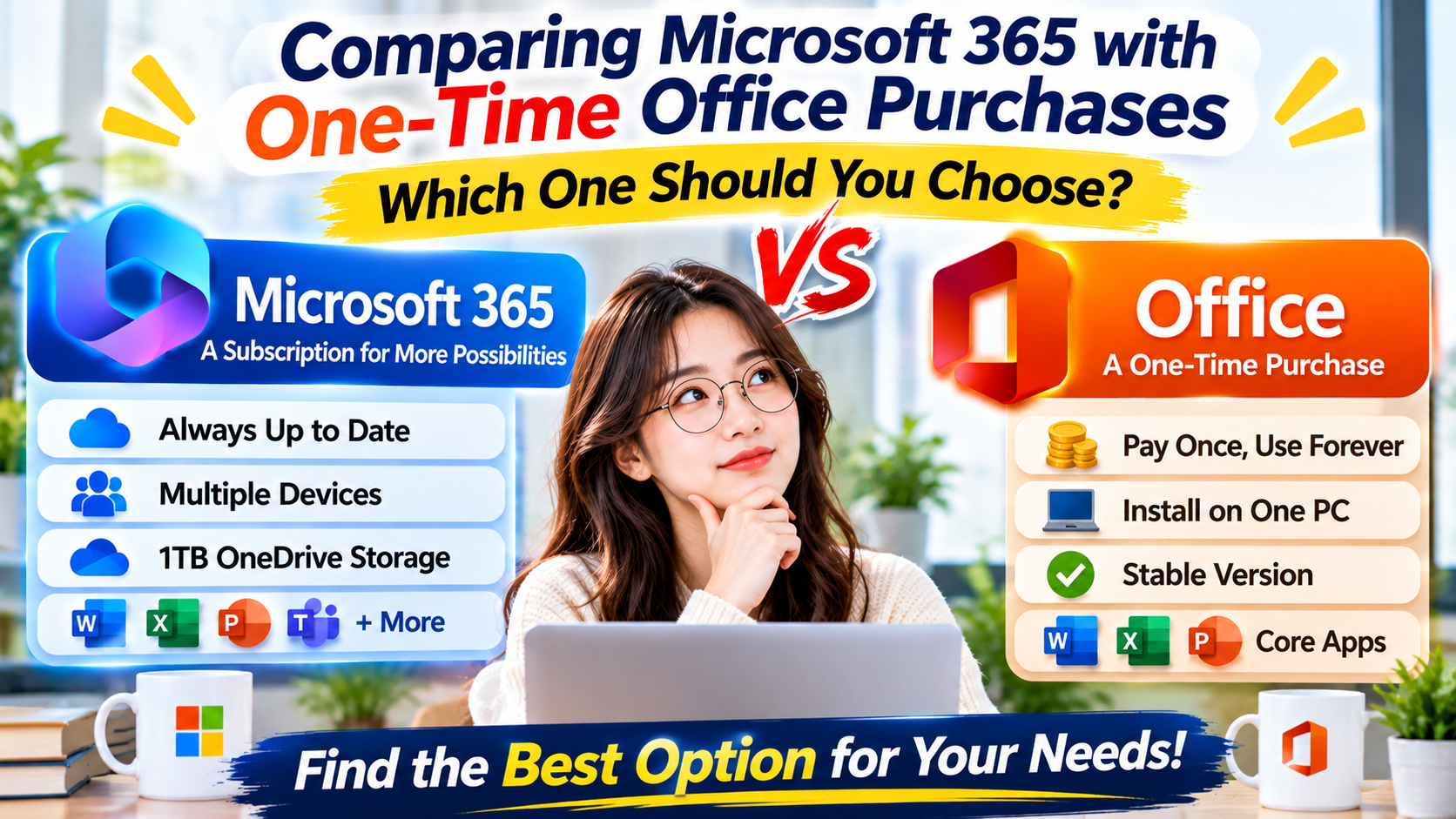
Best Selling Products

MidJourney Account
29 USD
Windows 10 & 11 Pro Key
36 USD

Capcut Pro 1 Year
39 USD
Upgrade Genuine Office 365
49 USD
Plugin Retouch4me
69 USD
Upgrade Duolingo Super
29 USD

Upgrade genuine Capture One account
120 USD
Adobe Photoshop Copyright - Full App
120 USD

Copyright Adobe Lightroom Account
59 USD
Genuine Cheap Canva Pro
39 USD

Autodesk All App Account Copyright
120 USD

Freepik Premium Account
59 USD

Adobe Premiere Pro Account
99 USD

Genuine Adobe Illustrator account
99 USD

ChatGPT Plus Account (GPT-4)
16 USD
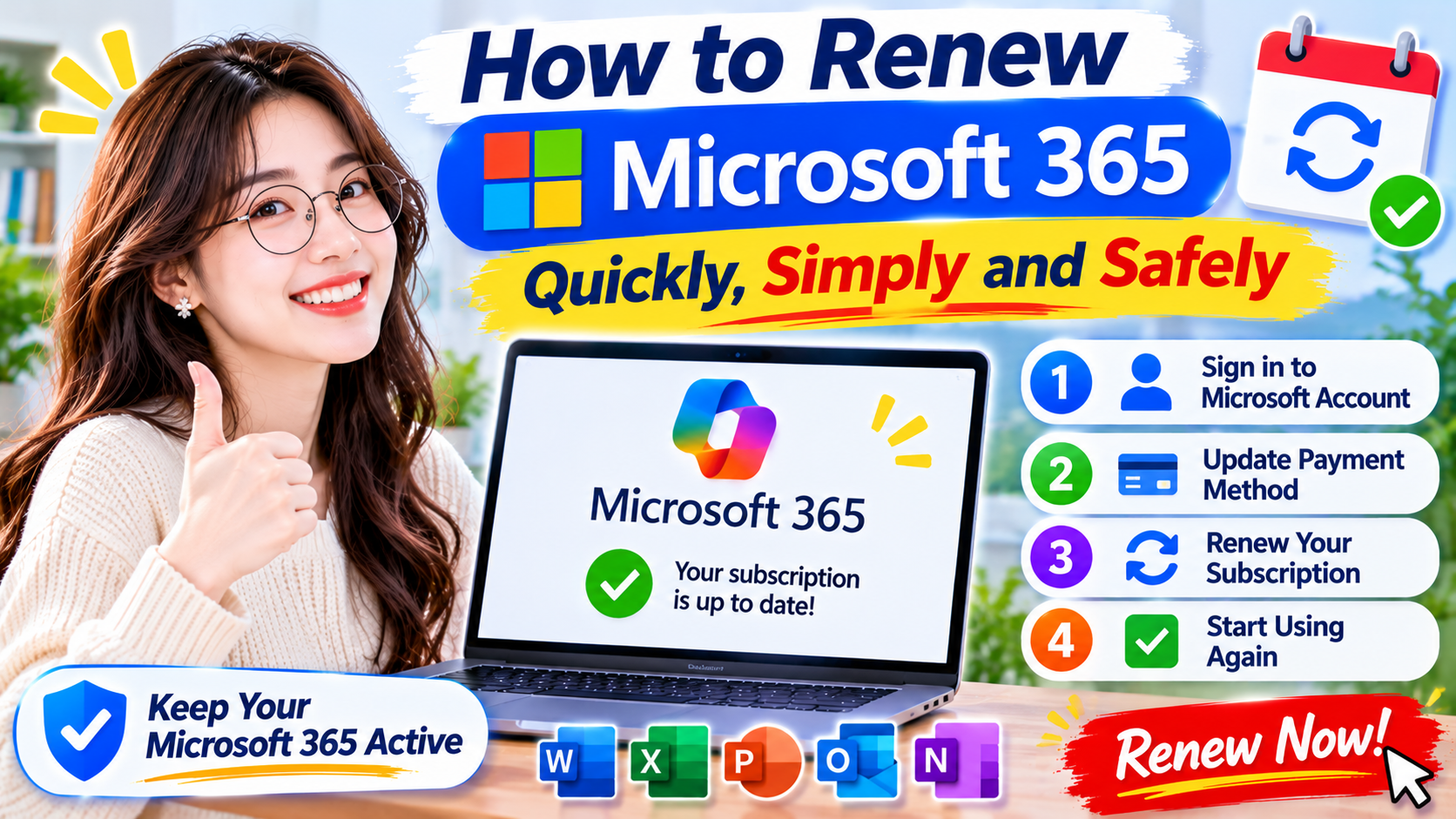
How to Renew Microsoft 365 Quickly, Simply and Safely
Nội dung
- 1. Why is it important to renew your Microsoft 365 subscription on time?
- 2. How to check your Microsoft 365 subscription expiration date
- 3. Instructions for renewing Microsoft 365 directly from Microsoft
- 4. How to renew Microsoft 365 using a product key.
- 5. Renewing Microsoft 365 when purchased through a third party.
- 6. Common mistakes when renewing Microsoft 365
- 7. Important notes before renewing
- 8. Conclusion
A detailed guide to the steps for renewing Microsoft 365 directly from the homepage, with a license key or through intermediaries in a safe way.
1. Why is it important to renew your Microsoft 365 subscription on time?
Microsoft 365 primarily operates on a monthly or annual subscription model. While the subscription is active, users enjoy corresponding benefits such as access to Office desktop applications, OneDrive storage, and additional features specific to each plan.
Renewing on time offers several notable benefits.
Maintain access to Office applications: Users can continue to utilize licensed features of Word, Excel, PowerPoint, and other applications without having to reset their work environment.
Ensuring data access: OneDrive helps synchronize and store documents online. When your subscription expires, storage benefits may change depending on your account status. Therefore, users should check their storage capacity and data status, especially when storing many important documents.
Minimize work disruptions: For office workers, students, or businesses, the inability to fully utilize essential features can impact the progress of document processing, reporting, and projects.
Continue using additional benefits: Some Microsoft 365 plans offer AI features, collaboration tools, and security services. Renewing helps maintain these benefits according to the terms of your subscription plan.
Therefore, users should check their subscription expiration date before it expires to choose a suitable renewal method.
2. How to check your Microsoft 365 subscription expiration date
Before renewing, you should identify your current service plan, expiration date, and payment status.
Step 1: Access the Microsoft account management page at https://account.microsoft.com/services .
Step 2: Log in using the Microsoft account you used to register for or activate Microsoft 365.
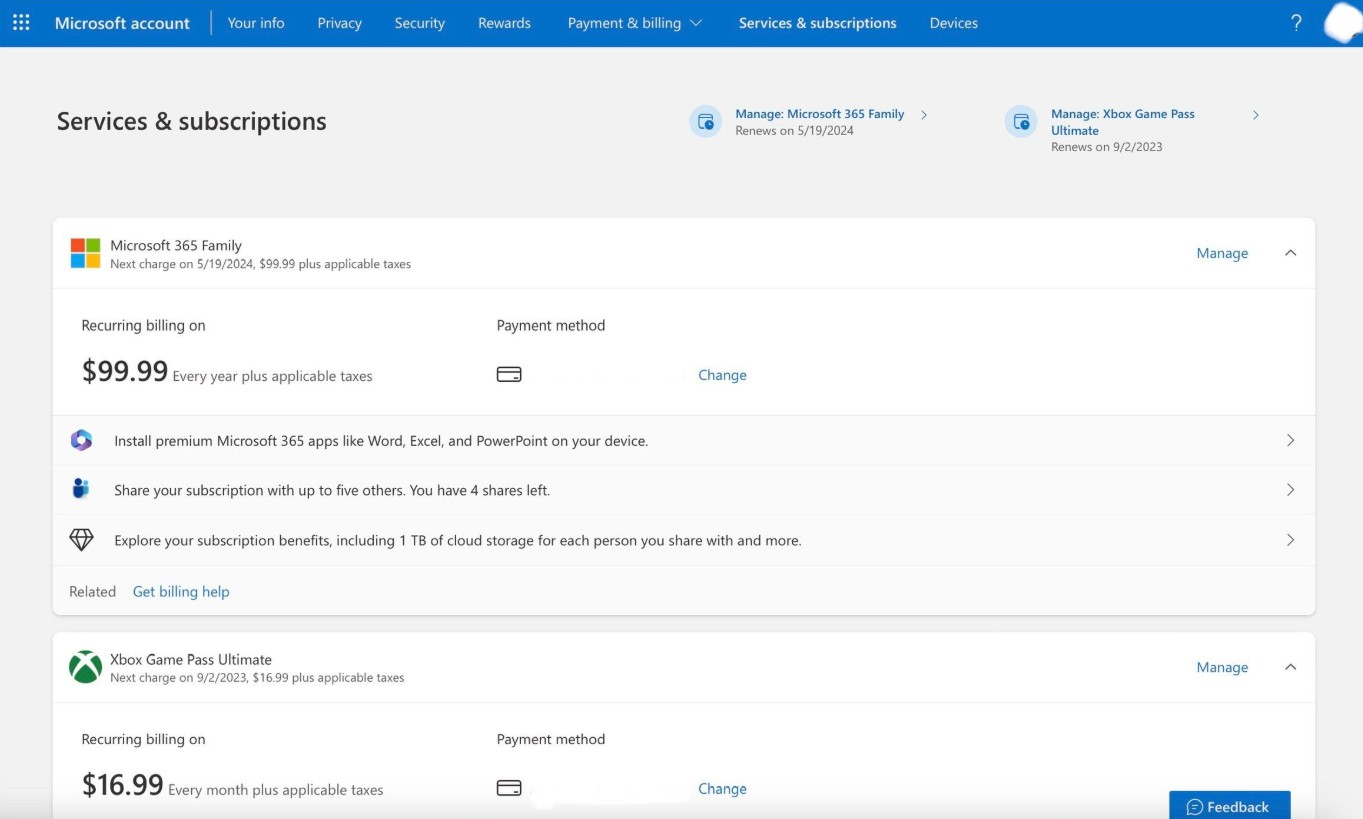
Step 3: Find the services and subscriptions section, then identify the plan you are using, such as Microsoft 365 Personal or Microsoft 365 Family.
Step 4: Check the information regarding the next renewal date, expiration date, or payment status. The displayed information may vary depending on whether recurring payments are enabled.
If you can't find the subscription, check if you're logged in with the correct account. If you purchased through a third party, you may need to check your subscription history on the platform where you made the payment.
3. Instructions for renewing Microsoft 365 directly from Microsoft
This method is suitable for users who purchase a Microsoft 365 package directly from Microsoft's official website.
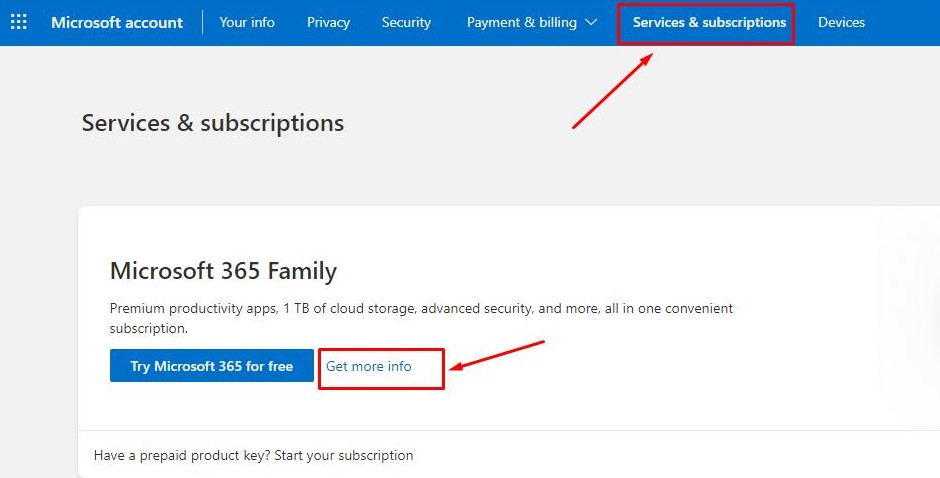
Step 1: Log in to your account
Open your browser and go to https://account.microsoft.com/services . Log in using the account that owns the Microsoft 365 plan you want to renew.
Step 2: Choose a subscription plan
In the list of services, find your Microsoft 365 plan. Click on Manage if the interface offers this option.
Step 3: Choose a renewal method
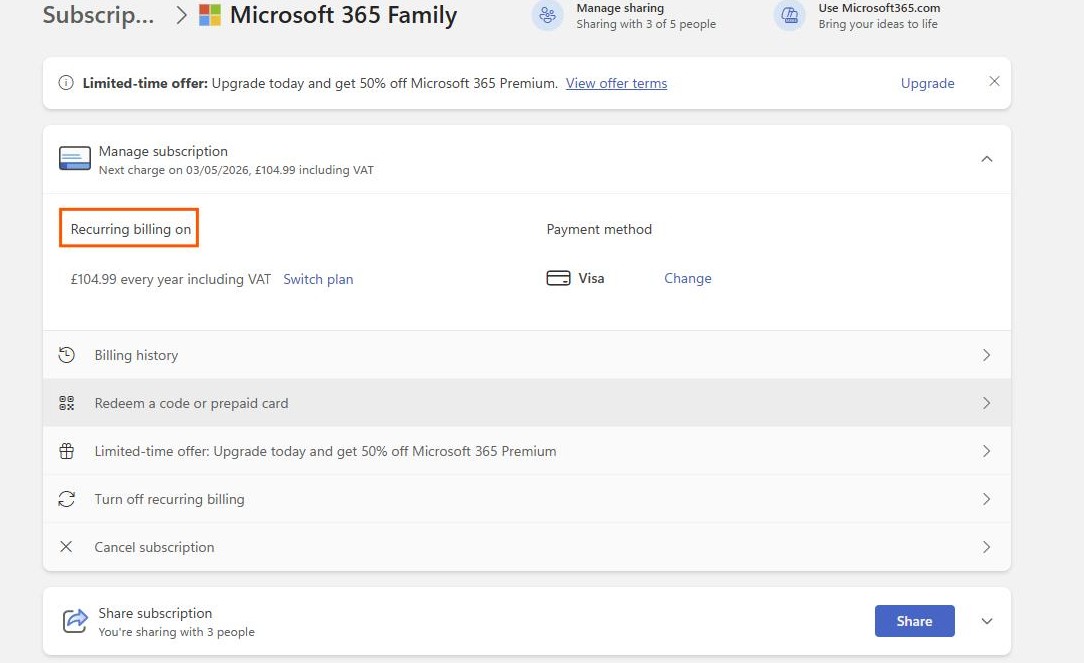
Depending on your subscription status, you may see options such as Renew, Resubscribe, or Turn on recurring billing.
If your plan has expired, look for renewal or resubscription options. If your plan is still valid and you want automatic renewal, check your recurring billing status.
Step 4: Verify payment information
If payment is required, please check the payment method, price, and subscription period before confirming. Ensure your payment information is valid to minimize the risk of a failed transaction.
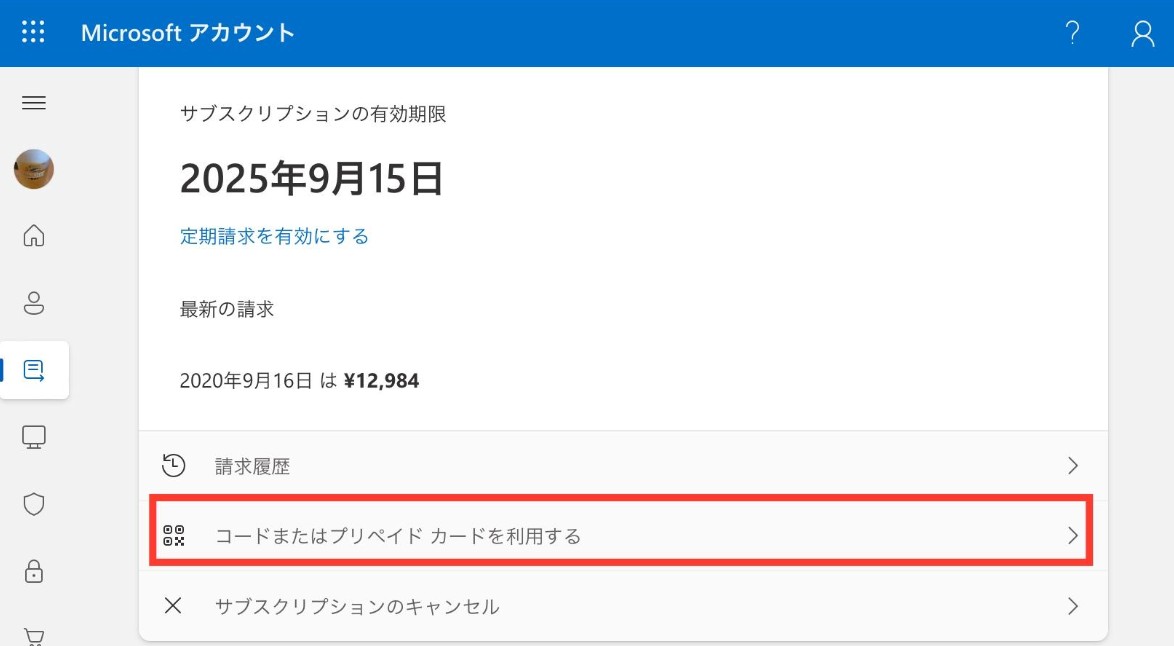
Step 5: Confirm renewal
Complete the on-screen steps. Then, return to the service management page to check your package status and next renewal date.
Please note that button names and procedures may vary by region, plan type, and subscription status. Therefore, please follow the instructions displayed on your account.
4. How to renew Microsoft 365 using a product key.
In addition to direct payment methods, users can purchase license keys or subscription cards from authorized retailers.
To do this, follow these steps:
Step 1: Go to https://microsoft365.com/setup .
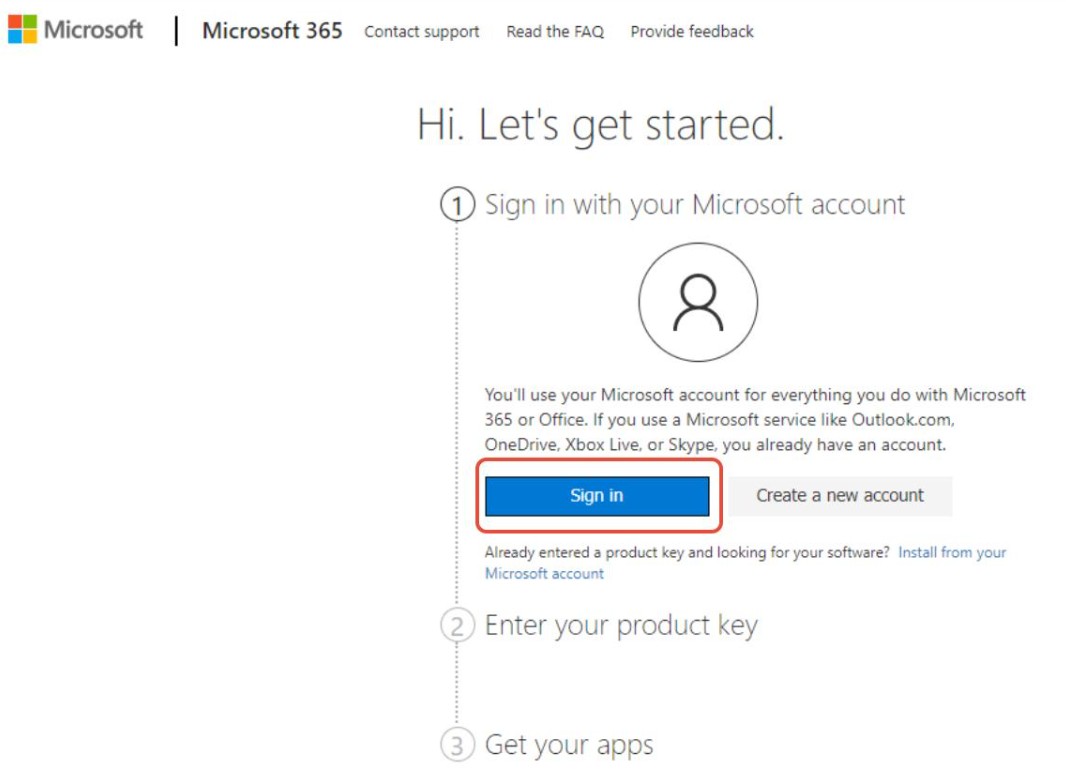
Step 2: Sign in using the Microsoft account you want to link to your subscription.
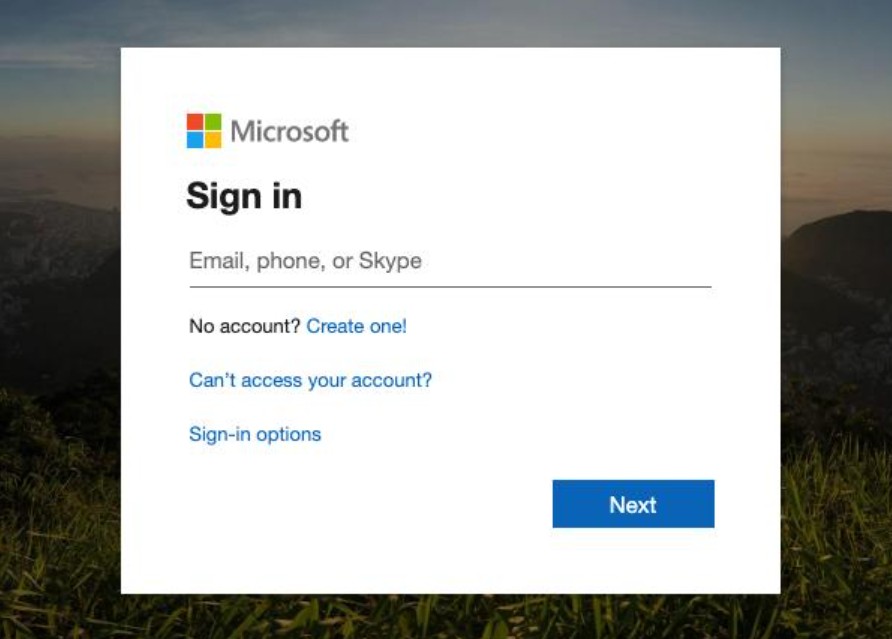
Step 3: Enter the product code if prompted. Microsoft product codes are typically 25 characters long; however, the method for redeeming the code may vary depending on the product type or delivery method.
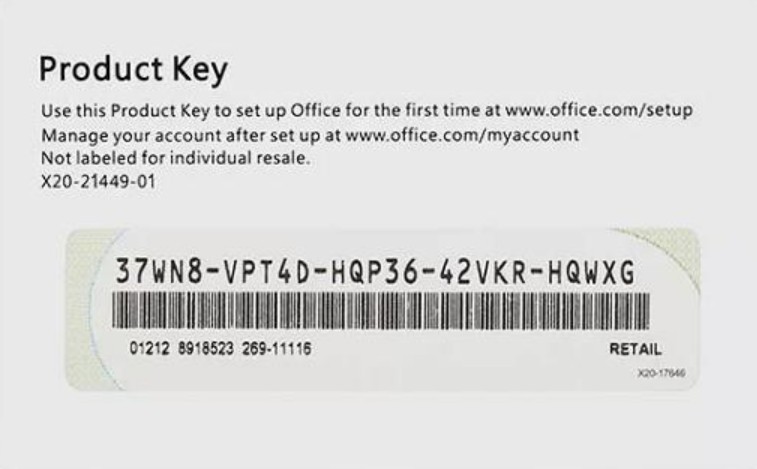
Step 4: Follow the on-screen instructions to confirm and complete the code redemption process.
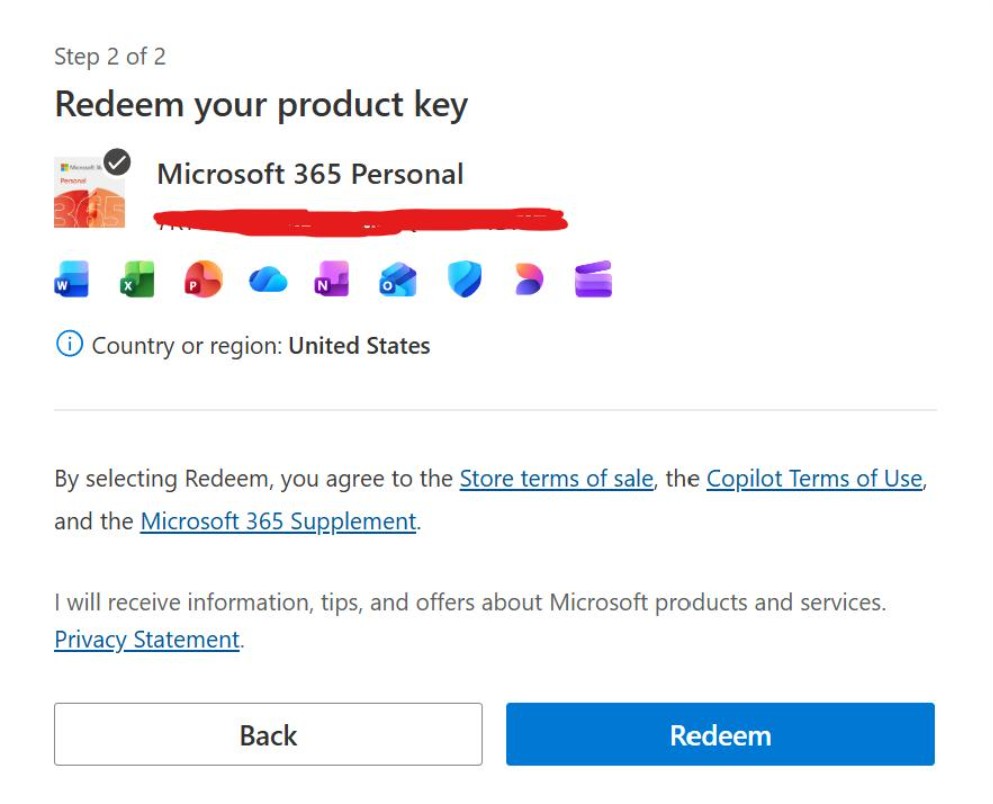
Step 5: Access the service management page again to check your registration status.
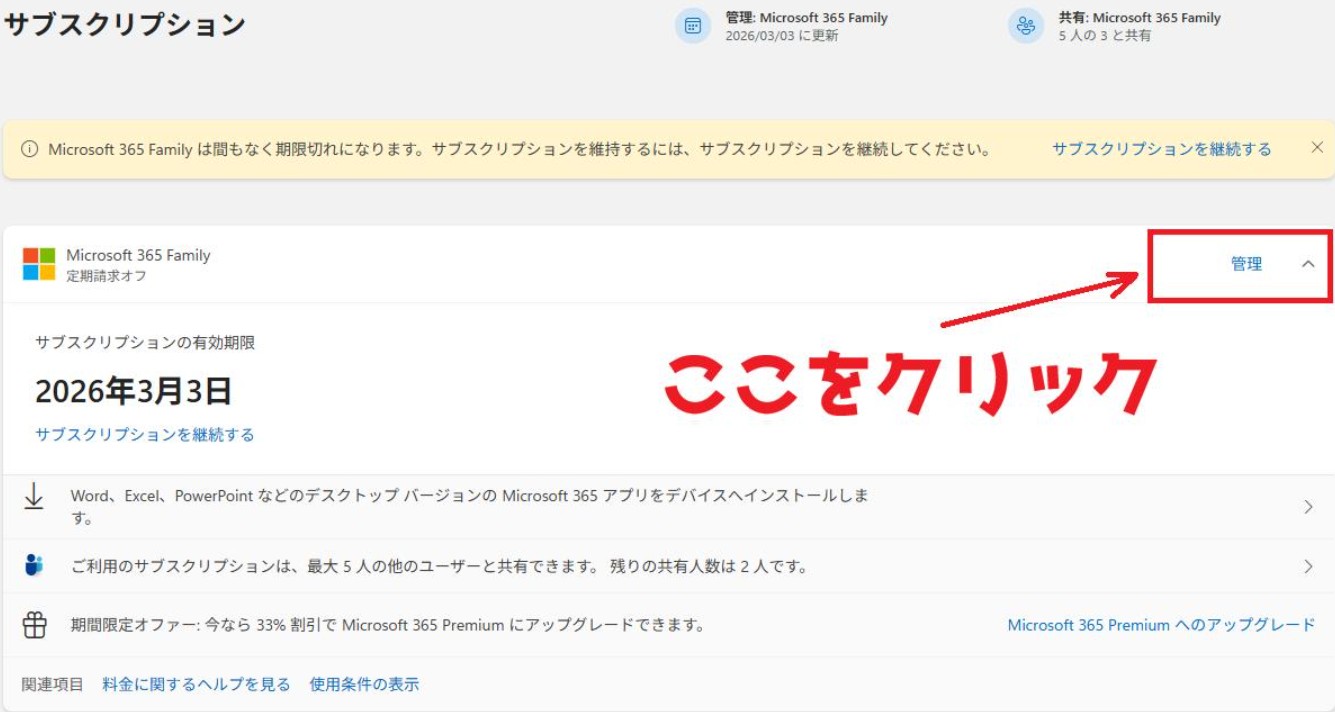
Before entering the code, you should carefully check the product type, applicable region, and terms of use. In particular, ensure the code was purchased from a reliable source and has not been used before.
Do not share your product key publicly or enter it on websites that are not affiliated with Microsoft. Using an invalid key may cause the activation process to fail.
5. Renewing Microsoft 365 when purchased through a third party.
If you subscribed to Microsoft 365 through another platform, you may need to renew your subscription through the same platform where you purchased the service.
- Apple App Store: If your subscription is paid for through Apple, open your Apple account settings and find the Subscriptions section to check your status, renewal date, and payment method.
- Google Play: Open Google Play, go to the Payments and Subscriptions or Subscriptions section, then find the Microsoft 365 plan if it's managed there.
- Store or dealer: If you purchased a license key, use the official redemption instructions. If the provider directly manages your subscription, contact them to confirm the renewal process.
- Business accounts: If your Microsoft 365 account is provided by an organization, contact your IT administrator or license provider to determine the renewal period and permissions.
Identifying the correct place to manage your subscription helps avoid incorrect payments or purchasing unnecessary additional packages.
6. Common mistakes when renewing Microsoft 365
During the renewal process, users may encounter some common problems.
Subscription not found: This is usually due to logging in with the wrong Microsoft account or the subscription being managed through a different platform. Please check which accounts were used to purchase or activate the product.
Payment failed: Your card may have expired, have insufficient funds, or not be authorized for online transactions by your bank. You should check your payment information, contact your bank if necessary, or use another supported payment method.
Invalid license key: The key may have already been used, entered incorrectly, or is not suitable for the product and region. Please check your purchase information and contact the retailer if the issue persists.
No renewal button visible: Some plans are still active and have recurring payments enabled. In this case, please check the next payment date and subscription status before making a new purchase.
Payment has been made but the account hasn't been updated: Please check your transaction confirmation email, log out and log back in, and wait for the system to update if necessary. If the issue persists, please contact Microsoft support or your vendor.
When you need assistance, only provide the information necessary to verify the transaction. Do not share your password or login verification code with anyone.
7. Important notes before renewing
To ensure a smooth renewal process, please keep the following points in mind:
First, verify that the correct Microsoft account holds the license. Entering the code or registering on a different account may result in the benefits not appearing on the account you normally use.
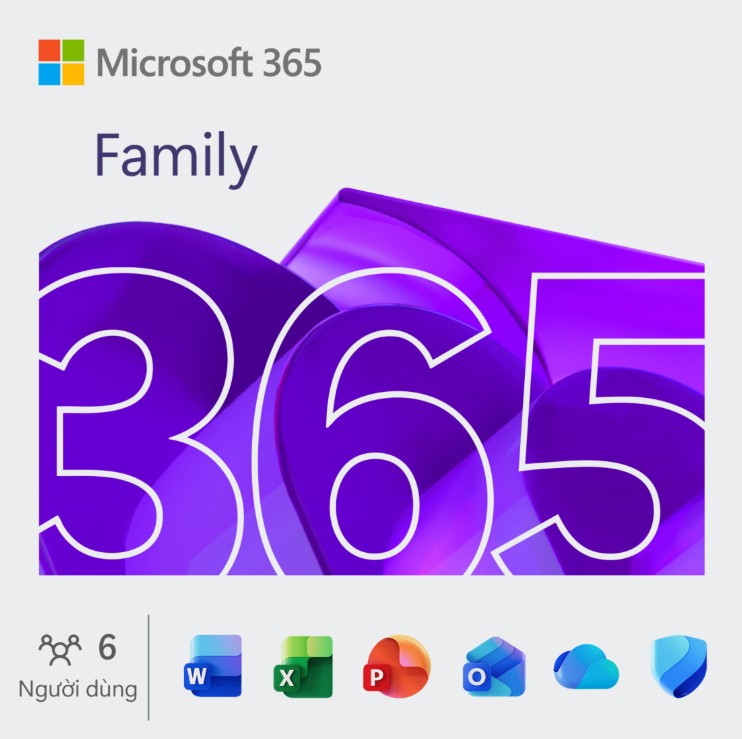
Second, confirm the correct plan type. Microsoft 365 Personal is for one person, while Family supports multiple members depending on the plan's terms. For businesses, licenses may be managed by an administrator.
Third, carefully read the fees and billing cycle. If recurring payments are enabled, the system may automatically charge on the renewal date according to applicable terms. Check this status if you do not want automatic payments to be incurred.
Fourth, purchase license keys from reputable providers and avoid using keys from unknown sources.
Finally, it's a good idea to check your OneDrive data before your subscription expires, especially if you're using a lot of storage. Renewing on time will help reduce the risk of service interruption, but you should still maintain backups for truly important documents.
8. Conclusion
Renewing your Microsoft 365 subscription is essential to maintain the benefits of your service plan, from office applications to cloud storage and additional features. Depending on your original purchase method, you can renew directly through your Microsoft account, redeem a license key, or do so through intermediary platforms such as the Apple App Store and Google Play.
To avoid errors, you should check the expiration date, identify the correct account and subscription plan, and double-check your payment information before completing the transaction. If you encounter any errors, please check your payment method, license key, and subscription management location before contacting support.














VIP Products






Best Selling Products
MidJourney Account
29 USD
Windows 10 & 11 Pro Key
36 USD
Capcut Pro 1 Year
39 USD
Upgrade Genuine Office 365
49 USD
Plugin Retouch4me
69 USD
Upgrade Duolingo Super
29 USD
Upgrade genuine Capture One account
120 USD
Adobe Photoshop Copyright - Full App
120 USD
Copyright Adobe Lightroom Account
59 USD
Genuine Cheap Canva Pro
39 USD
Autodesk All App Account Copyright
120 USD
Freepik Premium Account
59 USD
Adobe Premiere Pro Account
99 USD
Genuine Adobe Illustrator account
99 USD
ChatGPT Plus Account (GPT-4)
16 USD