Best Selling Products
Plugin Retouch4me
69 USD
Autodesk All App Account Copyright
120 USD
Upgrade genuine Capture One account
120 USD

Copyright Adobe Lightroom Account
59 USD
Adobe Photoshop Copyright - Full App
120 USD
Upgrade Genuine Office 365
49 USD
Freepik Premium Account
59 USD

MidJourney Account
29 USD
Adobe Premiere Pro Account
99 USD
Upgrade Duolingo Super
29 USD

ChatGPT Plus Account (GPT-4)
16 USD
Genuine Adobe Illustrator account
99 USD
Genuine Cheap Canva Pro
39 USD
Capcut Pro 1 Year
39 USD
Windows 10 & 11 Pro Key
36 USD
How to sign up for a cheap YouTube Premium student account, step-by-step guide from A to Z.
Nội dung
- 1. What is YouTube Premium for students?
- 2. A detailed guide on how to register for YouTube Premium for students, from A to Z.
- Step 1: Access the YouTube Premium student registration page.
- Step 2: Fill in your personal information on SheerID
- Step 3: Verify student status
- Step 4: Confirm the results and continue with the registration.
- Step 5: Add a payment method and complete the registration.
- 3. Important notes when registering for YouTube Premium for students
- 4. How to fix the problem of not being able to register for YouTube Premium for students.
- 5. Conclusion
Do you frequently listen to music, watch educational or entertainment videos on YouTube but find the constant ads annoying? YouTube Premium is a worthwhile option, especially if you''re a student looking to save money. With a special student package, you can enjoy seamless video viewing, background content playback, and YouTube Music Premium access subject to your subscription terms and conditions. So, how do you register for YouTube Premium as a student, what are the requirements, and how do you successfully verify your subscription? This article will guide you through the process from preparing your information to registration and payment, and highlight important points to avoid unexpected costs. Let''s explore with Sadesign!
1. What is YouTube Premium for students?
YouTube Premium for students is a discounted membership package for students enrolled in eligible educational institutions. Instead of paying the regular individual subscription fee, students can subscribe through YouTube's support program after successfully verifying their student status. This is a suitable option for those who frequently use YouTube for language learning, watching lectures, listening to podcasts, or entertainment after school. Upon successful registration, you can access many useful features such as:
-
Watch videos without ads: Minimize interruptions while studying, watching tutorials, or enjoying your favorite content.
-
Background video playback: Continue listening to audio when switching to another app or locking the screen on supported devices.
-
Download videos: Save suitable content to watch offline when you don't have an internet connection.
-
Use YouTube Music Premium: Listen to music and enjoy an ad-free music experience with the benefits of the plan.
-
Save money: Enjoy discounted student rates instead of subscribing to regular individual packages.
2. A detailed guide on how to register for YouTube Premium for students, from A to Z.
Step 1: Access the YouTube Premium student registration page.
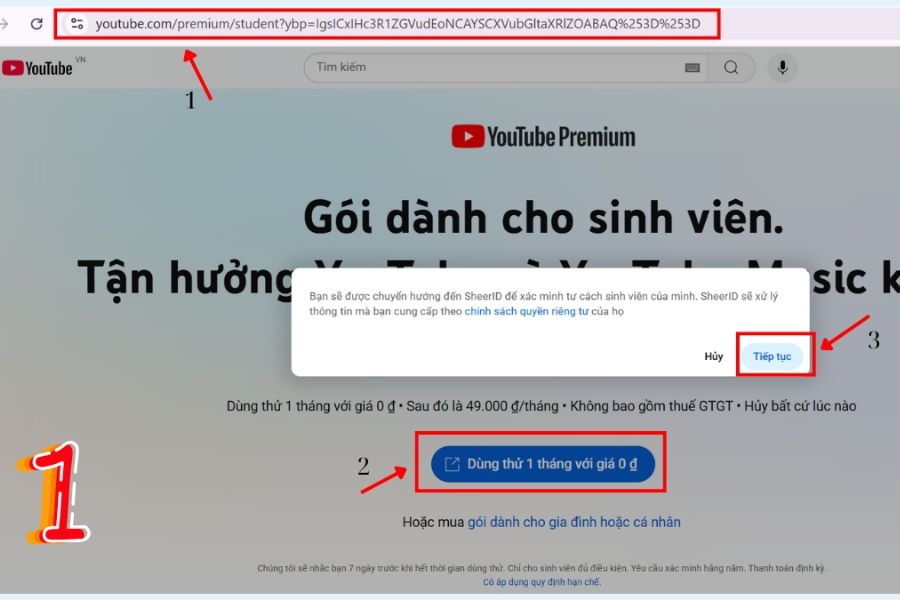
First, open your browser on your phone or computer, then go to youtube.com/premium/student . This is the registration page for the Premium student package, allowing you to view offers and begin the verification process. If you're not already logged in, use the Google account you want to link to your membership.
On the registration interface, check the information about the price, trial period, and benefits of the package. If your account is eligible for a trial offer, the system may display a free trial option. At this point, click the register or trial button according to the actual content on the screen, then select continue to proceed to the student verification page.
Step 2: Fill in your personal information on SheerID
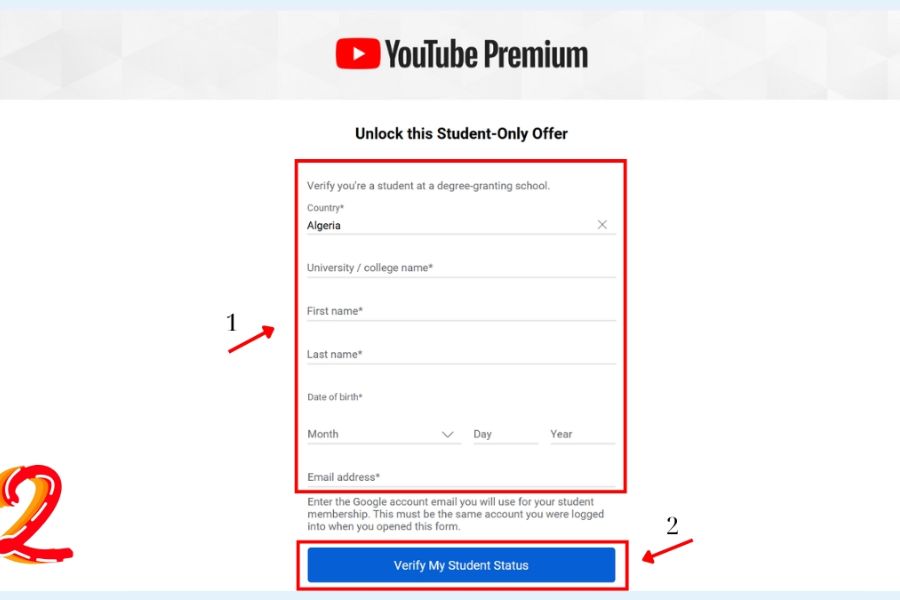
Next, the system will redirect you to the SheerID verification page, the unit that assists in checking student eligibility. Here, you need to fill in all the required information, such as your full name, the educational institution you are attending, and other relevant data. Please enter accurate information according to your academic record to minimize the risk of verification failure due to data discrepancies.
After completing the form, click the "Verify My Student Status" button. The system will receive the information and check its validity. During this process, you should keep the information you provided as is, avoiding entering incorrect school names or using someone else's data, as this may lead to the verification process being rejected.
Step 3: Verify student status
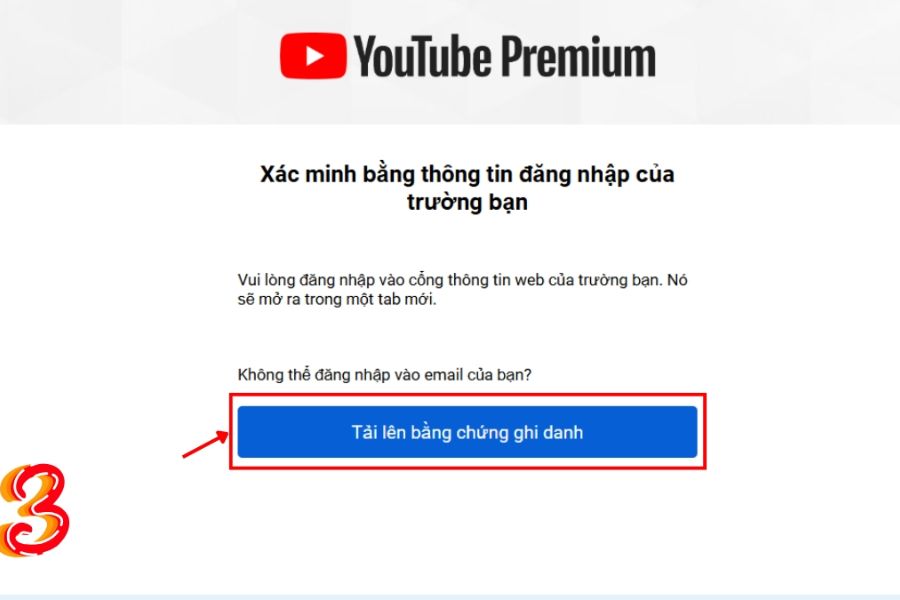
After you submit the form, SheerID will check the information you provide. In some cases, the system may verify automatically and display the results directly on the screen. However, if the data is insufficient for verification, you may be asked to provide additional documents proving your enrollment at the school you declared.
If you are asked to upload documents, please prepare appropriate documents such as your student ID card, enrollment confirmation, or transcript as instructed. The images must be clear, the information legible, and still valid for verification. If the school supports verification via student email, please follow the instructions sent to that email address. Not all accounts have the same verification method.
Step 4: Confirm the results and continue with the registration.
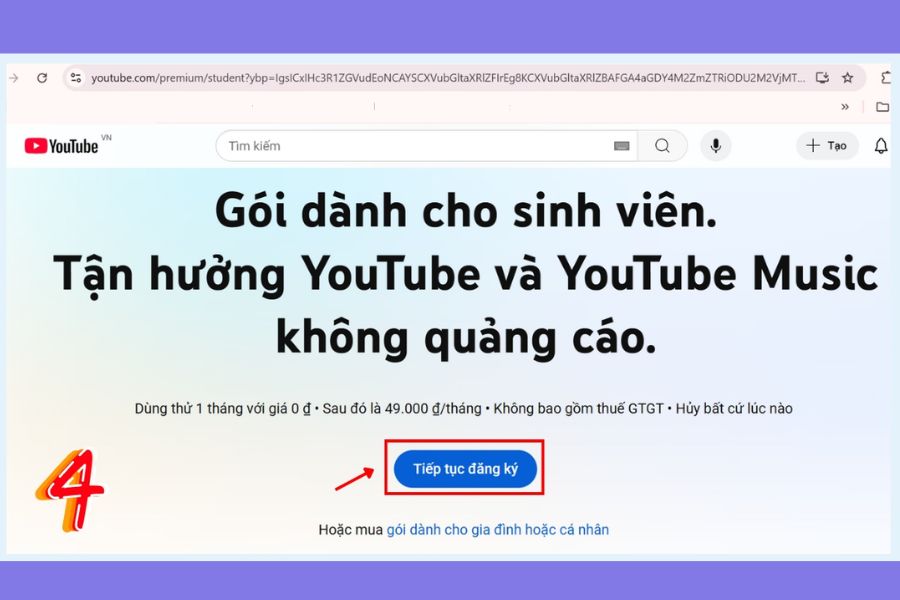
Once your information is accepted, the system will notify you that your student status has been successfully verified. You will then typically be redirected to the YouTube Premium registration page to continue the activation process. Please double-check your logged-in Google account to ensure the membership is linked to the correct account you usually use.
On the next screen, click "Continue registration" or the equivalent button as instructed. Before proceeding to the payment step, review the package type, applicable fees, and trial period, if any. If the system displays a different price than expected, double-check the information before confirming to avoid registering for the wrong package.
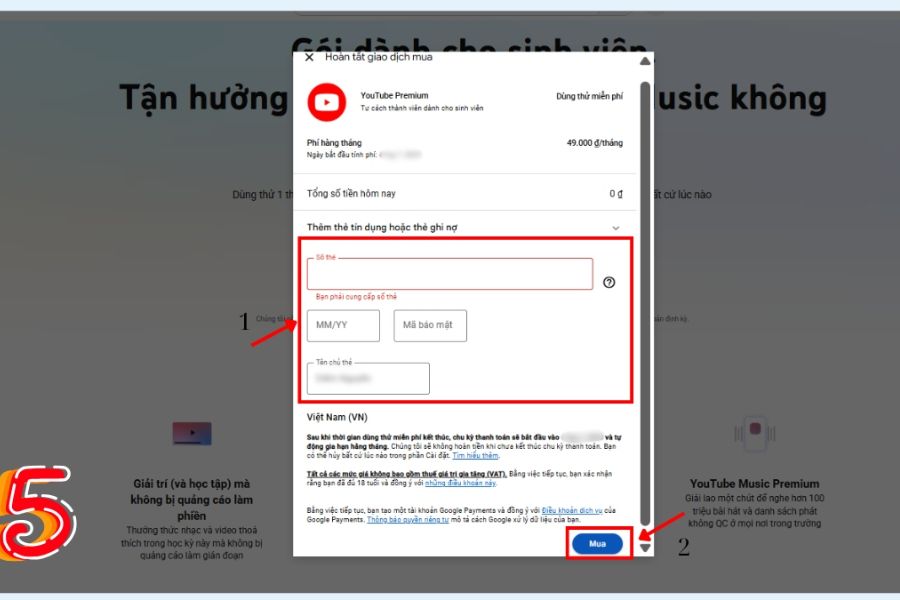
Step 5: Add a payment method and complete the registration.
In the final step, YouTube will ask you to set up a suitable payment method if you haven't already entered accepted payment information. The available methods may vary depending on your account and region. Enter the information as instructed, double-check the fees, and click the purchase button or confirm subscription to complete the process.
After successfully registering, you can open YouTube and try playing a video to test the Premium benefits. If you're offered a free trial, pay attention to the offer's end date and when charges begin. You should also check your purchases and membership plan section in your account to track your subscription status, renewal cycle, and current fees.
3. Important notes when registering for YouTube Premium for students
To ensure a smooth registration process, you should carefully check your information before submitting verification and payment. Some registration failures are not due to system errors but rather because the school is not yet supported, personal data does not match, or the required documents are not complete. Being fully prepared from the start will save you time and prevent multiple attempts. Here are some points you shouldn't overlook:
-
Check the list of supported schools: Not all educational institutions are eligible to participate in the program.
-
Provide truthful information: Full name and academic data must match your identification documents.
-
Keep track of verification deadlines: You may need to re-verify periodically, usually every 12 months.
-
Prepare your payment method: The trial period doesn't mean you don't need to provide payment information.
-
Check the renewal date: If you do not wish to continue using the service, proactively cancel before the start of the next billing cycle.
-
Register through official channels: Avoid sharing your Google password or payment information with unreliable account sellers.
4. How to fix the problem of not being able to register for YouTube Premium for students.
During the registration process, you may sometimes encounter messages indicating ineligibility, school not found, or a request for additional documents. Instead of repeatedly trying, you should identify the specific cause to choose the appropriate course of action. Please check the notification email and instructions from SheerID before proceeding with the next steps. Some troubleshooting methods you can try include:
-
School name not found: Check the spelling of the school name and find out if the educational institution is on the list of supported institutions.
-
Unverified information: Compare the full name, school name, and declared data with the actual records.
-
Rejected documents: Check the photo quality, expiration date, and the type of document the system accepts before resubmitting.
-
No results received yet: Check your email, including spam folders, for any requests for additional information.
-
Payment not completed: Check your payment method, transaction details, and YouTube support instructions.
5. Conclusion
Signing up for YouTube Premium as a student isn't complicated if you meet the requirements and follow each step correctly. From accessing the registration page and verifying your information via SheerID to adding a payment method, each step brings you closer to enjoying ad-free video viewing and useful Premium features. To save money, you should check the actual price, trial period, and renewal schedule before signing up. Also, proactively verify your student status when requested to maintain the offer. Simply prepare your information and register through the official channel, and you'll easily enjoy YouTube Premium tailored to your academic and entertainment needs.









VIP Products

Best Selling Products
Plugin Retouch4me
69 USD
Autodesk All App Account Copyright
120 USD
Upgrade genuine Capture One account
120 USD
Copyright Adobe Lightroom Account
59 USD
Adobe Photoshop Copyright - Full App
120 USD
Upgrade Genuine Office 365
49 USD
Freepik Premium Account
59 USD
MidJourney Account
29 USD
Adobe Premiere Pro Account
99 USD
Upgrade Duolingo Super
29 USD
ChatGPT Plus Account (GPT-4)
16 USD
Genuine Adobe Illustrator account
99 USD
Genuine Cheap Canva Pro
39 USD
Capcut Pro 1 Year
39 USD
Windows 10 & 11 Pro Key
36 USD