Best Selling Products

Genuine Cheap Canva Pro
39 USD

Adobe Premiere Pro Account
99 USD

Capcut Pro 1 Year
39 USD

MidJourney Account
29 USD

Plugin Retouch4me
69 USD

Genuine Adobe Illustrator account
99 USD

ChatGPT Plus Account (GPT-4)
16 USD

Freepik Premium Account
59 USD

Adobe Photoshop Copyright - Full App
120 USD

Upgrade genuine Capture One account
120 USD

Copyright Adobe Lightroom Account
59 USD

Upgrade Duolingo Super
29 USD

Windows 10 & 11 Pro Key
36 USD

Upgrade Genuine Office 365
49 USD

Autodesk All App Account Copyright
120 USD
How to turn still images into lively GIFs using Gemini in just a few steps.
Nội dung
- 1. What is converting a still image to a GIF on Gemini?
- 2. What do I need to prepare before converting a still image to a GIF on Gemini?
- 3. Instructions on how to convert still images into GIFs using Gemini
- Step 1: Upload a static image to the chat window.
- Step 2: Select the Create video feature.
- Step 3: Enter the command to create the animation.
- Step 4: Wait for Gemini to create the video and download it to your device.
- Step 5: Convert the newly created video to GIF format.
- 4. Things to note when converting still images to GIFs using Gemini
- 5. Conclusion
In an era where visual content is increasingly emphasized, static photos sometimes lack the impact to captivate viewers. Instead, images with subtle movement and eye-catching effects tend to attract more attention on social media platforms. With the help of Google Gemini, you can transform ordinary photos into lively animated videos without complex editing. So how do you do it? Let''s explore Sadesign''s guide on converting static photos into GIFs using Gemini below to create more unique and engaging content.
1. What is converting a still image to a GIF on Gemini?
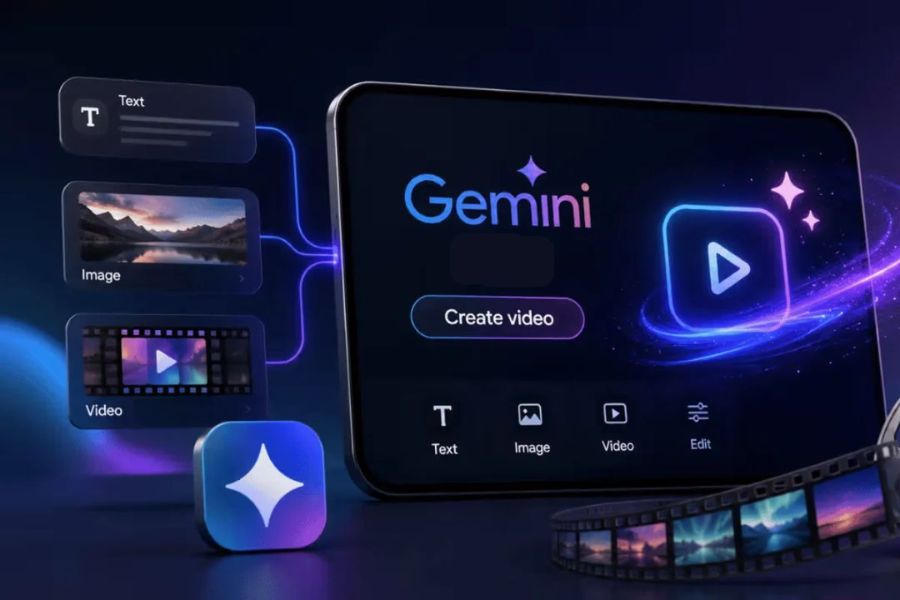
Transforming still images into GIFs using Gemini leverages Google's AI's ability to create videos from images, bringing motion effects to photos that originally lacked animation. Instead of manually editing each frame with specialized software, users simply upload their photos, enter descriptive commands, and let the AI handle it. Through its Create video feature, Gemini can create motion based on the input image content. For example, you can make hair gently blow, clouds drift across the sky, light shimmer, or characters move more naturally.
Some notable applications of this method include:
-
Social media content design: Transform ordinary photos into lively short videos for posting on TikTok, Facebook, or Instagram.
-
Create advertising visuals: Add motion to posters and product images to increase customer attention.
-
Create memorable photos: Add subtle motion effects to personal photos, family photos, or other memorable moments.
-
Content creation: Create videos to illustrate articles, stories, or other media content.
2. What do I need to prepare before converting a still image to a GIF on Gemini?
Before you begin, you should prepare the appropriate images and commands so that the AI can accurately understand your request. The better the preparation, the easier it will be to achieve the desired animation results. Some factors to consider include:
-
High-quality original images: Prioritize images with clear resolution, prominent subjects, and easily observable composition. The clearer the image, the easier it is for the AI to recognize details.
-
Prompt details: Prepare a statement specifying which parts need to move, how they should move, and which details must remain unchanged.
-
Google Account: Sign in with your Google account to access Gemini. Availability of video creation features may depend on your account plan, region, and current usage limits.
-
Stable internet connection: The process of creating videos using AI requires processing time, so you should use a stable internet connection to minimize interruptions.
3. Instructions on how to convert still images into GIFs using Gemini
To create animated images using Gemini, you can do so directly within the chat interface. The operations are relatively simple, suitable even for AI beginners.
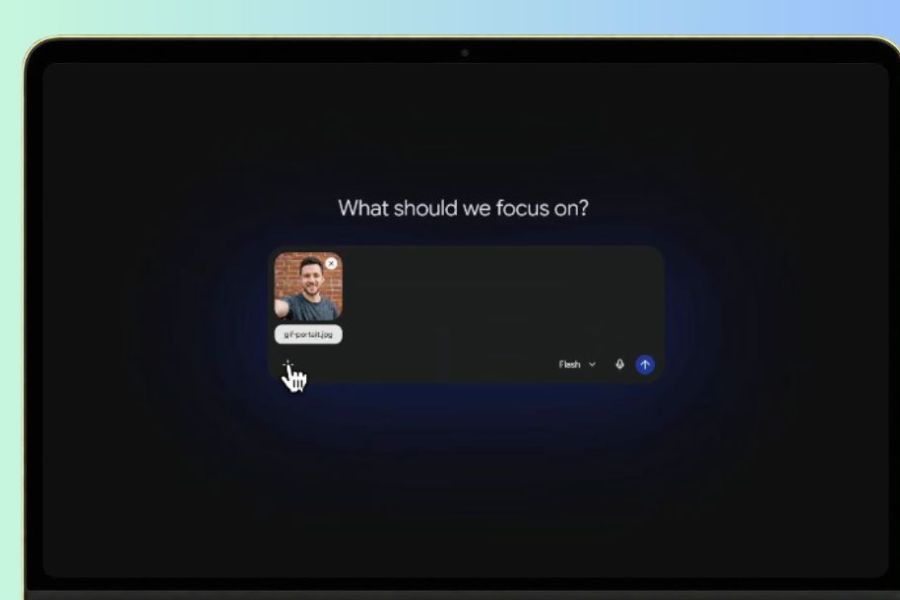
Step 1: Upload a static image to the chat window.
First, access Gemini on your browser and log in to your Google account. In the chat interface, click the upload file icon or the plus sign to select the image you want to animate from your computer.
After uploading, check if the image is fully displayed in the chat window. You should choose an image with a clear subject so that Gemini can easily analyze and process it.
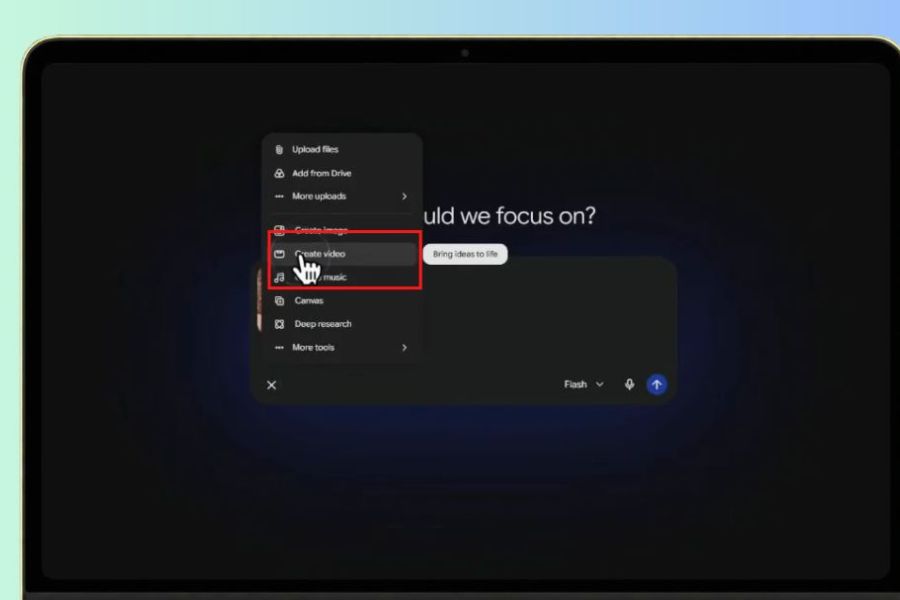
Step 2: Select the Create video feature.
Next, click the plus icon below the input box. In the list of tools that appears, select Create video to begin the process of creating a video from images.
After selecting this feature, Gemini will switch to video creation support mode. You can then continue using the uploaded images as input for your request.
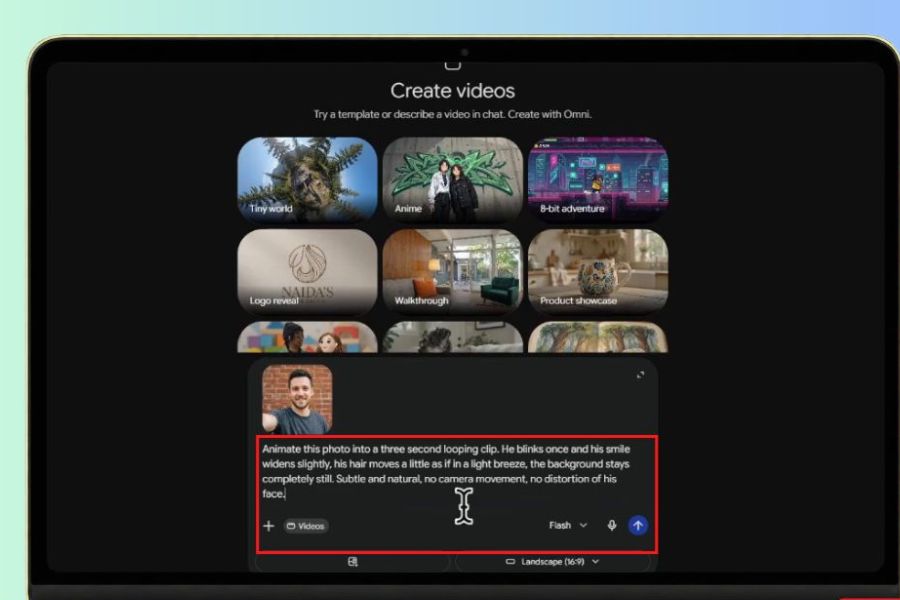
Step 3: Enter the command to create the animation.
This is a crucial step that determines whether the resulting video will be beautiful and natural. You need to input a prompt clearly describing the desired movements, while also instructing the AI to preserve the important features of the original image.
You can refer to the following command:
Prompt suggests:
"Please create a moving video from the photo I just uploaded. Keep the original composition, characters, colors, clothing, and design style. Create smooth, natural movement for the appropriate details in the photo. If there are characters, keep their faces and identifying features. The movement should be smooth, not distort the subject, and not add or remove important details arbitrarily. Create a video that is aesthetically pleasing and suitable for use on social media."
Additionally, you can change the command depending on the image content:
-
Landscape photography: Requires slow-moving clouds, rippling water, and gently swaying leaves.
-
Portrait photos: Require the subject to blink, smile slightly, or have their hair move in the wind.
-
Product photos: Create a sparkling light effect, subtle camera movement, or highlight certain details.
-
Poster image: Create subtle movement for the decorative elements while maintaining the text content and layout.
Step 4: Wait for Gemini to create the video and download it to your device.
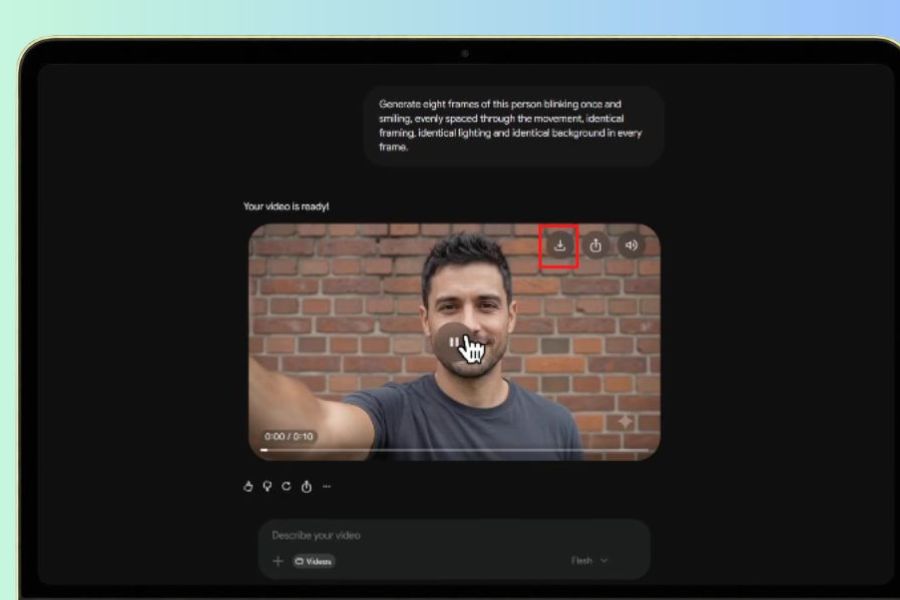
After completing the command, press submit and wait for Gemini to process the request. The time it takes to create the video may vary depending on the complexity of the images, the system, and account limits.
Once the video is successfully created, play it to check the motion, image quality, and important details. If the result is not satisfactory, you can continue to enter the prompt to ask Gemini to make adjustments. Finally, click the download icon to save the video to your computer. This is a video file created from still images, not an animated GIF.
Step 5: Convert the newly created video to GIF format.
To obtain a GIF file in the correct format, you will need to use an additional video-to-GIF converter tool. This can be done through online conversion websites or video editing software that supports exporting animated images.
The basic procedure is as follows:
-
Open the video to GIF converter tool on your device.
-
Upload the video you just created from Gemini to the system.
-
Trim the video segment you want to use and adjust the duration accordingly.
-
Set the GIF size, frame rate, and quality.
-
Click convert, then download the completed GIF file to your computer.
Once completed, you can open the file to check its playback capabilities, smoothness, and image quality before uploading or sharing.
4. Things to note when converting still images to GIFs using Gemini
Although creating videos from photos using AI is quite simple, the results sometimes still have some motion or image errors. To minimize this, you should pay attention to the following issues:
-
Choose appropriate input images: Avoid using images that are too blurry, underexposed, or have too much overlapping detail. These factors can cause the AI to misidentify the subject.
-
Avoid excessive movement: Focus on just a few key details to make the video look natural. If all elements move at once, the image can become visually cluttered.
-
Clearly describe the details that need to be preserved: For portraits, logos, or advertising posters, emphasize the requirement that the face, colors, layout, and text content remain unchanged.
-
Check video quality: After downloading, review the entire video to detect any errors such as facial distortion, abnormal movement, or altered details.
-
Optimize GIF file size: GIFs can be quite large if they contain many frames or have high resolution. You should adjust the size and duration for convenient uploading.
-
Please note regarding image copyright: If using someone else's photos for commercial purposes, ensure you have the right to use and modify that content.
5. Conclusion
Transforming still images into GIFs using Gemini is a fun and creative way to make familiar photos more lively and engaging. Thanks to its Create Video feature, users can create animations from images with just a few simple steps and commands. However, Gemini currently creates videos and doesn't directly export GIF files in this process. Therefore, you need to combine it with a format conversion tool to create animated images. Hopefully, this guide will help you easily create unique, beautiful content that suits your needs.





















VIP Products








Best Selling Products
Genuine Cheap Canva Pro
39 USD
Adobe Premiere Pro Account
99 USD
Capcut Pro 1 Year
39 USD
MidJourney Account
29 USD
Plugin Retouch4me
69 USD
Genuine Adobe Illustrator account
99 USD
ChatGPT Plus Account (GPT-4)
16 USD
Freepik Premium Account
59 USD
Adobe Photoshop Copyright - Full App
120 USD
Upgrade genuine Capture One account
120 USD
Copyright Adobe Lightroom Account
59 USD
Upgrade Duolingo Super
29 USD
Windows 10 & 11 Pro Key
36 USD
Upgrade Genuine Office 365
49 USD
Autodesk All App Account Copyright
120 USD