Best Selling Products

Adobe Premiere Pro Account
99 USD

Genuine Adobe Illustrator account
99 USD

Adobe Photoshop Copyright - Full App
120 USD

Upgrade Genuine Office 365
49 USD

Upgrade genuine Capture One account
120 USD

Autodesk All App Account Copyright
120 USD

Copyright Adobe Lightroom Account
59 USD

Upgrade Duolingo Super
29 USD

Genuine Cheap Canva Pro
39 USD

Capcut Pro 1 Year
39 USD

ChatGPT Plus Account (GPT-4)
16 USD

Freepik Premium Account
59 USD

MidJourney Account
29 USD

Plugin Retouch4me
69 USD

Windows 10 & 11 Pro Key
36 USD
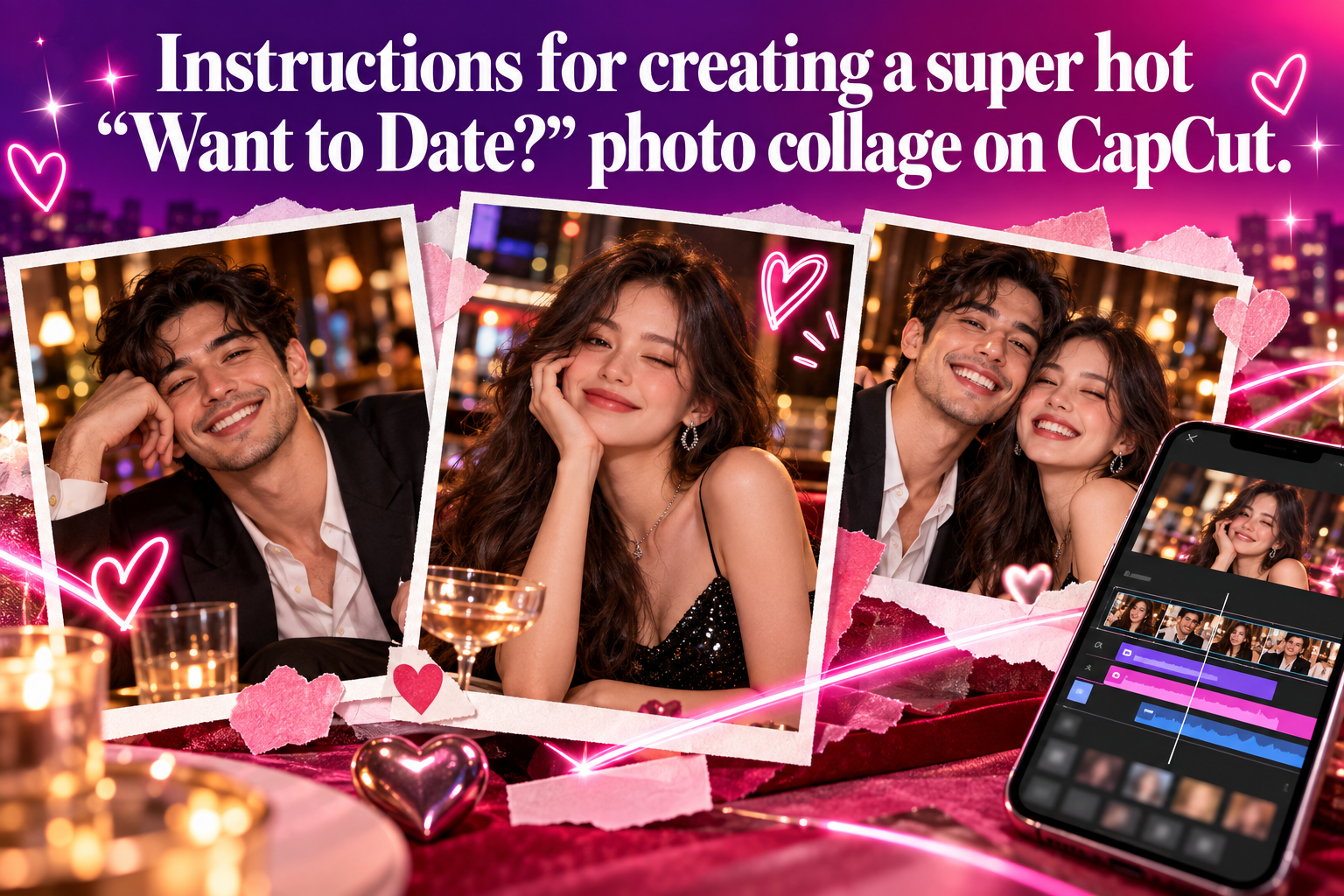
Instructions for creating a super hot "Want to Date?" photo collage on CapCut.
Nội dung
- 1. What is the CapCut photo collage trend "You want to date?"
- 2. What do I need to prepare before putting together a photo album for "You Want to Date ?"
- 3. Instructions for easily combining photos of you wanting to date on CapCut.
- Step 1: Open CapCut and select image editing.
- Step 2: Download the "You Want to Date" sample photos.
- Step 3: Choose to edit using AI.
- Step 4: Upload image and enter Prompt
- Step 5: Select GPT Image 2 to create the image.
- Step 6: View and check the resulting image.
- 4. Tips for combining photos to make your dating profile on CapCut look more beautiful and natural.
- 5. How to turn your "You Want to Date" photos into fun TikTok videos
- 6. You should upgrade CapCut at Sadesign for a more convenient experience.
- 7. Conclusion
From a familiar portrait photo, you can transform yourself into a character appearing in a fun dating scenario, creating a feeling that is both authentic and humorous. The finished product can be used to post on TikTok, Facebook, Instagram, or sent to friends to playfully tease each other about their relationships. The appeal of this trend lies in the combination of existing images and AI technology. Instead of manually cropping faces, adjusting sizes, or correcting colors, you just need to prepare a suitable photo, enter your requirements, and let the AI handle the rest. If you want to join the trend but don''t know where to start, the guide below from Sadesign will help you do it step-by-step in a simple way.
1. What is the CapCut photo collage trend "You want to date?"
The "You Want to Date?" photo collage trend uses AI tools to place a person's image into the familiar setting of the "You Want to Date?" show. Users can create images that resemble a character introduction on stage, then add their name, age, place of residence, or other interesting information to make the photo more lively. The combination of realistic imagery and humorous content has quickly made this trend popular on social media. You don't need Photoshop skills or professional photo editing abilities to try this trend on your phone. CapCut provides AI-powered image editing and creation tools, making the collage process much easier.
-
You can use a portrait of yourself or your friends.
-
It's easy to change the information displayed in the image.
-
The prompt can be adjusted if the results are not as expected.
-
The finished product is suitable for posting on TikTok, Facebook, and Instagram.
-
You can add effects, music, or text to create trending videos.

2. What do I need to prepare before putting together a photo album for "You Want to Date ?"
Before you begin, you should prepare a few things to speed up the image creation process. Most importantly, you need a clear portrait photo. A photo with a bright face, not obscured by a mask, oversized glasses, or hair covering the face, will help the AI recognize and create a more natural image. In addition, you should determine beforehand what you want to appear in the photo. If you want to create a product that resembles a character introduction, prepare the name, age, location, or a short description. Preparing in advance will save you time on multiple edits.
-
Portrait photos: should clearly show the face, be well-lit, and have good resolution.
-
Sample image: Choose an image with the "You Want to Date" layout that you want to use.
-
Prompt: Clearly describe who needs to be replaced and what details should remain unchanged.
-
Character information: name, age, location, or content you want to display.
-
CapCut app: update to the appropriate version to be able to use AI features if needed.
3. Instructions for easily combining photos of you wanting to date on CapCut.
Below is a detailed step-by-step guide to help you easily use the AI feature on CapCut, even if it's your first time.
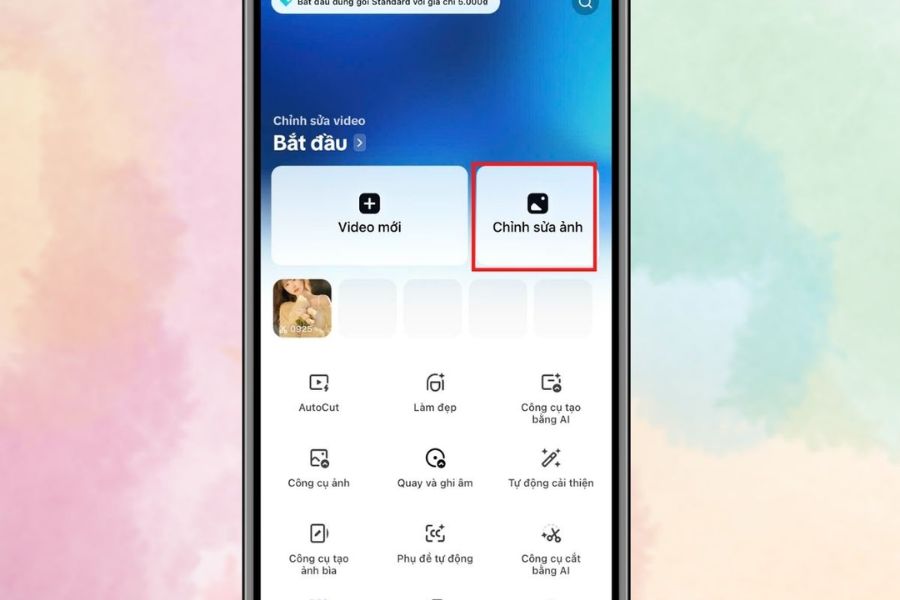
Step 1: Open CapCut and select image editing.
First, open the CapCut app on your phone. On the main interface, find and select the Photo Editing area to begin the image creation process. Depending on the app version, the name or location of the feature may vary slightly, so just look for the area related to photo editing and AI tools. After entering the editing interface, you can review the tools provided. If your goal is to create a photo in the "You Want to Date" style, prioritize the area with AI-powered photo editing or creation features for faster results.
-
Open the CapCut application.
-
Select Edit Photo .
-
Find AI-powered photo editing tools.
-
Double-check the sample photo and your personal photo before proceeding.
Step 2: Download the "You Want to Date" sample photos.
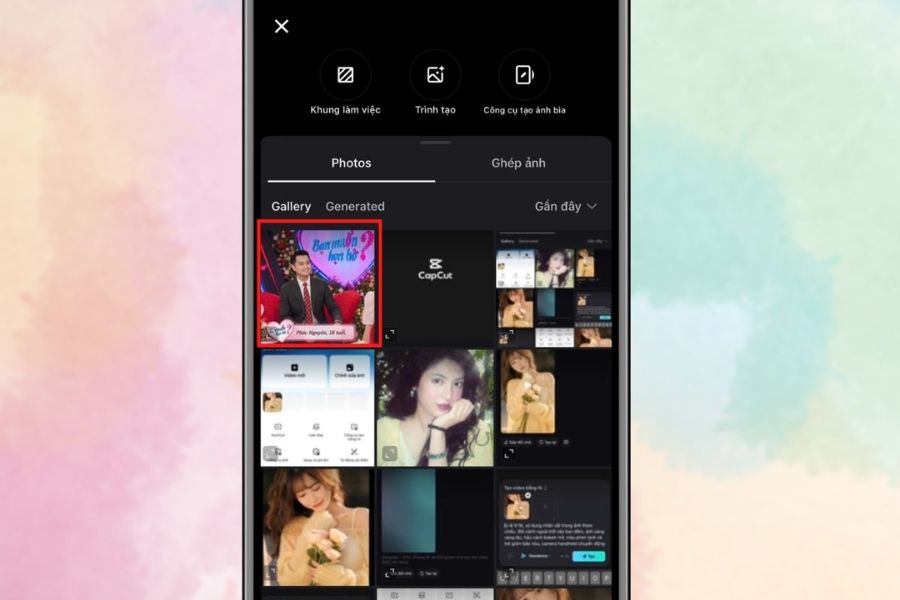
Next, you need to prepare and upload the sample image you want to use. This is a crucial step because the sample image will determine the overall composition of the final product. You should choose an image with a clear background, the subject placed in an easily replaceable position, and without too many distracting details. If you want the final product to resemble a "show-entry" version of yourself, prioritize a sample image with a camera angle and composition that matches your existing portrait. When the two images have relatively similar camera angles, AI usually finds it easier to process, and the result is more natural.
-
Choose a sample photo for the "You Want to Date" contest.
-
Check the layout and character placement.
-
Prioritize high-quality photos.
-
Avoid photos that are too blurry or have too many details obscured.
-
Prepare additional personal photos that you want to include in the frame.
Step 3: Choose to edit using AI.
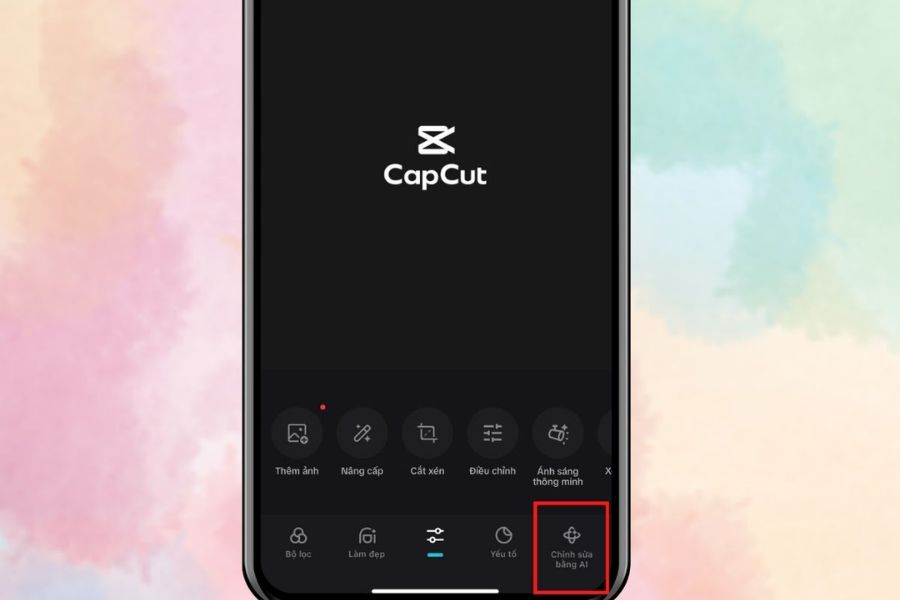
After uploading the sample image, you then select the AI editing feature . This tool allows you to provide instructions to the system instead of manually performing each cutting, merging, and alignment operation. At this step, you should carefully read the interface before proceeding. Some versions of CapCut may have slightly different tool layouts, but basically you need to find the feature that allows you to upload images and describe your requirements in text. This will be crucial in helping the AI understand what kind of image you want to create.
-
Choose the AI-powered editing feature.
-
Upload the sample image to the correct location.
-
Prepare the personal photos you want to combine.
-
Double-check the options before creating the image.
-
If you're unfamiliar with the process, proceed slowly and carefully to avoid selecting the wrong tool.
Step 4: Upload image and enter Prompt
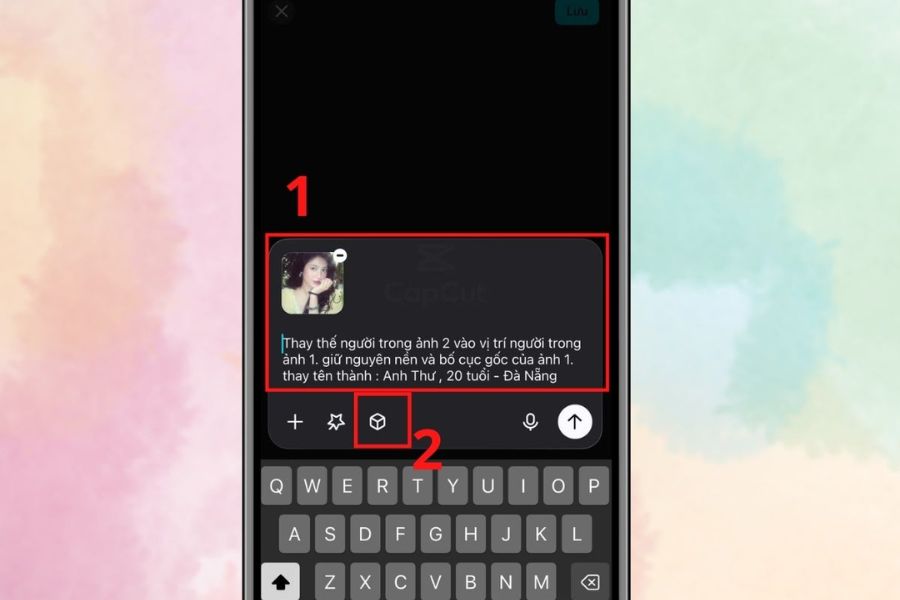
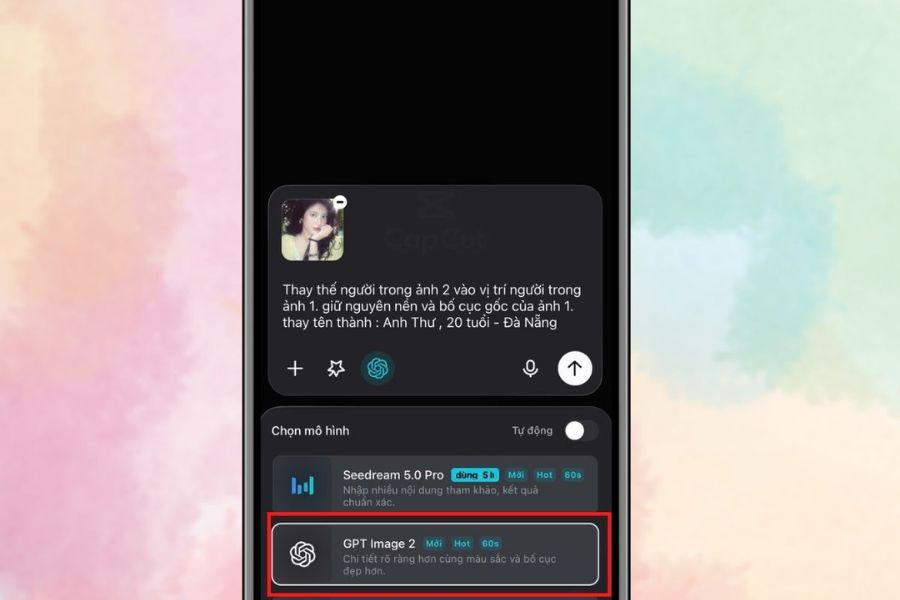
Next, upload your personal photos and enter a prompt describing your request. The clearer the prompt, the better the AI can understand which parts of the image you want to change and which parts you want to keep unchanged. There's no need to write a long command; the important thing is that it's specific and easy to understand. You can refer to a format like: "Replace the person in photo 1 in photo 2. Keep the original background and layout of photo 1. Change the name to Anh Thư, 20 years old, Da Nang." Then, review the photos and content before moving on to the creation step.
-
Specify which image is the sample image.
-
Specify which photo represents the person to be included in the composite image.
-
Please keep the background as is if that's what you want.
-
Clearly describe the information that needs to be changed.
-
You can adjust the prompt if the results are incorrect.
Step 5: Select GPT Image 2 to create the image.
After completing the Prompt, select a suitable image creation tool, such as GPT Image 2 if this feature is available in your CapCut interface. The tool will use the input image and text request to create a new version. This is where you need to be patient while the system processes it. Depending on image quality, user volume, and service status, the creation time may vary. If the result is not as desired, don't delete the image immediately. Try adjusting the Prompt or replacing the portrait image with a different one and recreate it.
-
Select GPT Image 2 .
-
Check the input image before creating.
-
Read the prompt again.
-
Wait for the system to process.
-
If the image isn't good enough, change the prompt and try again.
Step 6: View and check the resulting image.
Once the AI is complete, open the resulting image to check every detail. Don't just look at the overall picture; pay attention to the face, hair, hands, clothing, and the transitions between the subject and the background. These are areas where errors can sometimes occur during the AI's merging process. If the image meets your requirements, you can save it for further editing or post it on social media. If the face doesn't look right, the body proportions aren't natural, or the information in the image isn't accurate, you can return to the input prompt to request AI adjustments.
-
Facial examination.
-
Check the character ratios.
-
Inspect the hands and the small details.
-
Check name, age, and location.
-
Recreate the image if the result is not satisfactory.

4. Tips for combining photos to make your dating profile on CapCut look more beautiful and natural.
A beautiful AI image doesn't solely depend on the tool. The quality of the input image and how you write the prompt also significantly affect the final result. If the portrait is too dark, blurry, or the face is at an angle that's difficult to identify, the AI may struggle to process it. Therefore, spending a few extra minutes selecting the image before creating will save you editing time later. Also, don't be afraid to try different versions. A prompt can produce different results depending on the input image. The more you experiment, the easier it will be to find a description that suits your needs.
-
Choose a clear photo: the face should be looking straight ahead or at a slight angle, without being obscured.
-
Prioritize good lighting: well-lit photos will help to make facial features more visible.
-
Avoid using images that are too small: images with good resolution are generally more suitable for AI processing.
-
Write a specific prompt: clearly state which characters need to be replaced and which details need to be retained.
-
Maintain the original layout: if you want the image to resemble the program's frame, ask the AI to keep the background and layout the same.
-
Test multiple versions: if you're not satisfied the first time, change the image or adjust the command.
-
Add effects after creation: you can use CapCut's filters, text, stickers, or motion effects to make the finished product more visually appealing.
5. How to turn your "You Want to Date" photos into fun TikTok videos
After capturing a trending photo, you don't necessarily have to stop at a static image. CapCut can also help you turn your creation into a short video with music, effects, and moving text. This is a fun way to transform a simple photo into engaging content for TikTok or Facebook Reels. You can create a video that introduces a character, starting with a normal photo and then transitioning to a "joining the dating show" version. A suitable piece of music and some humorous text are enough to give the video a story.
-
Open CapCut and create a new project.
-
Add the photo you just created for your date.
-
Choose a suitable transition effect.
-
Add some popular background music.
-
Insert dialogue or character introduction information.
-
Adjust the duration of each image so the video doesn't become drawn out.
-
Export the video in good quality before posting.
You can also create a humorous "self-introduction" by adding short phrases like hobbies, personality traits, or criteria for finding a partner. The more natural and relatable the presentation, the more likely the video is to be fun and engaging, rather than sounding like an advertisement.
6. You should upgrade CapCut at Sadesign for a more convenient experience.
If you frequently edit photos, create TikTok videos, or want to explore more creative tools in CapCut, using the appropriate version will make the content creation process more convenient. For those who frequently follow trends, the need to edit photos, add effects, process videos, and create content quickly may arise constantly, so a fully featured account will help reduce limitations in the creative process. You can consider upgrading CapCut at Sadesign if you are looking for a place that supports the use of creative tools. Sadesign aims for a convenient registration and upgrade experience, and also provides support when users encounter problems during use.
-
Account upgrades are available to suit your needs.
-
Convenient for those who frequently edit photos and videos.
-
Support is available if you encounter any problems during use.
-
Suitable for TikTok creators, Reels users, and social media content creators.
-
You can find out more about other creative tool upgrade services at Sadesign.
7. Conclusion
Photo collages for the "You Want to Date?" trend on CapCut are quite interesting for those who want to try their hand at AI-generated images without needing professional editing skills. With just a clear photo, a suitable sample image, and a few simple prompts, you can create your own dating show-style images. The most important thing is not to rely too much on the first try. Try changing the portrait, adjusting the prompts, and adding effects to find the version you like best. Once you get used to the process, you can even turn these photos into fun, creative, and trending TikTok videos quickly.





















VIP Products








Best Selling Products
Adobe Premiere Pro Account
99 USD
Genuine Adobe Illustrator account
99 USD
Adobe Photoshop Copyright - Full App
120 USD
Upgrade Genuine Office 365
49 USD
Upgrade genuine Capture One account
120 USD
Autodesk All App Account Copyright
120 USD
Copyright Adobe Lightroom Account
59 USD
Upgrade Duolingo Super
29 USD
Genuine Cheap Canva Pro
39 USD
Capcut Pro 1 Year
39 USD
ChatGPT Plus Account (GPT-4)
16 USD
Freepik Premium Account
59 USD
MidJourney Account
29 USD
Plugin Retouch4me
69 USD
Windows 10 & 11 Pro Key
36 USD