Best Selling Products

ChatGPT Plus Account (GPT-4)
16 USD

Windows 10 & 11 Pro Key
36 USD

Copyright Adobe Lightroom Account
59 USD

Upgrade genuine Capture One account
120 USD

Freepik Premium Account
59 USD

Plugin Retouch4me
69 USD

Capcut Pro 1 Year
39 USD

Genuine Adobe Illustrator account
99 USD

Adobe Premiere Pro Account
99 USD

Upgrade Genuine Office 365
49 USD

Adobe Photoshop Copyright - Full App
120 USD

Autodesk All App Account Copyright
120 USD

Genuine Cheap Canva Pro
39 USD

Upgrade Duolingo Super
29 USD

MidJourney Account
29 USD
Is Separating Audio with CapCut on a PC Simple? Detailed Guide
Nội dung
- 1. Audio splitting feature in CapCut PC
- 2. Introduction to the audio splitting feature on CapCut PC
- 3. Is it easy or difficult to separate audio in CapCut PC?
- 4. Detailed steps for separating audio from video using CapCut
- 4.1 Prepare the video and launch CapCut PC
- 4.2 Performing audio separation
- 4.3 Audio Editing
- 4.4 Finalize and export the video
- 5. Should I upgrade to CapCut Pro?
- 6. Who should use a CapCut Pro account?
- 7. How to use a CapCut Pro account
- 8. Choose a reputable partner to purchase CapCut Pro.
- 8.1 SaDesign - CapCut's sole partner in Vietnam
- 8.2 The customer is number one.
- 8.3 Reasonable prices
- 9. Conclusion
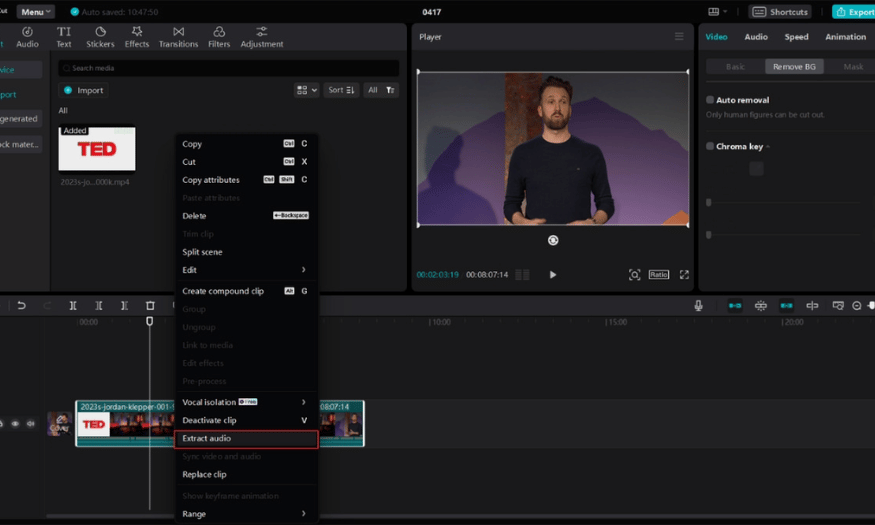
Separating audio in CapCut PC is a simple yet extremely useful operation for those who want to master the audio portion of their videos. If you''re looking for a way to extract original audio from a video on CapCut PC for more flexible content editing, then this article is for you. Follow the step-by-step instructions that Sadesign will guide you through below.
1. Audio splitting feature in CapCut PC
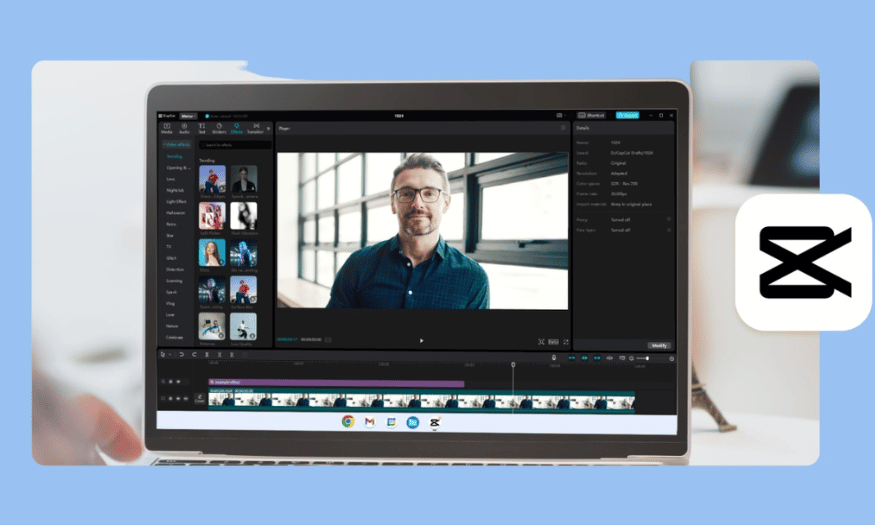
CapCut PC's audio extraction feature allows users to quickly separate audio from original video with just a few simple steps. This is a convenient option if you want to change background music, add new voiceovers, or edit audio separately to make your video more professional. Audio extraction not only gives you more flexibility in editing but also improves the quality of the final product.
Furthermore, this feature makes it easy to extract original audio from video without needing complex software. CapCut PC integrates audio processing tools into an easy-to-use interface, suitable for both beginners and experienced editors. You can access this feature immediately without needing extensive learning time, saving you time and effort.
With audio separation features, you can easily change the atmosphere of your video by replacing the background music or adding new sound effects. This not only makes your video more diverse but also creates a unique and attractive impression on viewers. Certainly, mastering audio will bring you many benefits in the content production process.
2. Introduction to the audio splitting feature on CapCut PC
CapCut PC's audio extraction feature is one of its highlights, making it a top choice for video creators. CapCut not only provides powerful video editing tools but also allows you complete control over the audio. This feature makes it easy to extract audio from original videos without requiring specialized knowledge.
What's special about CapCut PC is its extremely user-friendly interface, making it easy for users to find and use its features. You simply drag and drop the video onto the timeline, then perform simple operations to extract the audio. This not only enhances the user experience but also saves you considerable time compared to using other complex software.
In addition, CapCut PC supports various audio formats, allowing you to add background music or sound effects as desired. This makes the editing process more flexible, helping you easily create unique and creative video products.
3. Is it easy or difficult to separate audio in CapCut PC?
In fact, separating audio from video on CapCut PC is not as complicated as many people think. Thanks to its user-friendly interface and simple operations, CapCut PC allows you to easily handle the audio without needing advanced editing skills. With just a few steps, you can separate the audio and freely express your creativity.
If you've never used this software before, it might feel a little confusing the first time you use it. However, don't worry! CapCut PC provides many tutorials and visual video guides to help you quickly get familiar with the audio separation process. Just be patient and practice a few times, and everything will become easier.
Prepare yourself with a relaxed mindset and get ready to explore the possibilities that CapCut PC offers. Once you've mastered audio separation, you'll find it a useful tool that contributes significantly to creating high-quality and impressive videos.
4. Detailed steps for separating audio from video using CapCut
From opening CapCut to exporting the video, every step needs to be done correctly. Let's explore 4 simple steps to quickly and effectively separate audio from video on CapCut PC with Sforum.
4.1 Prepare the video and launch CapCut PC
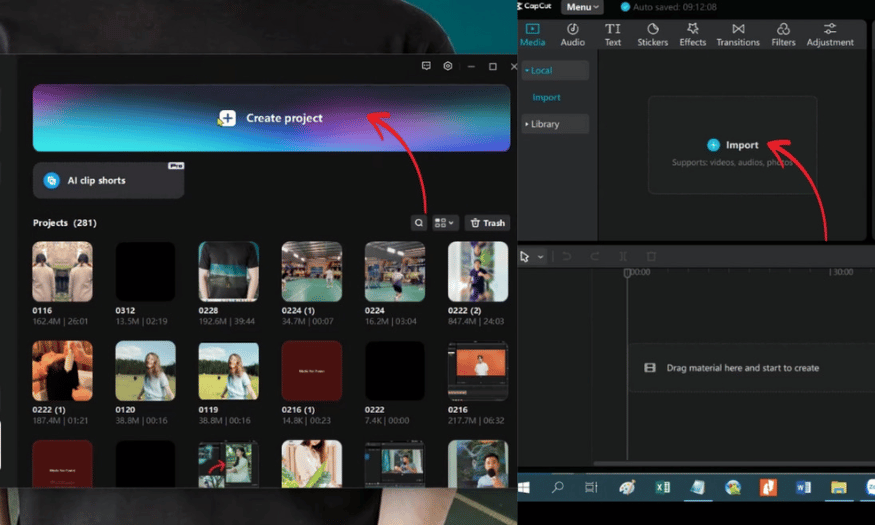
First, launch the CapCut application on your computer. On the main screen, click on "New Project" to start creating your video. Next, click the "Import" button to bring the video you want to extract audio from into the software. After the video is uploaded, simply drag and drop it onto the timeline below, preparing for the next steps.
Note that using a common video format like MP4 will help you avoid unexpected errors during processing. Thorough preparation from the start will facilitate the subsequent steps, saving you time and effort during editing.
4.2 Performing audio separation
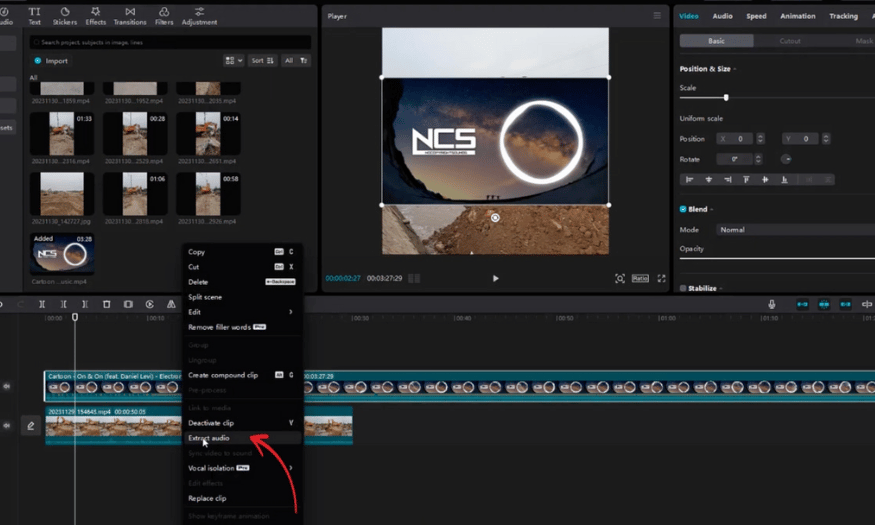
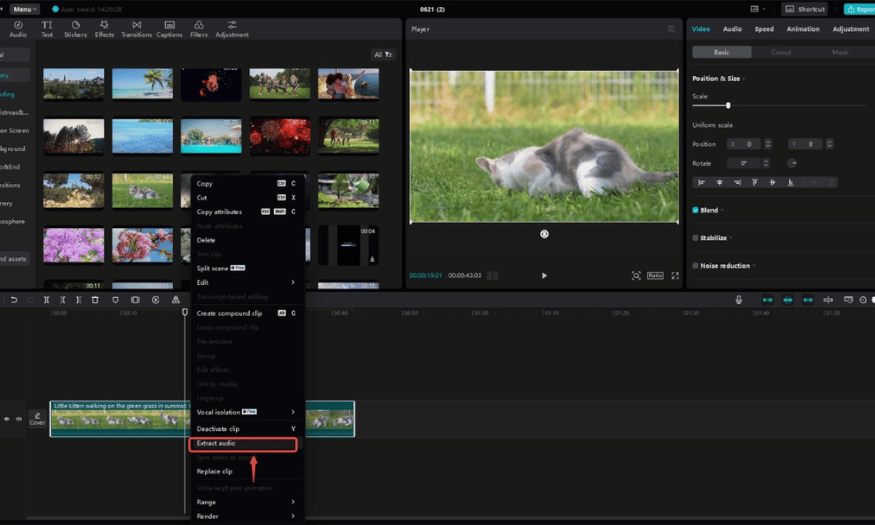
Once the video has been added to the timeline, right-click on the clip and select "Extract Audio". Immediately, the audio will be separated into a distinct layer beneath the video layer in the timeline. This is an important step to easily manage the audio in your video.
After separating the audio, you can choose to delete the original audio segment, replace it with a new one, or keep it for further editing. This feature also allows you to separate multiple audio segments if the clip has many different parts, opening up more creative possibilities for your video.
4.3 Audio Editing
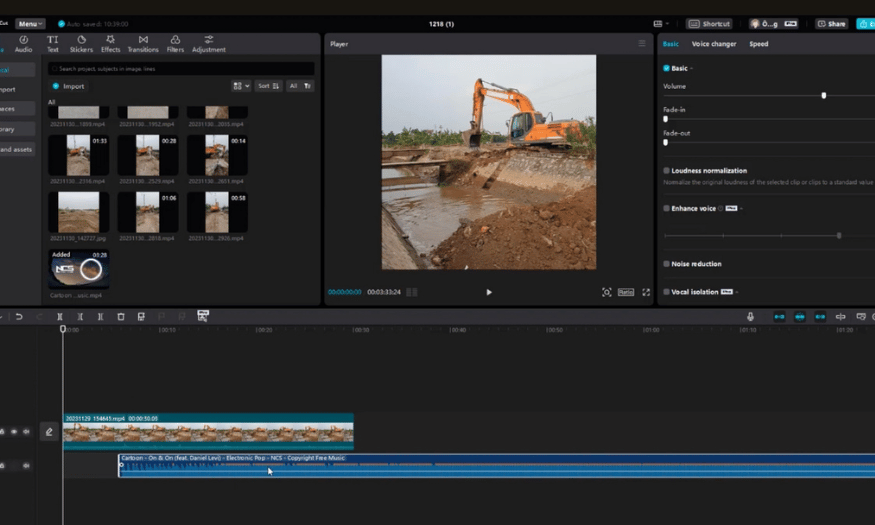
With the audio layer separated, you can edit it freely. Select the audio layer and use tools such as splitting, extending or shortening the audio segment, and adjusting the volume. Additionally, you can add sound effects if needed, making the video more lively and engaging.
Audio editing is a crucial step in ensuring that it aligns with the video content. You can experiment with various types of sound until you find the perfect combination, keeping viewers glued to your product.
4.4 Finalize and export the video
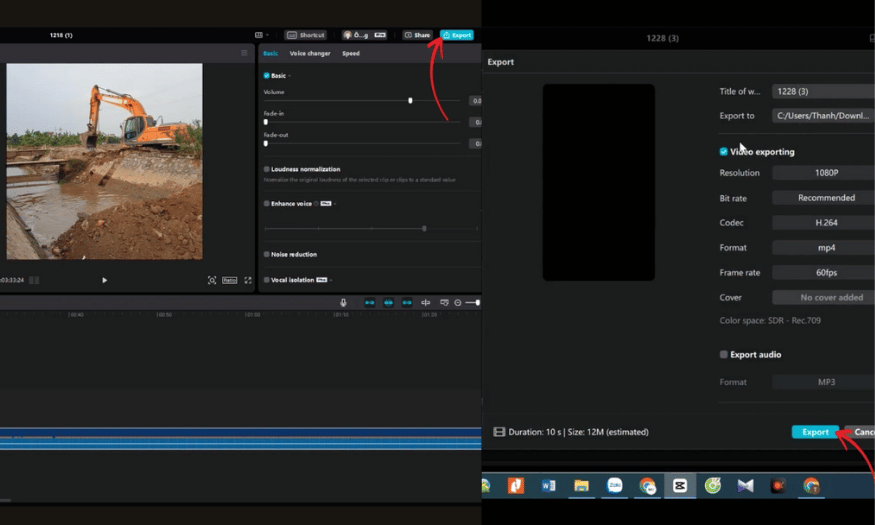
Once you're satisfied with the audio, review the entire video to ensure all elements are handled smoothly. This is the final step in separating audio from video on CapCut PC, helping you perfect your final product.
Once you've confirmed all settings are correct, simply press the Export button in the upper right corner of the screen to complete the process. At this point, you'll be able to edit the file name, choose the resolution, format, and save location as desired. With these simple steps, you can create a high-quality video with perfectly separated and edited audio.
5. Should I upgrade to CapCut Pro?
CapCut Pro is an upgraded version of the CapCut video editing application, offering users many superior tools and features. If you're wondering whether to upgrade or not, let's explore the benefits this version offers, helping you improve the quality of your videos more professionally.
Upgrading to CapCut Pro not only gives you access to more powerful editing tools but also unlocks more creative possibilities than the free version. With CapCut Pro, you can eliminate annoying ads and enjoy a smooth editing process, allowing you to fully focus on creating high-quality products.
Additionally, CapCut Pro gives you access to exclusive effects, filters, and rich audio, making your videos more vibrant. This is why many users decide to upgrade to fully utilize their creative potential.
6. Who should use a CapCut Pro account?
CapCut Pro is particularly suitable for a wide range of users, from content creators to film professionals. Those who frequently create videos for platforms like YouTube, TikTok, or Instagram will find CapCut Pro a great tool for improving video quality.
Amateur filmmakers will also find many benefits from CapCut Pro. With powerful editing tools, this version helps you create high-quality products, from short films to professional advertising videos.
Additionally, those working in marketing should also consider upgrading to a Pro account. CapCut Pro offers the ability to create creative and engaging promotional videos, helping to improve the effectiveness of your product or service communication.
7. How to use a CapCut Pro account
Using a CapCut Pro account is very simple; just follow these steps. First, you need to download the CapCut Pro app from the official website or your device's app store. After installation, open the app and log in using your account information.
Once you've successfully logged in, you'll have access to CapCut Pro's advanced features. From adding effects to adjusting audio, everything is at your fingertips, allowing you to make edits easily and professionally.
Finally, after completing the editing process, you can export the video in high resolution and share it on social media platforms. With CapCut Pro, you will create impressive products that attract viewers' attention and are highly effective in conveying your message.
8. Choose a reputable partner to purchase CapCut Pro.
CapCut Pro is a leading tool that helps you create impressive products and earn money easily. However, the most important question remains: where should you buy CapCut Pro and other software to ensure reliability and quality? Don't worry, SaDesign is the ideal place where you can confidently purchase and use these software programs.
SaDesign stands out not only for its solid reputation in the industry but also for its high-quality software offerings. At SaDesign, you'll find not only CapCut Pro but also many other useful software programs to help you improve your work efficiency and creativity.
8.1 SaDesign - CapCut's sole partner in Vietnam
SaDesign, or SADESIGN Co., Ltd., is one of the leading graphic design software providers in Vietnam. With many years of experience in the industry, the company not only provides CapCut products but also many other popular software such as licensed Photoshop, Canva Pro, and Zoom Pro. Fully registered as a business, SaDesign is committed to providing genuine products with full VAT invoices, ensuring the rights of its users.
The company also has a dedicated support team ready to answer any customer questions throughout the usage process. Furthermore, SaDesign regularly updates with the latest features from CapCut, helping you stay ahead in professional video editing.
8.2 The customer is number one.
When you choose SaDesign, you won't have to worry about receiving your CapCut Pro account after payment. SaDesign's support team is ready to install and guide you step-by-step easily and quickly. All your questions will be answered thoroughly, giving you greater peace of mind when using the service.
SaDesign is committed to providing customers with the best experience, from the purchasing process to technical support. This not only builds trust but also allows you to focus on creating content without worrying about technical issues.
8.3 Reasonable prices
SaDesign proudly offers the CapCut Pro package at the most reasonable price on the market. With a commitment to quality and full functionality, you'll receive a product that's worth every penny. This is a great opportunity to upgrade your creative experience without worrying about the cost.
By choosing SaDesign, you're not only investing in software but also in your own sustainable growth. Don't miss the opportunity to upgrade your publishing experience today!
9. Conclusion
Audio separation in CapCut PC not only makes it easier to manage your audio but also opens up many creative opportunities for your videos. With the detailed instructions we've provided, we hope you'll successfully create even more impressive video content. Get started today and explore your potential!





















VIP Products








Best Selling Products
ChatGPT Plus Account (GPT-4)
16 USD
Windows 10 & 11 Pro Key
36 USD
Copyright Adobe Lightroom Account
59 USD
Upgrade genuine Capture One account
120 USD
Freepik Premium Account
59 USD
Plugin Retouch4me
69 USD
Capcut Pro 1 Year
39 USD
Genuine Adobe Illustrator account
99 USD
Adobe Premiere Pro Account
99 USD
Upgrade Genuine Office 365
49 USD
Adobe Photoshop Copyright - Full App
120 USD
Autodesk All App Account Copyright
120 USD
Genuine Cheap Canva Pro
39 USD
Upgrade Duolingo Super
29 USD
MidJourney Account
29 USD