Best Selling Products

Genuine Adobe Illustrator account
99 USD

Plugin Retouch4me
69 USD

Upgrade Duolingo Super
29 USD

Upgrade genuine Capture One account
120 USD

Capcut Pro 1 Year
39 USD

Copyright Adobe Lightroom Account
59 USD

Upgrade Genuine Office 365
49 USD

MidJourney Account
29 USD

ChatGPT Plus Account (GPT-4)
16 USD

Windows 10 & 11 Pro Key
36 USD

Adobe Photoshop Copyright - Full App
120 USD

Adobe Premiere Pro Account
99 USD

Genuine Cheap Canva Pro
39 USD

Autodesk All App Account Copyright
120 USD

Freepik Premium Account
59 USD
What is a Notification Calendar? A Guide to Effective Time Management Tips
Nội dung
- 1. What is Notification Calendar?
- 2. The Role of Notification Calendar
- 3. Who should use Notification Calendar?
- 4. Key features of Notification Calendar
- 4.1 Combining personal and work schedules
- 4.2 Integration with Notion
- 4.3 Integration with online conferencing services
- 4.4 Integrated Scheduling Tools
- 4.5 Weekly view feature and customizable display mode
- 5. How to download Notification Calendar
- 5.1 How to download Notification Calendar on your computer
- 5.2 How to download Notion Calendar on iPhone/iPad
- 6. How to use Notification Calendar to manage your time
- 6.1 Connect your current calendar to Notification Calendar
- 6.2 How to add new tasks to Notification Calendar
- 6.3 Change the task color
- 7. Reasons to choose SaDesign for your Notion upgrade
- 7.1 Simple purchasing process
- 7.2 Fast delivery
- 7.3 Dedicated customer service
- 8. Frequently Asked Questions
- 8.1 Payment methods for upgrading Notion at SaDesign
- 8.2 Does Notion have a mobile app?
- 8.3 Can Notion Plus be used for teams?
- 9. Conclusion
Notion Calendar is a powerful tool for managing time and tasks, built into the Notion platform. With its ability to track events, deadlines, and work progress, Notion Calendar helps you organize your daily life visually and efficiently. Did you know that effective time management can reduce stress and increase productivity? In this article, let''s explore Notion Calendar with Sadesign, from its outstanding features to how to optimize its use for the best time management.
1. What is Notification Calendar?
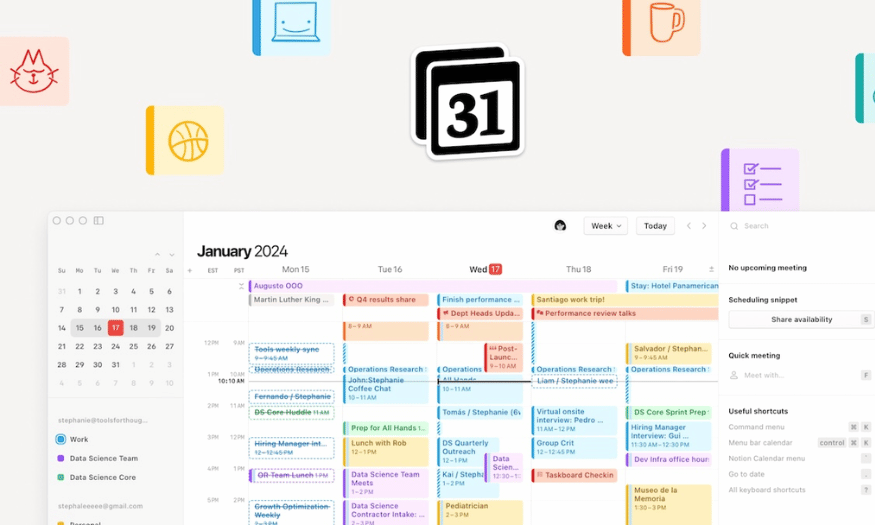
Notion Calendar is a new application launched by Notion in January 2024, marking a significant step forward in time management. This tool allows users to have an overview and detailed view of their schedule, similar to popular calendar applications like Google Calendar and Apple Calendar. However, what sets Notion Calendar apart is its flexible integration with other Notion features, providing a unique and efficient user experience.
With Notion Calendar, you can easily schedule meetings, events, or work deadlines. The built-in calendar template feature makes it easy to create a daily overview, allowing you to manage your time and tasks more intelligently. You can view the calendar in various modes, from monthly to weekly, making task tracking more intuitive than ever.
Notion Calendar goes beyond simply managing your personal time; it also allows you to connect with other applications and customize it to your liking. This means you can easily synchronize your calendar with that of colleagues or friends, creating a more efficient collaborative workspace. Thanks to Notion Calendar, everything will be more organized and easier to track, opening up opportunities for a more organized life and work.
2. The Role of Notification Calendar
Notion Calendar is more than just a time-tracking tool; it's a powerful assistant in managing tasks and organizing life. It helps users identify and allocate time for important tasks, from studying to work projects. Thanks to its intuitive display, you can easily recognize busy periods and adjust your schedule accordingly.
One of Notion Calendar's standout features is its ability to integrate with other tools. You can connect your calendar to apps like Google Drive or Trello, making project tracking and management more seamless. This not only saves time but also helps you stay focused on important tasks without being distracted by multiple tools.
Furthermore, Notification Calendar encourages effective teamwork. You can share your calendar with colleagues, facilitating easier collaboration. Thanks to this feature, scheduling meetings or team events becomes simpler and more efficient, helping everyone work towards a common goal.
3. Who should use Notification Calendar?
Notion Calendar is a versatile tool suitable for a wide range of users. First, students are a primary user group. With classes, assignments, and extracurricular activities, effective time management is crucial. Notion Calendar helps students organize their schedules, thereby reducing stress and improving academic performance.
Besides students, Notion Calendar is also very suitable for office workers. In the modern work environment, managing multiple projects and deadlines is a major challenge. Notion Calendar allows employees to easily track work progress, plan meetings, and share information with colleagues, thereby creating a more collaborative and efficient work environment.
Ultimately, entrepreneurs and business owners will also find great value in Notion Calendar. With its time and task management functions, they can optimize their daily schedules, thereby focusing on business development strategies. Thanks to its customization and integration capabilities, Notion Calendar supports entrepreneurs in tracking and adjusting their plans flexibly.
4. Key features of Notification Calendar
4.1 Combining personal and work schedules
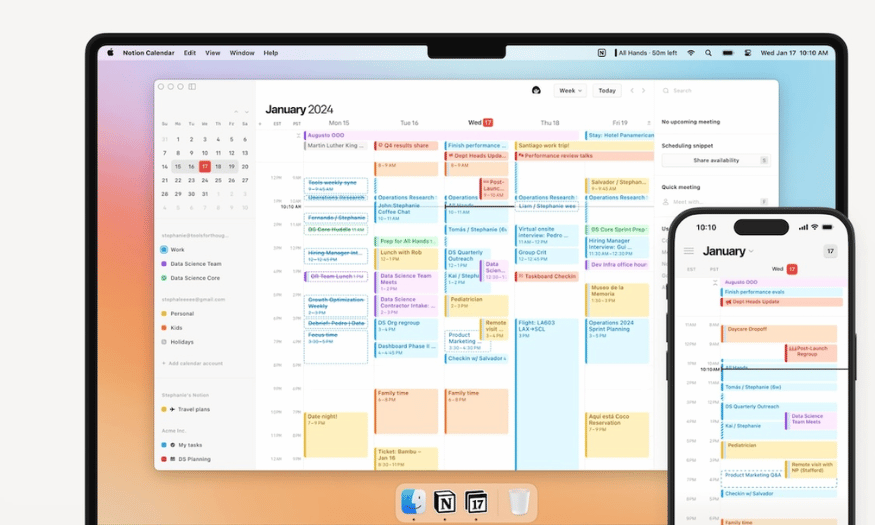
Notion Calendar combines your personal and work calendars in a single interface, making time management easier than ever. Instead of switching between multiple apps, you only need one place to track all your daily activities. This not only saves time but also gives you an overview of your schedule, making it easier to prioritize important tasks.
Imagine being able to view your work schedule alongside your personal plans, from dates to family events. This combination helps you avoid scheduling conflicts while creating a clearer and more efficient organizational space.
4.2 Integration with Notion
If you're already familiar with Notion, integrating documents into your calendar will be incredibly convenient. You can easily attach documents from Notion to calendar events, making it quick and efficient to share information with colleagues or friends. For example, when scheduling a meeting, you can attach a project plan so everyone is aware of the topics to be discussed.
This not only improves work management efficiency but also encourages collaboration within the team. Everyone can access necessary information directly from the calendar, minimizing search time and enhancing work synergy.
4.3 Integration with online conferencing services
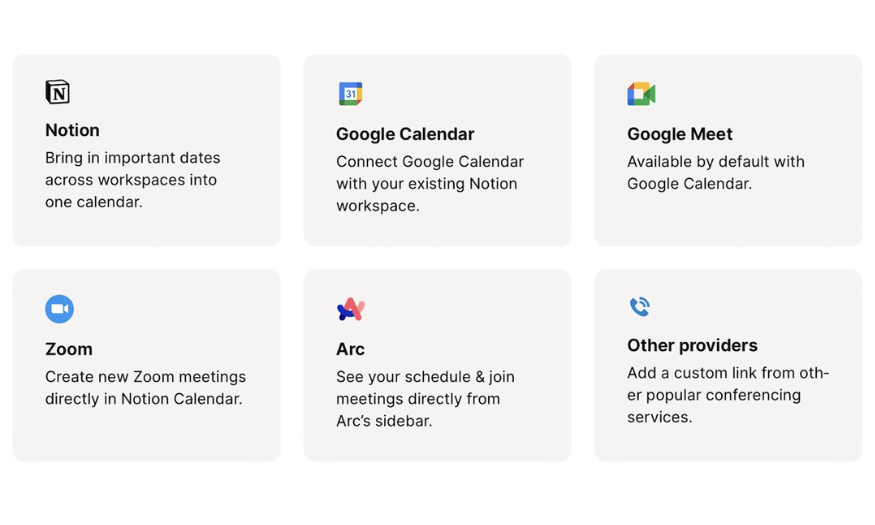
Notion Calendar integrates with popular online conferencing services like Google Meet and Zoom. This means you can join meetings directly from your calendar without having to open multiple applications. This convenience saves you time and allows you to focus more on the meeting.
Joining meetings with just one click from your calendar also reduces stress, especially when you have multiple meetings in a day. You'll always be ready for each discussion without worrying about finding links or login information.
4.4 Integrated Scheduling Tools
The scheduling tool integrated into Notion Calendar allows you to easily share your schedule with others. You can quickly arrange meetings, appointments, or any other event with just a few clicks. This not only facilitates collaboration but also helps minimize scheduling conflicts.
Furthermore, you can customize notifications and reminders to ensure everyone receives timely information. This makes event organization easier and ensures everyone is aware of important details.
4.5 Weekly view feature and customizable display mode
Another useful feature of Notion Calendar is the ability to view the current week of the year. This is very convenient, especially if you live in a place where people count the weeks in a year. You can easily keep track of work progress and important events without getting lost in your schedule.
Additionally, Notion Calendar allows you to choose the number of days you want to display in your calendar view. You can customize the calendar display to suit your personal needs, making time tracking and management more intuitive and efficient.
5. How to download Notification Calendar
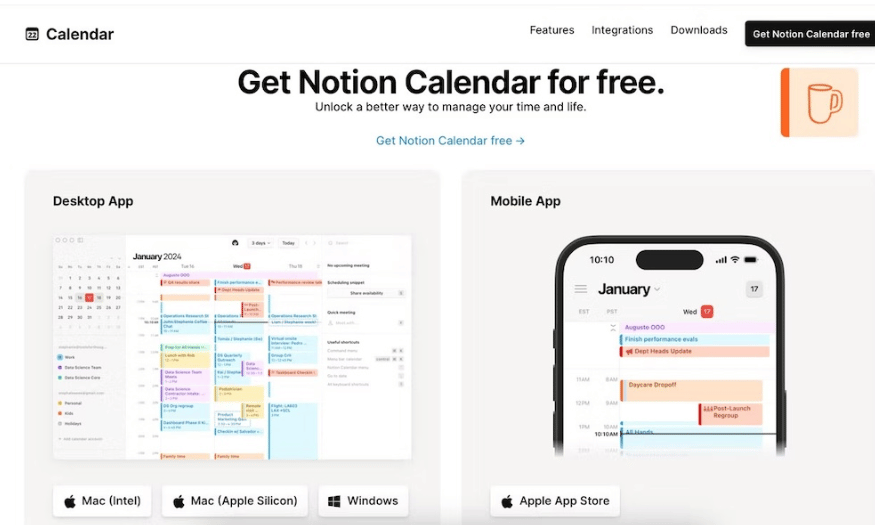
Notion Calendar is now available on macOS, Windows, and iOS, giving users the ability to manage their time anytime, anywhere. Whether you're a Mac user with an Intel or Silicon chip, you can easily download this application. Below is a detailed guide on how to download Notion Calendar to your computer and mobile devices.
5.1 How to download Notification Calendar on your computer
To download Notion Calendar for Windows or macOS, simply follow these easy steps:
-
Visit the Notion Calendar website. This is the first step to accessing the application.
-
Click on the Downloads section. Here, you will see download options for different platforms.
-
Choose the appropriate version. In the Desktop App section, select the version corresponding to your operating system: Mac (Intel), Mac (Silicon), or Windows.
-
Follow the on-screen instructions. For Macs, you will need to drag and drop the Notion Calendar icon into the Applications folder to complete the installation.
With just a few simple steps, you can have Notification Calendar on your computer, ready for effective time management!
5.2 How to download Notion Calendar on iPhone/iPad
If you want to download Notion Calendar for iPhone or iPad, follow the instructions below:
-
Open the App Store. Tap the Search icon in the bottom right corner of the screen.
-
To find the app, type "Notion Calendar" into the search box and press Search.
-
Install the app. When you see the app appear in the search results, tap Download to begin the download process.
Once downloaded, Notion Calendar will be ready for you to use, helping you manage your time and tasks more effectively than ever before.
6. How to use Notification Calendar to manage your time
6.1 Connect your current calendar to Notification Calendar
If you already use Google Calendar, integrating it into Notion Calendar will save you time. Here are the specific steps:
On a computer:
-
Open Notifications and find the left sidebar.
-
Select + Add calendar account .
-
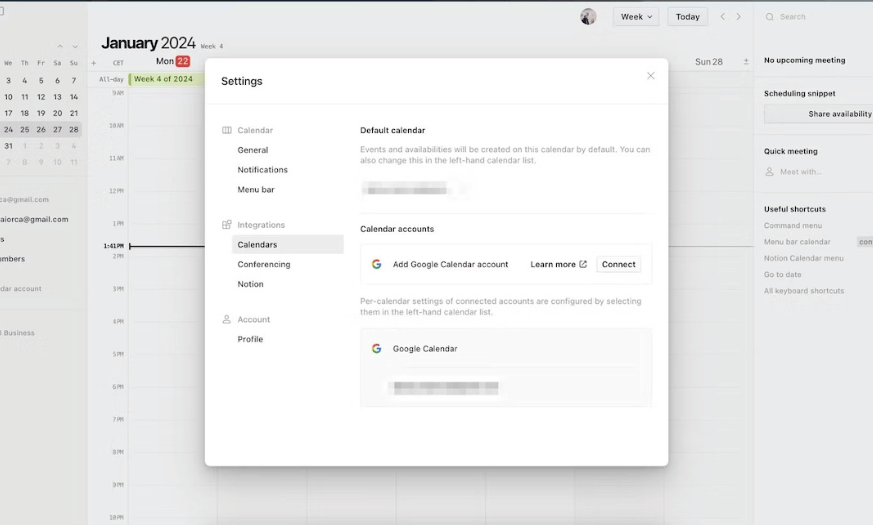
Go to the Integrations section and select Calendars .
-
Click Connect in the Calendar accounts section.
-
A new tab will open in your browser. Click on Continue to Google Permissions .
-
Select the Google account you want to integrate and sign in with.
-
Check the boxes for the permissions you want to grant to Notion Calendar.
-
Scroll down and select Continue .
-
If a pop-up window appears asking if you want to allow the website to open Notion Calendar, click Allow .
-
After a few seconds, your calendar will be integrated into the Notion Calendar app.
On iOS:
-
Open the Notification Calendar app.
-
Click the hamburger icon in the upper left corner.
-
Select + Add calendar account .
-
Click Connect next to Add Google Calendar .
-
When prompted, tap Continue to allow Google to log in.
-
Log in to your Google account and grant Notion Calendar permission.
6.2 How to add new tasks to Notification Calendar
Adding tasks to your Notation Calendar is very simple; here's how:
On Windows or Mac:
-
Double-click the location where you want to add the new event on the calendar.
-
Enter the event name in the Title field .
-
Select the time and date for the event in the corresponding boxes.
-
You can add participants, locations, and other necessary information.
On iPhone:
-
Tap the + button or press and hold on the calendar screen to create a new event.
-
Enter the title and other information for the event.
-
Once finished, tap Done in the upper right corner.
6.3 Change the task color
To make it easier to organize your tasks, you can change their colors. Here's how:
-
Open the task you want to adjust.
-
Click on the color next to the calendar associated with that task.
-
In the Event color section , select the new color you want.
Changing the colors helps create a more visual representation of the schedule and makes it easier to distinguish between different types of tasks.
7. Reasons to choose SaDesign for your Notion upgrade
Many providers offer Notion Plus account upgrade services, but SaDesign stands out thanks to the trust of its numerous users. With its superior advantages, SaDesign has established its position in the market, providing customers with an easy and effective account upgrade experience.
7.1 Simple purchasing process
The process for purchasing a Notion Plus account at SaDesign is designed to be quick and easy to understand. When needed, simply contact us via email or online chat. SaDesign's support team is always ready to enthusiastically guide you step-by-step, from choosing a service package to completing payment. This not only saves time but also provides a comfortable experience for customers.
No need to worry about complicated procedures; you will receive prompt, detailed, and professional support. SaDesign is committed to ensuring your satisfaction from the very first steps of the purchasing process.
7.2 Fast delivery
One of the outstanding advantages of upgrading to a Notion account at SaDesign is the extremely fast delivery time. After completing the payment process, you will receive your login information within 24 hours. This allows you to immediately experience all the superior features of the Notion Plus account.
No more waiting! You'll quickly have the ability to manage your work more efficiently with powerful tools. This convenience is one of the reasons many people choose SaDesign to upgrade their account.
7.3 Dedicated customer service
SaDesign is proud to have a team of professionally trained customer service representatives, always ready to assist you throughout the purchasing and service process. Any questions you may have will be answered quickly and accurately.
With dedication and attentiveness, SaDesign not only provides services but also creates a positive user experience. You will feel the difference when supported by passionate and knowledgeable professionals.
8. Frequently Asked Questions
8.1 Payment methods for upgrading Notion at SaDesign
When upgrading Notion at SaDesign, you can choose from a variety of payment methods. You can pay directly via bank transfer, use e-wallets, or scan the QR code on the website. All transactions are secure and completely safe, giving you peace of mind when making payments.
Flexibility in payment methods not only offers convenience but also meets the needs of each customer. You can choose the payment method that best suits you.
8.2 Does Notion have a mobile app?
Yes, Notion offers apps for smartphones running iOS and Android. This allows you to easily access and manage Notion content from your mobile devices. The Notion mobile app is fully synchronized with the web and desktop versions, enabling you to work, stay updated, and manage documents from anywhere.
This convenience allows you to maintain productivity even while on the go. You'll no longer have to worry about missing important information.
8.3 Can Notion Plus be used for teams?
Notion Plus is perfectly suited for team use. With the ability to plan and manage guests up to 100 people and unlimited storage space, Notion Plus helps your team easily track progress and collaborate effectively.
You can divide tasks, share documents, and track work results all within the same workspace. This not only improves work efficiency but also fosters a sense of camaraderie among team members.
9. Conclusion
In summary, Notion Calendar is more than just a simple calendar; it's a versatile tool that helps you optimize your time and work management. With its flexibility and high degree of customization, you can turn it into a powerful assistant in your journey to achieving your personal and professional goals. Hopefully, the information and tips in this article will help you use Notion Calendar most effectively!





















VIP Products








Best Selling Products
Genuine Adobe Illustrator account
99 USD
Plugin Retouch4me
69 USD
Upgrade Duolingo Super
29 USD
Upgrade genuine Capture One account
120 USD
Capcut Pro 1 Year
39 USD
Copyright Adobe Lightroom Account
59 USD
Upgrade Genuine Office 365
49 USD
MidJourney Account
29 USD
ChatGPT Plus Account (GPT-4)
16 USD
Windows 10 & 11 Pro Key
36 USD
Adobe Photoshop Copyright - Full App
120 USD
Adobe Premiere Pro Account
99 USD
Genuine Cheap Canva Pro
39 USD
Autodesk All App Account Copyright
120 USD
Freepik Premium Account
59 USD