Best Selling Products

Autodesk All App Account Copyright
120 USD

Capcut Pro 1 Year
39 USD

Adobe Photoshop Copyright - Full App
120 USD

Plugin Retouch4me
69 USD

Upgrade Genuine Office 365
49 USD

Genuine Adobe Illustrator account
99 USD

Upgrade Duolingo Super
29 USD

ChatGPT Plus Account (GPT-4)
16 USD

Copyright Adobe Lightroom Account
59 USD

Adobe Premiere Pro Account
99 USD

Freepik Premium Account
59 USD

Genuine Cheap Canva Pro
39 USD

Windows 10 & 11 Pro Key
36 USD

MidJourney Account
29 USD

Upgrade genuine Capture One account
120 USD
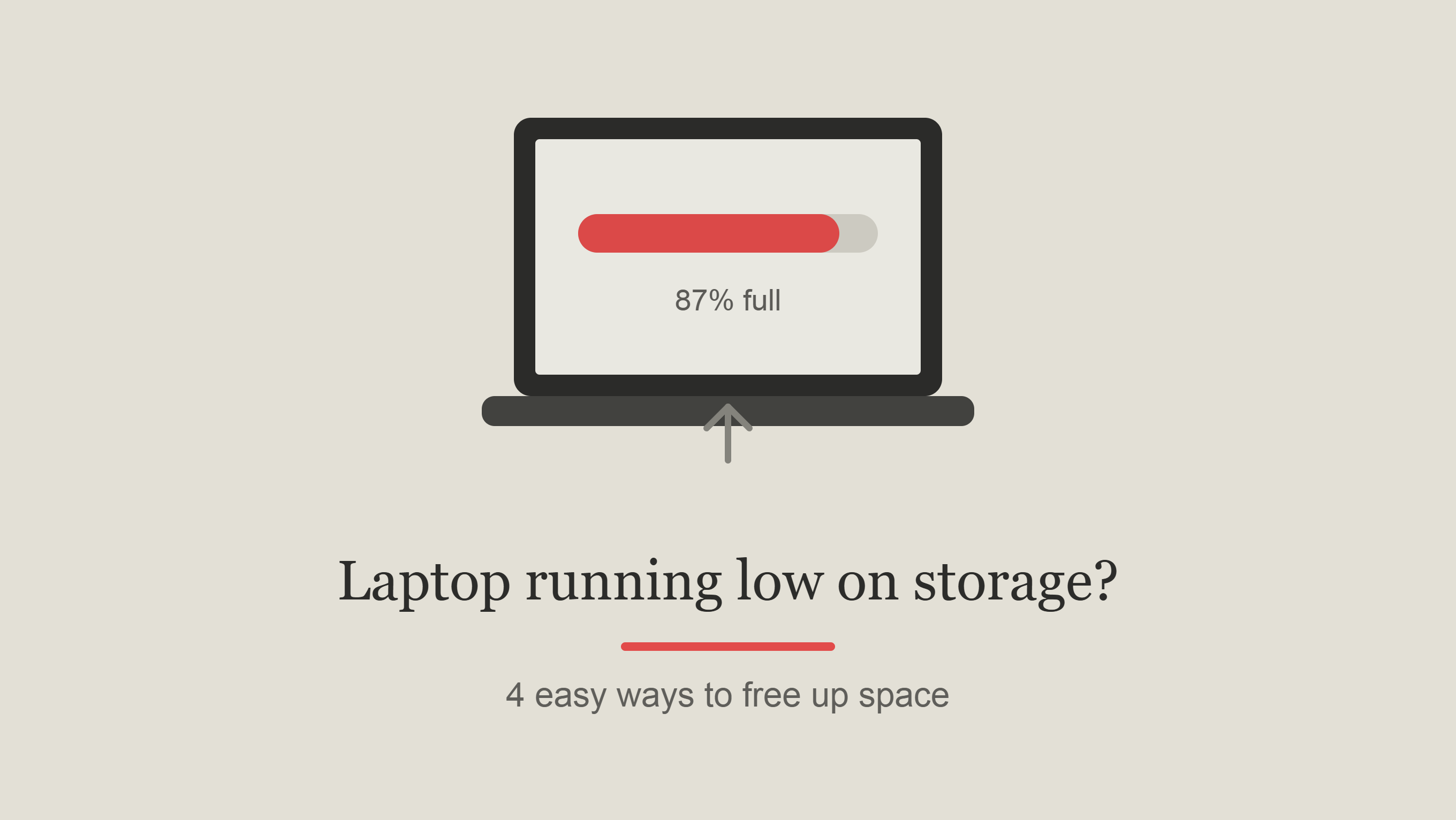
Is your laptop running low on storage? Here are 4 easy ways to increase storage without upgrading your SSD.
Nội dung
Laptops that frequently report full hard drives can experience reduced performance and difficulties installing new applications.
1. Make use of SD and microSD memory cards.
SD and microSD memory cards are one of the simplest ways to add storage space to laptops with built-in card readers. The biggest advantage of this option lies in its compact size, ease of use, and the fact that it doesn't occupy USB ports that are needed for other peripherals.
With a laptop that has a microSD slot, users can choose a 256GB microSDXC card to store photos, videos, documents, or personal data files. Cards with read speeds above 100MB/second can adequately meet typical data access needs, especially when storing high-quality photos or 4K videos.
It's worth noting that memory cards aren't necessarily used for installing operating systems or software requiring high access speeds. Instead, they're better suited for personal data such as photo and video libraries, study materials, work documents, or files that aren't used frequently.
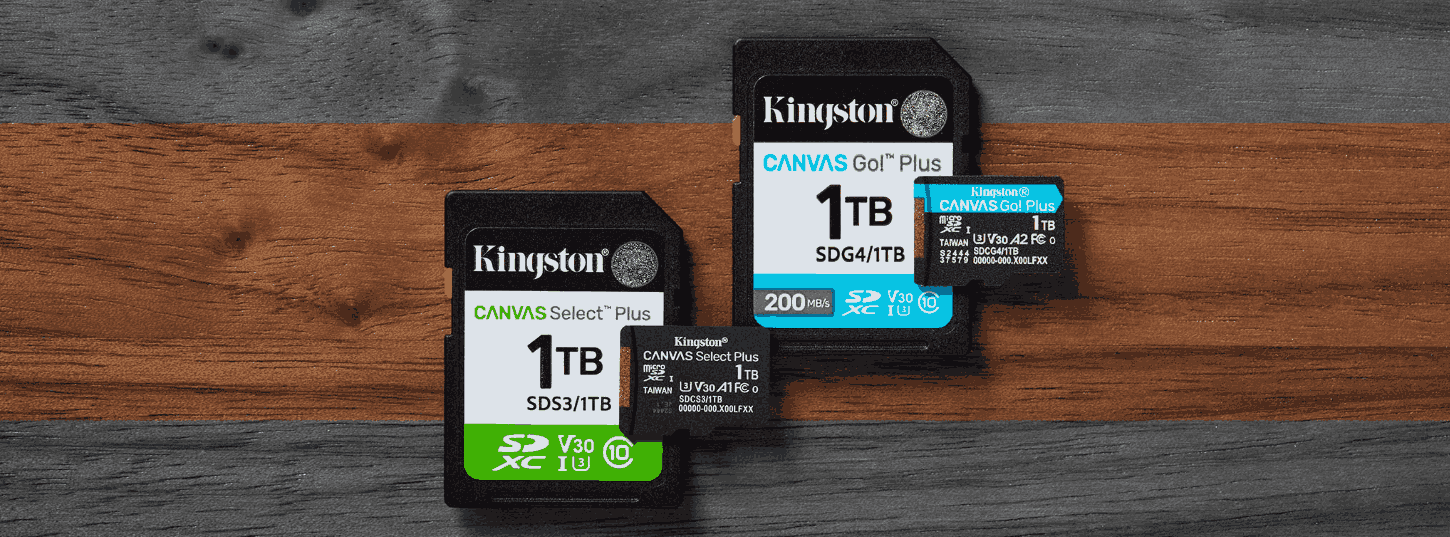
If your laptop only has a standard SD card slot, you can still use a microSD card via an adapter. These adapters are relatively inexpensive but improve compatibility between microSD cards and the SD card slot on your laptop.
In cases where a laptop has no card reader slot at all, a USB memory card reader is also a worthwhile option. Using it is quite simple: plug the reader into a USB port, insert the memory card into the reader, and the operating system will usually automatically recognize the new storage device.
Then, users can open File Explorer on Windows, locate the drive corresponding to the memory card, and begin copying the data. No additional specialized software needs to be installed.
However, memory cards should be considered as an option for expanding storage capacity rather than the sole storage solution for important data. For valuable data, users should still create a backup on a hard drive or cloud service to avoid data loss in case the card fails.
2. Use a USB drive.
USB flash drives are a familiar and suitable storage medium for those who frequently need to transfer data between multiple computers. The devices are small, easy to carry, and don't require a separate power source, making them a convenient "secondary hard drive" for laptops.
For everyday use, USB drives with capacities under 256 GB are usually sufficient for storing documents, images, videos, design files, or work data. Compared to upgrading the internal storage of a laptop, buying a USB drive also gives users more flexibility as they can use it on multiple devices.
Using a USB drive on a Windows laptop is also very simple. First, plug the USB drive into a compatible port on your computer. After the system recognizes the device, open File Explorer > This PC . Here, the USB drive will appear as a new drive.
You can create separate folders to organize your data, then drag and drop or copy files from your laptop's SSD to a USB drive. For large amounts of data, the copying time will depend on the speed of both the USB drive and the connection port on your computer.
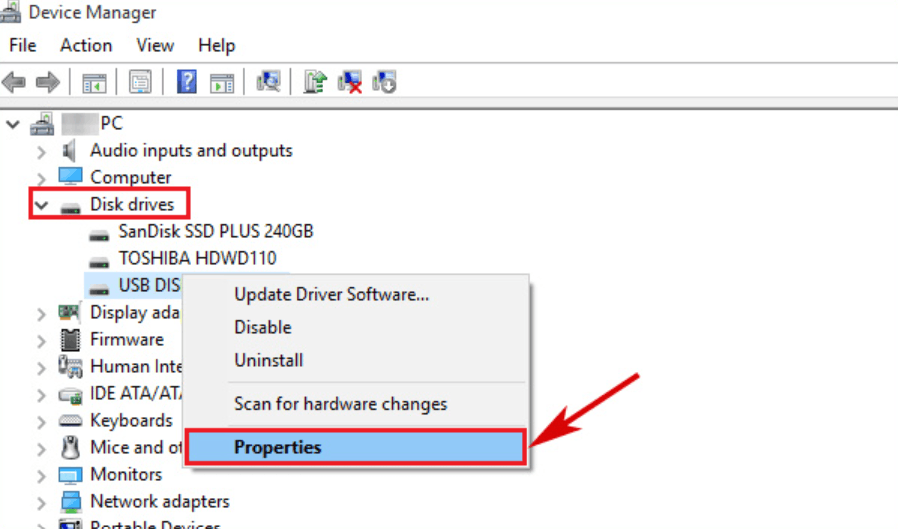
To check your remaining free space, right-click on the USB drive and select Properties . The information window will display the used and remaining space.
USB drives are especially useful when your laptop is overloaded with documents or files you don't use often. Instead of keeping all your data on an SSD, you can transfer long-term files to a USB drive to free up space.
However, the small size of USB drives also means they are easily lost. Therefore, you shouldn't just store a single copy of important documents. For personal photos, work documents, or data that cannot be recovered, create at least one additional copy in a different location.
3. Equip with an external HDD.
If your primary need is to store and back up relatively large amounts of images, videos, and documents, an external HDD is a highly economical option.
An external HDD with a capacity of around 500 GB can adequately meet basic storage needs. Users can connect the device to their laptop via USB and use it almost like a regular hard drive.
After connecting the HDD, open File Explorer > This PC to check the new drive. You can create folders such as Documents , Photos , Videos , or Backup to categorize your data. Then, move infrequently used files from the internal SSD in your laptop to the HDD to free up space.
HDDs are slower than SSDs, so they are not ideal for running operating systems or software that requires constant data access. However, if the primary goal is data storage, the speed of an HDD can still be sufficient.
Another important advantage is that HDDs are often affordably priced per GB. For users with limited budgets who need ample storage space, this remains a worthwhile option.
To save even more money, some users may consider buying used HDDs. However, with used hard drives, it's crucial to pay close attention to their health status before use.
On Windows, you can check basic information using the Optimize Drives tool . Press Windows + S , type Defragment and Optimize Drives , and then open the tool to check the drive. For HDDs, the system also provides information related to optimization status.
For older hard drives, checking their SMART rating with specialized software is also crucial. If the drive has many hours of operation, displays health warnings, or shows signs of failure, it should not be used as the sole location for storing important data.
Although SSDs are significantly faster, smaller-capacity HDDs still offer a cost advantage when the goal is to expand storage space. Therefore, they are a suitable solution for students, office users, or those who need a data backup device on a budget.
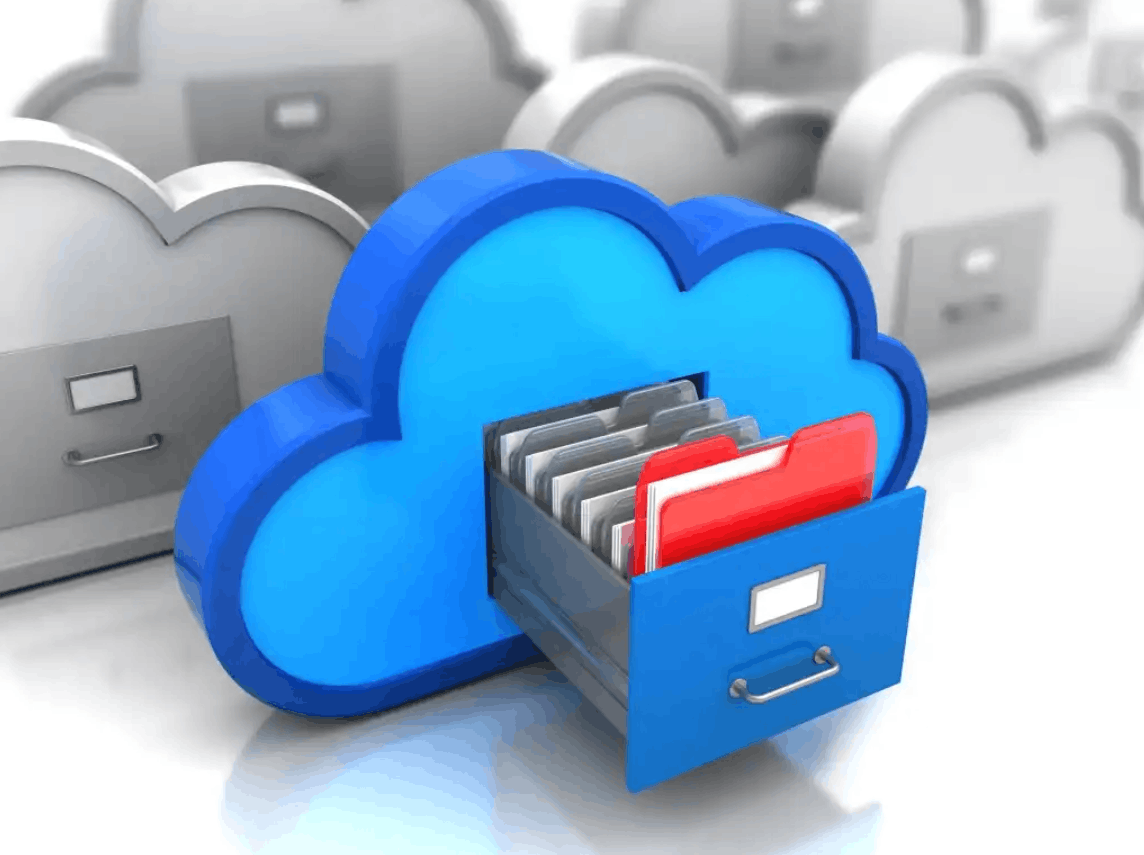
4. Take advantage of cloud storage services.
Many platforms now offer free storage upon account registration. Microsoft OneDrive and iCloud offer 5 GB, Google Drive offers 15 GB, while MEGA may offer up to 20 GB of free storage depending on the terms and conditions of the account at the time.
For data that doesn't need constant access, this can be a quick way to reduce the load on your laptop's hard drive. Users can upload photos, documents, or files they need to store to a cloud service, then delete the local copy if they are sure the data has been fully synchronized.
For example, with OneDrive on Windows, you can log in to your Microsoft account, open your OneDrive folder, and sync your data. Once the files have been uploaded, the Files On-Demand feature can help keep them online instead of constantly taking up physical space on your laptop.
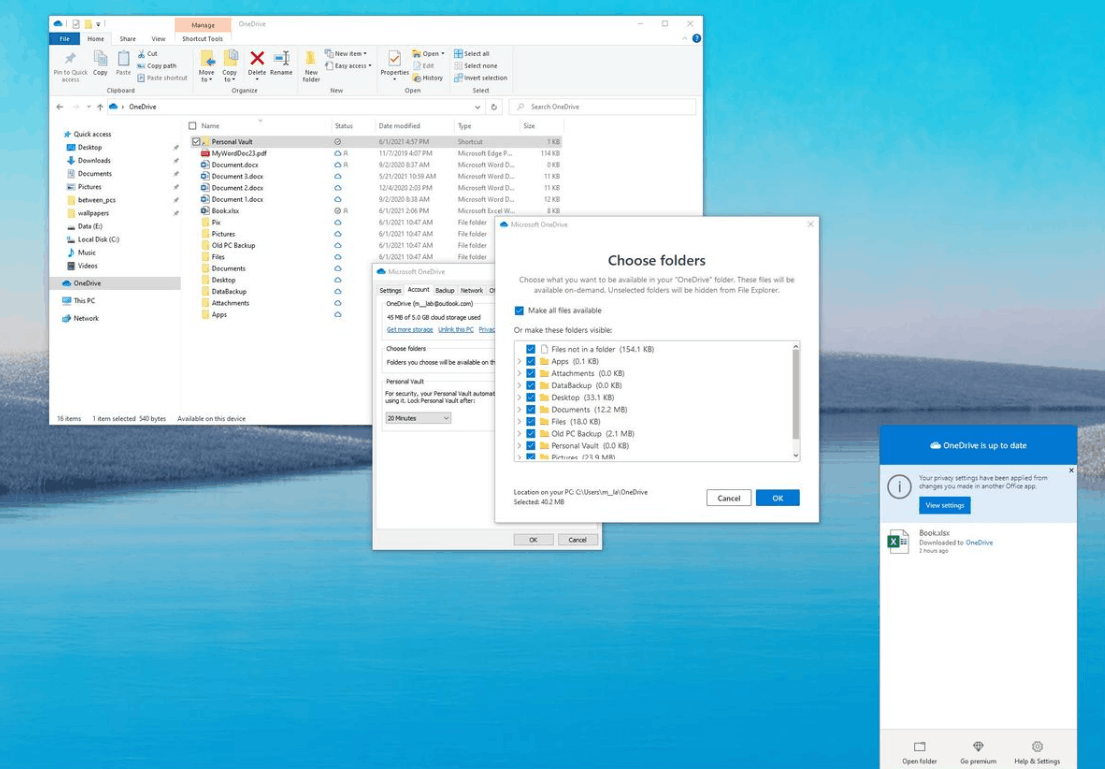
With Google Drive, users can access the service through a web browser or the Google Drive desktop application. Data can be organized into separate folders for easy searching and management.
The biggest advantage of cloud storage is that you don't need to carry physical devices. With just an internet connection and the right account login, users can access their data on their laptop, phone, or other computer.
As storage needs increase, these platforms also offer paid plans with larger capacities. Google One Basic 100 GB or Microsoft 365 Basic are popular choices with relatively accessible initial costs, starting from around 45,000 VND/month depending on the plan and time.
However, cloud storage should not be considered the only solution for critically important data. Users need to enable appropriate security authentication, use strong passwords, and avoid uploading sensitive information unless absolutely necessary.
5. Choose the appropriate solution.
Each storage expansion option has its own strengths. SD or microSD cards are suitable for laptops with card readers and users who want a compact solution. USB flash drives are ideal for carrying data to multiple locations and using it on various computers.
Meanwhile, external HDDs are more suitable for backing up or storing large amounts of data but don't require extremely high speeds. Cloud storage, on the other hand, offers convenience when users need to access data on multiple devices without wanting to carry hardware.
If your laptop frequently reports a full hard drive, you shouldn't just try deleting files as a quick fix. Identify the types of data taking up the most space, then categorize them into frequently used data, long-term storage data, and data that can be deleted.
For daily data usage, it's best to keep it on an SSD to ensure speed. For less frequently used data, you can move it to an HDD or USB drive. Files that need to be accessed across multiple devices can be uploaded to the cloud.
Combining multiple options is also an effective way to build a rational storage system. A laptop can keep the operating system and software on an SSD, less frequently used data can be moved to an HDD or USB drive, while documents that need frequent synchronization can be stored in the cloud. This way, you maintain the necessary free space on your laptop while limiting the cost of unnecessary hardware upgrades.





















VIP Products








Best Selling Products
Autodesk All App Account Copyright
120 USD
Capcut Pro 1 Year
39 USD
Adobe Photoshop Copyright - Full App
120 USD
Plugin Retouch4me
69 USD
Upgrade Genuine Office 365
49 USD
Genuine Adobe Illustrator account
99 USD
Upgrade Duolingo Super
29 USD
ChatGPT Plus Account (GPT-4)
16 USD
Copyright Adobe Lightroom Account
59 USD
Adobe Premiere Pro Account
99 USD
Freepik Premium Account
59 USD
Genuine Cheap Canva Pro
39 USD
Windows 10 & 11 Pro Key
36 USD
MidJourney Account
29 USD
Upgrade genuine Capture One account
120 USD