Best Selling Products

MidJourney Account
29 USD

Freepik Premium Account
59 USD

Upgrade Genuine Office 365
49 USD

Autodesk All App Account Copyright
120 USD

Plugin Retouch4me
69 USD

Adobe Premiere Pro Account
99 USD

Genuine Cheap Canva Pro
39 USD

Genuine Adobe Illustrator account
99 USD

ChatGPT Plus Account (GPT-4)
16 USD

Copyright Adobe Lightroom Account
59 USD

Windows 10 & 11 Pro Key
36 USD

Capcut Pro 1 Year
39 USD

Adobe Photoshop Copyright - Full App
120 USD

Upgrade Duolingo Super
29 USD

Upgrade genuine Capture One account
120 USD
10+ Microsoft Teams features to help you collaborate and work more effectively.
Nội dung
- 1. Enhance team collaboration.
- 2. Follow the conversation carefully.
- 3. Flexibility between Threads and Posts
- 4. Concentrate the project in one place.
- 5. Work seamlessly across multiple devices.
- 6. Expressing emotions more flexibly
- 7. Automation using reactions
- 8. Work quickly with Slash Commands
- 9. Personalize keyboard shortcuts
- 10. Combining AI and intelligent agents
Microsoft Teams is not just a platform for online chat and meetings; it also offers many features to support collaboration and increase productivity.
1. Enhance team collaboration.
Effective collaboration depends not only on people being able to communicate with each other, but also on the ability to maintain the correct context of each conversation. In a constantly changing work environment, a workday can quickly become an "endless workday" as new notifications, messages, and requests constantly appear.
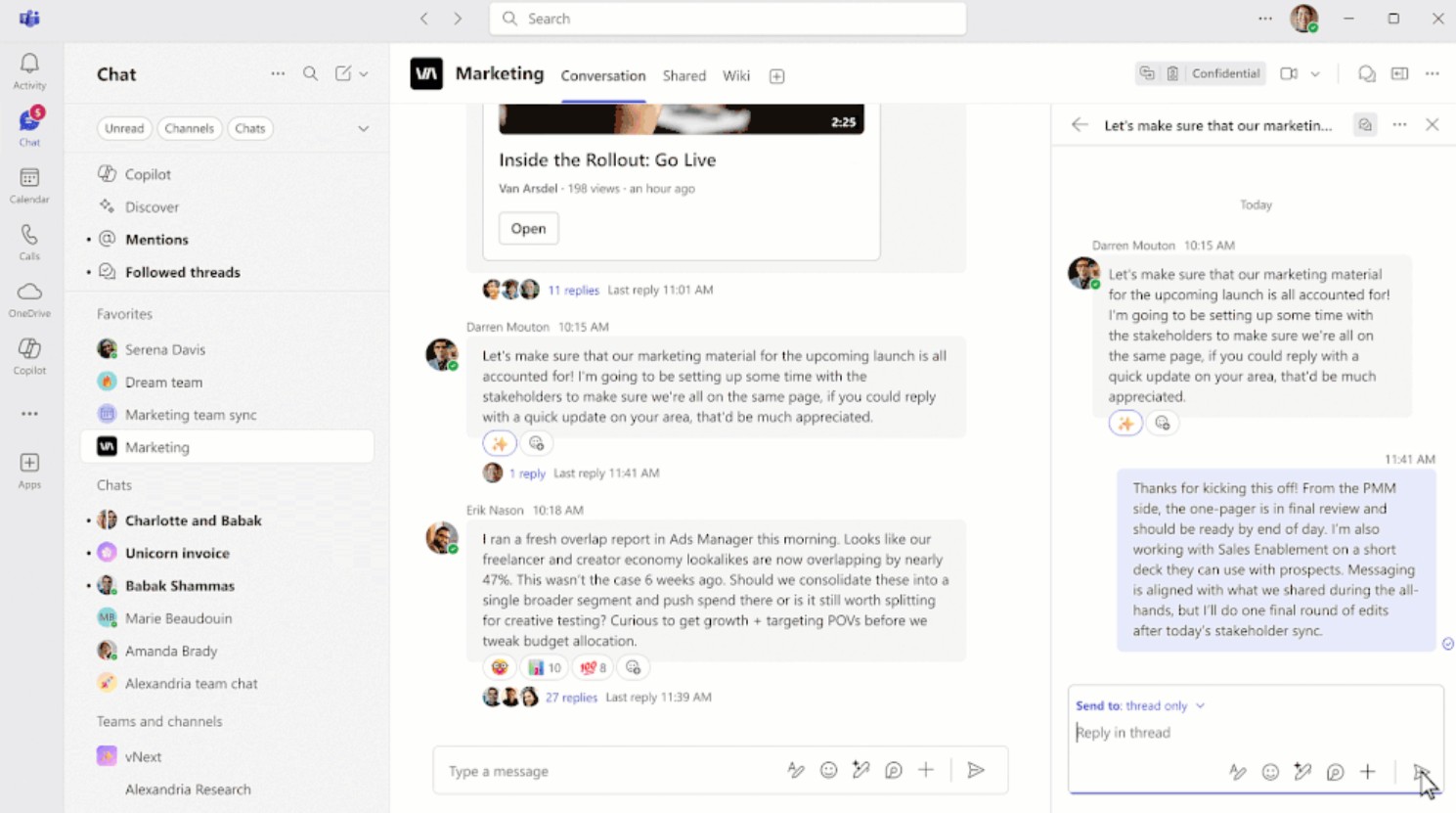
Microsoft Teams addresses this issue by incorporating threads into channels , allowing for more focused conversations. Instead of responding directly within the main conversation thread and making the content increasingly lengthy, users can respond to the specific thread relevant to a particular message.
This organizational approach helps group content on similar topics together, while maintaining clarity in the main conversation. Participants can delve into a particular issue without interrupting other important updates or announcements.
Threads are especially useful for projects with many members. For example, when a team is developing a website, the main conversation might contain progress updates, while individual threads are used to discuss design, content, technical issues, or customer feedback. This makes it easier for new members to stay informed.
2. Follow the conversation carefully.
Not all Teams conversations are equally important. Having to monitor every notification can easily distract users with content that isn't truly relevant.
The Followed Threads feature solves this problem by grouping the threads that users are following into an interactive list. From there, users can quickly view, categorize, and respond to discussions without constantly switching back and forth between multiple channels.
By default, Teams only follows threads that a user has started, replied to, been mentioned in, or actively chosen to follow. This approach reduces unnecessary notifications while ensuring users don't miss important conversations.
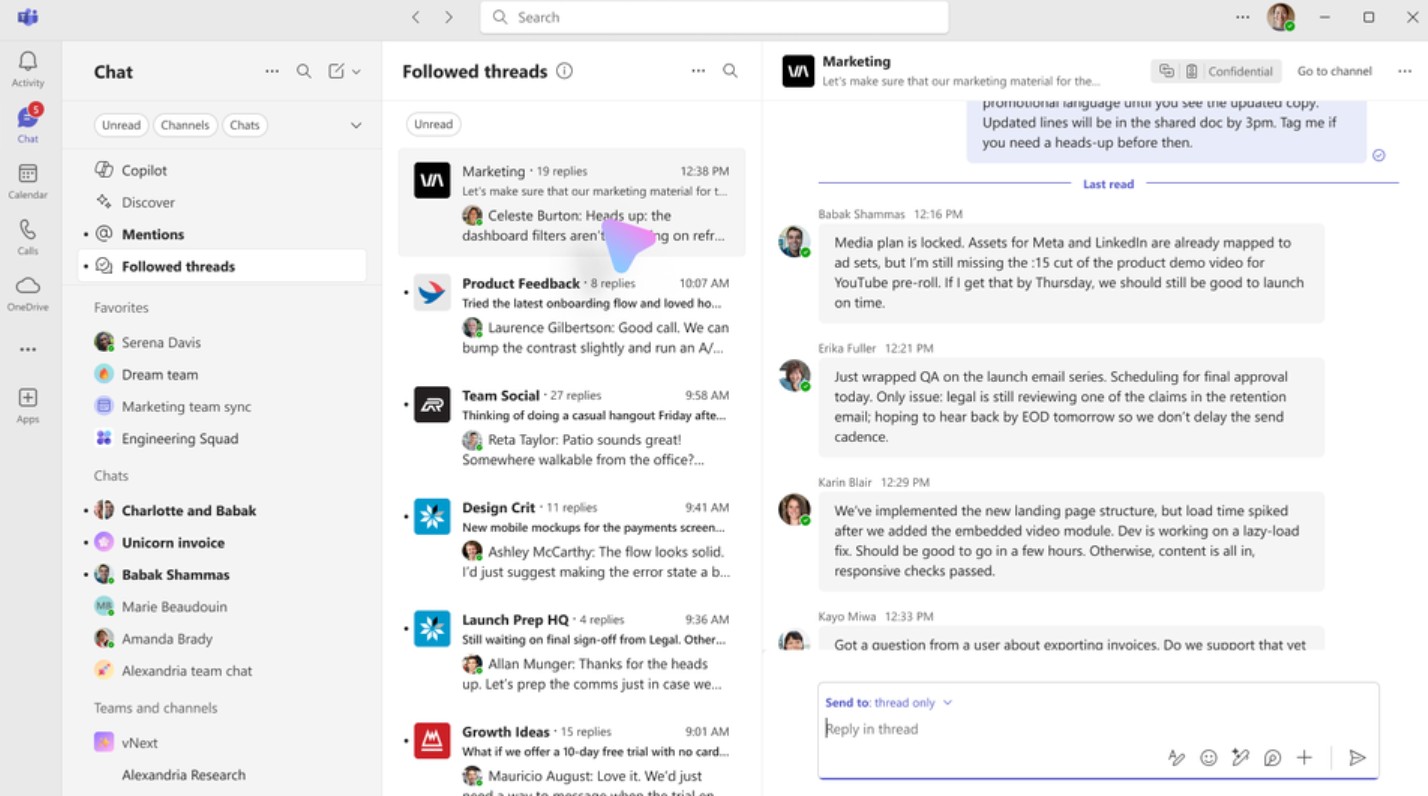
Once an issue has been resolved, users can unfollow the thread to stop receiving further updates. This is a simple way to control the flow of information and keep the workspace cleaner.
3. Flexibility between Threads and Posts
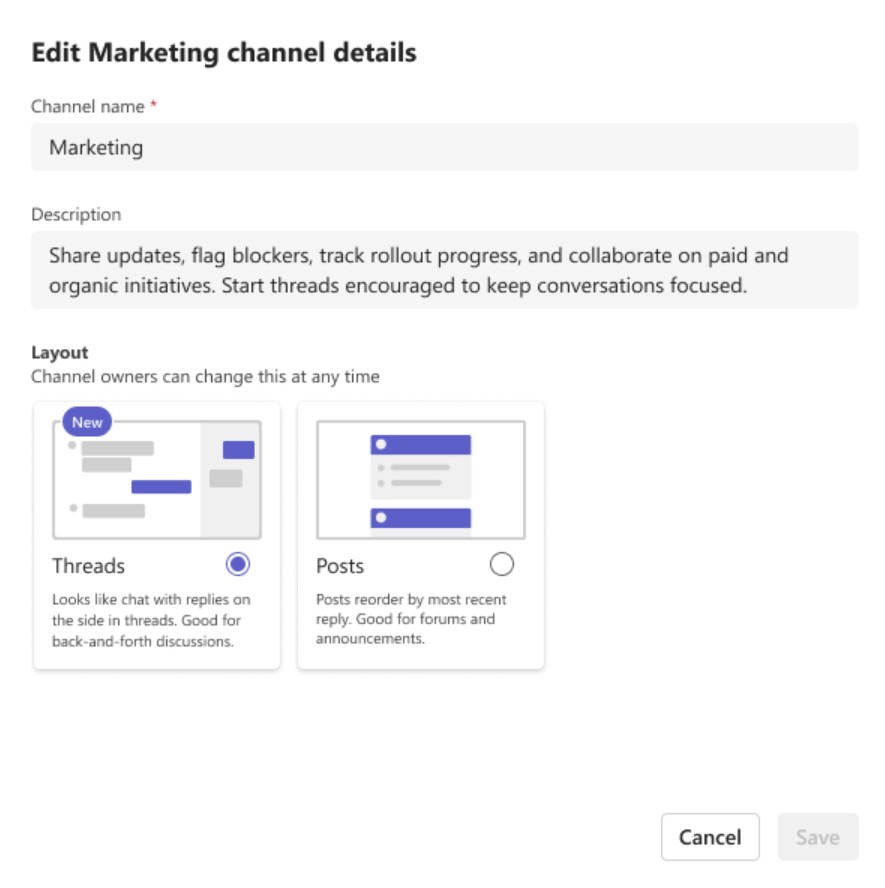
Threads don't completely replace Posts, but rather offer an additional way to organize conversations to suit different needs.
Posts are suitable for announcements, general updates, or content that needs to be conveyed to all members of the channel. Threads, on the other hand, are more suitable for ongoing collaboration, where a single topic can generate many different questions, responses, and decisions.
When creating a new channel, users can choose between a Threads or Posts layout. Importantly, this choice can be changed later without losing content integrity.
Therefore, businesses can choose an organizational structure that suits the characteristics of each group. A channel for internal announcements might prioritize Posts, while a channel for an ongoing project could use Threads to manage detailed communications.
4. Concentrate the project in one place.
One simple way to increase productivity is to reduce the number of places employees have to check to find information.
Teams allows businesses to create individual channels for each project , bringing together team members, stakeholders, files, conversations, and related updates in one place. Instead of searching for information across emails, messaging apps, and different meetings, users can return to the project's channel to view their communication history.
This organizational structure also helps increase transparency. When a decision is made, those involved can review the context and content of the discussion instead of having to ask questions from scratch.
Applications also support Threads layouts. Bots can start new threads, read messages, and respond directly within the thread, just like a team member. Channel meetings and the Meet Now feature are also supported, with each meeting having its own thread so that related content is grouped together and easier to find.
5. Work seamlessly across multiple devices.
Work today isn't limited to computers. Employees can start a conversation in the office, continue working on it on their phones while on the go, and then return to their computers to finish the task.
Therefore, Threads in a channel are designed to support multiple devices, including desktop, mobile, iOS, and Android. The ability to continue following conversations across multiple devices helps users maintain workflow without being dependent on a specific device.
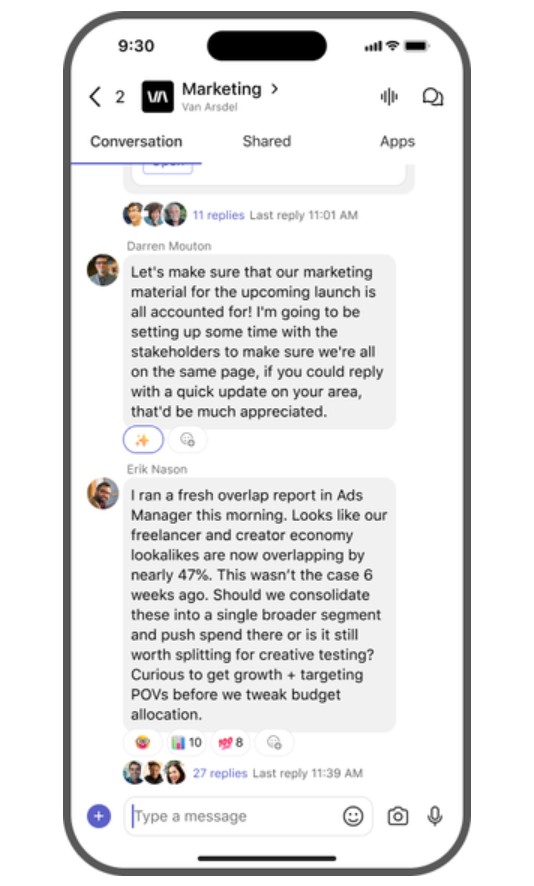
This is especially useful for collaborative or distributed work teams, where members can work from different locations and at different times.
6. Expressing emotions more flexibly
Communication in the workplace is more than just information and data. A simple response can help express agreement, appreciation, or affirmation without creating an additional message.
Teams allows users to use multiple reactions on the same message . For example, a message can be responded to with ✅ and 🙏 to show that the user both agrees and wants to express gratitude.
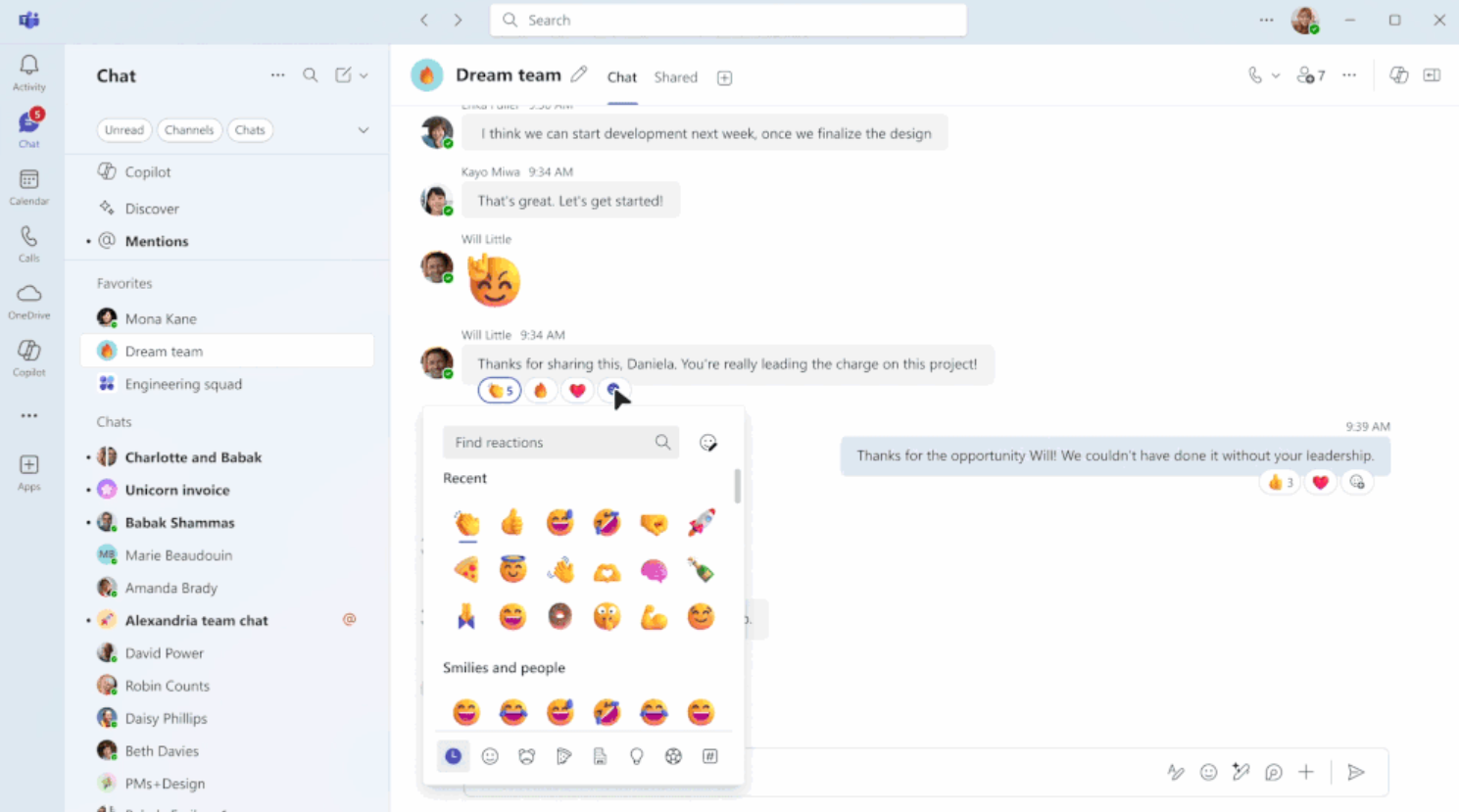
This feature helps reduce short but unnecessary responses, while creating a more natural way of communicating within work teams.
In addition, custom emojis allow groups to express their unique identity through distinctive images, symbols, or expressions. For groups that frequently work together, these unique symbols can foster a sense of camaraderie and contribute to building team culture.
7. Automation using reactions
One notable feature of Teams is that emojis are not only used to express emotions but can also become triggers for workflows.
Users can react to messages in chat or channels to trigger an automated process. For example, reacting with a ❗ ️ might trigger a process to create a ticket for support. With a 👀 , a different workflow might forward the message to the appropriate channel.
This approach reduces manual processing steps. Instead of reading messages, copying information, opening other systems, and creating requests manually, users can use reactions as a signal to initiate the process.
Through the Workflows app , teams can apply this automation to DevOps, troubleshooting, team collaboration, and many other processes. This reduces repetitive tasks and ensures issues requiring quick responses are directed to the right place.
8. Work quickly with Slash Commands
When performing multiple tasks consecutively, constantly leaving the conversation to open another tool can disrupt concentration.
Slash commands in Teams have been improved to support more complex operations through multiple input steps. Users can perform actions such as searching for GIFs or switching directly to a channel using the /goto command without leaving the conversation.
For example, when communicating with a colleague and needing to quickly switch to a specific channel, instead of opening the channel list and manually searching, the user can use: /goto
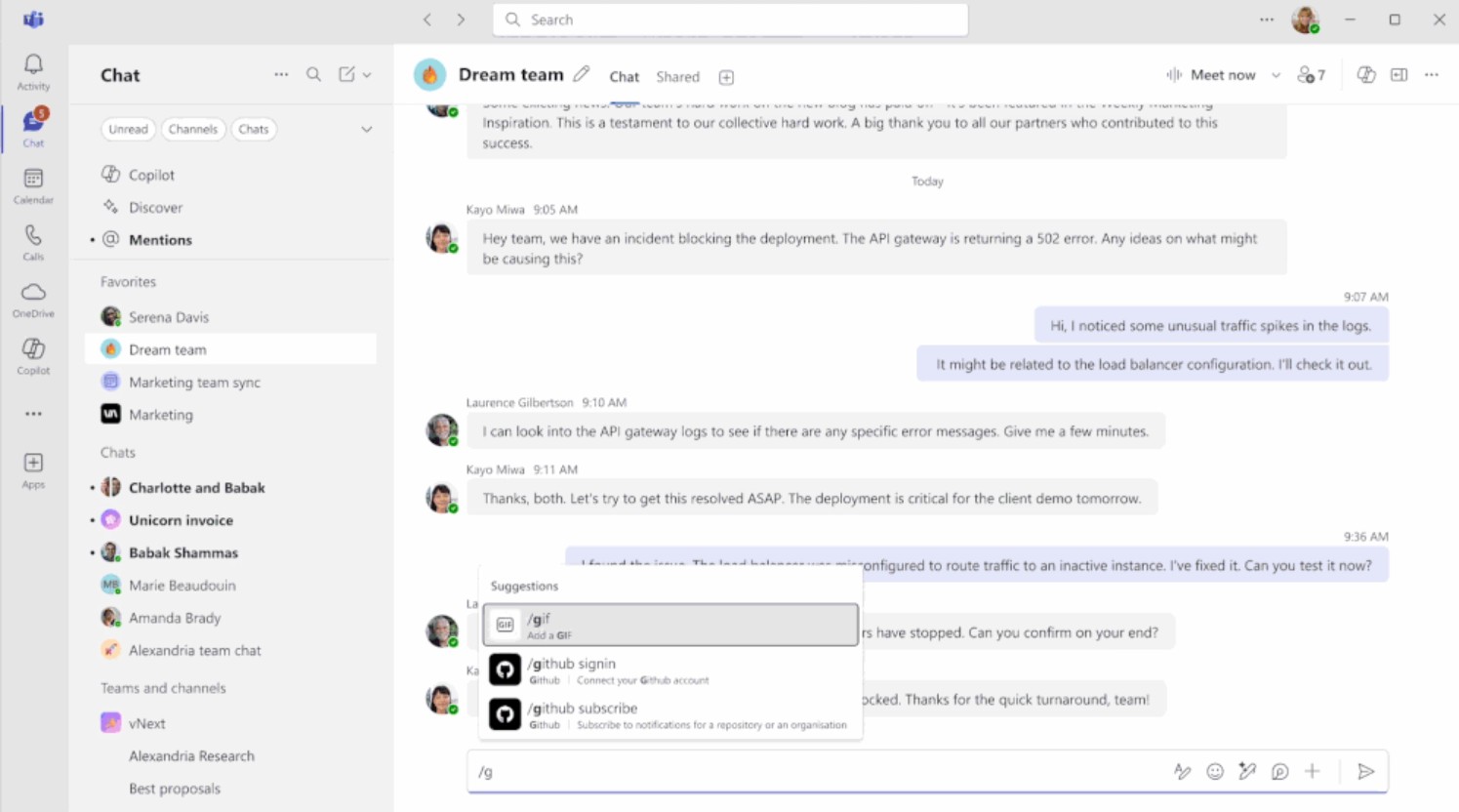
Next, enter the channel you want to access using the interface provided by Teams.
These improvements aim for a simple goal: to reduce the number of times users switch between screens and help them maintain focus while working.
9. Personalize keyboard shortcuts
Everyone has different software usage habits. Some people are familiar with keyboard shortcuts from other applications, while others prefer to build their own sequence of operations to suit their daily tasks.
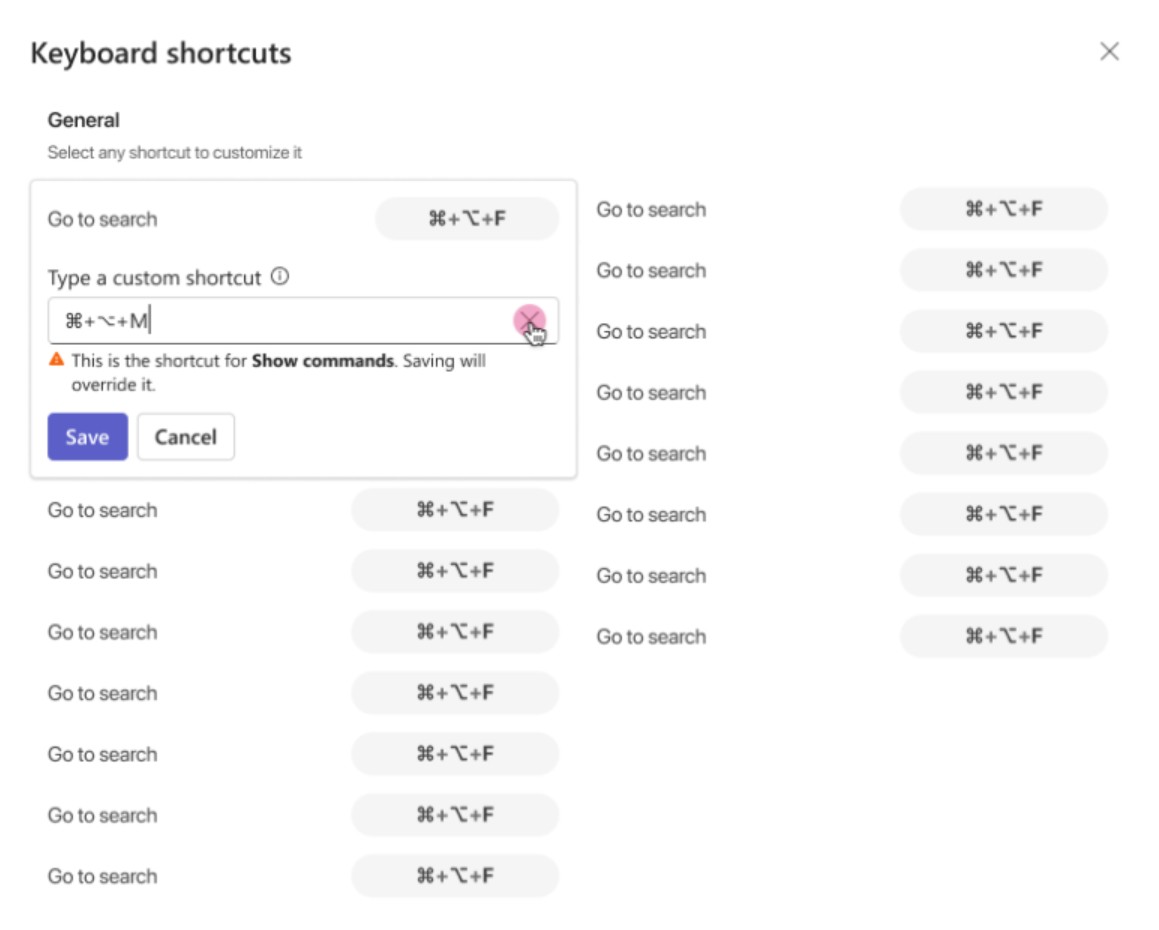
Teams allows users to customize keyboard shortcuts so that commands are more suited to their personal habits.
To set it up, users can follow these steps:
Step 1: Open Microsoft Teams.
Step 2: On the menu bar at the top, select the ••• icon .
Step 3: Select Keyboard shortcuts .
Step 4: In the shortcut settings area, enter custom commands according to your needs.
Personalizing keyboard shortcuts is especially helpful for people who frequently perform the same set of actions. By shortening familiar tasks, users can save time and reduce the need to use the mouse for repetitive actions.
10. Combining AI and intelligent agents
Productivity in Microsoft Teams is expanding from person-to-person communication to a collaborative model between humans and AI agents .
Teams supports a secure AI collaboration environment through its integration with Copilot and agents built using the Teams AI Library, Copilot Studio, SharePoint, and other tools.
This opens up the possibility of using AI as a component within workflows rather than just a standalone question-answering tool. Agents can assist in information processing, participate in processes, and collaborate with humans at every stage of a project.
Threads layouts also create a suitable environment for bringing humans and agents together in the same exchange. Discussions organized by topic provide agents with clearer context for the information they need to process.
Microsoft is also moving towards enabling agents to communicate with each other. With support for Model Context Protocol (MCP) and Agent-to-Agent Communication (A2A) , developers have a stronger foundation to build more comprehensive agents capable of coordinating and exchanging information.
When set up and used correctly, these features help Teams become a more focused, organized, and flexible workspace, meeting the needs of both individuals and large teams.





















VIP Products








Best Selling Products
MidJourney Account
29 USD
Freepik Premium Account
59 USD
Upgrade Genuine Office 365
49 USD
Autodesk All App Account Copyright
120 USD
Plugin Retouch4me
69 USD
Adobe Premiere Pro Account
99 USD
Genuine Cheap Canva Pro
39 USD
Genuine Adobe Illustrator account
99 USD
ChatGPT Plus Account (GPT-4)
16 USD
Copyright Adobe Lightroom Account
59 USD
Windows 10 & 11 Pro Key
36 USD
Capcut Pro 1 Year
39 USD
Adobe Photoshop Copyright - Full App
120 USD
Upgrade Duolingo Super
29 USD
Upgrade genuine Capture One account
120 USD