Best Selling Products

Windows 10 & 11 Pro Key
36 USD

Genuine Adobe Illustrator account
99 USD

Freepik Premium Account
59 USD

Capcut Pro 1 Year
39 USD

MidJourney Account
29 USD

Adobe Photoshop Copyright - Full App
120 USD

Adobe Premiere Pro Account
99 USD

Copyright Adobe Lightroom Account
59 USD

Upgrade genuine Capture One account
120 USD

Upgrade Duolingo Super
29 USD

Genuine Cheap Canva Pro
39 USD

Autodesk All App Account Copyright
120 USD

ChatGPT Plus Account (GPT-4)
16 USD

Upgrade Genuine Office 365
49 USD

Plugin Retouch4me
69 USD
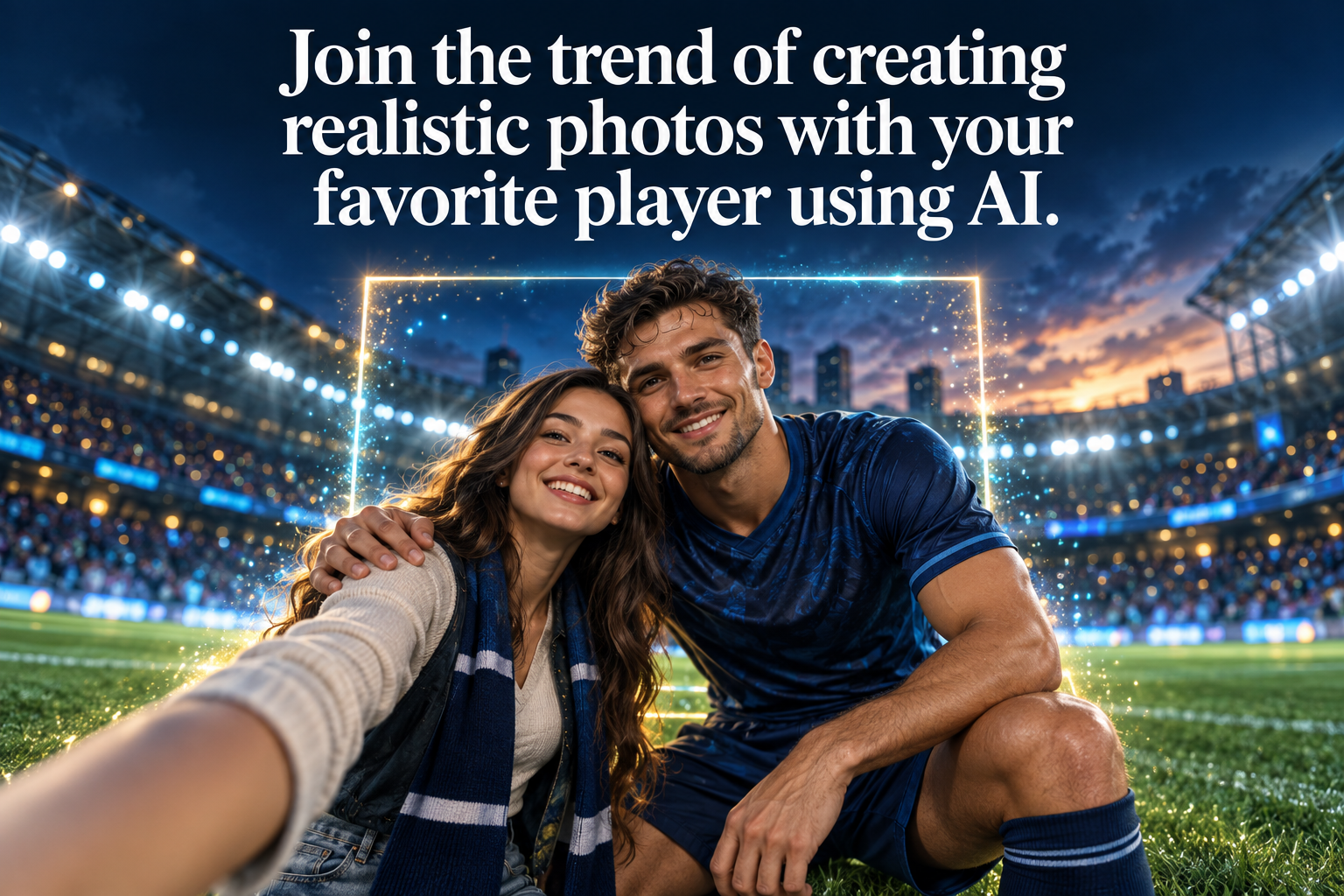
Join the trend of creating realistic photos with your favorite player using AI.
Nội dung
- 1. What's so interesting about the trend of creating photos with football players using AI?
- 2. Prompt creates photos with your favorite player using AI.
- 3. Instructions on creating photos with players using AI on ChatGPT
- Step 1: Open ChatGPT on your phone.
- Step 2: Upload your photo and the player's photo.
- Step 3: Enter the image creation prompt.
- Step 4: Wait for the AI to process the image.
- Step 5: Edit and save the image
- 4. Instructions on creating photos with players using AI on Gemini
- Step 1: Open Gemini
- Step 2: Select the image creation feature.
- Step 3: Add reference images
- Step 4: Enter the prompt and submit the request.
- Step 5: Check the results and save the image.
- 5. Tips to make your photos with players taken with AI look more realistic.
- 6. Conclusion
Have you ever dreamed of taking a photo next to your favorite player on the football field but never had the chance to meet them in real life? Now, AI can turn that idea into a highly realistic photo with just a few taps on your phone. No professional camera needed, no complicated editing required; you just need a clear reference photo and a detailed prompt. The interesting thing about this trend is its very natural feel. The photo can be created in a selfie style using your phone, with stadium lighting, the audience in the background, the player standing next to you, and even random movements like a moment just captured after the match. If the prompt is well-written, the overall image will feel like a real photo rather than an AI-generated product. Let''s explore it with Sadesign!
1. What's so interesting about the trend of creating photos with football players using AI?
The trend of creating photos with your favorite player is gaining attention because AI is increasingly adept at processing reference images, faces, lighting, and backgrounds. Instead of manually combining two photos, users can input their own photos and a player's photo into the AI tool, then describe the desired scene. The system will use this data to create a new image according to the request. To make the photo look more natural, you should choose high-quality input photos that don't obscure faces. The prompt should also clearly describe the position of each person, camera angle, lighting, expression, and background. Small details like slight camera shake or imperfect composition can make the photo look like a hastily taken moment with a smartphone.
-
Prepare a clear, well-lit personal photo.
-
Choose photos of players with easily recognizable faces.
-
It's best to use photos where the faces are relatively well-suited to each other.
-
Specify the context you want to create in the prompt.
-
You can choose the selfie style to make the image more intimate and natural.
-
Review the image after AI generation to adjust any unsatisfactory details.
2. Prompt creates photos with your favorite player using AI.
The prompt is crucial if you want to create a well-composed photo that retains the features of the person in the reference photo. Instead of simply writing "create a photo of me with the player," you should clearly describe which photo represents you, which represents the player, where you are both, and how the moment was captured. You can use the English prompt below on AI-powered image creation and editing tools. When using it, upload your photo and the player's photo first, then paste the prompt into the chat box.
Reference prompt:
Use Reference Image 1 as the fan identity and Reference Image 2 as the football player. Preserve the fan's exact facial features, hairstyle, skin tone, body shape, age, and overall identity. The football player should clearly resemble Reference Image 2 with recognizable facial features, hairstyle, physique, and expression.
Create an ultra-realistic smartphone selfie taken immediately after a major football match. The fan is standing beside the football player on the pitch, excited and happy to meet their favorite player. The fan is holding the smartphone in the foreground while the football player stands naturally beside them and smiles toward the camera. Use a vertical 3:4 composition with a realistic smartphone wide-angle selfie perspective, natural camera imperfections, subtle motion blur, and authentic framing.
The background shows a packed football stadium with cheering supporters, bright stadium lights, photographers, referees, broadcast crews, players, and security staff. The atmosphere should feel energetic and spontaneous, like a genuine sports photograph captured immediately after the match.
Ultra-photorealistic, realistic skin texture, accurate human proportions, natural facial expressions, authentic stadium lighting, realistic smartphone photography, detailed background, natural depth and perspective. Avoid CGI appearance, artificial skin, beauty filters, distorted anatomy, extra fingers, duplicated people, unrealistic facial features, excessive cinematic lighting, watermark, text, or staged-looking poses.
Upgrade your AI tools at a low cost.
3. Instructions on creating photos with players using AI on ChatGPT
ChatGPT is a convenient option if you want to create a trend right on your phone. The process mainly involves uploading a reference image, entering the prompt, and waiting for the AI to process it. If the first result isn't what you want, you can request further edits instead of having to start the whole thing over again.
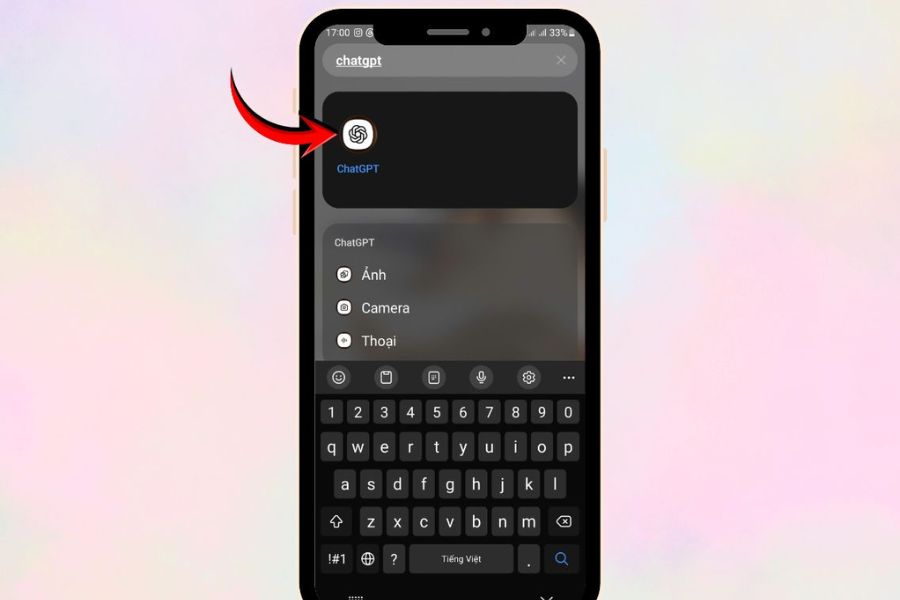
Step 1: Open ChatGPT on your phone.
First, open the ChatGPT app on your phone or access ChatGPT through your browser. You should log in to your account so you can continue the conversation and edit the image after you've created it.
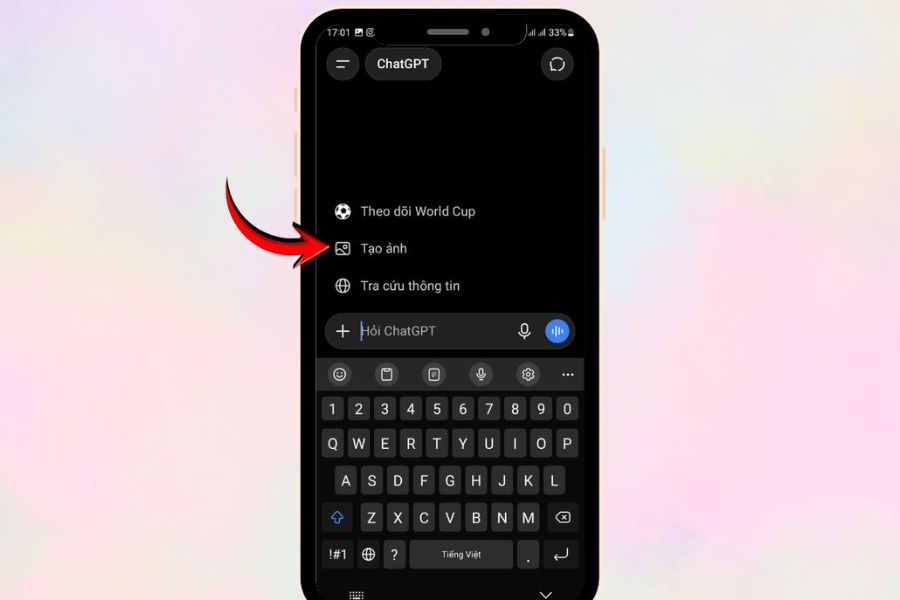
Once the chat interface appears, find the input area and select the image creation feature if it's displayed in your account interface. Depending on the app version and time of use, the location or name of the feature may vary.
Step 2: Upload your photo and the player's photo.
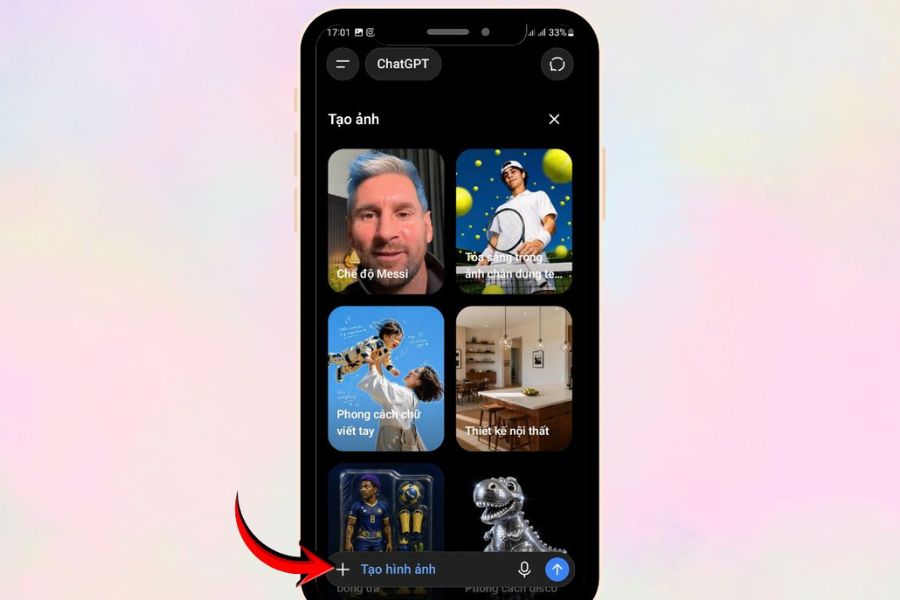
Next, tap the "+" icon or the attach file button in the input box. Select the personal photo you want to appear in the image and a clear photo of your favorite player.
For better AI recognition, your photos should have relatively clear faces, not obscured by masks, oversized glasses, or other objects. The player's photos should also have decent resolution and easily recognizable faces. If both photos are well-lit, the results will generally be easier to manage.
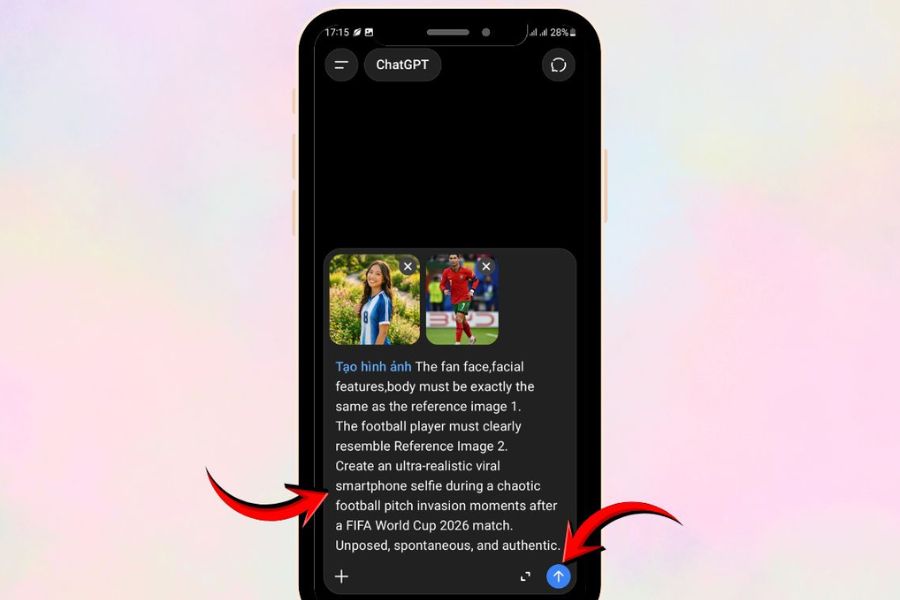
Step 3: Enter the image creation prompt.
After uploading the images, enter the prepared prompt into the chat box. In the prompt, clearly identify Reference Image 1 as you and Reference Image 2 as the player so that the AI understands the role of each image.
You can also add your own requirements if you want to change the setting. For example, if you like the post-match selfie style, describe the stadium, the audience, the lighting, and the emotions of the two of you in detail. The more specific you are, the easier it will be to control the overall composition.
Step 4: Wait for the AI to process the image.
After submitting the request, the AI will begin analyzing the reference image and prompt before creating the shape. Processing time may vary depending on the tool, the complexity of the request, and system conditions.
Once the image is complete, carefully examine the result instead of just looking at the overall picture. Specifically, check the faces, hands, body proportions, clothing, the position of the players, and anyone in the background. If you notice any unnatural details, ask the AI to adjust them.
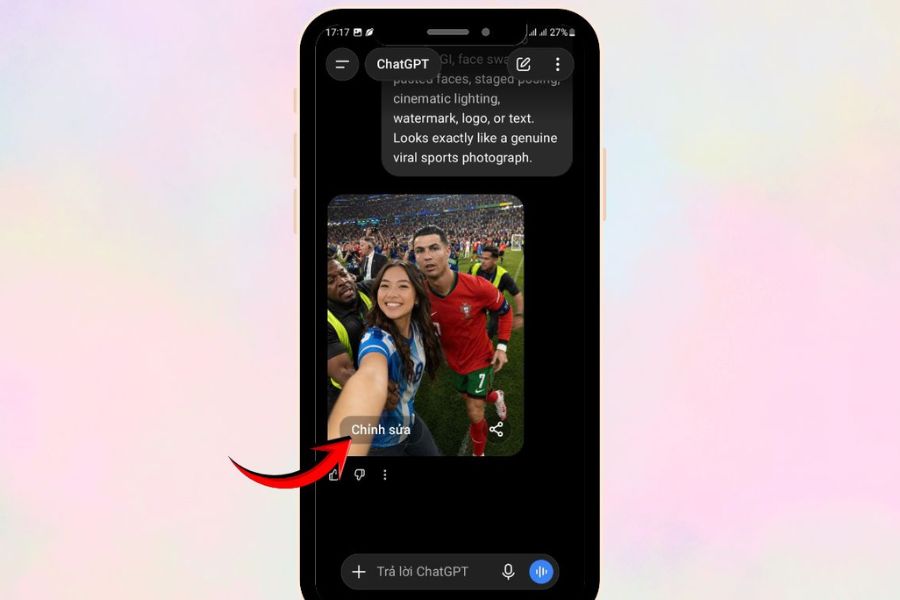
Step 5: Edit and save the image
If the photo is nearly satisfactory but still has a few minor flaws, you can request specific edits. For example, keep the faces the same, change the stadium lighting, adjust the players' positions, or make their expressions more natural.
Once you have a satisfactory version, you can open the image in a larger size and save it to your device. The image can then be used as a social media post, wallpaper, or simply kept as a nice memento of your favorite player.
4. Instructions on creating photos with players using AI on Gemini
Besides ChatGPT, Gemini can also be used to test trending image ideas. The process is relatively intuitive: prepare a reference image, select the image feature, enter a description, and let the AI handle it. New users can also quickly get familiar with it if they have previously used Gemini for chatting or creating content.
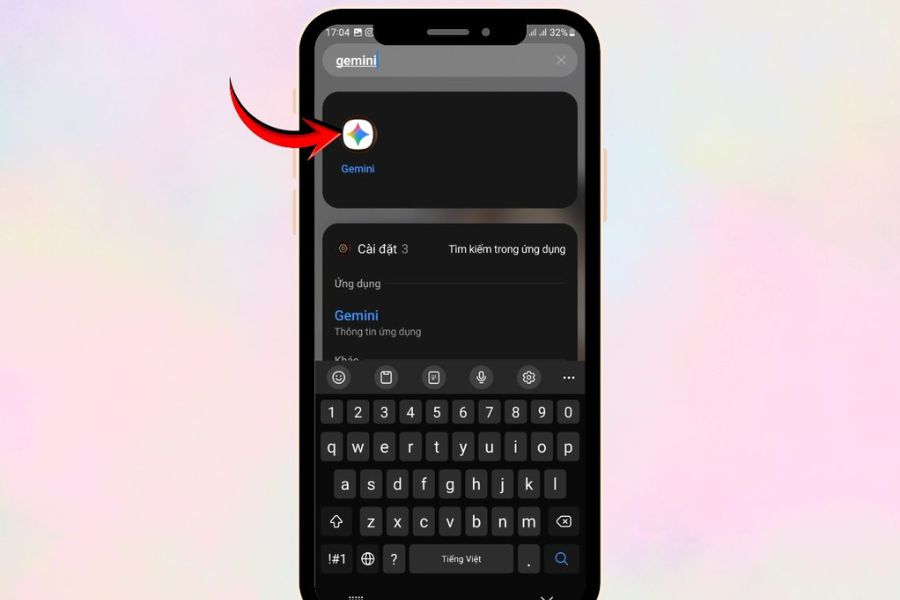
Step 1: Open Gemini
Open the Gemini app on your phone or access the appropriate web version. After logging in, you will see the login screen at the bottom of the screen.
Check the interface to find the image creation option. The names and locations of the buttons may vary depending on the version of Gemini you are using, so if you don't see the correct option, check the expanded buttons in the content input area.
Step 2: Select the image creation feature.
Click the "+" icon or the add file area to open additional options. If your account supports image creation, select the option related to Images .
Then, you can start including reference images in the conversation. Loading images before the import prompt gives Gemini enough data to understand which images you want to use as the basis for the results.
Step 3: Add reference images
Upload your photo first, then add the player's photo. In the description, clearly state that the first photo is of a fan and the second photo is of the player who needs to appear in the picture.
You should avoid uploading blurry photos or photos where faces are obscured. If you want to maintain the original appearance, you can add a request to keep key identifying features such as face, hairstyle, skin color, and age unchanged.
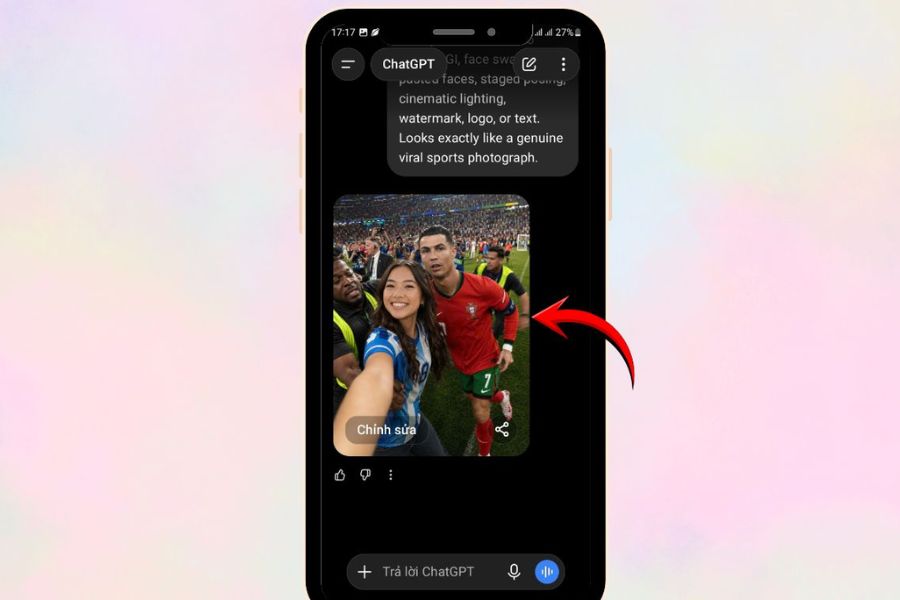
Step 4: Enter the prompt and submit the request.
Paste the prepared prompt into the image description box. You can use the original English prompt above or change the context to suit your personal ideas.
After reviewing the reference image and description, submit your request. Gemini will use the information provided to create a new image. If the result is incorrect, you can continue the conversation and provide specific editing requests.
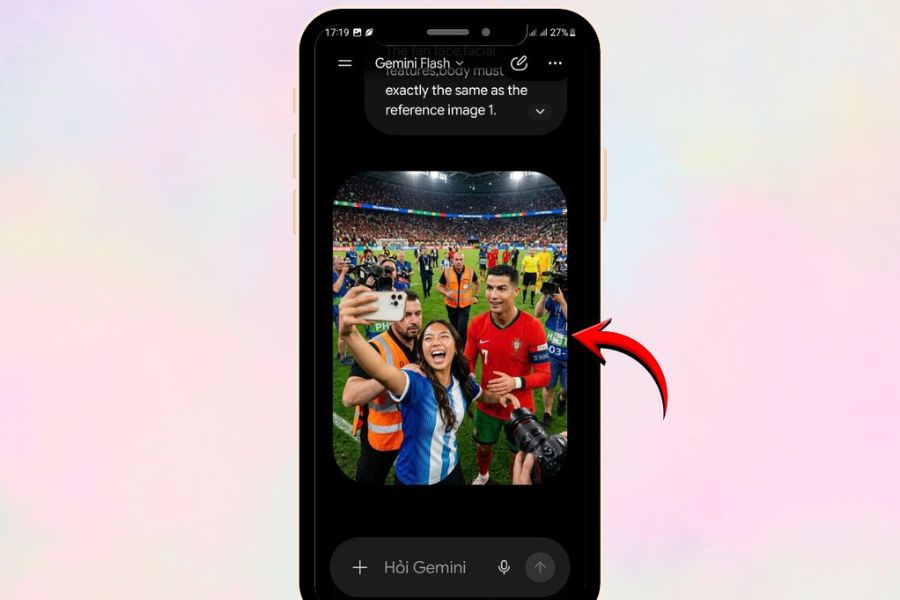
Step 5: Check the results and save the image.
When the image appears, zoom in to check the details. A good AI photo needs not only a realistic face but also relatively natural body proportions, hands, lighting, and background.
If you're satisfied, you can save the image to your phone. If you want to create a different version, change a few elements like the selfie angle, background, outfit, or expression instead of rewriting the entire idea from scratch.
5. Tips to make your photos with players taken with AI look more realistic.
If you frequently use AI for image creation, having a suitable account will give you more control over your various creative ideas. At Sadesign , users can explore AI upgrade packages tailored to their content creation, image design, and trend experimentation needs. With regular use of AI tools, you can leverage them for more than just the trend of taking photos with athletes, such as creating promotional images, developing design ideas, building social media content, or image editing. You can contact Sadesign for advice on a package that suits your needs.
-
We help you choose a package that suits your needs.
-
There are many solutions available to support creative work.
-
Suitable for people who frequently use AI tools.
-
You can check with support before upgrading.
6. Conclusion
The trend of creating photos with your favorite player using AI offers a fun way to turn seemingly impossible ideas into images right on your phone. Simply prepare a clear reference photo, write a specific prompt, and choose a suitable background, and you can try creating a realistic selfie moment with your idol. ChatGPT and Gemini are both tools you can use to start experimenting. Prioritize clear images that accurately depict your desired moment and patiently edit each version. Think of this as a fun way to create images, and always add appropriate captions when sharing AI photos to avoid misleading others into thinking it's a real-life moment.





















VIP Products








Best Selling Products
Windows 10 & 11 Pro Key
36 USD
Genuine Adobe Illustrator account
99 USD
Freepik Premium Account
59 USD
Capcut Pro 1 Year
39 USD
MidJourney Account
29 USD
Adobe Photoshop Copyright - Full App
120 USD
Adobe Premiere Pro Account
99 USD
Copyright Adobe Lightroom Account
59 USD
Upgrade genuine Capture One account
120 USD
Upgrade Duolingo Super
29 USD
Genuine Cheap Canva Pro
39 USD
Autodesk All App Account Copyright
120 USD
ChatGPT Plus Account (GPT-4)
16 USD
Upgrade Genuine Office 365
49 USD
Plugin Retouch4me
69 USD