Best Selling Products

Upgrade genuine Capture One account
120 USD

Autodesk All App Account Copyright
120 USD

Adobe Photoshop Copyright - Full App
120 USD

Upgrade Duolingo Super
29 USD

ChatGPT Plus Account (GPT-4)
16 USD

Plugin Retouch4me
69 USD

Upgrade Genuine Office 365
49 USD

Windows 10 & 11 Pro Key
36 USD

MidJourney Account
29 USD

Adobe Premiere Pro Account
99 USD

Genuine Adobe Illustrator account
99 USD

Genuine Cheap Canva Pro
39 USD

Copyright Adobe Lightroom Account
59 USD

Capcut Pro 1 Year
39 USD

Freepik Premium Account
59 USD
No need to type line by line! Here''s how to create automatic subtitles in CapCut in just a few minutes.
Nội dung
- 1. What is CapCut's Subtitle Generator?
- 2. How does CapCut's AI technology work when creating subtitles for multiple voices?
- 3. Key features of CapCut Subtitle Generator
- 4. Benefits of adding subtitles to online videos on CapCut
- 5. Common limitations when using online video subtitling tools
- 6. Situations where you should use CapCut to create subtitles for videos.
- 7. Instructions on adding subtitles to videos using CapCut online.
- Step 1: Upload the video
- Step 2: Create automatic subtitles
- Step 3: Export video with subtitles
- 8. Conclusion
Adding subtitles is a crucial step in making videos more professional, accessible to viewers, and increasing engagement on TikTok, YouTube, or Facebook.
1. What is CapCut's Subtitle Generator?
CapCut's Subtitle Generator is a tool that uses artificial intelligence (AI) to automatically recognize speech in videos, convert it into text, and accurately synchronize it with playback time. Instead of manually typing each subtitle line, the AI handles most of the work in just a few minutes, significantly saving editing time.
The strength of Subtitle Generator lies in its ability to work directly with CapCut Online , allowing users to edit directly in their browser without installing any software. Simply upload the video, select the language, and activate the Auto Captions feature, and the system will quickly generate a complete set of subtitles.
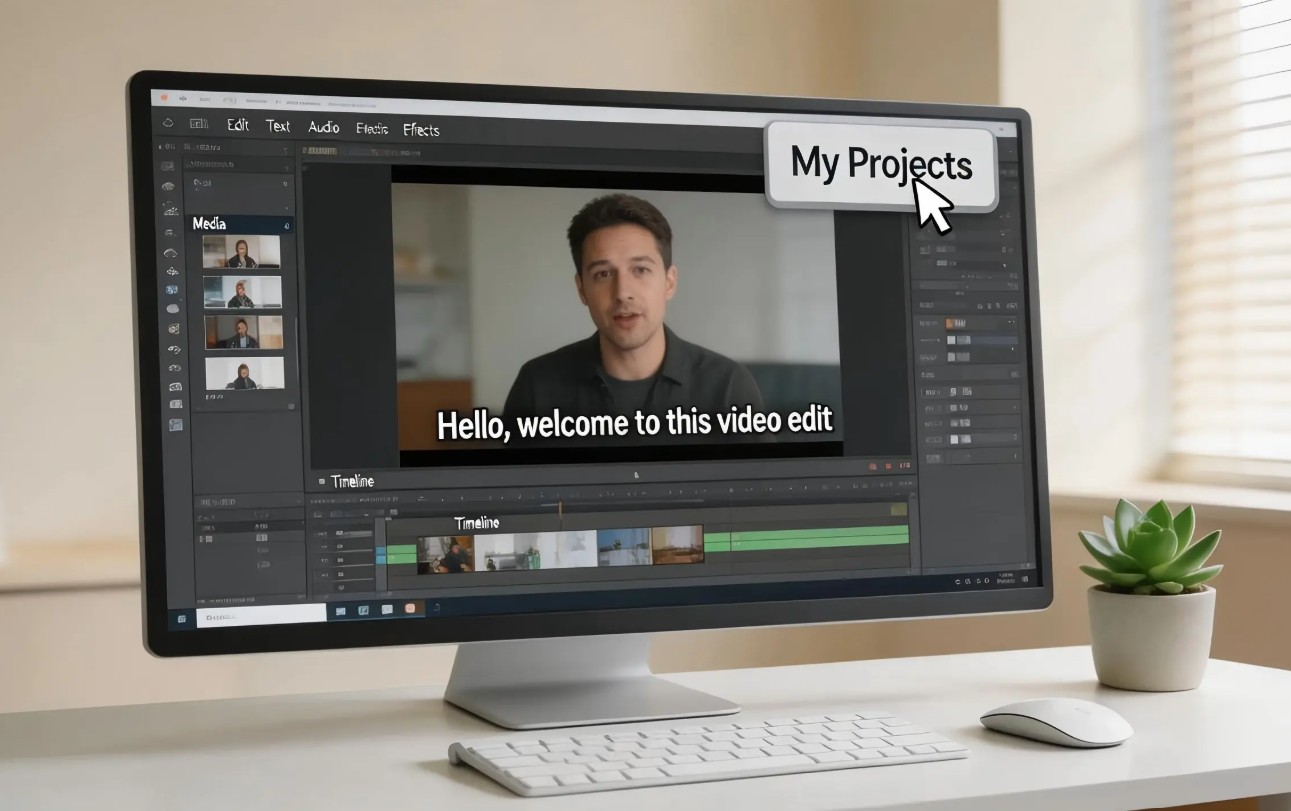
After creating subtitles, users can edit the content, change the font, color, size, motion effects, display position, or appearance time of each sentence. This ensures that the subtitles are not only accurate but also consistent with the brand style or content of the video.
For content creators, businesses, teachers, marketers, or YouTubers, Subtitle Generator helps shorten post-production time, increase productivity, and create professional videos without needing to use separate subtitle creation tools.
2. How does CapCut's AI technology work when creating subtitles for multiple voices?
CapCut's automatic subtitle generation feature is built on speech recognition technology combined with natural language processing (NLP). When users upload videos, the AI analyzes the entire audio, separates the dialogue from the background, identifies each sentence, and converts it into text synchronized with the video's playback time.
The accuracy of subtitles depends on many factors such as audio quality, speaking speed, pronunciation, and noise levels in the recording environment. With conventional subtitle generation tools, AI can struggle to handle regional accents, multiple speakers simultaneously, or unclear audio. However, CapCut uses a modern AI model capable of recognizing various speech patterns and supporting multiple languages, thereby improving subtitle accuracy.

After the recognition process is complete, users can still edit the content, display time, or subtitle format directly within the editing interface. Additionally, CapCut supports subtitle translation into multiple languages, making videos easily accessible to international audiences without the need for external translation tools. Thanks to the combination of AI and flexible editing tools, CapCut provides a fast, accurate, and versatile subtitle creation solution suitable for various types of content.
3. Key features of CapCut Subtitle Generator
CapCut Subtitle Generator incorporates various AI technologies to make the process of creating and editing subtitles faster, more accurate, and more flexible.
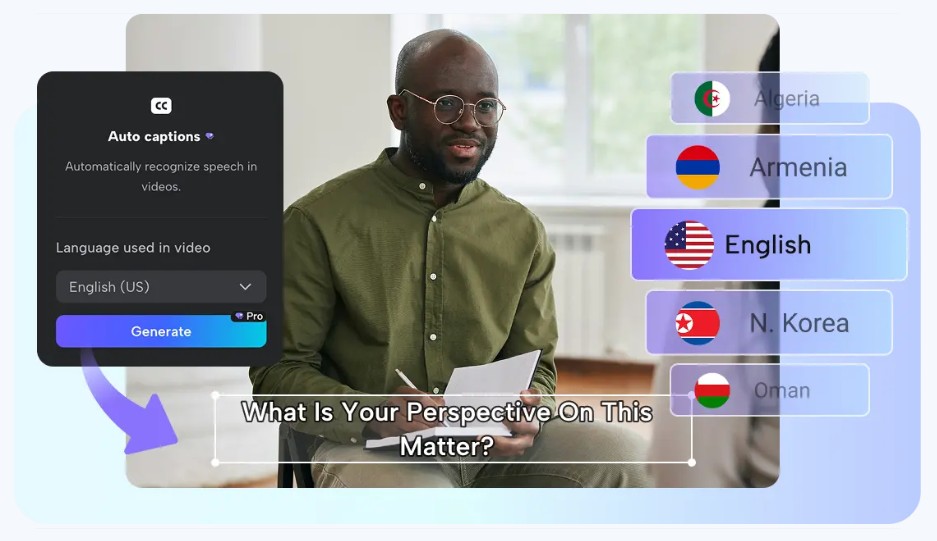
Most notably, it offers AI- powered automatic subtitle generation . The tool analyzes all the audio in the video, recognizes speech, and converts it into text synchronized with each segment of dialogue. This significantly reduces manual data entry time, especially for longer videos.
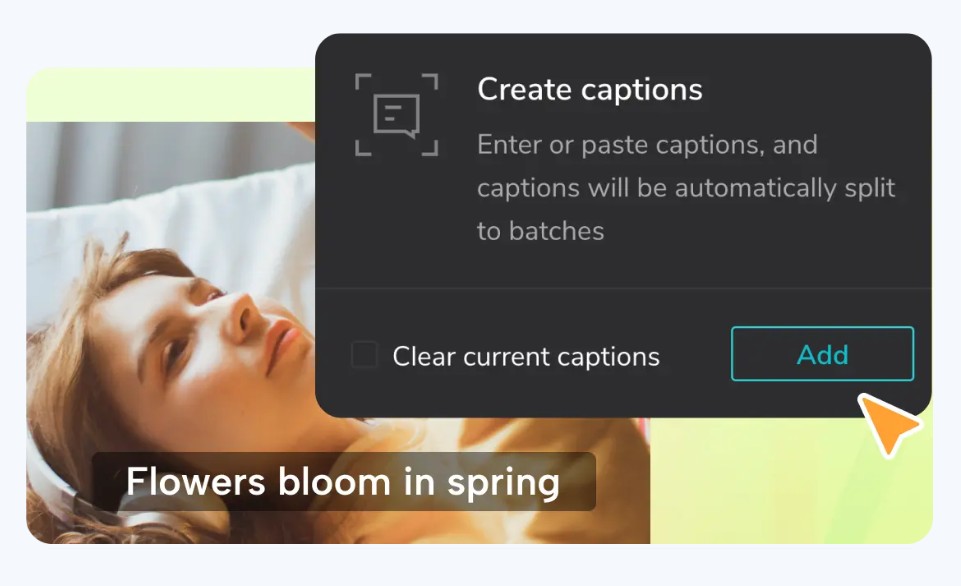
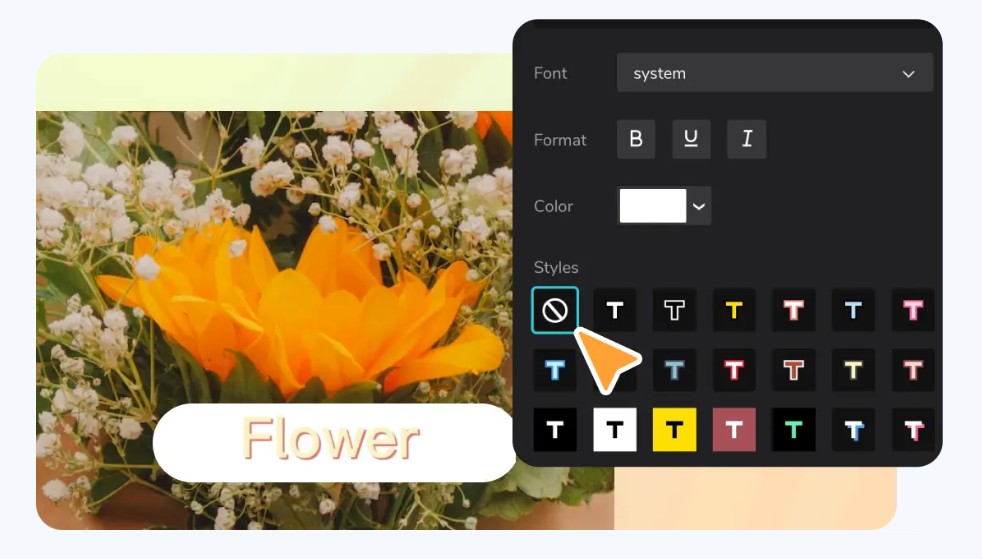
After creating subtitles, CapCut provides a diverse library of fonts and text effects . Users can choose from many modern fonts, add animations, text backgrounds, borders, or shadows to make subtitles stand out on any video background.
Besides creating subtitles, CapCut also supports video enhancement using various AI tools such as adding filters, visual effects, stickers, audio, and transition effects. This allows the entire post-production process to be completed on a single platform without switching between multiple software programs.

Another strength is batch editing . Users can edit multiple subtitle lines at once, correct spelling errors, or change formatting simultaneously instead of editing each section individually. Additionally, the AI subtitle translation feature supports translating subtitles into multiple languages, making videos more accessible to international audiences.
4. Benefits of adding subtitles to online videos on CapCut
Using CapCut Online to create subtitles offers many benefits for both beginners and professional content creators.
First and foremost, AI helps increase accuracy and shorten editing time. In just a few minutes, the system can generate almost all subtitles, allowing users to focus more on content creation instead of manual data entry.

Subtitles also contribute to enhancing the video viewing experience. Many people habitually watch videos muted on social media, so subtitles allow them to still fully follow the content. This also helps increase watch time, audience retention rates, and engagement levels.
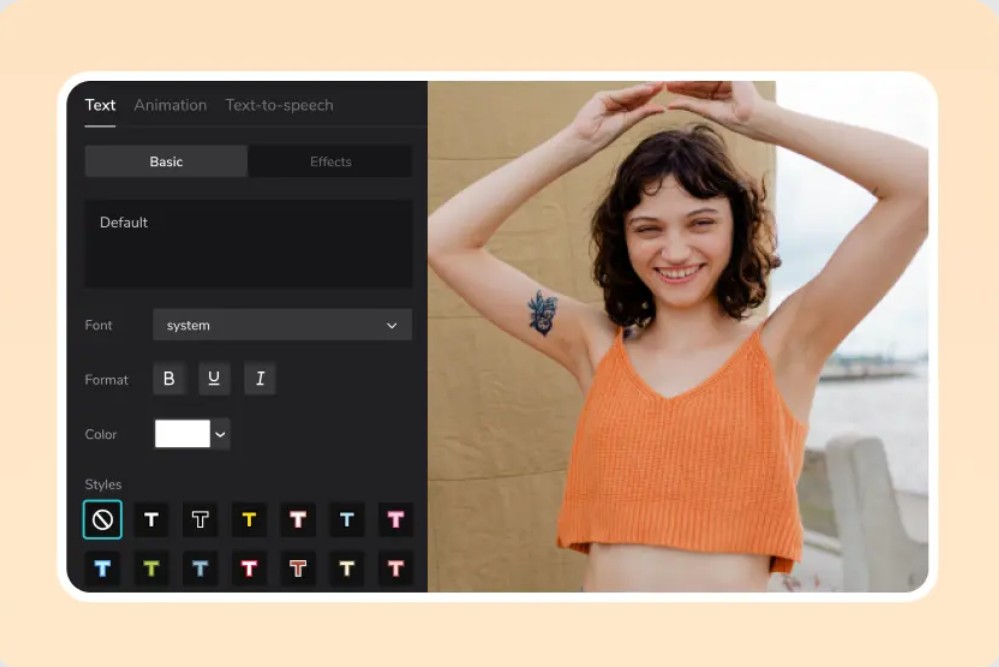
Additionally, CapCut allows for personalized subtitles through various fonts, colors, and effects. This helps build a consistent brand identity across platforms like TikTok, Facebook, and YouTube.

Another advantage is the ability to store and collaborate on a cloud platform . Users can access projects from multiple devices, share them with team members to edit and update content in real time without sending multiple versions of files.
5. Common limitations when using online video subtitling tools
Although many free online subtitling tools are available today, not all platforms adequately meet the needs of professional video editing. Most free tools often limit the video processing length, file upload size, or daily usage limit. This creates significant difficulties for users working on long projects or those requiring frequent editing.
Furthermore, many subtitle generators only offer basic formatting options such as changing font size or color, while lacking animation effects, modern text templates, or flexible customization capabilities. Some tools also have low accuracy in recognizing speech in noisy environments or when multiple people are conversing, requiring users to spend extra time on manual editing.
CapCut overcomes many of these limitations by providing a comprehensive AI subtitling toolset directly on its online platform. Users can handle longer video lengths, customize subtitles with a variety of fonts, effects, and modern animations, and integrate other video editing tools within a single project. This saves time, reduces the number of software programs needed, and creates a more seamless workflow.
6. Situations where you should use CapCut to create subtitles for videos.
CapCut's automatic subtitle generation feature is suitable for a wide variety of content types.
For video advertising and marketing, subtitles help convey the message even when viewers mute the sound. Clearly displayed calls to action or key information contribute to increased brand recall and improved conversion rates.

In the field of online education, subtitles help students follow lectures more easily, especially with specialized content or videos with fast-paced speech. They also provide support for hearing-impaired learners or those learning a second language.

For podcasts, video interviews, or talk shows, subtitles help viewers follow long conversations more easily, even in noisy environments. This is also an effective way to repurpose lengthy content into short videos on TikTok, YouTube Shorts, or Facebook Reels while still ensuring viewers fully understand the message.
7. Instructions on adding subtitles to videos using CapCut online.
CapCut Online allows you to create subtitles directly in your browser without installing any software. Simply follow the steps below.
Step 1: Upload the video
Access the CapCut Online editor and log in to your account.
On the main interface, click Upload .
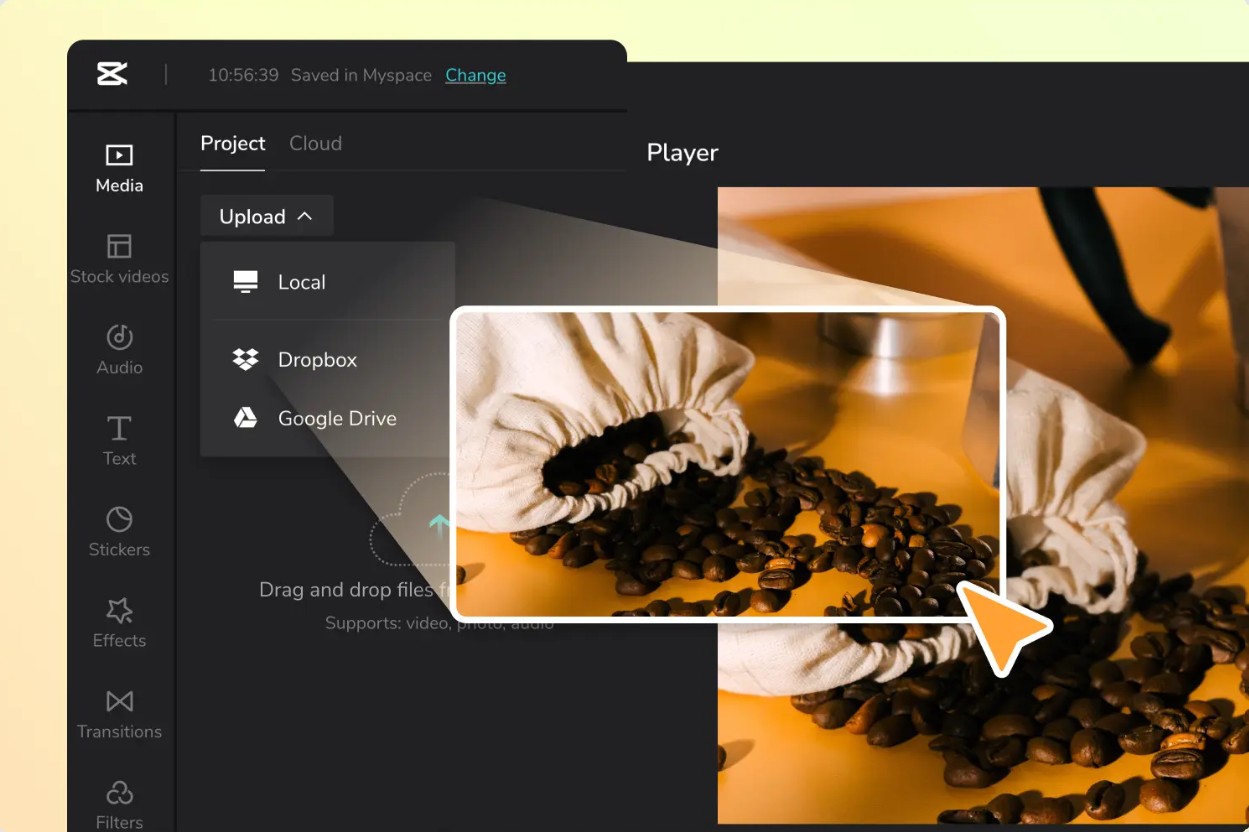
You can upload videos from your computer or import them directly from cloud storage services like Google Drive.
Once the video has finished uploading, drag and drop it onto your Timeline to begin editing.
Please double-check the video before continuing to ensure the audio is clear, as voice quality directly impacts the accuracy of the AI subtitles.
Step 2: Create automatic subtitles
On the left-hand toolbar, select Captions .
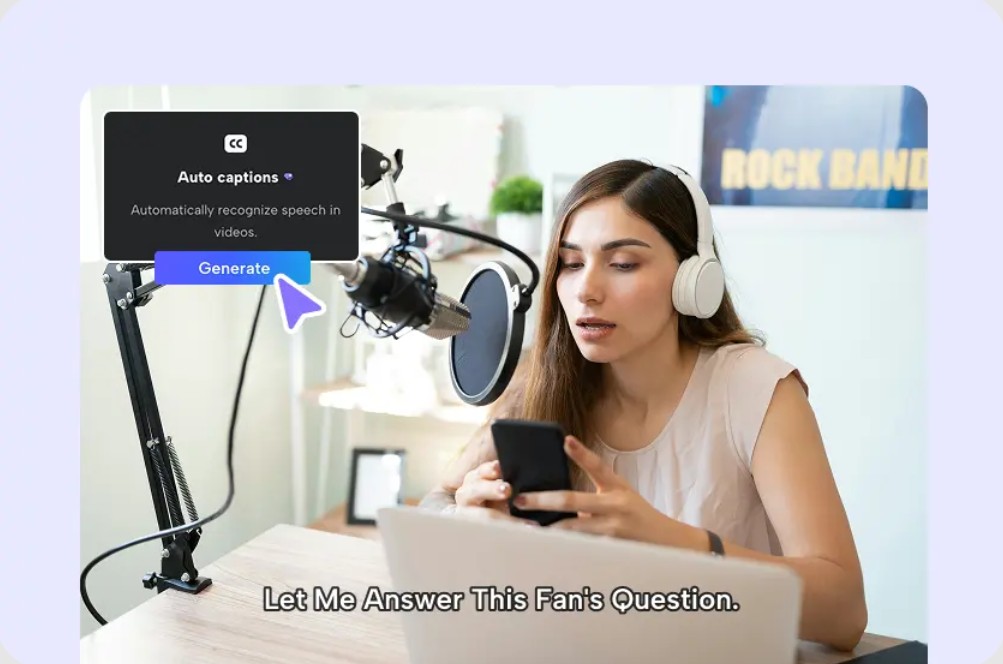
Next, click Auto Captions .
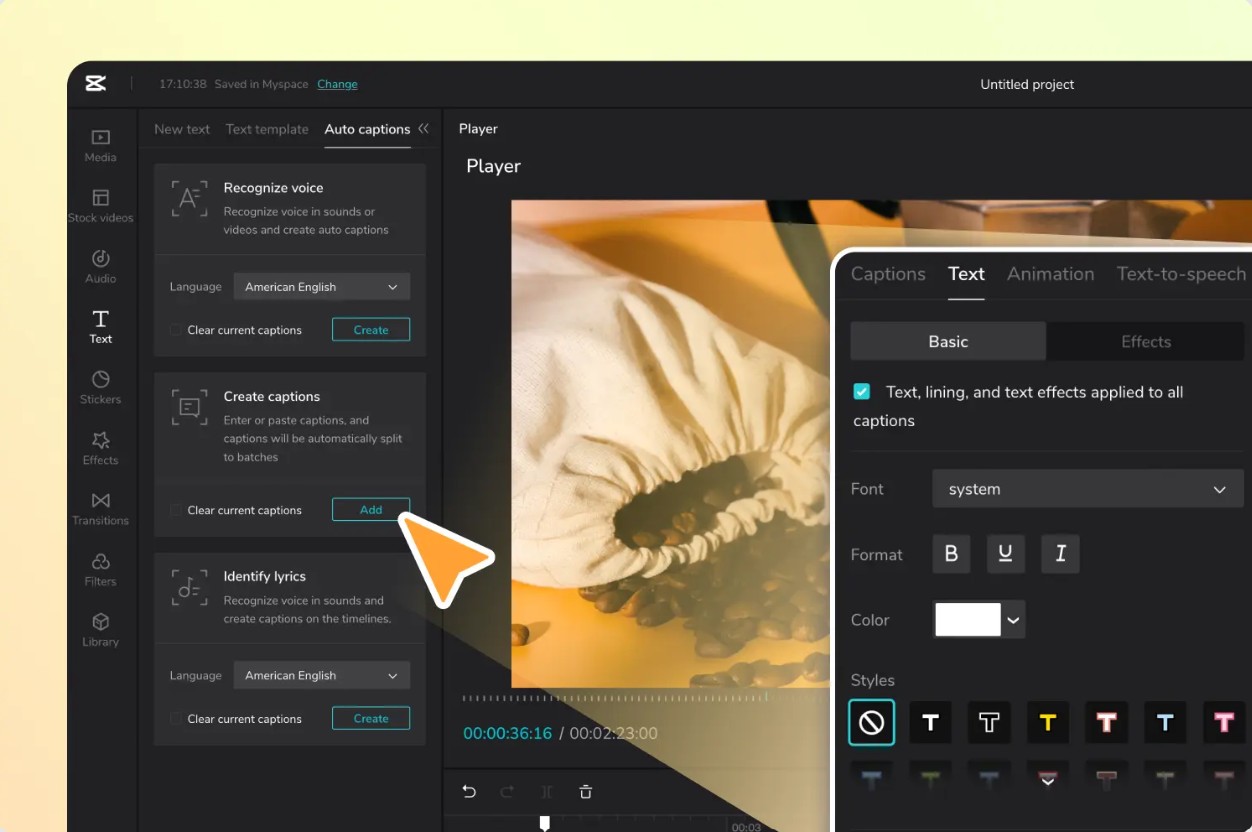
In the settings window, select the correct language used in the video so that the AI can recognize speech more accurately.
Then click Generate/Create .
CapCut will automatically analyze the audio, convert speech to text, and create subtitles that are synchronized on the Timeline.
Once complete, review the entire video and edit any words that the AI recognized incorrectly. You can also change the font, size, color, position, line spacing, or add motion effects to make the subtitles stand out and match the video's style.
If you need to share with an international audience, you can use the subtitle translation feature in CapCut to translate subtitles into multiple languages.
Step 3: Export video with subtitles
After you have finished editing, press the Export button in the upper right corner of the screen.
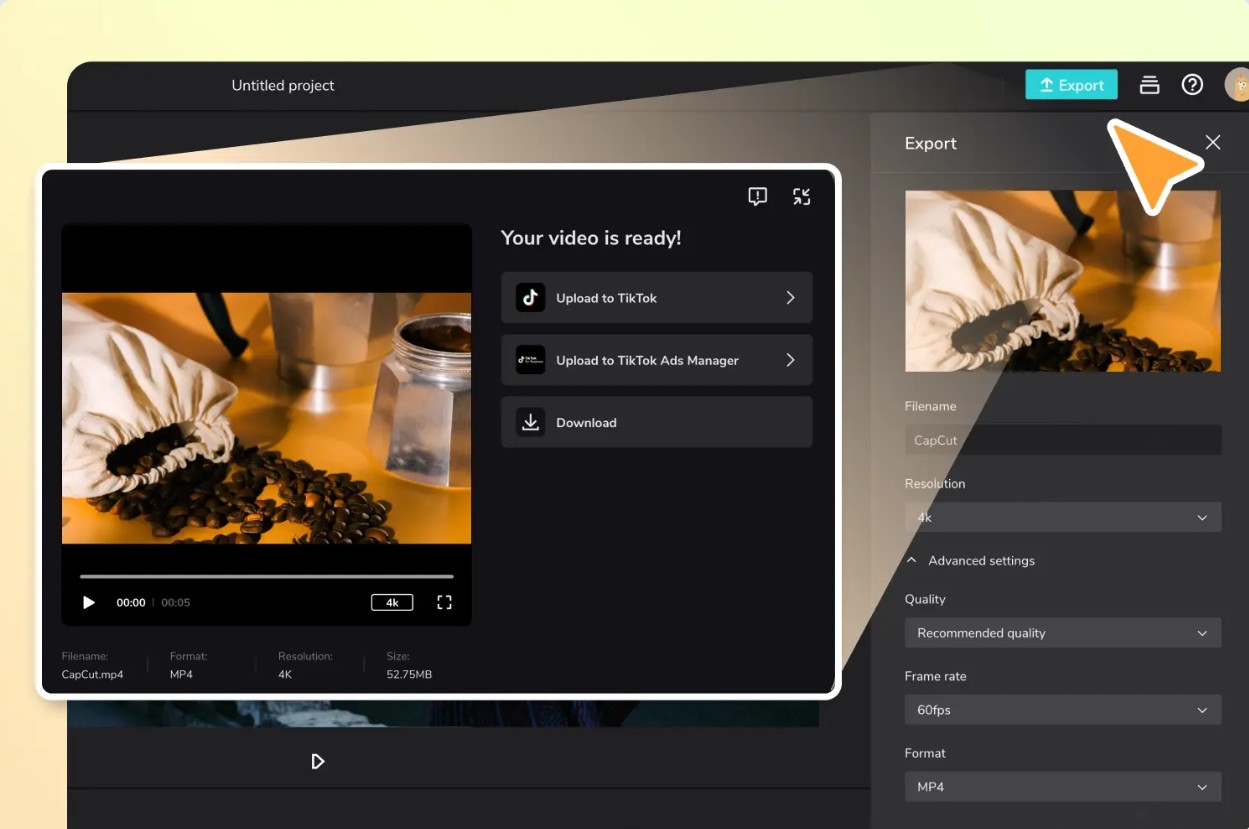
Next, choose the resolution, image quality, and video format that best suits your needs.
Double-check the settings before exporting to ensure the subtitles are fully displayed in the video.
Finally, click Export to begin the processing.
Once completed, you can download the video to your device or share it directly to TikTok, YouTube, Facebook, and other social media platforms.
8. Conclusion
Adding subtitles to online videos using CapCut is a quick and efficient solution for everyone, from beginners to professional content creators. Thanks to AI technology, CapCut Subtitle Generator can automatically recognize speech, create accurate subtitles, support multiple languages, and allow for flexible customization in just a few steps.
Subtitles not only save editing time but also contribute to increased accessibility, engagement, and a better viewing experience on social media platforms. If you frequently produce videos for TikTok, YouTube, Facebook, or online courses, utilizing CapCut Online and its Subtitle Generator feature will make the editing process simpler, faster, and more professional.





















VIP Products








Best Selling Products
Upgrade genuine Capture One account
120 USD
Autodesk All App Account Copyright
120 USD
Adobe Photoshop Copyright - Full App
120 USD
Upgrade Duolingo Super
29 USD
ChatGPT Plus Account (GPT-4)
16 USD
Plugin Retouch4me
69 USD
Upgrade Genuine Office 365
49 USD
Windows 10 & 11 Pro Key
36 USD
MidJourney Account
29 USD
Adobe Premiere Pro Account
99 USD
Genuine Adobe Illustrator account
99 USD
Genuine Cheap Canva Pro
39 USD
Copyright Adobe Lightroom Account
59 USD
Capcut Pro 1 Year
39 USD
Freepik Premium Account
59 USD