Best Selling Products

Capcut Pro 1 Year
39 USD

Upgrade Genuine Office 365
49 USD

Genuine Adobe Illustrator account
99 USD

Windows 10 & 11 Pro Key
36 USD

ChatGPT Plus Account (GPT-4)
16 USD

Autodesk All App Account Copyright
120 USD

Freepik Premium Account
59 USD

Upgrade Duolingo Super
29 USD

Genuine Cheap Canva Pro
39 USD

MidJourney Account
29 USD

Plugin Retouch4me
69 USD

Upgrade genuine Capture One account
120 USD

Adobe Premiere Pro Account
99 USD

Copyright Adobe Lightroom Account
59 USD

Adobe Photoshop Copyright - Full App
120 USD
Once your 15GB free storage is used up, how can you quickly free up space in Gmail?
Nội dung
When Gmail unexpectedly stops sending and receiving emails due to running out of storage space, all your work can be disrupted.
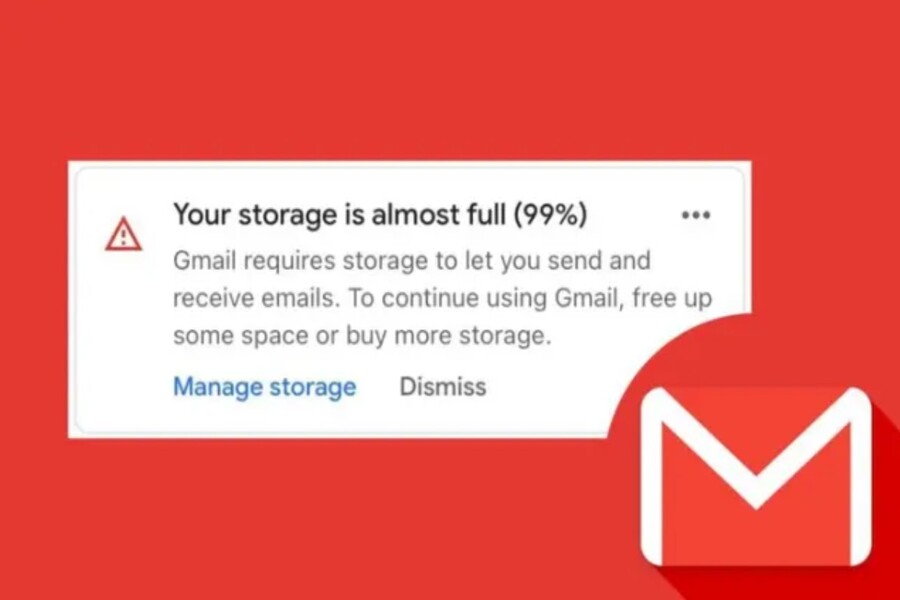
If you're a long-time Gmail user, you've probably received the "Gmail has run out of storage" notification at least once. This means you can't send or receive more emails, Google Drive stops allowing file uploads, Google Photos' automatic backup feature is disabled, and even data synchronization is interrupted. This is extremely inconvenient, especially for those who use Gmail for work or study.
It's worth noting that Google provides each free account with 15GB of storage, but this is shared among Gmail, Google Drive, and Google Photos. When one of these three services uses too much resources, your entire Google account can be affected. Therefore, understanding how to handle Gmail when it's full and how to prevent this from happening again is crucial. This article will help you understand the causes, solutions, and how to maintain your Gmail storage so you never experience "storage bottlenecks" again.
1. Things to do immediately when Gmail says it's out of storage.
The first thing to understand is that the "out of storage" notification doesn't just come from email; it can also come from attachments, documents in Google Drive, or thousands of photos stored on Google Photos over time. Therefore, the first step when encountering this problem is to check the total storage being used in your Google account.
Google provides a detailed breakdown of storage usage, helping you quickly identify which files are taking up the most space. When you access your storage management page, you'll see storage divided by Gmail, Google Drive, and Google Photos. From there, you can pinpoint exactly which folder, file, or group of files is the culprit.
After identifying which storage space is being used excessively, the next step is to delete unnecessary files. This could include emails with large attachments, accidentally uploaded copies, old videos, or photos that have been stored for too long and are no longer needed.
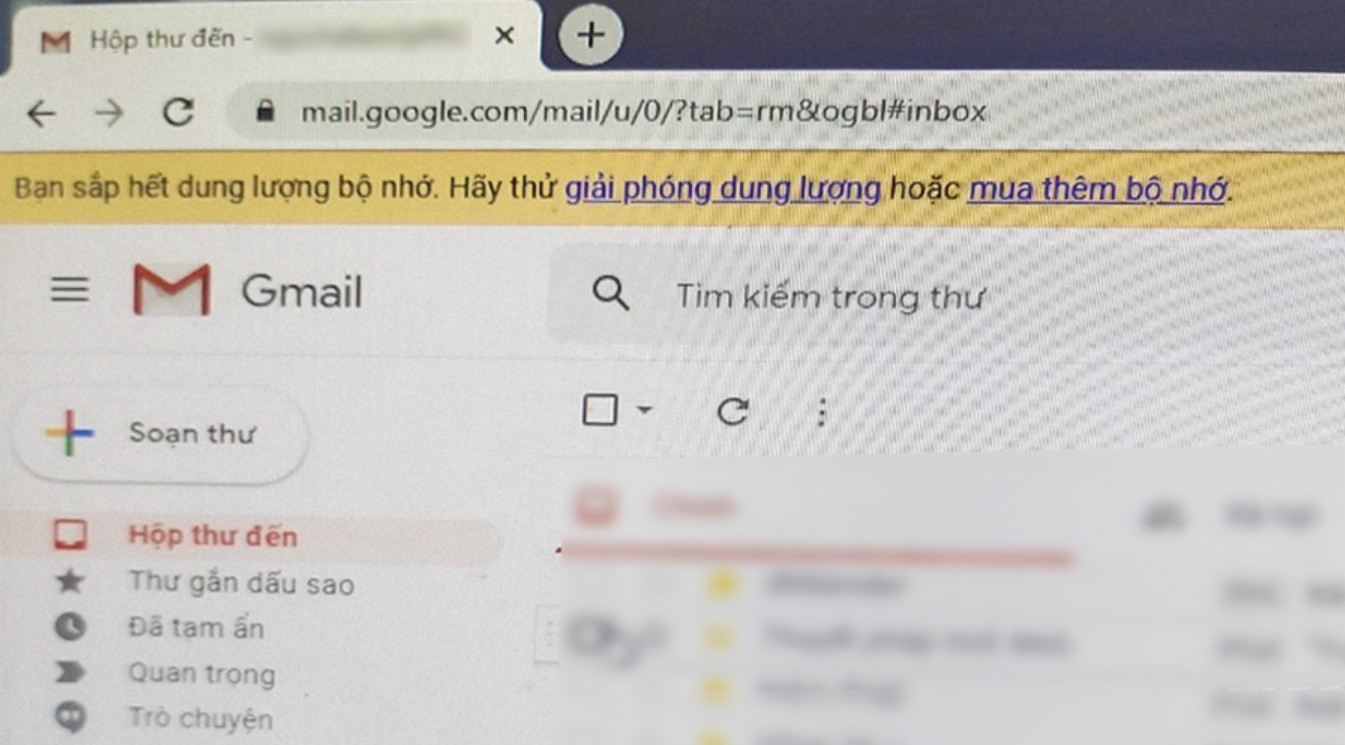
In particular, images and videos often take up the most storage space, so this is where you should start. Pay attention to duplicate photos, old screenshots, or long videos that are no longer important. Google Photos also provides an automatic feature to find blurry, old, or duplicate photos, helping you optimize faster.
In Gmail, you can find large emails by using search commands like “size:10MB” or “has:attachment”, and then filter out the emails that should be deleted.
However, some people don't have time to manually filter files, or worry about accidentally deleting important files. In this case, creating a new Gmail account and transferring emails to it is the quickest, safest, and least risky solution.
Create a new Gmail account and import the email from your old account.
If you want to quickly free up space without touching your current data, or you prefer to break down your email into phases, then creating a new Gmail account and importing emails is a sensible option.
The process isn't too complicated; just follow these steps in order:
First, create a new Gmail account. Once the account is ready, open Gmail and look at the top right corner of the screen, where you'll find the gear-shaped settings icon. Click on it and select "See all settings" to access all the settings.
In this interface, navigate to the Account and Import tab. This is where you'll find options related to importing email or linking other accounts.
Next, find the line "Check mail from other accounts" and select "Add a mail account." A new window will pop up, asking you to enter the old email address from which you want to import data. After entering the address, click "Next" to continue.
The next window will ask you about the method of importing emails. You need to select Import emails from my other account (POP3), then click Next.
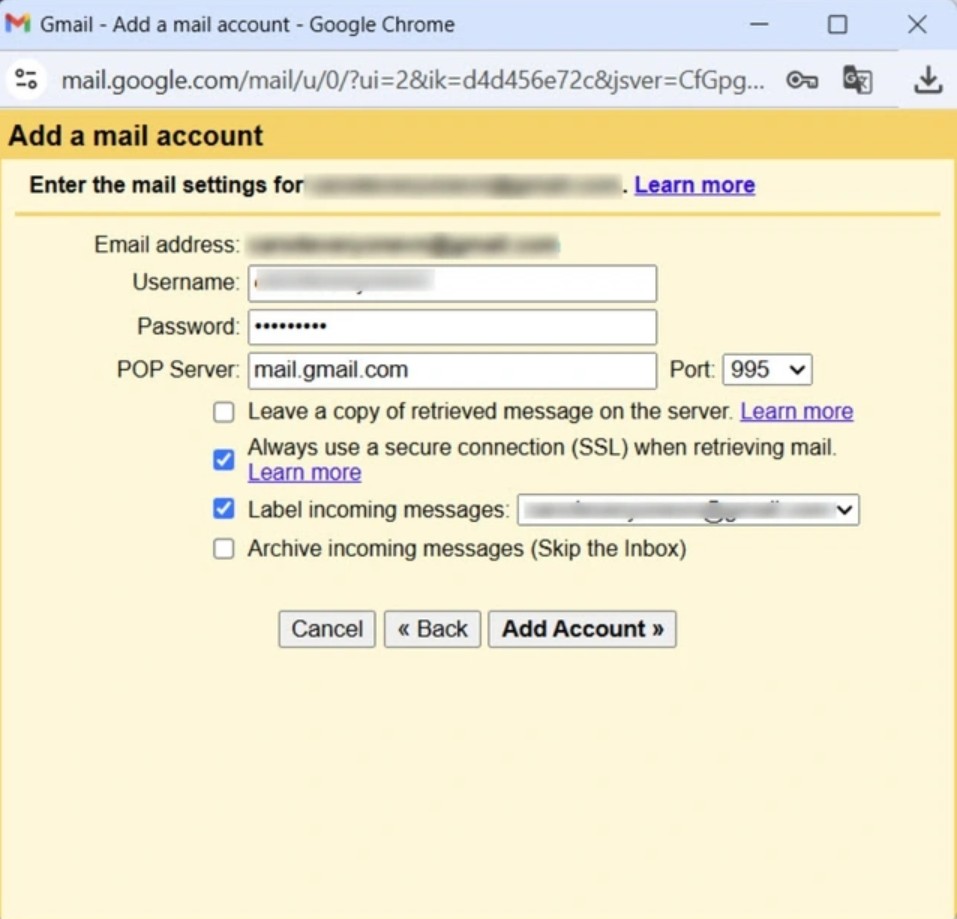
Next, you fill in the information of your old account, such as your email address, username, and password. This step allows the new Gmail account to retrieve data from the old Gmail account via the POP3 protocol.
In the POP Server Port section, select port 995: this is the secure connection port recommended by Gmail. Then, check the option "Always use a secure connection (SSL) when retrieving mail" to ensure the email retrieval process is encrypted and secure.
Additionally, Gmail offers an option to Archive incoming messages (Skip the Inbox). This option saves all emails imported from your old account to an archive folder, preventing your inbox from becoming cluttered. For easier email categorization, you can check the "Label incoming messages" option to have Gmail label all emails imported from your old account.
Once everything is set up, simply click Add Account. The new Gmail account will begin importing emails from the old account, and you can continue working without waiting for the import process to finish.
This is a particularly useful solution if you don't mind using a new email address or want to better organize your inbox.
2. How to ensure your Gmail never fills up again.
Once you've finished freeing up Gmail storage, the next equally important step is ensuring that the storage shortage doesn't happen again in the future. This not only saves you time but also minimizes disruption to your work or life.
One common reason for an overloaded inbox is subscribing to dozens or even hundreds of different email services over time. Many people habitually enter their email address into any website they need to sign up for, resulting in receiving an excessive number of newsletters, promotional notifications, advertisements, and reminders. Over the years, these seemingly "harmless" emails take up a significant amount of storage space.
To resolve this, you should unsubscribe from unnecessary services. Most promotional emails have an Unsubscribe button at the bottom. Once you've identified the content you no longer want to receive, simply open the email, scroll down, and click Unsubscribe.
However, it's important to note that some phishing emails may intentionally include a fake Unsubscribe button to trick you into clicking it. When you click this link, the scammers may collect personal information or add you to their spam mailing list. Therefore, you should only click Unsubscribe if you are certain the email comes from a trustworthy source.
If your inbox has thousands of unwanted emails, manually unsubscribing from each one will definitely be time-consuming. In this case, you can use some helpful tools like Leave Me Alone, Clean Email, or Inbox Zero. These tools help you unsubscribe in bulk, categorize emails, and maintain a more organized inbox.
However, it's also worth noting that some large companies have many different email sending systems. Therefore, even if you've unsubscribed, you may still receive emails from them in the future because these lists may be managed from multiple sources.
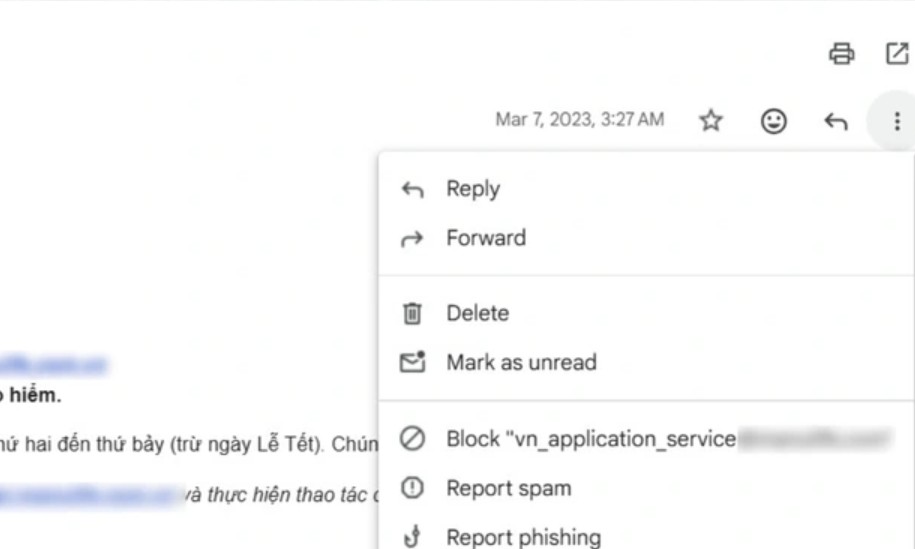
Additionally, spam is another reason why Gmail storage fills up quickly. If you're constantly receiving suspicious emails, report them to Google by opening the email, clicking the three-dot icon in the upper right corner, and selecting Block, Report spam, or Report phishing. When you report it, Google will automatically categorize similar emails into the spam folder, reducing pressure on your inbox and limiting the risk of clicking on malicious links.
3. Upgrade your Google One storage capacity.
If, after cleaning up, deleting files in bulk, and managing emails, you still don't have enough Gmail space, you may actually need more storage. Paying for extra space in this case is perfectly reasonable, especially for those working in creative industries where images, documents, and videos take up a lot of storage.
Google One offers a variety of flexible storage plans to suit both individuals and families. You can start with a compact 30GB plan or upgrade up to 2TB depending on your usage.
This upgrade not only gives you more storage for email but also for Google Drive and Google Photos, resulting in stronger synchronization across devices. This is especially useful for those who store large family photos, wedding photos, design files, or videos.
However, even after upgrading, you should still maintain the habit of cleaning up your data regularly. Google stores deleted emails in the Trash folder for 30 days. If you forget to empty the trash, these emails will still take up space as usual. So, remember to check and clean this folder monthly.
Additionally, you might consider using external hard drives or other cloud services like Dropbox or OneDrive to partition your data. This helps avoid becoming completely dependent on a single storage system.
Gmail showing a "out of storage" message can be annoying, but it's not an insurmountable problem. Simply take the time to check your storage, delete unnecessary data, manage your emails effectively, and consider a suitable upgrade, and your inbox will run smoothly and stably.





















VIP Products








Best Selling Products
Capcut Pro 1 Year
39 USD
Upgrade Genuine Office 365
49 USD
Genuine Adobe Illustrator account
99 USD
Windows 10 & 11 Pro Key
36 USD
ChatGPT Plus Account (GPT-4)
16 USD
Autodesk All App Account Copyright
120 USD
Freepik Premium Account
59 USD
Upgrade Duolingo Super
29 USD
Genuine Cheap Canva Pro
39 USD
MidJourney Account
29 USD
Plugin Retouch4me
69 USD
Upgrade genuine Capture One account
120 USD
Adobe Premiere Pro Account
99 USD
Copyright Adobe Lightroom Account
59 USD
Adobe Photoshop Copyright - Full App
120 USD