1. Why does using photo editing apps cause image distortion? Analyzing the root cause.
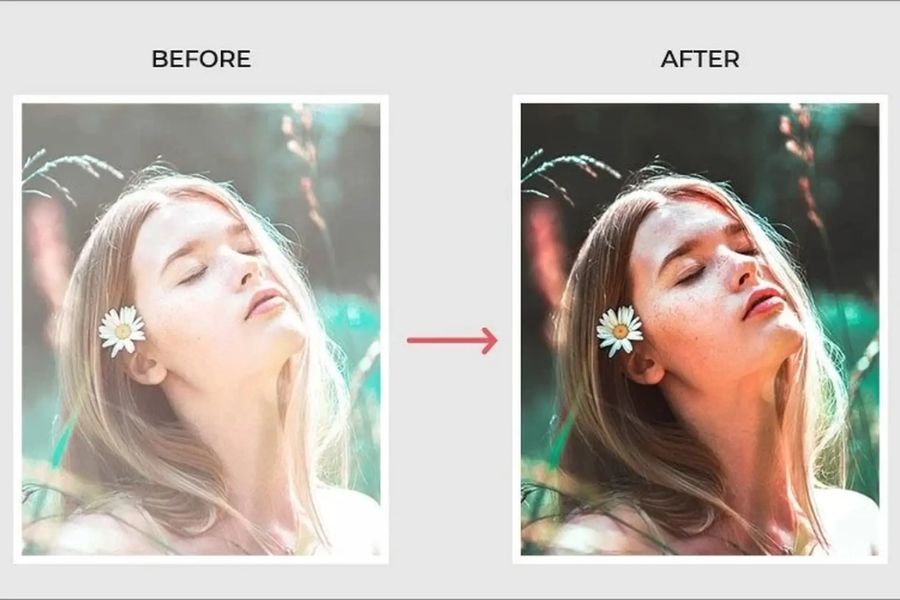
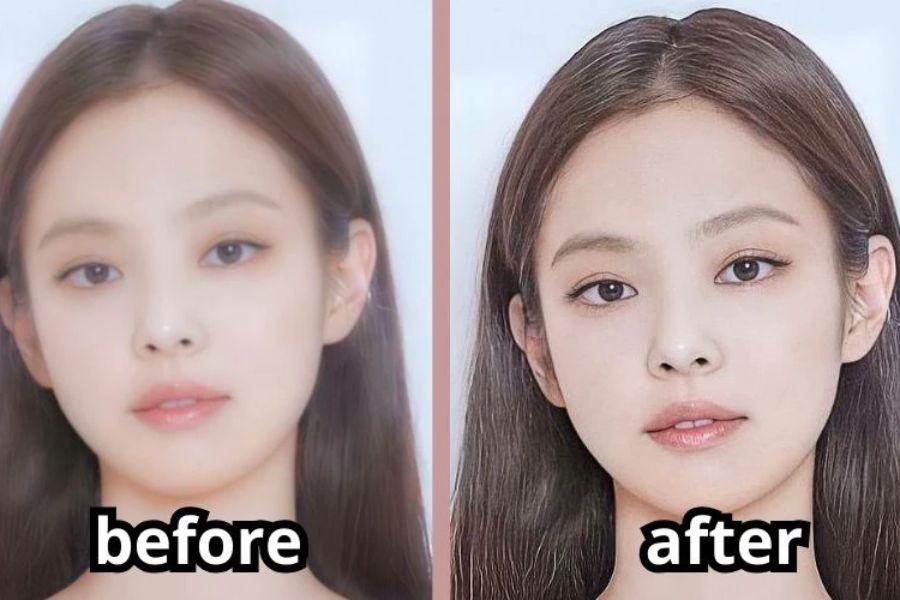
The phenomenon of images appearing pixelated or distorted after editing via apps stems from a combination of the software's strong compression algorithms and the user's incorrect editing techniques. This situation occurs due to main reasons such as excessive image compression, cropping/zooming too deeply which reduces pixel density, setting low output quality, and applying heavy effects to low-quality original images.
-
Excessive image compression algorithm: The app automatically removes pixels and reduces file size for smoother processing, combined with heavy color filters that disrupt image structure.
-
Excessive cropping and zooming: Deliberately cropping/zooming deeply forces a small number of pixels to be displayed across a large area, revealing pixelated squares (grainy appearance).
-
Poor output quality: By default, it saves highly compressed JPEG files (60-70%), which suppresses detail and smooth color ranges.
-
Weak original image conflicts and heavy effects: Overloading filters and film grain onto underexposed, shaky, or intermediately compressed original images.
2. Top apps for editing blurry photos to make them sharp again.
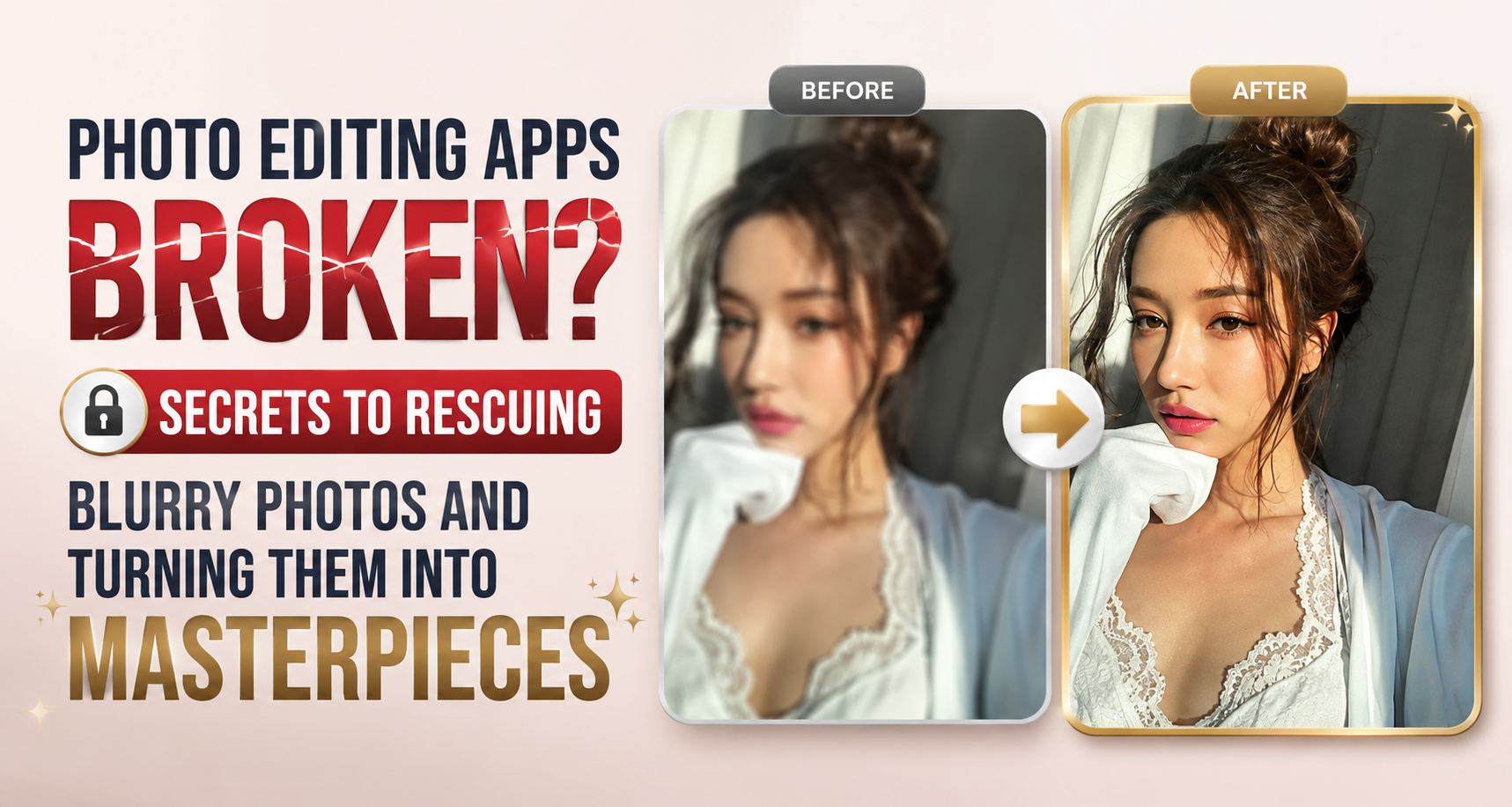
Artificial intelligence (AI) technology has developed dramatically in recent years, creating a true revolution in the field of mobile graphics processing. Now, algorithms no longer simply smooth or enhance blurry contrast; they truly "understand" image structure to reconstruct what has been lost. Below is a list of top applications that will help you completely solve the problem of blurry images.
2.1. Remini – the king of restoring old photos and processing grainy images.
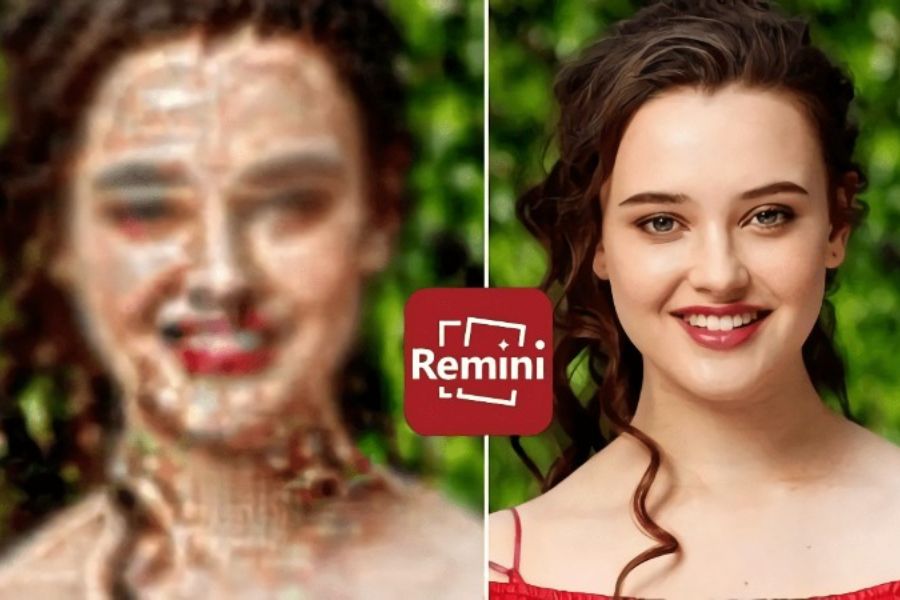
If you had to find a top-rated app for fixing broken photos , Remini would undoubtedly be unrivaled in the mainstream user segment.
-
Superior functionality: Remini possesses a massive database of faces and object structures. When you upload a pixelated photo, Remini's AI not only enlarges the image but also performs a "redrawing" (biological reconstruction) process. It automatically identifies the eyes, nose, mouth, hair strands, and pores to compensate for missing pixels with hyper-realistic details.
-
The amazing advantage: Transform a blurry, severely grainy photo into a sharp, deep image, as if taken with a professional DSLR camera, with just a single touch.
-
Points to note: Because the processing uses AI generation, the app may sometimes redraw facial details slightly differently from reality if the original image is too blurry. The free version requires users to watch quite a few ads and has a limit on the number of images that can be processed per day.
2.2. Adobe Lightroom Mobile – Professional-level control over detail
Unlike Remini, which relies entirely on AI to automatically "guess" and redraw images, Adobe Lightroom takes a more practical approach and preserves the originality of the photograph as much as possible. This is a favorite tool for those with some understanding of photography.
-
Sophisticated manual operation: Lightroom offers an extremely detailed slider system in the Detail section . You can increase the Sharpening parameter to sharpen the edges of objects, combined with the Radius and Detail tools to precisely specify which edges need sharpening. To deal with grainy areas, you use the Noise Reduction and Color Noise Reduction sliders to smooth out cracked skin or skies.
-
Great advantages: Maintains 100% authenticity of the original photo, without creating a waxed or "fake" look. The edited photo has natural depth and smooth color transitions.
-
Point to note: The application requires users to think critically and dedicate time to experimenting with different parameters to find the optimal formula for each specific photo.
2.3. Picma – a solution for extreme image enhancement.
PicMa is a relatively new app that has quickly won over the tech community thanks to its incredibly intelligent algorithm for handling pixelated images caused by compression.
-
Intelligent operating mechanism: This application focuses heavily on upscaling. When it detects a pixelated image resulting from a previous image editing app , PicMa analyzes the jagged edges in the image and uses a smart smoothing algorithm to transform the rough jagged lines into smooth curves.
-
Great advantages: Minimalist interface design, extremely fast cloud file processing speed. The application has specialized modes separating portrait and landscape photos to apply the most suitable algorithms.
-
Important note: A stable and continuous internet connection is required throughout the process, as all heavy operations are performed on the publisher's server system.
2.4. Youcam enhance – restore high resolution in an instant.
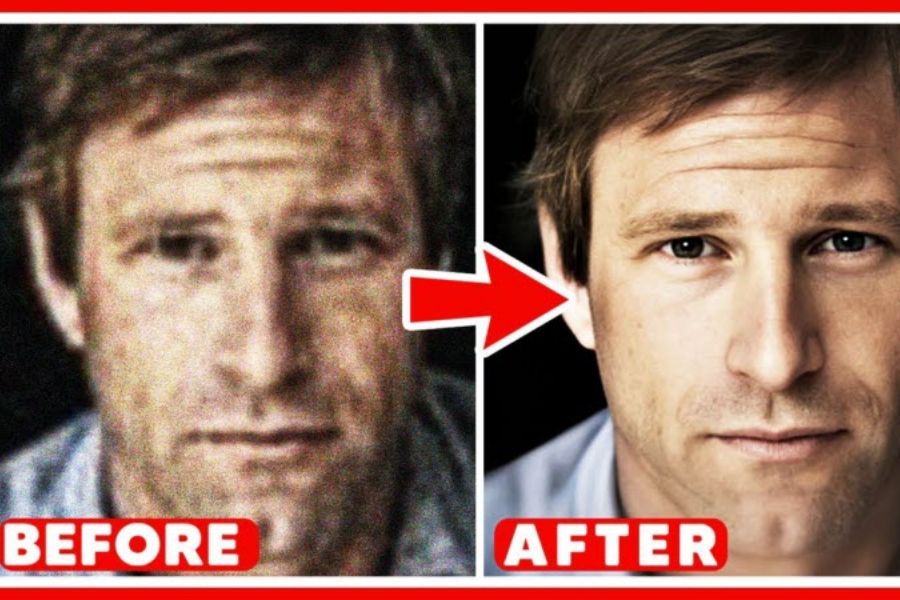
YouCam Enhance is a promising tool from the renowned developer Perfect Corp, specializing in fixing blurry photos caused by excessive skin-smoothing filters or photos compressed when sent via chat applications.
-
Optimal operating mechanism: The application focuses on restoring contrast at the boundaries between different color areas. When these boundaries are clearer, the human eye automatically perceives the image as miraculously sharper without needing to significantly increase pixel density.
-
Great advantages: Completely free for basic features, fast image export speed, and does not alter the original colors of the photo.
-
Point to note: For photos with severe pixelation or complete loss of detail, YouCam Enhance can only improve them by about 50% - 60% and cannot restore them perfectly like Remini.
3. A step-by-step process to make blurry photos sharp again.
To salvage a grainy photo, a combination of automatic image correction technology and a little manual editing will yield the best results. Here's a step-by-step process to make your photo sharper:
-
Find the original, highest-quality image file: When you see a blurry image, avoid taking screenshots or repeatedly uploading it to social media, as this will further reduce image quality. Instead, search your device's internal memory, SD card, iCloud, or Google Drive to retrieve the first image file with the largest file size (in MB).
-
Use AI-powered apps to automatically enhance sharpness: Upload the best quality original image file you found to AI-powered apps like Remini or PicMa. Next, enable the highest sharpness setting (usually called Enhance or Ultra HD ) so the app automatically compensates for detail and sharpens important areas like eyes, nose, and face.
-
Manually refine minor details for a natural look: Often, photos processed with AI look stiff and unnatural due to excessive skin smoothing or hair strands sticking together in clumps. In this case, open the photo in Adobe Lightroom , gently adjust the Sharpness slider to make the lines clearer, increase the Noise Reduction slider to smooth out any flawed skin areas, and add a little Grain effect to make the photo look realistic and have natural depth.
-
Save the image at the highest quality: After you are satisfied with the editing steps, click on the advanced settings option when saving the image. Choose the file format as PNG or drag the quality slider to the maximum level (100%) to ensure the image retains its sharpness and is not compressed or blurred when you upload it to major social media platforms.
4. Golden tips to help you edit photos without ever getting pixelated.
-
Shoot with your phone's native camera: Always use the default camera instead of shooting directly with beauty apps (Snow, B612) or social media apps (Instagram, TikTok) to get the highest resolution.
-
Enable the original image quality saving feature: Turn off memory saving mode on your device to avoid accidentally saving thumbnails. Set the output quality in photo editing apps to "Maximum".
-
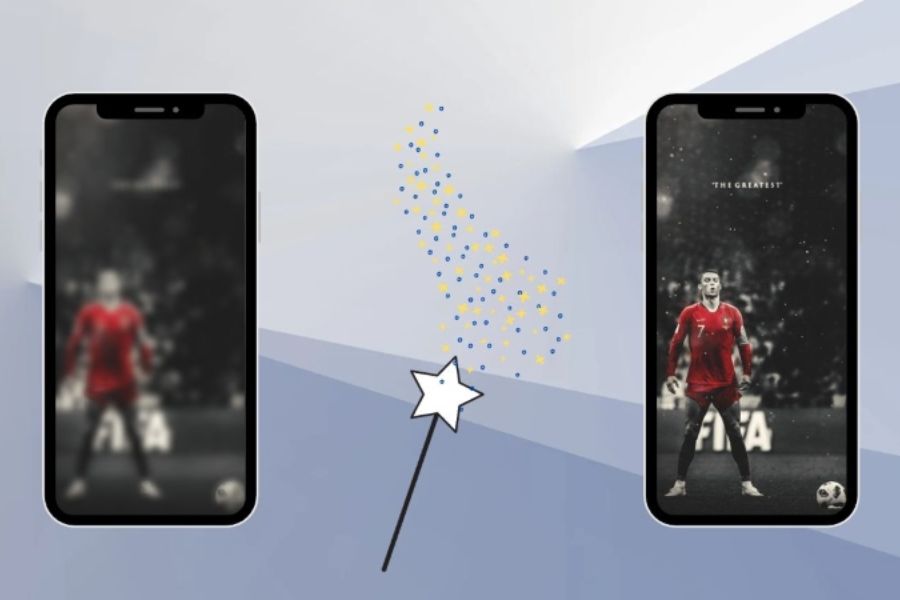
Avoid editing across too many apps: Don't resize the face in one app, save it, and then switch to another app to adjust the color. Each time you save to a new app, the image will be compressed and become severely pixelated.
-
Prioritize shooting in well-lit areas: Photos taken in low light often suffer from noise. When these noise particles are processed in color correction apps, they can easily turn into streaks and distort the image.
5. Conclusion
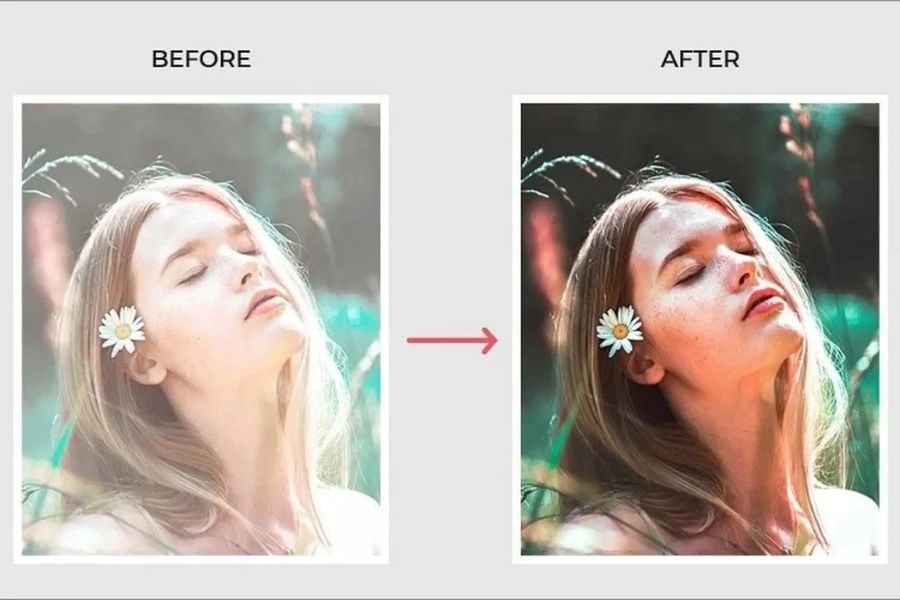
The problem of corrupted photos from photo editing apps is no longer the end of your priceless memories or cherished social media shots. The powerful and miraculous support from today's AI-powered image restoration apps can dramatically turn the tide. From Remini's intelligent automatic strokes to Adobe Lightroom's meticulous detail control, every pixel error can be rectified and repaired.