Best Selling Products

Upgrade genuine Capture One account
120 USD

Windows 10 & 11 Pro Key
36 USD

MidJourney Account
29 USD

Adobe Photoshop Copyright - Full App
120 USD

Freepik Premium Account
59 USD

Copyright Adobe Lightroom Account
59 USD

Upgrade Genuine Office 365
49 USD

Adobe Premiere Pro Account
99 USD

Genuine Cheap Canva Pro
39 USD

ChatGPT Plus Account (GPT-4)
16 USD

Plugin Retouch4me
69 USD

Capcut Pro 1 Year
39 USD

Autodesk All App Account Copyright
120 USD

Genuine Adobe Illustrator account
99 USD

Upgrade Duolingo Super
29 USD
Signs That Your Computer Is Infected with a Virus and the Most Effective Ways to Deal with It.
Nội dung
- 1. Signs That Your Computer Is Infected with a Virus
- 1.1 Computer Running Abnormally Slow
- 1.2 Unusual Advertisements and Pop-ups Appearing on Your Browser
- 1.3 Programs That Launch Automatically
- 1.4 Encrypted or Missing Files and Folders
- 1.5 Frequent Error Messages Appear
- 1.6 Browser Settings Have Been Changed
- 1.7 Network Activity Surges
- 2. Common Reasons Why Computers Get Infected with Viruses
- 2.1 Downloading Software from Unreliable Sources
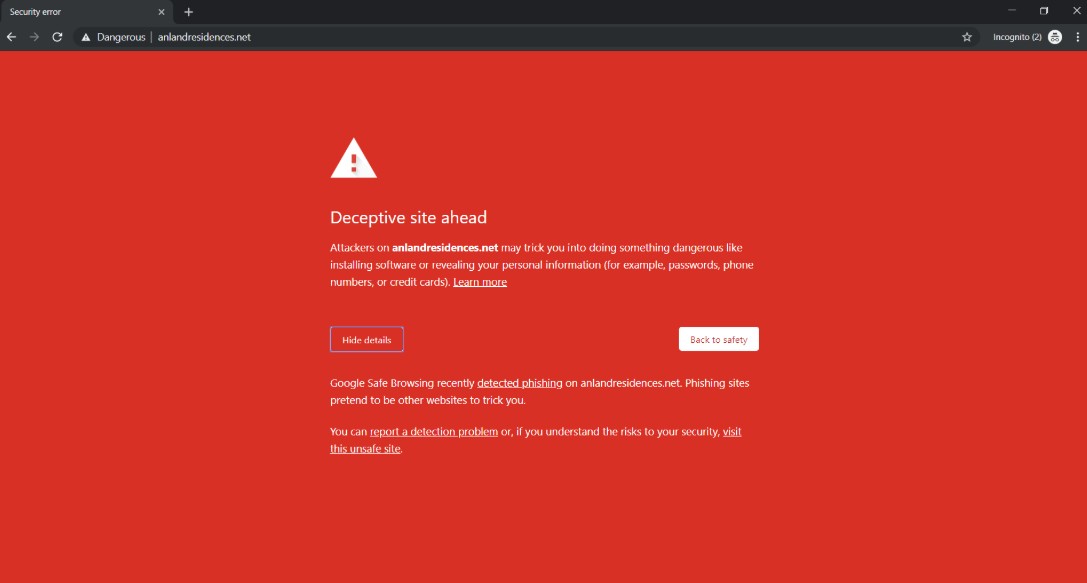
- 2.2 Accessing Malicious Websites
- 2.3 Opening Unknown Emails and Attachments
- 2.4 Using a USB or External Hard Drive Infected with a Virus
- 2.5 No Operating System Updates
- 2.6 Lack of Security Software
- 3. Guide to Scanning and Removing Viruses and Malware from Your Computer
- 3.1 Step 1: Disconnect from the Internet
- 3.2 Step 2: Start the Computer in Safe Mode
- 3.3 Step 3: Use Antivirus Software to Scan the Entire System
- 3.4 Step 4: Delete or Isolate the Virus-Infected File
- 3.5 Step 5: Restart Your Computer and Check
- 3.6 Step 6: Update Operating System and Antivirus Software
- 4. How to Prevent Viruses and Malware to Protect Your Computer
- 4.1 Use Reputable Antivirus Software
- 4.2 Caution When Downloading and Installing Software
- 4.3 Do Not Open Emails and Attachments from Strangers
- 4.4 Avoid Accessing Unsafe Websites
- 4.5 Using a Firewall
- 4.6 Regular Data Backup
Computers infected with viruses can slow down the system, cause data loss, and steal personal information. Learn about the signs, common causes, and how to effectively scan and remove viruses.
1. Signs That Your Computer Is Infected with a Virus
Viruses and malware often operate silently within systems. However, they still leave behind unusual signs that users can detect if they pay close attention.
1.1 Computer Running Abnormally Slow
One of the most common signs of a virus infection is that your computer suddenly starts running slower than usual.
If your computer used to boot up in just a few tens of seconds but now takes several minutes to reach the working screen, it's very likely that malicious processes are running in the background. These programs continuously use CPU, RAM, and hard drive resources, significantly reducing overall performance.
Additionally, opening applications, copying data, or performing basic operations also becomes slow. In many cases, the mouse lags, the keyboard responds slowly, or the system frequently freezes.
1.2 Unusual Advertisements and Pop-ups Appearing on Your Browser
When a computer is infected with adware or malicious advertising software, users often see a series of advertising windows appearing continuously.
These ads can appear even when you're not visiting any websites or automatically opening new tabs in your browser. In some cases, they can even redirect you to strange websites containing unwanted content.
Besides being annoying, these ads can also lead users to phishing websites or continue spreading malware.

1.3 Programs That Launch Automatically
Another notable sign is the appearance of programs that you have never installed.
After starting up your computer, the system may automatically open unfamiliar applications or display unknown notification windows. Many viruses are designed to automatically launch with Windows to maintain their functionality and avoid detection.
If the list of startup applications includes software with unknown names or functions, users should check immediately to avoid the risk of data theft.
1.4 Encrypted or Missing Files and Folders
This is a particularly dangerous sign and is often associated with ransomware – a type of malicious software that demands money back.
When infected with ransomware, important data files such as documents, images, videos, or databases are encrypted. Users are unable to open these files and usually receive a ransom demand to recover their data.
Additionally, some types of viruses can automatically delete, hide, or move files, leading users to mistakenly believe their data has been lost.
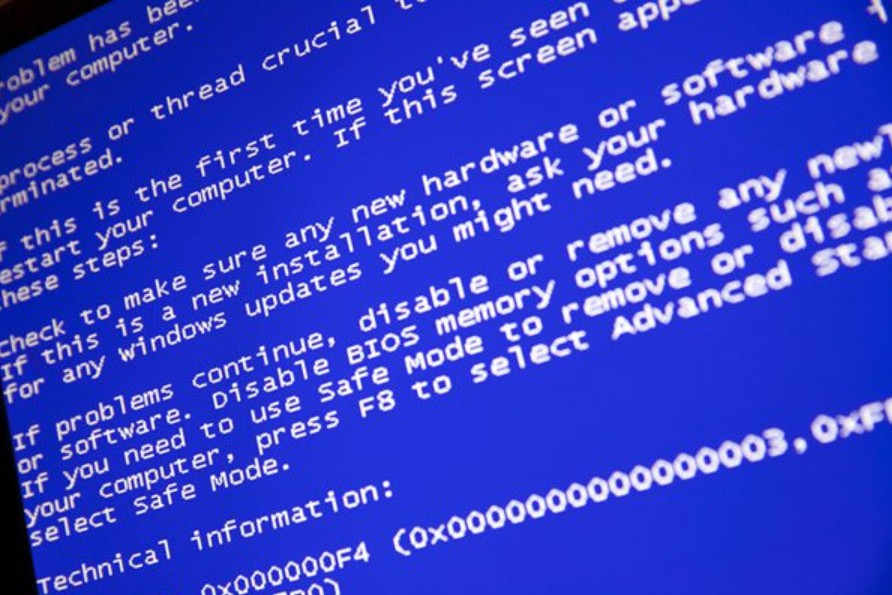
1.5 Frequent Error Messages Appear
Constantly displaying unusual error messages on your computer is also a sign that the system may have been infected with malware.
Common mistakes include:
-
The program closes automatically.
-
The operating system has frozen.
-
Blue Screen.
-
Some functions are inaccessible.
-
Fake security alerts have appeared.
These messages usually appear because a virus interferes with system files or damages critical Windows components.
1.6 Browser Settings Have Been Changed
Many users have discovered that their browser's homepage, default search engine, or the appearance of strange extensions has suddenly changed.
This is a sign of a Browser Hijacker, a type of malware that takes control of your browser to collect data or display advertisements.
1.7 Network Activity Surges
If your internet connection becomes unusually slow even though your network is otherwise stable, it could be due to a virus secretly leaking data.
Some malware is programmed to steal personal information, passwords, or business data and transmit it to the hacker's server.
2. Common Reasons Why Computers Get Infected with Viruses
Understanding the causes of virus infections helps users proactively prevent and minimize risks while using computers.
2.1 Downloading Software from Unreliable Sources
This is the most common cause today.
Many users have a habit of downloading free software from unofficial websites or using cracked versions and keygens to save money. However, these files often contain malicious code designed to spread viruses to users' devices.
When software is installed, the virus is activated and silently infiltrates the system.
2.2 Accessing Malicious Websites
The internet contains millions of different websites, and not all of them are safe.
Some websites are created with the purpose of spreading malware, scams, or exploiting security vulnerabilities in browsers. Simply accessing these websites can cause your device to unknowingly install malicious software.
The risk is particularly high for websites that download movies, cracked software, gambling sites, or sites with content from unknown sources.
2.3 Opening Unknown Emails and Attachments
Email remains one of the most effective channels for cybercriminals to spread viruses.
Hackers often send emails impersonating banks, business partners, or government agencies to trick users into opening attachments or clicking on malicious links.
Simply opening a Word, Excel, or PDF file containing malware can infect your computer immediately.
2.4 Using a USB or External Hard Drive Infected with a Virus
Viruses can spread through storage devices such as USB drives, memory cards, or portable hard drives.
If you connect a device infected with a virus to your computer, the malware can automatically copy itself to the system through the Autorun feature or other security vulnerabilities.
This is a very common cause in office environments, schools, or places where many people share a storage device.
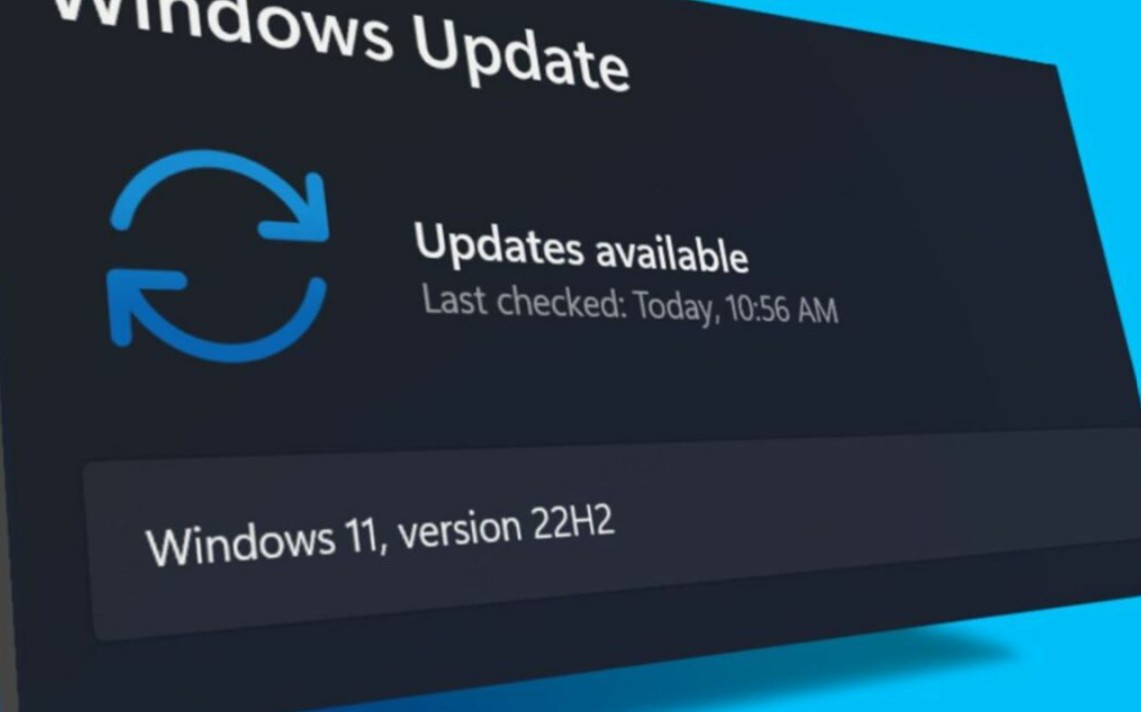
2.5 No Operating System Updates
Many users skip Windows updates because they believe they are unnecessary.
In fact, updates often contain security patches that fix vulnerabilities that hackers can exploit. If the operating system is not updated regularly, the risk of virus infection increases significantly.
2.6 Lack of Security Software
Computers without antivirus software or using outdated security software are highly vulnerable to cyberattacks.
Without proper protection, viruses can easily penetrate without any hindrance.
3. Guide to Scanning and Removing Viruses and Malware from Your Computer
If you suspect your computer has been infected with a virus, you should remain calm and follow the correct procedure to minimize damage.
3.1 Step 1: Disconnect from the Internet
The first thing to do is disconnect from the internet.
This helps prevent the virus from continuing to communicate with the command and control server or spreading to other devices on the same local network.
Users should turn off Wi-Fi or unplug the network cable before proceeding with the following steps.
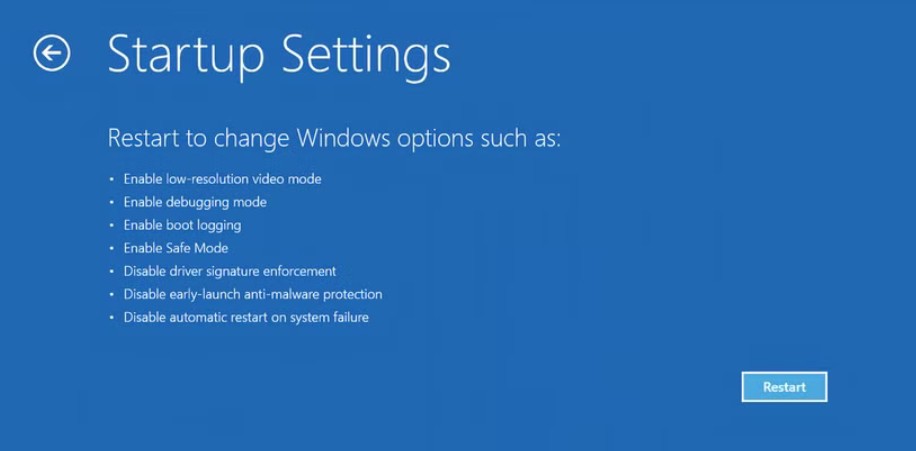
3.2 Step 2: Start the Computer in Safe Mode
Safe Mode is a special Windows boot mode that uses a minimum number of services and programs.
In this environment, many types of viruses will not be able to function fully, making the scanning and processing more effective.
After accessing Safe Mode, users should avoid opening unnecessary applications.
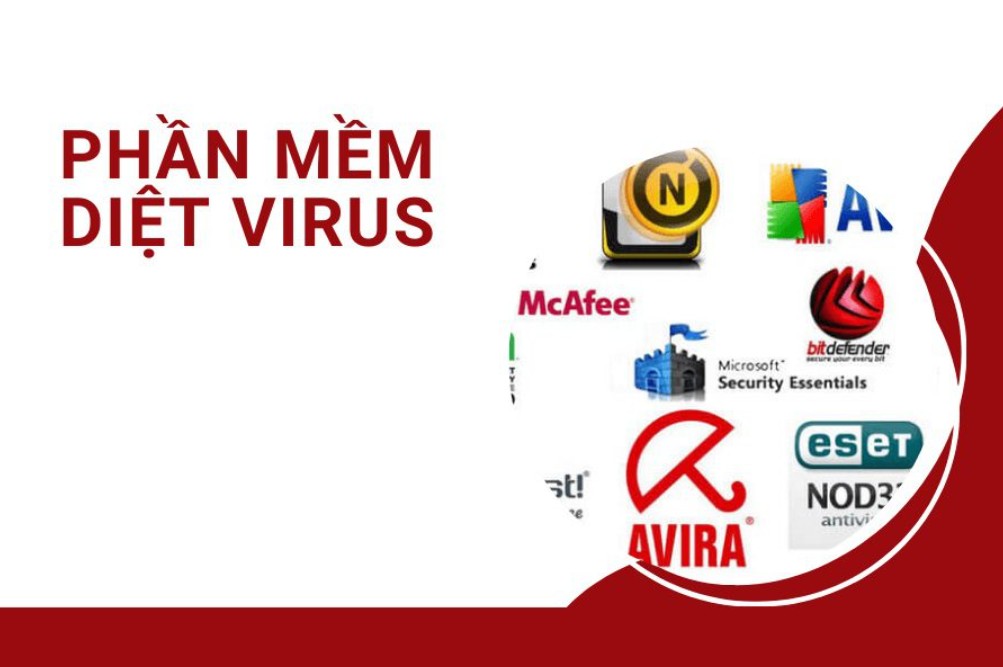
3.3 Step 3: Use Antivirus Software to Scan the Entire System
This is the most important step in the processing.
Users should use reputable antivirus software and update its database to the latest version before scanning.
Some of the highly-rated software programs currently available include:
Avast: Avast offers real-time protection, detects a wide range of malware, and has a user-friendly interface.
AVG: AVG is a popular security solution known for its fast scanning, effective virus detection, and low system resource consumption.
Malwarebytes: Malwarebytes is renowned for detecting malware, adware, spyware, and advanced threats that many other software programs might miss.
Users should perform a full hard drive scan instead of a quick scan to ensure that no dangerous files are missed.
3.4 Step 4: Delete or Isolate the Virus-Infected File
After the scan is complete, the security software will display a list of detected threats.
Depending on the level of danger, users can choose to completely delete or isolate these files.
Do not attempt to restore files suspected of being infected with a virus without first verifying their source.
3.5 Step 5: Restart Your Computer and Check
After removing the virus, restart your system and check its performance.
If the unusual symptoms have disappeared, the process has most likely been successful. Conversely, if the problem persists, users should rescan with a different security software or consider reinstalling the operating system.
3.6 Step 6: Update Operating System and Antivirus Software
The final, but equally important, step is to update the entire system.
Installing the latest security patches will help fix vulnerabilities that have been exploited by viruses in the past.
At the same time, antivirus software also needs to be updated regularly to identify newly emerging threats.
4. How to Prevent Viruses and Malware to Protect Your Computer
Prevention is always far more effective and cost-efficient than dealing with the consequences after a viral infection.
4.1 Use Reputable Antivirus Software
A quality security solution will help detect and prevent threats from the moment they attempt to infiltrate the system.
Users should choose reputable software that is regularly updated and offers real-time protection.
4.2 Caution When Downloading and Installing Software
You should only download software from the developer's official website or trusted app stores.
Avoid using cracked software, illegal activation keys, or tools from unknown sources.
4.3 Do Not Open Emails and Attachments from Strangers
Before opening any attachments, carefully check the sender and the email content.
If you detect any unusual activity or suspect a scam, it's best to delete the email immediately.
4.4 Avoid Accessing Unsafe Websites
Users should prioritize accessing websites with HTTPS security certificates and avoid websites containing copyrighted content or excessive advertising.
4.5 Using a Firewall
A firewall acts as a layer of defense between a computer and the internet.
This tool helps monitor network traffic, detect suspicious connections, and prevent various external attacks.
4.6 Regular Data Backup
Even with all necessary security measures in place, the risk of data loss can still occur.
Regularly backing up your data to an external hard drive or cloud storage service will help you quickly recover information in case of problems.
Finally, maintain a habit of updating your operating system, using reputable antivirus software, being cautious when accessing the internet, and backing up your data regularly. These are the most effective measures to keep your computer safe from increasingly sophisticated cybersecurity threats.





















VIP Products








Best Selling Products
Upgrade genuine Capture One account
120 USD
Windows 10 & 11 Pro Key
36 USD
MidJourney Account
29 USD
Adobe Photoshop Copyright - Full App
120 USD
Freepik Premium Account
59 USD
Copyright Adobe Lightroom Account
59 USD
Upgrade Genuine Office 365
49 USD
Adobe Premiere Pro Account
99 USD
Genuine Cheap Canva Pro
39 USD
ChatGPT Plus Account (GPT-4)
16 USD
Plugin Retouch4me
69 USD
Capcut Pro 1 Year
39 USD
Autodesk All App Account Copyright
120 USD
Genuine Adobe Illustrator account
99 USD
Upgrade Duolingo Super
29 USD