Best Selling Products

ChatGPT Plus Account (GPT-4)
16 USD

Autodesk All App Account Copyright
120 USD

Windows 10 & 11 Pro Key
36 USD

Upgrade Genuine Office 365
49 USD

Upgrade genuine Capture One account
120 USD

Genuine Cheap Canva Pro
39 USD

MidJourney Account
29 USD

Plugin Retouch4me
69 USD

Upgrade Duolingo Super
29 USD

Copyright Adobe Lightroom Account
59 USD

Capcut Pro 1 Year
39 USD

Genuine Adobe Illustrator account
99 USD

Adobe Premiere Pro Account
99 USD

Freepik Premium Account
59 USD

Adobe Photoshop Copyright - Full App
120 USD
How to Activate Remote Desktop on Windows 11 and Connect to a Computer Remotely
Nội dung
- 1. Important Notes Before You Begin
- 2. How to Enable Remote Desktop on Windows 11
- 3. Advanced Security Setup with Network Level Authentication
- 4. How to Connect to Remote Desktop from Another Windows Computer
- 5. How to Find the IP Address of the Target Computer
- 6. How to Enable Multiple Remote Desktop Sessions on Windows Server
- 7. System Policy Update
- 8. Important Security Considerations When Using Remote Desktop
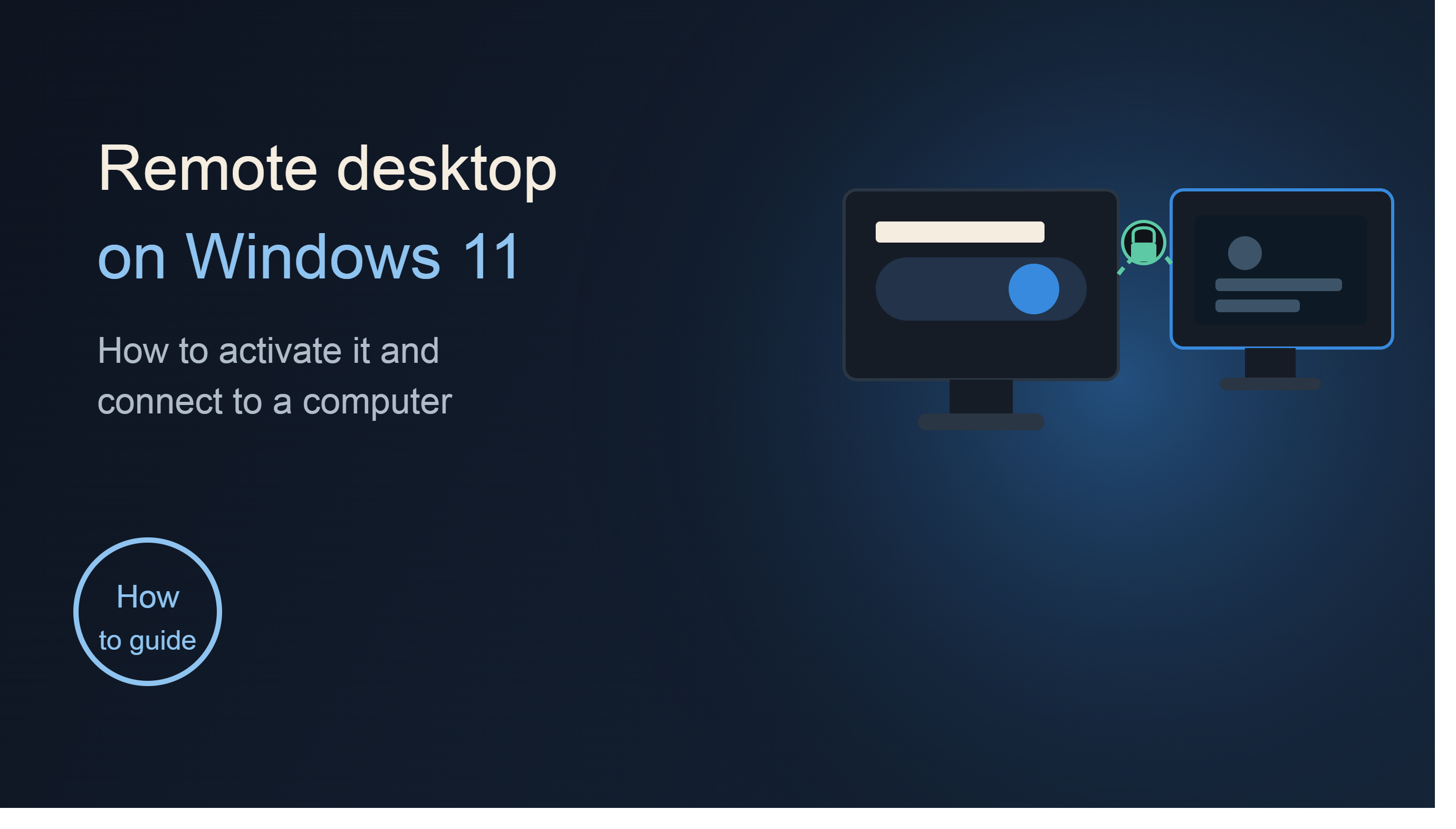
Remote Desktop Connection, often abbreviated as RDP (Remote Desktop Protocol), is a remote access protocol developed by Microsoft. Using this feature, users can see the entire screen of the target computer, use the mouse and keyboard, and operate it as if they were sitting directly in front of the device.
1. Important Notes Before You Begin
Before performing any configuration steps, the first thing to check is the version of Windows 11 the computer is running. This is the deciding factor in whether the device can function as a Remote Desktop server.
Microsoft only allows the Remote Desktop Host feature to work on Windows 11 Pro, Windows 11 Enterprise, and Windows 11 Education editions . This means that devices running these editions can receive remote connections from other computers.
Meanwhile, Windows 11 Home does not support the Remote Desktop Host feature. Users of the Home version can still use the Remote Desktop Connection application to connect to other computers, but they cannot allow their device to become the host receiving the connection.
If you're using Windows 11 Home and want to control your computer remotely, you have two options. The first is to upgrade to Windows 11 Pro to use the full RDP features. The second is to use third-party remote control software such as TeamViewer, UltraViewer, or AnyDesk .
To check the version of Windows you are using, press the Windows key + I to open Settings, select System , and then scroll down to About. Here, you will see detailed information about the version of Windows installed on your computer.
Identifying the correct version of Windows from the start will save you time during the subsequent configuration steps.
2. How to Enable Remote Desktop on Windows 11
After confirming that the device is running Windows 11 Pro, Enterprise, or Education , you can proceed to activate Remote Desktop .
First, press the Windows + I key combination on your keyboard to quickly open the Settings window. This is the quickest way to access system settings on Windows 11. Alternatively, you can also press the Start button on the Taskbar and select the gear icon to open the settings.
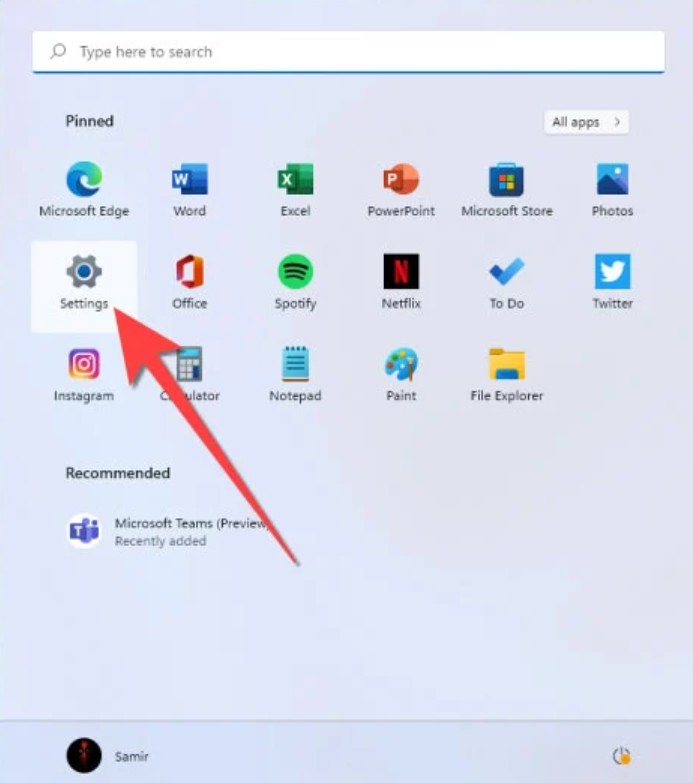
When the Settings interface appears, look at the left-hand menu column and select System . This is the area containing most of the important settings related to the operating system.
Next, look at the content on the right and scroll down until you find the Remote Desktop option . Click on it to open the settings page.
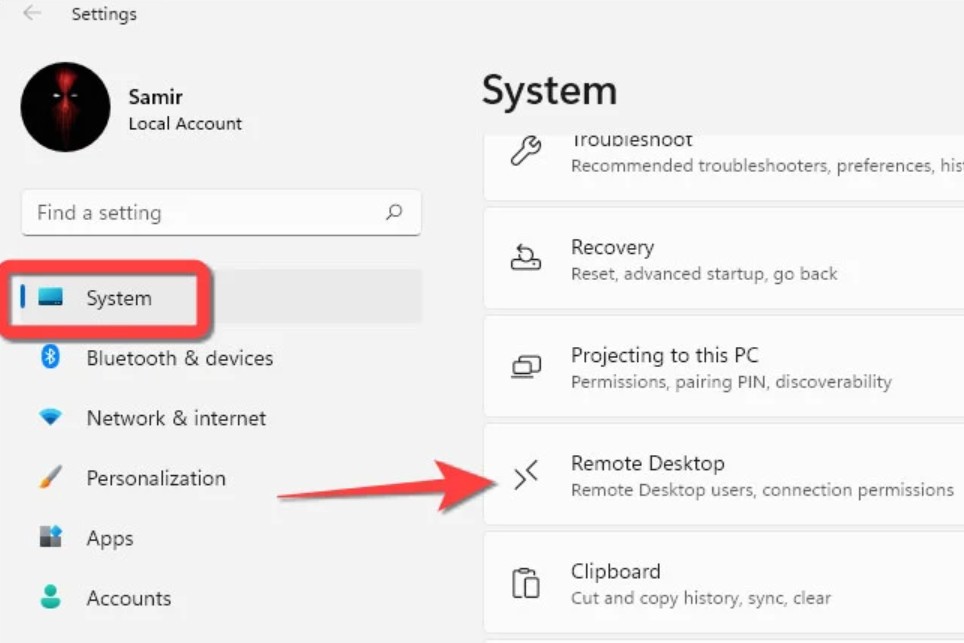
In the Remote Desktop interface, you will see the Remote Desktop switch is currently in the Off position . Click on this switch to turn it On .
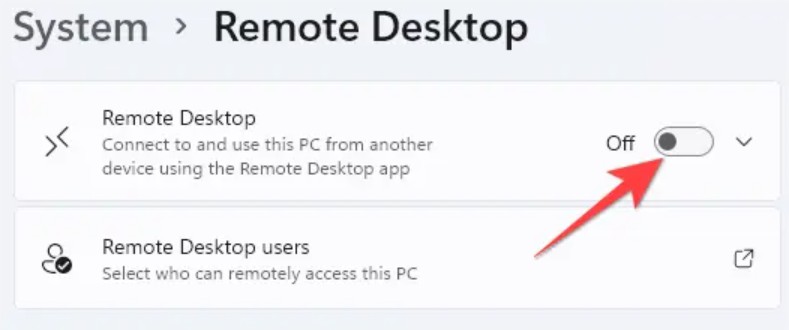
Immediately afterward, Windows will display a confirmation dialog asking you to agree to enable remote access. Click the Confirm button to confirm.
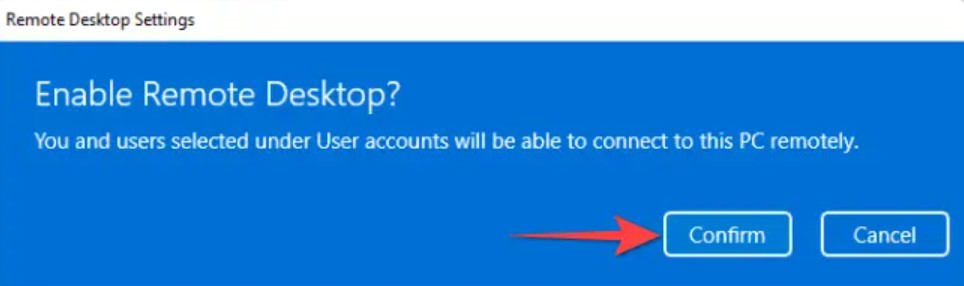
After completing the above steps, Remote Desktop has been successfully activated and your computer is ready to receive remote connections from other devices on the network.
In the information section below, Windows will also display the computer name (PC Name). You should note this information down as you will need it when connecting from another device.
3. Advanced Security Setup with Network Level Authentication
After enabling Remote Desktop, SaDesign recommends that users further configure advanced security settings to limit the risk of unauthorized access.
Right next to the Remote Desktop switch, there will be a small arrow icon . Click on it to expand the configuration options.
In the advanced settings, you will find an option called " Require devices to use Network Level Authentication (NLA) to connect ".
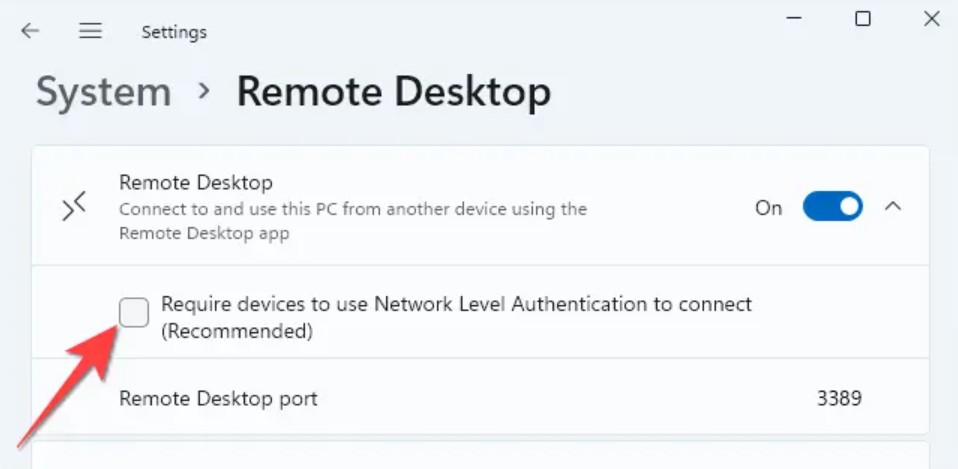
Please make sure this box is checked.
Network-level authentication is a security mechanism that verifies a user before a remote session is fully established. This means that anyone wanting to access the computer must enter the correct Windows username and password before seeing the desktop screen.
Without NLA enabled, the system could become a target for password cracking attacks or vulnerability exploitation.
For enterprise environments or systems containing critical data, enabling NLA is almost a mandatory requirement.
Additionally, SaDesign recommends that users set strong passwords for their Windows accounts. A secure password should include uppercase letters, lowercase letters, numbers, and special characters to enhance its resistance against brute force attacks.
4. How to Connect to Remote Desktop from Another Windows Computer
After Remote Desktop has been enabled on the target computer, the next step is to establish a connection from another Windows computer .
On the control computer, press the Windows key and then type " Remote Desktop Connection" into the search box.
When the app appears in the results list, tap Open to launch it.
The Remote Desktop Connection window will appear with a fairly simple interface.
In the Computer field , you need to enter the computer name or IP address of the device you want to access .
If using the same local network, you can use the computer name displayed by Windows in the Remote Desktop section. If you want to use the IP address, open Command Prompt on the target computer and enter the command ipconfig to see the IPv4 address .
After entering all the information, press the Connect button .
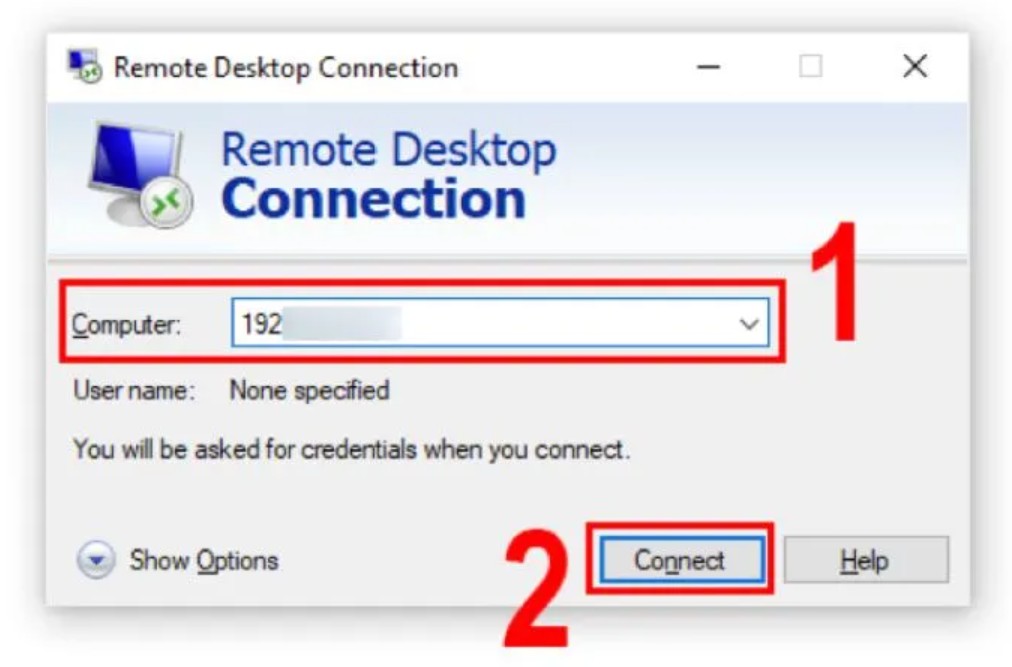
Windows will then search for and establish a connection to the remote computer.
Next, the system will display a verification window requesting the Username and Password of the Windows account on the target computer.
Please enter the exact username and password you are currently using on that computer.
Once finished, press OK .
In some cases, Windows may display a warning related to security certificates. This is normal on a local network. Simply click Yes to continue.
After a few seconds, the remote computer screen will appear, and you can control the device as if you were sitting directly in front of it.
5. How to Find the IP Address of the Target Computer
Many users encounter difficulties when they don't know the exact IP address of the computer they need to connect to.
To check this information, press Windows + R , type cmd, and then press Enter .
When the Command Prompt window appears, enter the command:
ipconfig
Then press Enter .
Windows will display the network configuration information.
Look for the line "IPv4 Address" . The series of numbers that appears there is the computer's internal IP address.
For example:
192.168.1.100
This is the information you can use in the Computer field of Remote Desktop Connection.
6. How to Enable Multiple Remote Desktop Sessions on Windows Server
In a business environment, many administrators need to allow multiple employees to remotely access a Windows Server at the same time .
By default, Windows Server has certain limits on the number of remote sessions. Therefore, administrators need to perform some additional configuration.
The general procedure includes opening the Group Policy Editor , increasing the connection limit, disabling single-session mode, and updating system policies.
First, press the Windows + R key combination.
Enter the command:
gpedit.msc
Then press Enter.
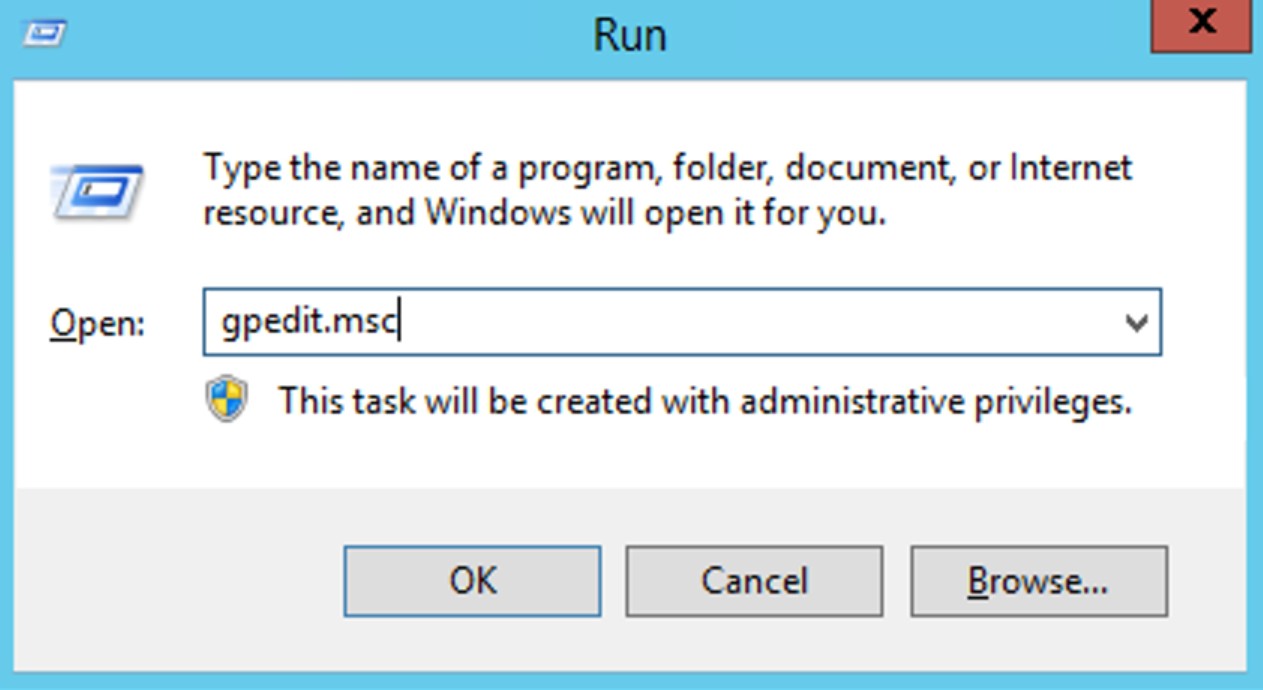
The Local Group Policy Editor window will appear.
In the left column, access the following paths in order:
Computer Configuration → Administrative Templates → Windows Components → Remote Desktop Services → Remote Desktop Session Host → Connections
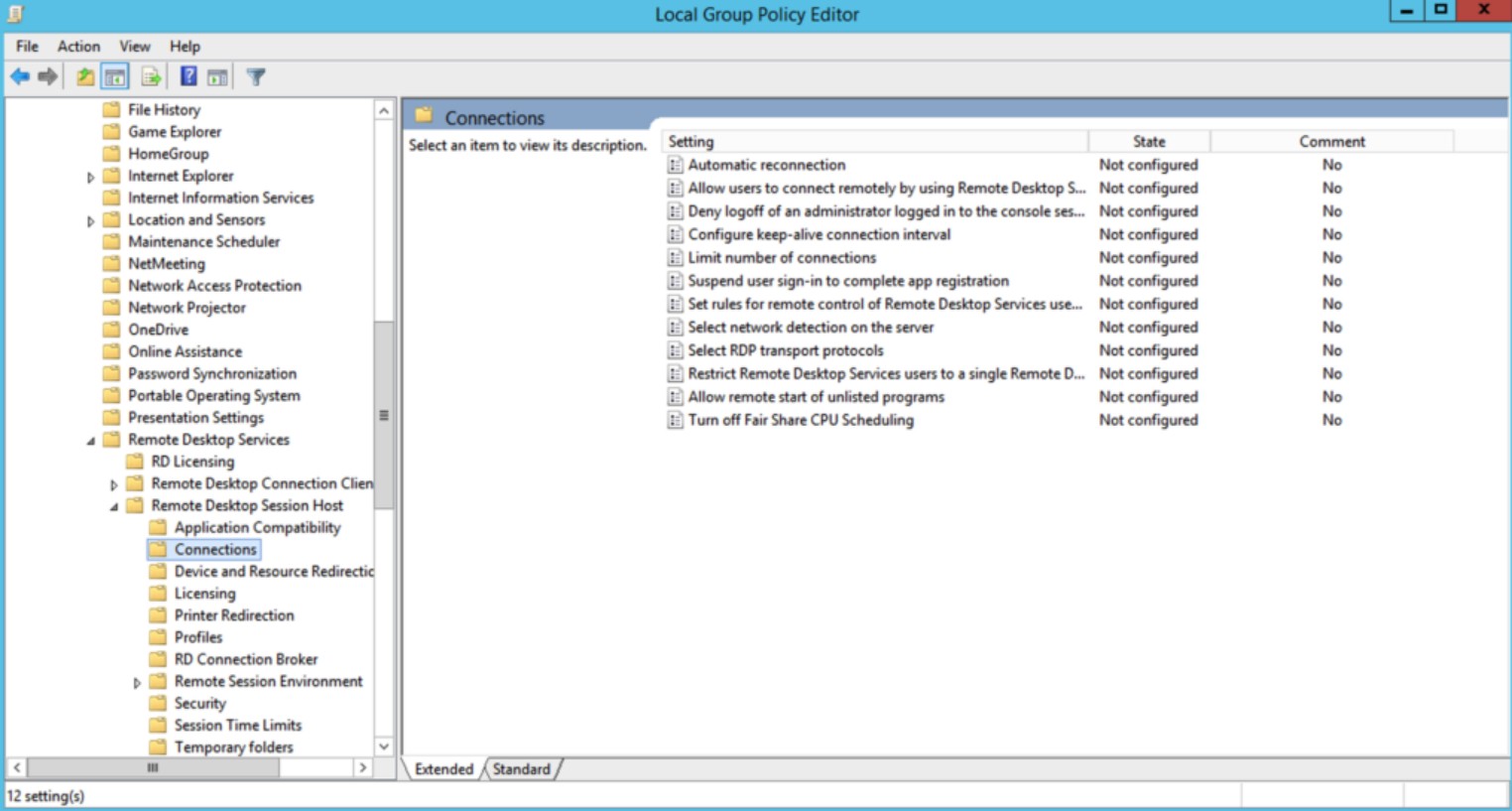
When you open the Connections folder , look at the right pane and find the "Limit number of connections" option .
Double-click this item.
Select enabled.
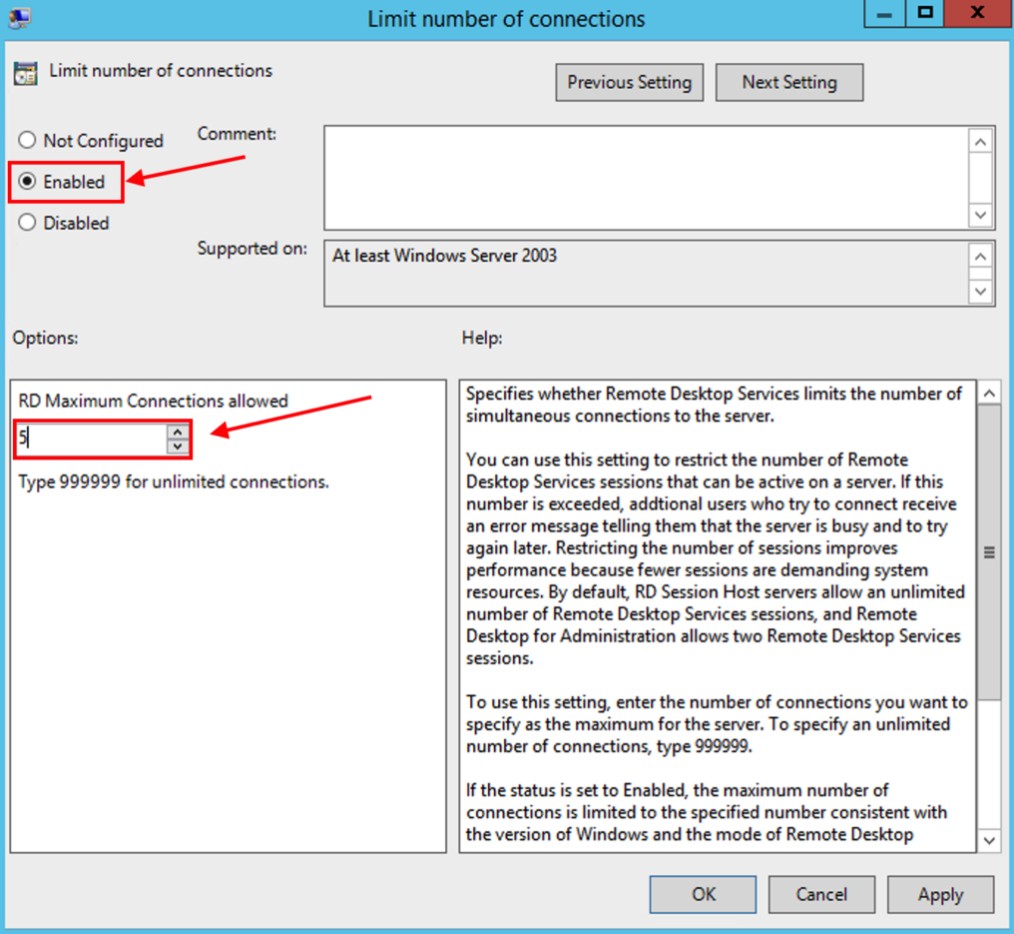
In the RD Maximum Connections allowed field , enter the maximum number of users you want to allow to connect simultaneously.
For example, you can enter 5, 10, or 999999 if you want to remove the limit.
Click Apply and then select OK.
Next, still in the Connections folder , find the item "Restrict Remote Desktop Services users to a single Remote Desktop Services Session".
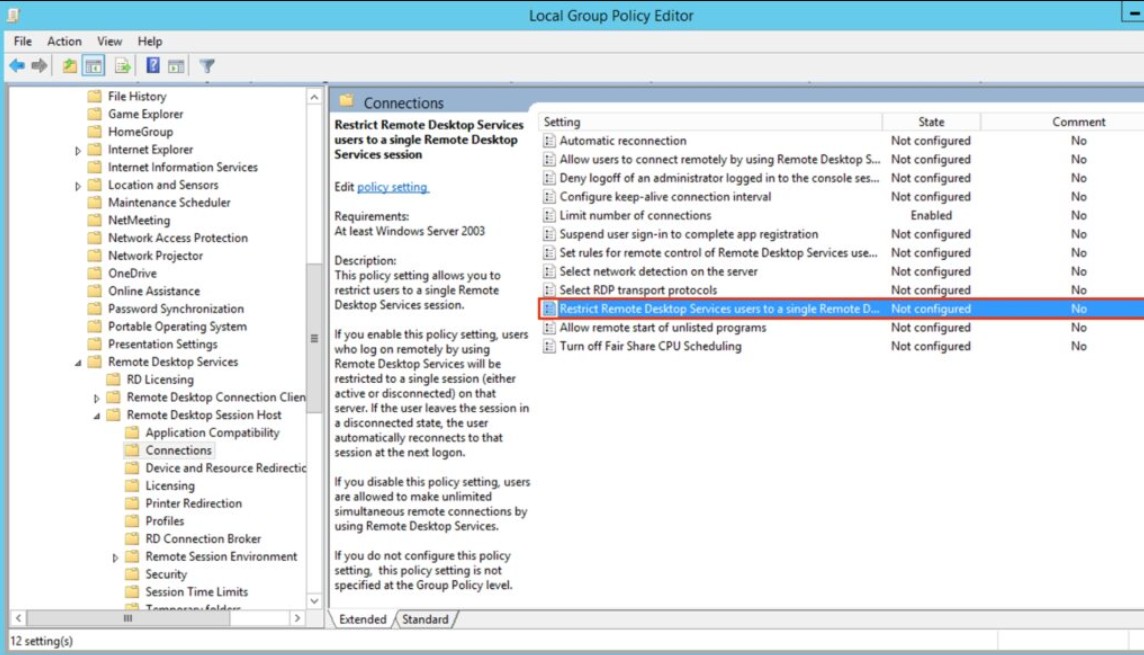
Double-click this item.
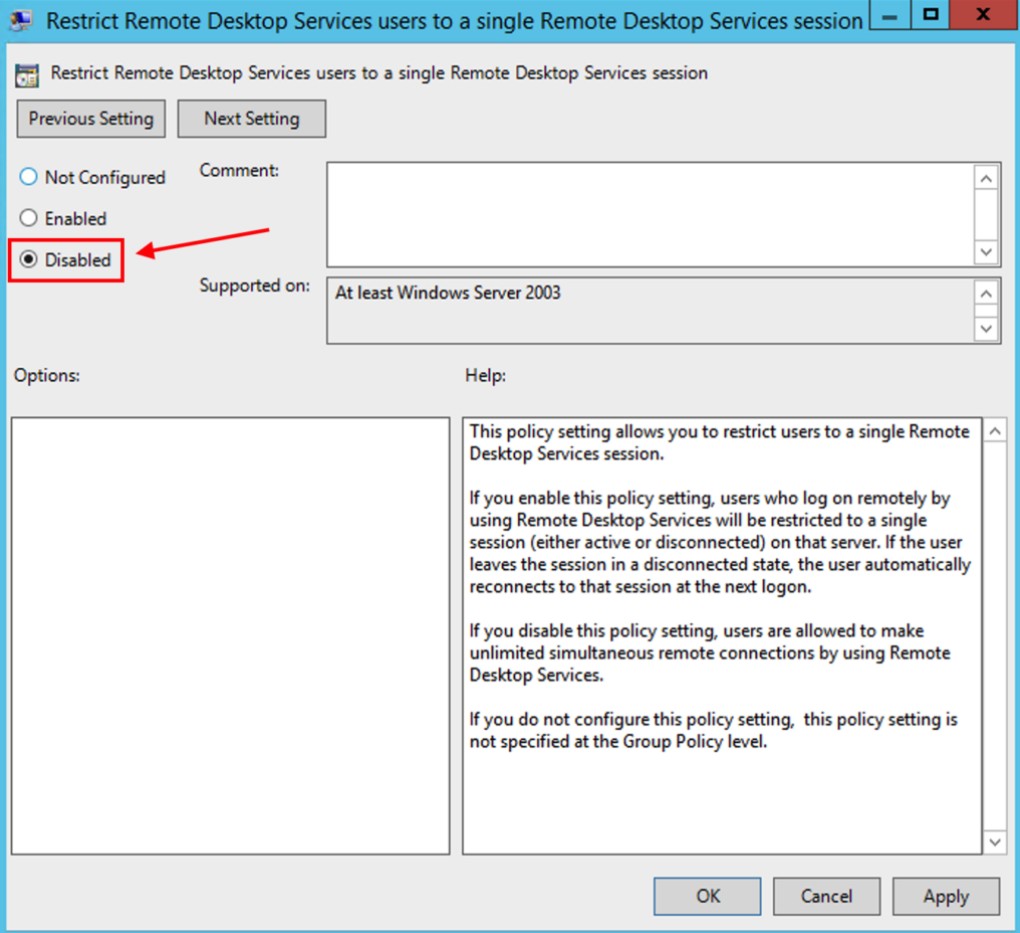
Select Disabled or Not Configured.
This setting allows multiple users to log in simultaneously without disconnecting each other.
Click Apply and then select OK to save the changes.
7. System Policy Update
After completing the changes in Group Policy , the policy needs to be updated so that the system applies the new configuration immediately.
Open Command Prompt with administrator privileges.
Enter the command:
gpupdate /force
Then press Enter.
Windows will perform a full Group Policy update.
This process usually only takes a few seconds.
Once the completion message appears, the changes related to Remote Desktop will take effect without requiring a server restart.
8. Important Security Considerations When Using Remote Desktop
Remote Desktop is an extremely useful tool, but it also poses many security risks if not configured correctly.
Both Microsoft and SaDesign recommend using Remote Desktop only in local network environments such as offices or homes. This is the simplest and safest way to minimize the risk of external attacks.
Users should not directly open port 3389 to the internet via Port Forwarding without in-depth knowledge of network security. This is the default port for the RDP protocol and is frequently scanned by automated tools for password cracking attacks.
If you need to access a computer remotely over the internet, a safer solution is to set up a private VPN connection. After successfully connecting to the VPN, you can then conduct a Remote Desktop session as if you were on the same local network.
Additionally, always use strong passwords for your Windows accounts, enable Network Level Authentication, and update your operating system regularly to patch newly discovered security vulnerabilities.
Another good habit is to turn off Remote Desktop when you no longer need it. Simply go back to Settings → System → Remote Desktop and switch the toggle from On to Off . This simple action significantly reduces the risk of unauthorized access in the future.





















VIP Products








Best Selling Products
ChatGPT Plus Account (GPT-4)
16 USD
Autodesk All App Account Copyright
120 USD
Windows 10 & 11 Pro Key
36 USD
Upgrade Genuine Office 365
49 USD
Upgrade genuine Capture One account
120 USD
Genuine Cheap Canva Pro
39 USD
MidJourney Account
29 USD
Plugin Retouch4me
69 USD
Upgrade Duolingo Super
29 USD
Copyright Adobe Lightroom Account
59 USD
Capcut Pro 1 Year
39 USD
Genuine Adobe Illustrator account
99 USD
Adobe Premiere Pro Account
99 USD
Freepik Premium Account
59 USD
Adobe Photoshop Copyright - Full App
120 USD