Best Selling Products
Upgrade Genuine Office 365
49 USD

ChatGPT Plus Account (GPT-4)
16 USD

Freepik Premium Account
59 USD
Copyright Adobe Lightroom Account
59 USD
Windows 10 & 11 Pro Key
36 USD
Adobe Premiere Pro Account
99 USD
Plugin Retouch4me
69 USD
Genuine Cheap Canva Pro
39 USD

Upgrade Duolingo Super
29 USD
Adobe Photoshop Copyright - Full App
120 USD

MidJourney Account
29 USD
Autodesk All App Account Copyright
120 USD
Genuine Adobe Illustrator account
99 USD
Upgrade genuine Capture One account
120 USD

Capcut Pro 1 Year
39 USD
Summary of the 10 Most Outstanding Photo Editing Features in Photoshop
Nội dung
- 2. Object removal and image cleanup
- 3. Portrait retouching and beautifying
- 4. Background removal and background replacement
- 5. Photo compositing and creative layouts
- 6. Sharpening and improving image quality
- 7. Photo editing with artificial intelligence (AI)
- 8. Cropping, resizing and perspective adjustment
- 9. Using filters and creating artistic effects
- 10. Adding text, shapes and graphic elements to photos
Discover the top 10 photo editing features in Adobe Photoshop that help you optimize your workflow and create professional photos.

1. Color and lighting adjustment
Photoshop provides many tools to support this process. Brightness/Contrast allows quick adjustment of brightness and contrast, while Levels helps control shadows, highlights and midtones. For more in-depth editing needs, Curves allows precise control of brightness and contrast in each tonal range.
In addition, Hue/Saturation supports changing the hue and color saturation, Color Balance helps balance color tones, and Vibrance helps increase the vividness of colors flexibly. Camera Raw Filter is also a useful option when you need to adjust exposure, white balance, detail and color in the same workflow.
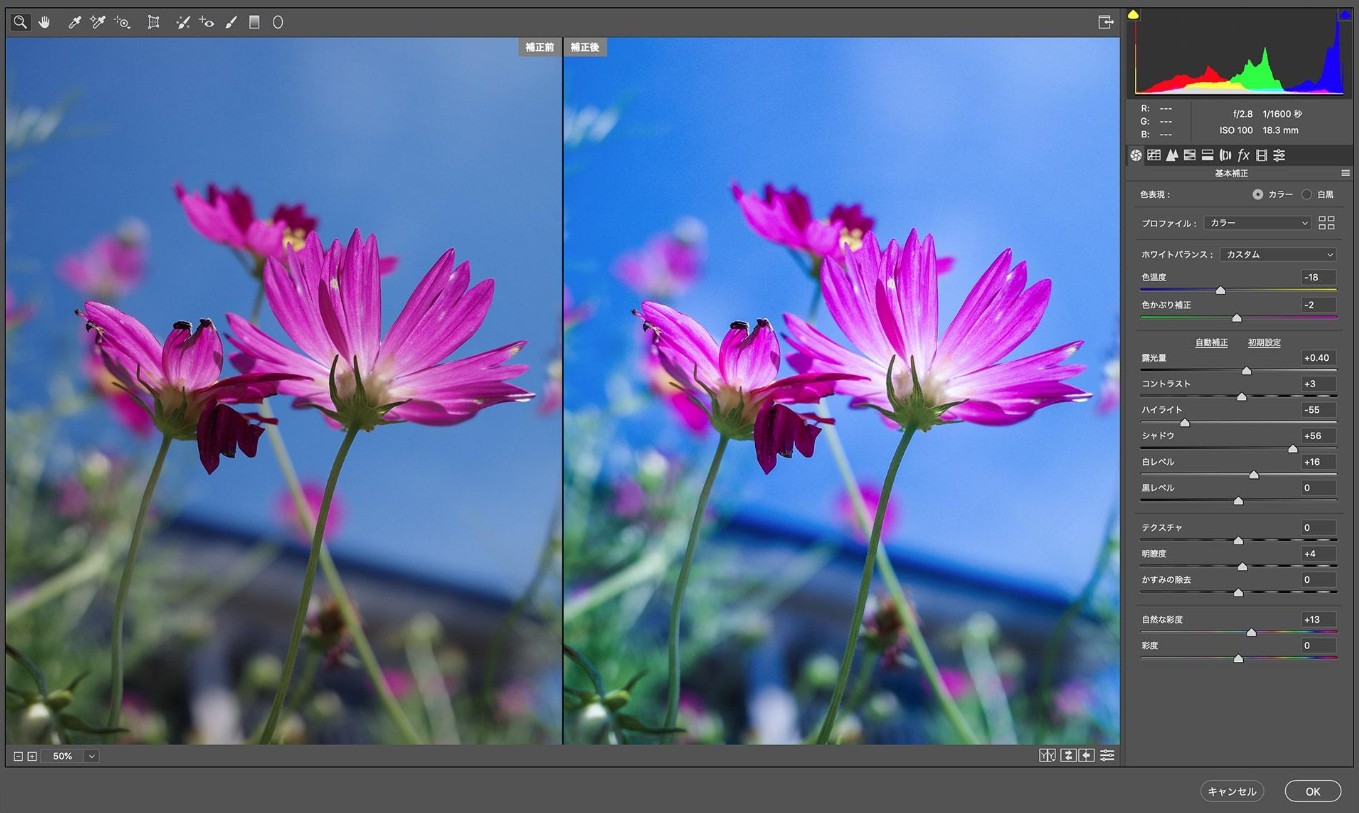
These tools are especially suitable for editing portraits, landscape photos, fashion photos and product photos. For example, you can make a blue sky stand out more, improve the lighting on a face or create a consistent color tone for a set of photos.
To make it easy to change parameters later, users should prioritize Adjustment Layers instead of editing directly on the original image. This approach makes the editing process more flexible and convenient.
2. Object removal and image cleanup
Remove Tool is a useful tool for removing unwanted objects by painting over the area to be removed. Content-Aware Fill can analyze the surrounding area to reconstruct the removed part of the image. Meanwhile, Spot Healing Brush is often used to handle pimples, dust and small blemishes.
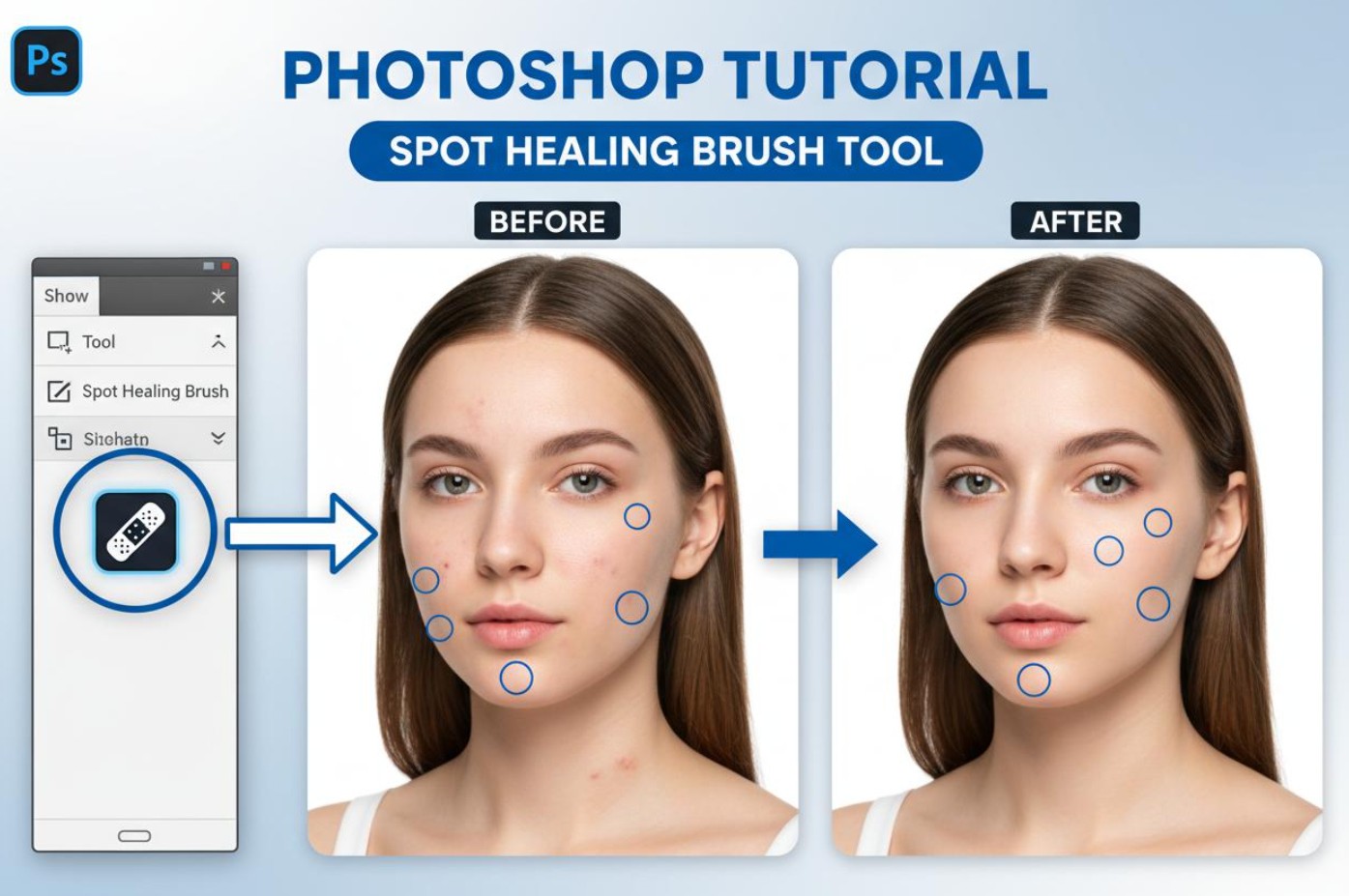
For cases that require more detailed control, Healing Brush allows sampling from another area of the image to repair the area being processed. Clone Stamp also has the function of copying pixels, suitable when precise control over the replacement content is needed.
For example, when editing travel photos, you can remove people who appear unintentionally to highlight the main subject. With product photos, removing dirt or redundant details makes the image look cleaner and more professional.
3. Portrait retouching and beautifying
Liquify allows adjusting the shape of areas in the photo, and is often used to refine the face, hair or clothing. Neural Filters provide filters that apply machine learning technology, supporting some portrait editing operations and changes to image characteristics.
For skin blemishes, Spot Healing Brush helps remove pimples and small spots. The Dodge and Burn technique is used to lighten or darken specific areas, thereby adding depth and creating dimension for the face. Meanwhile, Frequency Separation is an in-depth editing technique that helps separate color information from skin texture so that each element can be handled individually.
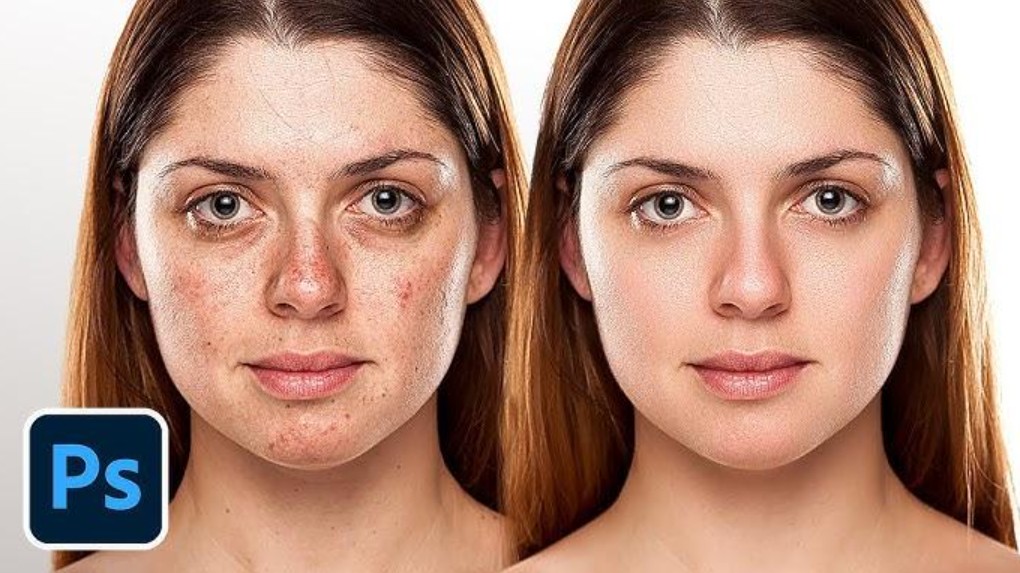
Layer Mask also plays an important role when you need to limit an effect to a certain area, avoiding impact on areas that do not need editing.
4. Background removal and background replacement
Photoshop provides Select Subject to automatically recognize the main subject, along with tools such as Object Selection Tool and Quick Selection Tool to create selections as needed. After selecting the subject, users can use Select and Mask to refine the edges, especially in complex areas such as hair, fur or small edges.
Next, Layer Mask allows hiding the background without directly deleting the original image data. As a result, users can adjust the cutout area or restore needed parts of the image when errors are found.
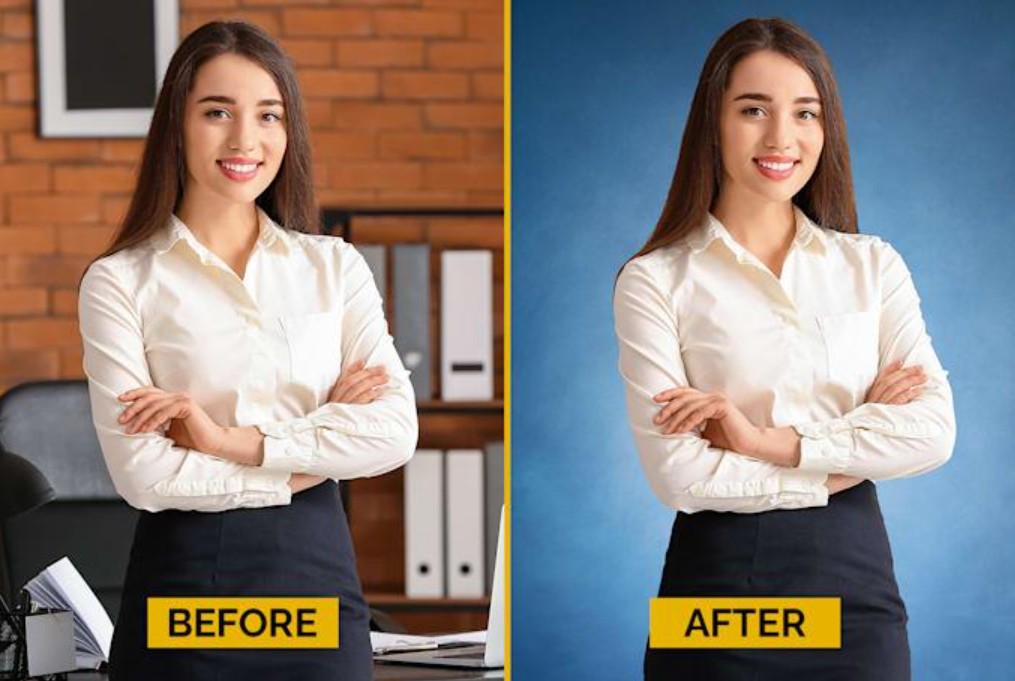
After completion, you can replace the background with white, a brand color, a landscape or a custom-designed setting. This is a popular solution when creating product photos for websites, designing advertising banners or editing portraits.
5. Photo compositing and creative layouts
Layers are the foundation of the compositing process, allowing each component to be placed on a separate layer. Layer Masks help control which part of the image is displayed, while Blending Modes create different ways of blending between layers to build lighting, color and texture effects.
In addition, Free Transform supports resizing, rotating and transforming objects. Perspective Warp helps adjust perspective in suitable cases, especially when combining architectural elements or objects with different viewing angles. Smart Objects are also useful because they preserve the source data, making it convenient to resize or apply adjustable edits.
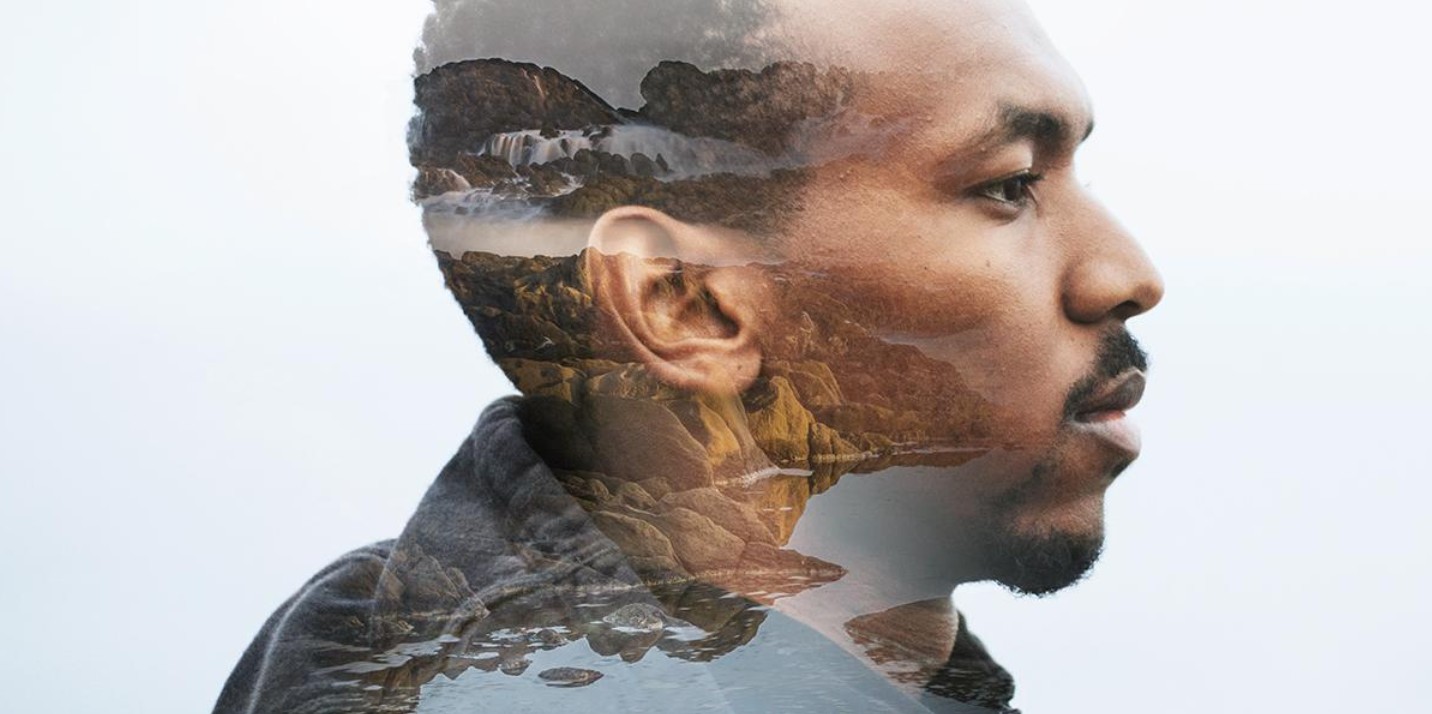
For example, when creating an advertising poster, you can separate the subject from the background, place it in a new setting, adjust the proportions, balance the colors and add shadows. These operations help the components blend together, creating the feeling that they belong to the same scene.
6. Sharpening and improving image quality
Smart Sharpen and Unsharp Mask help increase the perception of sharpness by emphasizing the differences between areas of the image. Reduce Noise helps reduce color noise and luminance noise, especially useful for photos taken in low-light conditions.
Camera Raw Filter provides parameters such as Texture, Clarity, Sharpening and Noise Reduction to control image details. In cases where you need to increase the image size, the Super Resolution feature in Adobe Camera Raw can double the width and height of compatible images, equivalent to four times the number of pixels.
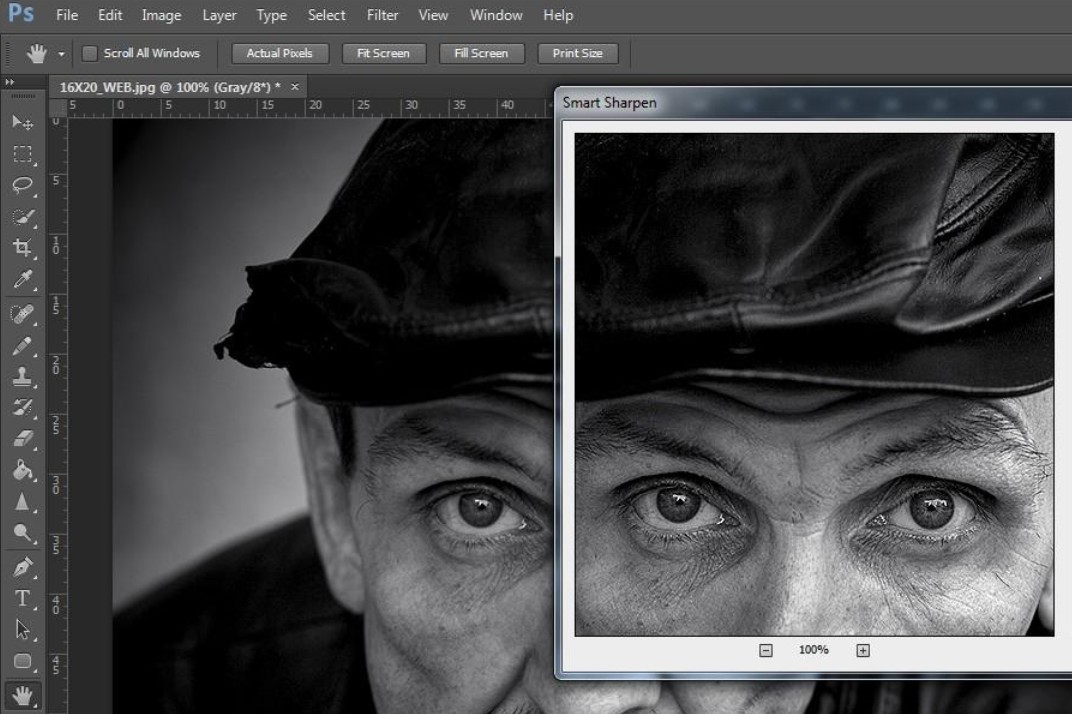
These tools are suitable when processing product photos, landscape photos, portraits or preparing images for printing. However, users need to adjust moderately because excessive sharpening can cause halos or make noise more noticeable.
7. Photo editing with artificial intelligence (AI)
Generative Fill allows adding, replacing or editing content in a selected area based on text descriptions and the options provided. Generative Expand supports extending the frame by generating additional content beyond the original image boundaries. In addition, AI-assisted removal tools and Neural Filters also help simplify some editing workflows.
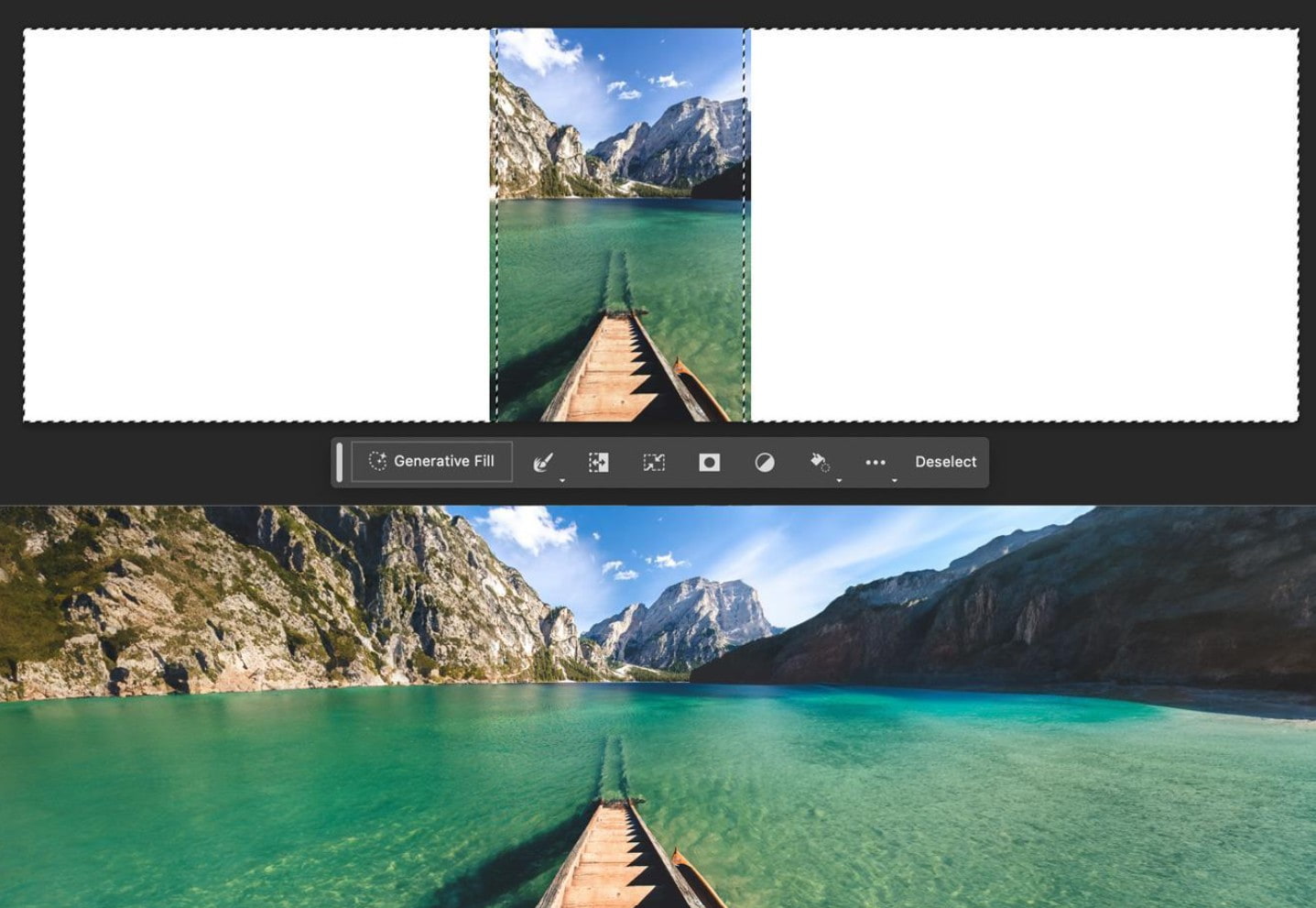
For example, if you want to add an object to an advertising photo, users can select a suitable area and enter a description to generate image options. When you need to extend a landscape photo, Generative Expand can help generate additional sky or ground to fit the new layout.
The great advantage of AI is its ability to speed up the creative process, especially when handling many images or testing different ideas. However, generated results may contain inaccurate details, unnatural structures or inconsistent lighting.
8. Cropping, resizing and perspective adjustment
Crop Tool allows cropping the image to remove excess parts and highlight the subject. Image Size is used to change the image size, while Canvas Size adjusts the canvas space around the image. These two tools have different purposes and need to be chosen according to your needs.
Free Transform supports enlarging, shrinking, rotating or transforming objects. Warp allows bending the image, while Perspective Warp can help adjust the perspective of suitable objects.
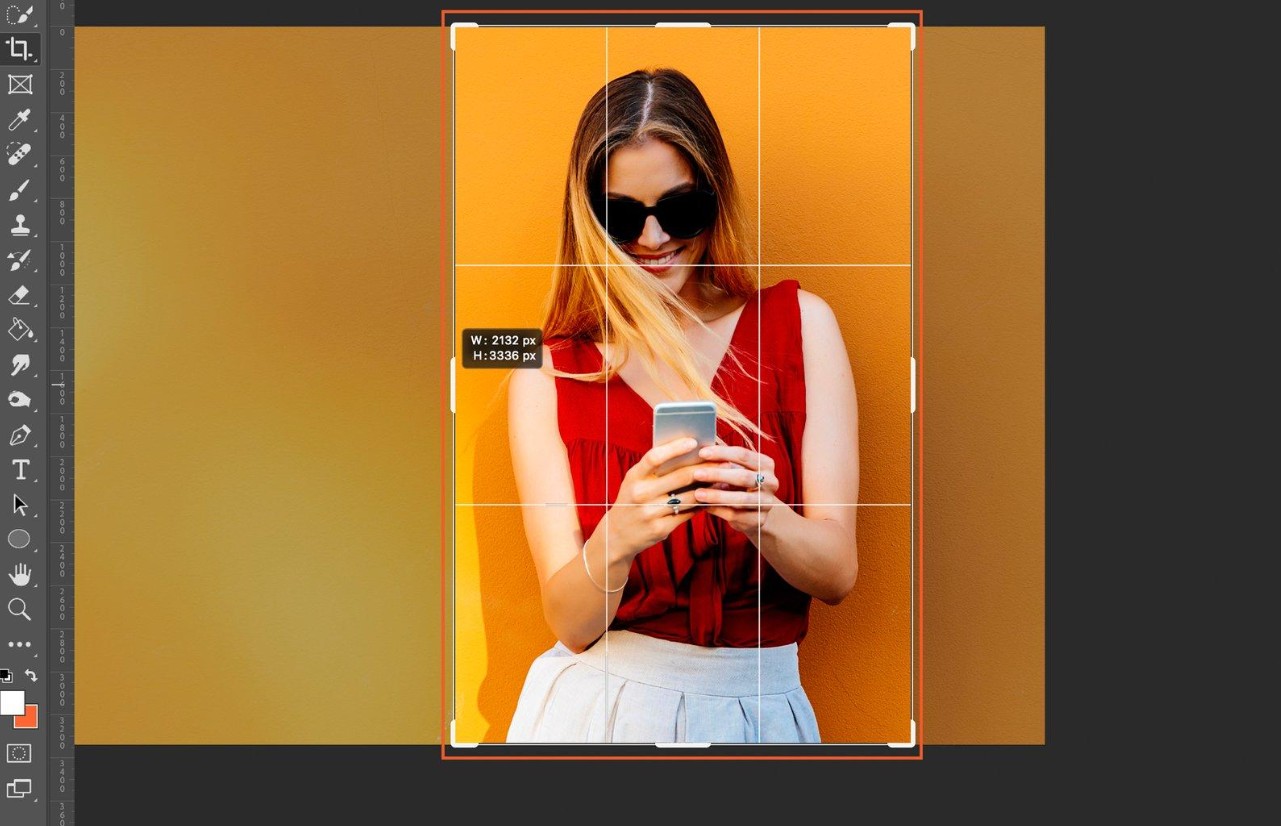
These features are very useful when preparing photos for websites, social media, advertising materials or printing. For example, users can crop a photo to a ratio suitable for a cover photo, resize it to optimize display or adjust the perspective of an architectural structure.
9. Using filters and creating artistic effects
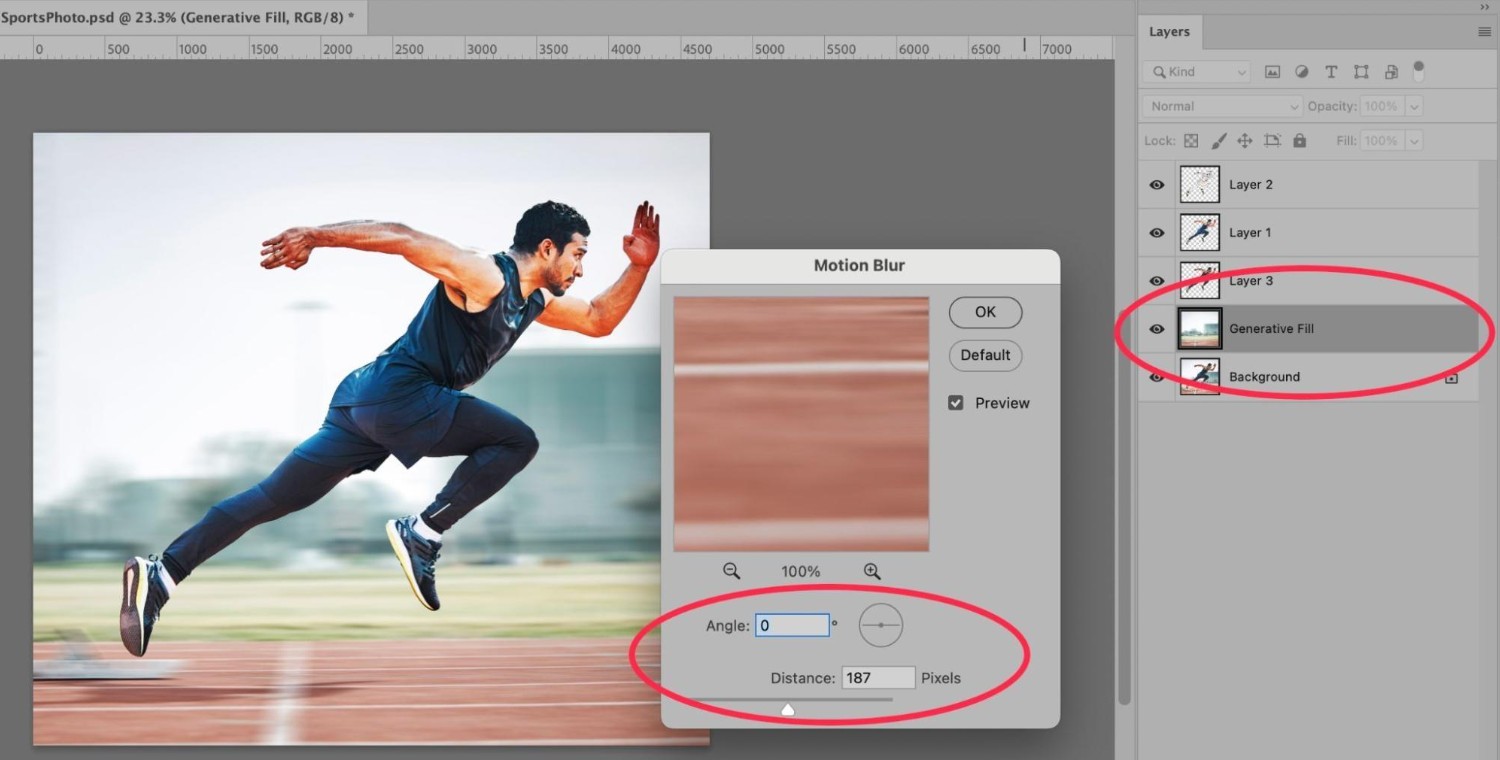
Gaussian Blur helps blur the image or a specific area, and is often used to create a sense of depth. Motion Blur creates a motion effect, while Lens Blur helps simulate a blur effect similar to depth of field. Filter Gallery provides many artistic effects that change the style of the image.
In addition, Smart Filters allow applying filters to Smart Objects in an adjustable way, making it easy for users to change parameters or remove effects when needed.
For example, when designing a poster, you can blur the background to make the subject stand out more, create a motion effect for an object or apply a suitable filter to build a distinctive image style.
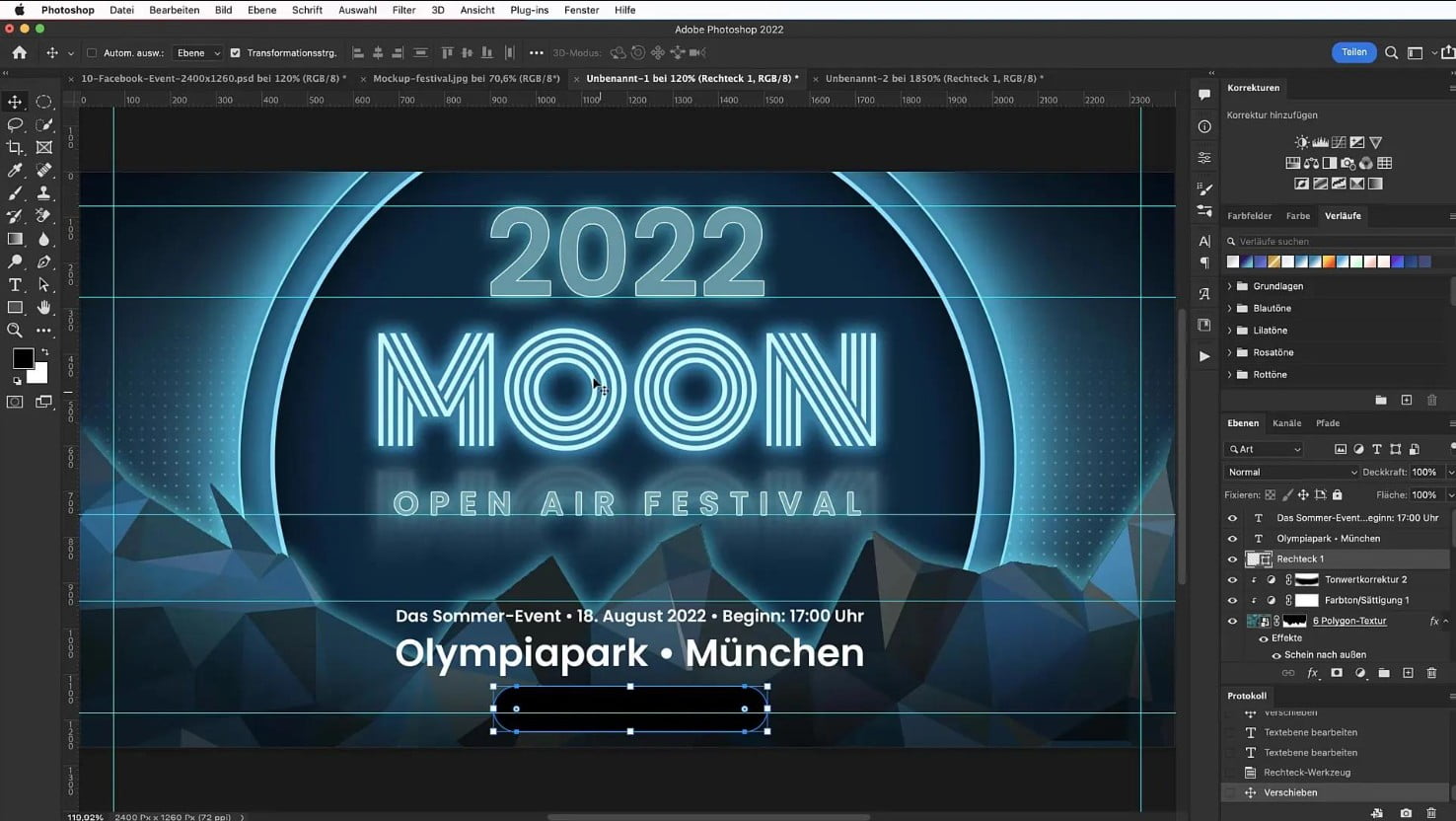
10. Adding text, shapes and graphic elements to photos
Type Tool allows adding titles, content and captions. Layer Styles supports creating effects such as drop shadows, text outlines and glows. Shape Tools are used to create basic shapes, while Brush Tool and Gradient Tool help draw, color or create color transition areas.
For projects with many design areas, Artboards help organize layouts within the same document, which is convenient when creating multiple versions of images for different platforms.
These features are especially useful when designing blog cover photos, advertising banners, YouTube thumbnails, posters or social media content. For example, a product photo can be combined with a title, promotional information and graphic elements to become a complete advertisement.
We hope the above sharing from SaDesign will help you better understand the photo editing features in Photoshop and choose the tools that suit your actual needs. Start with simple operations, practice regularly and gradually explore advanced techniques to create beautiful, professional images with your own distinctive mark.
Note: your text contained no quotation marks or horizontal lines, so nothing needed to be removed or specially handled for those. If you meant something else by those instructions, let me know and I'll adjust.












VIP Products


Best Selling Products
Upgrade Genuine Office 365
49 USD
ChatGPT Plus Account (GPT-4)
16 USD
Freepik Premium Account
59 USD
Copyright Adobe Lightroom Account
59 USD
Windows 10 & 11 Pro Key
36 USD
Adobe Premiere Pro Account
99 USD
Plugin Retouch4me
69 USD
Genuine Cheap Canva Pro
39 USD
Upgrade Duolingo Super
29 USD
Adobe Photoshop Copyright - Full App
120 USD
MidJourney Account
29 USD
Autodesk All App Account Copyright
120 USD
Genuine Adobe Illustrator account
99 USD
Upgrade genuine Capture One account
120 USD
Capcut Pro 1 Year
39 USD