Best Selling Products

Upgrade Genuine Office 365
49 USD

Genuine Cheap Canva Pro
39 USD

Copyright Adobe Lightroom Account
59 USD

Genuine Adobe Illustrator account
99 USD

Adobe Premiere Pro Account
99 USD

Windows 10 & 11 Pro Key
36 USD

Upgrade Duolingo Super
29 USD

Plugin Retouch4me
69 USD

Freepik Premium Account
59 USD

Upgrade genuine Capture One account
120 USD

ChatGPT Plus Account (GPT-4)
16 USD

MidJourney Account
29 USD

Adobe Photoshop Copyright - Full App
120 USD

Autodesk All App Account Copyright
120 USD

Capcut Pro 1 Year
39 USD
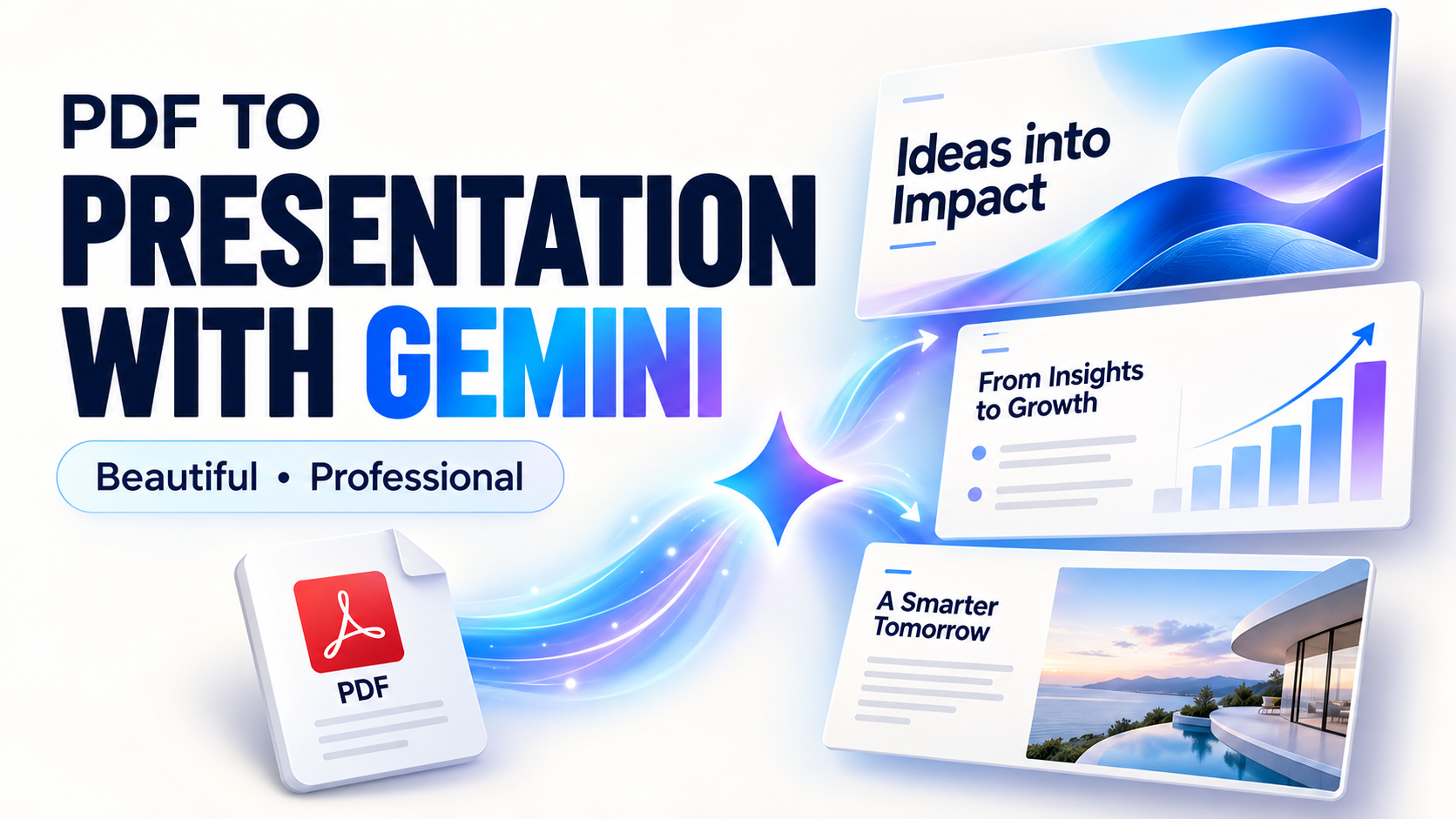
Use Gemini to convert PDFs into beautiful, professional presentation slides.
Nội dung
- 1. Can Gemini convert PDF files into presentation slides?
- 2. Advantages and disadvantages of converting PDF files into lecture slides
- 3. Instructions on how to convert PDF files into lecture slides using Gemini
- 3.1 Step 1: Access Gemini
- 3.2 Step 2: Select the + sign in the search box
- 3.3 Step 3: Upload the test PDF file
- 3.4 Step 4: Enter the prompt requesting to convert the PDF to slides
- 3.5 Step 5: Select Open to view the created slide.
- 3.6 Step 6: Export content
- 4. Tips for writing prompts to help Gemini create better lecture slides.
- 5. Notes on using Gemini to convert PDF to slides
- 6. Conclusion
With the increasing volume of study materials, manually reading through each PDF page and extracting the key information for slides can be incredibly time-consuming. Especially during exam preparation periods, students and teachers often need a faster way to transform lengthy documents into concise, visually appealing, and memorable content. Instead of starting a presentation from scratch, you can leverage Gemini to assist in processing PDF files. This AI tool can read document content, identify key information, and rearrange it into the required slide structure. With just a few clicks, a PDF exam or study material can be transformed into a clear and convenient set of lecture slides, ideal for both learning and teaching. Let''s explore it with Sadesign!
1. Can Gemini convert PDF files into presentation slides?
The answer is yes . Gemini can help analyze the content of the PDF files you upload, then summarize the key points and organize them into sections to create a presentation. Instead of having to read the entire document yourself, identify the main points, and then copy them into PowerPoint, you can delegate this initial task to AI. This is quite useful when dealing with test questions, study materials, or files with a lot of content that needs to be organized.
However, Gemini should be considered a supporting tool rather than a complete replacement for the lecture creation process. After the slides are created, you should still review each section, checking the knowledge, questions, answers, and wording. With materials containing tables, images, or complex formatting, some content may not be presented exactly as in the original. Editing the slides after creation will help make the lecture more accurate, coherent, and relevant to the target audience.

2. Advantages and disadvantages of converting PDF files into lecture slides
Using Gemini to convert PDFs into slides offers many advantages, especially when you need to complete a presentation in a short amount of time. Instead of spending hours processing each page of the document, AI can help build the initial content much faster. However, speed doesn't guarantee perfect results, so users still need to understand both the advantages and limitations before applying it.
3. Instructions on how to convert PDF files into lecture slides using Gemini
Converting PDFs to slides using Gemini isn't overly complicated. The most important thing is to prepare your document clearly and provide sufficiently specific instructions so that the AI understands exactly what type of slides you want to create. You can follow the steps below.
3.1 Step 1: Access Gemini
First, open your browser on your computer and go to Gemini. After logging into your account, you will see the familiar chat interface where you can enter questions or requests for the AI to process.
If you want the results to be more suitable for teaching purposes, you should prepare the PDF file you need to convert beforehand. This could be a test, exam preparation material, course outline, or a document containing knowledge that you want to organize into a presentation.

3.2 Step 2: Select the + sign in the search box
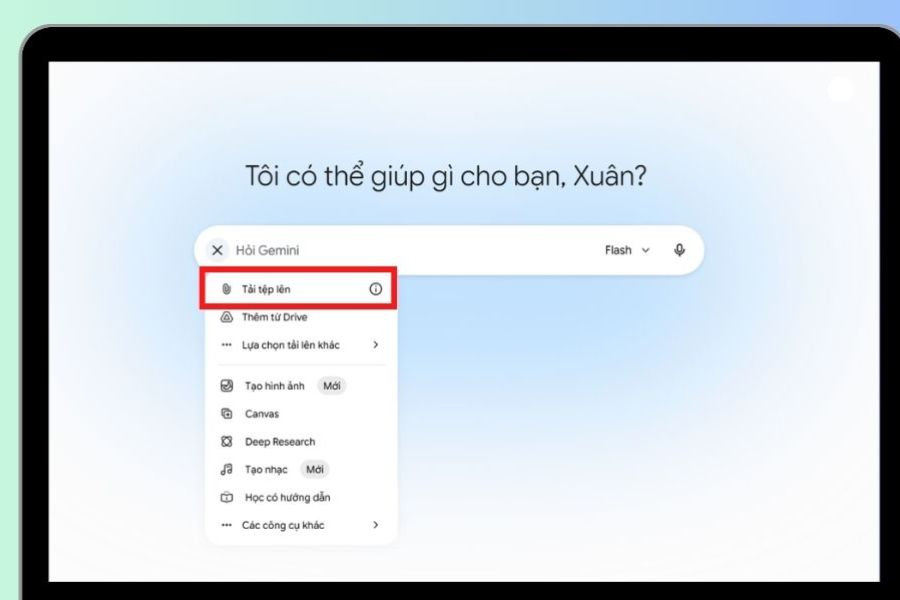
In the input area, find and select the "+" icon . This is where you can add files to the chat so Gemini can directly rely on the document's content when making requests.
Uploading the file before submitting the request helps Gemini have enough data for analysis. If the document has many chapters or sections, you should also determine the purpose of the slide set beforehand, such as for exam preparation, classroom lectures, or summarizing key concepts.

3.3 Step 3: Upload the test PDF file
After selecting the "+" sign , click the "Upload file" option and then locate the PDF file you need on your computer. Select the correct document and wait for the upload process to complete before submitting the request to Gemini.
You should prioritize PDF files with clear content, legible text, and a relatively stable layout. With scanned documents, especially those with unclear images or text, the ability to recognize the content may be affected. Therefore, checking the file before uploading is a small but quite important step.
3.4 Step 4: Enter the prompt requesting to convert the PDF to slides
Once the file has been uploaded, you enter your request for Gemini to process the document. For a basic request, you can use the prompt: "Please help me convert this test PDF file into a presentation slide." Gemini will analyze the content of the file and build the presentation.
However, if you want your slides to have a clear structure and be more suitable for learning, you should write a more detailed prompt. For example, you could ask the AI to summarize key knowledge, divide the content by topic, keep important information concise, present it briefly, and add clear headings to each slide. The more specific the prompt, the more likely the output will be aligned with the intended purpose.
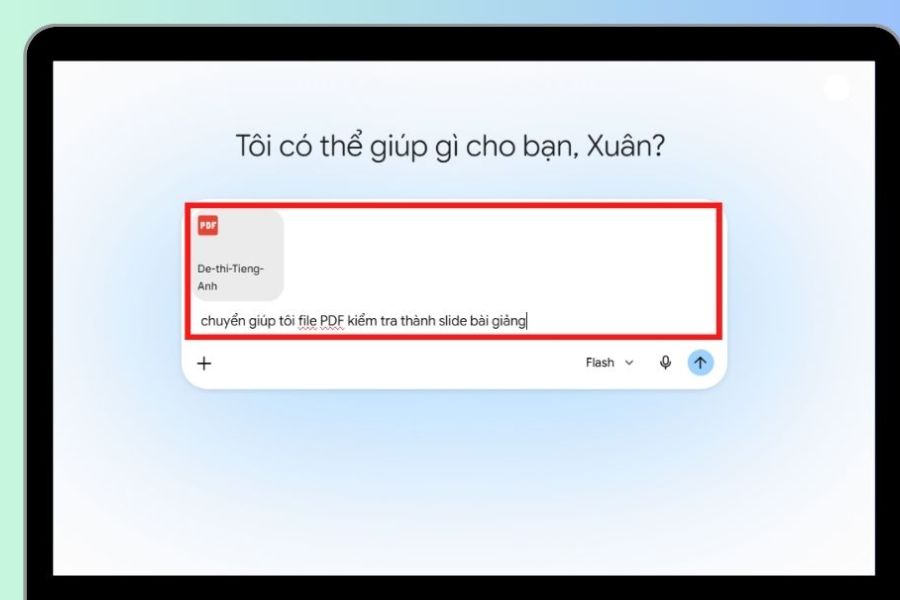
3.5 Step 5: Select Open to view the created slide.
After receiving your request, Gemini will begin analyzing the PDF file and creating the presentation content. Processing time may vary depending on the length and complexity of the document. Once complete, select Open to open and view the slides that Gemini has created.
This is also the time to review all the content. Pay attention to the title, key information, questions, answers, data, and the arrangement of the slides. If you find any part too lengthy or incorrect, you can ask Gemini to shorten, rewrite, or rearrange the content instead of starting from scratch.
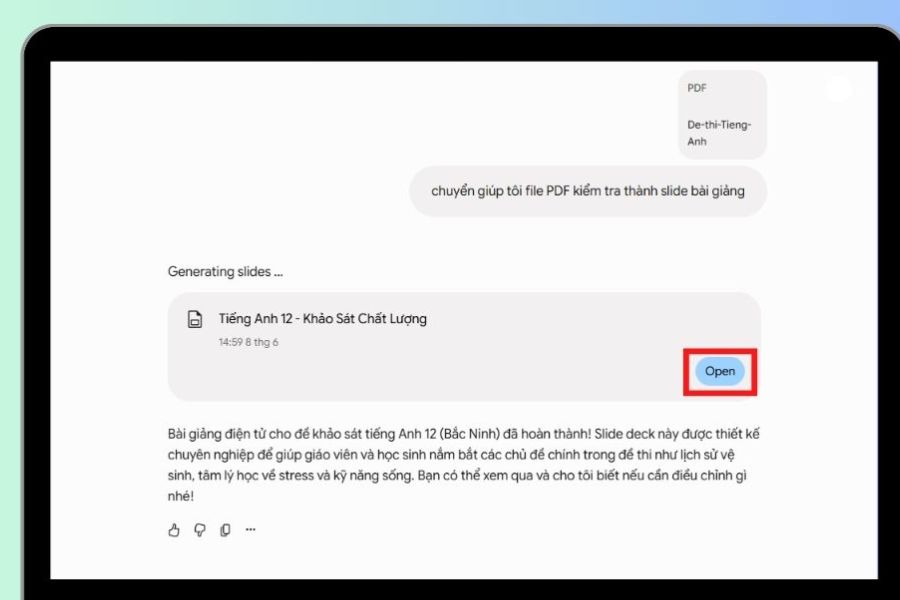
3.6 Step 6: Export content
Once you've reviewed and are satisfied with the content, select "Export to Presentation File" to use the slide set. From there, you can continue editing the content, changing the layout, or adding images to make your presentation more visually appealing.
Before using slides in teaching or review sessions, you should still take some time to double-check them. Especially with test materials, details such as answers, formulas, data, and technical terms need to be compared with the original document. AI significantly shortens the preparation process, but user review remains essential to ensure the quality of the presentation.
4. Tips for writing prompts to help Gemini create better lecture slides.
A short prompt might help Gemini get started, but a more specific prompt will result in a more targeted outcome. If the request is simply "convert PDF to slides," the AI might generate quite general content. Conversely, when you clearly describe the target audience, the number of slides, how the content will be structured, and the presentation style, the slides will usually be more clearly directed.
You can request Gemini based on criteria such as:
-
Divide the content into topics or chapters.
-
Prioritize important information and avoid cramming too much text into a single slide.
-
Retain formulas, definitions, examples, and other information that needs to be remembered.
-
Write a short, easy-to-understand slide title.
-
Arrange the content in order from basic to advanced.
-
Use language that is appropriate for students.
-
Create a summary of key concepts at the end of the lesson.
-
Suggest images or charts to illustrate if needed.
You can also use prompts in a more specific way, for example: “Analyze this PDF file and turn it into a 15-slide lecture for high school students. Each slide should focus on one main point, presented concisely and clearly, retaining formulas and important knowledge. At the end of the lecture, create a slide summarizing the key points to remember.” This type of request helps Gemini understand the target audience, objectives, length, and content organization.
5. Notes on using Gemini to convert PDF to slides
While AI can significantly shorten preparation time, using it to create slides still requires careful verification. This is especially true for study and exam preparation materials, where even a small error in formulas, answers, or technical information can lead to incorrect learning outcomes.
Some things you should keep in mind include:
-
Content verification: Compare important information with the original PDF file.
-
Not entirely dependent on AI: Gemini assists in document processing but does not replace the user's moderation process.
-
Review images and charts: Visual elements may need adjustments to display correctly.
-
Avoid too much text: A slide should focus on one main point rather than including an entire long paragraph.
-
Design editing: You can change the font, size, layout, and images to make the lecture easier to read.
-
Suitable for the target audience: Slides intended for high school students should prioritize concise, direct, and memorable language.
6. Conclusion
If you frequently have to work with long documents, Gemini can be a helpful assistant in preparing lectures. Instead of starting with a blank slide, you can feed existing material to the AI for analysis first, then use the results as a foundation to build a complete lecture. This method is especially suitable for times when you need to quickly organize knowledge from test questions, outlines, or review materials. The most valuable aspect isn't how quickly Gemini can create slides, but its ability to help users reduce repetitive tasks such as reading, summarizing, and dividing content. By combining AI with human checking and editing capabilities, you can create slide sets that save preparation time while ensuring clear and easily understandable content.





















VIP Products








Best Selling Products
Upgrade Genuine Office 365
49 USD
Genuine Cheap Canva Pro
39 USD
Copyright Adobe Lightroom Account
59 USD
Genuine Adobe Illustrator account
99 USD
Adobe Premiere Pro Account
99 USD
Windows 10 & 11 Pro Key
36 USD
Upgrade Duolingo Super
29 USD
Plugin Retouch4me
69 USD
Freepik Premium Account
59 USD
Upgrade genuine Capture One account
120 USD
ChatGPT Plus Account (GPT-4)
16 USD
MidJourney Account
29 USD
Adobe Photoshop Copyright - Full App
120 USD
Autodesk All App Account Copyright
120 USD
Capcut Pro 1 Year
39 USD