Best Selling Products

Upgrade Genuine Office 365
49 USD

Copyright Adobe Lightroom Account
59 USD

Genuine Cheap Canva Pro
39 USD

Plugin Retouch4me
69 USD

MidJourney Account
29 USD

Windows 10 & 11 Pro Key
36 USD

Upgrade Duolingo Super
29 USD

Adobe Photoshop Copyright - Full App
120 USD

Upgrade genuine Capture One account
120 USD

Adobe Premiere Pro Account
99 USD

Autodesk All App Account Copyright
120 USD

Freepik Premium Account
59 USD

Genuine Adobe Illustrator account
99 USD

ChatGPT Plus Account (GPT-4)
16 USD

Capcut Pro 1 Year
39 USD
Useful Tips When Using Canva for Graphic Design
Nội dung
- 1. Why should I use Canva for graphic design?
- 2. Graphic design tips on Canva
- 2.1 Tip 1: Choose the right design dimensions from the start.
- 2.2 Tip 2: Use design color palettes intelligently
- 2.3 Tip 3: Mastering Graphic Design Styles
- 2.4 Tip 4: Learn how to align details like a designer
- 2.5 Tip 5: Prioritize easy-to-read fonts and maintain consistency throughout the design.
- 2.6 Tip 6: Create emphasis with just the right amount of effects
- 2.7 Tip 7: Create your own personal library to work faster
- 3. Canva is a professional design tool that helps you enhance your creativity.
- 3.1 Online graphic design tools for everyone
- 3.2 Utilize Canva to learn and improve your design skills
- 3.3 The door opens to opportunities for creativity and professionalism.
- 4. Address for affordable Canva upgrades
- 5. Conclusion
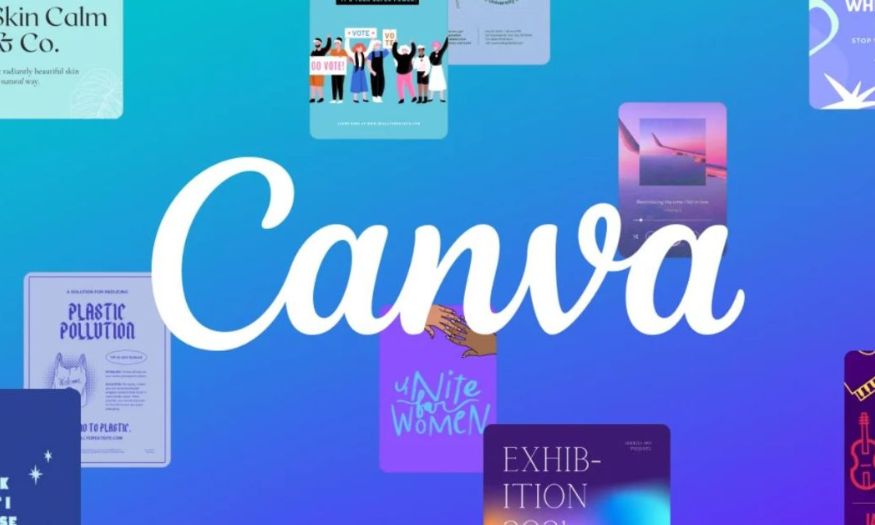
In the digital age, possessing graphic design skills is more essential than ever. With Canva, an intuitive and user-friendly tool, anyone can turn ideas into eye-catching products in just minutes.
1. Why should I use Canva for graphic design?
Canva is not only a free online design tool but also an ideal companion for those who want to learn and practice graphic design quickly. With its intuitive drag-and-drop functionality and rich resource library, you can easily create banners, posters, social media posts, or presentation slides without needing extensive experience. Here are the reasons why Canva is a top choice for starting your design journey:
- Simple and user-friendly interface : Even beginners can quickly get familiar with it and create beautiful products.
- Thousands of professional design templates : Simply choose the right template, and you can save time while still achieving an impressive result.
- A rich library of fonts, icons, and images : Helps you diversify your design style and convey your message effectively.
- Team collaboration support : Easily share and edit with colleagues, optimizing the team workflow.
- The free version offers full basic features : allowing you to experience most essential tools without costing anything.

2. Graphic design tips on Canva
2.1 Tip 1: Choose the right design dimensions from the start.
One of the most common mistakes when designing in Canva is not determining the correct dimensions from the start. Many beginners often choose a template and then edit it, leading to a disproportionate final product or requiring multiple adjustments. Choosing the right dimensions from the beginning not only helps the design look harmonious but also optimizes it for each platform you use. Canva also allows you to create custom sizes , giving you the flexibility to adjust them to perfectly suit your needs, instead of forcing the design into pre-made templates.
Common sizes:
- Website banner: 1920×600 px, suitable for most web interfaces, ensuring sharp and balanced image display.
- Poster: A4 (210x297mm) or A3 (297x420mm), easy to print and share offline.
- Instagram posts: 1080×1080 px, square format ensures content displays perfectly on the feed.
- Facebook post: 1200×630 px, optimized for timeline display and reduced image cropping.
Choosing the right aspect ratio from the start saves you time, avoids layout errors, and ensures the final product is always professional and visually appealing on all platforms.
2.2 Tip 2: Use design color palettes intelligently
Color is the most important element in creating impressions and conveying emotions in graphic design. Canva offers many ready-made color palettes, but understanding how to intelligently combine colors will elevate your product from ordinary to outstanding and professional. A harmonious color scheme helps viewers focus on the main message and creates a pleasant visual experience.
Tips for choosing colors effectively:
- Use a maximum of 3–4 primary colors to avoid a cluttered look and loss of focus.
- Apply the 60-30-10 rule : the primary color occupies 60% of the area, the secondary color 30%, and the accent color 10% to create subtle accents.
- Choose a harmonious or contrasting color scheme to create a design that is both visually appealing and cohesive.
- Utilize Canva's Color Palette Generator tool to automatically create color palettes from images, saving time and ensuring color consistency.

Color psychology in design:
- Blue: evokes feelings of trust and calmness, suitable for professional products.
- Red: creates energy, stimulates action, ideal for advertising banners or eye-catching messages.
- Gold: brings optimism and cheerfulness, helping to attract attention while remaining gentle.
Using a smart color palette not only makes your design harmonious and easy to look at, but also conveys your message subtly and effectively, creating a lasting impression on viewers.
2.3 Tip 3: Mastering Graphic Design Styles
A key element in making your design look professional is the ability to grasp and apply the right design style. Canva offers thousands of diverse templates, ranging from minimalist, modern, pastel, and retro styles to complex illustrative designs. Choosing the right style helps you convey your message clearly while subtly showcasing your brand values.
Popular styles you should try:
- Flat design: uses block colors, minimizes details, and focuses on the main message.
- Material design: multiple layers, subtle shadow effects, creating visual depth, a modern and vibrant interface.
- Minimalist: minimizing unnecessary details, emphasizing the main content and elegance.
- Retro/Vintage: a nostalgic style, with a "old-fashioned" feel, suitable for projects that inspire or evoke memories.
- Illustrative: uses handcrafted illustrations to create a creative, individualistic, and unique feel.
Note that you shouldn't simply copy a pre-made template if it doesn't align with your brand values or communication goals. Customize and combine elements to create a design that is both visually appealing and conveys the right message.
2.4 Tip 4: Learn how to align details like a designer
Although Canva is a user-friendly drag-and-drop tool, simply "dropping everything in" can easily result in an amateurish and unprofessional-looking product. Skilled designers always pay attention to alignment, spacing between elements, and overall consistency . A clean, organized design will make the viewer feel comfortable and enhance its aesthetic value.
Tips for effective alignment in Canva:
- Snap to Grid: Quickly and accurately align elements into their correct positions.
- Guides & Rulers: measure the distance between objects, ensuring uniform proportions.
- Shift + select multiple objects: center, left, or right group alignment helps create a balanced layout.
- Alt/Option: Quickly copy elements while maintaining spacing and proportions.
Mastering these alignment techniques will help your design look both professional and visually appealing , making a good first impression on viewers.
2.5 Tip 5: Prioritize easy-to-read fonts and maintain consistency throughout the design.
Fonts play a crucial role in conveying a message, but many people often overuse or choose fonts that are difficult to read, making the design look cluttered. Choosing the right font not only makes the design easy to read but also enhances its aesthetics and professionalism.
Principles for choosing effective fonts:
- Use a maximum of 2–3 fonts in a design to maintain consistency.
- Heading font: should be bold, prominent, and easy to read; content font: simple, clear, and not overly ornate.
- Avoid overly ornate or artistic fonts unless absolutely necessary.
- Canva offers many suggested font pairings that complement each other well ; take advantage of them to save time and ensure harmony.
If you're designing posters or advertising banners , prioritize clear, easily readable fonts so your message reaches viewers quickly. The right font will make the content easy to understand and create a positive first impression.

2.6 Tip 6: Create emphasis with just the right amount of effects
Canva offers many attractive effects such as shadows, background blur, textures, and photo filters , but using too many effects will make the design cluttered and unprofessional. Effects should only be used when they truly serve the purpose of emphasizing or highlighting the content.
Tips for using subtle effects:
- Subtle drop shadow: makes titles stand out more, helping text read easily on a complex background.
- Background blur: helps the text content stand out and be more focused.
- Photo Filter: synchronizes the image's color tone, creating a unified and aesthetically pleasing look.
Professional design is when every detail serves a purpose. Don't just insert effects because Canva allows it; consider how each effect adds value to your message.
2.7 Tip 7: Create your own personal library to work faster
Once you've defined your brand's style or design, building a personal library will save you a lot of time. Canva allows you to save your brand colors, favorite fonts, frequently used images, and icons to the Brand Kit (Pro version), but even the free version lets you create a separate folder to store templates and frequently used resources.
Benefits of having a personal library:
- Save time searching for resources each time you create a new design.
- It's easy to maintain consistency in product designs for the same brand.
- Quick support is available when you need to reuse templates , especially in ongoing marketing campaigns.
Building a personal library will help you work more efficiently, maintain a consistent design style, and create professional-looking products, even when designing under time pressure.

3. Canva is a professional design tool that helps you enhance your creativity.
3.1 Online graphic design tools for everyone
Canva is a powerful, user-friendly, and easy-to-use online graphic design platform suitable for both beginners and professional designers. No complex software installation or time-consuming learning of advanced tools is required; you can simply drag and drop elements, insert images, icons, or text into pre-made templates with just a few clicks. Its rich resource library, with thousands of templates, high-quality images, unique icons, and diverse fonts, allows you to freely create in your own style, from minimalist and modern to pastel, retro, or illustrative. This helps you realize your ideas quickly, saving time while ensuring aesthetics and professionalism.
3.2 Utilize Canva to learn and improve your design skills
Canva is not just a tool, but also an ideal learning and practice environment for anyone wanting to improve their graphic design skills. Using Canva, you have the opportunity to experiment with many different design styles, from minimalist , material design, retro, vintage, to creative illustrative styles. By regularly adjusting colors, fonts, layout, and effects, you will gradually master design thinking, understand how to create harmonious combinations, highlight the main message, and impress viewers. Learning through practice on Canva helps you quickly transform theory into practical skills, while simultaneously enhancing creativity and aesthetic thinking—something traditional courses sometimes cannot directly provide.
3.3 The door opens to opportunities for creativity and professionalism.
Mastering Canva not only helps you create eye-catching graphic designs but also opens up many new career opportunities. You can become a design collaborator , a digital content freelancer, or a media creative expert, thanks to your ability to quickly produce high-quality publications. By combining the powerful Canva tool with a professional design mindset, understanding layout, color, fonts, style, and communication goals, you will create products that are both visually impressive and effectively convey your message . Canva helps you assert your personal design style while honing your sensitivity in choosing colors, effects, and layouts, thereby enhancing the value of your products and your professionalism in the eyes of clients or viewers.

4. Address for affordable Canva upgrades
Canva Pro offers a full range of advanced features, helping you design professionally quickly and save time. Upgrading your account unlocks a premium library of templates, images, icons, and fonts, and allows you to save your brand colors and create a personal library.
Reasons to upgrade to Canva Pro at The Software World:
- Affordable pricing: We offer Canva Pro upgrade packages at a cost-effective price, suitable for individuals and small businesses.
- Full feature access: Use all premium templates, images, icons, and fonts that the free version doesn't offer.
- Save your favorite brand colors and fonts: Easily create your own brand identity and reuse it quickly.
- Create a personal library: Save frequently used templates, images, and icons, saving time when designing multiple products.
- Prompt support and guidance: Our customer service team provides detailed advice to help you upgrade and use Canva Pro effectively.
5. Conclusion
Canva is a powerful tool that allows anyone to create beautiful designs, but to improve quickly, you need to master smart tips about color, layout, fonts, and images. With just a few simple tricks, your products will not only look great but also show professionalism and sophistication, whether you are a beginner or an experienced designer.





















VIP Products








Best Selling Products
Upgrade Genuine Office 365
49 USD
Copyright Adobe Lightroom Account
59 USD
Genuine Cheap Canva Pro
39 USD
Plugin Retouch4me
69 USD
MidJourney Account
29 USD
Windows 10 & 11 Pro Key
36 USD
Upgrade Duolingo Super
29 USD
Adobe Photoshop Copyright - Full App
120 USD
Upgrade genuine Capture One account
120 USD
Adobe Premiere Pro Account
99 USD
Autodesk All App Account Copyright
120 USD
Freepik Premium Account
59 USD
Genuine Adobe Illustrator account
99 USD
ChatGPT Plus Account (GPT-4)
16 USD
Capcut Pro 1 Year
39 USD