Best Selling Products

Capcut Pro 1 Year
39 USD

Upgrade genuine Capture One account
120 USD

MidJourney Account
29 USD

Copyright Adobe Lightroom Account
59 USD

Upgrade Duolingo Super
29 USD

Adobe Premiere Pro Account
99 USD

Freepik Premium Account
59 USD

Adobe Photoshop Copyright - Full App
120 USD

ChatGPT Plus Account (GPT-4)
16 USD

Genuine Adobe Illustrator account
99 USD

Upgrade Genuine Office 365
49 USD

Windows 10 & 11 Pro Key
36 USD

Plugin Retouch4me
69 USD

Autodesk All App Account Copyright
120 USD

Genuine Cheap Canva Pro
39 USD
What Are Canva Offline and Learn Grid? A Simple Guide for Beginners 09/13/2026
Nội dung
- 1. What's new in Canva Offline and Learn Grid?
- 2. What kind of content can Learn Grid create?
- 3. Guide to using Canva Offline for beginners
- 4. Guide to using Learn Grid on Canva
- 5. Tips for using Canva Offline and Learn Grid effectively
- 6. Who are Canva Offline and Learn Grid suited for?
- 7. Things to note when using Canva Offline and Learn Grid
- 8. Conclusion
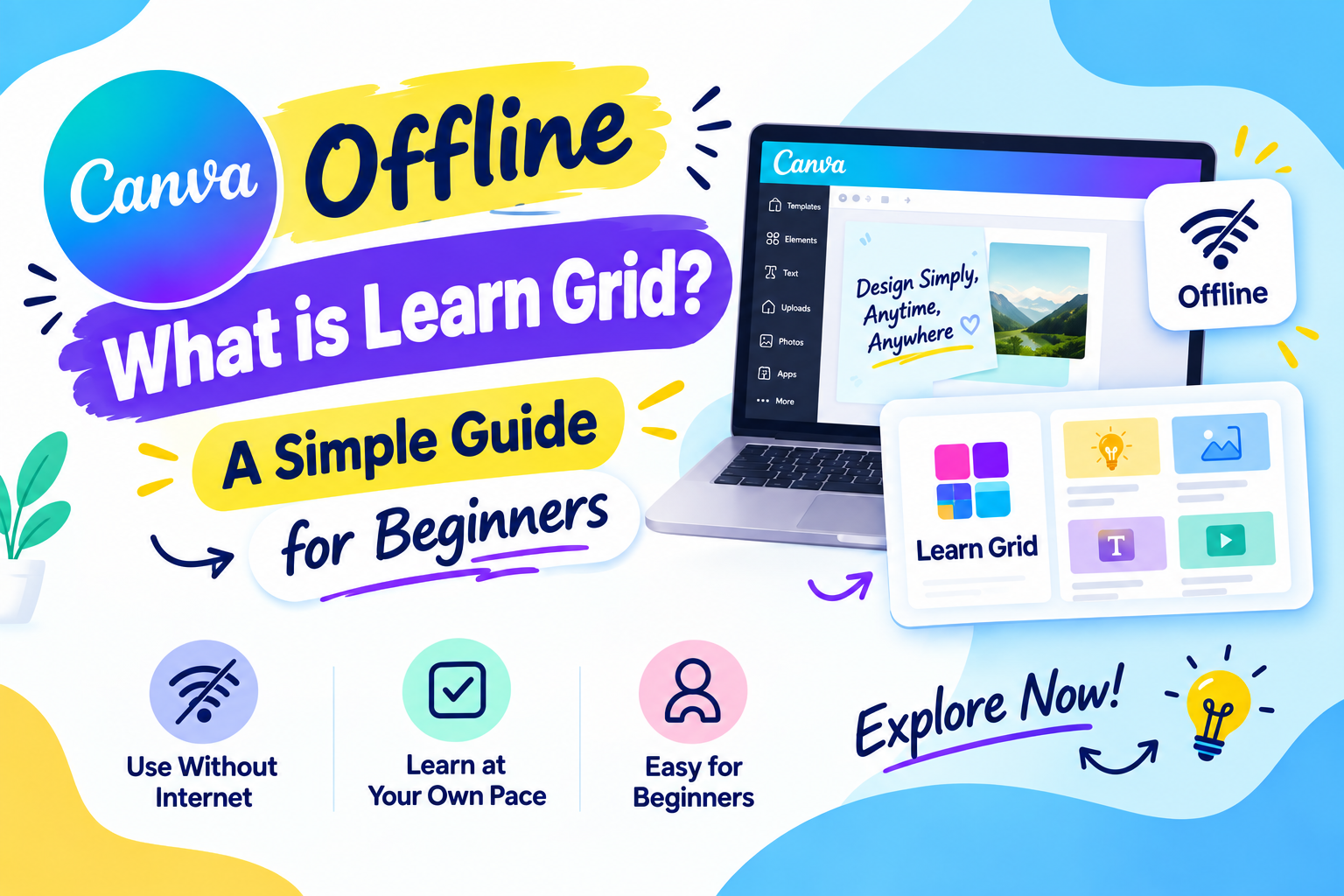
Canva is widely known as the go-to online design tool for students, teachers, office workers, and anyone who regularly creates content. However, Canva now also offers many features that make studying and working more flexible, among which Canva Offline and Learn Grid are two especially notable ones. One helps you keep designing even when your Internet connection is spotty, while the other helps you search for and create study materials quickly. If you often work on a laptop, have to travel, or need to prepare lessons and assignments in a short amount of time, understanding how these two features work will save you a significant amount of time. Canva Offline helps minimize disruptions when the connection drops, while Learn Grid opens up a visual learning space with plenty of resources and AI-powered tools. Let''''s explore with Appvip exactly how to use Canva Offline and Learn Grid below.
1. What's new in Canva Offline and Learn Grid?
Canva is widely known as the go-to online design tool for students, teachers, office workers, and anyone who regularly creates content. However, Canva now also offers many features that make studying and working more flexible, among which Canva Offline and Learn Grid are two especially notable ones. One helps you keep designing even when your Internet connection is spotty, while the other helps you search for and create study materials quickly. If you often work on a laptop, have to travel, or need to prepare lessons and assignments in a short amount of time, understanding how these two features work will save you a significant amount of time. Canva Offline helps minimize disruptions when the connection drops, while Learn Grid opens up a visual learning space with plenty of resources and AI-powered tools. Let's explore with Appvip exactly how to use Canva Offline and Learn Grid below.
Canva Offline and Learn Grid deliver two different experiences, both of which make using Canva more convenient. Canva Offline lets you keep editing designs you've already prepared even without an Internet connection, which is very useful when you're on the move or working somewhere with an unstable network connection. Meanwhile, Learn Grid was developed to support education, helping teachers and students search for materials by subject, grade level, and language, and create learning content with the help of AI. Both features are integrated directly into Canva, so beginners can access them easily without needing to install any separate tools.
Canva Offline: Keep editing your design even without an Internet connection.
Flexible work: Useful when Wi-Fi is weak, the connection drops, or you're on the move.
Automatic sync: Changes are updated once your device reconnects to the network.
Learn Grid: A space that supports learning and teaching right inside Canva.
Search for materials: Filter content by language, subject, and grade level.
AI support: Create worksheets, Whiteboards, and learning activities faster.
.jpg)
2. What kind of content can Learn Grid create?
Learn Grid doesn't just help you find materials — it also helps you create a variety of content for learning and teaching. Users simply need to choose a content type and provide a few pieces of information such as curriculum, grade, subject, and topic, and then the AI will help build a draft. Among these, the Worksheet is suited to creating review, practice, or knowledge-application content, while the Whiteboard helps turn ideas and lessons into visual activities, making it convenient for group discussions, building diagrams, or classroom interaction. After the AI finishes, you can still edit, add or remove content, and adjust the layout to fit your actual needs.
Worksheet: Quickly create questions and practice activities by subject, grade, and topic.
Knowledge review: Suited to building content that reinforces learning after each lesson.
Application activities: Can create exercises tied to real-life situations or creative activities.
Whiteboard: Present ideas, build diagrams, and organize interactive activities.
AI support: Creates a draft based on the information the user provides.
Flexible customization: Content and layout can be edited before putting it to use.
.png)
3. Guide to using Canva Offline for beginners
Setting up Canva Offline is fairly simple, but there's one important point to remember: you should prepare your design while your computer is still connected to a stable Internet connection. This is when Canva can save the necessary data so the design is ready to work once you switch to offline mode. Before disconnecting from the network, check the save status of your design again. Proactively preparing ahead of time will help you avoid a situation where you urgently need to make an edit but the design hasn't been set up for Offline use.
Cheap Canva upgrade
Step 1: Open the cloud icon
First, log in to Canva and open the design you want to keep using without an Internet connection. On the editing interface, look for the cloud icon at the top of the screen. This is where the save and sync status of your design is displayed.
You should wait for the design to finish saving before turning on Offline mode. If you're on an unstable connection, wait until the save status is fully updated before moving on to the next step.
.jpg)
Step 2: Select "Allow use without a network"
After opening the save-status management section, find the option "Allow use without a network" and select it. Canva will begin preparing the necessary data so the design can continue to function in case your device loses its Internet connection.
The preparation time may depend on the design and its related data. So it's best to do this before you leave an area with a network connection, rather than waiting until the Internet has already been cut off.
.jpg)
Step 3: Check that it's ready
Once finished, Canva will display a status indicating the design is ready for offline use. This is a sign that you can continue working even without an Internet connection.
After the network reconnects, any changes made during the Offline period will be synced. However, you should still double-check the design once you're back online to make sure the content has been updated correctly.
.jpg)
4. Guide to using Learn Grid on Canva
Learn Grid is integrated into Canva, so users don't need to install any separate software. After logging in, you can access the learning area and start exploring the available resources. The convenience of Learn Grid lies in how it categorizes content. Instead of having to search manually through a huge number of resources, you can narrow down your choices based on language, grade level, subject, and topic. This is especially useful when you're looking for material for a specific lesson.
Step 1: Open Learn Grid
First, log in to Canva with your account. On the home page, find and select the "Learn Grid" section to open the learning space.
Once you've successfully accessed it, you'll see an interface focused on educational resources. Take a moment to get familiar with how the categories are laid out so that finding materials becomes faster the next time.
.jpg)
Step 2: Choose the right curriculum
Next, select the information that matches your needs, such as language, grade level, and subject. Setting up the filters from the start will help the system surface content that's closer to your goal.
Learn Grid supports multiple languages and content for many grade levels. Once you've finished making your selections, Canva will display the related materials and topics for you to continue exploring.
.jpg)
Step 3: Choose a learning topic
After determining the subject and grade level, go on to choose the topic you're interested in. Prioritize a topic that's closely tied to your lesson or the goal you're trying to address, to save time.
From here, you can open the material for reference or use the content-creation tools if you want to build your own worksheet or interactive activity. This is also when you can combine existing resources with AI to create content that's a better fit.
.jpg)
5. Tips for using Canva Offline and Learn Grid effectively
For Canva Offline to work smoothly, the habit of preparing in advance is the most important factor. Open the designs you'll need, make sure they've been saved, and turn on the ability to use them without a network before leaving an area with Internet access. If a design contains many important components, you should also check it beforehand to avoid depending on resources that can only be accessed online.
With Learn Grid, start from a specific goal rather than searching too broadly. Determine in advance which subject, grade level, and topic you need materials for. When using AI to create a worksheet or Whiteboard, the clearer the information you provide, the easier it is to steer the draft in the right direction. After that, read through and check the content before putting it to actual use, especially for materials intended for students.
6. Who are Canva Offline and Learn Grid suited for?
Canva Offline suits people who regularly work on a laptop and need to keep making progress even when the Internet is unstable. Students can use it to edit presentations or materials they've already prepared. Office workers can also take advantage of this feature when they're traveling or working somewhere with limited network access.
Learn Grid, meanwhile, leans more toward educational needs. Teachers can use the tool to find resources, build worksheets, and create interactive activities. Students can also explore materials suited to the subject and topic they're studying. For those new to Canva, the intuitive interface and step-by-step content-creation process make it easier to get familiar with it.
What's notable is that these two features can complement each other in a single workflow. You can use Learn Grid to prepare learning content, design and edit materials in Canva, and then set up the necessary designs for Offline mode to keep refining them when there's no network.
7. Things to note when using Canva Offline and Learn Grid
Before using Canva Offline, make sure the design has been fully saved and has been allowed for use without a network. Don't wait until the Internet is completely lost to try to activate it, because by then you may not be able to access the necessary settings or data.
For Learn Grid, AI only plays a supporting role in creating content, so users still need to double-check the information before including it in a lesson or using it for study purposes. Especially for content related to specialized knowledge, cross-check it against official materials to reduce errors. By combining Canva's creative capabilities with careful content review, you'll be able to get far more out of the tool.
8. Conclusion
Canva Offline and Learn Grid offer two genuinely practical directions for today's Canva users. Canva Offline keeps your work from being interrupted when the Internet acts up, while Learn Grid expands Canva into a learning space with a library of resources and AI-powered content creation. For beginners, getting started isn't too complicated. Just prepare your design before losing the network to use Canva Offline, and get familiar with the filters and content-creation tools in Learn Grid, and you'll already be able to make good use of these conveniences. Used the right way, Canva is no longer just a design tool — it becomes a helpful assistant for studying, teaching, and everyday work alike.





















VIP Products








Best Selling Products
Capcut Pro 1 Year
39 USD
Upgrade genuine Capture One account
120 USD
MidJourney Account
29 USD
Copyright Adobe Lightroom Account
59 USD
Upgrade Duolingo Super
29 USD
Adobe Premiere Pro Account
99 USD
Freepik Premium Account
59 USD
Adobe Photoshop Copyright - Full App
120 USD
ChatGPT Plus Account (GPT-4)
16 USD
Genuine Adobe Illustrator account
99 USD
Upgrade Genuine Office 365
49 USD
Windows 10 & 11 Pro Key
36 USD
Plugin Retouch4me
69 USD
Autodesk All App Account Copyright
120 USD
Genuine Cheap Canva Pro
39 USD