Best Selling Products

Adobe Premiere Pro Account
99 USD

MidJourney Account
29 USD

Upgrade Genuine Office 365
49 USD

Genuine Adobe Illustrator account
99 USD

Adobe Photoshop Copyright - Full App
120 USD

Capcut Pro 1 Year
39 USD

Copyright Adobe Lightroom Account
59 USD

Freepik Premium Account
59 USD

Upgrade Duolingo Super
29 USD

ChatGPT Plus Account (GPT-4)
16 USD

Autodesk All App Account Copyright
120 USD

Plugin Retouch4me
69 USD

Windows 10 & 11 Pro Key
36 USD

Upgrade genuine Capture One account
120 USD

Genuine Cheap Canva Pro
39 USD
What Is the YouTube Playback Error Code? Quick, Effective Fixes
Nội dung
- 1. What Is the YouTube Playback Error Code?
- 2. Causes of the YouTube Playback Error Code
- 3. How to Quickly Fix the YouTube Playback Error Code
- 3.1. Clear Browser Data and Cache
- 3.2. Disable Ad-Blocking Extensions
- 3.3. Switch to Google's DNS
- 3.4. Restart Your Modem or Router
- 3.5. Reset Chrome Flags
- 3.6. Update Your Browser to the Latest Version
- 4. How to Fix the YouTube Playback Error Code on Your Phone
- 5. Does the Playback Error Code Affect Your YouTube Account?
- 6. How to Prevent the YouTube Playback Error Code From Recurring
- 7. Conclusion
Watching an engaging YouTube video but the screen suddenly stops, refuses to continue playing, and a message pops up saying "An error occurred. Playback ID..." is definitely not a pleasant experience.
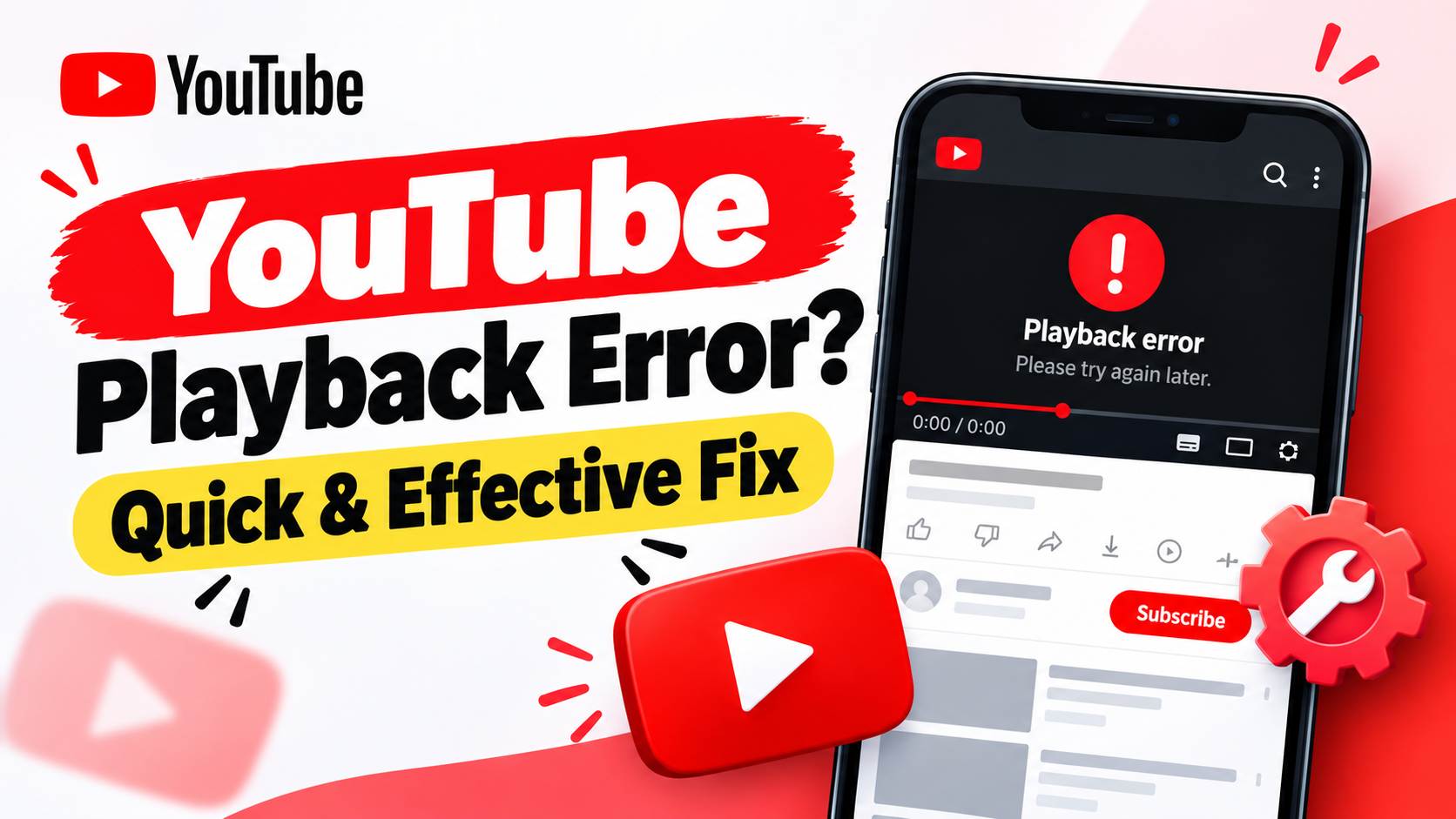
1. What Is the YouTube Playback Error Code?
The playback error code is a situation where YouTube cannot load or continue playing a video on your device. When this happens, the video may freeze, spin endlessly, or show an error message instead of playing normally. In some cases it only affects a single video, while in others it affects many videos at once.
It's worth noting that this error doesn't necessarily mean the video has been deleted or that there's a problem with your YouTube account. Many causes lie with the device itself, the browser, or the Internet connection being used. So instead of worrying, you should check each factor one by one to quickly pinpoint the source of the error.
2. Causes of the YouTube Playback Error Code
There are quite a few factors that can interrupt video playback on YouTube. Sometimes just a large amount of old data stored in the browser is enough to make the player unstable. In addition, extensions or experimental settings can also create conflicts that are hard for users to notice with the naked eye. Another common cause is an unstable Internet connection or a DNS issue. Besides that, using a browser or YouTube app that hasn't been updated in a long time can also make the device incompatible with new changes from the system. Some common causes include:
-
Too much cached data: Old data accumulated over time can cause conflicts when YouTube loads new content.
-
Extensions causing interference: Adblock or certain other extensions can interfere with the video loading and playback process.
-
Unstable Internet: Weak signal, temporary disconnections, or an unstable DNS can all cause a video to stop playing.
-
Outdated browser: An old version may not be fully compatible with the current video player.
-
Chrome's experimental settings: Some Chrome Flags can change how the browser handles video content.
.png)
3. How to Quickly Fix the YouTube Playback Error Code
3.1. Clear Browser Data and Cache
Cache helps the browser reload familiar content faster, but if data is stored for a long time, it can become outdated or cause conflicts. This is one of the reasons YouTube may fail to load videos properly even when the network connection is stable.
To refresh the data, open Chrome, click the three-dot icon in the top-right corner, then select Settings. Next, go to Privacy and security, select Clear browsing data, and check the box for Cached images and files. Choose an appropriate time range, then click Clear data. After that, reopen YouTube and try playing the video again.
3.2. Disable Ad-Blocking Extensions
Ad-blocking extensions provide a more comfortable browsing experience, but they can sometimes interfere with the components YouTube needs to load and play videos. When an extension is incompatible with the current version of YouTube, the player can be disrupted and an error code may appear.
If you're using AdBlock or similar extensions, try temporarily disabling them. Then close and reopen the YouTube tab, or reload the page with Ctrl + R. If the video plays normally after disabling the extension, there's a good chance the extension was the cause of the issue.
.jpg)
3.3. Switch to Google's DNS
DNS plays the role of converting domain names into server addresses so your device can connect to online services. In some cases, your ISP's default DNS is unstable, causing trouble when accessing YouTube's servers.
You can try switching to Google's public DNS, using the two addresses 8.8.8.8 and 8.8.4.4. On Windows, open Control Panel, select Network and Sharing Center, click on your current Internet connection, and open the Internet Protocol Version 4 (TCP/IPv4) properties. Select Use the following DNS server addresses, enter the two addresses above, then click OK to save.
3.4. Restart Your Modem or Router
An Internet connection may work fine for many hours but still develop temporary errors due to an overloaded network device, temporary memory buildup, or IP connection issues. In that case, restarting the modem or router is a simple but quite useful way to refresh the connection.
Simply turn off the modem or unplug it, wait about 30 seconds, then plug it back in. Wait for the device to fully start up and the Internet connection to return, then go to YouTube to check. If the error stemmed from a temporary network issue, the video will usually play again without needing any further setting changes.
.jpg)
3.5. Reset Chrome Flags
If you previously enabled experimental features in Chrome, this could also be the reason the video player is unstable. Chrome Flags contain many options that are still being tested, so an unsuitable setting can create conflicts with HTML5 video content.
To reset these settings to default, type chrome://flags into the address bar and press Enter. On the new page, select Reset all, then click Relaunch to restart the browser. Note that this guide is for Chrome; for Microsoft Edge or Brave, the corresponding Flags addresses are edge://flags and brave://flags.
3.6. Update Your Browser to the Latest Version
An old browser may be missing bug fixes and improvements related to compatibility with YouTube. If you've tried the methods above but the video still won't play, check whether Chrome or the browser you're using has a new update available.
On Chrome, you can click the three-dot icon, select Help, then go to About Google Chrome. If a new version is available, the browser will automatically check for and install the update. Once complete, restart Chrome and go to YouTube again.
.jpg)
4. How to Fix the YouTube Playback Error Code on Your Phone
Not just computers — Android or iPhone users can also run into YouTube playback error messages. In this case, first check your Wi-Fi or mobile data by opening another website. If multiple services are loading slowly, the problem is likely with your Internet connection rather than YouTube specifically.
If the network is normal, try fully closing the YouTube app and reopening it. Android users can go to the app info section to clear the cache. On iPhone, if the app has been behaving abnormally for a while, you can update YouTube to the latest version or uninstall and reinstall the app. These steps help remove temporary data that could be causing conflicts. Also, check your phone's available storage. A device that's nearly out of storage can sometimes run less stably, affecting its ability to load and process content. Restarting the phone after performing the steps above is also a simple way to refresh the system.
.png)
5. Does the Playback Error Code Affect Your YouTube Account?
When people see an error message while watching a video, many worry that their YouTube account is having problems or is about to be restricted. However, the playback error code is usually a technical issue related to the video-playback process, not a form of account warning. So if you only encounter the error while watching videos, you don't need to worry too much about your channel being locked or receiving a strike. Your account can still log in, watch content, and use other features normally. You should focus on checking your browser, app, network connection, and device settings to find the real cause.
If one specific video won't play but other videos still work fine, the problem could also lie with that particular piece of content. When many videos are having errors at the same time, prioritize checking your network connection, cache, and the app or browser you're using.
6. How to Prevent the YouTube Playback Error Code From Recurring
Proactively maintaining your device and apps will significantly reduce the chances of running into video playback errors again. You should get into the habit of updating YouTube and your browser whenever a new version is available, and occasionally clear cached data. These are small actions that can help your system run more stably over the long term. Besides that, prioritize a stable Internet connection when watching high-quality video. A 5GHz Wi-Fi connection or a wired network connection is usually better suited for playing high-resolution video. If you frequently run into errors, you should also review the extensions installed in your browser and remove any unnecessary ones.
Some useful habits to maintain include:
-
Clear browser and app cache periodically.
-
Always keep YouTube updated to the latest version.
-
Update your browser to ensure compatibility.
-
Prioritize a stable Wi-Fi connection or a LAN connection when watching high-quality video.
-
Limit installing extensions from unknown sources.
-
Don't arbitrarily enable too many experimental features in your browser.
-
Restart the modem when the network shows signs of behaving abnormally.
7. Conclusion
The YouTube playback error code can appear unexpectedly, but in most cases it isn't too serious. The cause is usually related to cache, extensions, Internet connection, DNS, browser, or experimental settings on the device. With just a few actions — clearing temporary data, disabling AdBlock, restarting the modem, updating the browser, or resetting Chrome Flags — you can get YouTube back to working normally. If you watch YouTube often, maintain the habit of keeping the app updated, keeping your connection stable, and periodically clearing temporary data. When an error appears, instead of worrying about your account being affected, calmly check each possible cause in order, from the simplest to the more advanced. This approach saves time and helps you quickly find the actual issue so you can keep enjoying smooth video playback.





















VIP Products








Best Selling Products
Adobe Premiere Pro Account
99 USD
MidJourney Account
29 USD
Upgrade Genuine Office 365
49 USD
Genuine Adobe Illustrator account
99 USD
Adobe Photoshop Copyright - Full App
120 USD
Capcut Pro 1 Year
39 USD
Copyright Adobe Lightroom Account
59 USD
Freepik Premium Account
59 USD
Upgrade Duolingo Super
29 USD
ChatGPT Plus Account (GPT-4)
16 USD
Autodesk All App Account Copyright
120 USD
Plugin Retouch4me
69 USD
Windows 10 & 11 Pro Key
36 USD
Upgrade genuine Capture One account
120 USD
Genuine Cheap Canva Pro
39 USD