Best Selling Products

Genuine Adobe Illustrator account
99 USD

ChatGPT Plus Account (GPT-4)
16 USD

Adobe Premiere Pro Account
99 USD

MidJourney Account
29 USD

Genuine Cheap Canva Pro
39 USD

Windows 10 & 11 Pro Key
36 USD

Autodesk All App Account Copyright
120 USD

Copyright Adobe Lightroom Account
59 USD

Adobe Photoshop Copyright - Full App
120 USD

Upgrade Genuine Office 365
49 USD

Capcut Pro 1 Year
39 USD

Freepik Premium Account
59 USD

Upgrade Duolingo Super
29 USD

Plugin Retouch4me
69 USD

Upgrade genuine Capture One account
120 USD
Is the VPN Working? How to Quickly Check and Fix Connection Issues on Your Mac
Nội dung
- 2. How to check if your VPN has a data leak.
- 2.1 Check for IP address leaks
- 2.2 Check for DNS leaks
- 2.3 WebRTC Leak Check
- 2.4 Perform a VPN disconnection function test.
- 3. How to troubleshoot VPN connection issues
- 3.1 Restart the VPN application
- 3.2 Check your Wi-Fi network
- 3.3 Check your Mac's firewall.
- 3.4 Check the VPN's split-tunneling settings.
- 4. Check your VPN for malware.
- 5. Check your VPN speed.
- 6. How to keep your VPN connected on your Mac
- 7. Conclusion
- 8. Frequently Asked Questions
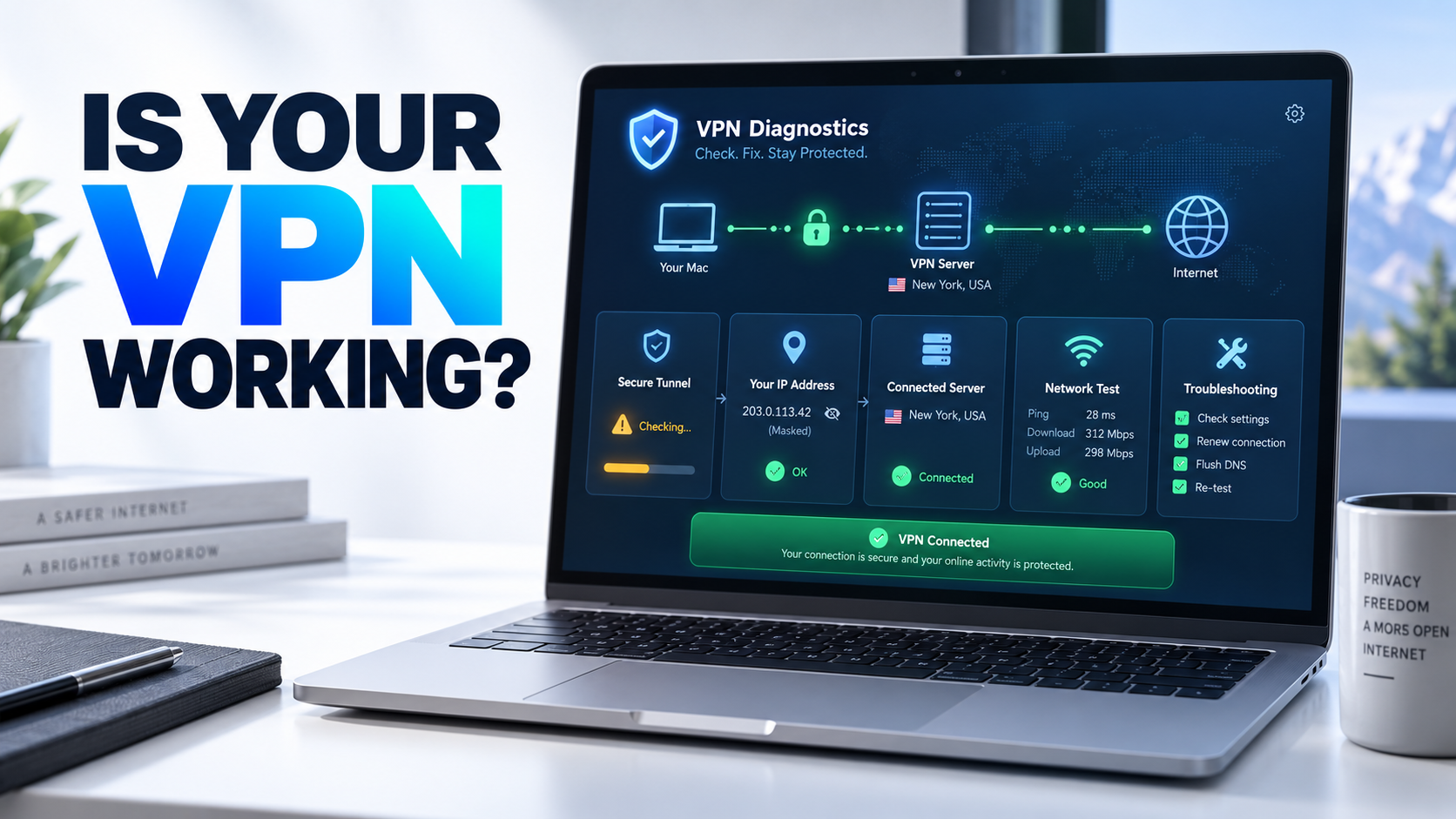
Just because a VPN application shows a connected status doesn''t mean you''re actually safe. Many users unknowingly skip the verification step, leading to their real IP address or DNS data being exposed without their knowledge. This article will guide you on how to identify the reasons why your VPN might not be connecting, how to check for data leaks, how to handle common problems, and helpful tips for maintaining a stable VPN connection on your Mac.
1. Why is my VPN not connecting?
A VPN might seem simple, just a button to connect, but behind it lies a complex technological system, and many factors can cause connection problems.
Some common reasons why a VPN might fail to connect include internet connection issues, such as a slow network or the VPN protocol being used being incompatible with the current network conditions. Additionally, unstable TCP protocols can also disrupt the connection establishment process between your device and the VPN server.
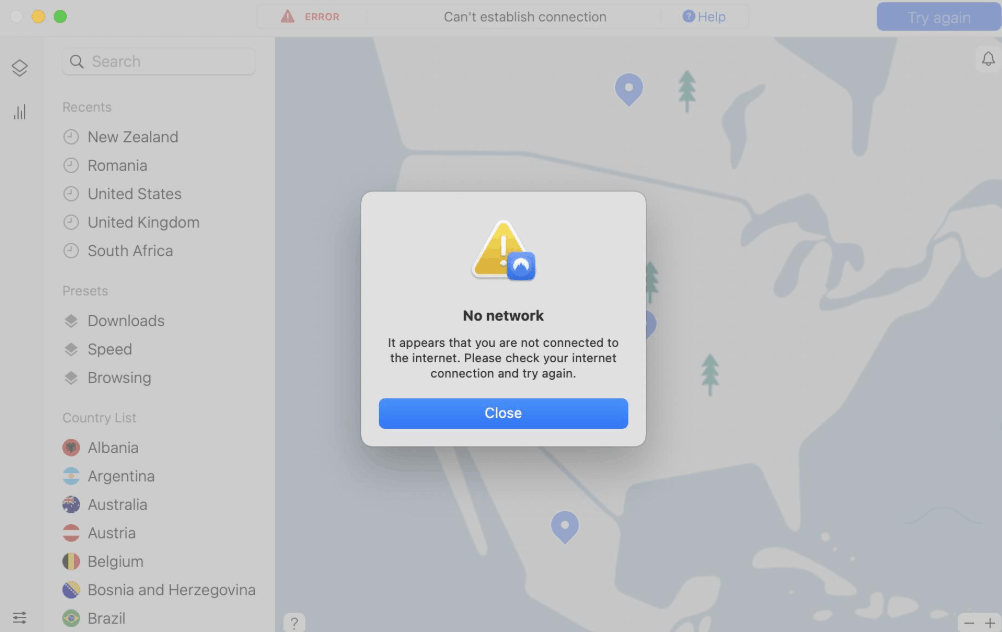
Additionally, some network ports on the device or on the internal network may be blocked, preventing data from passing through the VPN tunnel as usual. DNS server issues are also a common cause, especially when the VPN cannot correctly resolve the server address to connect to. At the same time, overly strict antivirus software can sometimes inadvertently block VPN traffic, preventing the application from establishing a successful connection. Finally, the VPN application itself may experience errors or frequent crashes, leading to intermittent or inability to connect.
It's worth noting that VPNs can malfunction silently. You might still be able to access the internet normally and not realize you're having problems until your data is actually leaked. A key sign that a VPN is not working properly is an IP address leak, DNS leak, or WebRTC leak, issues that will be discussed in detail in the following section.
2. How to check if your VPN has a data leak.
To ensure your VPN is protecting you as expected, you need to perform a series of specific tests instead of just trusting the status displayed on the app. Below are the most important tests you should perform, especially if this is your first time using a VPN service.
2.1 Check for IP address leaks
To verify that your real IP address is hidden from others, you first need to turn off your VPN, then access an IP address checker website to record your current address, which will usually match the city where you actually live.
Next, connect to any VPN server and reload the IP address checker page, then compare the newly displayed address with the original one. Since the VPN server will assign you a completely different IP address, these two addresses should not match. If the IP address after connecting to the VPN is still the same as the original address, it means you are experiencing an IP leak and the VPN is not effectively protecting your online identity.
2.2 Check for DNS leaks
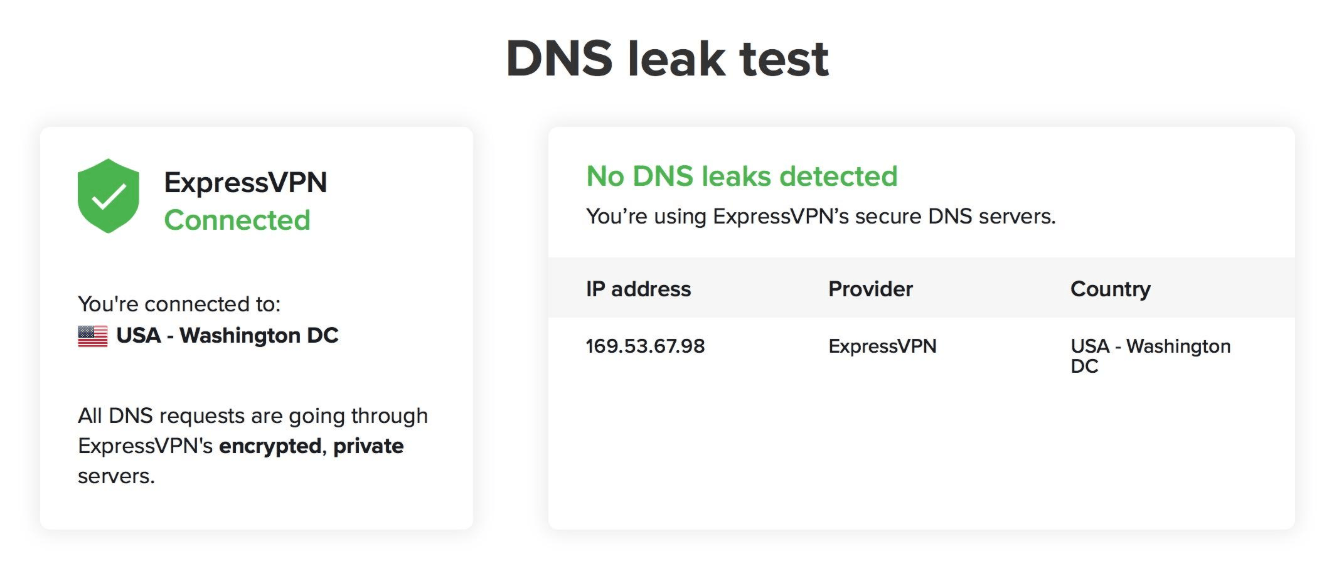
Passing an IP leak test doesn't mean you're completely safe from DNS leaks. These are two completely different types of leaks, so you need to test them separately to ensure accuracy.
To do this, first connect to the VPN server, then access a dedicated DNS checker tool in your browser and wait for the system to finish the check. After the results are available, carefully examine the IP addresses and locations of the listed DNS servers. If any DNS server in the list belongs to your internet service provider instead of your VPN provider, it indicates that your VPN is experiencing a DNS leak and needs immediate attention.
2.3 WebRTC Leak Check
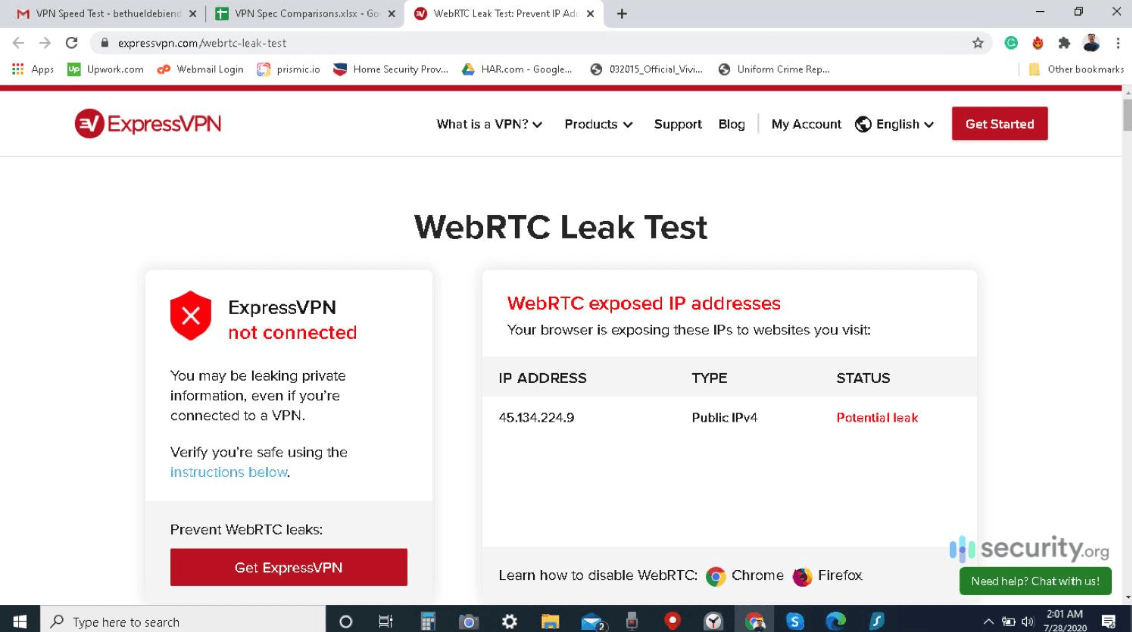
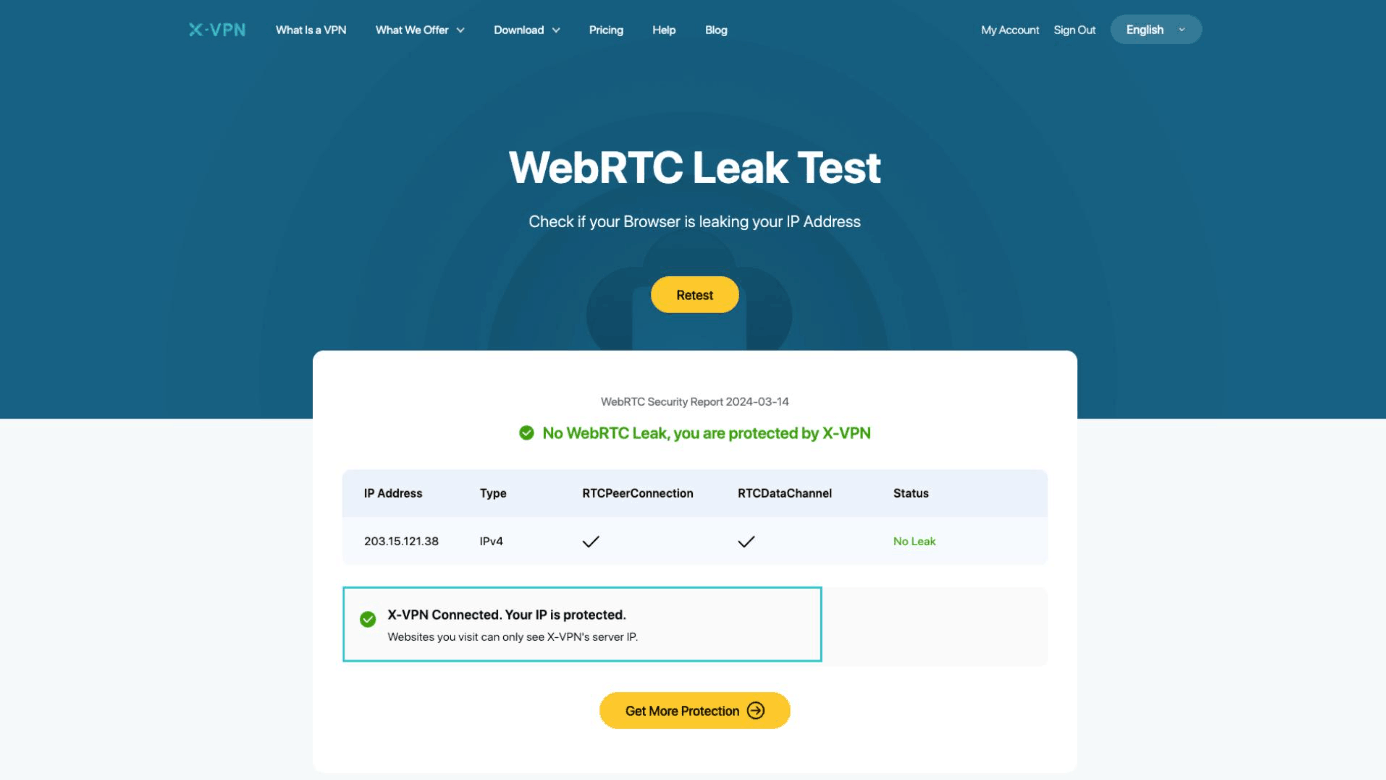
WebRTC is a technology built into many browsers that allows for video calls or direct data transfer between browsers. However, this technology can sometimes inadvertently reveal your real IP address, even when a VPN is enabled.
To check, simply turn on your VPN, then access an online WebRTC leak checker and wait for the results. If you are using a good quality VPN service, the check results will not show your real IP address. Conversely, if your real address is exposed, you need to find a way to fix this problem, such as switching to a VPN service that has built-in WebRTC leak blocking features.
2.4 Perform a VPN disconnection function test.
The automatic disconnection function, often called a kill switch, acts as a last line of defense, cutting off all internet connections as soon as the VPN is abruptly interrupted, preventing the real IP address from being exposed during that transitional moment.
Testing this functionality requires more steps than typical leak tests, as you need to simulate a situation where the VPN is suddenly disconnected without actually cutting off the internet connection of the entire device. Before you begin, note down your current IP address when the VPN is not connected.
Next, open your VPN app and connect to any server. Then, navigate to the system settings in the app and enable the kill switch. Once everything is ready, manually disconnect the VPN to simulate a sudden disconnection. Check your IP address again to see if your real IP address has been exposed. If the disconnection function works correctly, all internet traffic on your device will be completely blocked as soon as the VPN disconnects, and you will be unable to access any websites until the VPN reconnects.
3. How to troubleshoot VPN connection issues
If your VPN is constantly crashing and unable to connect, don't worry. Below are some common troubleshooting methods you can try in order to find the cause and effectively resolve the problem.
3.1 Restart the VPN application
Sometimes, the reason a VPN fails to connect is simply due to a temporary error within the application. When this happens, the application may refuse to connect or behave erratically for no apparent reason. The simplest solution is to completely close the VPN application, then reopen it and try connecting to the server again. In many cases, this simple restart is enough to resolve the issue without needing any further complex troubleshooting steps.
3.2 Check your Wi-Fi network
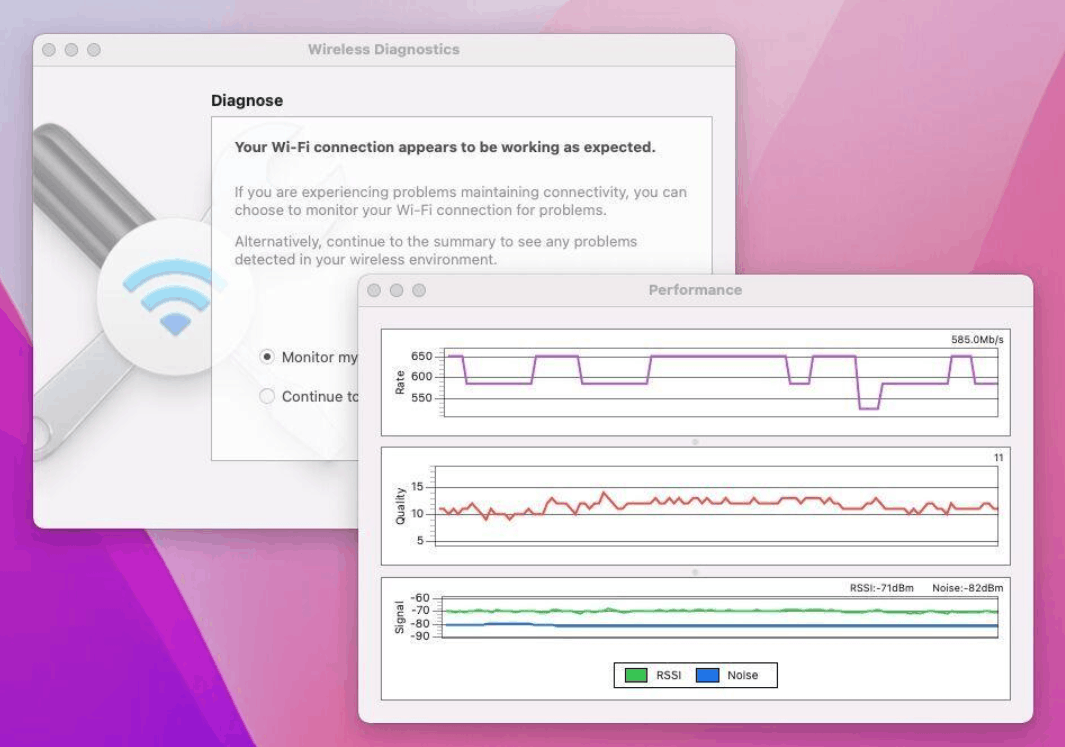
If your device is currently experiencing an internet connection loss, the VPN will not work no matter how many times you try to reconnect. Similarly, if you are experiencing a weak or unstable Wi-Fi signal, the VPN is also very likely to disconnect frequently during use.
Before assuming the problem lies entirely with your VPN, you should take the time to check the quality of your Wi-Fi signal. Many cases of VPN disconnections aren't due to a problem with the VPN provider, but rather because the network signal isn't strong enough or is experiencing interference during data transmission. You can use real-time Wi-Fi signal monitoring tools to detect early signs of a weak signal, allowing you to take timely action before it affects your VPN connection.
3.3 Check your Mac's firewall.
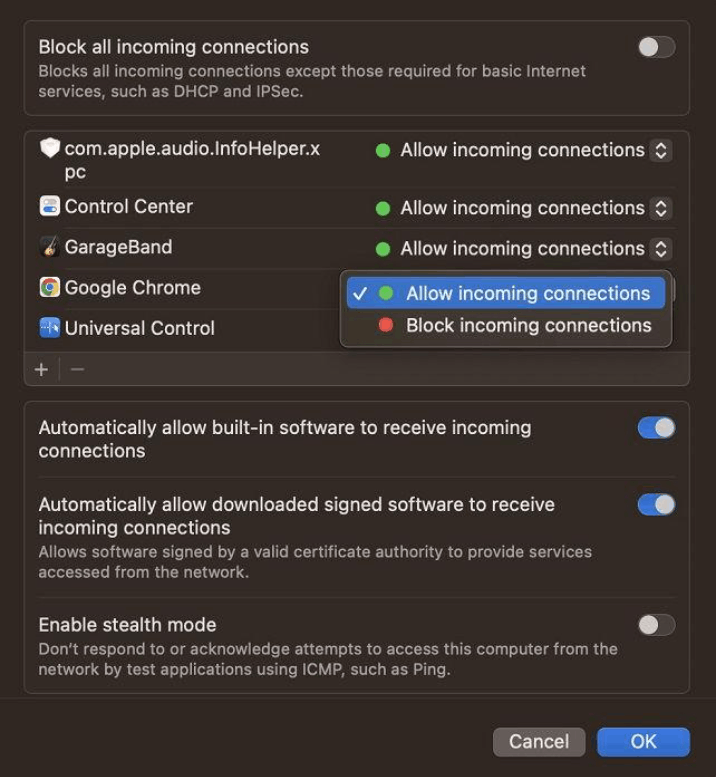
The firewall on a Mac is designed to protect the device from unwanted connections; however, sometimes this security feature inadvertently blocks VPN traffic, preventing applications from connecting to the desired server.
To check, go to System Settings, select Network, and then find the Firewall section. Instead of completely disabling the firewall, a safer solution is to add the VPN application to the list of allowed exceptions. Completely disabling the firewall will make your Mac more vulnerable to attacks, so you should prioritize setting up exceptions rather than disabling all of this protection.
3.4 Check the VPN's split-tunneling settings.
Some VPN services offer a split tunneling feature that allows you to select specific applications that don't need to go through the VPN's encrypted tunnel. This is a useful feature in many situations, but if you set it up incorrectly, you might mistakenly think the VPN is malfunctioning when in reality some applications are simply being excluded from the encrypted tunnel.
To check, open your VPN app and find an option similar to Split Tunneling in the settings. Then, review the list of apps excluded from the VPN tunnel, open one of them, and check the displayed IP address. If the app is not using a VPN tunnel, your real IP address will be displayed. If you want that app to also be protected by the VPN, simply enable the Split Tunneling option specifically for that app in the settings.
4. Check your VPN for malware.
It's important to note that not all VPN services are completely secure, especially free VPNs from unknown providers. Therefore, thorough checking before installing any VPN software is absolutely essential to protect your device from malware infection.
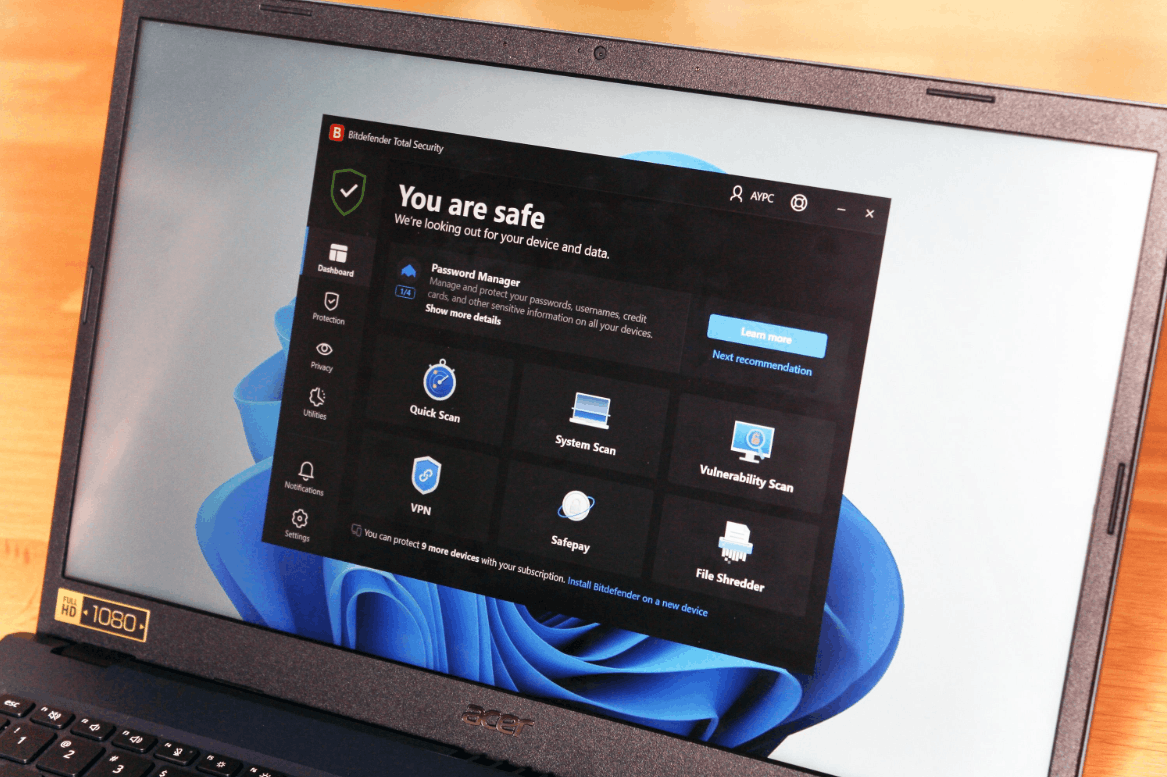
Before proceeding with the installation, you should access a free online virus scanner, upload the VPN installation file you intend to use, and then wait for the system to check and return the results. If the installation file actually contains malware, some antivirus tools in the system will detect it and warn you.
However, this check is only useful before installation. If you already have a VPN installed and start noticing unusual signs on your Mac, you should run a comprehensive scan to check the entire system, helping to detect malware whether it comes from the VPN or any other source, and completely remove any threats found to ensure your Mac remains safe.
5. Check your VPN speed.
If you suspect that a VPN is causing lag when watching high-definition videos or slow online gaming experiences, you should conduct a network speed test to verify this.
The process is quite simple. First, turn off your VPN and access an online network speed test tool, then record your current download and upload speeds. Next, connect to any VPN server, reload the speed test page, and run the test again to compare the results between the two measurements.
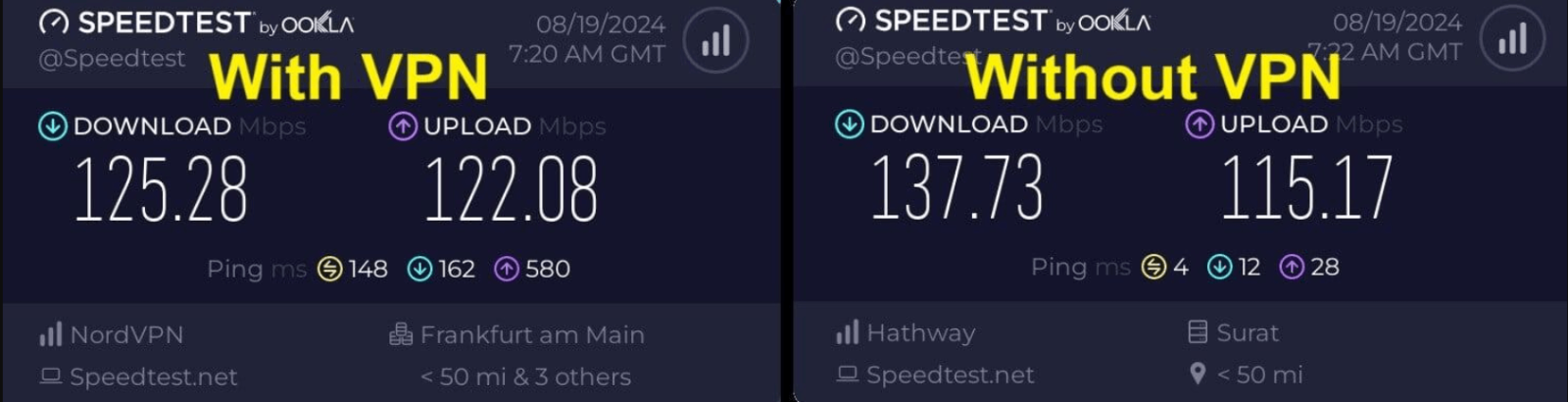
In principle, you shouldn't see a significant speed drop after enabling a VPN. However, actual speed depends on various factors such as server traffic, geographical distance to the server, and the type of VPN protocol you're using. For example, if you're in one country but connecting to a VPN server located in a geographically distant country, your network speed will definitely decrease more than if you were connecting to a closer server.
According to current benchmarks, a good quality VPN service typically only reduces network speed by about ten to twenty percent. If the speed reduction exceeds fifty percent, this is a sign that you should consider switching to a different server or even switching to a more suitable VPN provider.
6. How to keep your VPN connected on your Mac
A common problem many users encounter is that when a MacBook goes into sleep mode, the VPN connection is automatically disconnected. While you can't maintain a VPN connection while the machine is in sleep mode, you can adjust the settings to prevent your Mac from automatically reconnecting to the network at unwanted times.
To do this, tap the Apple icon in the upper left corner of the screen, select System Settings, then find the Battery section and select Options. Under Wake for network access, select the Never option to prevent the device from automatically waking up, thus maintaining network connectivity when not needed.
Additionally, you should check if your VPN application supports the feature that automatically starts when your Mac boots up. If it does, enable this feature, as it will help your VPN maintain a continuous and uninterrupted connection every time you shut down and restart your computer.
7. Conclusion
Troubleshooting VPN issues can sometimes be quite complex, as there are so many factors to check and verify simultaneously. From IP address leaks to potential malware threats, most ordinary users may feel overwhelmed trying to handle all these problems themselves. However, ensuring your VPN is working correctly is absolutely essential, because otherwise, your online data and identity will always be at risk of being exposed.
Take the time to periodically check for factors such as IP leaks, DNS leaks, WebRTC leaks, automatic disconnection functionality, and network speed, and always be cautious in choosing a reputable VPN provider. Only by performing these checks thoroughly and regularly can you truly be assured that you are being protected throughout your daily internet usage.
8. Frequently Asked Questions
How can I tell if my traffic is actually going through the VPN?
You should perform three quick tests to verify this. First, check your IP address before and after connecting to the VPN; these two addresses should be different. Next, perform a DNS test while connected to the VPN; the results should only show servers belonging to the VPN provider. Finally, run a WebRTC leak test to ensure your real IP address isn't exposed. If any of these three tests fail, it means your traffic isn't fully protected.
How can I make sure my VPN is completely turned off?
You disconnect from the VPN server through the app you're using, then check your IP address again on an online IP checker tool. If the displayed address matches the original address and your actual location, it means the VPN has been successfully turned off. You can also check your device's network settings to make sure no VPN connections are running in the background.
Why can't my VPN connect?
There are four most common causes for this problem. First, a weak Wi-Fi signal; you should check your signal quality first. Second, the VPN app is outdated and needs to be updated to the latest version. Third, the firewall on your device is blocking the connection; you can add the VPN to the exception list to fix this. Fourth, the VPN server is overloaded; in this case, you should try switching to a less busy server. You should try each of these troubleshooting methods in turn until the connection works normally again.
How can you tell if a VPN service is truly secure?
You should consider three key factors. First, scan the installation file with an online antivirus tool before downloading. Next, carefully check the no-logging policy published on the provider's privacy policy page. Finally, test built-in protection features such as automatic disconnection and DNS leak protection. For installed VPNs, you should run a comprehensive scan for malware, and avoid using free VPN services without clear privacy policies.
How can I perform a thorough check to see if my VPN has a data leak?
You should perform the following checks. First, connect to the VPN and access a testing tool to see if there are any IP or DNS leaks. Then, run a WebRTC leak test on a dedicated tool. Finally, don't forget to check for IPv6 address leaks while the VPN connection is still active. All test results should show the VPN server's location instead of your actual location. If any test shows your real location, it indicates the VPN is experiencing a data leak.
How can I check if my VPN's automatic disconnection function is working correctly?
Before connecting to the VPN, record your real IP address, then connect to the server and enable the automatic disconnection function. Next, manually disconnect the VPN, noting that you only disconnect the VPN, not your entire internet connection. Then, try accessing any website. If the function works correctly, you should be unable to browse. Conversely, if websites load normally and display your real IP address, it means the automatic disconnection function is not working as expected.
Why is my internet speed slower when using a VPN?
The reason is that VPNs need to add an extra layer of encryption to the data, and this process often reduces network speed by about ten to twenty percent compared to normal. There are three main factors affecting your connection performance. First is the distance to the server; you should choose servers close to your actual location. Second is the server load; you should switch to servers with less usage if the speed is too slow. Third is the type of protocol being used; some modern protocols often provide significantly faster speeds than older protocols. You should experiment with different servers to find the best option for your connection.





















VIP Products








Best Selling Products
Genuine Adobe Illustrator account
99 USD
ChatGPT Plus Account (GPT-4)
16 USD
Adobe Premiere Pro Account
99 USD
MidJourney Account
29 USD
Genuine Cheap Canva Pro
39 USD
Windows 10 & 11 Pro Key
36 USD
Autodesk All App Account Copyright
120 USD
Copyright Adobe Lightroom Account
59 USD
Adobe Photoshop Copyright - Full App
120 USD
Upgrade Genuine Office 365
49 USD
Capcut Pro 1 Year
39 USD
Freepik Premium Account
59 USD
Upgrade Duolingo Super
29 USD
Plugin Retouch4me
69 USD
Upgrade genuine Capture One account
120 USD