Best Selling Products

Plugin Retouch4me
69 USD

Windows 10 & 11 Pro Key
36 USD

Upgrade Genuine Office 365
49 USD

Adobe Premiere Pro Account
99 USD

Genuine Cheap Canva Pro
39 USD

Freepik Premium Account
59 USD

Upgrade genuine Capture One account
120 USD

Autodesk All App Account Copyright
120 USD

Adobe Photoshop Copyright - Full App
120 USD

Genuine Adobe Illustrator account
99 USD

Capcut Pro 1 Year
39 USD

ChatGPT Plus Account (GPT-4)
16 USD

Upgrade Duolingo Super
29 USD

Copyright Adobe Lightroom Account
59 USD

MidJourney Account
29 USD
How to manage iCloud storage on Mac and effectively free up space.
Nội dung
iCloud is Apple''s cloud storage service that synchronizes photos, documents, messages, and device backups across the entire Apple ecosystem. However, with only 5GB of free storage, many Mac users quickly encounter the problem of iCloud running out, preventing new photos from syncing, backups from failing, and emails with attachments from downloading. This article will help you understand the reasons why iCloud is full and provide detailed step-by-step instructions to free up space and manage data more effectively on your Mac.
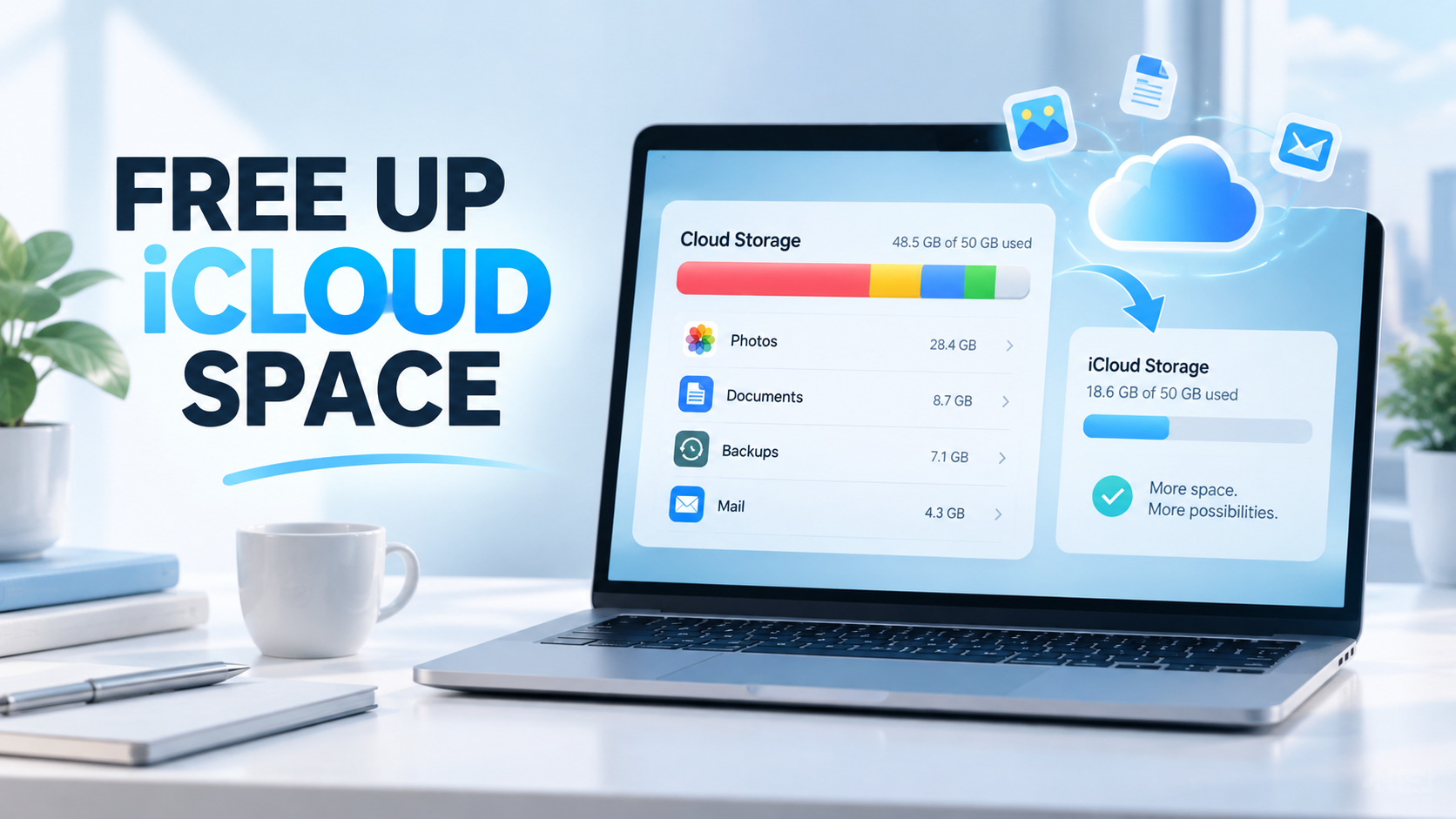
1. Why is your iCloud storage full?
Before you start cleaning up, you should understand what's taking up your storage space. There are many common reasons why iCloud accounts quickly fill up, especially with the free 5GB plan, which is quite modest compared to actual usage needs.
First, photos and videos are the leading cause. A minute of 4K video can take up to 400MB, and if you frequently take Live Photos or shoot high-resolution videos, the storage space will increase very quickly after just a few weeks of use.
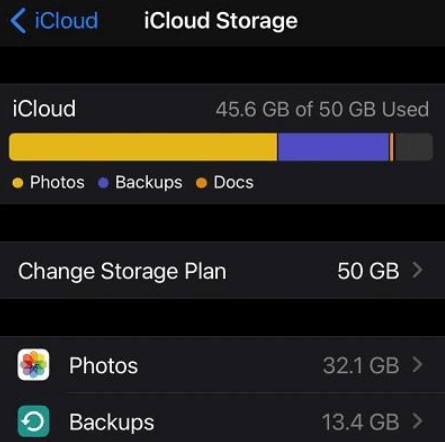
Secondly, device backups take up a significant portion of total storage space. Each iPhone or iPad backup typically ranges from 3GB to 5GB, and if you have many old backups saved over time, they can quickly fill up all the remaining free space.
Thirdly, messages and attachments in the Messages app accumulate over time. Photos, videos, and documents sent via messages are often not automatically deleted, leading to a growing amount of storage space that users rarely notice.
Fourth, your Mail inbox is also a silent culprit. When you receive thousands of emails over the years, the attached files accumulate and take up a significant amount of space in your iCloud account.
Finally, data from third-party apps also contributes to this. Many apps, like WhatsApp, save backups of your conversations directly to iCloud, and over time, these backups can become quite large if you don't monitor them regularly.
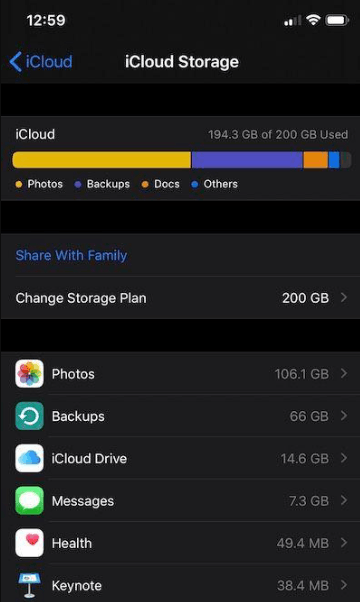
To find out exactly what's taking up your storage space, you can go to System Settings, select Apple Account, then select iCloud and tap Manage. Here, the system will display a detailed color-coded chart, allowing you to clearly see how much space each data category is using before deciding to delete anything.
2. How to manage iCloud storage and free up space.
After identifying the cause, the next step is to take specific measures to free up space. Below are the most effective methods you can apply immediately on your Mac.
2.1 Stop app synchronization
One of the simplest and quickest ways to save space is to stop syncing apps you don't actually need to store on iCloud. Many apps are enabled by default to sync from the start, even if you don't use that data across multiple devices.
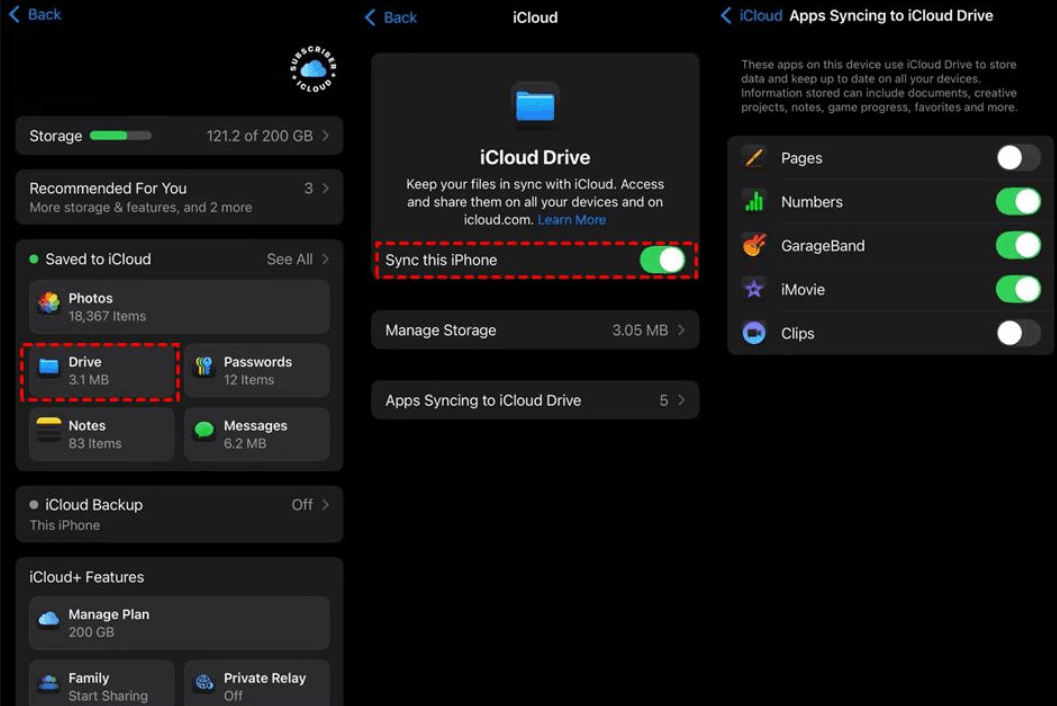
To do this, go to System Settings, select Apple Account, then select iCloud. Under Saved to iCloud, tap See All to view the entire list of apps that are syncing data, then turn off any unnecessary apps. You should also repeat the same process on your iPhone to ensure consistency across your entire device ecosystem.
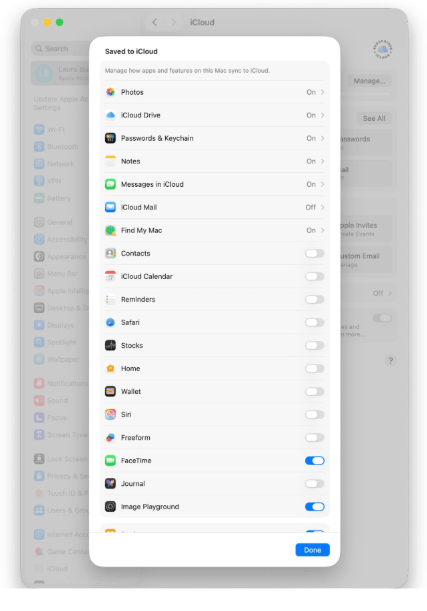
In addition to turning off syncing, you can also periodically delete accumulated data from specific apps. Go to System Settings, select Apple Account, select iCloud, then tap Manage under Storage. Select each app category that you no longer need and delete the associated data to free up more space.
2.2 Free up iCloud storage space
Besides adjusting sync settings, you can make some specific changes to the applications running on your Mac to reduce the amount of data they use in iCloud. Regularly reviewing each data category will help you maintain stable free space in the long run, instead of having to rush to clear it every time a full storage notification appears.
You should take the time to check folders like Documents, Downloads, and Desktop that are synced with iCloud Drive, as these are often where many large files you no longer use but have forgotten to delete accumulate. Cleaning up these folders not only frees up iCloud space but also helps your Mac run more efficiently and smoothly.
2.3 Delete image
The photo library is often the biggest space-consuming feature in your iCloud account, especially for those who frequently take photos and videos with their iPhone. You can manually review and delete unnecessary photos in the Photos app, but this is quite time-consuming if your library has thousands of photos.
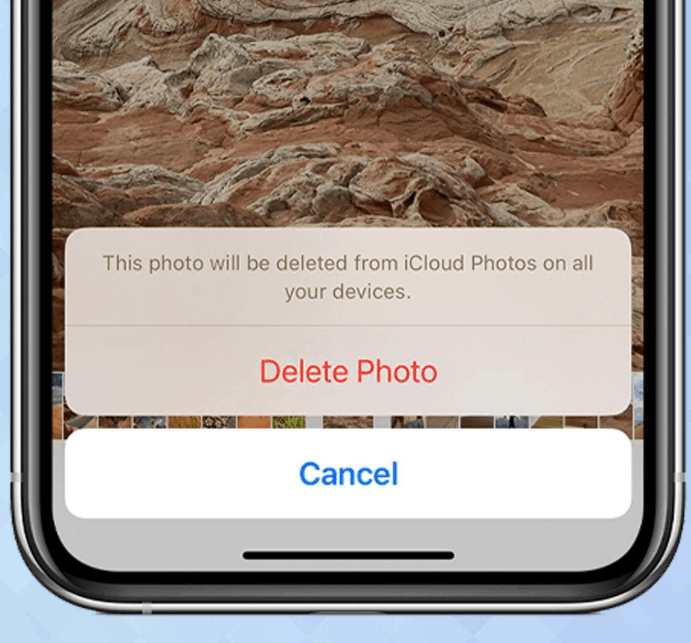
An important point to note is that after deleting photos, they don't disappear immediately but are moved to the Recently Deleted album and continue to take up space for 30 days. Therefore, to truly free up space, you need to open this album and select Delete All to permanently delete all photos that have been moved to the trash.
Additionally, another common problem is the accumulation of duplicate and nearly identical photos over time, often occurring when you take multiple shots of the same moment. Manually searching for these photos is nearly impossible if the library is too large, so many users opt for specialized tools that can scan the entire library, automatically detect duplicate photos, and suggest safe deletion options, saving considerable time and effort compared to manual checking.
2.4 Delete emails and messages
Email and text messages are two sources of data that accumulate silently but can take up a significant amount of storage space after years of use. With the Messages app on Mac, you can set up automatic deletion of old messages at a set interval instead of manually deleting each conversation.
To set this up, open the Messages app, go to Settings using the Command and comma key combination, then under Keep Messages, select one of three options: 30 days, one year, or keep permanently. Choosing a shorter period will allow the system to automatically clean up old attachments such as photos and videos without requiring frequent intervention from you.
For emails, the majority of message content is usually stored on cloud servers, so deleting large downloaded attachments will free up local space, and you can still access that email content again via an internet connection when needed.
2.5 Delete old backups
For those using the free 5GB iCloud plan, iPhone backups are often the main reason for taking up most of the free space. In reality, you rarely need to keep more than the most recent backup, so deleting older backups is a quick and safe way to free up space.
To delete an old backup, go to System Settings, select Apple Account, then tap Manage under Storage and select Backups. Here, select the backup you want to delete, tap the minus icon, and confirm the deletion to complete the process.
Before deleting, you might also consider shrinking the size of future backups by disabling synchronization for resource-intensive and unnecessary applications within the same management window, such as games or video editing software that already store their data separately on the developer's cloud.
If you frequently run out of storage space despite multiple cleanups, you might consider using alternative backup solutions outside of iCloud, such as backing up to an external hard drive or another Mac. This gives you more control over your data and saves on monthly storage subscription costs.
3. Change your iCloud storage plan.
If you've tried all the methods above and still frequently run out of storage, upgrading to a paid iCloud plan is a worthwhile option for a long-term solution. Apple offers 5GB of free storage per account, and also provides paid iCloud plans with significantly larger capacities starting at 50GB for around $0.99 per month, up to 200GB for around $2.99 per month, and many more options for users with greater storage needs.
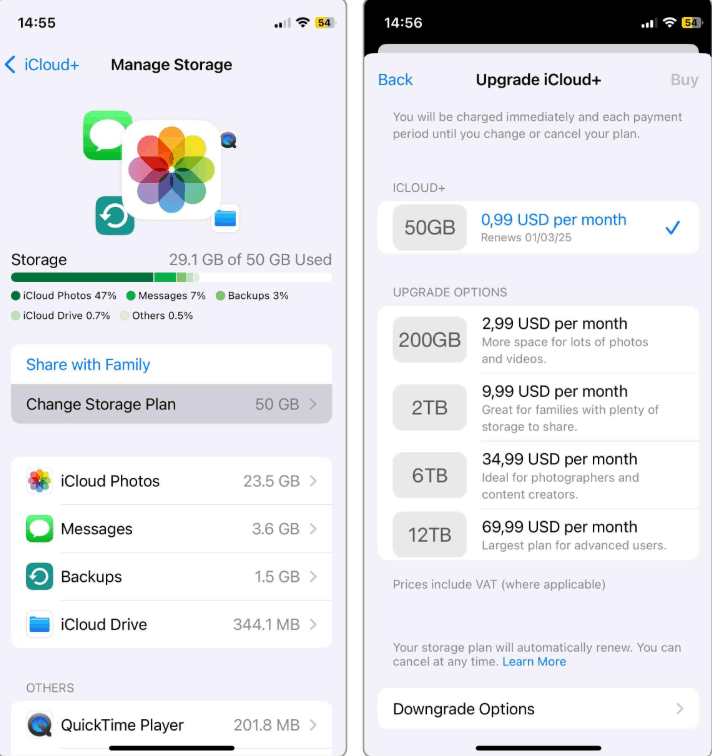
These paid packages not only offer more storage capacity but also allow for seamless file synchronization between devices and continuous backup functionality without interruption. Additionally, you can share this storage package with up to five family members at no extra cost, optimizing the budget for the whole family when shared use is needed.
To change your storage plan, go to System Settings, select Apple Account, then select iCloud. Next, tap Manage under Storage, select Change Storage Plan, and finally choose the plan that best suits your needs.
4. Frequently Asked Questions
Why is my iCloud storage still full after I deleted photos?
The most common reason is that the photos you just deleted are still in the Recently Deleted album and continue to take up space for up to 30 days after deletion. You should open this album and choose to delete everything to free up space immediately. Also, check if iCloud photo syncing is enabled, and if the storage hasn't updated, the real cause is likely large message attachments or old device backups that haven't been cleaned up.
How much free iCloud storage is available?
Apple provides each account with 5GB of free storage. This includes space for photos, device backups, documents, and app data across all your Apple devices.
How do I delete photos from iCloud without deleting them from my iPhone?
First, you need to turn off iCloud Photos on your iPhone by going to Settings, selecting Apple Account, then selecting iCloud, then going to Photos and turning off the iCloud Photos option. After waiting for the system to confirm that the photos have been fully downloaded and stored locally, you can proceed to delete the photos from iCloud.com or on your Mac. Because syncing has been turned off, these photos will still remain on your iPhone.
How can I quickly free up iCloud space on my Mac?
You can start by deleting old iPhone or iPad backups in the storage management section of System Settings, then remove large, unnecessary files from iCloud Drive via Finder. Next, clean up the Recently Deleted folder in Photos and turn off syncing for apps you don't really need in iCloud settings. To save time, you can also consider using automatic cleanup tools to detect and remove unnecessary data more quickly.
Why is my iCloud storage filling up so quickly?
The main reason is that the free 5GB plan is already quite small, while iPhone backups alone can take up 3GB to 5GB. Adding photos, especially Live Photos and high-resolution videos, along with message attachments and app data, your storage can reach its limit after just a few weeks. You should regularly check your storage details in iCloud management to decide whether to delete unnecessary data or upgrade to a larger storage plan if needed.
Why is iCloud still taking up storage space on my Mac?
iCloud stores local copies of files for offline access, through a feature called Optimize Mac Storage. These temporary files remain visible on your computer's disk space even after being fully synced to the cloud. To delete a locally downloaded copy, simply right-click the file in iCloud Drive and select the Undownload option. The file will remain on iCloud but will no longer occupy physical storage space on your Mac.





















VIP Products








Best Selling Products
Plugin Retouch4me
69 USD
Windows 10 & 11 Pro Key
36 USD
Upgrade Genuine Office 365
49 USD
Adobe Premiere Pro Account
99 USD
Genuine Cheap Canva Pro
39 USD
Freepik Premium Account
59 USD
Upgrade genuine Capture One account
120 USD
Autodesk All App Account Copyright
120 USD
Adobe Photoshop Copyright - Full App
120 USD
Genuine Adobe Illustrator account
99 USD
Capcut Pro 1 Year
39 USD
ChatGPT Plus Account (GPT-4)
16 USD
Upgrade Duolingo Super
29 USD
Copyright Adobe Lightroom Account
59 USD
MidJourney Account
29 USD