Best Selling Products

Upgrade Duolingo Super
29 USD

Adobe Photoshop Copyright - Full App
120 USD

Adobe Premiere Pro Account
99 USD

MidJourney Account
29 USD

Windows 10 & 11 Pro Key
36 USD

Upgrade Genuine Office 365
49 USD

Genuine Cheap Canva Pro
39 USD

Copyright Adobe Lightroom Account
59 USD

Capcut Pro 1 Year
39 USD

Upgrade genuine Capture One account
120 USD

Freepik Premium Account
59 USD

Autodesk All App Account Copyright
120 USD

ChatGPT Plus Account (GPT-4)
16 USD

Genuine Adobe Illustrator account
99 USD

Plugin Retouch4me
69 USD
Is Chrome Running Slow? 5 Simple Tricks to Speed Up Your Browser Instantly
Nội dung
- 1. Enable Multithreaded File Loading to Reduce Waiting Time
- 2. Allow the browser to anticipate your intentions and pre-load the webpage before you click.
- 3. Consider enabling or disabling hardware acceleration depending on your computer's configuration.
- 4. Utilize built-in memory saving tools to keep your computer running smoothly.
- 5. Remove Unnecessary Extensions
- 6. Conclusion
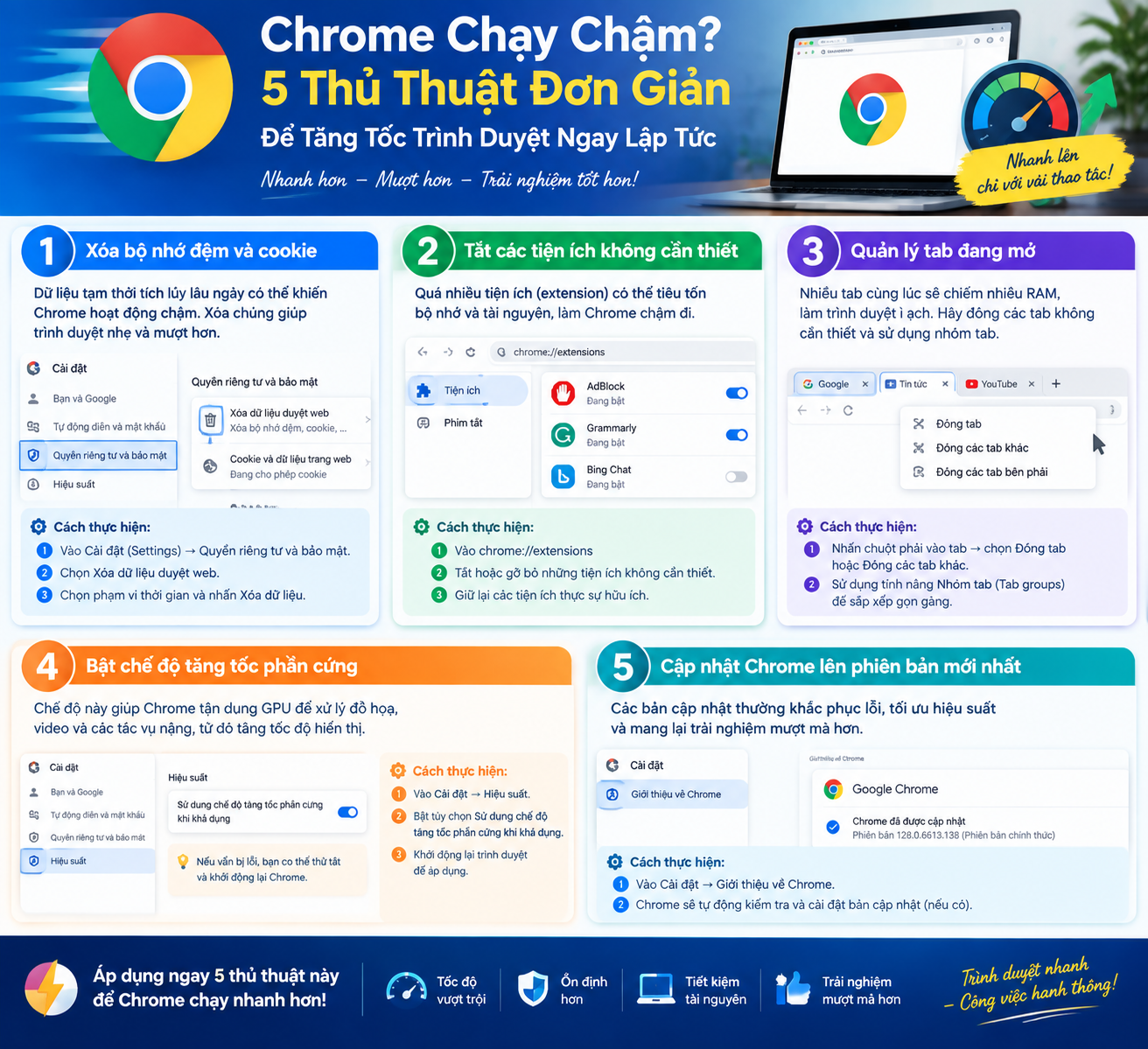
Despite being considered fast, clean, and smart right from the default installation, Chrome still hides many advanced features that not everyone knows about, which can significantly improve the browser''s smoothness. Saving just a few seconds each time a page loads can, over time, add up to hours of more productive work.
1. Enable Multithreaded File Loading to Reduce Waiting Time
One of Chrome's lesser-known features is its multi-threaded download capability. When enabled, the browser no longer downloads a file sequentially from start to finish, but instead splits the file into multiple segments and downloads them simultaneously. Think of this like having six cars driving side-by-side on a single lane; instead, you allow all six cars to drive in parallel on six different lanes, allowing them all to reach their destination much faster.
To enable this feature, simply type chrome://flags into the Chrome address bar and press Enter. Once the experimental settings page appears, type "parallel" into the search box at the top to quickly locate the Parallel downloading option. Here, simply open the dropdown menu on the right and select "Enabled" to activate the feature.
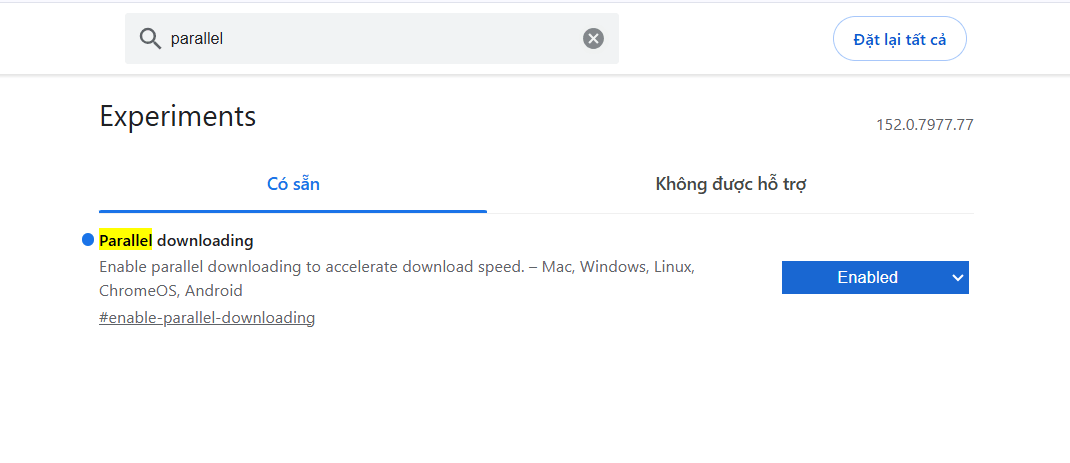
It's worth noting that while Chrome can download multiple parts of a file simultaneously, this depends on whether the web server you're connecting to supports multi-threaded downloads. However, in cases where the server fully supports it, the difference in download speed will usually be noticeable, especially useful when you frequently download large files such as videos, software, or technical documents.
2. Allow the browser to anticipate your intentions and pre-load the webpage before you click.
Chrome has a rather interesting feature called page preloading, which allows the browser to silently load the content of a webpage even before you actually click on the link to that page. This mechanism is built on a set of rules that predict behavior, helping the browser analyze cues indicating what action you are about to take next.
For example, if you start typing the address of a website you frequently visit into the address bar, it's very likely that the website will have already loaded in the background even before you press Enter. Additionally, these predictive rules can also rely on where your mouse cursor is hovering on the page, inferring which link you are likely to click next.
Of course, the browser won't always guess correctly, but whenever it does, you'll notice a significantly faster page transition speed than usual. To activate this feature, follow the same steps as above: type chrome://flags into the address bar, press Enter, then search for "prerendering" in the search box. When the Prerendering option appears, simply change its status to Enabled.
3. Consider enabling or disabling hardware acceleration depending on your computer's configuration.
Enabling a feature doesn't always mean your browser will run faster, and hardware acceleration is a prime example of this. To access the relevant settings, click the three-dot icon in the upper right corner of the Chrome window, select Settings, and then select System. Here, you'll find a switch labeled "Use graphics acceleration when available."
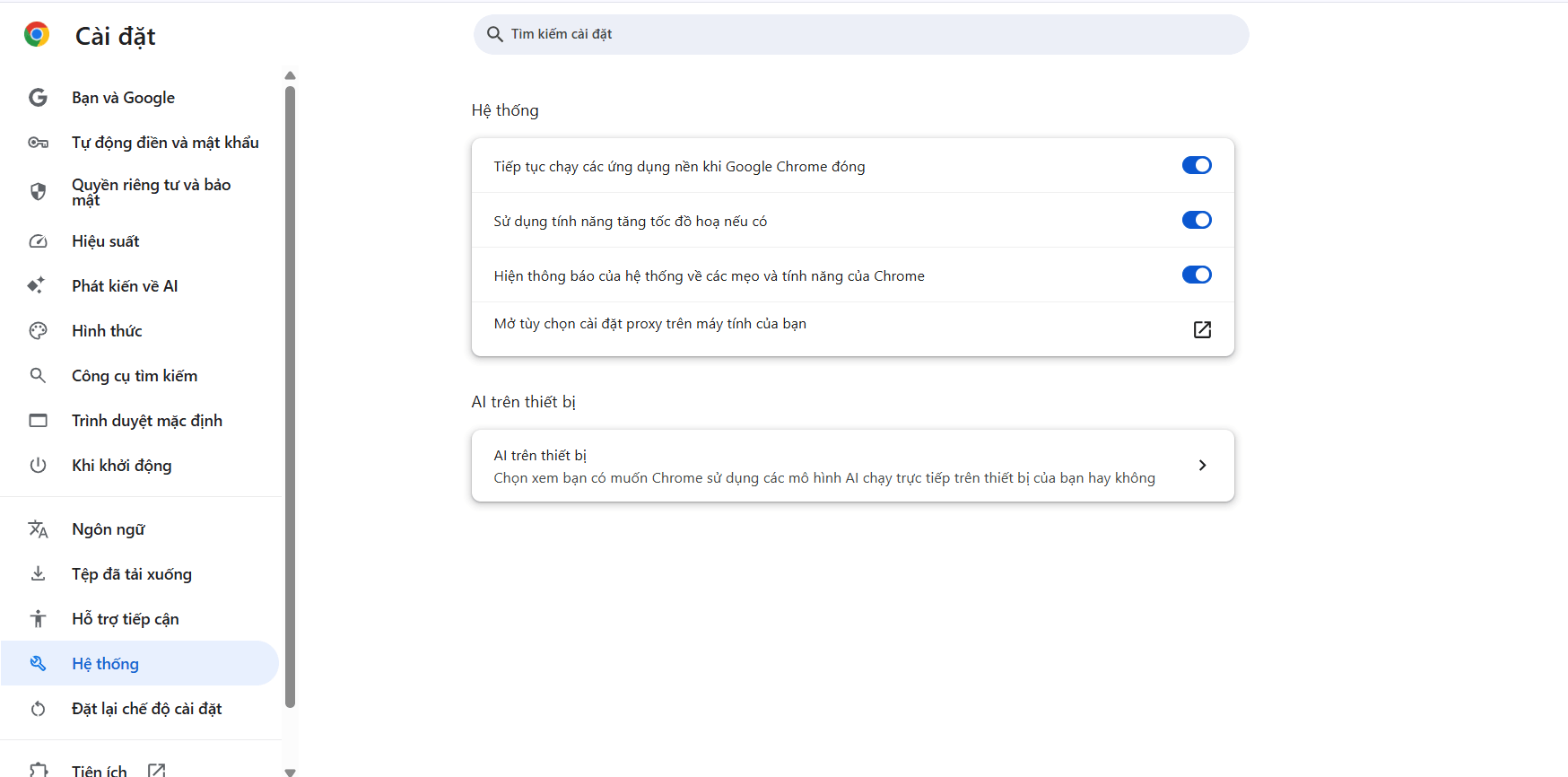
Essentially, this feature transfers some of the browser's rendering work to the computer's graphics card or image processing chip, instead of the central processor handling the entire task. If your computer has a sufficiently powerful graphics card, this can significantly speed up website loading times, especially for pages with many visual effects or complex multimedia content. Conversely, for computers with weak graphics configurations or outdated graphics drivers, this feature can sometimes cause lag or display errors when loading pages.
Therefore, the sensible advice here is that if this feature is currently turned off, you should try turning it on to see the effect. Conversely, if the feature is already enabled but you frequently experience display issues or lag while browsing, try turning it off and see if the overall browser performance improves.
4. Utilize built-in memory saving tools to keep your computer running smoothly.
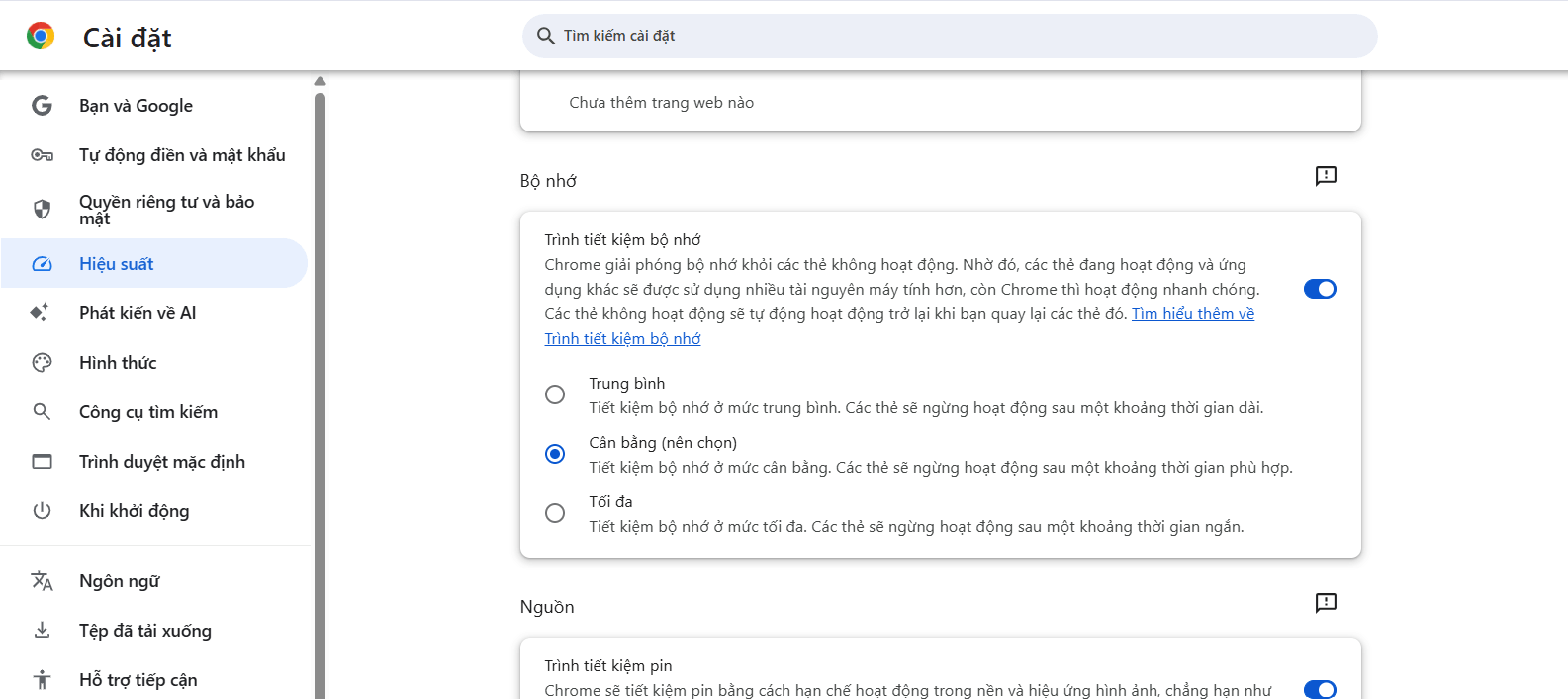
One of Chrome's most frequently mentioned drawbacks is its relatively high memory consumption, especially when users tend to open many tabs simultaneously in a single session. To address this issue, Google has integrated a feature called Memory Saver, designed to minimize excessive memory usage.
This feature works quite cleverly, automatically disabling tabs that haven't been used for a certain period. The tab still displays normally in the browser's tab bar, but Chrome stops tracking and updating its content. This means that if it's a live news page, you won't see new posts appear until you return to that tab. As soon as you click back on the paused tab, the website reloads and returns to normal operation in an instant.
To find and enable this feature, click the three-dot icon in the upper right corner of any Chrome tab, then select Settings, and then select Performance. Here, you'll find the Memory Saver switch along with three different control levels, allowing you to customize the level of memory saving to best suit your usage habits.
5. Remove Unnecessary Extensions
Extensions certainly provide many useful additional functions for Chrome, making the browser more flexible and responsive to various needs. However, installing too many extensions at once can negatively impact the browser's overall performance. This is because each extension is like a miniature application that needs to be loaded simultaneously with Chrome and constantly monitors your internet activity to function correctly.
Removing extensions that you no longer use, or feel you may not need at all, will help restore some of Chrome's original speed. Beyond performance, cleaning up extensions also offers significant security benefits, as fewer extensions installed limit the number of potential vulnerabilities that malicious actors could exploit to access your personal data.
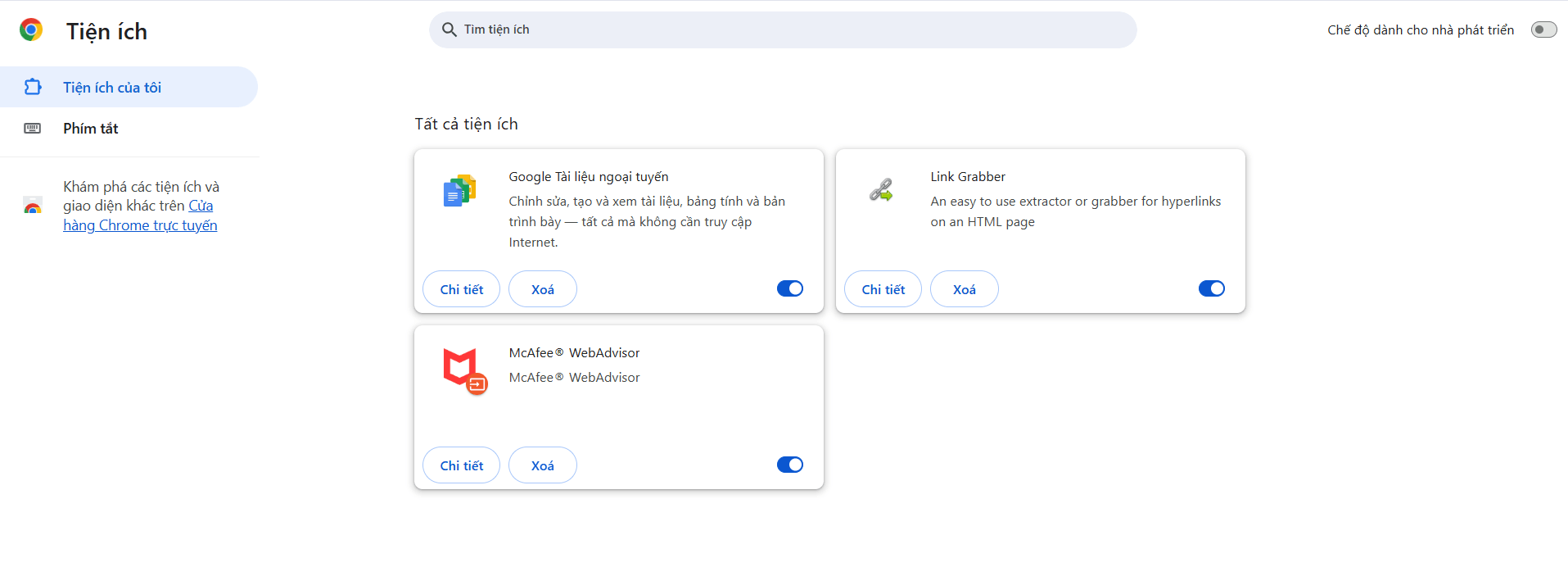
To begin the review and cleanup process, click the three-dot icon in the upper right corner of any Chrome tab, then select Extensions, and then select Manage Extensions. In the list that appears, carefully examine each extension. For extensions that no longer serve your current needs, simply click the Remove button and confirm the action to complete the removal process.
6. Conclusion
With just these five simple adjustments, you can make Google Chrome run much smoother and faster than its default state. From enabling multi-threaded file loading, utilizing web page preloading, adjusting hardware acceleration appropriately, using memory-saving tools, to regularly cleaning up unnecessary extensions, each solution contributes to a faster, smoother, and more stable browsing experience every day.





















VIP Products








Best Selling Products
Upgrade Duolingo Super
29 USD
Adobe Photoshop Copyright - Full App
120 USD
Adobe Premiere Pro Account
99 USD
MidJourney Account
29 USD
Windows 10 & 11 Pro Key
36 USD
Upgrade Genuine Office 365
49 USD
Genuine Cheap Canva Pro
39 USD
Copyright Adobe Lightroom Account
59 USD
Capcut Pro 1 Year
39 USD
Upgrade genuine Capture One account
120 USD
Freepik Premium Account
59 USD
Autodesk All App Account Copyright
120 USD
ChatGPT Plus Account (GPT-4)
16 USD
Genuine Adobe Illustrator account
99 USD
Plugin Retouch4me
69 USD