Best Selling Products

Upgrade Genuine Office 365
49 USD

Plugin Retouch4me
69 USD

Upgrade Duolingo Super
29 USD

Genuine Cheap Canva Pro
39 USD

Windows 10 & 11 Pro Key
36 USD

Adobe Premiere Pro Account
99 USD

MidJourney Account
29 USD

Capcut Pro 1 Year
39 USD

ChatGPT Plus Account (GPT-4)
16 USD

Copyright Adobe Lightroom Account
59 USD

Adobe Photoshop Copyright - Full App
120 USD

Autodesk All App Account Copyright
120 USD

Genuine Adobe Illustrator account
99 USD

Upgrade genuine Capture One account
120 USD

Freepik Premium Account
59 USD
9 Useful Tips with Claude to Help You Maximize the Power of AI
Nội dung
- 1. Turn Claude into Your Personal In-Depth Research Assistant
- 2. Use Claude to Create Vivid and Visual Charts and Images
- 3. Connect Claude to the ecosystem of applications you use daily.
- 4. Proactively set boundaries and limits for each answer.
- 5. Assign Claude the task of summarizing your lengthy documents.
- 6. Ask Claude to observe and explain what is appearing before your eyes.
- 7. Switch to Voice Chat Mode for a More Natural Experience
- 8. Utilize Claude as a Tool for Quick Daily News Updates
- 9. Ask Claude to create the complete files right in the middle of the conversation.
- 10. Conclusion
You can use Claude completely free on the web platform, or through the desktop and mobile app, while paid plans offer higher usage limits and access to more advanced features. Here are nine tips to help you fully utilize the potential of this virtual assistant in your work and daily life.

1. Turn Claude into Your Personal In-Depth Research Assistant
When you need a truly in-depth answer, and are willing to wait a few extra minutes for quality, Claude offers a dedicated research mode for such needs. Simply tap the plus icon in the command input box, then toggle the Research mode switch on.
After you submit your request, Claude will automatically conduct an extensive internet search, compiling the most reputable sources of information related to your topic of interest. The entire result is then presented as a clear, well-formatted document that you can read directly within the chat window or export for use elsewhere.
This feature can be applied in countless different situations, from building a detailed analysis of 20th-century American literature to creating an overview report on the current state of the semiconductor industry. After completing the search process, Claude will list all the sources used, making it easy for you to compare and verify the accuracy of the information before using it for important work.
2. Use Claude to Create Vivid and Visual Charts and Images
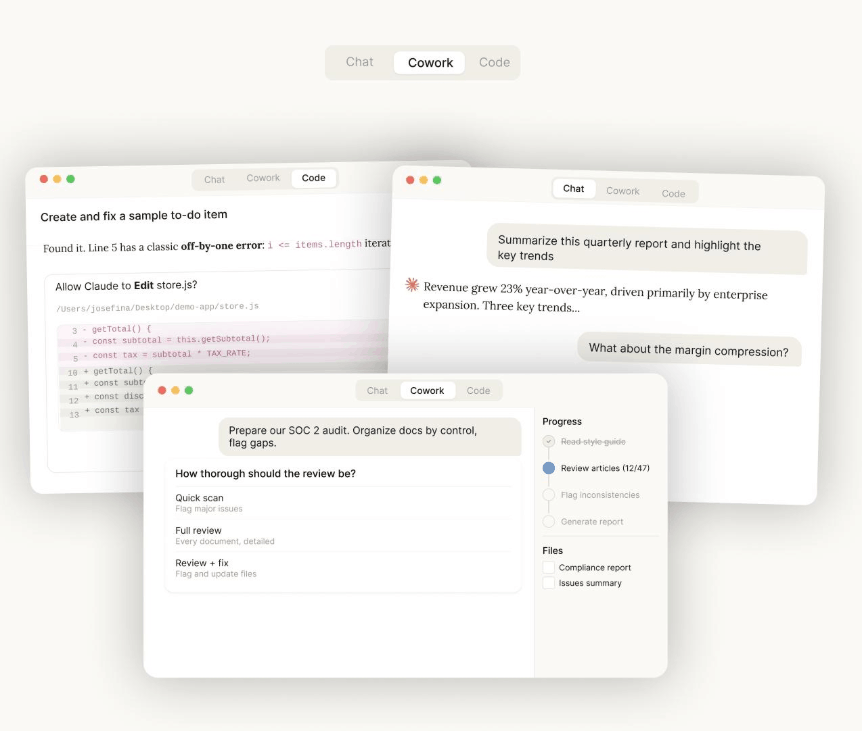
Although Claude doesn't create artwork in the style of some other platforms, this assistant is capable of building diagrams, charts, and visualizations directly within both the web and desktop applications. You simply provide a direct request in the command line, such as "create a visualization for me," along with the specific content you want to convey.
For example, you could ask Claude to create an interactive chart showing the changes in the world's population over time, or a diagram illustrating how a rocket works, or even a drawing depicting the internal structure of a biological cell. Almost any information that Claude can research and synthesize can be transformed into a vivid visual format, making it much faster and easier for viewers to absorb the information than simply reading plain text.
3. Connect Claude to the ecosystem of applications you use daily.
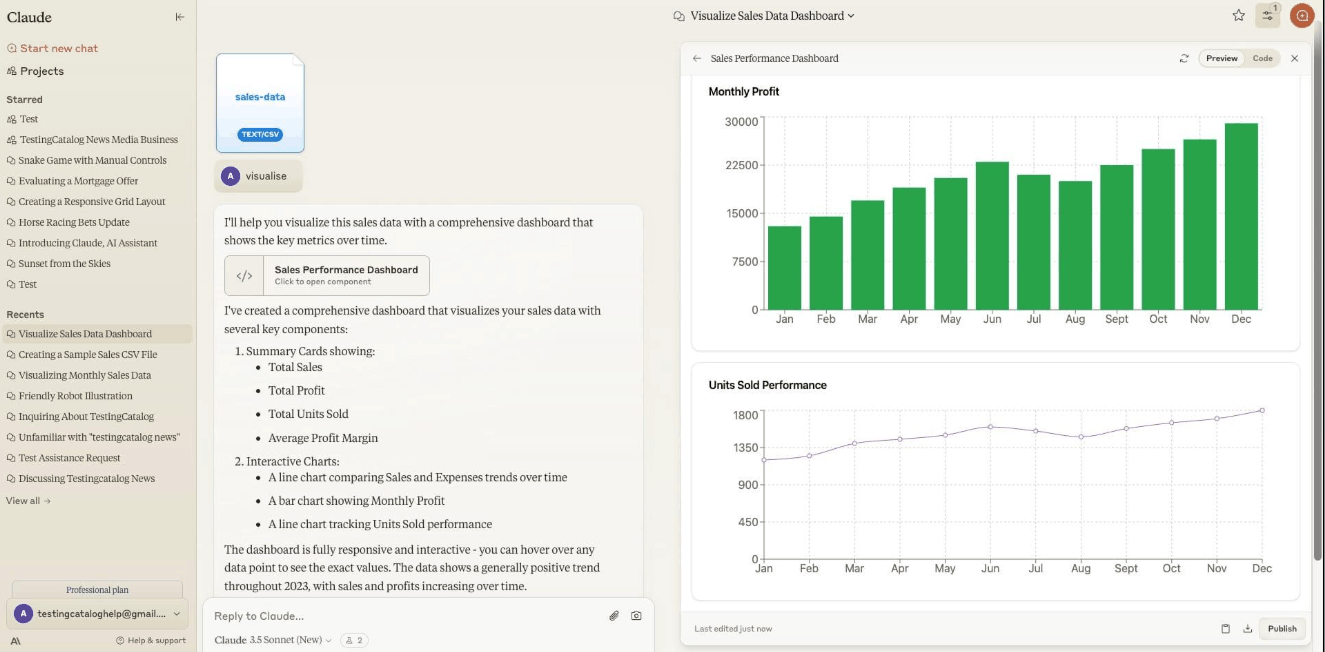
One of Claude's notable strengths lies in its ability to connect with various external applications through utilities called connectors. To explore and manage these connections, simply click the plus icon in the command input field, then select Connectors to browse the list of available options and manage connections you've previously added.
The list of available connectors is quite diverse, serving many different work needs. You can connect to online music streaming platforms to have Claude create custom playlists and sync them directly to your personal account, or connect to your email inbox to have Claude analyze, organize, and summarize all the content in your inbox. This integration transforms Claude from a simple chat tool into a truly comprehensive work assistant, seamlessly integrated with the tools you use every day.
4. Proactively set boundaries and limits for each answer.
Many users often overlook a crucial point: the command sent to Claude can include instructions on how to respond, not just a question about the information to be found. Therefore, you can request Claude to limit the response to a specific word count, or present the results as a bulleted list instead of a lengthy paragraph.
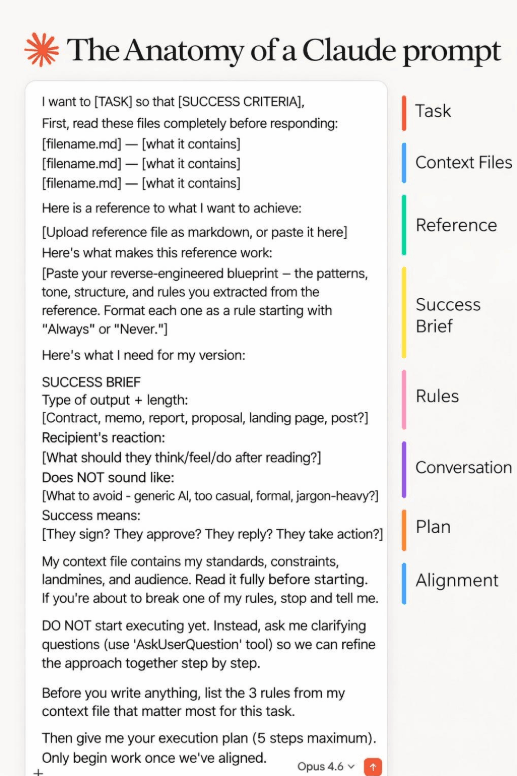
This principle also applies to the style and tone of the response. If you need a simple, easy-to-understand explanation, or conversely, a highly technical analysis, state this requirement clearly in the command. You could even ask Claude to role-play different characters, such as a friendly science professor or a knowledgeable local tour guide, making the conversation more lively and relevant to each specific context.
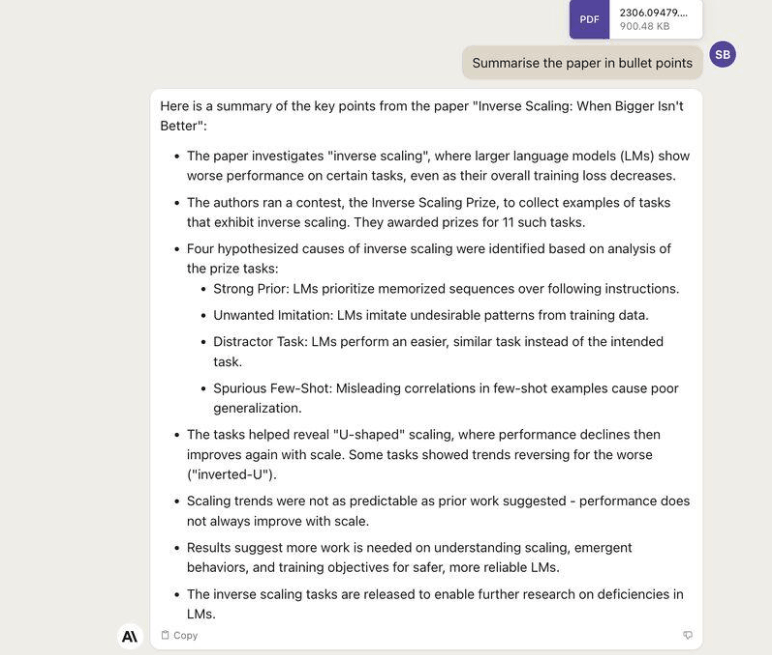
5. Assign Claude the task of summarizing your lengthy documents.
When you need to process long documents such as letters, reports, or essays, simply click the plus icon in the command input box, then select the "add file or image" option on the web and desktop versions, or the "file" option on the mobile version, to upload the document and have Claude summarize it.
Just like any other command, you can completely customize the parameters for this process. You can specify a particular length for the summary, or specify the particular details you want to capture. Don't hesitate to include specific questions in the command, such as asking how you should respond to this document, if that's really necessary for your work.
6. Ask Claude to observe and explain what is appearing before your eyes.
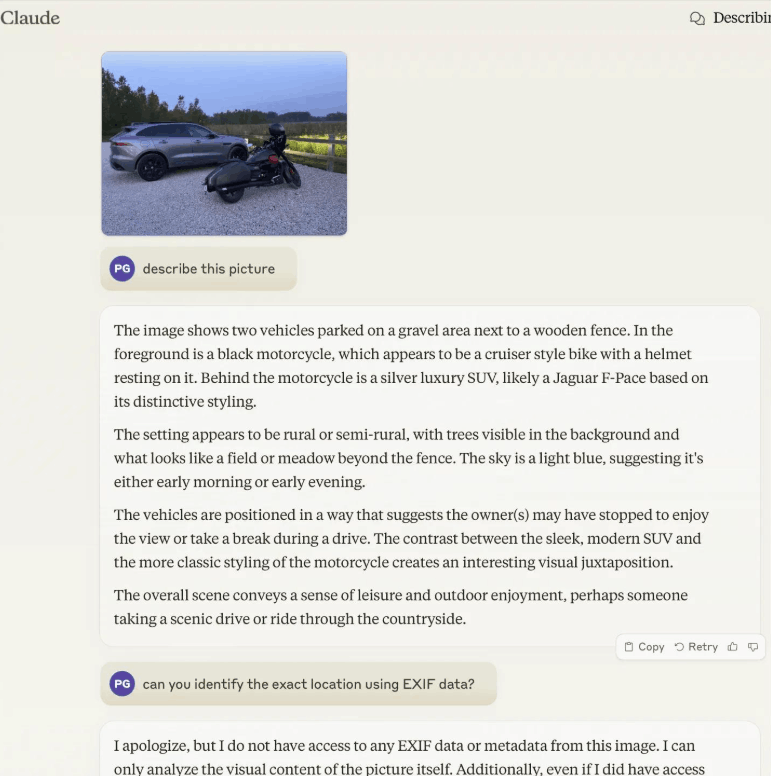
If you're using Claude on your phone, you'll have another incredibly cool trick to use: point your phone's camera at any object and ask Claude to analyze and explain what's appearing in the frame. Simply tap the plus icon in the command input box, select the camera option, and then take a picture to include in your command.
For example, you might want to find out what kind of flower you're seeing, or look up the meaning of an unusual traffic sign, or even learn about a dish you've never heard of on a restaurant menu. Claude can also read and analyze any text that appears in a photograph, helping you grasp information quickly and accurately without having to type it out yourself.
7. Switch to Voice Chat Mode for a More Natural Experience
In the bottom right corner of the command input box, you'll see an audio wave icon. Tapping it will activate Claude's Voice mode. Instead of typing, you can directly speak your request, and Claude will respond with his voice, creating the feeling of talking to a real person.
This method of interaction is particularly useful in situations where your hands are busy with other tasks, or when you're on the go, such as while driving. It's important to note that this mode is completely different from simply tapping the regular microphone icon, which merely converts your voice to text to send as a normal written command without creating a two-way voice conversation.
8. Utilize Claude as a Tool for Quick Daily News Updates
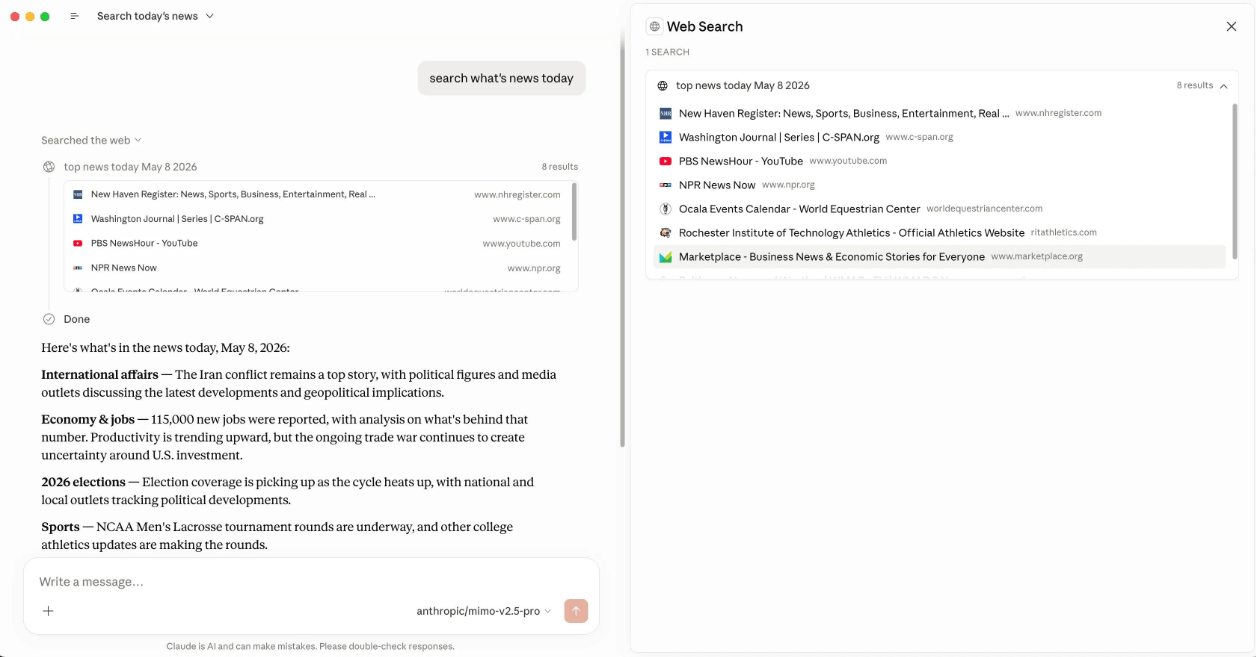
Don't overlook Claude's internet search capabilities, a feature that can be activated by clicking the plus icon in the command input box and toggling the web search switch. This feature not only helps you look up any information available online, but can also gather the latest news headlines tailored to your needs.
You simply give Claude a command to find the most trending stories on any topic you like, such as sports, technology, or science, and Claude will immediately fulfill that request. You can further customize this response by specifying the exact number of news articles you want to see, as well as the level of detail required for each compiled article.
9. Ask Claude to create the complete files right in the middle of the conversation.
Claude's capabilities extend beyond simply responding within the chat window; it can also directly generate complete files in various formats such as PDF, Word, Excel, and PowerPoint. Combining this feature with the other capabilities mentioned above, you can achieve incredibly impressive results simply by specifying the desired file format in the command.
For example, you can not only have Claude draft a letter to your child's school principal, but you can also request that the file be exported as a PDF for easy sending or printing. Or if you're brainstorming ideas for a speech, you can have Claude directly organize those bullet points into a complete Word file. Whether you need a spreadsheet to support financial planning or a presentation explaining the structure of DNA in a simple, easy-to-understand way, Claude can fully assist you. This feature is especially useful when you need to create downloadable document templates that you can further edit to your liking.
10. Conclusion
Overall, Claude is not just a simple chatbot that answers questions; it's a truly comprehensive work assistant capable of research, data visualization, connecting with application ecosystems, summarizing documents, image recognition, voice chat, news updates, and creating complete files all in a single conversation. Taking the time to learn and apply these advanced features will help you fully exploit the value Claude can offer, turning it into a true companion in both work and daily life.





















VIP Products








Best Selling Products
Upgrade Genuine Office 365
49 USD
Plugin Retouch4me
69 USD
Upgrade Duolingo Super
29 USD
Genuine Cheap Canva Pro
39 USD
Windows 10 & 11 Pro Key
36 USD
Adobe Premiere Pro Account
99 USD
MidJourney Account
29 USD
Capcut Pro 1 Year
39 USD
ChatGPT Plus Account (GPT-4)
16 USD
Copyright Adobe Lightroom Account
59 USD
Adobe Photoshop Copyright - Full App
120 USD
Autodesk All App Account Copyright
120 USD
Genuine Adobe Illustrator account
99 USD
Upgrade genuine Capture One account
120 USD
Freepik Premium Account
59 USD