Best Selling Products

ChatGPT Plus Account (GPT-4)
16 USD

Upgrade Genuine Office 365
49 USD

Windows 10 & 11 Pro Key
36 USD

Capcut Pro 1 Year
39 USD

Adobe Premiere Pro Account
99 USD

Autodesk All App Account Copyright
120 USD

Freepik Premium Account
59 USD

Copyright Adobe Lightroom Account
59 USD

MidJourney Account
29 USD

Upgrade genuine Capture One account
120 USD

Genuine Cheap Canva Pro
39 USD

Adobe Photoshop Copyright - Full App
120 USD

Upgrade Duolingo Super
29 USD

Genuine Adobe Illustrator account
99 USD

Plugin Retouch4me
69 USD
12 Interesting Things Hidden in Apple''s Notes App
Nội dung
- 1. Collaboratively Edit a Note in Real Time
- 2. Label Each Note
- 3. Add lines and grids as a background for the writing page.
- 4. Insert Tables to Present Information More Neatly
- 5. Customize the Initial Display of Each New Note
- 6. Edit notes using AI
- 7. Create links between notes.
- 8. Divide your notes into smaller, more organized subfolders.
- 9. Automatically Group Notes
- 10. Switch to Photo Gallery View
- 11. Attach a Live Voice Recording to the Note
- 12. Highlight the Most Important Sections of Text
- 13. Conclusion
Interestingly, while most of us use Notes daily—to write shopping lists, jot down to-do lists, or simply save a fleeting idea—the vast majority of users haven''t explored everything this app can truly do. Behind its seemingly simple interface lies a wealth of features worth discovering. Here are 12 helpful tips to help you use Notes more effectively than ever before.
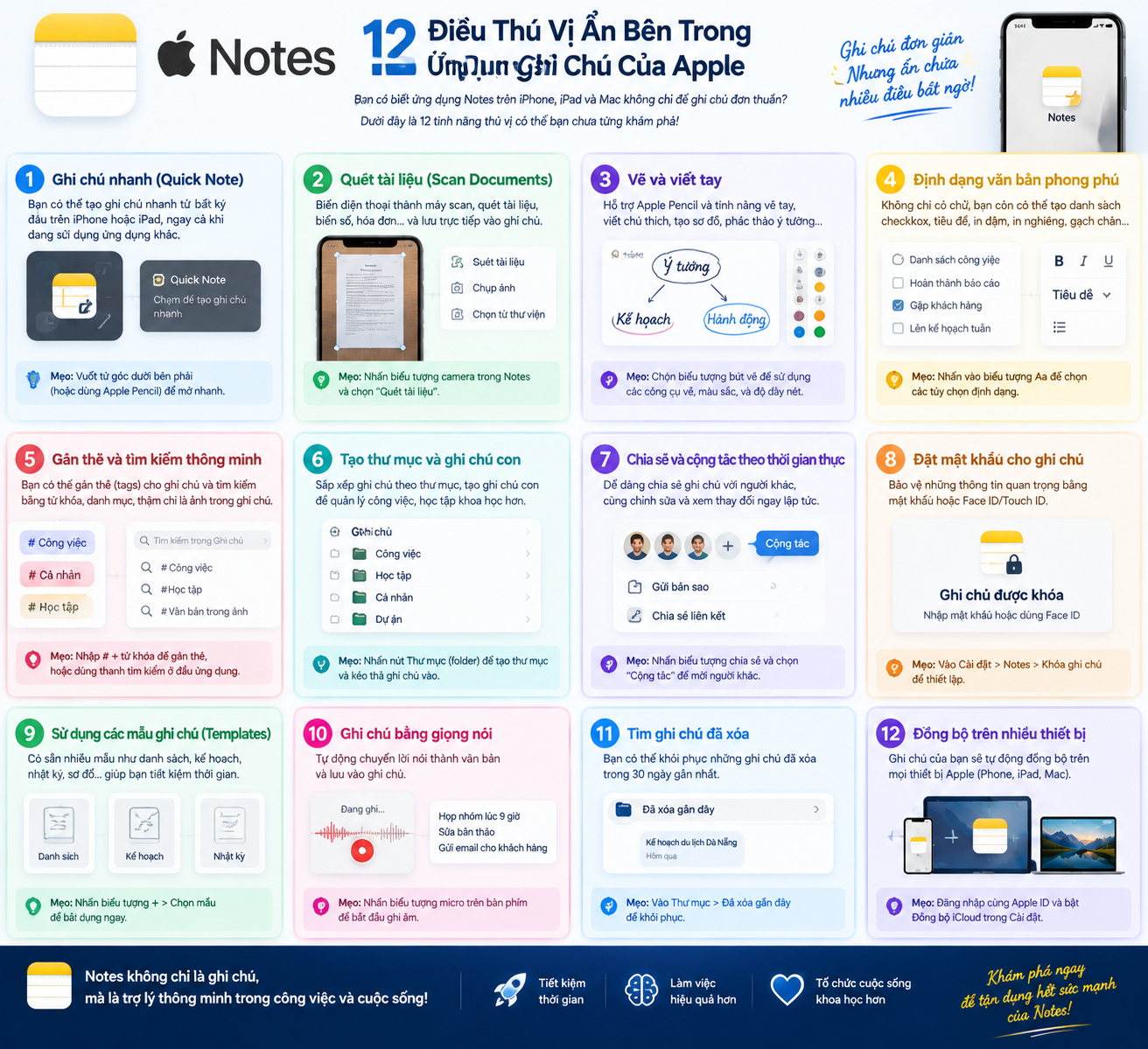
1. Collaboratively Edit a Note in Real Time
Not everyone knows that Notes allows multiple people to edit a note simultaneously via iCloud, a feature that is extremely convenient for families who need to create shared shopping lists, or work groups who want to collaborate on a document.
To begin, open the note you want to share, tap the share icon (usually an upward-pointing arrow in a square), and then select "Collaborate" at the top of the next screen. A link will then be generated for you to send to others. When they open this link, any changes anyone makes will be synchronized almost instantly across all participating devices, making information exchange and updates seamless without the need to send multiple versions back and forth.
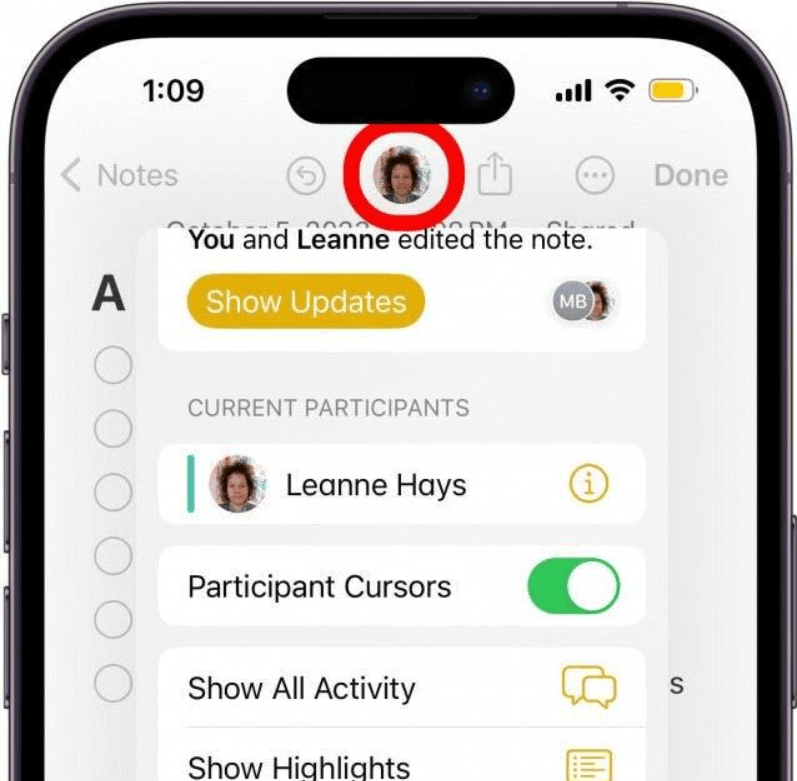
2. Label Each Note
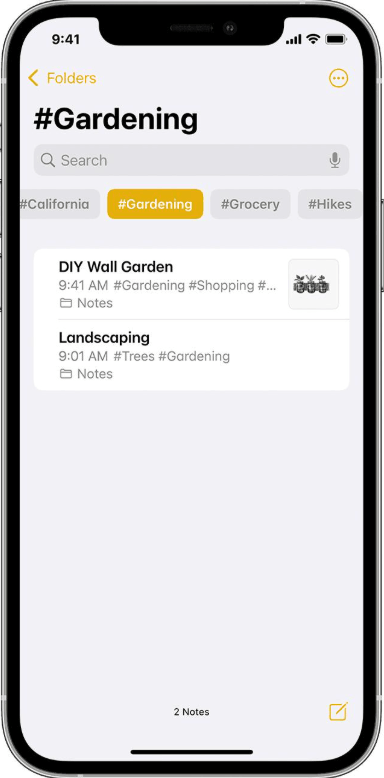
Tagging is one of the smartest and most effective ways to organize notes, yet not everyone pays attention to it. Simply add a hash symbol (#) before keywords, such as tagging tasks, anywhere in your note.
Once tagged, these tags will appear as a list right on the app's home screen, listing all your notes. From there, you can simply tap any tag in the list to instantly jump to all notes containing that tag, instead of manually scrolling through each page to find them. This is a great way to group notes on the same topic together, even if they are scattered across different folders.
3. Add lines and grids as a background for the writing page.
If you're used to using drawing tools to sketch ideas or handwrite directly in your notes, lines or grids can serve as a very useful visual guide, helping your writing or drawings to be straighter and more balanced compared to a plain white background.
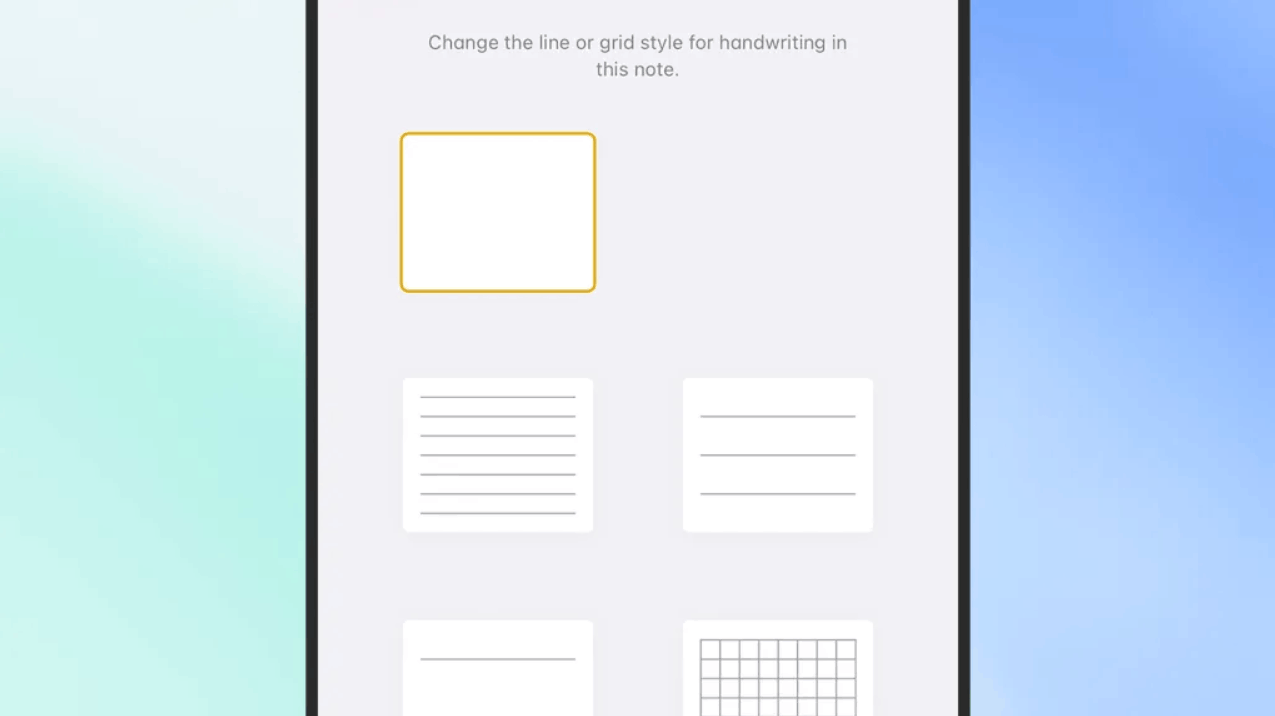
To add a lined or grid background to any open note, simply tap the three-dot icon in the upper right corner of the screen, then select Lines and Grids from the list that appears. Here, you'll see several different background styles to choose from, depending on whether you need a regular horizontal line for handwriting or a neat grid for sketching diagrams, charts, or simple technical drawings.
4. Insert Tables to Present Information More Neatly
Sometimes, a long, wordy list can't convey information as clearly as a neatly organized table with rows and columns. The Notes app understands this and has built a table creation tool right into the editor toolbar.
While in text editing mode within a note, simply tap the table icon on the toolbar—which looks like four small rectangles joined together—to instantly insert a basic table at the cursor's location. Once the table appears, you can tap the small handles around the table's edge to add or remove rows and columns as needed, making it easy to create expense tracking tables, product comparison lists, or any other type of data that requires a clear and structured presentation.
5. Customize the Initial Display of Each New Note
By default, whenever you create a new note, Apple automatically formats the first line as a bold title with a large font size. However, not everyone likes this presentation, and luckily, you can change it to your personal preference.
Simply go to the Settings app on your device, select Apps, then select Notes, and find the option called New Notes Start With. Here, you'll see four different options: Title, Heading, Subheading, and Body, corresponding to text formatting levels from largest to smallest. Choosing the right formatting from the start will save you time manually editing each time you open a blank note to begin writing.
6. Edit notes using AI
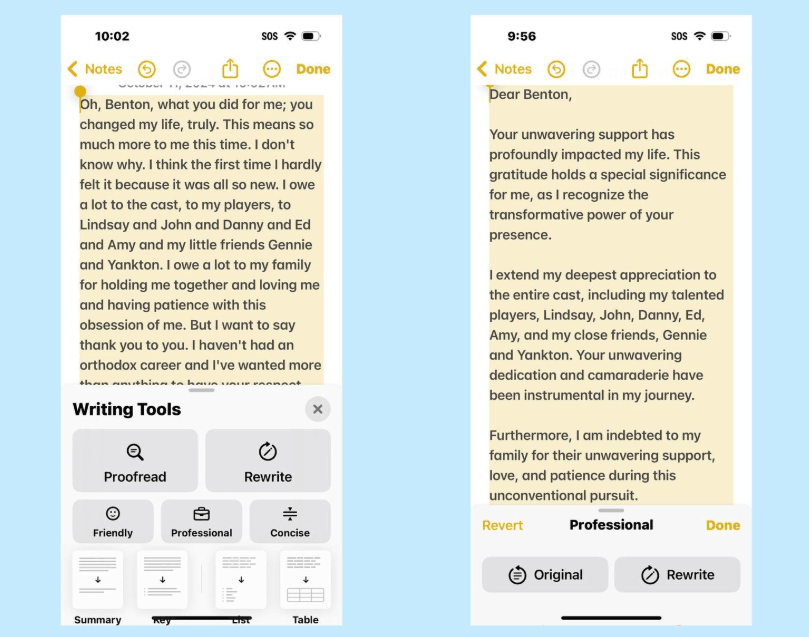
With the introduction of Apple Intelligence, the Notes app now also features AI-powered editing capabilities within the app, a very convenient feature when you need to review content before sharing it with others.
While any note is open, tap the Apple Intelligence icon on the toolbar, usually shaped like a pen inside a small star, then select Proofread. Immediately, the system will automatically check for spelling, grammar, and sentence structure errors throughout the entire content, helping you quickly detect and correct small mistakes that are sometimes easily overlooked by the naked eye. This is especially useful when you are drafting important notes that require high accuracy.
7. Create links between notes.
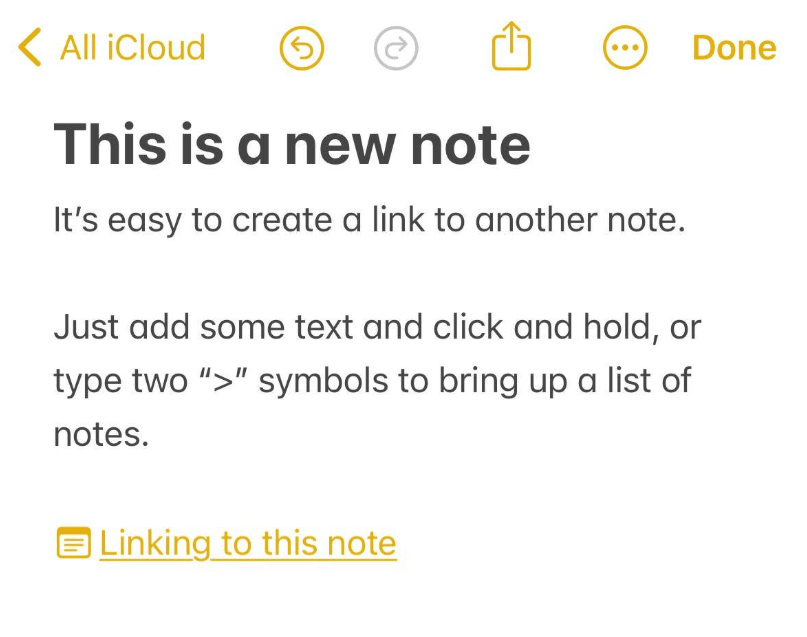
Few would have guessed that Apple Notes could also link pages together in a similar way to how Wikipedia works, allowing you to build an entire system of notes that are tightly linked and easy to navigate.
To create a link, select any text within your current note where you want to place the link, then select "Add Link" from the pop-up menu. Sometimes you may need to swipe right to see this option if the menu bar doesn't have enough space. Next, type the name of the note you want to link to, and then select the appropriate result from the suggested list. From now on, simply tapping on that text will take you directly to the relevant note without having to leave the app to search manually.
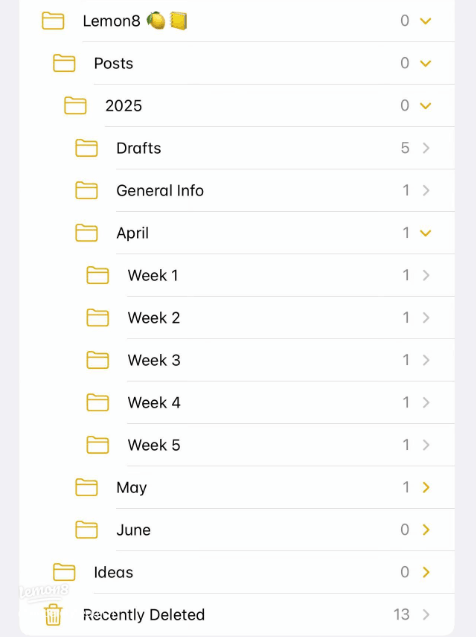
8. Divide your notes into smaller, more organized subfolders.
If you have hundreds of notes and find them all crammed together making searching confusing, it's time to take advantage of the built-in folder and subfolder system this application supports.
From the main screen displaying the list of notes, tap the back arrow in the upper left corner to view all existing folders, then you can create a new folder by tapping the new folder icon in the upper right corner. To create a subfolder inside a larger folder, simply go to Edit and drag and drop or move the folder to the desired location. This hierarchical structure is especially useful when you need to manage multiple large projects, each comprising many smaller work areas that need to be clearly separated.
9. Automatically Group Notes
In addition to regular folders, the Notes app offers a more advanced feature called smart folders, which allows the system to automatically collect and organize notes based on criteria you set yourself, instead of having to manually organize each one.
Whenever you create a new folder, you'll see an option to turn it into a smart folder. Once activated, you can set up various filtering conditions such as notes with a specific tag, notes containing certain types of content, the last time they were edited, or even notes that are locked. Once these criteria are set, the folder will automatically update the list of matching notes whenever new content meets the criteria, saving you a lot of effort compared to manually organizing them every day.
10. Switch to Photo Gallery View
A simple text-based list isn't always the best way to display your notes, especially when your notes contain many images or highly visual content. Fortunately, the Notes app also offers another display style, making it easier to quickly get an overview.
On the screen displaying the entire list of notes, tap the three-dot icon in the upper right corner, then select "View as Gallery" from the menu that appears. Immediately, all your notes will be converted into thumbnails, similar to an image gallery, sorted in chronological order of most recent edits. This display style is especially useful when you need to quickly identify a specific note based on its image or overall layout, rather than just the text title.
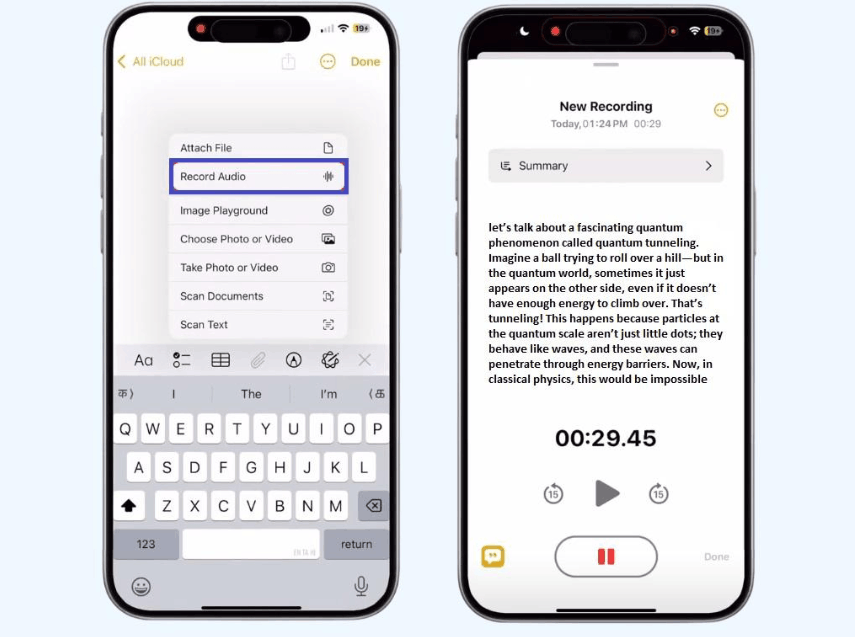
11. Attach a Live Voice Recording to the Note
Sometimes, thoughts or ideas flash through your mind, and typing them out isn't as quick or convenient as speaking them aloud. Recognizing this, Apple has allowed users to directly attach voice recordings within notes, turning them into a simple yet fully functional audio storage tool.
To add an audio recording, tap the paperclip icon on the floating toolbar, then select "Record Audio" from the list of options that appears. Next, simply tap the red record button to start speaking, and the entire recording will be saved directly within that note, allowing you to easily listen back to it whenever needed without having to switch to a separate recording application.
12. Highlight the Most Important Sections of Text
When your notes are quite long, highlighting key information will help you quickly grasp the main points at a glance, without having to reread the entire thing from beginning to end every time you open it.
To highlight a section of text, simply double-tap the text to select it, then tap the pen icon on the floating toolbar to activate highlighting mode. Tap the pen icon again, and you'll see five different colors to choose from: purple, pink, orange, mint green, and blue. Categorizing information by color not only makes your notes look more vibrant and intuitive, but also greatly assists in remembering and retrieving information later.
13. Conclusion
Looking back at all the features just introduced, it's clear that Apple's Notes app has quietly evolved far beyond the initial expectations of many users, transforming from a simple note-taking tool into a versatile assistant capable of collaboration, organization, presentation, and even AI-powered content editing. By simply exploring and familiarizing yourself with the tips mentioned above, you can completely transform this seemingly familiar app into a truly effective work tool, suitable for all your note-taking needs in daily life and professional work.





















VIP Products








Best Selling Products
ChatGPT Plus Account (GPT-4)
16 USD
Upgrade Genuine Office 365
49 USD
Windows 10 & 11 Pro Key
36 USD
Capcut Pro 1 Year
39 USD
Adobe Premiere Pro Account
99 USD
Autodesk All App Account Copyright
120 USD
Freepik Premium Account
59 USD
Copyright Adobe Lightroom Account
59 USD
MidJourney Account
29 USD
Upgrade genuine Capture One account
120 USD
Genuine Cheap Canva Pro
39 USD
Adobe Photoshop Copyright - Full App
120 USD
Upgrade Duolingo Super
29 USD
Genuine Adobe Illustrator account
99 USD
Plugin Retouch4me
69 USD