Best Selling Products

Upgrade Genuine Office 365
49 USD

ChatGPT Plus Account (GPT-4)
16 USD

Adobe Premiere Pro Account
99 USD

Plugin Retouch4me
69 USD

Genuine Adobe Illustrator account
99 USD

Adobe Photoshop Copyright - Full App
120 USD

Upgrade Duolingo Super
29 USD

Windows 10 & 11 Pro Key
36 USD

Genuine Cheap Canva Pro
39 USD

Upgrade genuine Capture One account
120 USD

Copyright Adobe Lightroom Account
59 USD

Capcut Pro 1 Year
39 USD

MidJourney Account
29 USD

Autodesk All App Account Copyright
120 USD

Freepik Premium Account
59 USD
What is Microsoft Access? A guide to creating a simple database application.
Nội dung
- 1. What is Microsoft Access?
- 2. Create apps without being a developer.
- 3. Intuitive and rich design
- 4. Customize the application for your business.
- 5. Automation with Visual Basic for Applications
- 6. Create useful forms and reports.
- 7. Connect multiple data sources
- 8. When should I use Microsoft Access?
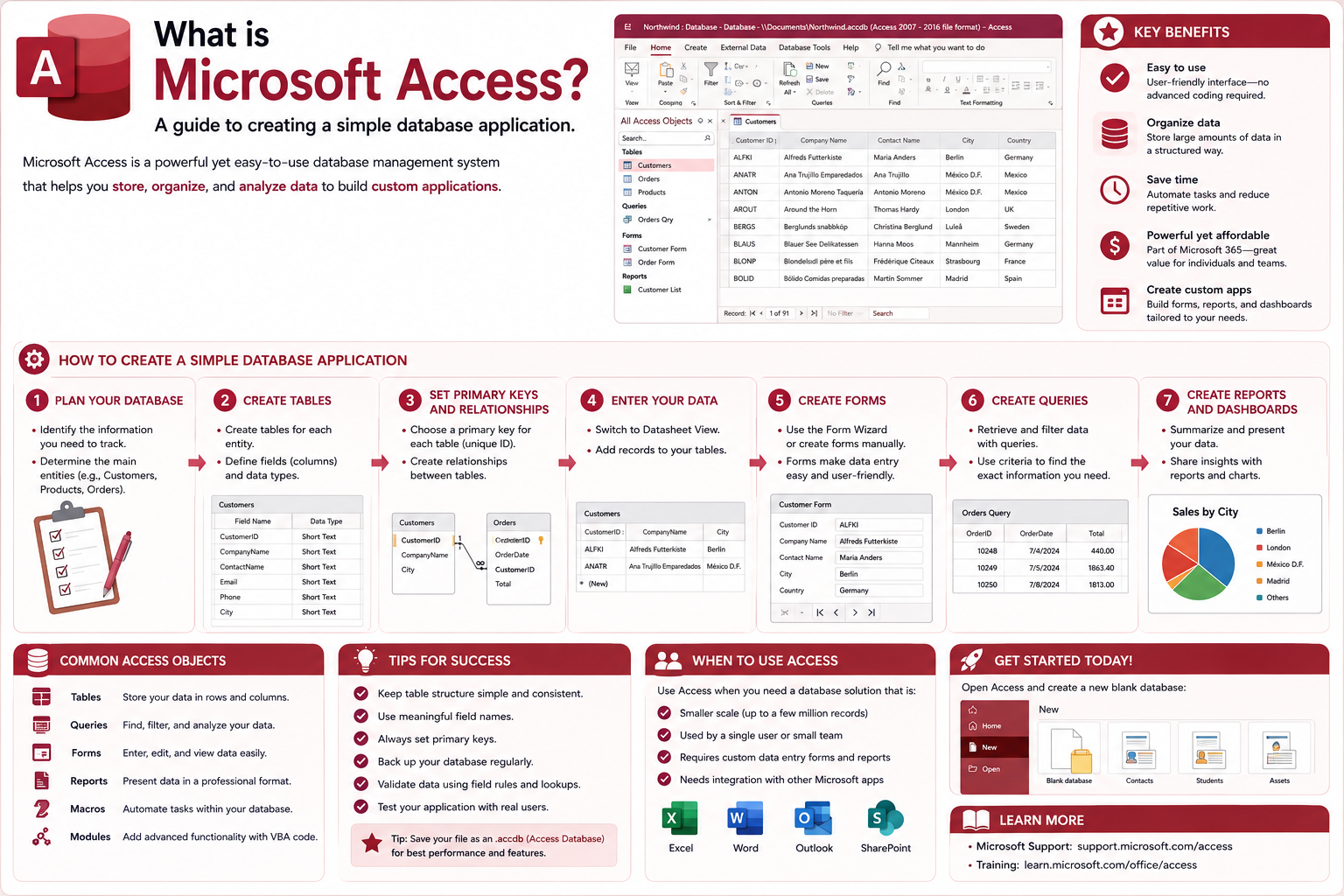
Microsoft Access makes it easy for businesses to create and manage database applications without needing to be a professional developer.
1. What is Microsoft Access?
Microsoft Access is relational database management software that allows users to store, organize, query, and present data in a relatively user-friendly environment. Instead of building an entire system with programming code, users can leverage Access's intuitive tools to create applications tailored to their needs.
An Access application typically includes several components that work together. Tables are used to store data, queries help search and process information, forms support data entry or viewing, while reports are used to summarize and present results.
Thanks to this approach, Access can address many practical problems such as managing customers, products, orders, employees, assets, inventory, or internal processes.
2. Create apps without being a developer.
One of the outstanding advantages of Microsoft Access is its ability to help users create database applications without needing to be a professional software developer.
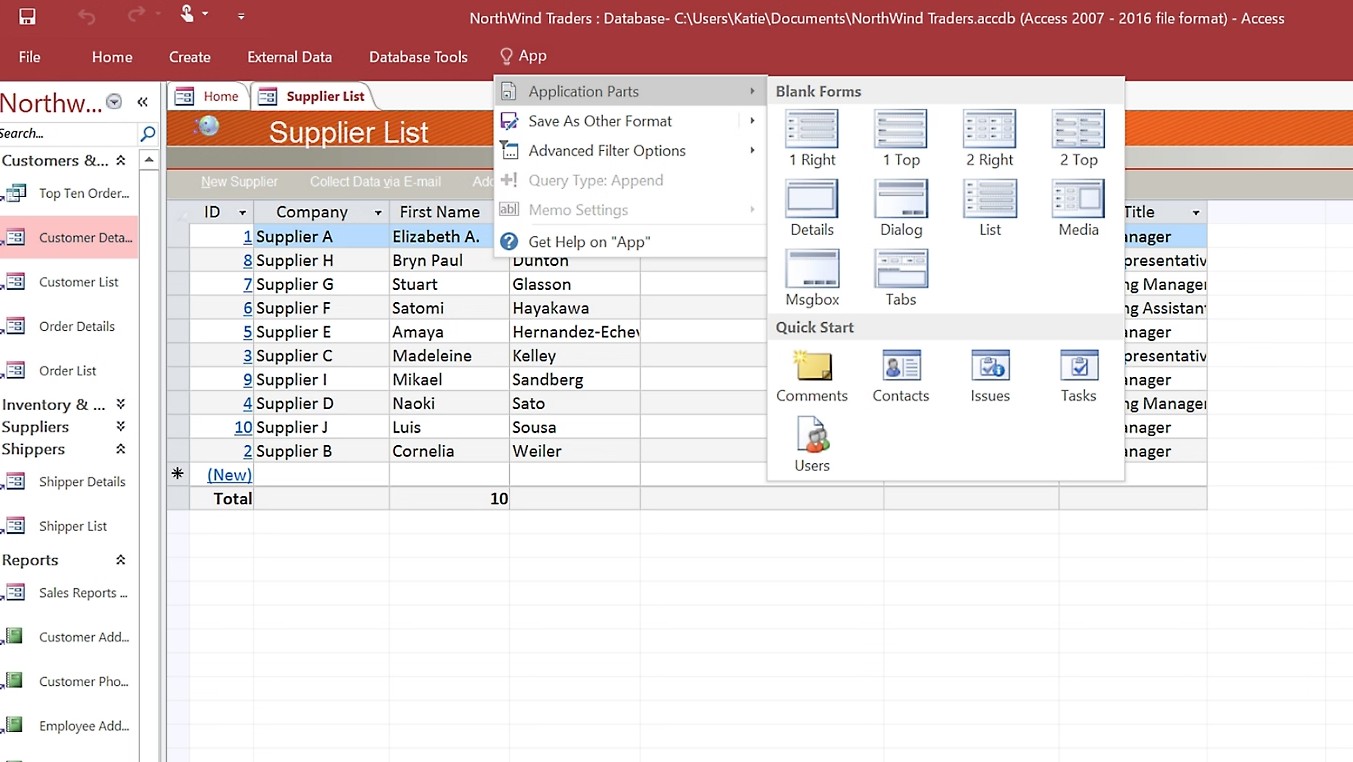
Users can start with a pre-made template instead of building everything from scratch. Templates provide an initial structure so users can quickly visualize how to organize data, forms, and reports. Businesses can then modify components to suit their actual processes.
If users want complete control over the structure, they can also create a new database from scratch. Access provides intuitive design tools for creating tables, data fields, forms, and reports without writing too much code.
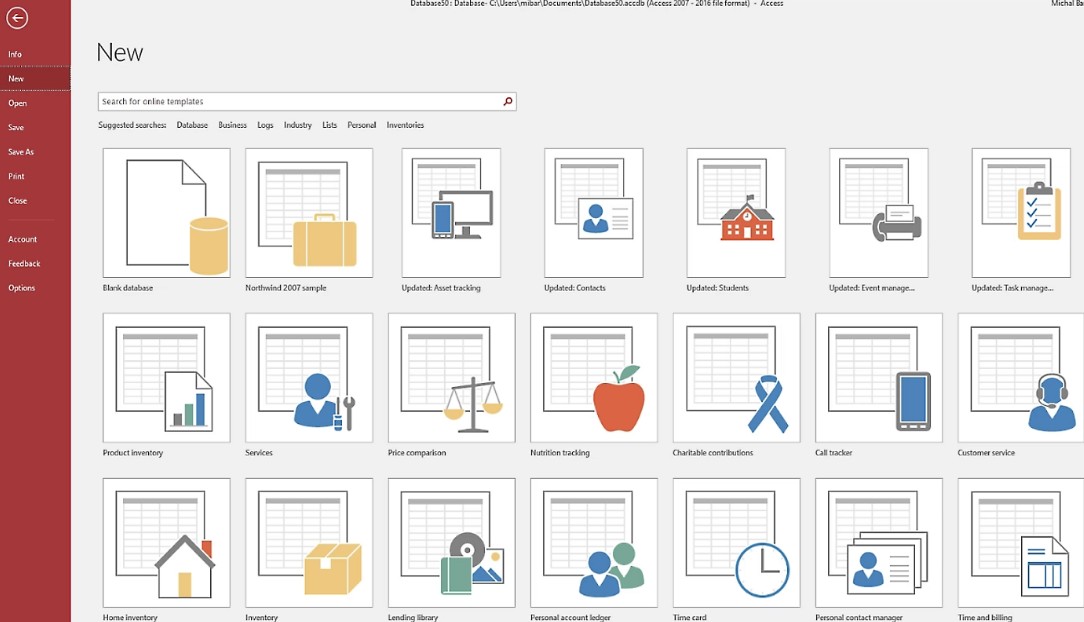
The basic process can begin as follows:
Step 1: Open Microsoft Access on your PC.
Step 2: Choose a suitable database template or select Blank Database to create a new database.
Step 3: Name the database and choose a storage location.
Step 4: Create the necessary tables to store the data. Each table should focus on a specific group of information, such as a customer table, a product table, or an order table.
Step 5: Identify the data fields and corresponding data types such as Text, Number, Date/Time, or Currency.
Step 6: Set up a primary key to uniquely identify each record.
Step 7: Create relationships between tables when the data is linked.
Step 8: Create a form so users can enter and view data through a visual interface.
Step 9: Create a query to filter, search, calculate, or aggregate the data.
Step 10: Create a report to present the data in an easy-to-read format for analysis.
Thanks to this process, Access can transform a regular database into an application that directly serves your work needs.
3. Intuitive and rich design
Access provides many intuitive design tools, helping users create application interfaces quickly. Forms can be customized to suit how employees enter and use data.
Instead of requiring employees to work directly with complex data tables, businesses can create a form with clear input fields, command buttons, and a layout that fits the workflow.
For example, in a customer management system, a form might include customer name, phone number, email, address, transaction history, and service status. Users can simply interact with the form instead of having to open and edit a physical data table.
Queries also help users extract data more efficiently. For example, to find customers whose status is "Active," a condition can be used in the query instead of manually searching each record.
A simple SQL statement in Access might look like this:
SELECT *
FROM Customers
WHERE Status = "Active";
This statement instructs Access to retrieve all data fields from the Customers table provided that the Status field has the value "Active" .
4. Customize the application for your business.
Business needs are not static. As the number of customers, products, employees, or transactions increases, the application also needs to be adapted. Microsoft Access allows users to edit the database and interface so that the application can grow with the business.
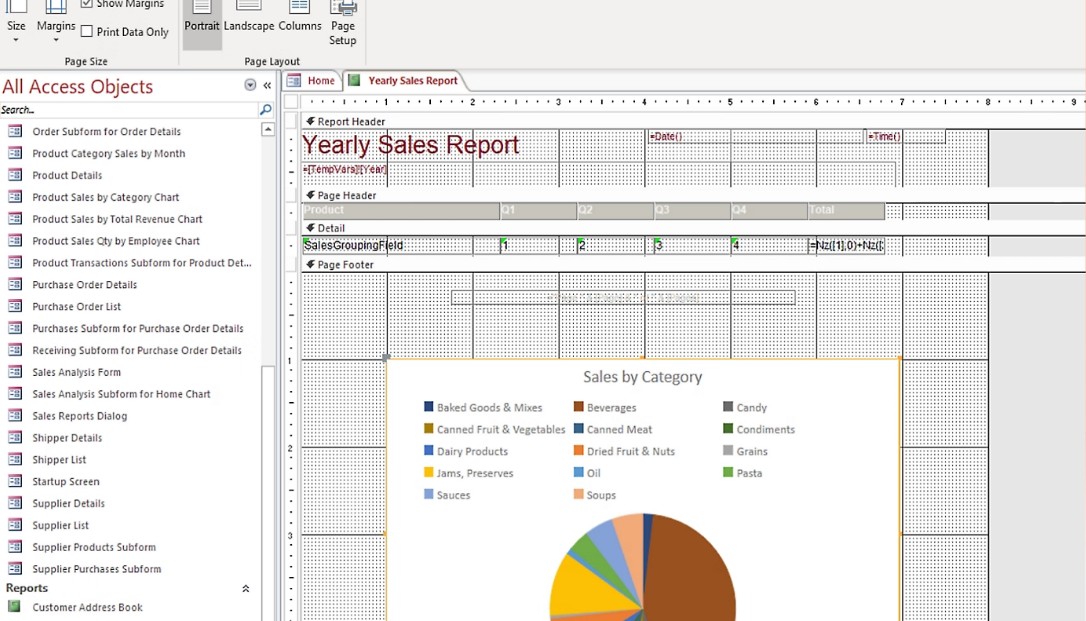
Users can add new fields to tables, modify forms, add queries, or create new reports as needed. This is especially useful for businesses with their own processes and who don't want to be limited by a fixed-structure management software.
For example, a business might initially only need to manage customer names and contact information. Over time, the business might need to add purchase history, responsible employees, the date of the last contact, and customer status. These components can be added to the Access application without necessarily rebuilding the entire system.
5. Automation with Visual Basic for Applications
As requirements become more complex, Microsoft Access also supports Visual Basic for Applications (VBA) to automate business processes.
VBA allows users to build code snippets that automate tasks instead of requiring multiple manual operations. For example, a button on a form can be programmed to save data, open a report, run a query, or perform a series of actions.
For example, to open a report in Access using VBA, you can use:
DoCmd.OpenReport "SalesReport", acViewPreview
In this case, DoCmd.OpenReport is the method used to open the report, "SalesReport" is the report name, and acViewPreview tells Access to open the report in preview mode.
With VBA, businesses can create automation processes tailored to their actual operations, while also extending the application's capabilities beyond its built-in functionalities.
6. Create useful forms and reports.
Forms and reports are two important components that make data in Access easier to use.
Forms focus on the data entry and viewing experience. A well-designed form can reduce data entry errors and help employees work faster. Command buttons, selection lists, search fields, and filters can be arranged to suit each process.
Reports focus on compiling and presenting information. Businesses can create reports on sales, customer lists, inventory status, or operational data by day, month, or year.
For example, a query might summarize revenue:
SELECT ProductID, Sum(Quantity * UnitPrice) AS TotalSales
FROM OrderDetails
GROUP BY ProductID;
The query results can then be used as a data source for reports. This transforms raw data into more readable and valuable information for monitoring business operations.
7. Connect multiple data sources
Microsoft Access doesn't necessarily have to operate in isolation. One of Access's key capabilities is its ability to connect and share data with other business applications or data sources.
Through data connectivity features, users can work with externally stored data instead of bringing all the data into a single Access database. This makes Access a familiar interface for users to access and retrieve data from multiple systems.
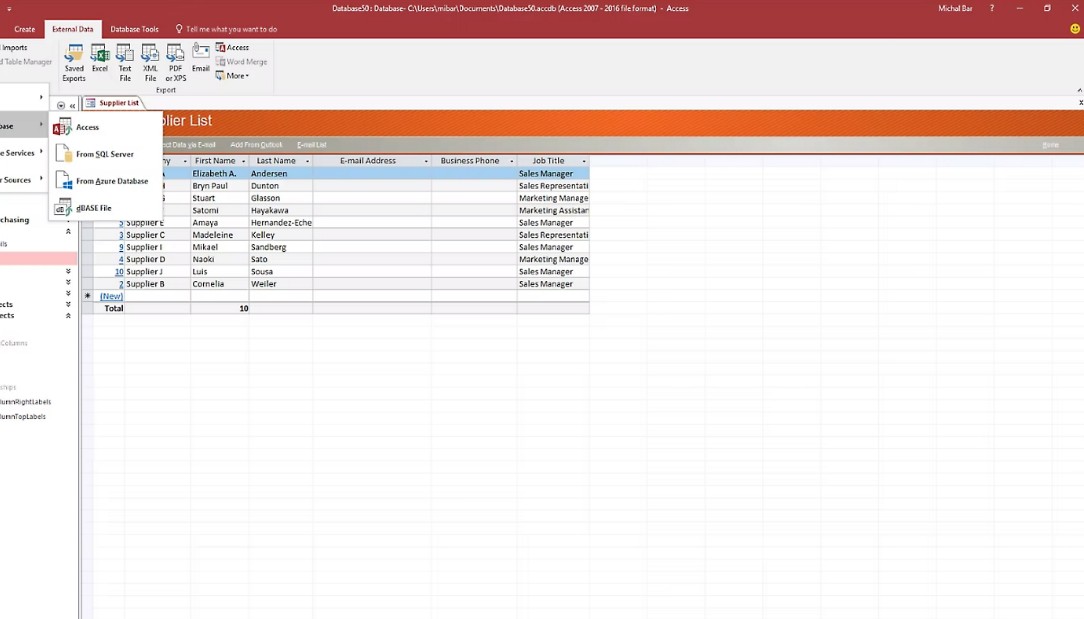
Specifically, data can be stored in SQL Server or Microsoft Azure SQL . This approach is suitable when businesses need to improve data reliability, scalability, security, and manageability in the long term.
For example, Access can handle the user interface with Forms and Reports, while SQL Server or Azure SQL is responsible for storing the main data. This allows businesses to combine the simplicity of Access with the more powerful data management capabilities of specialized database platforms.
8. When should I use Microsoft Access?
Access is suitable for businesses, workgroups, and individuals who need to build data management applications but don't want to start with a complex software development project.
If a business needs an internal customer management system, inventory tracking, asset management, order tracking, or report generation, Access could be a worthwhile option.
Access is also particularly useful when users need the ability to customize quickly. Instead of relying entirely on a packaged software, businesses can design their own data tables, forms, queries, and reports according to their workflows.
However, Access is a PC-only product , so users need to consider their device environment before choosing it. For systems with very large scale requirements or those needing specialized web or mobile application architectures, businesses may need to integrate Access with other platforms or choose a more suitable solution.
With its flexible customization options, intuitive design, and support for SQL Server and Microsoft Azure SQL connectivity, Access can meet a wide range of real-world data management needs. If your goal is to quickly create and customize database applications on your PC , Microsoft Access is a tool worth considering.





















VIP Products








Best Selling Products
Upgrade Genuine Office 365
49 USD
ChatGPT Plus Account (GPT-4)
16 USD
Adobe Premiere Pro Account
99 USD
Plugin Retouch4me
69 USD
Genuine Adobe Illustrator account
99 USD
Adobe Photoshop Copyright - Full App
120 USD
Upgrade Duolingo Super
29 USD
Windows 10 & 11 Pro Key
36 USD
Genuine Cheap Canva Pro
39 USD
Upgrade genuine Capture One account
120 USD
Copyright Adobe Lightroom Account
59 USD
Capcut Pro 1 Year
39 USD
MidJourney Account
29 USD
Autodesk All App Account Copyright
120 USD
Freepik Premium Account
59 USD