Best Selling Products

Plugin Retouch4me
69 USD

Adobe Premiere Pro Account
99 USD

Freepik Premium Account
59 USD

Adobe Photoshop Copyright - Full App
120 USD

ChatGPT Plus Account (GPT-4)
16 USD

Upgrade genuine Capture One account
120 USD

Upgrade Duolingo Super
29 USD

Capcut Pro 1 Year
39 USD

Upgrade Genuine Office 365
49 USD

Genuine Cheap Canva Pro
39 USD

MidJourney Account
29 USD

Copyright Adobe Lightroom Account
59 USD

Genuine Adobe Illustrator account
99 USD

Windows 10 & 11 Pro Key
36 USD

Autodesk All App Account Copyright
120 USD
What is Microsoft OneNote? A guide to effective note-taking and task management.
Nội dung
- 1. What is Microsoft OneNote?
- 2. Write down all your ideas.
- 3. Organizing the science project
- 4. Copilot in OneNote
- 5. Create plans and ideas with AI.
- 6. Sketching with digital ink
- 7. Sharing and Collaboration
- 8. Take notes by transcribing the words.
- 9. OneNote in Education
- 10. Access notes across multiple devices
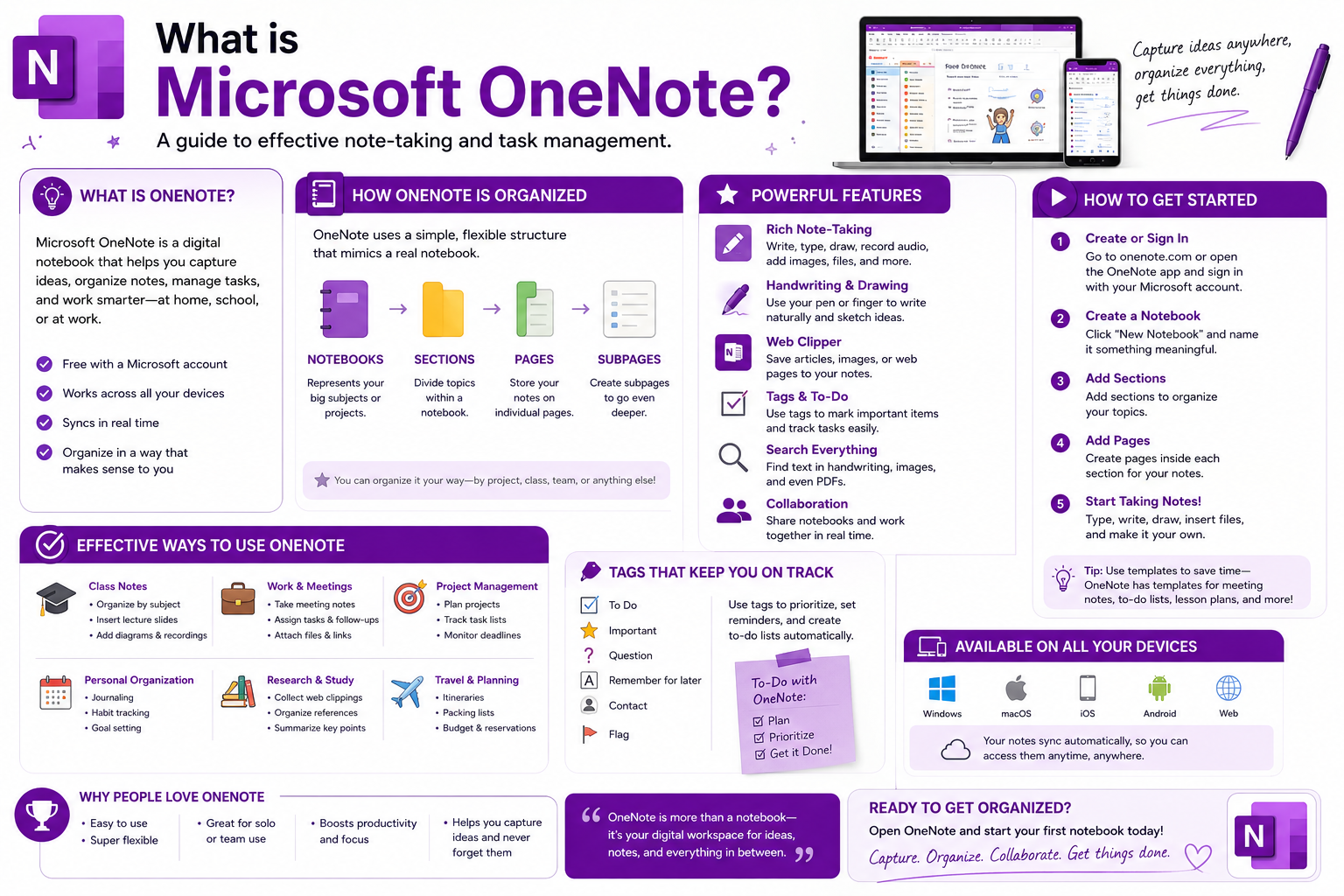
Microsoft OneNote helps you record ideas, organize projects, and store information in a single digital space.
1. What is Microsoft OneNote?
Microsoft OneNote is a digital note-taking application that allows users to store and organize various types of information in electronic notebooks. Instead of limiting content to simple lines of text, OneNote allows for the combination of text, images, drawings, handwritten notes, lists, and much more.
OneNote's structure is quite intuitive. Users can create a notebook for a large topic, divide the notebook into sections , and then create multiple pages to save specific content.
For example, a project manager might create a notebook titled "Marketing Project," then divide it into sections such as "Plan," "Meetings," "Content," and "Documents." Within each section, pages can be used for specific tasks or meetings.
This organizational method helps users build a structured note-taking system instead of storing information in a disorganized manner.
2. Write down all your ideas.
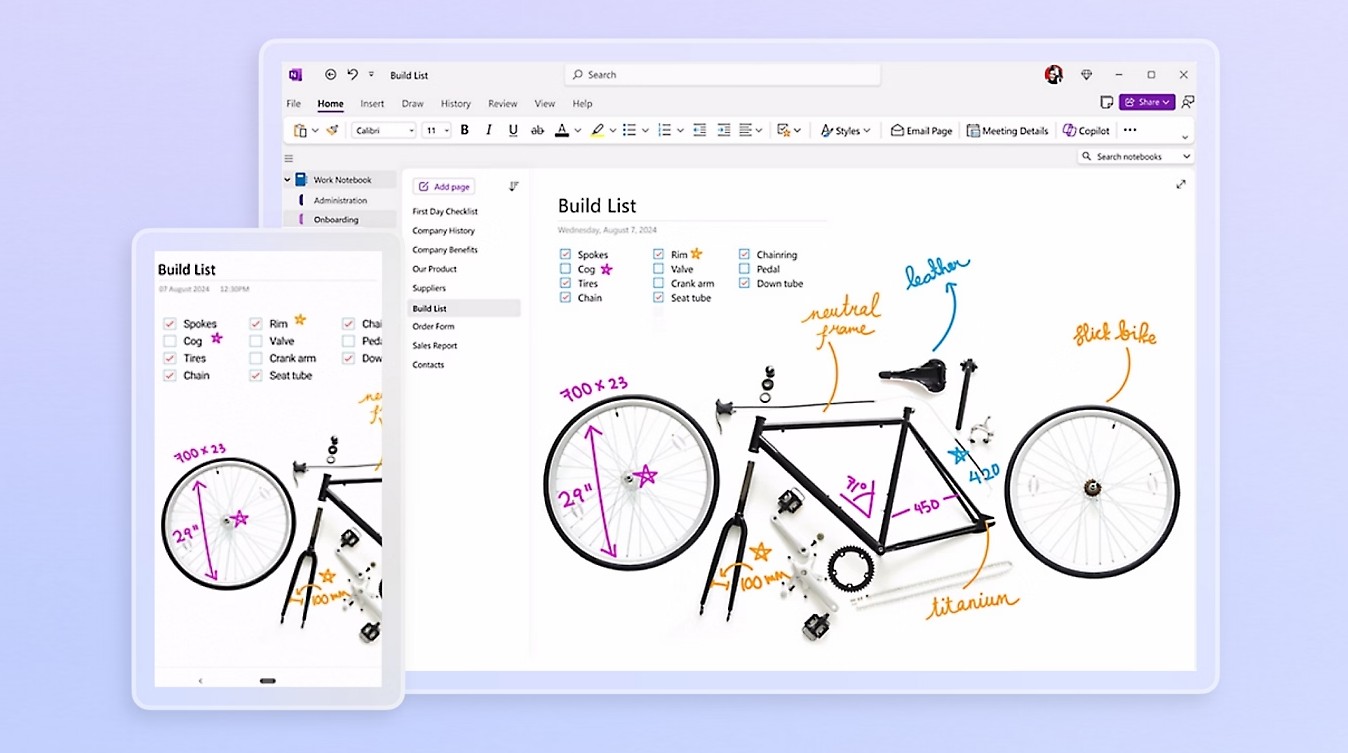
One of OneNote's greatest strengths is its ability to capture ideas as soon as they appear. Users don't need to wait until they have time to organize a complete document.
A OneNote page can be used just like a digital sheet of paper. You can enter text in various locations, add images, create lists, or write directly on the touchscreen.
For example, during a meeting, you could create a new page with the title "August Planning Meeting," then quickly jot down any ideas that come to mind:
August targets
- Increase the number of new customers.
- Improve social media content
- Develop an advertising plan
- Monitor the effectiveness of each campaign.
After the meeting, these notes can be further edited, supplemented, or transformed into a more specific plan.
3. Organizing the science project
When a project involves a lot of information, organizing notes from the start will significantly save time searching for details.
The basic organizational process in OneNote can be done as follows:
Step 1: Open OneNote and create a new notebook.
Step 2: Name the Notebook according to the project or topic, for example, "Website Project 2026".
Step 3: Create sections to categorize content such as "Plans", "Meetings", "Tasks", "Documents", and "Ideas".
Step 4: Within each Section, create separate Pages for each content item.
Step 5: Give each page a clear title for easy searching later.
Step 6: Add necessary content such as text, images, lists, handwritten notes, or related documents.
Step 7: Use OneNote's search feature when you need to retrieve information.
This structure is particularly useful when a project lasts for weeks or months. Instead of searching for information across multiple applications, users can centralize data in a single notebook system.
4. Copilot in OneNote
OneNote can now leverage the power of AI through Copilot , acting as a companion during the note-taking process.
Instead of simply storing user input, Copilot can support processing information based on requests. Users can ask Copilot to create plans, generate ideas, make lists, or organize information.
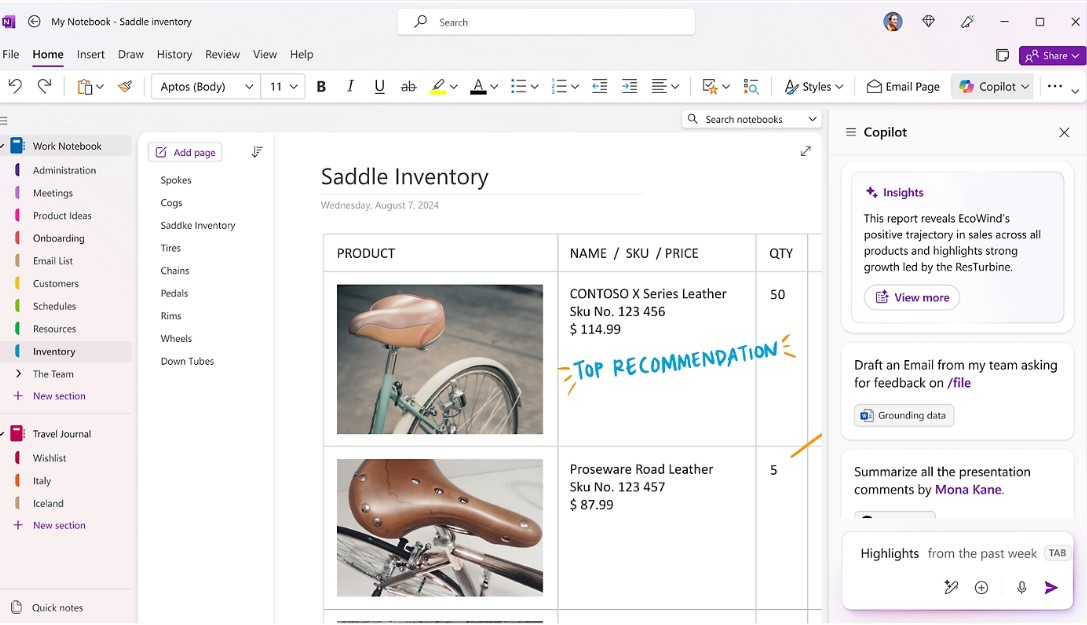
For example, if you have a notes page with many unorganized ideas, you might ask:
"Organize these notes into a project plan including goals, tasks, and steps to be taken."
Or:
"Summarize the key points in this note into an action list."
Copilot can help transform initial notes into more structured content. This is especially useful after meetings, brainstorming sessions, or when users have recorded too much information but haven't had time to organize it.
5. Create plans and ideas with AI.
One of the most time-consuming tasks is starting a plan from a blank page. OneNote, combined with Copilot, can assist with this stage by generating ideas based on user requirements.
For example, when preparing a marketing project, you might request:
"Create a marketing plan for a new product launch campaign, including objectives, content, communication channels, and key tasks."
The created content can then be further edited within OneNote.
It's crucial that AI be viewed as a tool to support thinking rather than a complete replacement for the planning process. Users still need to review content, supplement factual information, and adjust plans to specific goals.
6. Sketching with digital ink
OneNote isn't just for those who prefer typing. With its digital ink support , users can handwrite, draw, sketch, and annotate directly on compatible devices.
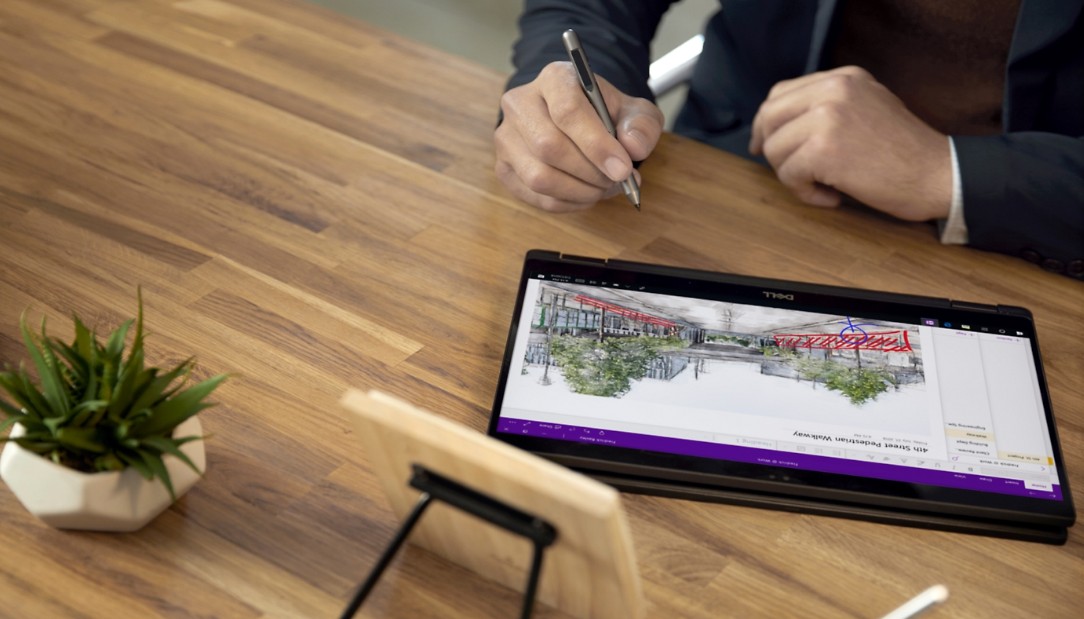
This provides a feeling similar to using traditional paper and pen, but still retains the benefits of a digital environment.
A student might write formulas by hand while studying math. A designer might sketch interface ideas. A manager might draw process diagrams right in the middle of a meeting.
The basic operations can be performed in the following order:
Step 1: Open the OneNote page where you want to take notes.
Step 2: Choose a suitable writing or drawing tool.
Step 3: Use a stylus or compatible input device to write and sketch.
Step 4: Use the highlighting tool to mark important information.
Step 5: Add text or images if needed.
Thanks to its ability to combine handwriting and digital content, OneNote is suitable for situations requiring quick note-taking or visual presentation of ideas.
7. Sharing and Collaboration
Great ideas are often formed through collaboration. OneNote supports notebook sharing so that members can contribute and develop content together.
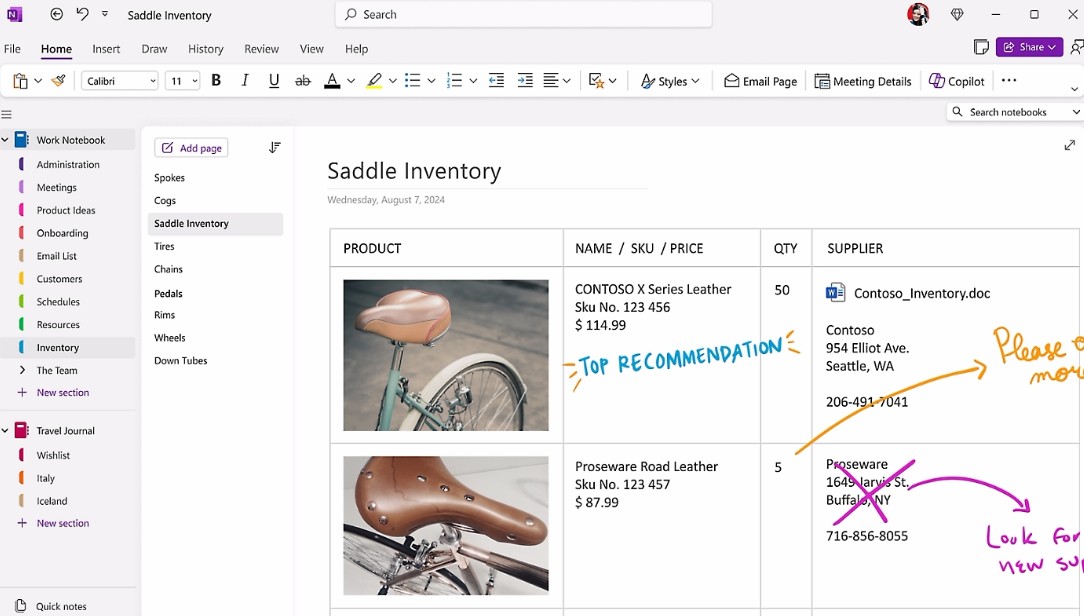
For example, a project team could use a shared notebook to store meeting minutes, ideas, tasks, and references. Each member can contribute content to the shared space instead of creating multiple individual documents.
The sharing process can be carried out as follows:
Step 1: Open the notebook you want to share.
Step 2: Select the Share option .
Step 3: Enter the information of the person or group you want to share with.
Step 4: Set up appropriate access permissions.
Step 5: Send invitations.
Once granted permission, members can access the Notebook and collaborate on content creation according to the established permissions.
8. Take notes by transcribing the words.
During long meetings, lectures, or discussions, simultaneously listening and taking notes can be challenging. The transcript feature allows users to record spoken material for later review.
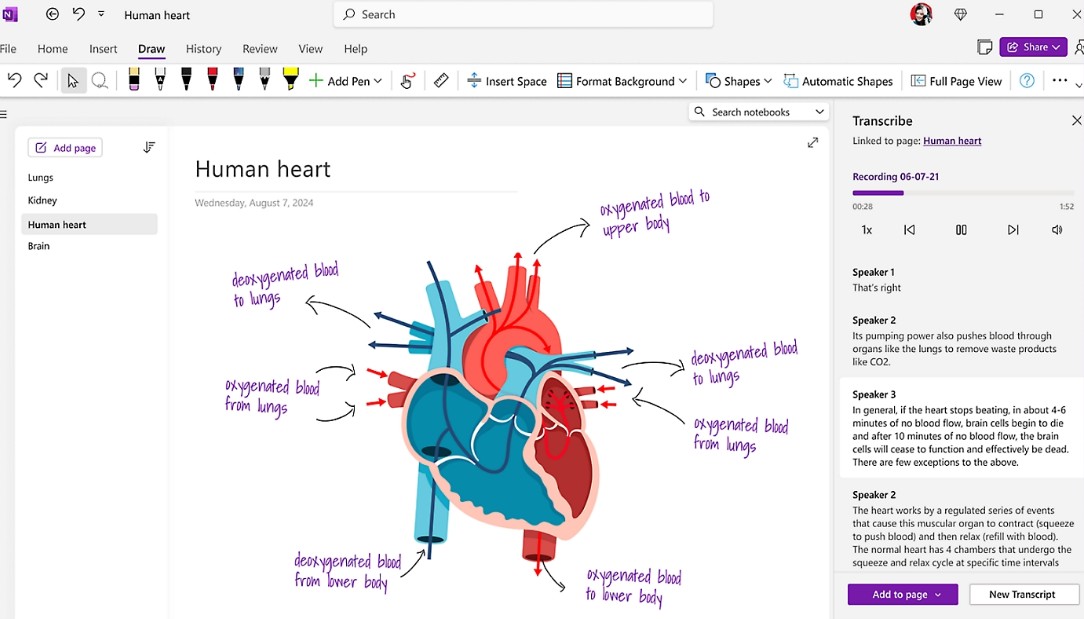
Instead of focusing on writing down every sentence, users can pay more attention to the important information. The transcribed content can then be used as a basis for creating notes or summarizing information.
An effective usage process might include:
Step 1: Open the OneNote page you'll use to save your meeting or lesson content.
Step 2: Launch the recording or transcription feature if available on your version of OneNote.
Step 3: Focus on the meeting or lecture instead of trying to take notes on every single sentence.
Step 4: After completion, review the transcript.
Step 5: Highlight important content and add personal notes.
Step 6: Organize the content into sections for easy reference later.
This approach helps users reduce the pressure of taking notes in real time and provides them with more material to review.
9. OneNote in Education
OneNote has many applications in the educational environment. Teachers can use Notebook to organize lesson plans, teaching materials, and lesson content in searchable digital notebooks.

Instead of saving lesson plans as multiple separate files, teachers can organize content by subject, class, or individual lesson. When information needs to be retrieved, the search tool helps reduce the time spent accessing documents.
OneNote can also be used to create a shareable content library. Teachers can prepare materials, assignments, or reference content and provide it to students in a digital environment.
For students, handwriting and sketching skills are a notable advantage. Learners can take notes with a pen, draw diagrams, highlight important content, or combine handwriting with typed text.
This is especially useful for subjects that require diagrams and visual representations, such as mathematics, science, or engineering.
10. Access notes across multiple devices
One key benefit of transferring notes to a digital environment is the ability to access information across a variety of compatible devices.
Instead of relying on a single paper notebook, users can continue working on other devices as needed. This creates flexibility for people who frequently move between home, office, school, and other locations.
An idea recorded on one device can become a document for further editing on another device, depending on the account, OneNote version, and synchronization capabilities used.
When organized scientifically, OneNote is more than just a note-taking application; it can become a central hub for storing and developing ideas for work, study, and personal projects , with convenient access across supported devices.





















VIP Products








Best Selling Products
Plugin Retouch4me
69 USD
Adobe Premiere Pro Account
99 USD
Freepik Premium Account
59 USD
Adobe Photoshop Copyright - Full App
120 USD
ChatGPT Plus Account (GPT-4)
16 USD
Upgrade genuine Capture One account
120 USD
Upgrade Duolingo Super
29 USD
Capcut Pro 1 Year
39 USD
Upgrade Genuine Office 365
49 USD
Genuine Cheap Canva Pro
39 USD
MidJourney Account
29 USD
Copyright Adobe Lightroom Account
59 USD
Genuine Adobe Illustrator account
99 USD
Windows 10 & 11 Pro Key
36 USD
Autodesk All App Account Copyright
120 USD