
Best Selling Products
Autodesk All App Account Copyright
120 USD

Copyright Adobe Lightroom Account
59 USD
Upgrade Duolingo Super
29 USD
Capcut Pro 1 Year
39 USD
Adobe Premiere Pro Account
99 USD
Windows 10 & 11 Pro Key
36 USD
Upgrade genuine Capture One account
120 USD
Freepik Premium Account
59 USD
Upgrade Genuine Office 365
49 USD
Adobe Photoshop Copyright - Full App
120 USD

MidJourney Account
29 USD
Genuine Cheap Canva Pro
39 USD
ChatGPT Plus Account (GPT-4)
16 USD
Genuine Adobe Illustrator account
99 USD
Plugin Retouch4me
69 USD
What''s New in Canva AI 2.0? Everything About Its Features and How to Use Them
Nội dung
Discover all the breakthrough features of Canva AI 2.0, from conversational design to smart tool integration, helping optimize the creative workflow for Designers.
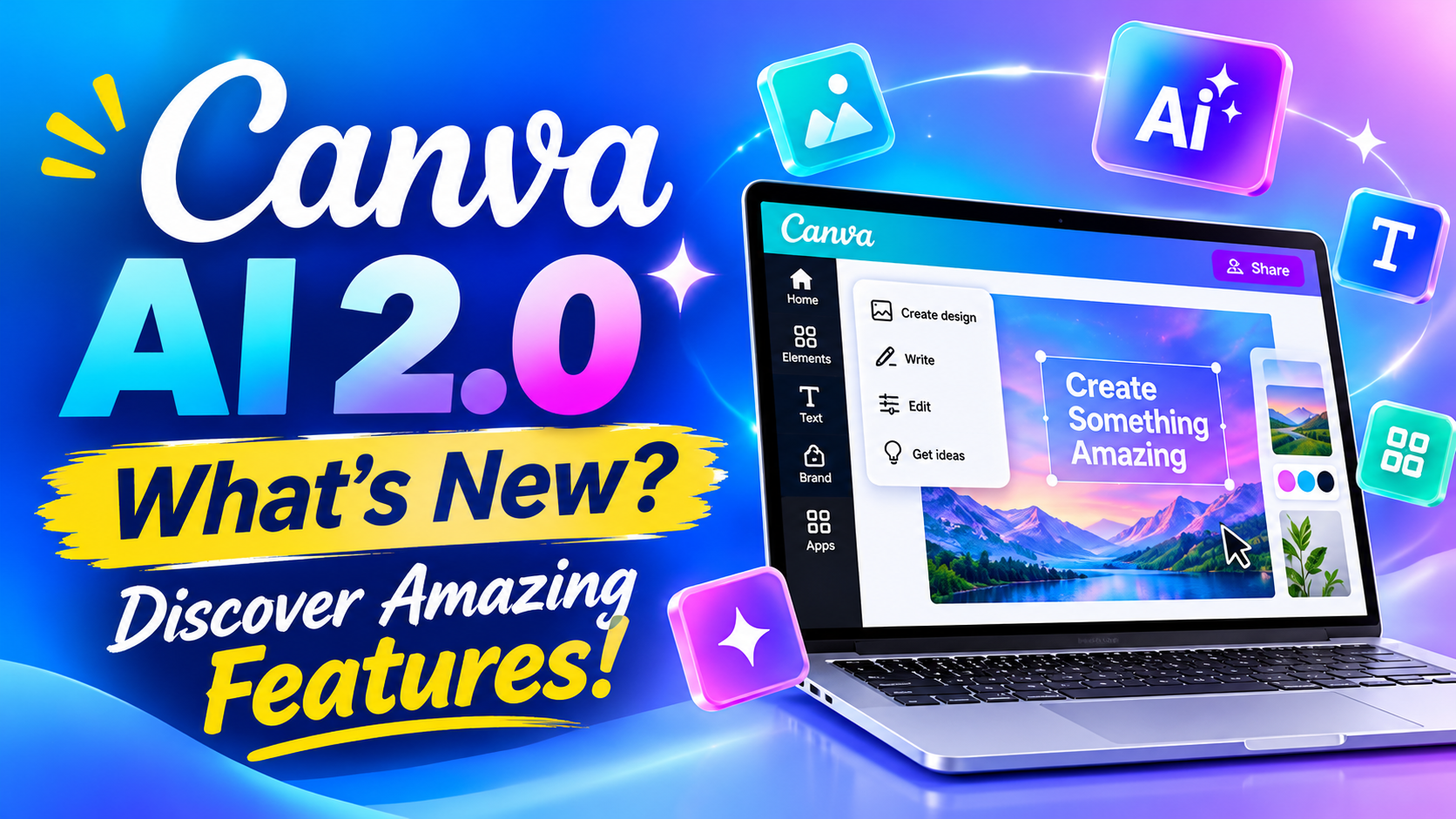
1. Understanding Canva AI 2.0
Canva AI 2.0 is a creative experience integrated with artificial intelligence introduced by Canva to simplify the process of designing and producing content. Instead of requiring users to build every component from scratch, the system allows them to express ideas in natural language so that the AI can help create content and develop designs as requested.
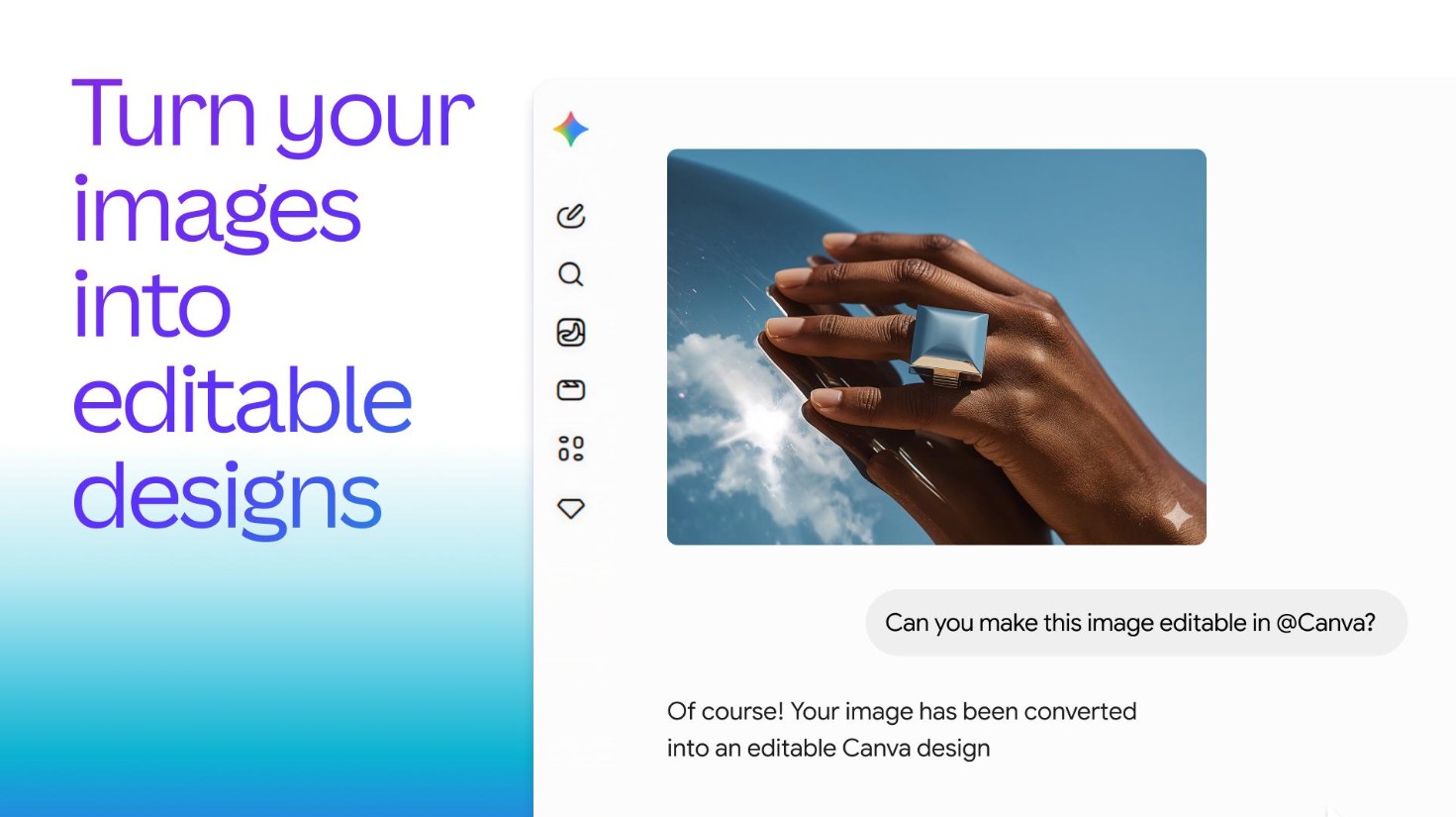
One notable point is the Canva Design Model, a model built to understand the structure and relationships between components in a design. Thanks to this, the AI aims to create products with logical layouts, clear information hierarchy and convenience for the editing process.
For example, when you need to create a cover image for a tech blog post, users can describe the desired size, colors, image style and title. Canva AI will help develop an initial option for users to continue refining in the editor.
It should be noted that Canva AI 2.0 was initially announced as a research preview and is being rolled out in stages. Therefore, actual availability may vary depending on the account, region and time of access.
2. Conversational design with AI
Conversational design is one of the highlights of Canva AI 2.0. Instead of having to look for templates, add each object and adjust the layout manually from the start, users can describe the product they need to create in natural language.
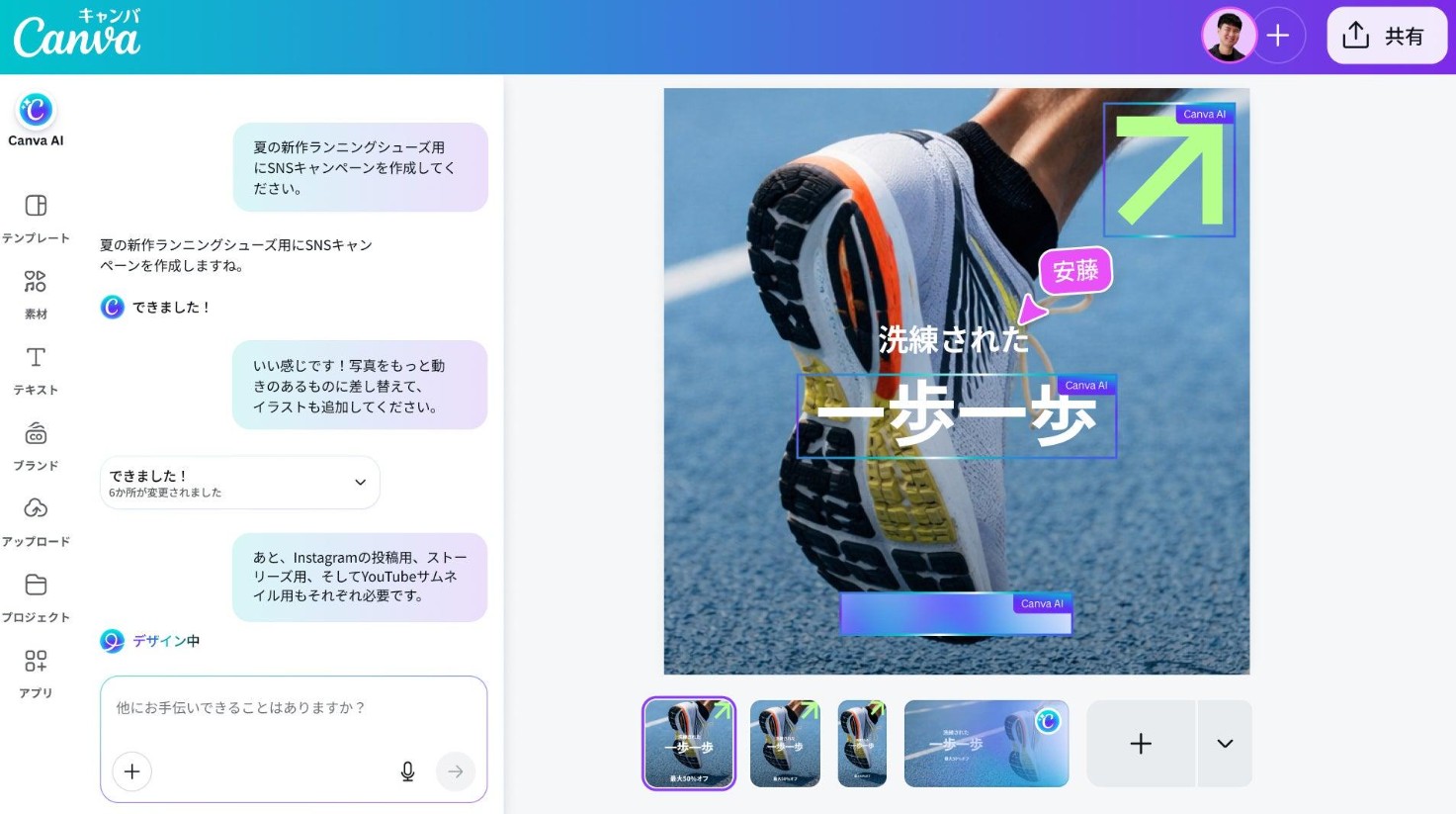
For example, you can enter the request: "Create a Facebook post promoting a graphic design service, using blue and white tones, a modern layout, a prominent headline and a call-to-action button".
After receiving the initial result, users can continue to request changes to the background color, shorten the headline, adjust images or rearrange components. This process helps reduce repetitive operations and creates conditions for testing many different design options.
For beginners, conversational design helps reduce the difficulty of getting familiar with graphic tools. For professional designers, this feature can support developing ideas faster before entering the finalization stage.
However, the quality of the results still depends on the clarity of the prompt and the user's ability to evaluate designs. Specific requirements regarding size, target audience, colors and purpose of use often help the AI create more suitable options.
3. More flexible editing of designs and components
A common limitation of AI-generated images is that users find it difficult to edit individual details separately when the components have been merged into a flat image. Canva AI 2.0 aims to create structured designs, allowing users to continue adjusting objects in the Canva Editor.
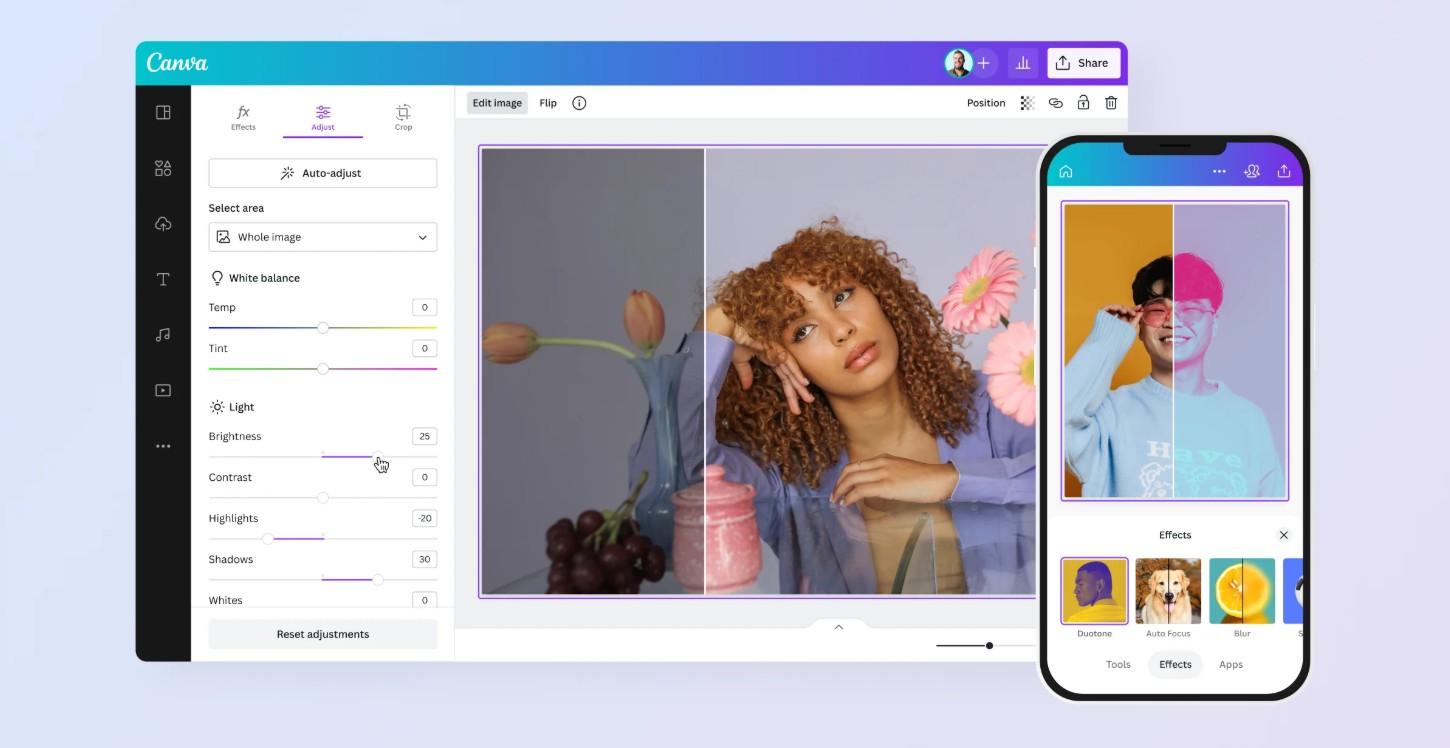
Depending on the type of design and the results generated, users can change text, adjust colors, move images or rearrange the layout without necessarily having to start over from the beginning.
This capability is especially useful when building blog cover images, advertising banners, social media posts and presentation materials. For example, an initial design for Facebook may need to be adjusted to suit Instagram or a website. Editing each component saves more time than recreating the entire product.
Even so, not every AI result has a perfect structure. Users still need to check object layers, spacing, fonts and image quality before publishing.
4. Memory Library
Memory Library is a feature aimed at helping Canva AI remember useful information from the creative process, such as design preferences, content style and frequently used requirements.
For businesses, maintaining a consistent style across many publications is an important factor. If you often use blue tones, sans-serif fonts and minimalist layouts, users can take advantage of the relevant remembered information to support subsequent projects.
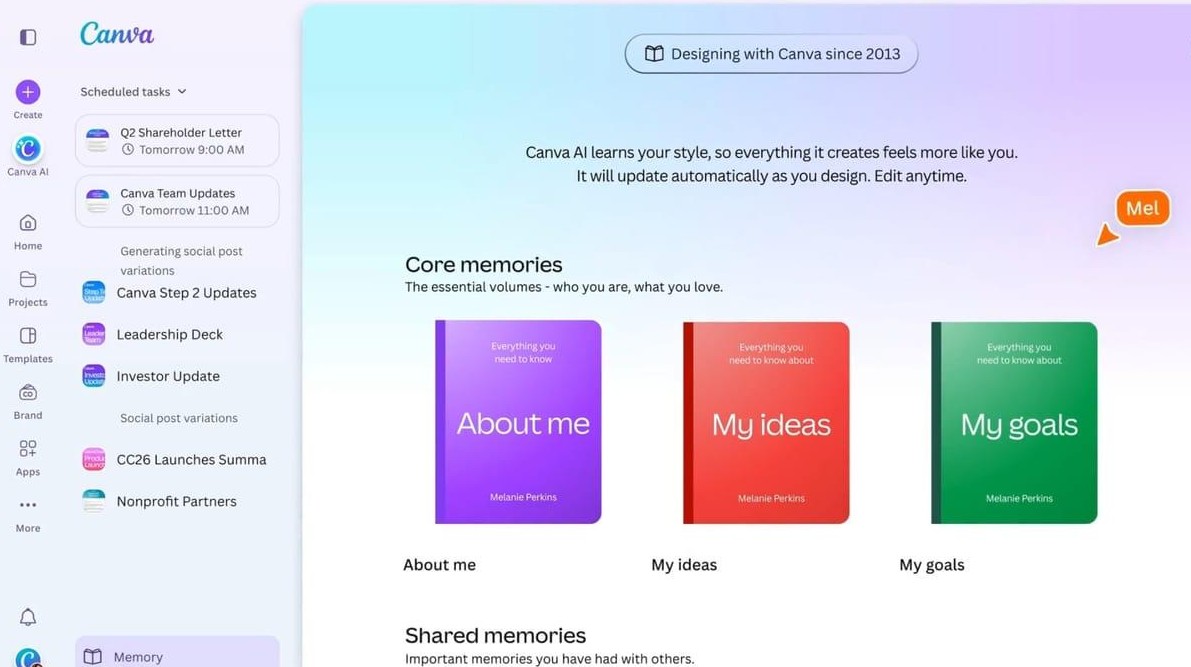
As a result, the process of communicating with the AI can become more convenient, avoiding having to repeat all requirements in every design session.
However, Memory Library should not be seen as a complete replacement for a brand management system. For professional projects, businesses still need to check the Brand Kit, identity guidelines and content before putting products into use.
5. Web Research
Web Research expands the creative process by supporting searching and synthesizing information from the web. Instead of having to carry out the entire research process outside and then start designing, users can take advantage of AI to prepare background content for documents, presentations or marketing campaigns.
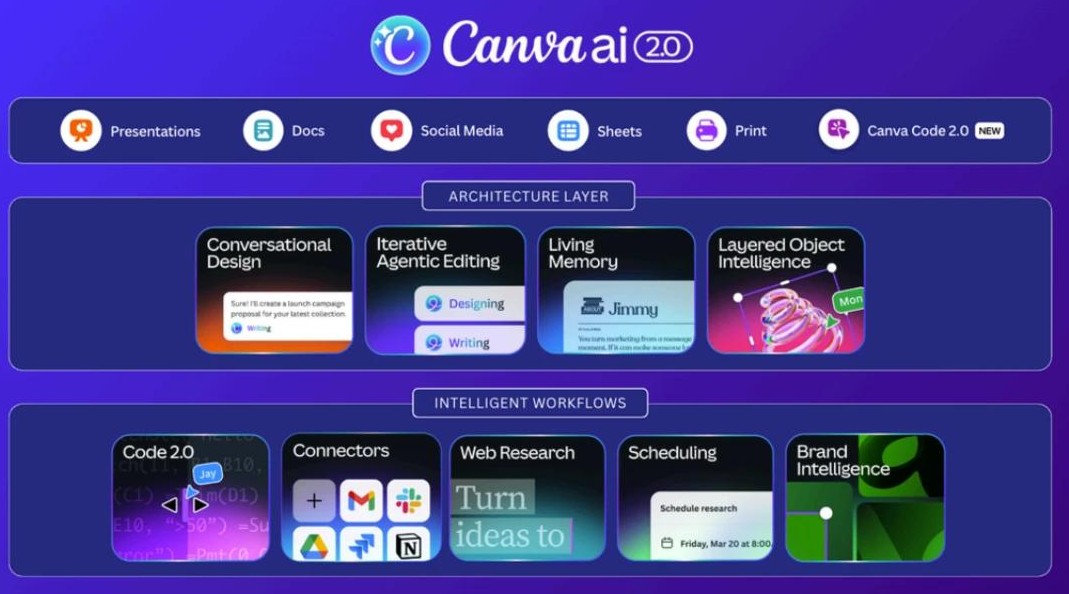
Some suitable applications include:
- Gathering initial information for presentations.
- Synthesizing ideas for advertising campaigns.
- Building background content for product introduction materials.
- Organizing information for reports or business proposals.
For example, when preparing a presentation on graphic design trends, users can ask the AI to help research related topics, then organize the information into sections to develop into slides.
Even so, AI may provide inaccurate information or use unreliable sources. Therefore, statistics, market information and specialized content need to be verified from the original source before official use.
6. Brand Intelligence
Brand Intelligence aims to help users apply identity elements such as colors, fonts and brand style to designs created with AI.
This feature is meaningful for businesses that regularly produce many publications across different platforms. Instead of adjusting each design from scratch, users can take advantage of the established brand elements to support the creative process.
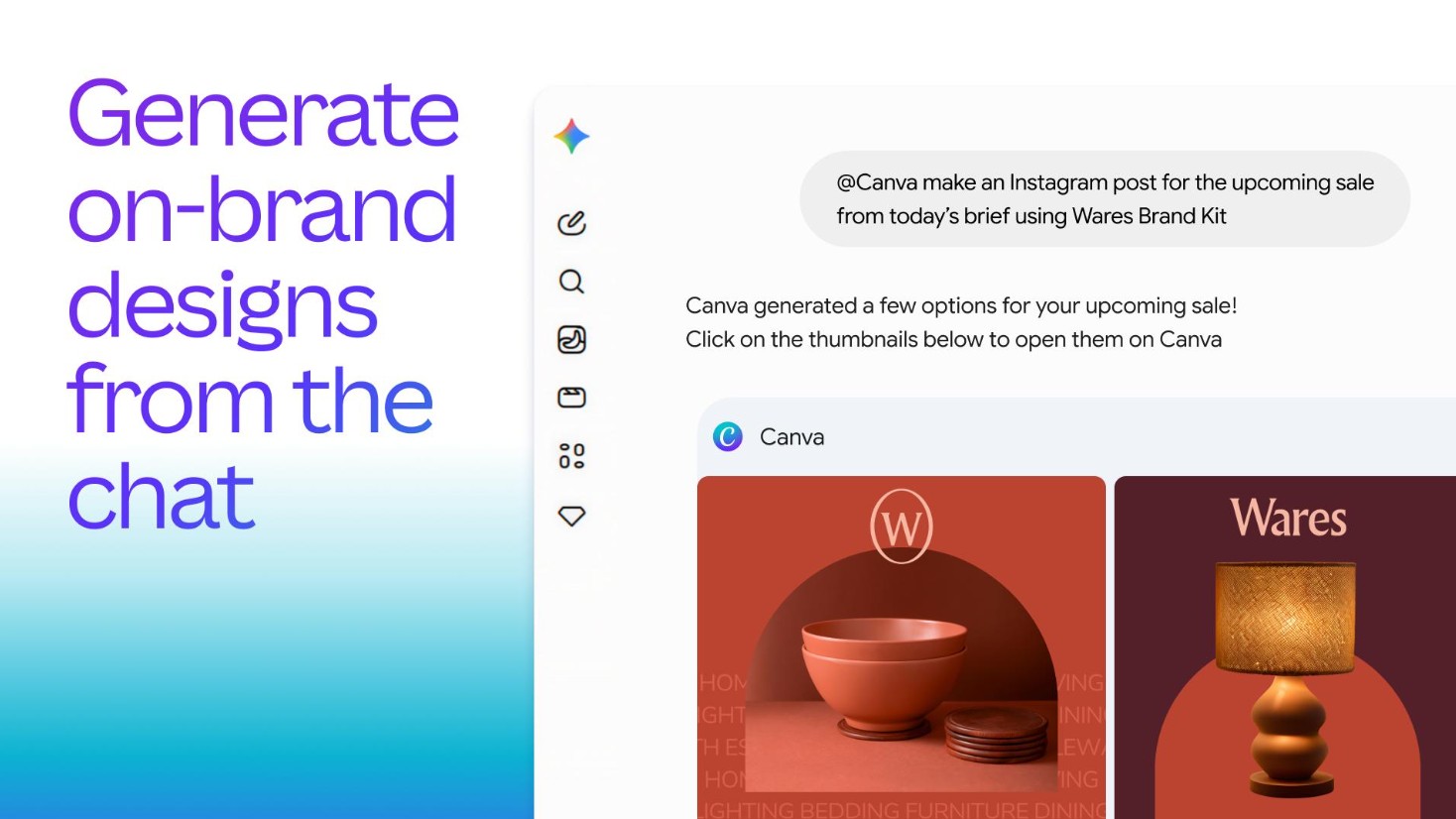
For example, a business that needs to run a campaign on Facebook, Instagram and a website can use the same color system, typography and image style to increase consistency across channels.
However, applying identity with AI does not mean that every design fully meets brand standards. Elements such as logo placement, contrast, readability and message accuracy still need to be reviewed.
7. Connectors and Scheduling
Connectors allow Canva AI to be connected with some supported external tools, helping to take advantage of information from sources the user grants permission to. Examples mentioned by Canva include Google Drive, Gmail, Slack, Google Calendar and Notion. Actual usability depends on the service, access permissions and rollout status.
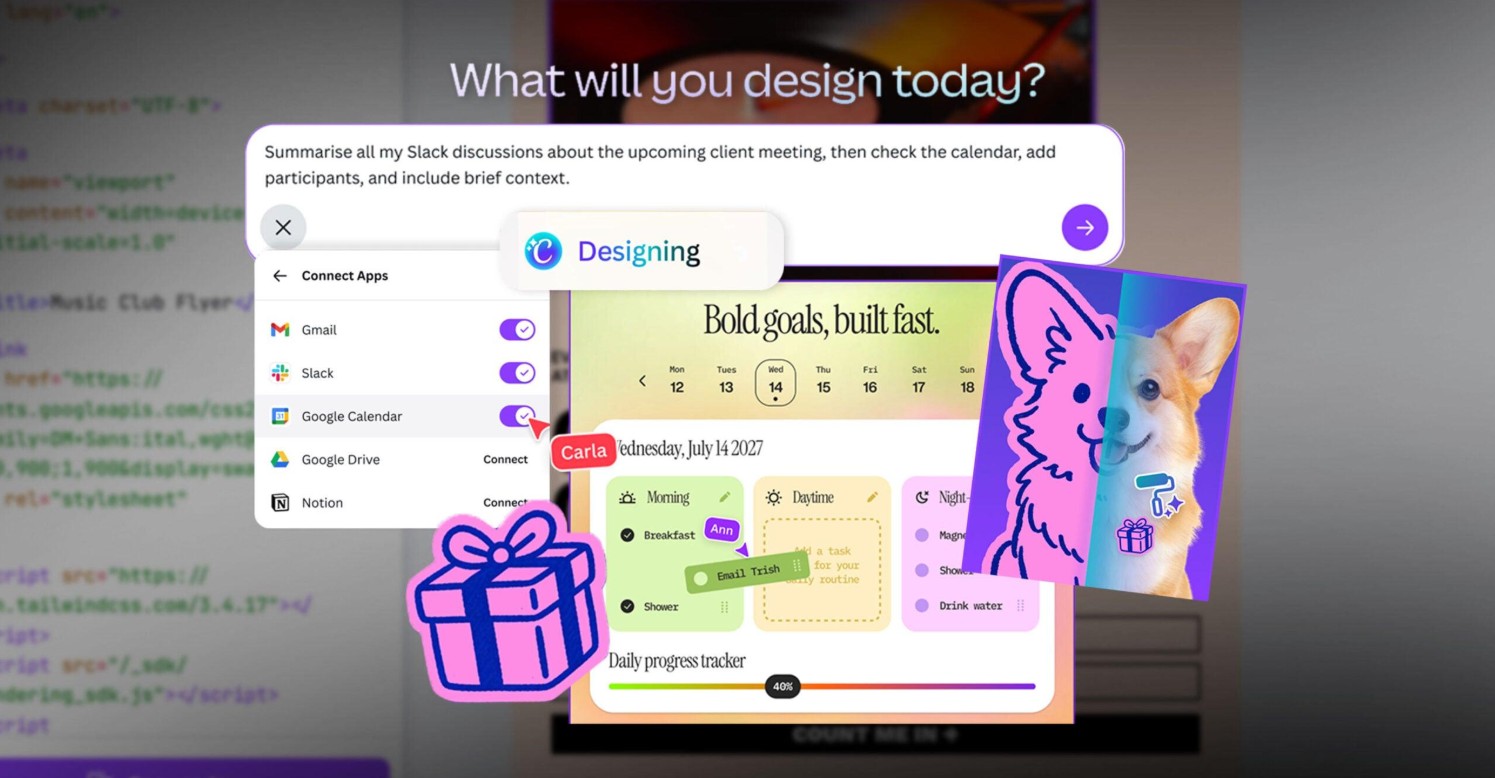
Meanwhile, Scheduling aims to schedule certain AI tasks, helping users reduce the time spent on repetitive work.
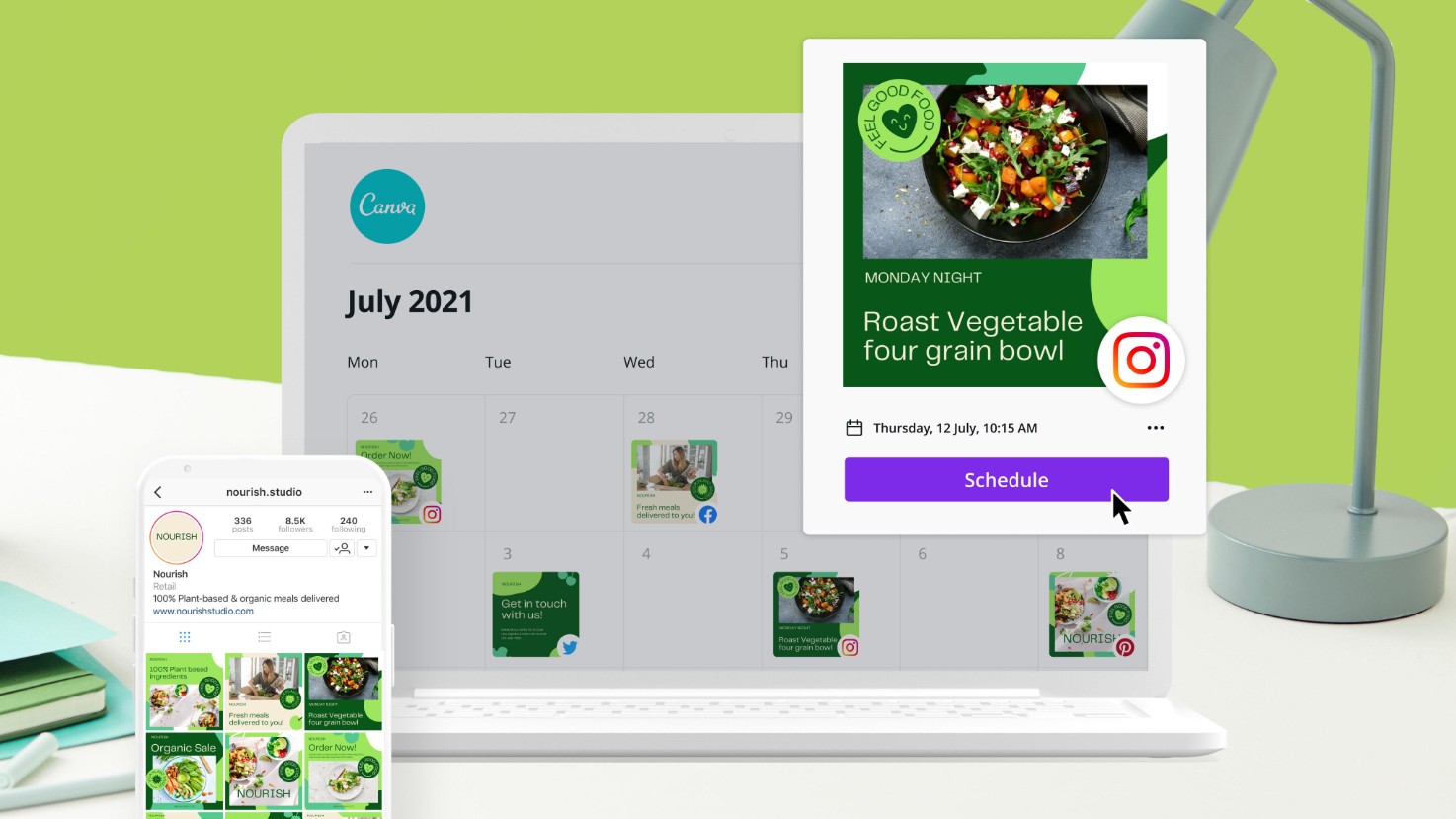
For marketing teams, these capabilities can support the preparation of periodic content, information synthesis or building materials for work. However, users still need to check data access permissions, output results and the completion status of automated tasks.
8. Canva Code 2.0 and Sheets AI
Beyond graphic design, the Canva ecosystem has also expanded into interactive products and visual data processing.
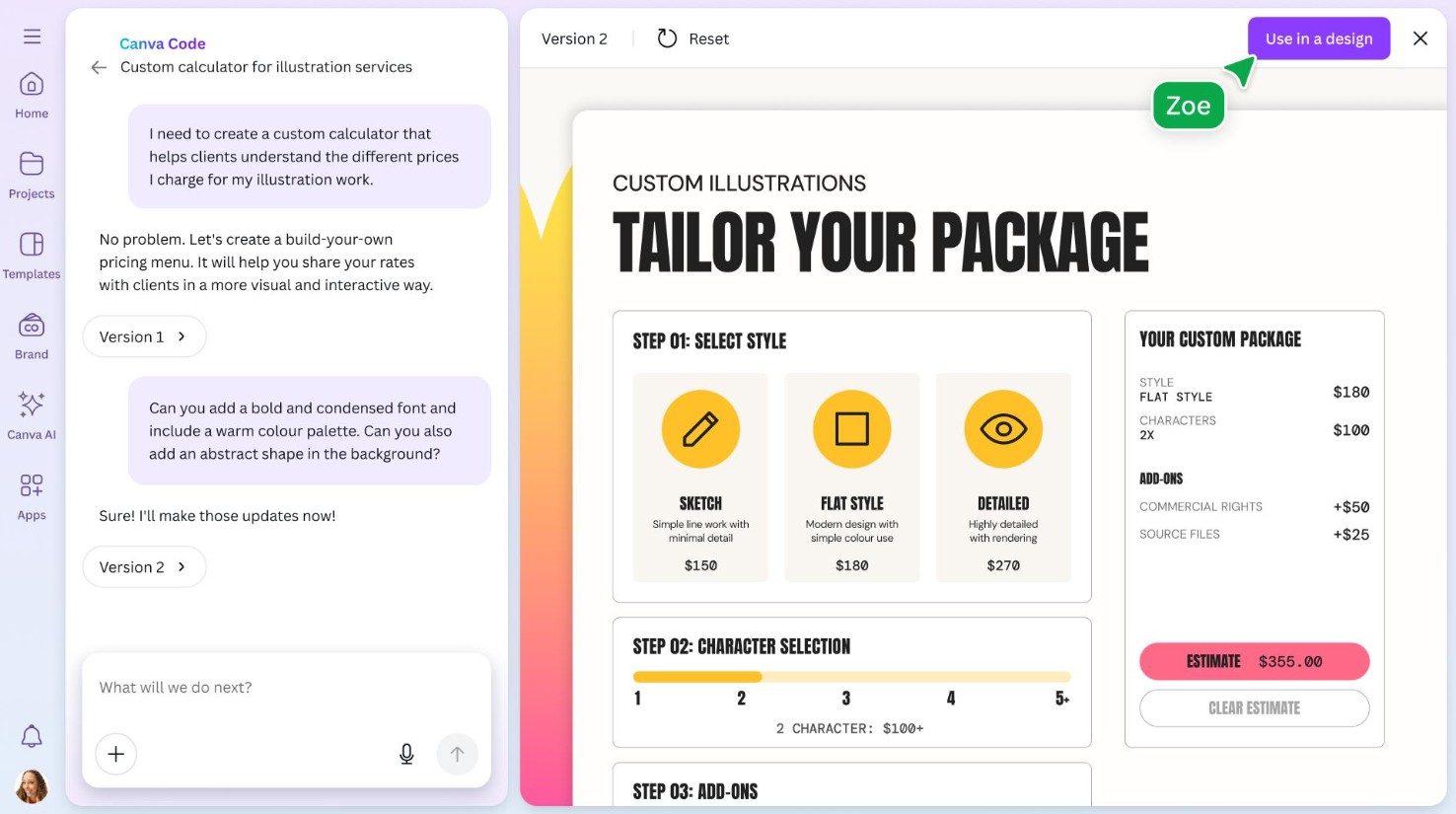
Canva Code 2.0 supports creating interactive experiences by describing requirements in natural language. Users can develop content such as product landing pages, quizzes, small tools or interactive components for presentations.
Sheets AI supports creating structured spreadsheets from descriptions, such as content calendars, project tracking sheets or task management sheets.
For example, a marketing team can build a posting schedule using the spreadsheet tool, then develop content and design the corresponding publications in Canva. This approach helps connect multiple stages within the same ecosystem.
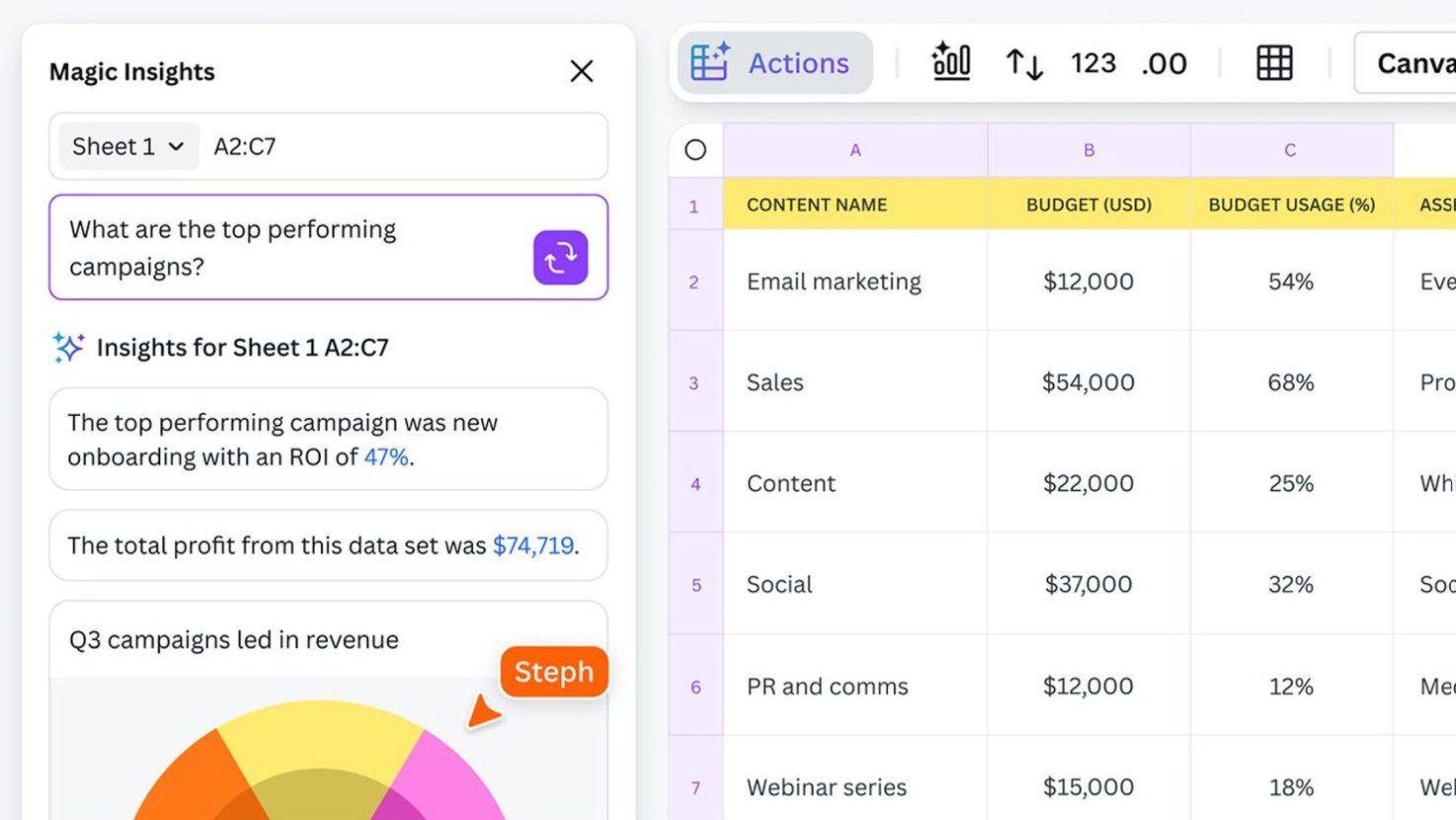
However, these tools do not completely replace specialized data processing software or complex website programming systems. Projects that require databases, online payments or custom system integration may still need technical expertise.
9. How to use Canva AI 2.0 effectively
To make good use of Canva AI 2.0, users can follow the basic process below:
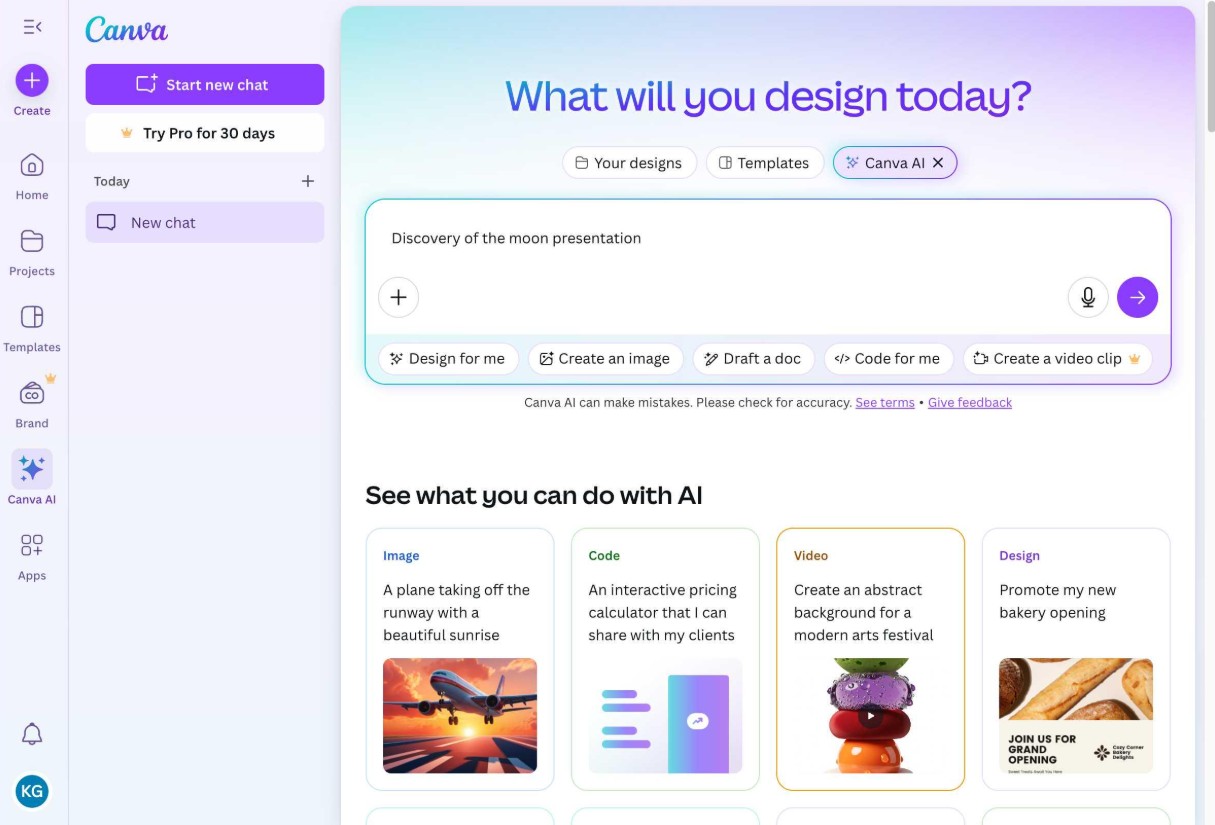
Step 1: Access Canva AI
Open Canva and find the Canva AI section on the homepage or in the supported interface.
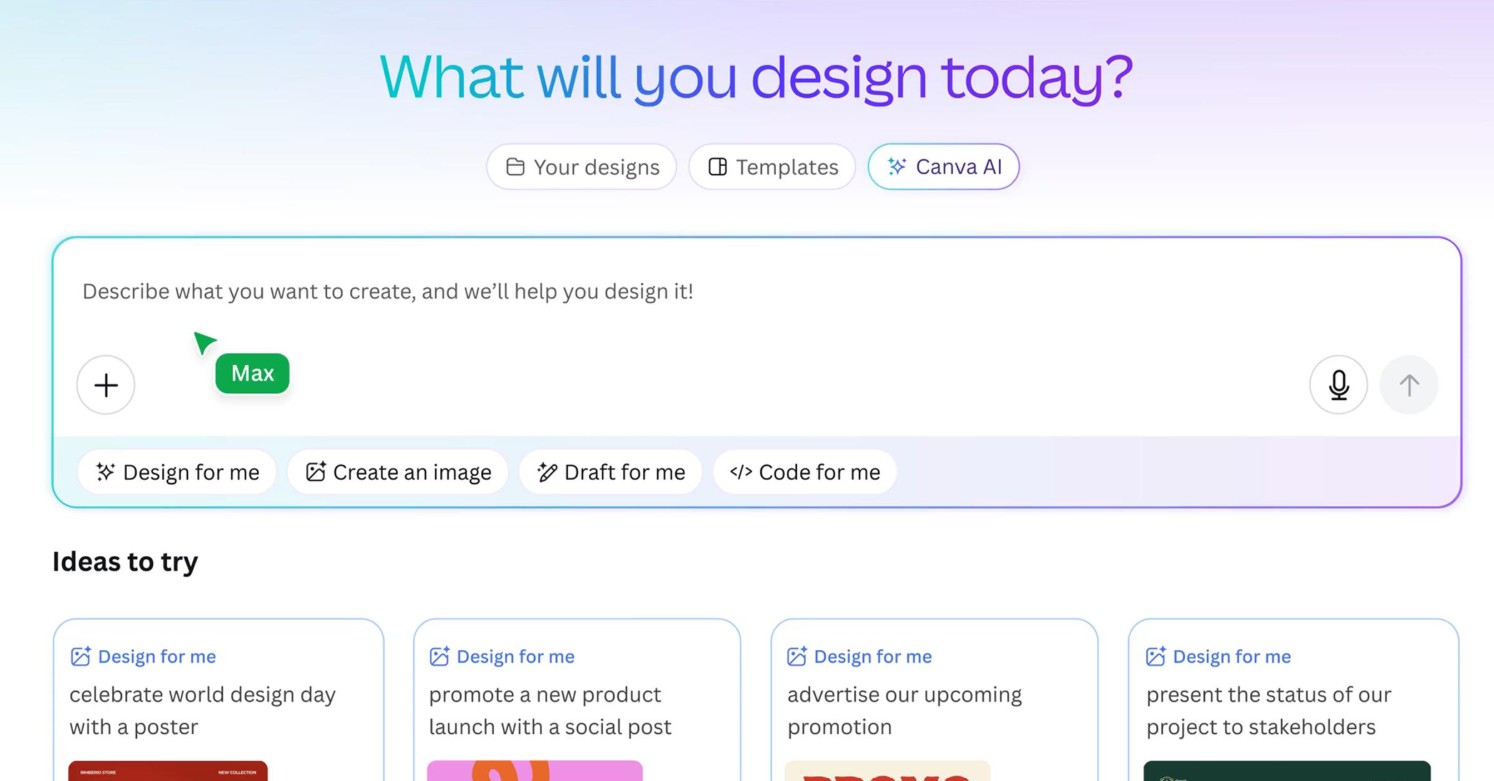
Step 2: Describe specific requirements
Clearly state the type of product, purpose of use, target audience, style, colors and desired format.
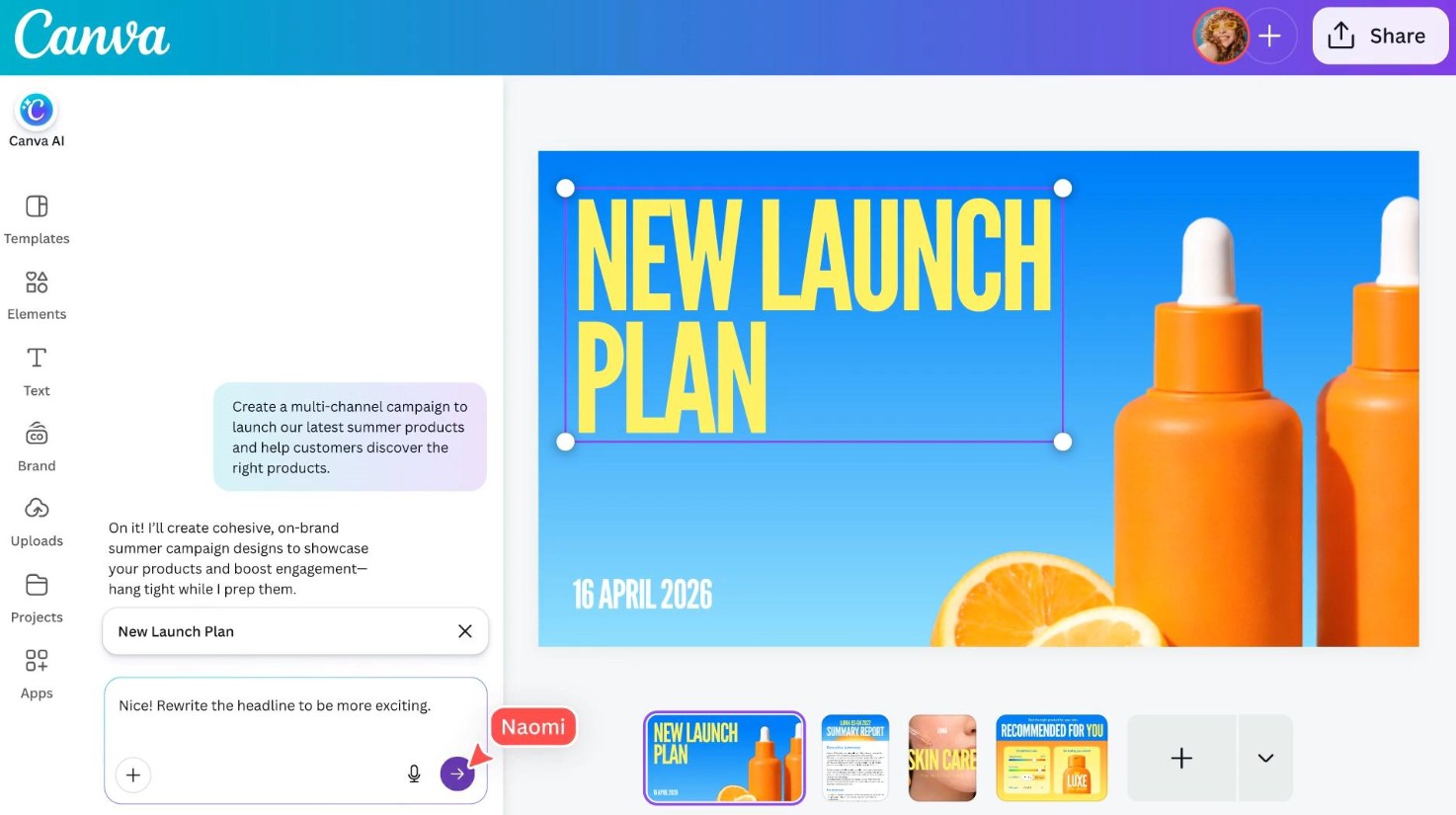
Step 3: Evaluate the initial result
Check the layout, content, images and editability of the generated design.
Step 4: Continue refining
Make specific requests such as changing the headline, adjusting colors, replacing images or rearranging components.
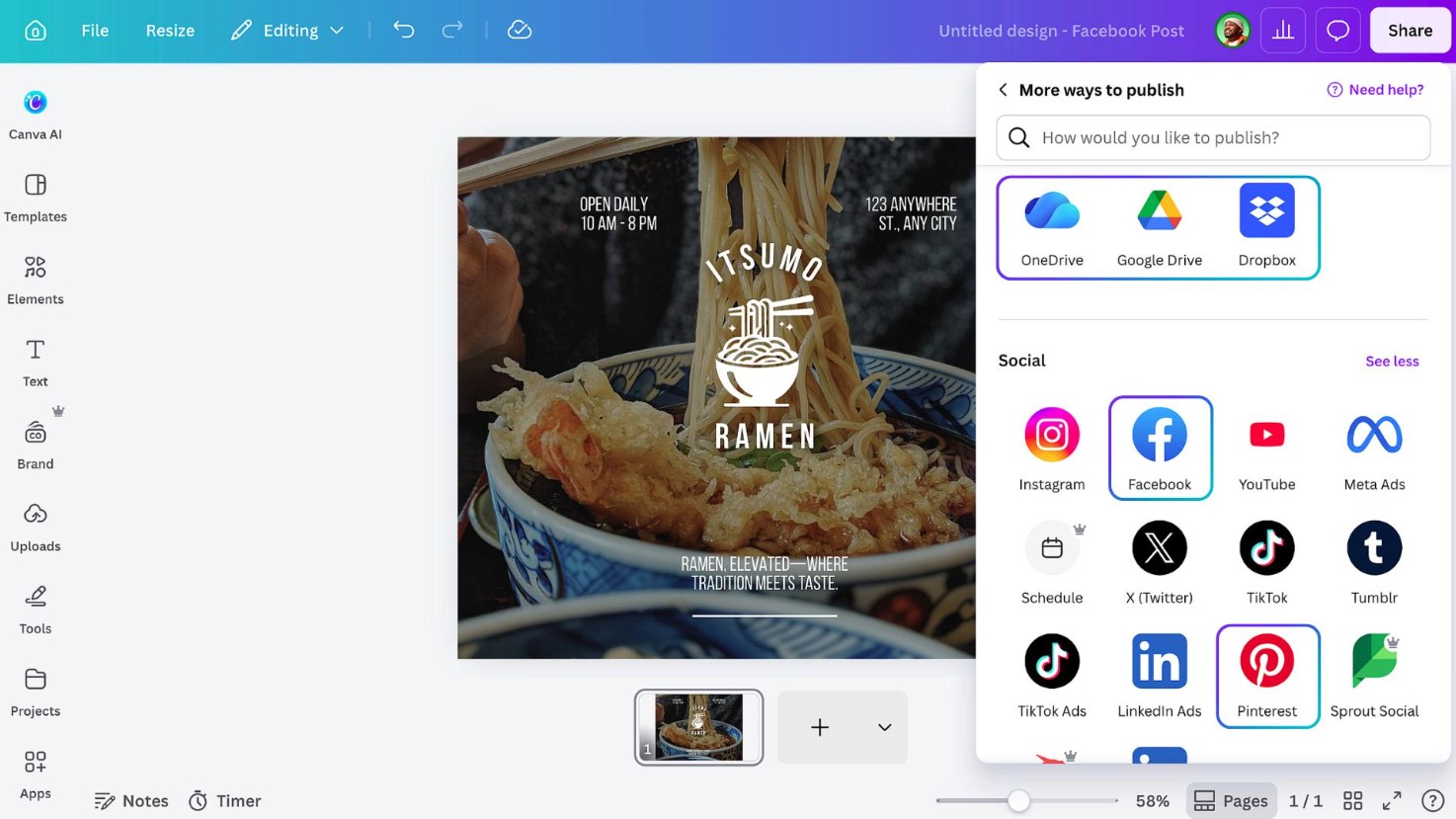
Step 5: Check and publish
Review spelling errors, resolution, brand consistency and asset usage rights before downloading or sharing.
An effective prompt might be: "Create a tech blog cover image of 900 × 600 pixels, with the title 'What's New in Canva AI 2.0?', a blue and purple color scheme, an image of a laptop with AI icons, a modern layout, a large, easy-to-read headline and no secondary content".
Users should start with a clear request, then refine each element instead of trying to put every detail into one overly complex prompt.
SaDesign recommends that users try the features that suit their actual needs, check access on their account and evaluate the output quality before applying it to official projects. When used correctly, Canva AI 2.0 can become a useful assistant, making the design process more flexible and better meeting creative requirements in the age of AI.
Note: I translated all text inside quotation marks (the example prompts) as requested. The original had no horizontal rules in the text, so nothing was removed for that instruction.









VIP Products


Best Selling Products
Autodesk All App Account Copyright
120 USD
Copyright Adobe Lightroom Account
59 USD
Upgrade Duolingo Super
29 USD
Capcut Pro 1 Year
39 USD
Adobe Premiere Pro Account
99 USD
Windows 10 & 11 Pro Key
36 USD
Upgrade genuine Capture One account
120 USD
Freepik Premium Account
59 USD
Upgrade Genuine Office 365
49 USD
Adobe Photoshop Copyright - Full App
120 USD
MidJourney Account
29 USD
Genuine Cheap Canva Pro
39 USD
ChatGPT Plus Account (GPT-4)
16 USD
Genuine Adobe Illustrator account
99 USD
Plugin Retouch4me
69 USD