Best Selling Products

Capcut Pro 1 Year
39 USD

Freepik Premium Account
59 USD

Genuine Cheap Canva Pro
39 USD

ChatGPT Plus Account (GPT-4)
16 USD

Windows 10 & 11 Pro Key
36 USD

Adobe Photoshop Copyright - Full App
120 USD

Adobe Premiere Pro Account
99 USD

Autodesk All App Account Copyright
120 USD

MidJourney Account
29 USD

Upgrade genuine Capture One account
120 USD

Plugin Retouch4me
69 USD

Upgrade Duolingo Super
29 USD

Copyright Adobe Lightroom Account
59 USD

Genuine Adobe Illustrator account
99 USD

Upgrade Genuine Office 365
49 USD
Why Does an SSD Slow Down After Upgrading to Windows 11? Causes and Fixes
Nội dung
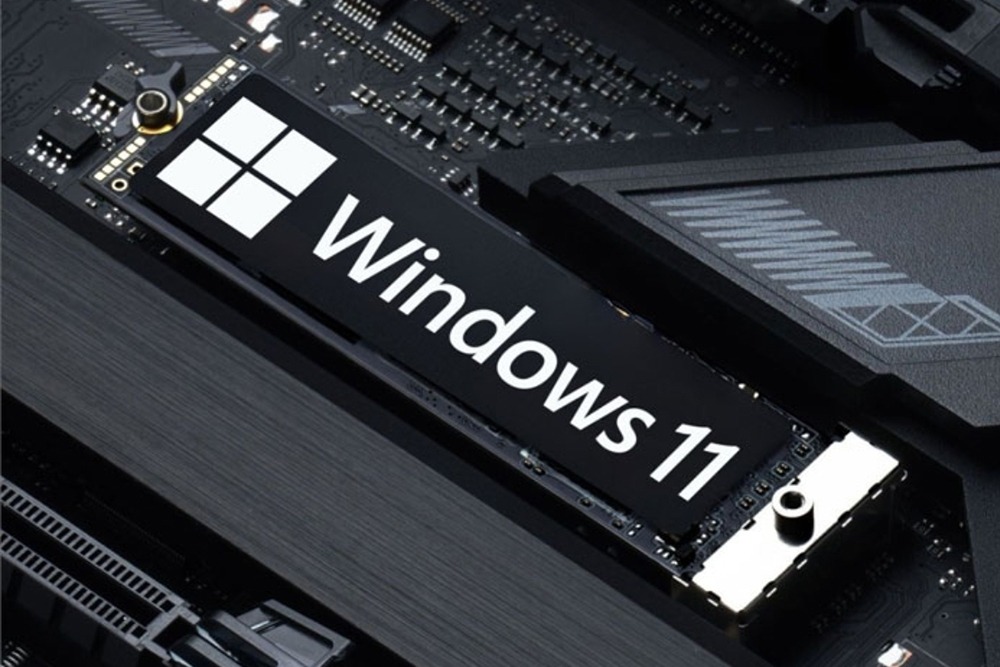
Many users notice that their SSD becomes significantly slower after upgrading to Windows 11, even though the hardware remains unchanged. The causes often stem from drivers, firmware, or system configurations that have not been properly optimized.
1. Overview of Performance Issues After Upgrading
When upgrading from Windows 10 to Windows 11, the system undergoes more than just visual changes. There are also deep modifications in how resources, memory, and hardware communication are managed. These improvements are designed to optimize performance on newer devices, especially systems equipped with the latest CPUs and SSDs. However, this “future-focused” optimization can sometimes create conflicts with older hardware components or outdated drivers.
One notable change is how Windows 11 handles data streams and task prioritization. The new operating system implements various background optimization mechanisms to improve the overall experience, but these changes can sometimes result in storage-related processes receiving less-than-ideal resource allocation. As a result, SSDs may not achieve the same level of performance they delivered under Windows 10.
In practice, users often notice symptoms such as longer boot times, slower application launches, or less responsive file transfers. What makes the issue challenging is that these changes occur quietly, leading many people to assume that their hardware has simply aged over time. In reality, the root cause is often found within the software layer.
.jpg)
2. The SSD “Bandwidth Throttling” Issue on Windows 11
A well-known example involves the Samsung 970 Evo, a high-end NVMe SSD with a theoretical read speed of up to 3,400 MB/s. After upgrading the operating system, some users discovered that actual performance dropped to below 900 MB/s when tested using CrystalDiskMark. This represents a decline of more than 70%, enough to noticeably impact every storage-related task.
What makes the issue particularly significant is that the SSD had previously functioned perfectly under Windows 10 without requiring any special adjustments. The sudden performance drop after upgrading suggests that the new operating system is not fully utilizing the device’s available bandwidth, despite no hardware changes being made.
This “bandwidth throttling” phenomenon frequently occurs during in-place upgrades, where the system retains many settings from the previous version. These legacy configurations may no longer align with the way Windows 11 manages hardware resources, causing SSDs to perform below their true potential.
The issue is not limited to isolated cases. Numerous reports from the user community indicate that it is a broader system-level concern. This further highlights the importance of checking performance after an upgrade rather than relying solely on subjective impressions.
.jpg)
3. Root Causes
On Windows 11, especially major releases such as 24H2 and 25H2, significant changes have been made to the codebase and device management architecture compared to Windows 10. As a result, some older drivers are no longer fully compatible or may not be properly recognized by the operating system.
In many cases, Windows automatically installs generic drivers to ensure that hardware remains functional. However, these drivers are often designed for broad compatibility and only meet basic requirements rather than optimizing performance for specific hardware models. For SSDs, this can prevent advanced technologies such as optimized NVMe support, command queue depth management, or enhanced caching mechanisms from being fully utilized.
In addition to drivers, SSD firmware also plays a critical role. Firmware governs the internal operation of the drive, from data management to performance optimization. If the firmware has not been updated to support the new operating system, performance may decrease significantly or become unstable.
Furthermore, changes in the way Windows 11 manages memory and storage resources can contribute to the problem. The operating system may allocate resources differently or prioritize tasks in ways that prevent SSDs from reaching maximum performance under certain usage scenarios. This is why updating drivers and firmware directly from the manufacturer is one of the most important steps in restoring performance.
.jpg)
4. Real-World Impact on User Experience
Reduced SSD performance is more than just a number displayed in benchmarking tools such as CrystalDiskMark—it directly affects the overall daily computing experience. When read and write speeds are restricted, every data-related operation becomes noticeably slower. Users may observe longer system startup times, particularly because Windows 11 runs more background processes than previous versions.
The impact extends beyond booting. Application launch speeds can also suffer significantly. Familiar programs such as web browsers, office suites, and photo editing tools may take longer to respond, creating a sluggish feeling despite unchanged hardware specifications.
For demanding workloads such as video editing, 3D rendering, or large-scale data processing, the effects become even more apparent. Large files require more time to load into memory, rendering processes take longer, and multitasking capabilities are reduced. Even gaming performance may be affected, with slower loading times, occasional stuttering, or reduced stability caused by delayed data transfers from the SSD.
An important aspect of this issue is that performance degradation often occurs silently without generating obvious errors. As a result, users may incorrectly blame aging hardware or assume that their devices have become obsolete, when in reality only a few software-related adjustments may be needed to restore original performance.
5. How to Check and Fix the Problem Effectively
To accurately assess SSD performance after upgrading to Windows 11, the first step is to run a benchmark test. Tools such as CrystalDiskMark allow users to measure read and write speeds and compare them with the manufacturer’s specifications. Significant discrepancies are a clear indication that the system is not properly optimized.
Once the issue has been identified, updating drivers and firmware becomes the most important corrective action. Users should visit the SSD manufacturer’s official website—such as Samsung’s—to download the latest available versions. Many companion management applications can automatically detect and install updates, making the process straightforward even for non-technical users.
In some situations, especially after an in-place upgrade from an older operating system, performing a clean installation can deliver dramatic improvements. This approach completely removes incompatible legacy configurations and provides a clean environment for Windows 11 to operate optimally with the hardware. While it requires more time, it remains one of the most comprehensive solutions for users seeking maximum performance.
Additionally, users should review storage-related system settings, including AHCI/NVMe modes, drive optimization features, and background processes that may affect performance. A comprehensive optimization strategy helps ensure that SSDs operate at their intended capabilities rather than being restricted by software limitations.
.jpg)
6. Important Tips to Avoid Future Issues
Before upgrading to Windows 11, users should carefully verify hardware compatibility, particularly for storage devices. Updating drivers and firmware prior to the upgrade can significantly reduce the risk of encountering performance issues.
Data backup should also be considered an essential step. Although upgrades usually proceed smoothly, having a reliable backup provides peace of mind and allows for easy recovery if unexpected problems arise.
Keeping track of Microsoft updates is equally important. New patches not only enhance security but also improve performance and hardware compatibility. In many cases, SSD-related issues can be resolved through official system updates.
Finally, make performance monitoring a regular habit. Benchmarking tools can help identify unusual behavior early while providing a clearer understanding of the device’s operating condition. With proper monitoring and optimization, an SSD can continue to deliver maximum performance and provide a smooth, reliable user experience over the long term.
SSD slowdowns after upgrading to Windows 11 are not uncommon, but they are often entirely fixable once the underlying cause is understood. In many cases, simply updating drivers and firmware can restore performance to previous levels—or even improve it. The key is not to immediately assume that the hardware has become outdated. Instead, carefully examine the system and perform the necessary optimizations to unlock the SSD’s full potential.





















VIP Products








Best Selling Products
Capcut Pro 1 Year
39 USD
Freepik Premium Account
59 USD
Genuine Cheap Canva Pro
39 USD
ChatGPT Plus Account (GPT-4)
16 USD
Windows 10 & 11 Pro Key
36 USD
Adobe Photoshop Copyright - Full App
120 USD
Adobe Premiere Pro Account
99 USD
Autodesk All App Account Copyright
120 USD
MidJourney Account
29 USD
Upgrade genuine Capture One account
120 USD
Plugin Retouch4me
69 USD
Upgrade Duolingo Super
29 USD
Copyright Adobe Lightroom Account
59 USD
Genuine Adobe Illustrator account
99 USD
Upgrade Genuine Office 365
49 USD