Best Selling Products

Freepik Premium Account
59 USD

ChatGPT Plus Account (GPT-4)
16 USD

Windows 10 & 11 Pro Key
36 USD

Upgrade Duolingo Super
29 USD

MidJourney Account
29 USD

Plugin Retouch4me
69 USD

Adobe Premiere Pro Account
99 USD

Adobe Photoshop Copyright - Full App
120 USD

Autodesk All App Account Copyright
120 USD

Genuine Adobe Illustrator account
99 USD

Copyright Adobe Lightroom Account
59 USD

Genuine Cheap Canva Pro
39 USD

Upgrade Genuine Office 365
49 USD

Capcut Pro 1 Year
39 USD

Upgrade genuine Capture One account
120 USD
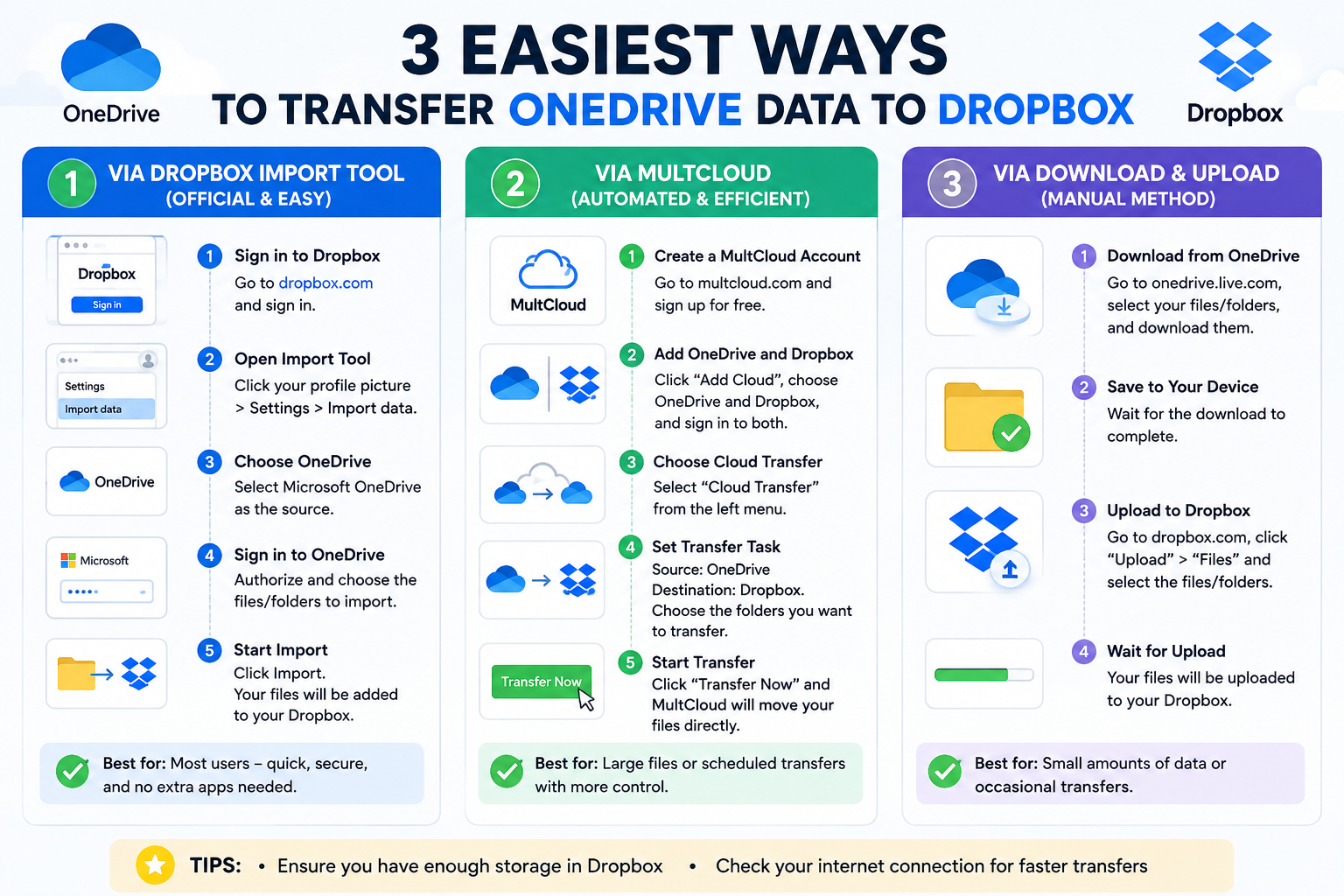
3 easiest ways to transfer OneDrive data to Dropbox
Nội dung
- 1. Comparing OneDrive and Dropbox
- 1.1. OneDrive
- 1.2. Dropbox
- 2. Method 1: Automatically transfer OneDrive to Dropbox using CBackup
- Step 1: Register for a CBackup account
- Step 2: Connect OneDrive and Dropbox
- Step 3: Create a backup task
- Step 4: Select the data source
- Step 5: Choose Dropbox as the storage location.
- 3. Method 2: Manually transfer OneDrive to Dropbox via the website
- Step 1: Download data from OneDrive
- Step 2: Log in to Dropbox
- Step 3: Upload data to Dropbox
- 4. Method 3: Transfer OneDrive to Dropbox using the sync folder on your computer.
- Step 1: Install the two applications
- Step 2: Open the OneDrive folder.
- Step 3: Copy the data
- Step 4: Paste into Dropbox
- 5. Expand your free Dropbox storage with CBackup
- Step 1: Add Dropbox accounts
- Step 2: Create a Combined Cloud
- Step 3: Choose an account
- Step 4: Back up your data
- 6. Which method should I choose?
- 7. Conclusion
Looking to transfer data from OneDrive to Dropbox but don''t know where to start? This article will guide you through three detailed methods for transferring data from OneDrive to Dropbox.
1. Comparing OneDrive and Dropbox
Before proceeding with the data transfer, let's review the key features of these two storage platforms.
1.1. OneDrive
OneDrive is a cloud storage service developed by Microsoft, formerly known as SkyDrive. Users can upload files to OneDrive via a web browser, computer, or mobile device. Data is then synchronized across all devices logged in with the same Microsoft account.
Some of the outstanding advantages of OneDrive include:
-
5 GB of storage space is free.
-
Integrates directly with Microsoft Word, Excel, PowerPoint, and Outlook.
-
It comes pre-installed on Windows 10 and Windows 11.
-
Synchronize Office documents in real time.
-
Support for online collaboration.
1.2. Dropbox
Dropbox is one of the world's first cloud storage services, founded in 2007. Dropbox is renowned for its fast synchronization, flexible file sharing, and multi-platform support.
Key highlights include:
-
2 GB of storage is free.
-
Fast and stable data synchronization.
-
Supports sharing large files.
-
The Camera Upload feature automatically backs up photos.
-
A robust version management and file recovery system.
If you want to centralize your data on Dropbox to take advantage of its sharing and collaboration features, here are the most effective ways to do so.
2. Method 1: Automatically transfer OneDrive to Dropbox using CBackup
If you need to transfer large amounts of data or want to automate the conversion process, using an intermediary tool is the optimal choice.
One of the solutions widely used is CBackup .
This is cloud data backup and management software that allows you to transfer data directly between multiple storage services such as OneDrive, Dropbox, and Google Drive without having to download the data to your computer first.
The advantages of this method are that it saves time, reduces internet bandwidth usage, and supports automatic scheduled backups.
Step 1: Register for a CBackup account
Access CBackup.
Register for a free account.
After successfully creating an account, log in to the system.
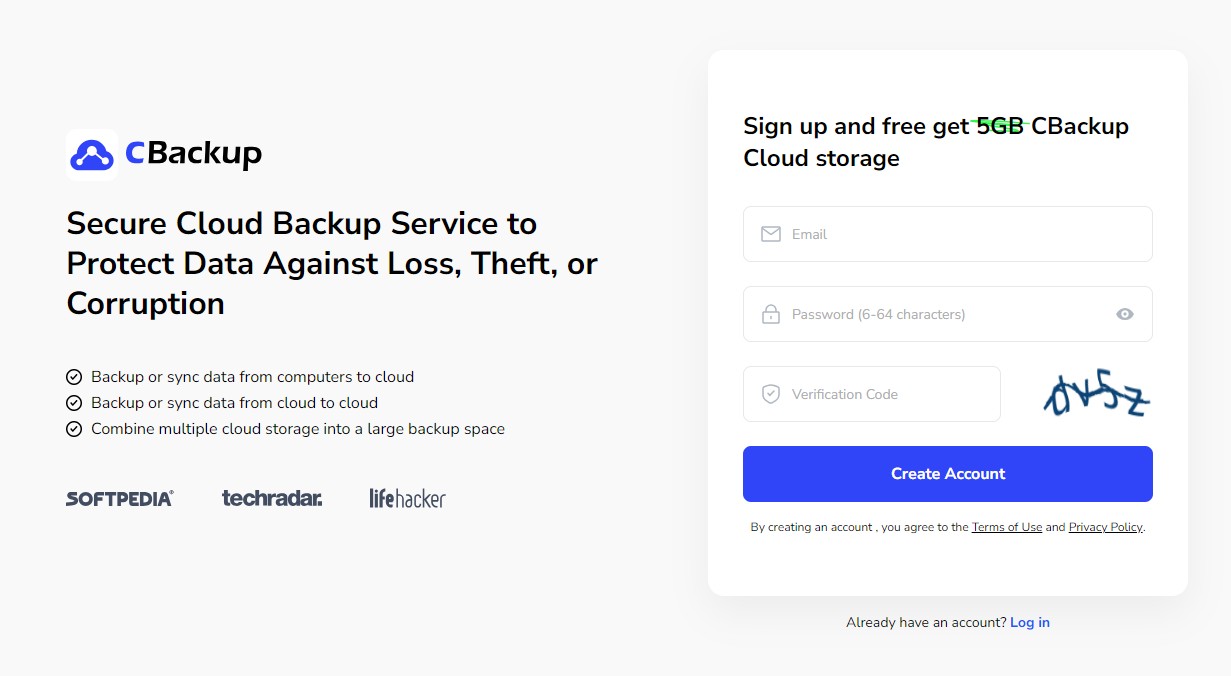
Note: In addition to the web version, CBackup also offers a Windows application if you prefer to operate directly on your computer.
Step 2: Connect OneDrive and Dropbox
In the main interface, open the My Storage section .
Click Add Cloud .
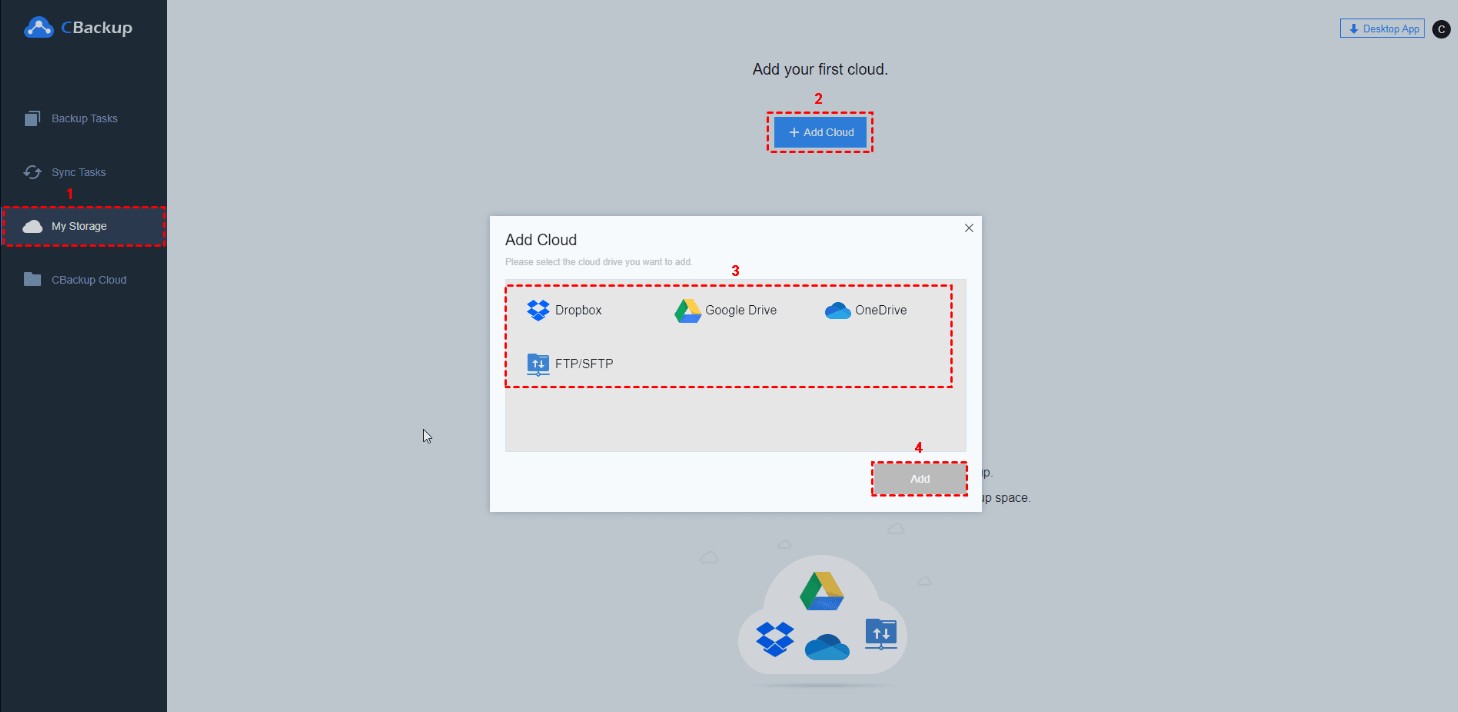
Select OneDrive .
Log in to your Microsoft account.
Grant CBackup permission to access your OneDrive data.
Once complete, press Add Cloud again.
Choose Dropbox .
Log in to your Dropbox account.
Allow CBackup to access Dropbox data.
At this point, both hosting services are connected.
Step 3: Create a backup task
Select the Backup Tasks option .
Click New Task .
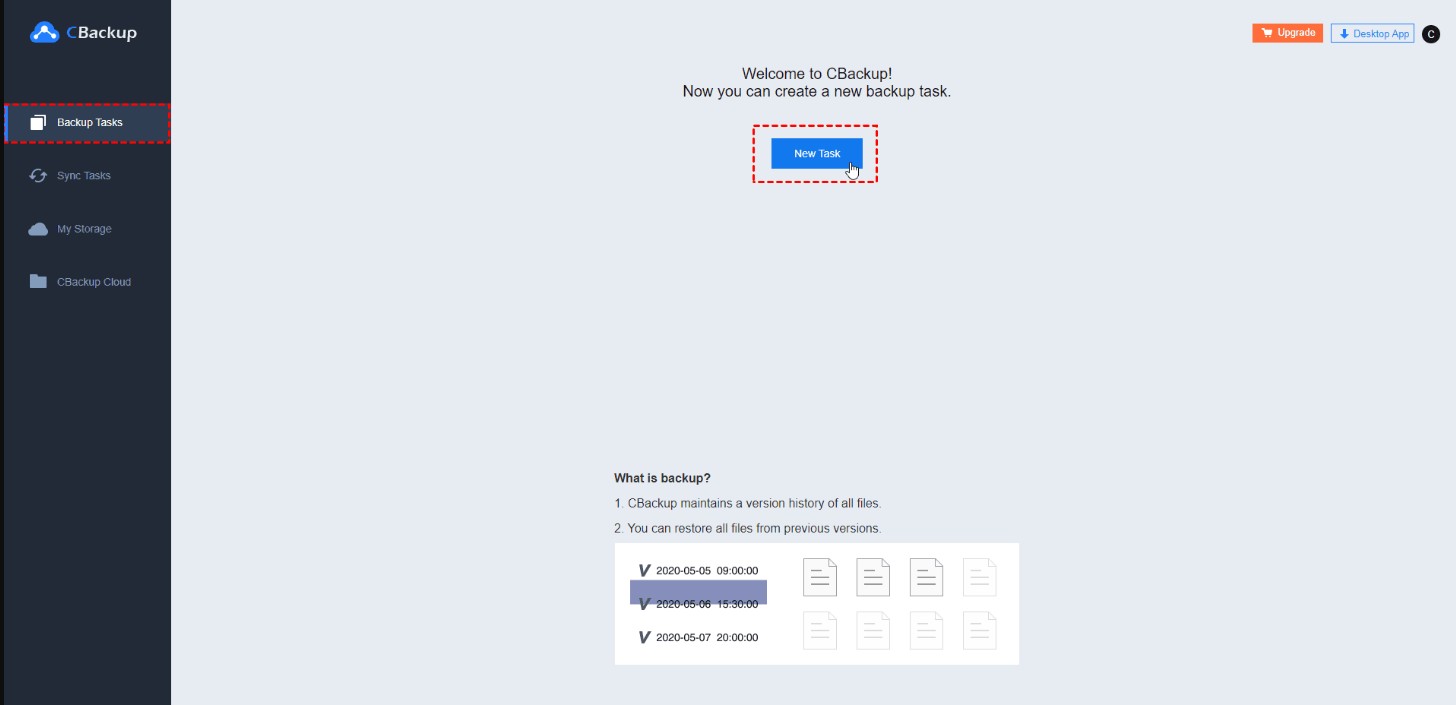
A new backup task will be created.
Step 4: Select the data source
In the Source section :
Give the task a name.
Click Add Source .
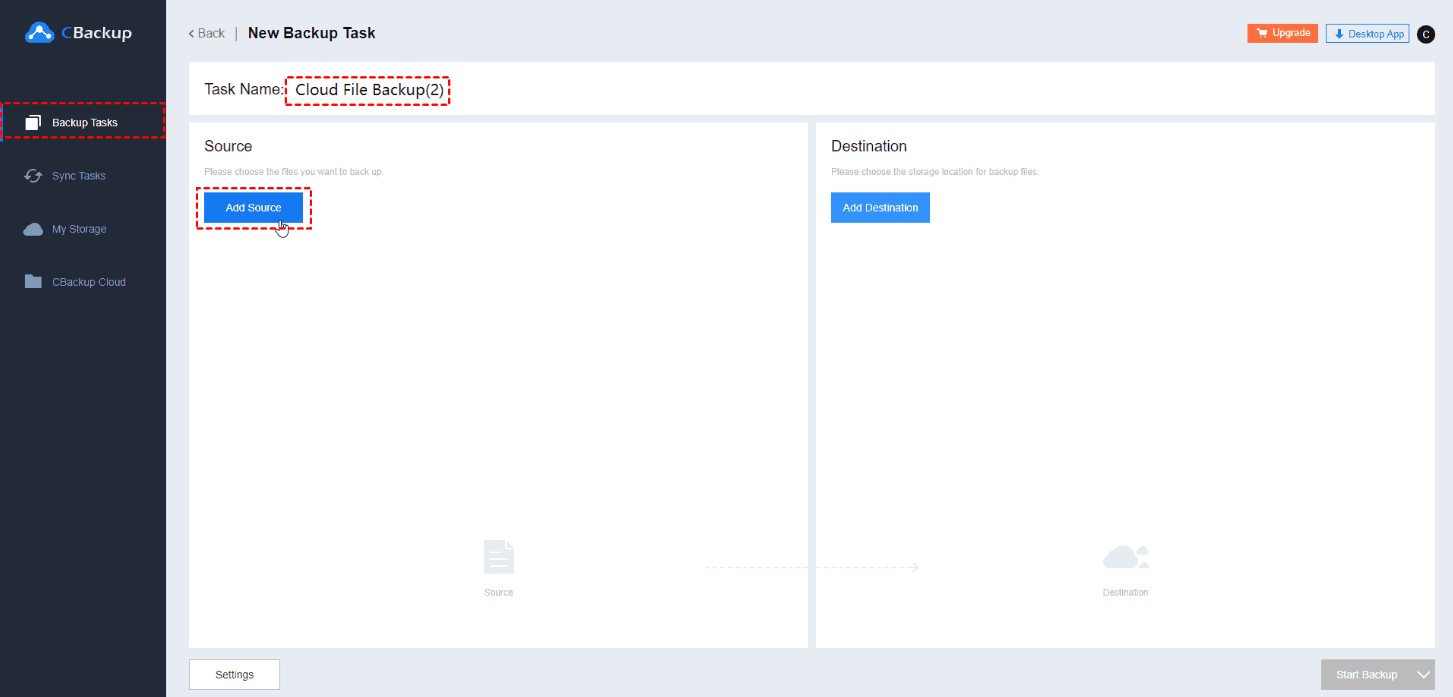
Choose OneDrive.
You can:
-
Transfer your entire OneDrive account.
-
Or simply select the folders and files you want to transfer.
Step 5: Choose Dropbox as the storage location.
In the Destination section :
Click Add Destination .
Select Single Cloud .
Press Next .
Choose Dropbox.
After reviewing the information, click Start Backup .
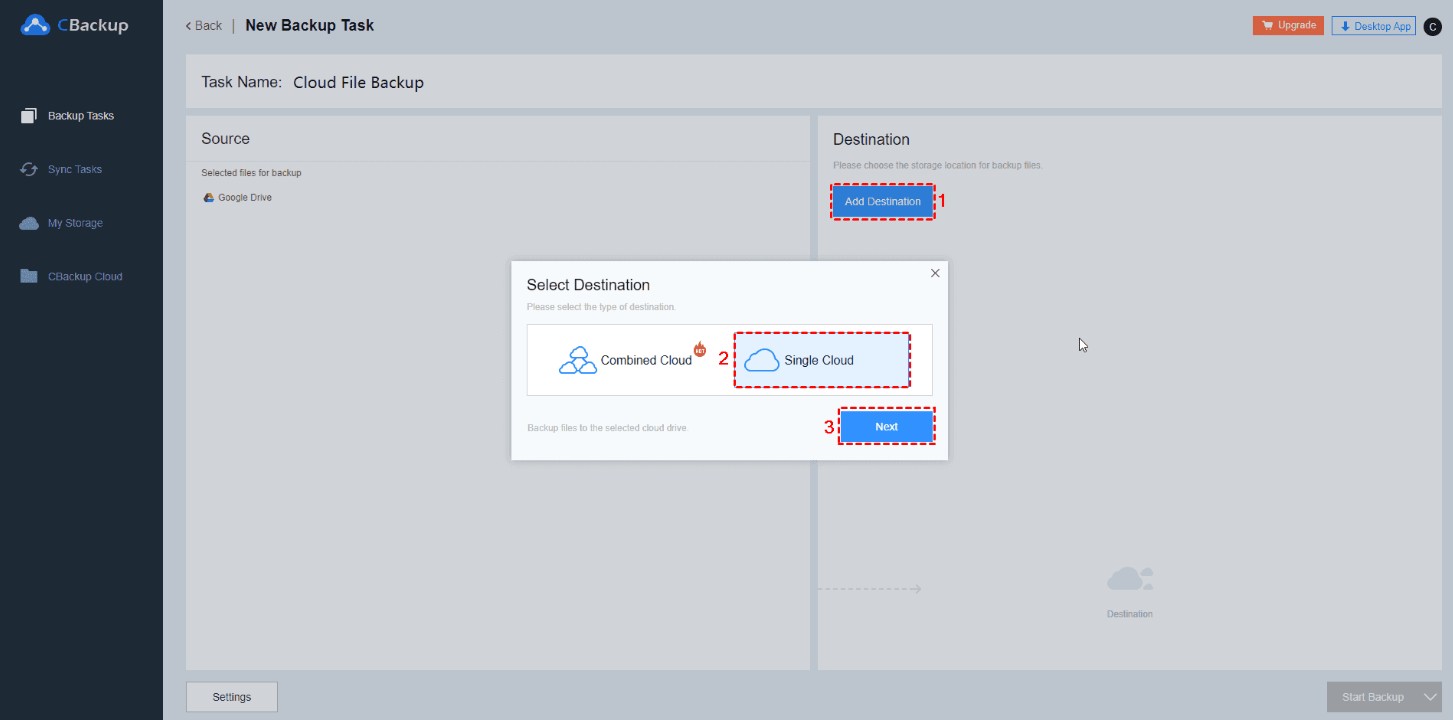
The data transfer process will begin.
Set up automatic backups
If you want Dropbox to always sync new data from OneDrive:
Click on settings .
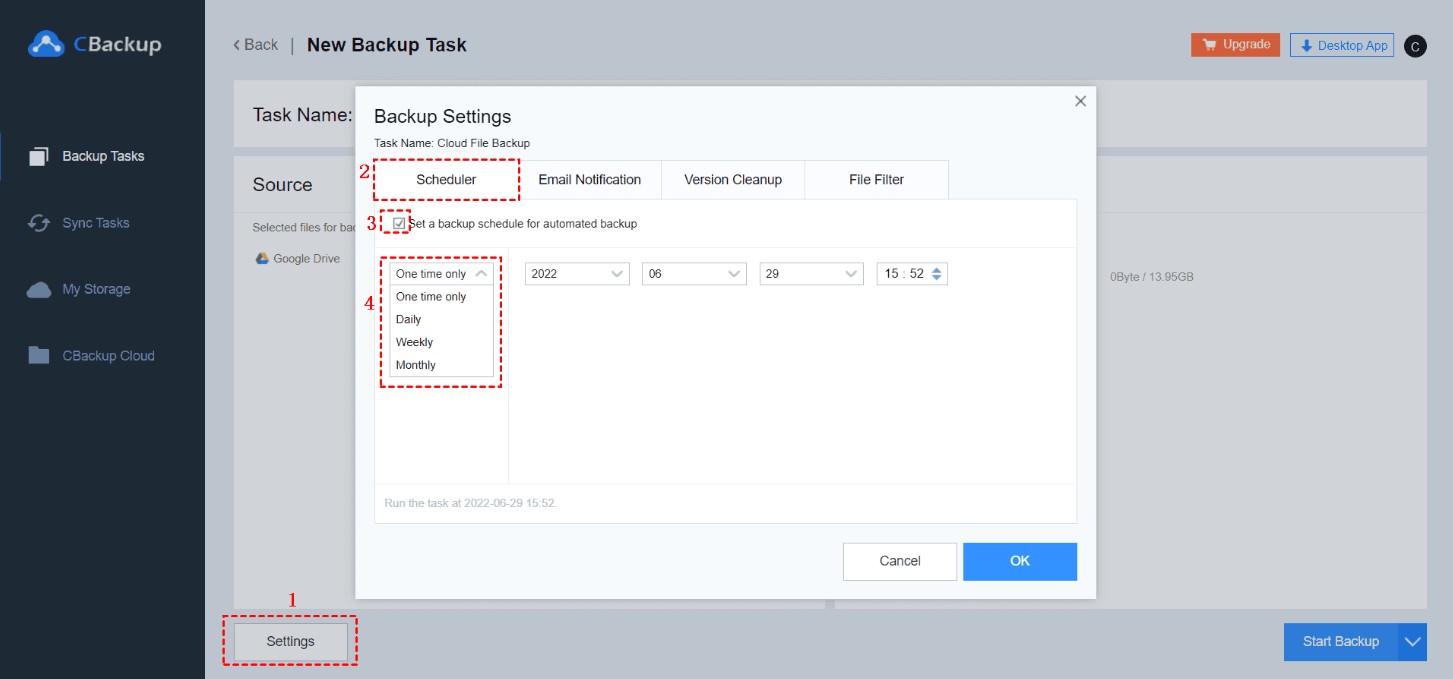
Turn on Scheduled Backup mode .
Select:
-
Every day.
-
Weekly.
-
Monthly.
Then save the settings.
3. Method 2: Manually transfer OneDrive to Dropbox via the website
If you don't want to use middleware, you can do it entirely through your web browser.
This method is suitable when only a small amount of data needs to be transferred.
Some things to note before proceeding
The download and upload process depends entirely on your internet speed.
If the data is large, the transfer time will be quite long.
Dropbox limits the size of files uploaded directly to its website to a maximum of approximately 50 GB per file.
ZIP compressed files can still be uploaded normally.
Step 1: Download data from OneDrive
Open the OneDrive website.
Log in to your Microsoft account.
Locate the files or folders you want to move.
Select the data.
Click Download .
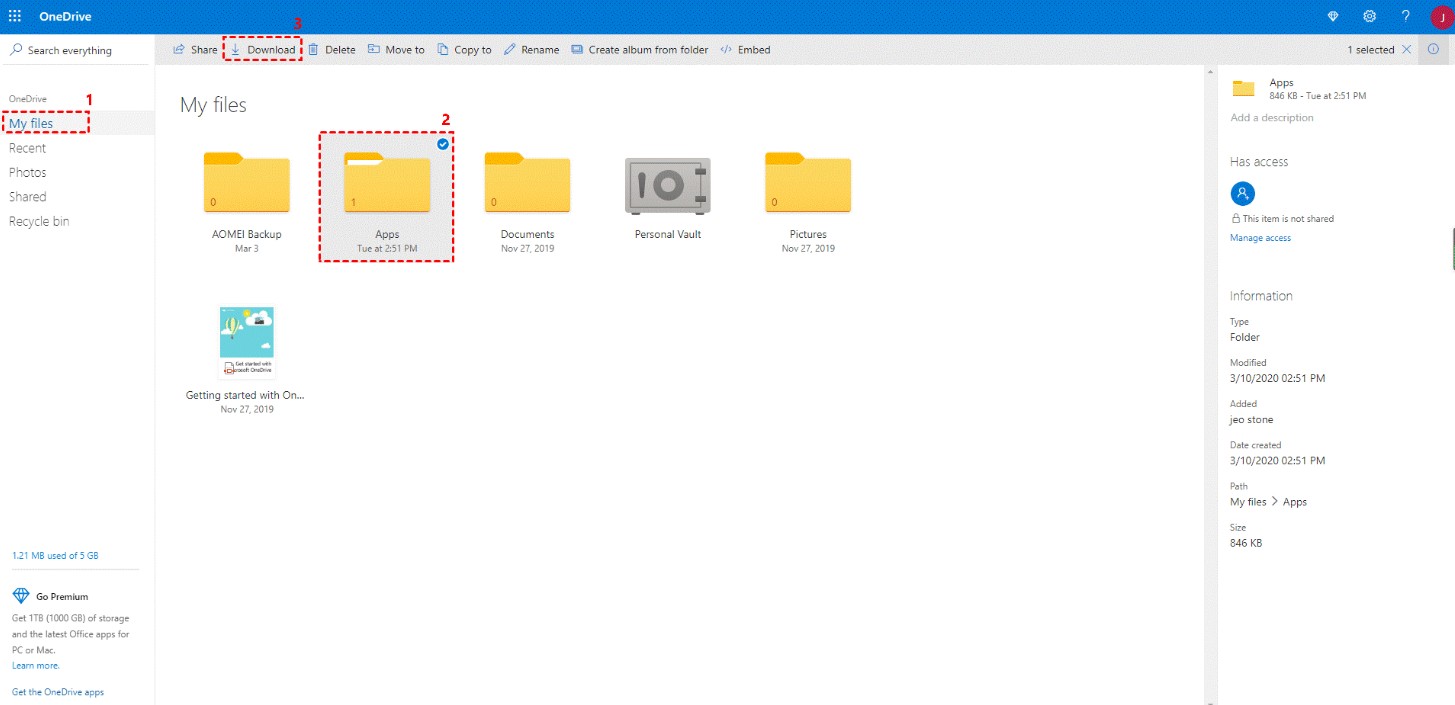
Wait for the system to download all the data to your computer.
Step 2: Log in to Dropbox
Visit the Dropbox website.
Log in to your account.
Open the folder where you want to save the data.
Step 3: Upload data to Dropbox
Click: Upload Files or Upload Folder
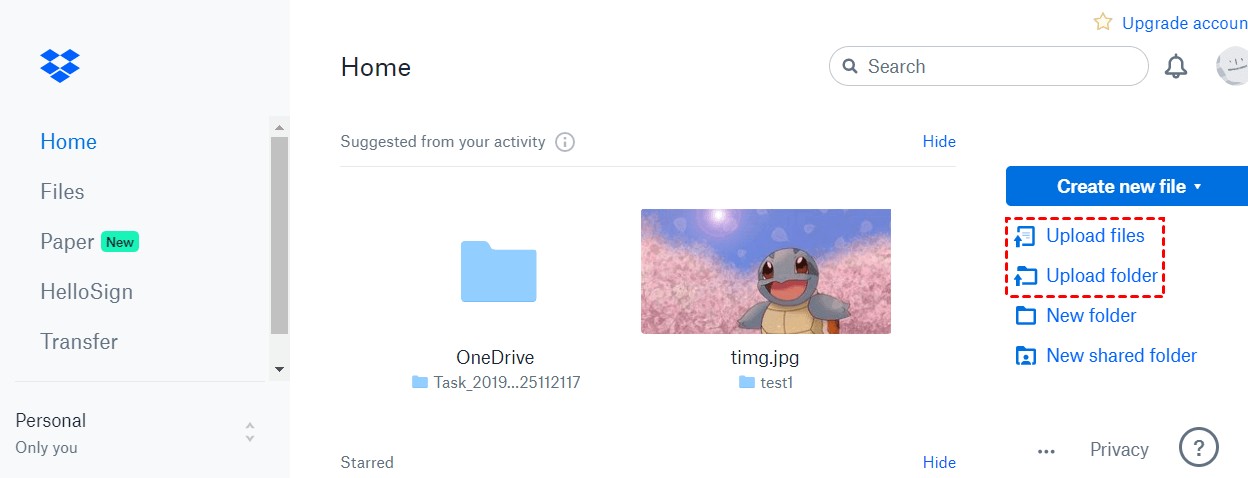
Select the files you just downloaded from OneDrive.
Confirm upload.
Wait for Dropbox to complete the syncing process.
Once completed, the data will appear in full in Dropbox.
4. Method 3: Transfer OneDrive to Dropbox using the sync folder on your computer.
If you have installed OneDrive and Dropbox on your computer, you can utilize the two synchronized folders to transfer data. This is a very simple method and doesn't require using a website.
Step 1: Install the two applications
Ensure:
-
OneDrive Desktop is logged in.
-
Dropbox Desktop is logged in.
After successfully logging in:
The computer will appear:
-
OneDrive folder.
-
Dropbox folder.
Step 2: Open the OneDrive folder.
Open File Explorer.
Access your OneDrive folder.
Find the files you want to transfer.
Step 3: Copy the data
Select all the data you want to transfer.
Press: Ctrl + C
or right-click and select Copy .
Step 4: Paste into Dropbox
Open your Dropbox folder.
Press: Ctrl + V
or select Paste .
Dropbox will automatically upload all your data to your cloud account.
The process is complete when the synchronization icon changes to the "Completed" state.
5. Expand your free Dropbox storage with CBackup
After transferring all their data from OneDrive to Dropbox, many people find that their Dropbox storage quickly fills up. Besides upgrading to paid plans, you can also use CBackup to merge multiple Dropbox accounts into one larger storage space. This is a useful solution if you have multiple personal Dropbox accounts.
Step 1: Add Dropbox accounts
Open the CBackup app.
Select Storage .
Add all the Dropbox accounts you own.
Step 2: Create a Combined Cloud
Nhấn: Add Combined Cloud
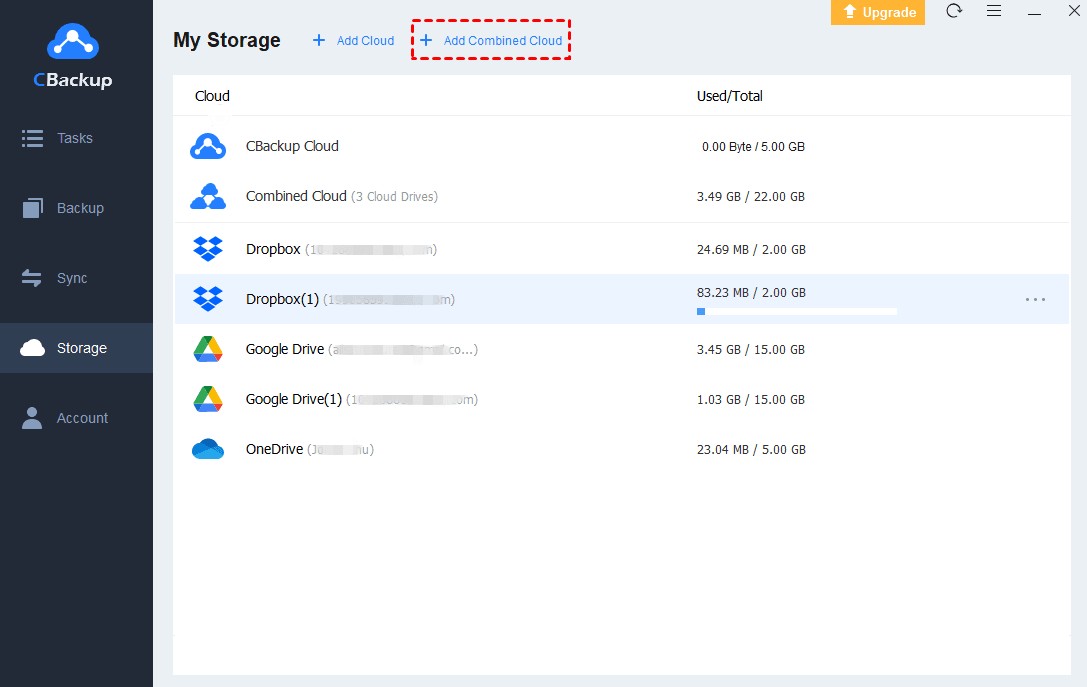
Step 3: Choose an account
Select all Dropbox accounts you want to combine.
If you need to add new accounts:
Click Add Clouds .
Then select: Next
Continue pressing: Combine
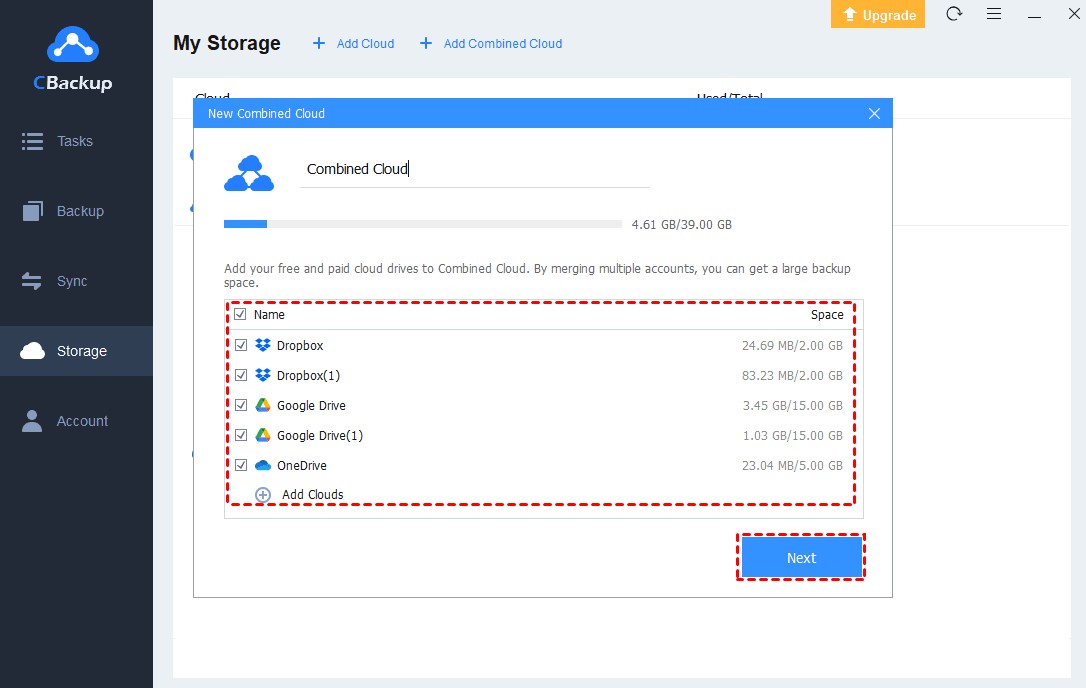
CBackup will create a unified storage space from your Dropbox accounts.
Step 4: Back up your data
If you want to back up to a regular Dropbox account:
Select: Backup PC to Public Cloud
If you want to save to a unified storage space:
Chọn: Backup PC to Combined Cloud
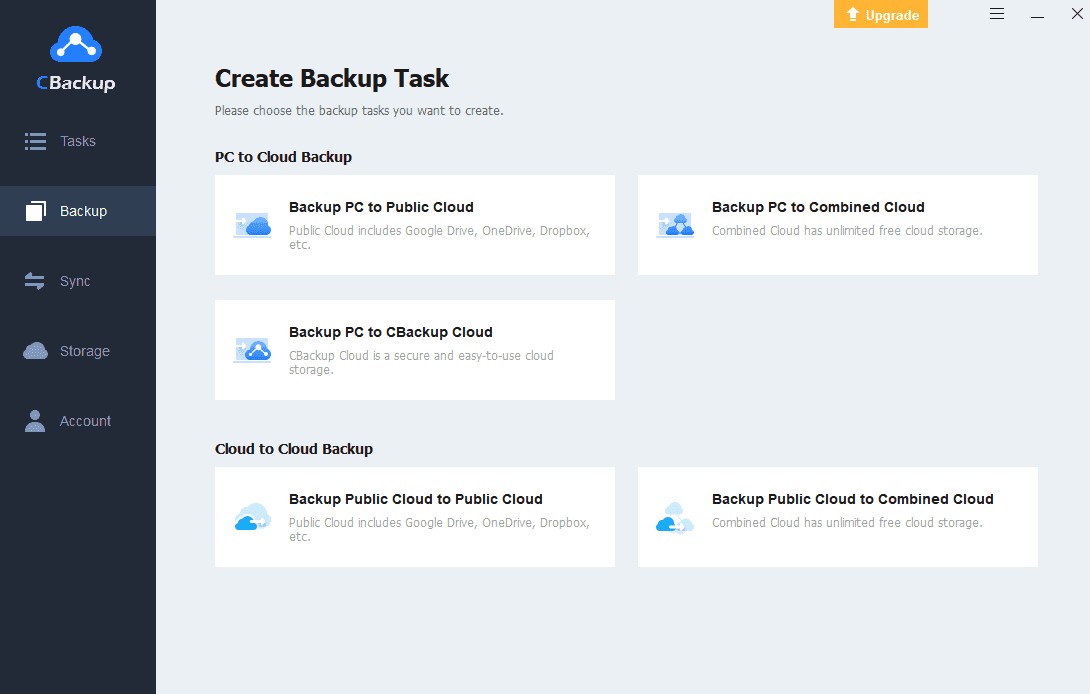
All data will be automatically allocated to the combined Dropbox accounts, significantly expanding storage capacity without needing to upgrade your service plan.
6. Which method should I choose?
Each transfer method has its own advantages. If you need to transfer large amounts of data, want to save time, and require regular synchronization between OneDrive and Dropbox, CBackup is a suitable choice thanks to its ability to automate and manage backup tasks effectively.
If you only need to transfer a few small files or folders, transferring them directly through the OneDrive and Dropbox websites is simple and doesn't require installing any additional software. If you already use the Dropbox and OneDrive applications on your computer, copying data between the two synchronized folders is a quick and familiar method for most users.
You should consider data capacity, network speed, and switching frequency to choose the method that best suits your needs.
7. Conclusion
Transferring data from OneDrive to Dropbox isn't overly complicated if you choose the right method. With CBackup , you can automatically transfer data between the two platforms, set up recurring backup schedules, and manage multiple storage accounts from a single interface. If you only need to transfer a small amount of data, you can easily use the website or a sync folder on your computer to do it quickly.
After completing the migration process, carefully check your Dropbox data before deleting files from OneDrive if you no longer need them. Additionally, if your Dropbox storage becomes limited, you can consider combining multiple Dropbox accounts using CBackup to expand your storage space without incurring extra costs. This will make data management more centralized, convenient, and efficient for both work and personal use.





















VIP Products








Best Selling Products
Freepik Premium Account
59 USD
ChatGPT Plus Account (GPT-4)
16 USD
Windows 10 & 11 Pro Key
36 USD
Upgrade Duolingo Super
29 USD
MidJourney Account
29 USD
Plugin Retouch4me
69 USD
Adobe Premiere Pro Account
99 USD
Adobe Photoshop Copyright - Full App
120 USD
Autodesk All App Account Copyright
120 USD
Genuine Adobe Illustrator account
99 USD
Copyright Adobe Lightroom Account
59 USD
Genuine Cheap Canva Pro
39 USD
Upgrade Genuine Office 365
49 USD
Capcut Pro 1 Year
39 USD
Upgrade genuine Capture One account
120 USD