Best Selling Products

MidJourney Account
29 USD

Upgrade Duolingo Super
29 USD

Windows 10 & 11 Pro Key
36 USD

Upgrade genuine Capture One account
120 USD

Autodesk All App Account Copyright
120 USD

Freepik Premium Account
59 USD

ChatGPT Plus Account (GPT-4)
16 USD

Genuine Adobe Illustrator account
99 USD

Copyright Adobe Lightroom Account
59 USD

Adobe Premiere Pro Account
99 USD

Upgrade Genuine Office 365
49 USD

Adobe Photoshop Copyright - Full App
120 USD

Capcut Pro 1 Year
39 USD

Plugin Retouch4me
69 USD

Genuine Cheap Canva Pro
39 USD
A detailed, step-by-step guide to using iCloud for beginners.
Nội dung
- 1. Learn about iCloud
- 2. Use iCloud with your favorite apps.
- 2.1. Sync photos and videos with iCloud Photos
- 2.2. Sync files with iCloud Drive
- 2.3. Saving application data
- 2.4. How to enable iCloud on Apple devices
- 3. Get more storage and features with iCloud+
- 3.1. Expanding storage capacity
- 3.2. iCloud Private Relay
- 3.3. Hide My Email
- 3.4. Sharing with family
- 4. Using iCloud on the web
- 4.1. Accessing email
- 4.2 Image Management
- 4.3. Accessing files in iCloud Drive
- 4.4. Synchronize contacts, calendar, and notes
- 4.5. Finding lost equipment
- 5. Some things to keep in mind when using iCloud
- 6. Conclusion
iCloud is a cloud storage service developed by Apple that allows users to synchronize data, back up devices, and access information across all Apple devices.
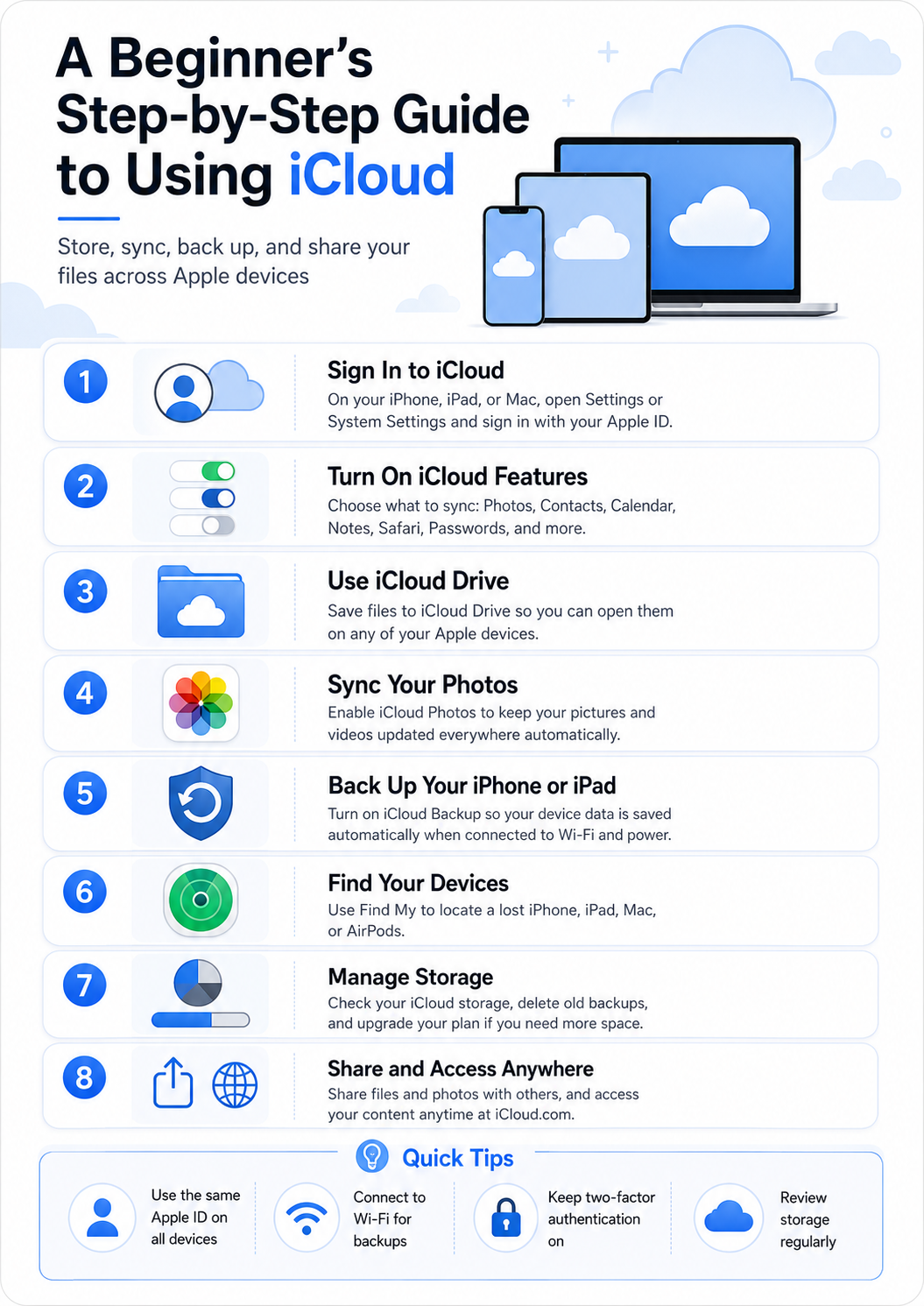
1. Learn about iCloud
First launched in 2011, iCloud was developed by Apple to replace traditional backup methods with a modern cloud storage platform. Instead of having to connect devices to a computer to back up data, users simply log in with the same Apple account to automatically synchronize their data.
iCloud is more than just a file storage location; it also supports device backups and syncs photos, videos, contacts, calendars, notes, passwords, documents, and app data. This allows you to continue working on any Apple device without manually copying data.
For example, if you take a photo with your iPhone, that image will quickly appear on your iPad and Mac when all three devices are logged into the same Apple Account and iCloud Photos is enabled. Similarly, when editing a document on your Mac, the latest version will be synced so you can continue working on your iPhone or iPad.
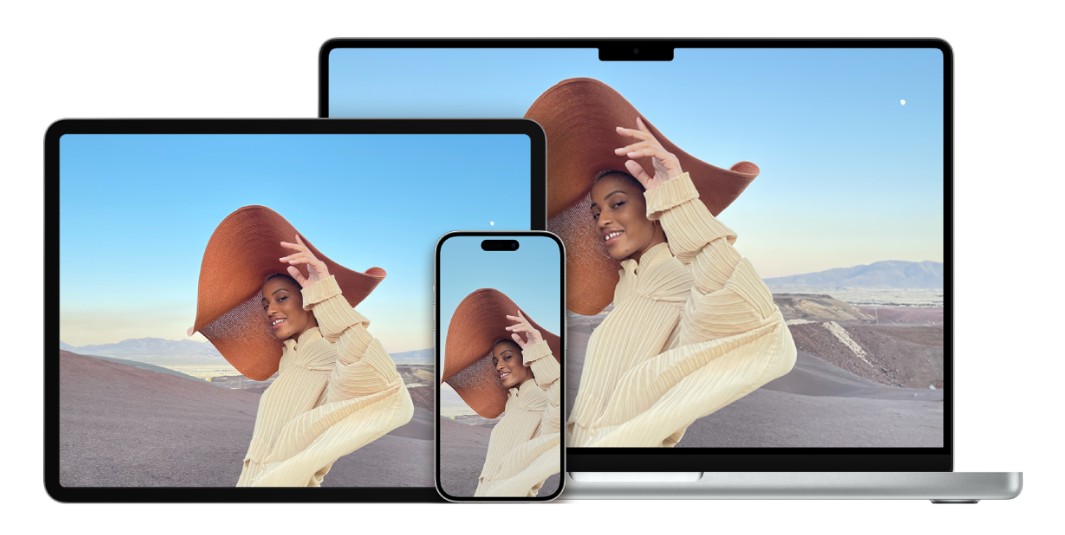
In addition to synchronization capabilities, iCloud also helps protect data against incidents such as device loss, damage, or accidental data deletion. With cloud backups, users can easily restore all their information when switching to a new Apple device.
Another strength of iCloud is its ability to share content with family and friends. You can share photo albums, work files, or shared folders so that multiple people can access and collaborate conveniently.
Thanks to its combination of cloud storage, intelligent synchronization, and high security, iCloud has become an indispensable part of the Apple ecosystem for users.
2. Use iCloud with your favorite apps.
One of the reasons iCloud is so popular is its seamless integration with most Apple apps, as well as many third-party apps. When iCloud is enabled, data from apps is automatically synced between devices, ensuring you're always working with the latest version without manual intervention.
2.1. Sync photos and videos with iCloud Photos
iCloud Photos is one of the most frequently used features. When activated, all photos and videos you take will be uploaded to iCloud and synced across all devices signed in with the same Apple account.
This means you can simply take a photo on your iPhone, then view, edit, or share it instantly on your iPad, Mac, or via a web browser. Any changes, such as photo editing, album creation, or photo deletion, will also be updated and synchronized across all devices.
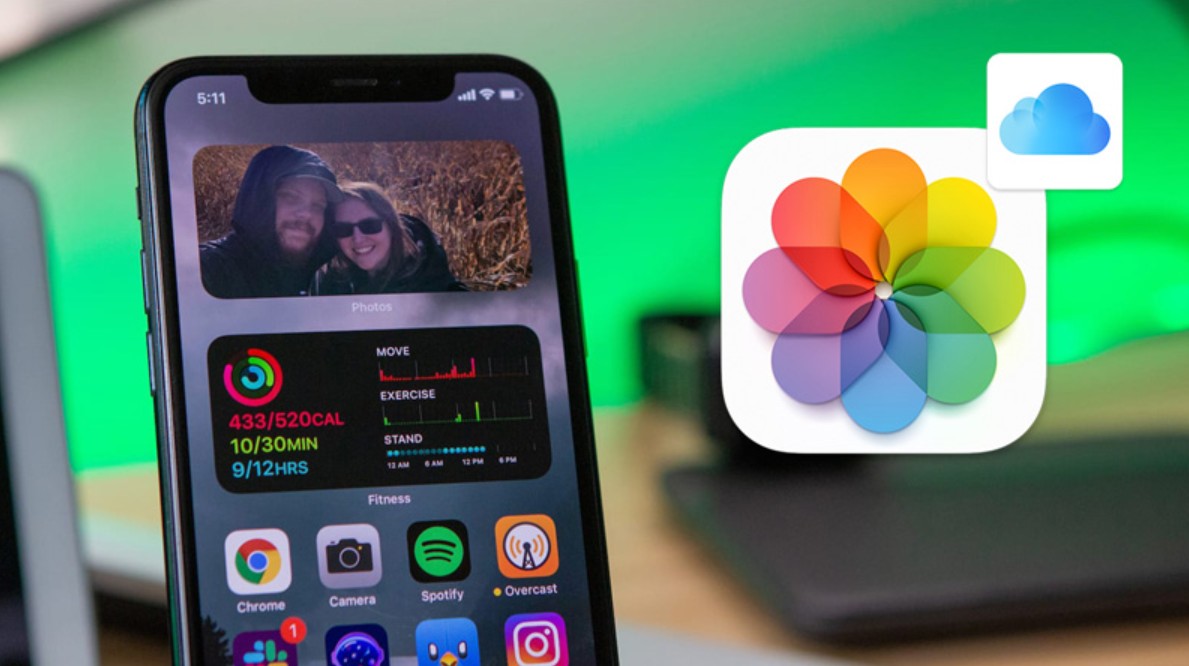
This feature is especially useful for people who frequently use multiple Apple devices or want to protect their photo library from data loss.
2.2. Sync files with iCloud Drive
iCloud Drive functions as an online hard drive, allowing you to store documents, PDFs, spreadsheets, presentations, and many other file types.
When you save documents to iCloud Drive, you can access and edit them on your iPhone, iPad, Mac, or Windows computer with the iCloud app installed. Changes are synced almost instantly, allowing for seamless workflow without needing to send files via email or external storage devices.
iCloud Drive also supports sharing files and folders with others, facilitating collaboration in studies and work.
2.3. Saving application data
Many Apple apps, such as Notes, Calendar, Contacts, Reminders, and Safari, support iCloud. When syncing is enabled, notes, calendar events, contacts, reminders, and browser bookmarks will always be up-to-date across all your devices.
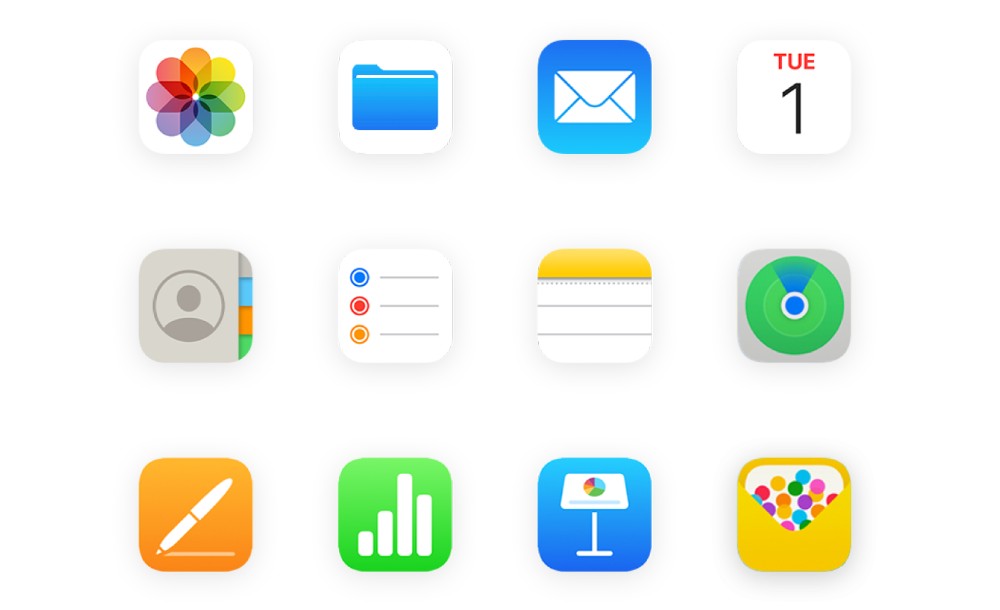
Additionally, many apps from the App Store integrate iCloud to save game data, documents, or work progress. This allows you to continue using the app on a new device without having to set it up again from scratch.
2.4. How to enable iCloud on Apple devices
To use all the features of iCloud, you need to enable the service on your device:
Step 1: Open the Settings app on your iPhone or iPad.
Step 2: Tap your Apple account name at the top of the screen.
Step 3: Select the iCloud option .
Step 4: Enable the services you want to sync, such as Photos, iCloud Drive, Contacts, Notes, Calendar, or other apps.
Once complete, the device will automatically sync data to iCloud when connected to the internet.
3. Get more storage and features with iCloud+
By default, Apple provides 5 GB of free iCloud storage per account. This amount is suitable for basic needs such as backing up contacts or a few small documents. However, if you frequently save high-quality photos and videos or back up multiple devices, you will quickly run out of storage. That's why Apple offers iCloud+ , which expands storage space and adds more advanced security features.

3.1. Expanding storage capacity
Upgrading to iCloud+ gives you more storage space for photos, videos, documents, and device backups. This increased storage means you don't have to delete old data as often and can store all your important content for the long term.
This is a suitable option for users who use multiple Apple devices or need to store large amounts of data.
3.2. iCloud Private Relay
iCloud Private Relay is a feature that enhances privacy when browsing the web with Safari. Internet access data is routed through two layers of independent servers, masking your IP address and limiting websites from tracking your online activity. This allows users to browse more securely while maintaining high browsing performance.
3.3. Hide My Email
Hide My Email allows you to generate random email addresses to sign up for accounts or receive newsletters from websites without revealing your real email address.
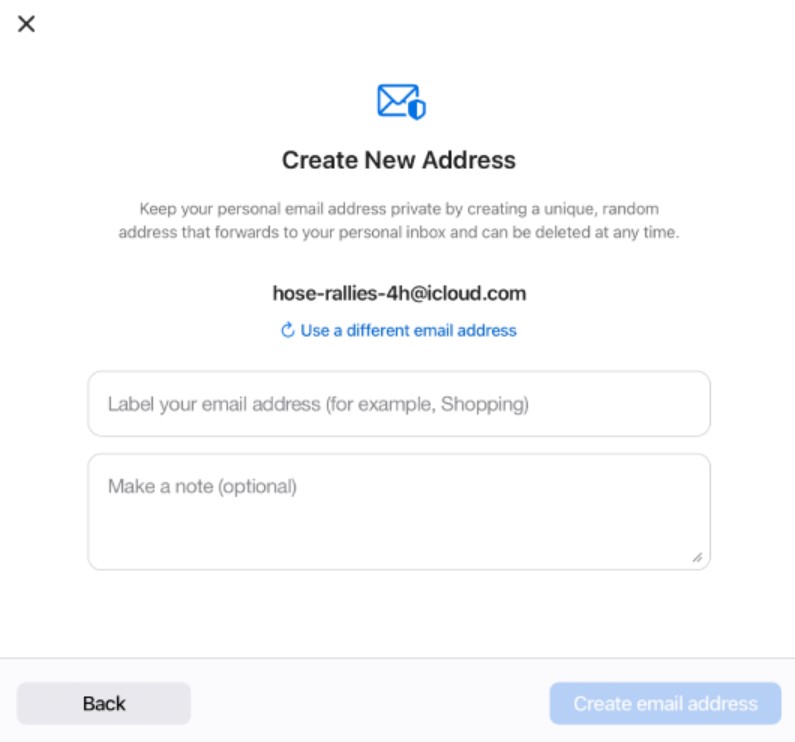
Any emails sent to a random address will still be forwarded to your main inbox. If you no longer wish to receive emails, you can simply disable that address without affecting your personal email.
This feature helps reduce spam and protect privacy more effectively.
3.4. Sharing with family
Some iCloud+ plans support sharing storage with family members through Family Sharing. Each person still has their own space and personal data is secure, while the whole family uses a larger shared storage plan to save costs.
4. Using iCloud on the web
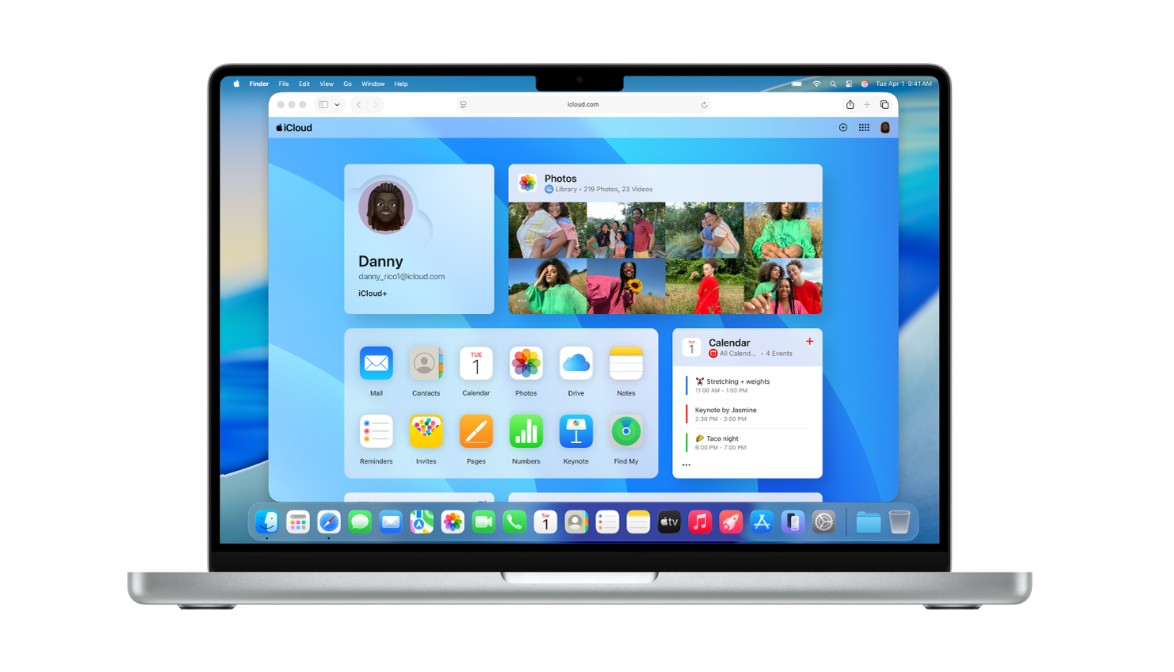
In addition to Apple devices, you can also access your iCloud data through a web browser. This is a useful solution when using public computers, Windows computers, or devices without the iCloud app installed. Simply log in to iCloud.com with your Apple account, and you'll have access to most important services.
4.1. Accessing email
If you use iCloud Mail, you can read, send, and manage emails directly in your browser without installing any additional software.
4.2 Image Management
The entire library of photos and videos synced from iCloud Photos will appear on iCloud.com. Users can view, download, delete, or upload new photos to their account.
4.3. Accessing files in iCloud Drive
All documents stored on iCloud Drive can be opened, downloaded, or uploaded through a web browser. This makes it easy to work with documents even when not using an Apple device.
4.4. Synchronize contacts, calendar, and notes
The Contacts, Calendar, and Notes apps on iCloud.com help users manage their personal information anytime, anywhere. Any changes are synced back to Apple devices when connected to the internet.
4.5. Finding lost equipment
Through the Find Devices app on iCloud.com, you can locate your iPhone, iPad, Mac, or AirPods if they are lost. In addition to viewing the location on a map, users can also play a sound, activate Lost Mode, or remotely erase data to protect personal information.
Accessing iCloud via the web offers great flexibility, freeing you from the limitations of your device and allowing you to access important data whenever you need it.
5. Some things to keep in mind when using iCloud
To use iCloud effectively and securely, you should regularly check your storage capacity to avoid backup interruptions due to lack of space. Additionally, enable two-factor authentication for your Apple account to enhance security.
When using iCloud Photos or iCloud Drive, ensure your device has a stable internet connection for continuous syncing. Additionally, you should update your operating system to the latest version to take advantage of new features and security patches released by Apple.
If you frequently work on multiple devices, organizing your data into folders and giving your files clear names will help you manage information more efficiently and make it easier to find what you need when necessary.
6. Conclusion
iCloud is more than just a cloud storage service; it's a platform connecting the entire Apple ecosystem, allowing users to synchronize data, back up devices, and access information anywhere. From storing photos, videos, and documents to syncing contacts, notes, and app data, iCloud provides a seamless workflow across iPhones, iPads, Macs, and even web browsers.
For those with large storage needs or who want enhanced privacy, iCloud+ is a worthwhile option with its expanded capacity and features like Private Relay and Hide My Email. By understanding how to use and leverage iCloud's features correctly, you'll manage your data more effectively, better protect your personal information, and fully enjoy the benefits of the Apple ecosystem.





















VIP Products








Best Selling Products
MidJourney Account
29 USD
Upgrade Duolingo Super
29 USD
Windows 10 & 11 Pro Key
36 USD
Upgrade genuine Capture One account
120 USD
Autodesk All App Account Copyright
120 USD
Freepik Premium Account
59 USD
ChatGPT Plus Account (GPT-4)
16 USD
Genuine Adobe Illustrator account
99 USD
Copyright Adobe Lightroom Account
59 USD
Adobe Premiere Pro Account
99 USD
Upgrade Genuine Office 365
49 USD
Adobe Photoshop Copyright - Full App
120 USD
Capcut Pro 1 Year
39 USD
Plugin Retouch4me
69 USD
Genuine Cheap Canva Pro
39 USD