Best Selling Products

Capcut Pro 1 Year
39 USD

Autodesk All App Account Copyright
120 USD

Genuine Cheap Canva Pro
39 USD

Windows 10 & 11 Pro Key
36 USD

Plugin Retouch4me
69 USD

Upgrade Genuine Office 365
49 USD

Upgrade Duolingo Super
29 USD

Freepik Premium Account
59 USD

ChatGPT Plus Account (GPT-4)
16 USD

Genuine Adobe Illustrator account
99 USD

MidJourney Account
29 USD

Adobe Premiere Pro Account
99 USD

Copyright Adobe Lightroom Account
59 USD

Adobe Photoshop Copyright - Full App
120 USD

Upgrade genuine Capture One account
120 USD
Draw online with Canva: Explore the Draw and Shape Assistant tools from A to Z.
Nội dung
- 1. What is the Draw tool in Canva?
- 2. Unleash your creativity with the Draw tool.
- 2.1. Add a personal touch to the design.
- 2.2. All necessary tools are available.
- 2.3. Easy to edit after drawing.
- 3. Quickly sketch out ideas with Shape Assistant
- 4. Take notes and collaborate effectively across all devices.
- 5. Boost your creativity with Sketch to Graphic and its practical applications.
- 6. Detailed instructions on how to sketch ideas using the Draw tool in Canva.
- Step 1: Create a new project
- Step 2: Choose a template or create a design from scratch.
- Step 3: Use the Draw tool
- Step 4: Collaborate and Edit
- Step 5: Save and share the design
- 7. Conclusion
Want to sketch ideas, create mind maps, or take notes directly on your design without installing specialized software? Canva''s Draw tool makes it easy to draw online, create diagrams, collaborate in real time, and use Shape Assistant to automatically convert your drawings into professional shapes.
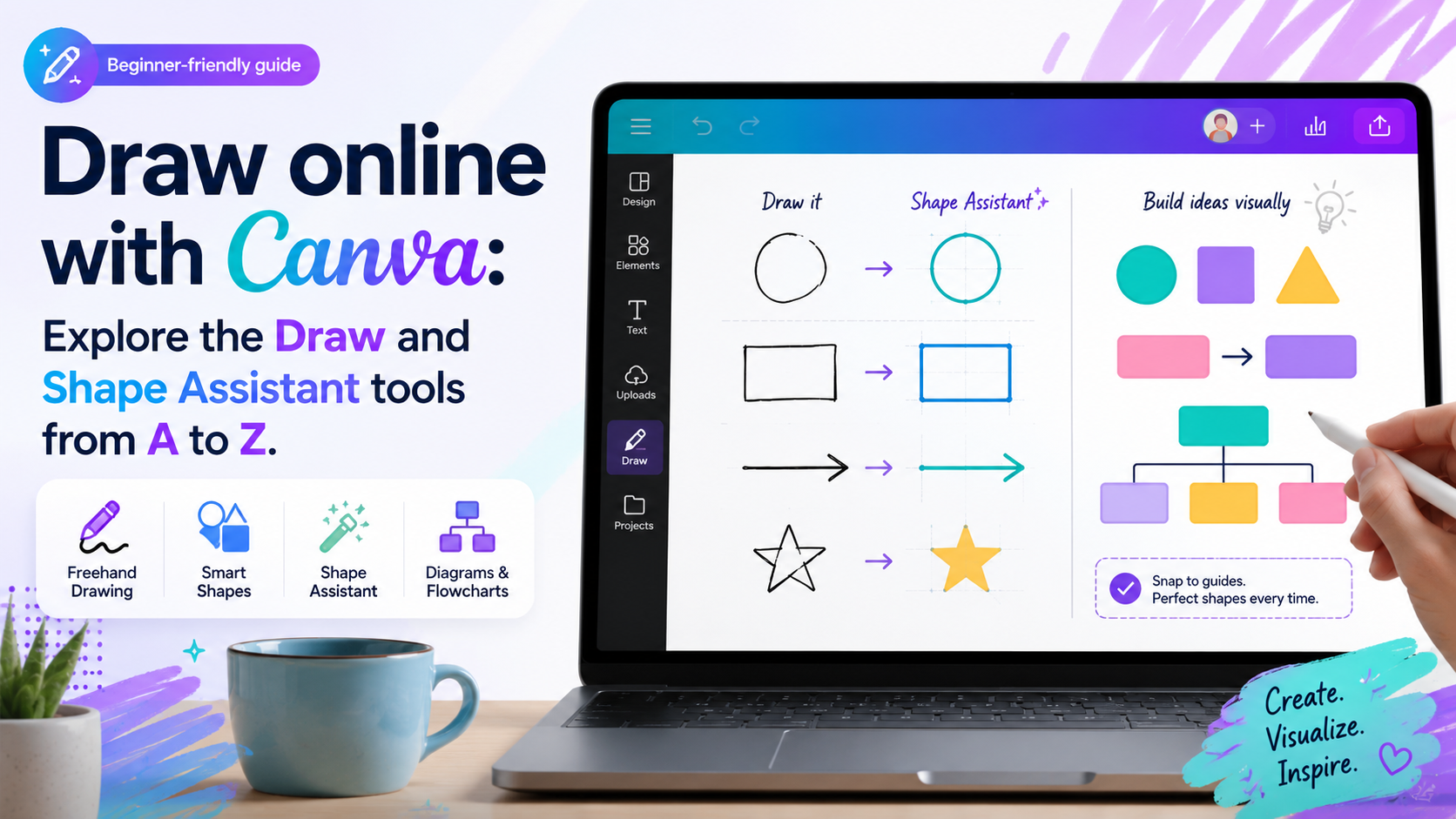
1. What is the Draw tool in Canva?
Draw is an online drawing tool built into Canva, allowing users to freely sketch ideas, write by hand, create illustrations, and add notes directly to any design. You don't need to install additional software or use a dedicated drawing tablet; simply open Canva in your browser or app and start creating immediately.
Draw's standout feature is its seamless integration with the Canva ecosystem. Once you've completed a drawing, you can continue adding text, images, icons, diagrams, or other design elements to create a finished product without switching to other software.
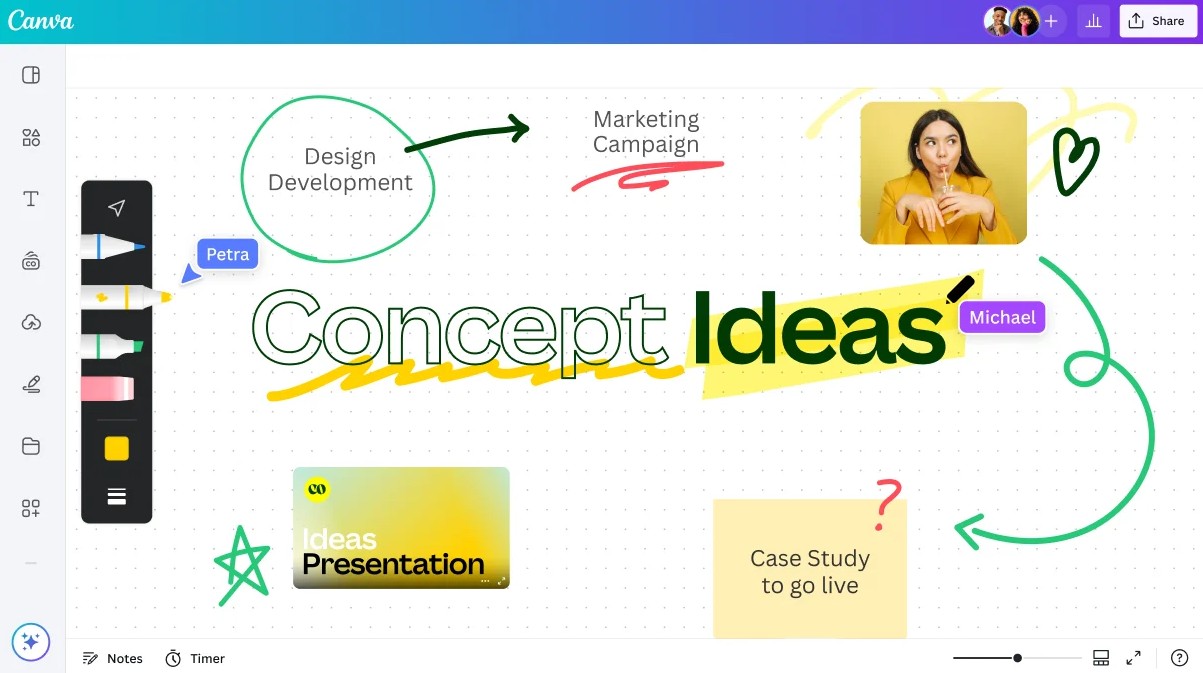
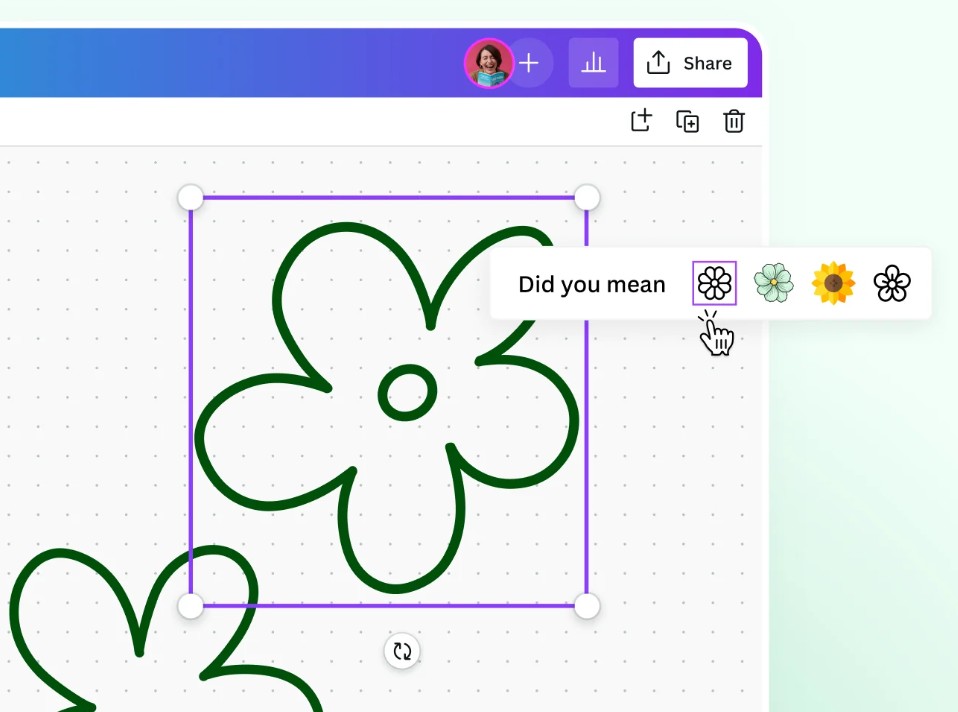
Draw also provides various tools such as markers, highlighters, soft-tip pens, and erasers, while allowing customization of color, stroke thickness, and easy resizing or copying of drawings. In particular, the Shape Assistant feature can automatically recognize hand-drawn strokes and convert them into standard shapes, helping to create diagrams, flowcharts, and charts quickly and professionally.
In addition to serving personal design needs, Draw also supports effective collaboration. You can highlight, annotate, or mark up directly on your design to share with colleagues. The tool works on computers, tablets, and phones, making it easy to sketch ideas and edit designs anywhere.
2. Unleash your creativity with the Draw tool.
Canva created Draw to help people easily express their ideas in the most natural way possible.
2.1. Add a personal touch to the design.
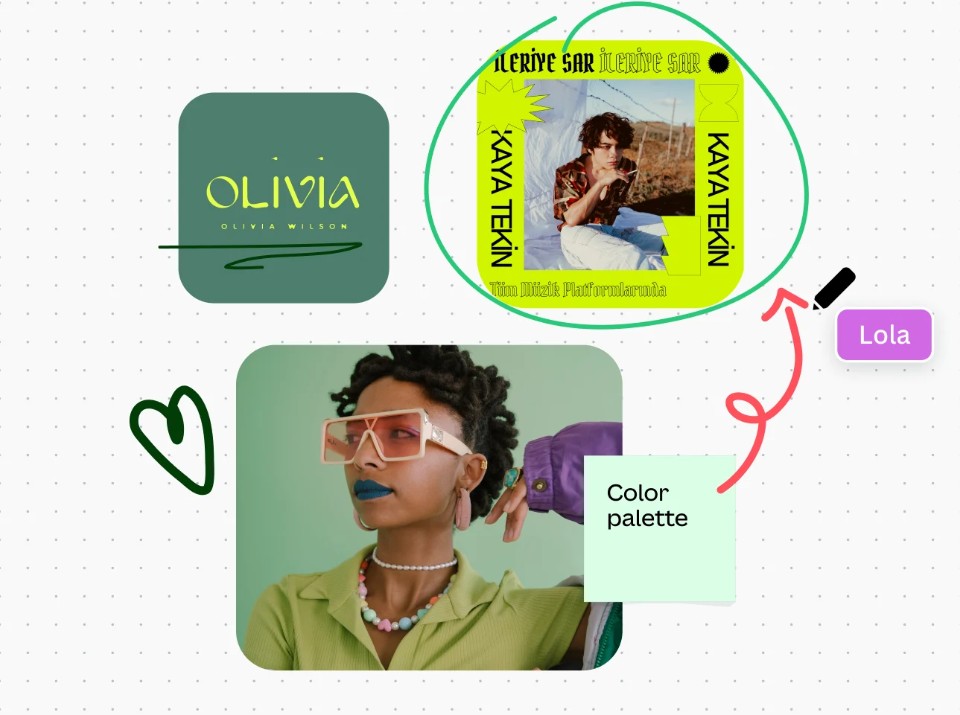
The Draw tool lets you draw, sketch, and write directly on any design. With just a single toolbar, you can highlight ideas in presentations, illustrate concepts in mind maps, or add creative touches to social media posts.
Using hand-drawn illustrations makes the design more intimate, unique, and personal compared to pre-made illustrations.
2.2. All necessary tools are available.
Draw offers a variety of pens, including felt-tip pens, markers, fine-tip pens, and erasers. Once you've selected a pen, you can easily adjust the color and thickness of the strokes to suit your design style.
For example, when you want to highlight an important point in a presentation, you can use a yellow highlighter. If you need to sketch out a new product idea, a soft-tipped pen will give a more natural feel.
2.3. Easy to edit after drawing.
Unlike drawing on paper, every stroke in Canva is treated as a separate graphic element. You can resize, color, copy, or move the drawing to any location in your design without having to redraw it from scratch.
This saves a lot of time when editing or reusing illustrations across multiple projects.
3. Quickly sketch out ideas with Shape Assistant
One of Draw's most outstanding features is its Shape Assistant : an intelligent shape recognition assistant.
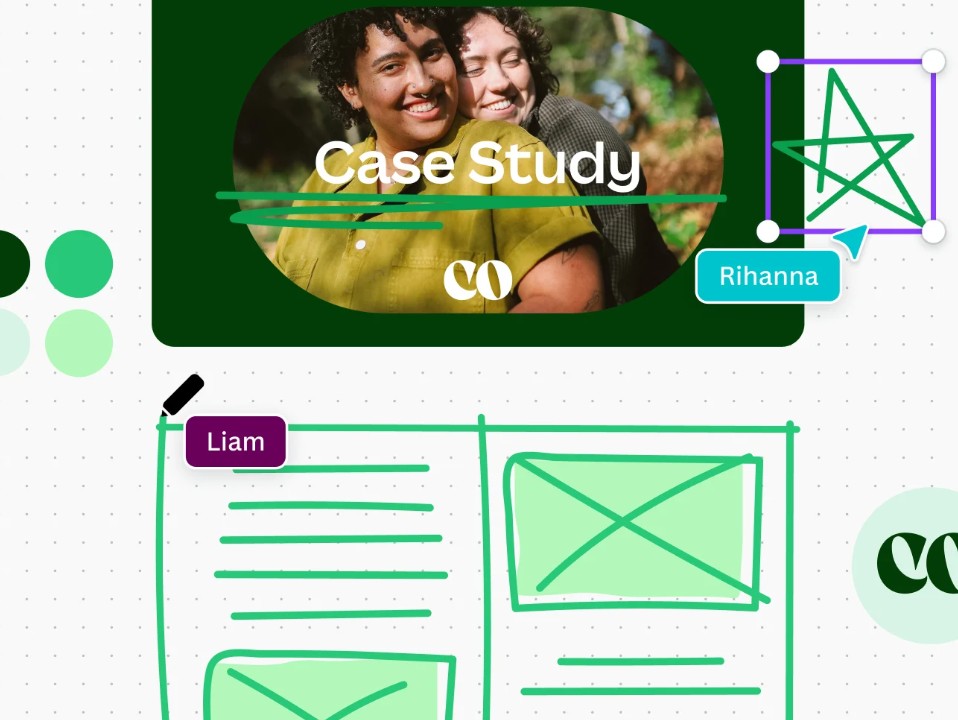
When you draw a straight line, circle, square, or other basic shapes, simply hold the pen down for about a second after you finish, and Canva will automatically recognize and convert the stroke into the correct shape.
This feature is especially useful when creating process diagrams, charts, flowcharts, or mind maps. Instead of spending a lot of time aligning each straight line or right angle, Shape Assistant helps all shapes become balanced in just seconds.
After converting it to a standard image, you can still continue to edit the colors, borders, or combine it with other elements in Canva to finalize your design.
4. Take notes and collaborate effectively across all devices.
Besides serving creative purposes, Draw is also a very effective tool for teamwork.
You can quickly circle content that needs editing, underline important points, or write notes directly on the design, just like you would with pen and paper.

When sharing a project with colleagues, everyone can view these notes to better understand the changes that need to be made. This significantly reduces the time spent exchanging emails or messages.
In particular, the Draw tool works across all Canva platforms. Whether you're using a computer, tablet, or smartphone, you can continue drawing, editing, and taking notes without interruption. This is very convenient for teachers, students, designers, or remote work teams.
5. Boost your creativity with Sketch to Graphic and its practical applications.
Canva is also developing a Sketch to Graphic feature in its Draw tool. This feature will allow users to sketch an idea with simple lines, and then the AI will suggest suitable graphics to replace or supplement it.
This significantly reduces the time spent searching for icons, illustrations, or graphics in the Canva library.
In addition, Draw is suitable for a wide range of users.
For students, this tool helps develop creativity through mind mapping, note-taking, or illustrating lessons.
For teachers, Draw supports the creation of online whiteboards and the organization of brainstorming sessions right in the classroom with the ability to synchronize content.
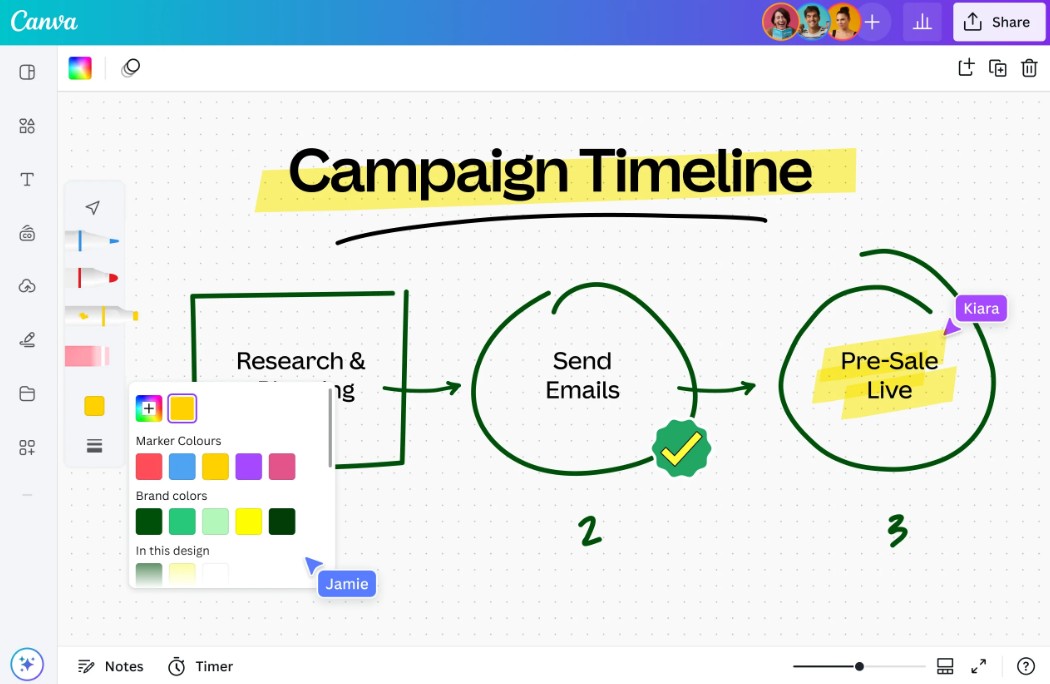
For businesses and professionals, this is an ideal tool for building workflows, outlining project ideas, and communicating with team members through visual drawings.
6. Detailed instructions on how to sketch ideas using the Draw tool in Canva.
To use the Draw tool in Canva, follow the steps below.
Step 1: Create a new project
Access Canva and log in to your account.
On the homepage, click Create Design .
Choose the design type that suits your needs, such as Whiteboard, Poster, Presentation, Document, or any other format.
Canva will open the editor corresponding to the size you have selected.
Step 2: Choose a template or create a design from scratch.
You can search for a ready-made template in the Canva library or start with a completely blank page.
If you want to create a new mind map or sketch, use a blank page to have more creative space.
Step 3: Use the Draw tool
In the toolbar on the left, open Draw .
Choose a suitable type of pen, such as a felt-tip pen, highlighter, or soft-tipped pen.
Next, adjust the colors and line thickness, and begin sketching directly on the design page.
If you want to create a professional diagram, draw the basic shapes and then hold the pen down for about a second so that Shape Assistant can automatically convert them into the complete shape.
Next, add shapes, connectors, icons, text, or other elements from the Canva library to complete the diagram or drawing.
Step 4: Collaborate and Edit
If working in a team, click Share and grant editing permissions to colleagues.
Everyone can collaborate, add notes, or edit designs in real time.
You can also add comments to explain each part of the sketch.
Step 5: Save and share the design
Once completed, you can use the drawing in other Canva projects by copying it or saving it to a shared folder.
If you need to publish, select Download and save in formats such as PDF, PNG, or JPG.
Additionally, Canva allows you to create sharing links to send directly to clients, colleagues, or teachers to receive feedback and further refine your ideas.
7. Conclusion
Canva's Draw tool is the ideal solution for those who want to quickly sketch ideas, build diagrams, take notes, or create personalized illustrations. With its intuitive interface, a variety of brushes, flexible editing capabilities, and intelligent Shape Assistant, Canva makes online drawing easier than ever. Combined with real-time collaboration and a rich design ecosystem, Draw is not just a drawing tool but also a powerful assistant in learning, working, and creating content.





















VIP Products








Best Selling Products
Capcut Pro 1 Year
39 USD
Autodesk All App Account Copyright
120 USD
Genuine Cheap Canva Pro
39 USD
Windows 10 & 11 Pro Key
36 USD
Plugin Retouch4me
69 USD
Upgrade Genuine Office 365
49 USD
Upgrade Duolingo Super
29 USD
Freepik Premium Account
59 USD
ChatGPT Plus Account (GPT-4)
16 USD
Genuine Adobe Illustrator account
99 USD
MidJourney Account
29 USD
Adobe Premiere Pro Account
99 USD
Copyright Adobe Lightroom Account
59 USD
Adobe Photoshop Copyright - Full App
120 USD
Upgrade genuine Capture One account
120 USD