Best Selling Products

Copyright Adobe Lightroom Account
59 USD

Autodesk All App Account Copyright
120 USD

Plugin Retouch4me
69 USD

Upgrade Duolingo Super
29 USD

Genuine Adobe Illustrator account
99 USD

Upgrade genuine Capture One account
120 USD

Adobe Premiere Pro Account
99 USD

ChatGPT Plus Account (GPT-4)
16 USD

Windows 10 & 11 Pro Key
36 USD

Capcut Pro 1 Year
39 USD

Adobe Photoshop Copyright - Full App
120 USD

Freepik Premium Account
59 USD

Genuine Cheap Canva Pro
39 USD

MidJourney Account
29 USD

Upgrade Genuine Office 365
49 USD
Create beautiful documents with Canva Docs: A complete guide for beginners.
Nội dung
- 1. Learn about Canva Docs
- 2. Create quick drafts with Magic Write™
- 3. Create engaging multimedia documents
- 4. Real-time online collaboration
- 5. Connect with the entire Canva ecosystem.
- 6. Share and present documents in various ways.
- 7. Who is Canva Docs suitable for?
- 8. Detailed instructions on how to create and edit documents using Canva Docs
- Step 1: Open Canva and create a new document.
- Step 2: Choose a document template
- Step 3: Draft and add content
- Step 4: Collaborate with the team
- Step 5: Share or turn it into a presentation
- 9. Conclusion
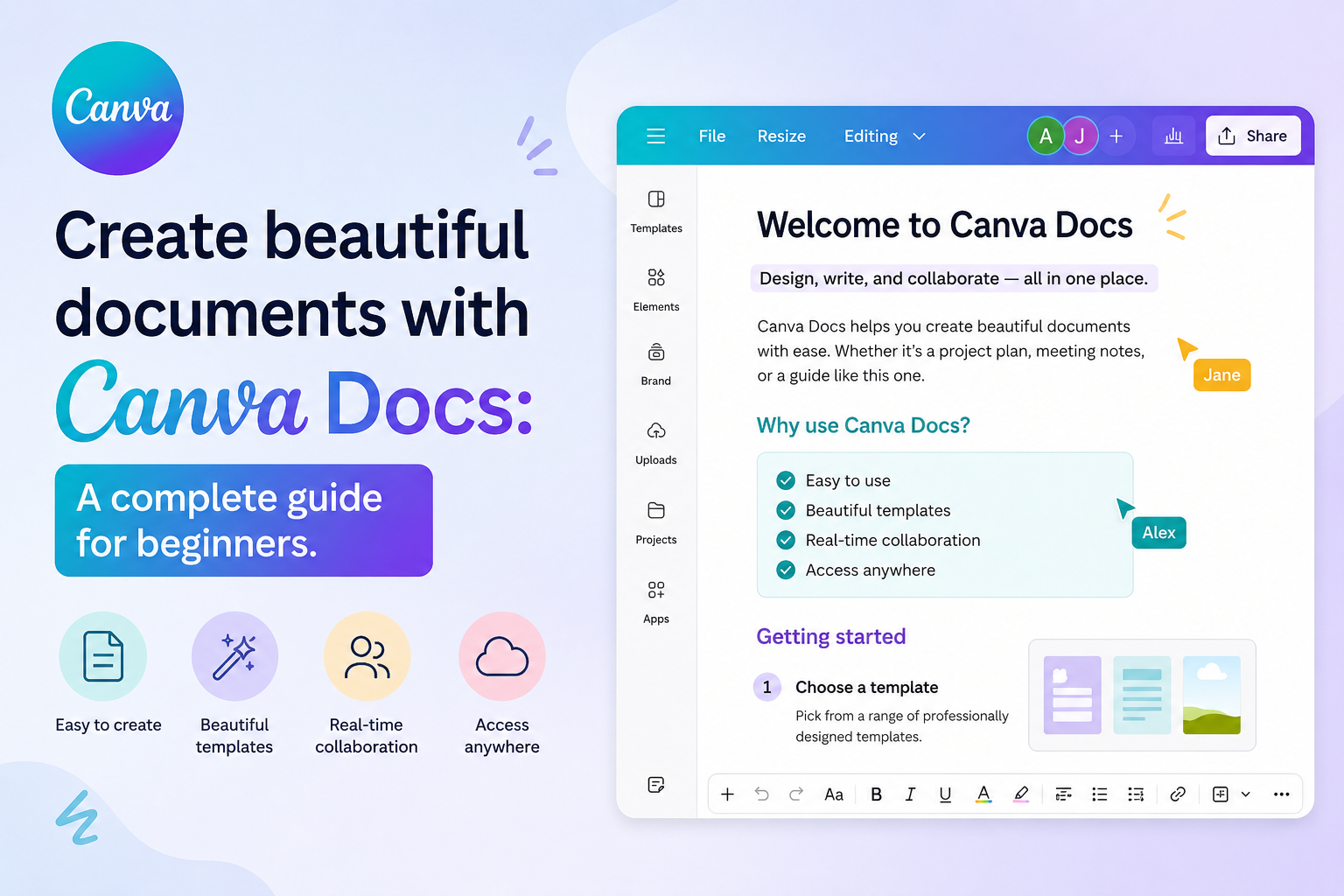
Canva Docs is an online document creator and editor integrated into the Canva ecosystem, seamlessly combining text content and visual design elements.
1. Learn about Canva Docs
Canva Docs is an online document creator and editor integrated into the Canva ecosystem, seamlessly combining text content with visual design elements. Beyond providing familiar editing tools like text input, heading formatting, list creation, tables, and checklists, Canva Docs allows users to insert images, videos, charts, graphs, graphics, and many other visual elements to create dynamic, professional documents.
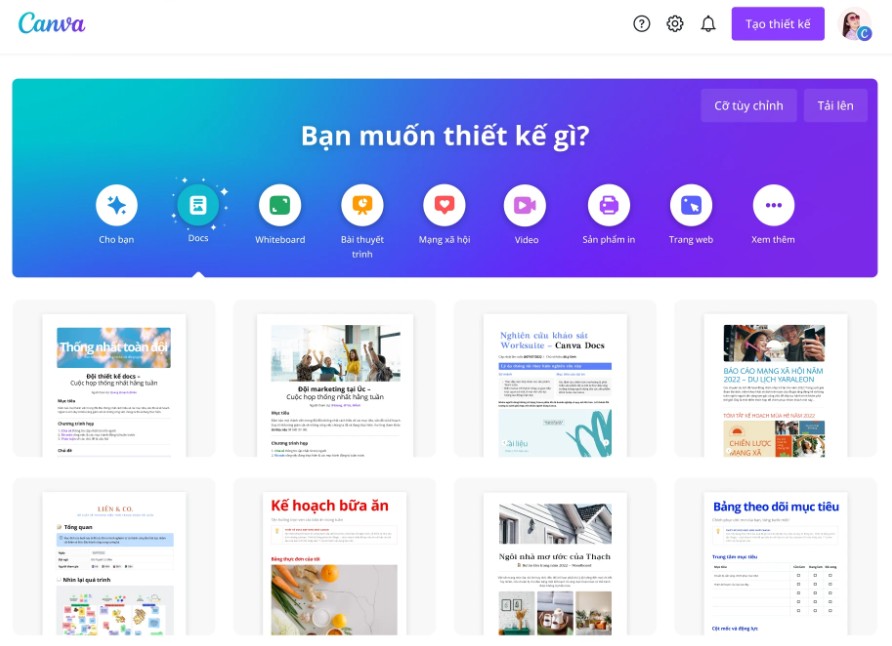
Unlike traditional word processors, Canva Docs makes it easy to apply brand colors, fonts, effects, and modern layouts to your documents. You can also embed Canva designs such as presentations, infographics, banners, or social media posts directly within your documents without switching between applications. This is especially useful when creating reports, project plans, training materials, lesson plans, or any documents that need to convey information visually.
In addition, Canva Docs integrates AI tools like Magic Write™ to support quick idea generation and draft creation, and allows multiple people to edit in real time. Thanks to its simple drag-and-drop interface, flexible collaboration capabilities, and synchronization across computers, phones, and tablets, Canva Docs helps users create and manage documents efficiently without requiring advanced design skills.
2. Create quick drafts with Magic Write™
One of Canva Docs' highlights is its Magic Write™ tool – an AI-powered content writing assistant from OpenAI.
Simply enter a brief request, and Magic Write™ can suggest ideas, build outlines, or create entire drafts for various document types such as articles, communication plans, job descriptions, meeting minutes, or social media content.
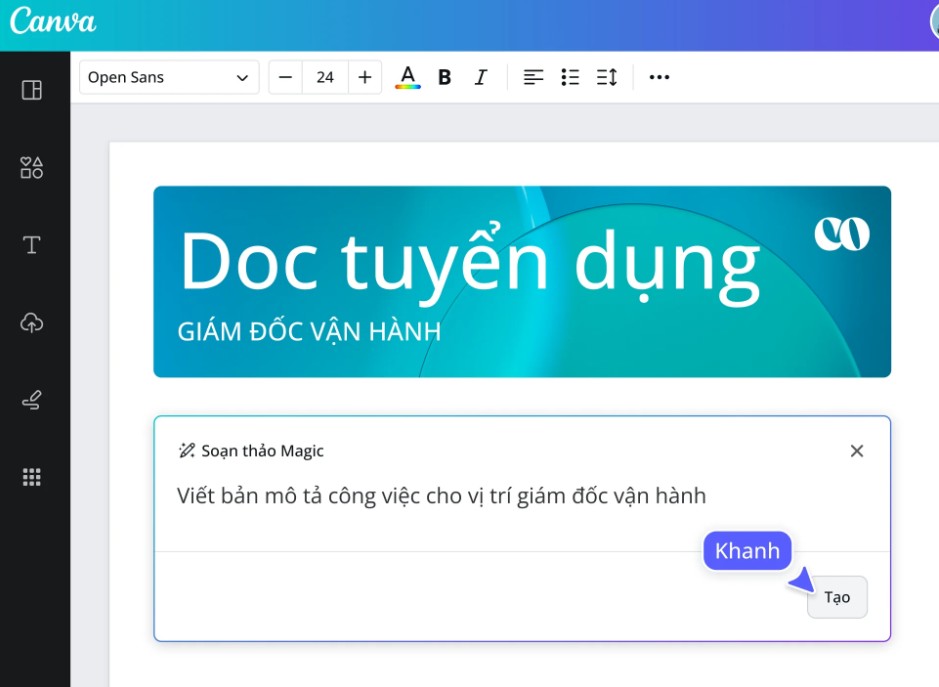
If you want AI to write in your own style, you can upload sample texts for Magic Write™ to analyze your writing style. This style can then be saved and applied to future content creations. For businesses, your brand voice can also be saved in the Brand Kit , allowing all team members to create consistent content with just one click.
Users can experience Magic Write™ for free with a limited number of requests, while Canva Pro will expand the number of uses and offer more advanced AI features.
3. Create engaging multimedia documents
Canva Docs makes documents more visually appealing by integrating various data presentation tools.
You can easily add checklists, tables, charts, graphs, and diagrams to present information clearly, making it easier for readers to follow compared to plain text.
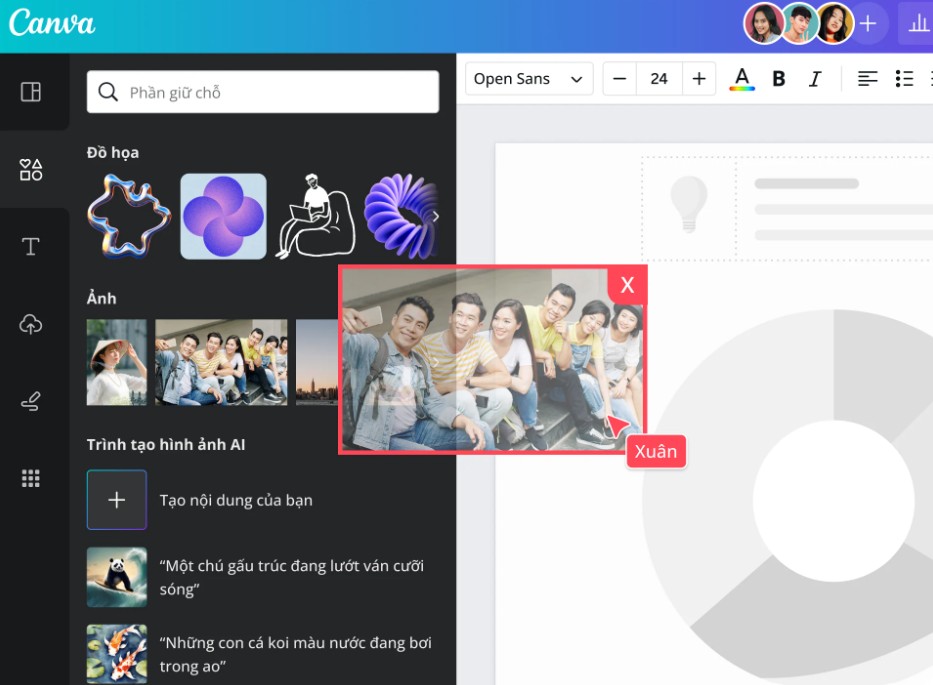
Additionally, Canva's drag-and-drop editor makes adding images, videos, icons, or graphics to documents incredibly simple. You just drag the desired element from the Canva library to the desired insertion point without complicated alignment.
Thanks to its ability to combine text and images, Canva Docs is particularly well-suited for creating reports, proposals, training materials, user manuals, and many other types of visual documents.
4. Real-time online collaboration
Canva Docs is designed to support effective teamwork.
Multiple people can view and edit a document simultaneously in real time. Each member will be displayed with a unique cursor color, making it easy to track who is editing what content.
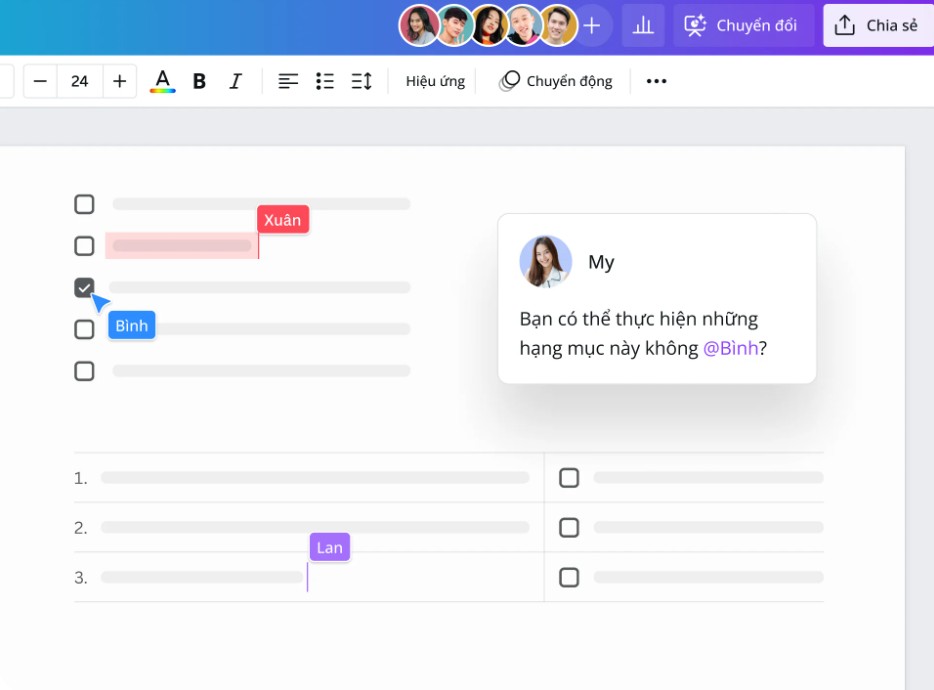
You can also leave comments, tag members, or assign tasks directly in the document. In addition to text, Canva supports the use of emojis and stickers to increase interaction during communication.
Specifically, recipients can participate in editing the document even without a Canva account if they are granted the appropriate permissions.
Canva Docs works on computers, phones, and tablets, making it easy to view, edit, or collaborate anywhere.
5. Connect with the entire Canva ecosystem.
One of the biggest advantages of Canva Docs is its ability to connect with any design within Canva.
You can embed presentations, social media posts, banners, infographics, illustrations, or other designs directly into your document without having to download and re-upload them.

All documents, images, and designs are stored on a single platform, eliminating the need for users to switch between different applications during their workflow.
Additionally, Canva Docs supports many extensions such as Bitmoji, GIPHY, and other utilities, allowing you to add animations, characters, or visual content to your documents with just a few taps.
6. Share and present documents in various ways.
Once the document is complete, Canva offers several flexible sharing options.
You can create online links that allow viewers to read the document in a scrolling format, just like a webpage. This provides a more modern and convenient experience compared to traditional file submission.
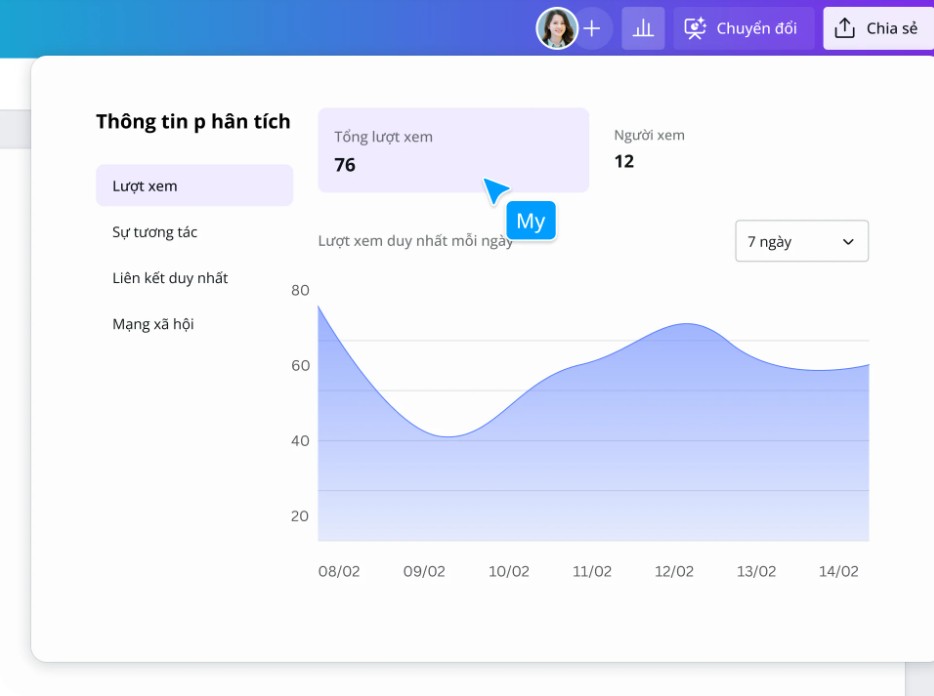
Canva also supports integration with Analytics tools to track viewer engagement, such as who opened the document and when they accessed it.
If you need to give a presentation, simply use the Docs to Decks feature to convert your Canva Docs into a Canva presentation in seconds. All your content will be arranged into professional slides without needing to redesign anything from scratch.
7. Who is Canva Docs suitable for?
Canva Docs is built to meet the needs of a wide range of users.
Businesses can use it to build training materials, OKRs, onboarding guides, workflows, or internal reports.
Marketing and sales teams can create communication strategies, sales plans, proposals, or financial reports with visual representations.
In education, Canva Docs helps teachers design more engaging lesson plans, learning materials, assignments, and notes, thereby increasing student engagement.
For individuals, this is a useful tool for creating to-do lists, journals, study plans, tracking habits, or documents for daily work.
8. Detailed instructions on how to create and edit documents using Canva Docs
Step 1: Open Canva and create a new document.
Access Canva on your web browser, desktop app, or phone.
In the search box on the homepage, enter the keyword "Docs" or "Documents ," then select "Canva Docs" to start a new project.
Step 2: Choose a document template
In the Canva Docs interface, you can choose a pre-designed template or click Blank Doc to create a document from a blank page.
The available templates are suitable for a variety of purposes such as reports, project plans, lesson plans, proposals, notes, or business documents.
Step 3: Draft and add content
Enter the content as you would in a regular text editor.
Next, customize the font, color, line spacing, and heading formatting.
You can also insert images, videos, charts, tables, emojis, or design elements from the Canva library to make your document more visually appealing.
If you need help writing content, use Magic Write™ to create drafts or get idea suggestions.
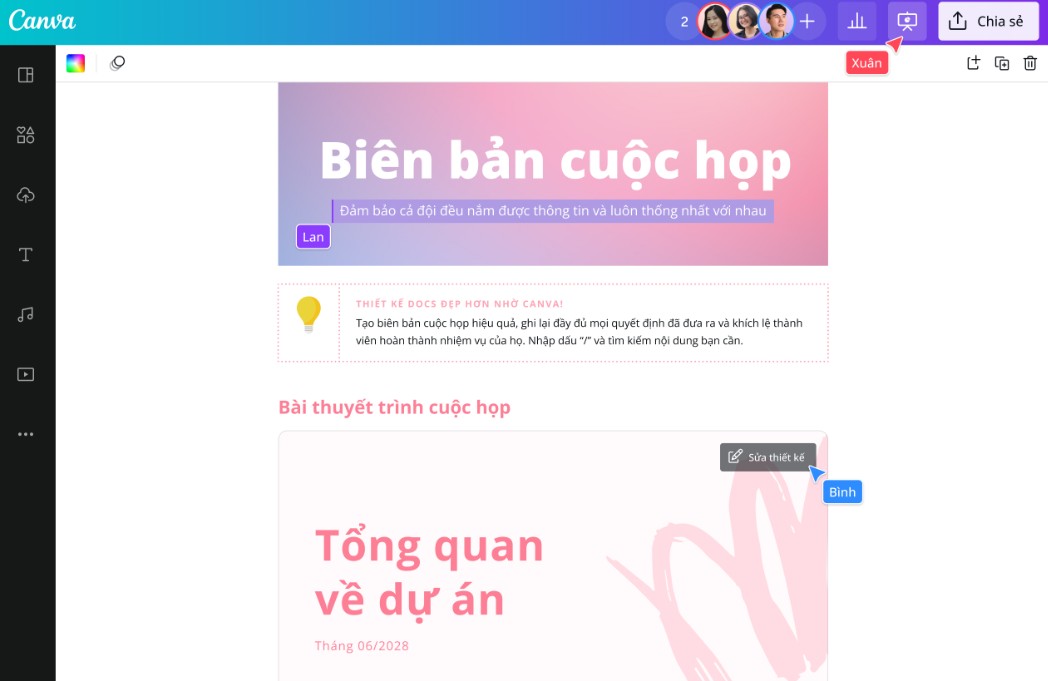
Step 4: Collaborate with the team
Click Share and grant viewing or editing permission to your colleagues.
All members can edit simultaneously, leave comments, or assign tasks directly in the document.
Step 5: Share or turn it into a presentation
Once completed, you can copy the link to share the document online.
If you need to create a presentation, select Convert to a presentation (Docs to Decks) to have Canva automatically generate slides from your existing content.
Additionally, you can download documents or continue editing them within the Canva ecosystem at any time.
9. Conclusion
Canva Docs is more than just an online word processor; it's a platform that seamlessly integrates content with design. Thanks to its ability to integrate images, videos, charts, AI Magic Write™ tools, real-time collaboration, and the ability to transform documents into presentations with just a few clicks, Canva Docs delivers a modern, intuitive, and efficient workflow. Whether you're an individual, a teacher, a business, or a content creation team, Canva Docs makes creating and editing documents faster, more professional, and more inspiring.





















VIP Products








Best Selling Products
Copyright Adobe Lightroom Account
59 USD
Autodesk All App Account Copyright
120 USD
Plugin Retouch4me
69 USD
Upgrade Duolingo Super
29 USD
Genuine Adobe Illustrator account
99 USD
Upgrade genuine Capture One account
120 USD
Adobe Premiere Pro Account
99 USD
ChatGPT Plus Account (GPT-4)
16 USD
Windows 10 & 11 Pro Key
36 USD
Capcut Pro 1 Year
39 USD
Adobe Photoshop Copyright - Full App
120 USD
Freepik Premium Account
59 USD
Genuine Cheap Canva Pro
39 USD
MidJourney Account
29 USD
Upgrade Genuine Office 365
49 USD